> For the complete documentation index, see [llms.txt](https://kb.logicerp.com/llms.txt). Markdown versions of documentation pages are available by appending `.md` to page URLs; this page is available as [Markdown](https://kb.logicerp.com/logic-erp-learning-hub-tutorials-and-best-practices/setups/configurations/sale-voucher-configuration/other-settings-1/other-settings/defaults-1/bill-to-party-as.md).
# Bill to Party As
**YouTube:** [How to Configure the “Bill To Party As” Option in Sale Bill?](https://www.youtube.com/watch?v=rUJnXiNzglI)
## How to Configure the “Bill To Party As” Option in Sale Bill?
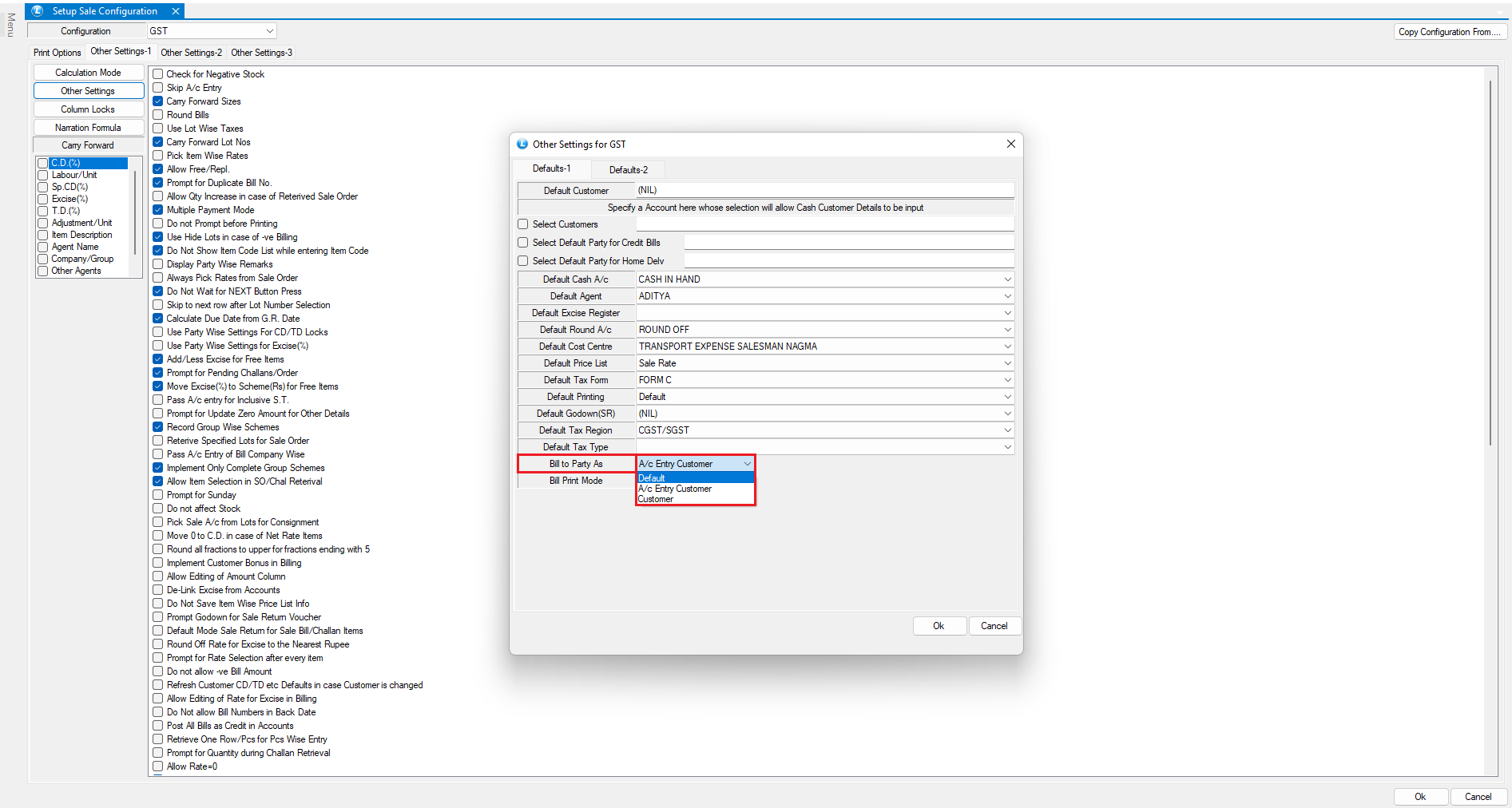
In this tutorial, we'll explore the **"Bill to Party As"** option in Logic ERP—an important configuration that determines **how and where the bill amount is posted in the customer ledger**.
***
### **Access Sales Voucher Configuration**
* Open the **Sales Voucher Configuration** window.
* Select the **relevant billing series**.
* Under **"Other Settings - 1"**, click on **"Other Settings"**.
* Then navigate to **"Defaults - 1"**.
* Locate the option labeled as:
> **"Bill to Party As"**
* which offers **three different modes** of customer ledger posting.
* Default
* A/c Entry Custome
* Customer
* Let’s go through them one by one:
***
### **Bill to Party As: "Default"**
This mode uses the **predefined default customer account** to post credit entries automatically.
**Example:**
* Create a sale bill
* Enter items and move to **Payment screen**
* Enter ₹1,000 as **Credit** and the rest as **Cash**
* Save the voucher
**Check Journal Report:**
* The system posts the ₹1,000 credit to the **default customer account** defined in the configuration.
**Use Case:** When the business wants consistent posting to one master account for all retail sales.
***
### **Bill to Party As: "A/c Entry Customer"**
This option ensures that the credit amount is posted to the **Account Entry Customer** selected during billing—not the retail customer on the screen.
**Example:**
* On the billing screen:
* Select an **A/c Entry Customer**
* Then select a **Retail Customer**
* Complete the bill and save
**Check Journal Report:**
* The system posts the credit to the **Account Entry Customer** only.
**Use Case:** Useful when you bill to walk-in customers but want credit to go to a corporate/centralized account.
***
### **Bill to Party As: "Customer"**
In this mode, the credit is directly posted to the **Retail Customer** selected on the billing screen—**ignoring any other account settings**.
**Example:**
* Select a **Retail Customer**
* Complete the billing as usual
**Check Journal Report:**
* The system posts the credit directly to the selected **Retail Customer** account.
**Use Case:** When businesses need transaction-level tracking for each customer individually.
***
### Summary Table
| Option | Credit Posted To | Best For |
| -------------------------- | ------------------------------ | ------------------------------------------- |
| **Default** | Predefined Customer Account | Common ledger for all transactions |
| **Account Entry Customer** | Account Entry selected in bill | B2B or credit sales to head office accounts |
| **Customer** | Retail Customer on screen | Retail or loyalty-based customer billing |
---
# Agent Instructions
This documentation is published with GitBook. GitBook is the documentation platform designed so that both humans and AI agents can read, navigate, and reason over technical content effectively. Learn more at gitbook.com.
## Querying This Documentation
If you need additional information that is not directly available in this page, you can query the documentation dynamically by asking a question.
Perform an HTTP GET request on the current page URL with the `ask` query parameter, and the optional `goal` query parameter:
```
GET https://kb.logicerp.com/logic-erp-learning-hub-tutorials-and-best-practices/setups/configurations/sale-voucher-configuration/other-settings-1/other-settings/defaults-1/bill-to-party-as.md?ask=&goal=
```
`ask` is the immediate question: it should be specific, self-contained, and written in natural language.
`goal` is optional and describes the broader end goal you are ultimately trying to accomplish on behalf of the user. GitBook uses it to tailor the answer towards what is most useful for that goal.
The response will contain a direct answer to the question and relevant excerpts and sources from the documentation.
Use this mechanism when the answer is not explicitly present in the current page, you need clarification or additional context, or you want to retrieve related documentation sections.