> For the complete documentation index, see [llms.txt](https://kb.logicerp.com/llms.txt). Markdown versions of documentation pages are available by appending `.md` to page URLs; this page is available as [Markdown](https://kb.logicerp.com/logic-erp-learning-hub-tutorials-and-best-practices/user-access/logic-global-admin/pos-options/pos-options-1/allow-gift-voucher-creation-from-within-billing.md).

# Allow Gift Voucher Creation from within Billing

YouTube: [How to Allow Gift Voucher Creation Directly from Sale Bill?](https://www.youtube.com/watch?v=g3FvALOIY20)

## How to Allow Gift Voucher Creation Directly from Sale Bill?

In this tutorial, we’ll guide you through the process of enabling and using the Gift Voucher creation feature directly from the billing screen in Logic ERP Software. This feature allows you to quickly create gift vouchers during billing, making it easier to provide discounts or store credits to customers without switching screens.

***

### Access Global Settings in Logic Admin

* Open **Logic Admin**.
* Navigate to **Global Settings**.
* Under the **POS Options**, go to the **POS 1** section.
* Locate and enable the option labeled as:&#x20;

  > **Allow gift voucher creation from within the billing**

<figure><img src="/files/8at5C4jOg17pUAUBUAEU" alt=""><figcaption><p>Let's proceed with this option turned on to understand its practical implications in Voucher entry.</p></figcaption></figure>

* Click **Save** and **restart the software** to apply the changes.

***

### Create a Gift Voucher During Billing

* Navigate to the **Sale Bill – Touch Screen** window.
* Start a regular **Sale Transaction**.
* On the **Payment Screen**, choose **Gift Voucher** as the mode of payment.
* Click on **New Gift Voucher**.

<figure><img src="/files/yxXHkXfv5vRmUstZLnIS" alt=""><figcaption><p>As shown in the picture, click on <strong>New Gift Voucher</strong>.</p></figcaption></figure>

***

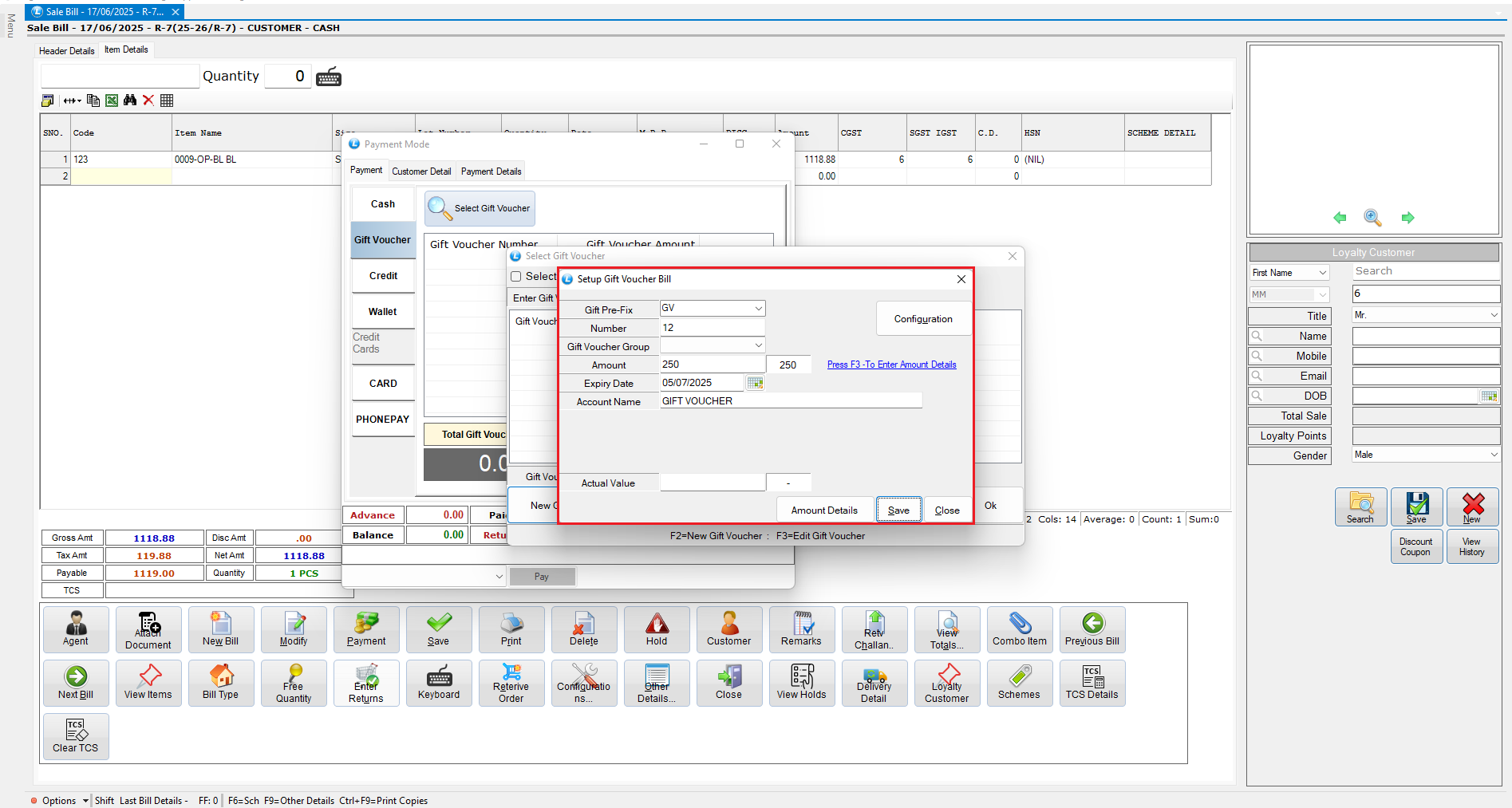
### Fill the Required Gift Voucher Details

As soon as you click on **New Gift Voucher**, a window will appear where you need to fill in the required details, as shown below:

* **Gift Voucher Prefix**
* **Voucher Number**
* **Expiry Date**
* **Voucher Amount**
* **Default Account**

<figure><img src="/files/egUeQgPClvyWY6L1X55A" alt=""><figcaption><p>As shown in the picture, the Gift Voucher window is open—enter details as needed.</p></figcaption></figure>

After entering the details, click **Save**.

***

### Use the Voucher for Payment

* The newly created voucher is now available.
* It can be used immediately as a **mode of payment settlement** for the current bill.

<figure><img src="/files/ZRcWPfJnsq2Gs0KtJymA" alt=""><figcaption><p>As shown in the picture, the newly created voucher is now available and can be used to settle the current bill.</p></figcaption></figure>

***

This feature simplifies the gift voucher process by allowing real-time creation and usage directly from the billing interface.


---

# Agent Instructions
This documentation is published with GitBook. GitBook is the documentation platform designed so that both humans and AI agents can read, navigate, and reason over technical content effectively. Learn more at gitbook.com.

## Querying This Documentation
If you need additional information that is not directly available in this page, you can query the documentation dynamically by asking a question.

Perform an HTTP GET request on the current page URL with the `ask` query parameter, and the optional `goal` query parameter:

```
GET https://kb.logicerp.com/logic-erp-learning-hub-tutorials-and-best-practices/user-access/logic-global-admin/pos-options/pos-options-1/allow-gift-voucher-creation-from-within-billing.md?ask=<question>&goal=<endgoal>
```

`ask` is the immediate question: it should be specific, self-contained, and written in natural language.
`goal` is optional and describes the broader end goal you are ultimately trying to accomplish on behalf of the user. GitBook uses it to tailor the answer towards what is most useful for that goal.

The response will contain a direct answer to the question and relevant excerpts and sources from the documentation.

Use this mechanism when the answer is not explicitly present in the current page, you need clarification or additional context, or you want to retrieve related documentation sections.