> For the complete documentation index, see [llms.txt](https://kb.logicerp.com/llms.txt). Markdown versions of documentation pages are available by appending `.md` to page URLs; this page is available as [Markdown](https://kb.logicerp.com/logic-erp-version-release-notes/november-2019/featured/how-to-enable-user-login-in-logic-mobile-pos.md).
# How to Enable User Login in LOGIC Mobile POS?
### Steps to Enable User Login
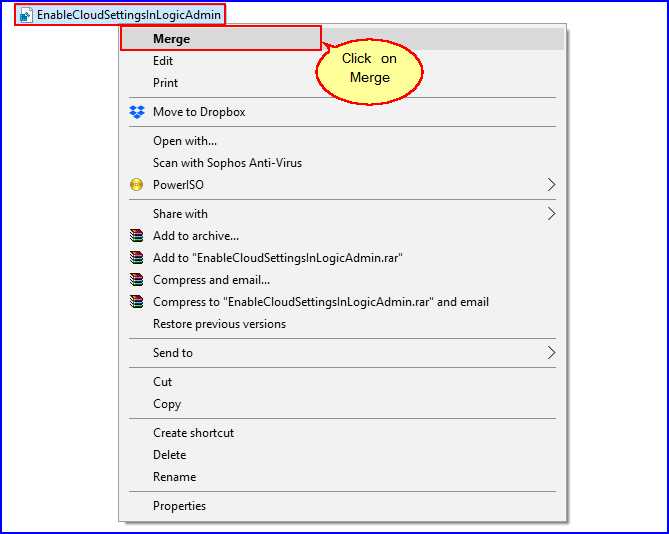
**Step-1** After downloading the ‘EnableCloudSettingsInLogicAdmin’ file, right-click on it and then click on “Merge” option.
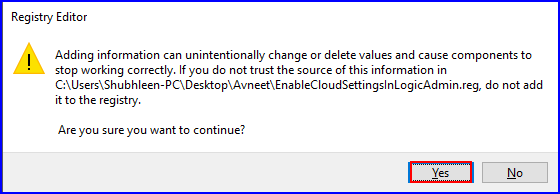
A dialogue box will appear asking your permission to make changes on your device. Click on ‘**Yes**‘ button, and then again click on ‘**Yes**‘ button to continue.
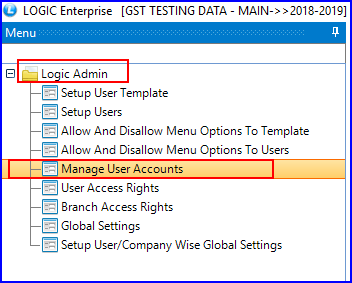
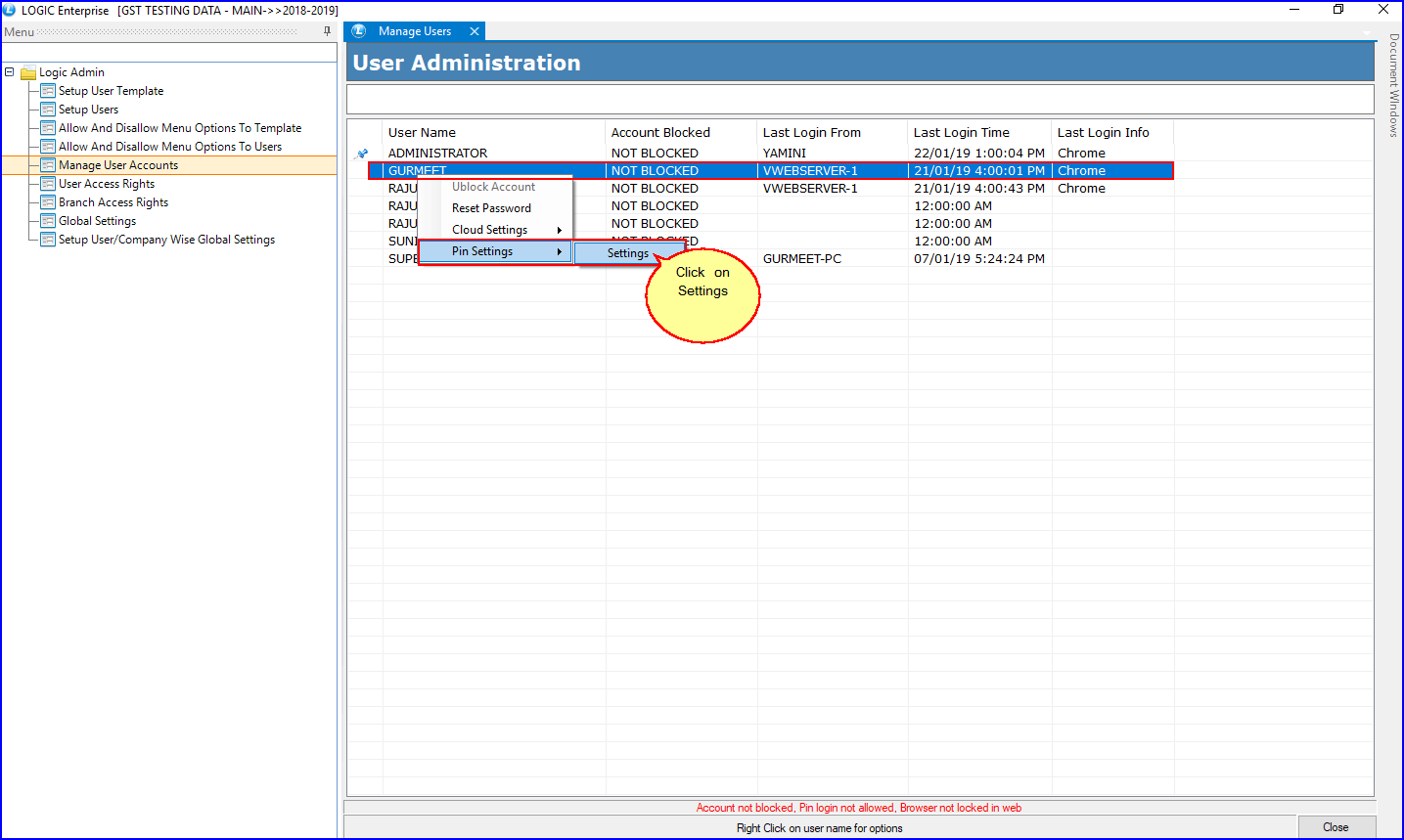
**Step-2** Now, open Logic Admin and click on ‘**Manager User Accounts:**
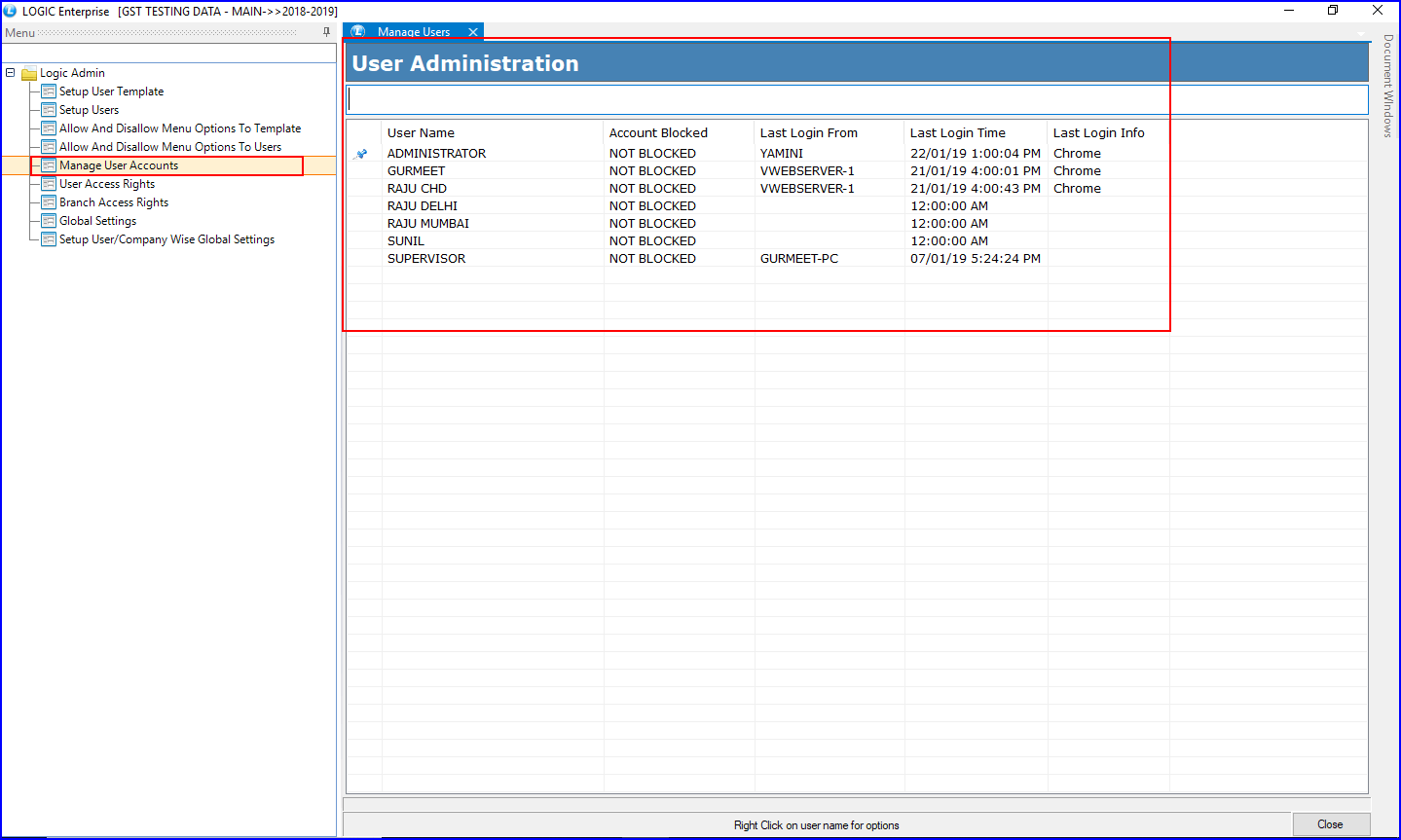
A user Administration window will open, displaying all the user accounts
**Step-3** Right-click on the user for which you want to enable User-Login in LOGIC Mobile POS. Go to **Pin Settings** and select ‘**Settings**‘ option.
**Note:** In case if any user account get blocked, then you can unblock it by clicking on ‘Unblock Account’ option.
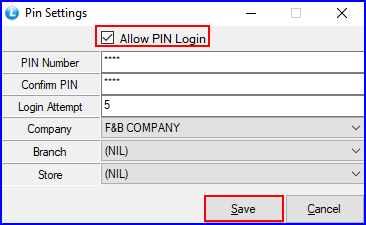
**Step-4** A Pin Settings window will appear. Enable **Allow PIN Login** option. Fill the following details:
**->PIN Number:** Set the PIN number for the user account, and re-enter it in **Confirm PIN** text-box.\
**->Login Attempts:** You can specify the number of times a user can enter the wrong password. If he/she exceeds the limit, the account will get automatically blocked.\
**->Company:** Select the company you want to assign to the user.\
**->Branch:** Select the Branch.\
**->Store:** This option is optional.
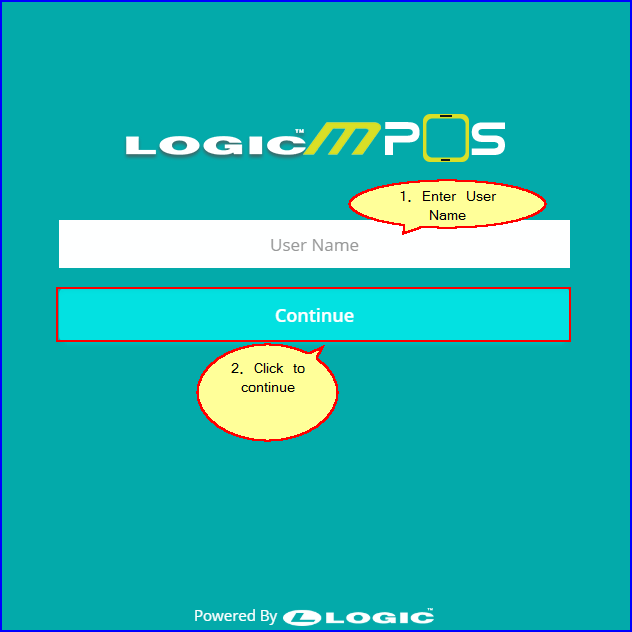
**Step-5** Now, open your Logic Mobile POS in your mobile or PC.
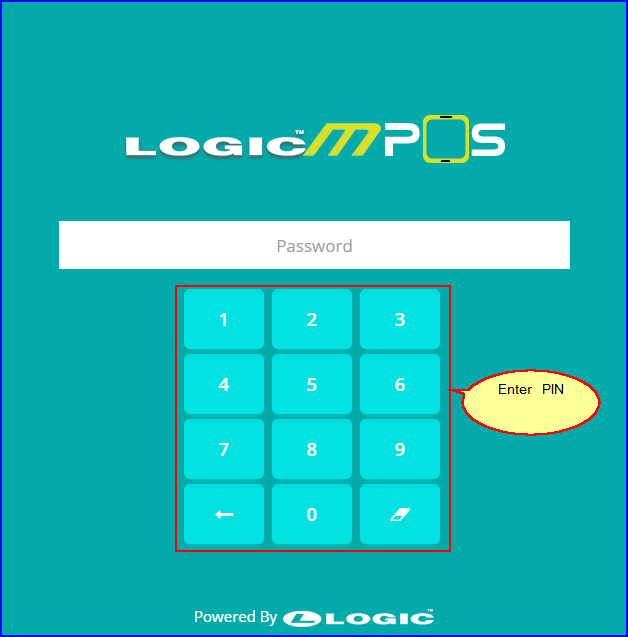
**Step-6** Enter the ‘User Name’ and ‘Password’.
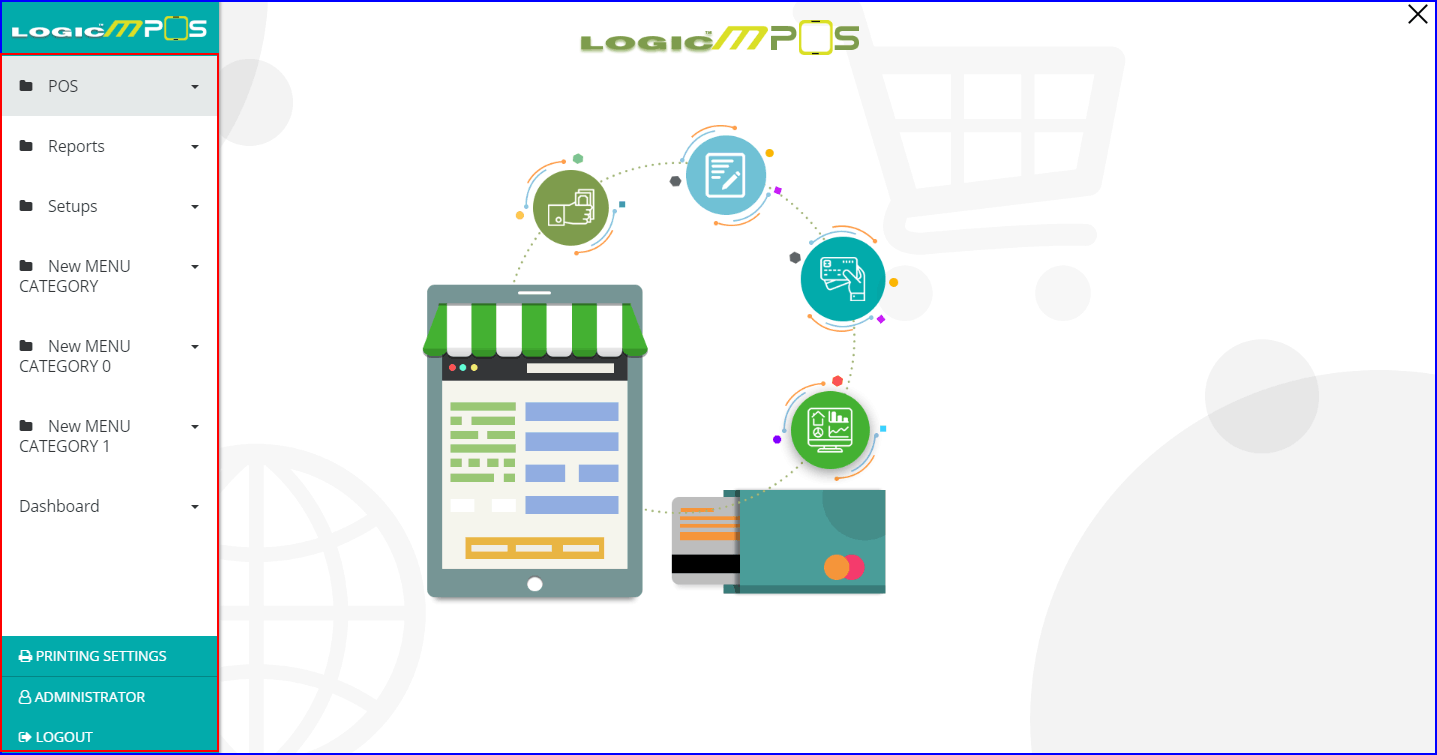
**The following window will appear.**
Note: My Menu will have to be configured for the user. Also, Main Menu will not be visible on Mobile POS.
---
# Agent Instructions
This documentation is published with GitBook. GitBook is the documentation platform designed so that both humans and AI agents can read, navigate, and reason over technical content effectively. Learn more at gitbook.com.
## Querying This Documentation
If you need additional information that is not directly available in this page, you can query the documentation dynamically by asking a question.
Perform an HTTP GET request on the current page URL with the `ask` query parameter, and the optional `goal` query parameter:
```
GET https://kb.logicerp.com/logic-erp-version-release-notes/november-2019/featured/how-to-enable-user-login-in-logic-mobile-pos.md?ask=&goal=
```
`ask` is the immediate question: it should be specific, self-contained, and written in natural language.
`goal` is optional and describes the broader end goal you are ultimately trying to accomplish on behalf of the user. GitBook uses it to tailor the answer towards what is most useful for that goal.
The response will contain a direct answer to the question and relevant excerpts and sources from the documentation.
Use this mechanism when the answer is not explicitly present in the current page, you need clarification or additional context, or you want to retrieve related documentation sections.