> For the complete documentation index, see [llms.txt](https://kb.logicerp.com/llms.txt). Markdown versions of documentation pages are available by appending `.md` to page URLs; this page is available as [Markdown](https://kb.logicerp.com/logic-erp-version-release-notes/november-2020/billing/tcs-entry-in-sale-bill.md).
# TCS Entry in Sale Bill
This tutorial will guide you to the process of entering **TCS** details and its calculations at the time of billing in **Logic ERP.**
#### Setting & Allocating TCS Type
**Step-1:** Go to the **Setup TCS Type** window to create a new TCS Type as shown in the picture below. Fill all the details and define the amount after which TCS will be in effect.
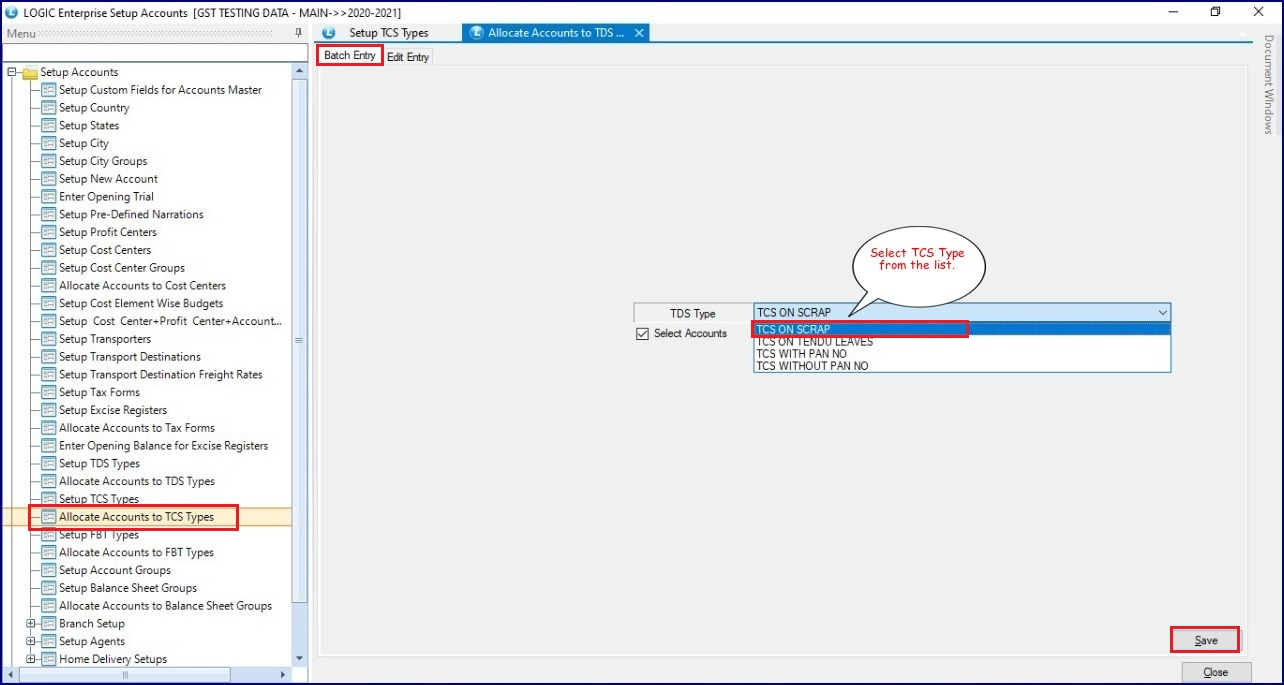
**Step-2:** Now go to **Allocate Accounts to TCS Types** window. There are two modes: **Batch Entry** & **Edit Entry**.
Allocate the **Account name** to the **TCS Type name** as shown in the picture below:
### How does it work in Sale Bill?
There are two ways of managing TCS
1. First way is to calculate TCS at the time of Bill and post TCS in control account. At the time of collection, TCS will be calculated on the receipt amount and posted to the TCS payable account
2. Second way is to directly post the TCS amount to the TCS Payable account and do not calculate at the time of collection
**Step-1** Go to the **Sale Bill** window -> Select Bil Series -> Select the Account name for which you have defined the TCS Type as shown in the steps above. Then click on Item details to generate the bill.
**Step-2** After filling items, click on the TCS Details button. You will see the TCS amount that’s applied to the bill.
***For example***, in this case, the maximum **TCS Effective after Transaction Amount** was defined as Rs. 5000000 in the **Setup TCS Type** window. Now here, the billing amount exceeds Rs. 50 Lakhs i.e., Rs. 65 Lakh. So here, the TCS amount has been applied on the Rs. 15 lakh that got accumulated in the bill after exceeding Rs. 50 lakh amount that was defined in the **Setup TCS Type** window.
The TCS amount will be calculated and added to the field defined for TCS entry in Setup TCS Types (**Its Handing amount in this example**).
The **TCS Payable A/C** will get displayed in the report as shown in the picture below:
**Posting in Cash/Bank vouchers**
If you have configured for calculating TCS at the time of collection then whenever payment is received and total collection from the party for the financial year(or after the date defined in Setup TCS Types) exceeds the defined limit then TCS will be calculated on the amount exceeding the limit and posted to the payable account.
**For example,** if the billing amount exceeds Rs. 50 lakh, then the TCS will be applied at the difference amount. As you can see in the picture above, the total billing amount is Rs. 60 Lakhs. Then,\
Rs.6000000 – Rs.5000000 = Rs. 1000000\
Therefore, the TCS will be applied to Rs.10 Lakh i.e., of Rs.10000, (***as shown in the picture above***).
---
# Agent Instructions
This documentation is published with GitBook. GitBook is the documentation platform designed so that both humans and AI agents can read, navigate, and reason over technical content effectively. Learn more at gitbook.com.
## Querying This Documentation
If you need additional information that is not directly available in this page, you can query the documentation by asking a question.
Perform an HTTP GET request on the following URL with the `ask` and `goal` query parameters:
```
GET https://kb.logicerp.com/logic-erp-version-release-notes/november-2020/billing/tcs-entry-in-sale-bill.md?ask=&goal=
```
`ask` is the immediate question: it should be specific, self-contained, and written in natural language.
`goal` is what the user is ultimately trying to achieve, the reason they need the answer. Sharing it helps GitBook give you a better, more relevant answer. A goal is most helpful when it describes the outcome the user wants rather than restating the question. For example, with `ask=how do I create an API token`, a goal like `automate deployments from our CI pipeline` lets GitBook tailor the answer to that use case.
The response will contain a direct answer to the question and relevant excerpts and sources from the documentation.
Use this mechanism when the answer is not explicitly present in the current page, you need clarification or additional context, or you want to retrieve related documentation sections.