> For the complete documentation index, see [llms.txt](https://kb.logicerp.com/llms.txt). Markdown versions of documentation pages are available by appending `.md` to page URLs; this page is available as [Markdown](https://kb.logicerp.com/logic-erp-version-release-notes/december-2018/billing/new-update-in-setup-sale-voucher-configuration-settings.md).
# New Update in Setup Sale Voucher Configuration Settings
YouTube: [New Update in Setup Sale Voucher Configuration Settings](https://youtu.be/MTZoFOs33dM)
### ‘Lot Free Scheme As’ Option Added in Configuration Settings
A new option added in ‘Sale Voucher Configuration’ for displaying free items or discount percentage in ‘Sale Bill’. You will get the following options in ‘**Lot Free Scheme As**‘ options:
**1.** Free Qty\
**2.** TD\
**3.** CD\
**4.** SPCD
Let us suppose you selected ‘Free Qty’ option. Now, open the Sale Bill window to generate a bill for the Item you selected in [**Purchase Bill**](https://www.logicerp.com/blog/knowledgebase/new-update-in-purchase-voucher-configuration-settings/). Its Total Quantity in purchase bill is 100 and Free Units are 25, which makes its Free Scheme value 25%. When you will enter Total Qty value in Sale Bill, it will automatically update Free Units value.
**For example**, When you enter 125 in Total Qty column attribute, then it will become 100, and Free Units value will become 25. It is because the Free Scheme (%) value is 25
#### Note: The Lot Number assigned to item should be the one you applied the scheme in the Purchase Bill. It is because the Scheme Percentage depends upon Item Name & Lot Number value
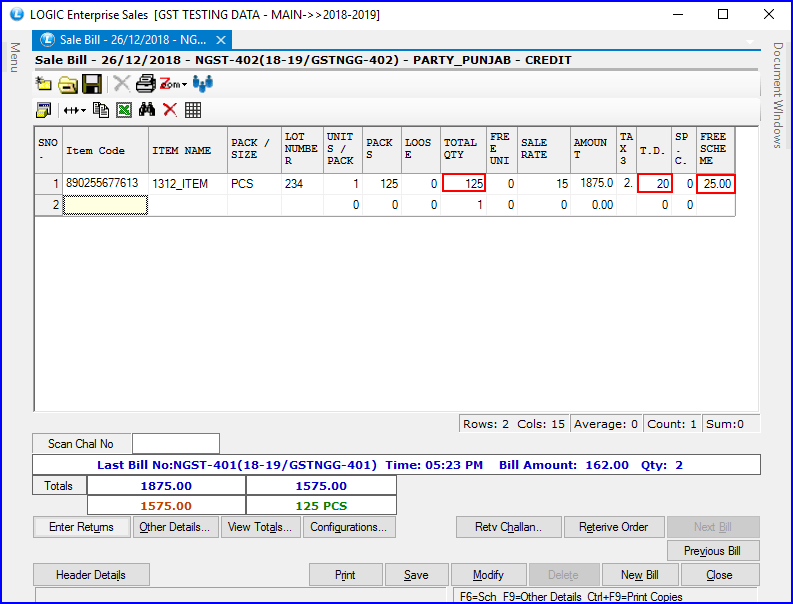
**The following figure shows that the total item amount splits between Total Qty and Free Units**
If you want to display the discount value in percentage, then select any option from TD, CD, or SPCD. Let us suppose you selected ‘TD’ option in the Sale Voucher Configuration settings. Now, generate the Sale Bill for the item as you did earlier. You will notice that the Free Units column attribute is empty, and the value of TD column attribute gets displayed
---
# Agent Instructions
This documentation is published with GitBook. GitBook is the documentation platform designed so that both humans and AI agents can read, navigate, and reason over technical content effectively. Learn more at gitbook.com.
## Querying This Documentation
If you need additional information that is not directly available in this page, you can query the documentation dynamically by asking a question.
Perform an HTTP GET request on the current page URL with the `ask` query parameter, and the optional `goal` query parameter:
```
GET https://kb.logicerp.com/logic-erp-version-release-notes/december-2018/billing/new-update-in-setup-sale-voucher-configuration-settings.md?ask=&goal=
```
`ask` is the immediate question: it should be specific, self-contained, and written in natural language.
`goal` is optional and describes the broader end goal you are ultimately trying to accomplish on behalf of the user. GitBook uses it to tailor the answer towards what is most useful for that goal.
The response will contain a direct answer to the question and relevant excerpts and sources from the documentation.
Use this mechanism when the answer is not explicitly present in the current page, you need clarification or additional context, or you want to retrieve related documentation sections.