> For the complete documentation index, see [llms.txt](https://kb.logicerp.com/llms.txt). Markdown versions of documentation pages are available by appending `.md` to page URLs; this page is available as [Markdown](https://kb.logicerp.com/logic-erp-learning-hub-tutorials-and-best-practices/defining-custom-columns-in-reports-and-grids-with-expressions/dateadd-function.md).
# DateAdd() Function
**YouTube:** [How to Use the DateAdd() Function in Report Custom Columns?](https://www.youtube.com/watch?v=nV83ZdKfumU)
## How to Use the DateAdd() Function in Report Custom Columns?
In this tutorial, we will learn how to use the **`DateAdd`** function to perform **date arithmetic**—like adding months or days to an existing date, such as a bill date.
***
### Accessing the Expression Designer:
* Navigate to the **Reporting** section.
* Open the **Sales Register Detailed Report** or any **"Report".**
* Go to **Setup Column Attributes**.
* Here, you'll see a list of available columns that can be used to build expressions.
* Click on **"Add/Edit Expression Columns"** where you can write your expression using predefined functions.
* Before adding the expression to the report, go to **Other Settings**.
* Ensure the **Script Editor** is set to **VBScript**.
* Click **Save**.
* *Note: VBScript is the default for new configurations but always verify this setting.*
### Writing Your First Expression
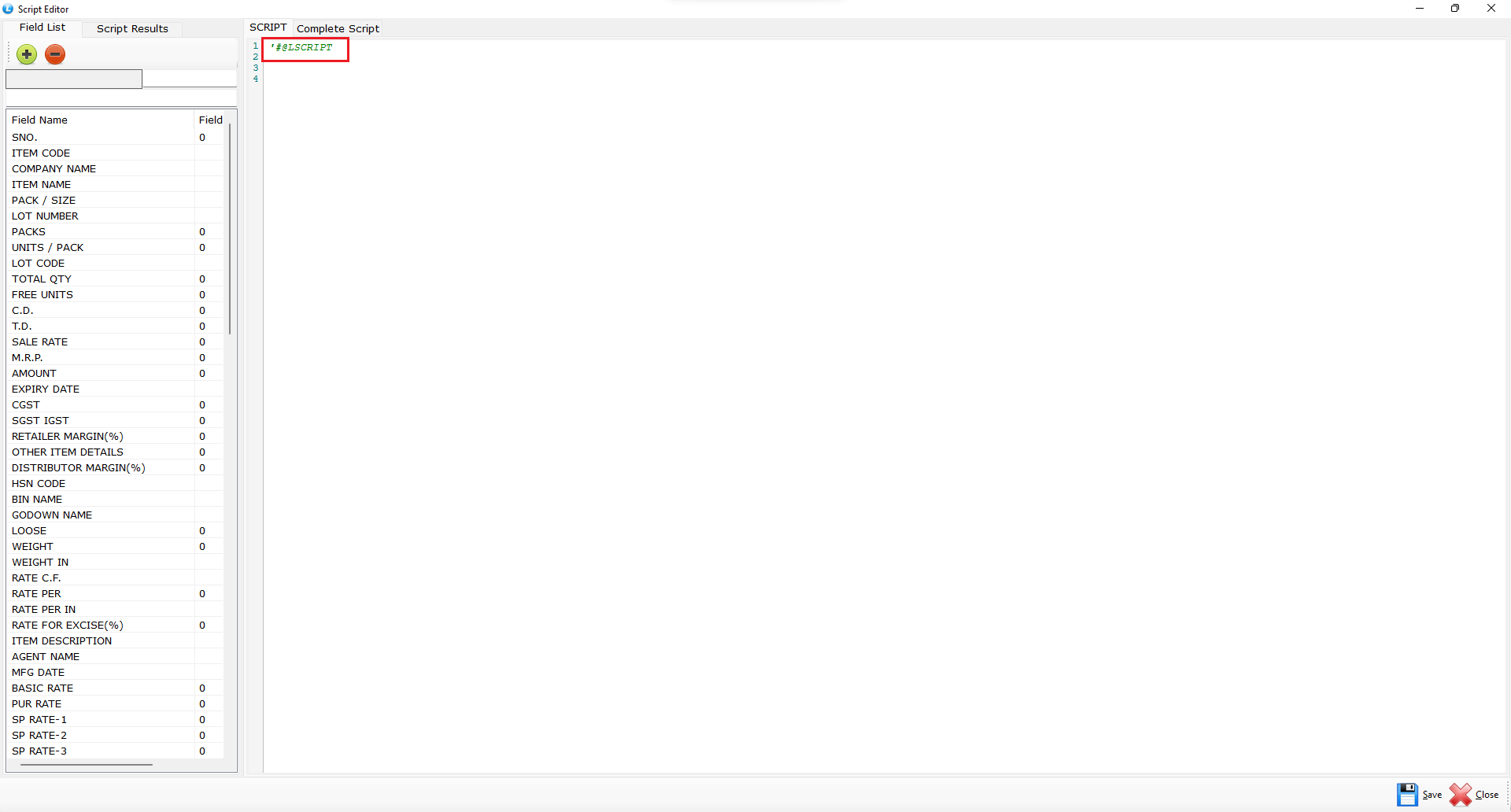
* Every expression must start with the script header: **'#@LSCRIPT**
* Click the (+) Plus icon to create a new expression.
* Fill in the required fields:
* **Expression Name** – A unique name for your expression.
* **Expression Type** – Choose either **Text** or **Numeric** depending on the expected output.
### Creating a Simple DateAdd() Expression
* Double-click the new expression name to insert it into the script editor.
* Define the expression using the syntax:
* **Expression Name** = DATEADD("M",CDATE(BILL\_DATE),4)
* `"M"` → adds months.
* `CDate(BILL_DATE)` → converts the bill date into a valid date format.
* `4` → number of months to add.
* Save the expression once defined.
* Scroll down and **check the box** beside the expression name to enable it.
* Save and proceed to check the effect.
* **Refresh the report** to view the final result.
***
### Output:
* If your bill date is `01/06/2025`, the `"M"` interval will show: `01/07/2025`.
* The `"D"` interval with 10 days will show: `11/06/2025`.
This function is useful for calculating **due dates**, **next follow-up dates**, **expiry dates**, or **any schedule based on the transaction date**.
---
# Agent Instructions
This documentation is published with GitBook. GitBook is the documentation platform designed so that both humans and AI agents can read, navigate, and reason over technical content effectively. Learn more at gitbook.com.
## Querying This Documentation
If you need additional information that is not directly available in this page, you can query the documentation dynamically by asking a question.
Perform an HTTP GET request on the current page URL with the `ask` query parameter, and the optional `goal` query parameter:
```
GET https://kb.logicerp.com/logic-erp-learning-hub-tutorials-and-best-practices/defining-custom-columns-in-reports-and-grids-with-expressions/dateadd-function.md?ask=&goal=
```
`ask` is the immediate question: it should be specific, self-contained, and written in natural language.
`goal` is optional and describes the broader end goal you are ultimately trying to accomplish on behalf of the user. GitBook uses it to tailor the answer towards what is most useful for that goal.
The response will contain a direct answer to the question and relevant excerpts and sources from the documentation.
Use this mechanism when the answer is not explicitly present in the current page, you need clarification or additional context, or you want to retrieve related documentation sections.