> For the complete documentation index, see [llms.txt](https://kb.logicerp.com/llms.txt). Markdown versions of documentation pages are available by appending `.md` to page URLs; this page is available as [Markdown](https://kb.logicerp.com/logic-erp-installation-configuration-and-troubleshooting-solutions/faqs/reports/generate-retail-customer-wise-sale-report.md).
# Generate Retail Customer- wise Sale Report
**YouTube:** [How to Generate Retail Customer- wise Sale Report?](https://www.youtube.com/watch?v=OT2CGrs-q7I)
## How to Generate Retail Customer- wise Sale Report?
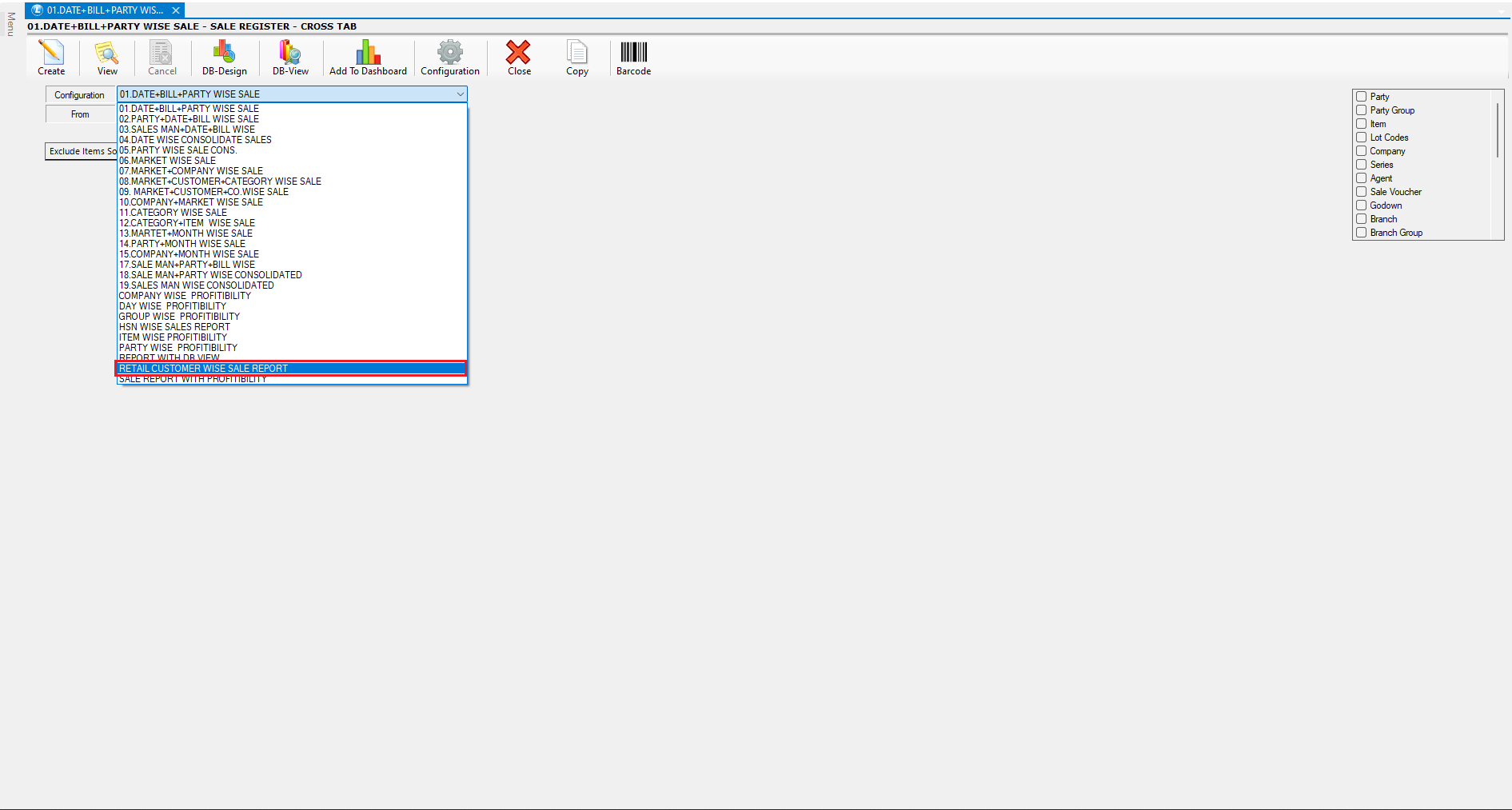
In this tutorial, we will demonstrate how to configure a **Retail Customer-Wise Sales Report** in Logic ERP.
***
### **Access the Sales Register Report**
* Navigate to the **Reports/Queries** section.
* Under **Sales Registers**, open the **Sales Register - Cross Tab Report**.
* Click on **Configuration** to create a new report and assign a suitable configuration name.
***
### **Configure Report Option**
* Navigate to **Report Options**.
* Under **Report Consolidation**, enable the required options — particularly **Bill Number**, **Item**, and **Retail Customer**.
* From the **Item Consolidation** list, select **Item** and move it to the top using the arrow keys.
* In the **Report Totals** section, enable the **Grand Total** option to display overall totals along with customer-wise totals.
* For better readability, adjust the **Report Order** by placing the **Retail Customer** option at the top.
***
### **Configure Transaction Options**
* Under **Transaction Options**, tick both **Txn Type** and **Txn Totals** as **Total Quantity**.
***
### **Save Configuration and Customize Columns**
* Save the configuration and select it from the **Available Configurations** list.
* By default, all columns will appear.
* Open **Setup Column Attributes**, select all columns first, and then choose only the required ones.
* Add **Retail Customer** related fields such as **Name**, **Mobile Number**, etc. (found under **RCU Name**) using the search option.
* Rearrange the column order as needed using the arrow keys.
* After finalizing, **save** the settings.
***
### **Generate and View the Report**
* Press **F2** to refresh the report.
* The system will now display a **Retail Customer-Wise Detailed Sales Report**, showing bill details and item transactions.
* This allows you to easily track how many bills were generated and which items were sold to each retail customer.
***
**You have successfully configured the Retail Customer-Wise Sales Report in Logic ERP.**
---
# Agent Instructions
This documentation is published with GitBook. GitBook is the documentation platform designed so that both humans and AI agents can read, navigate, and reason over technical content effectively. Learn more at gitbook.com.
## Querying This Documentation
If you need additional information that is not directly available in this page, you can query the documentation by asking a question.
Perform an HTTP GET request on the following URL with the `ask` and `goal` query parameters:
```
GET https://kb.logicerp.com/logic-erp-installation-configuration-and-troubleshooting-solutions/faqs/reports/generate-retail-customer-wise-sale-report.md?ask=&goal=
```
`ask` is the immediate question: it should be specific, self-contained, and written in natural language.
`goal` is what the user is ultimately trying to achieve, the reason they need the answer. Sharing it helps GitBook give you a better, more relevant answer. A goal is most helpful when it describes the outcome the user wants rather than restating the question. For example, with `ask=how do I create an API token`, a goal like `automate deployments from our CI pipeline` lets GitBook tailor the answer to that use case.
The response will contain a direct answer to the question and relevant excerpts and sources from the documentation.
Use this mechanism when the answer is not explicitly present in the current page, you need clarification or additional context, or you want to retrieve related documentation sections.