> For the complete documentation index, see [llms.txt](https://kb.logicerp.com/llms.txt). Markdown versions of documentation pages are available by appending `.md` to page URLs; this page is available as [Markdown](https://kb.logicerp.com/logic-erp-installation-configuration-and-troubleshooting-solutions/faqs/integrate-shopify-with-logic-erp.md).
# Integrate Shopify with Logic ERP
**YouTube:** [How to Integrate Shopify with Logic ERP?](https://www.youtube.com/watch?v=jNUiIPhG1Hs)
## How to Integrate Shopify with Logic ERP?
In this tutorial, we will explain how to **integrate Shopify with Logic ERP**, covering app installation, configuration, product synchronization, inventory sync, and order management.
***
### Installing the Logic ERP Integration App on Shopify
To begin the integration process, follow the steps below:
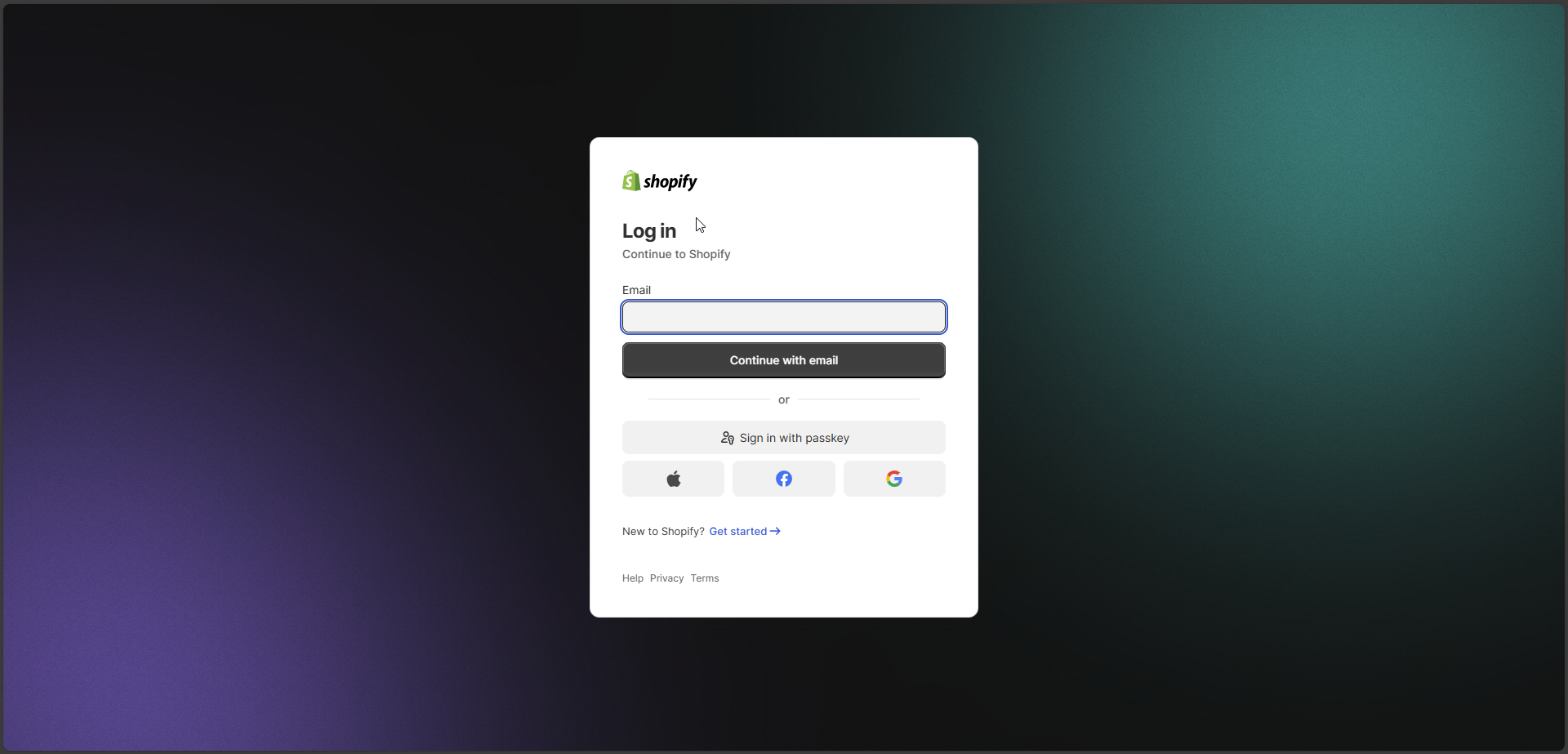
* Log in to your **Shopify Admin Panel**
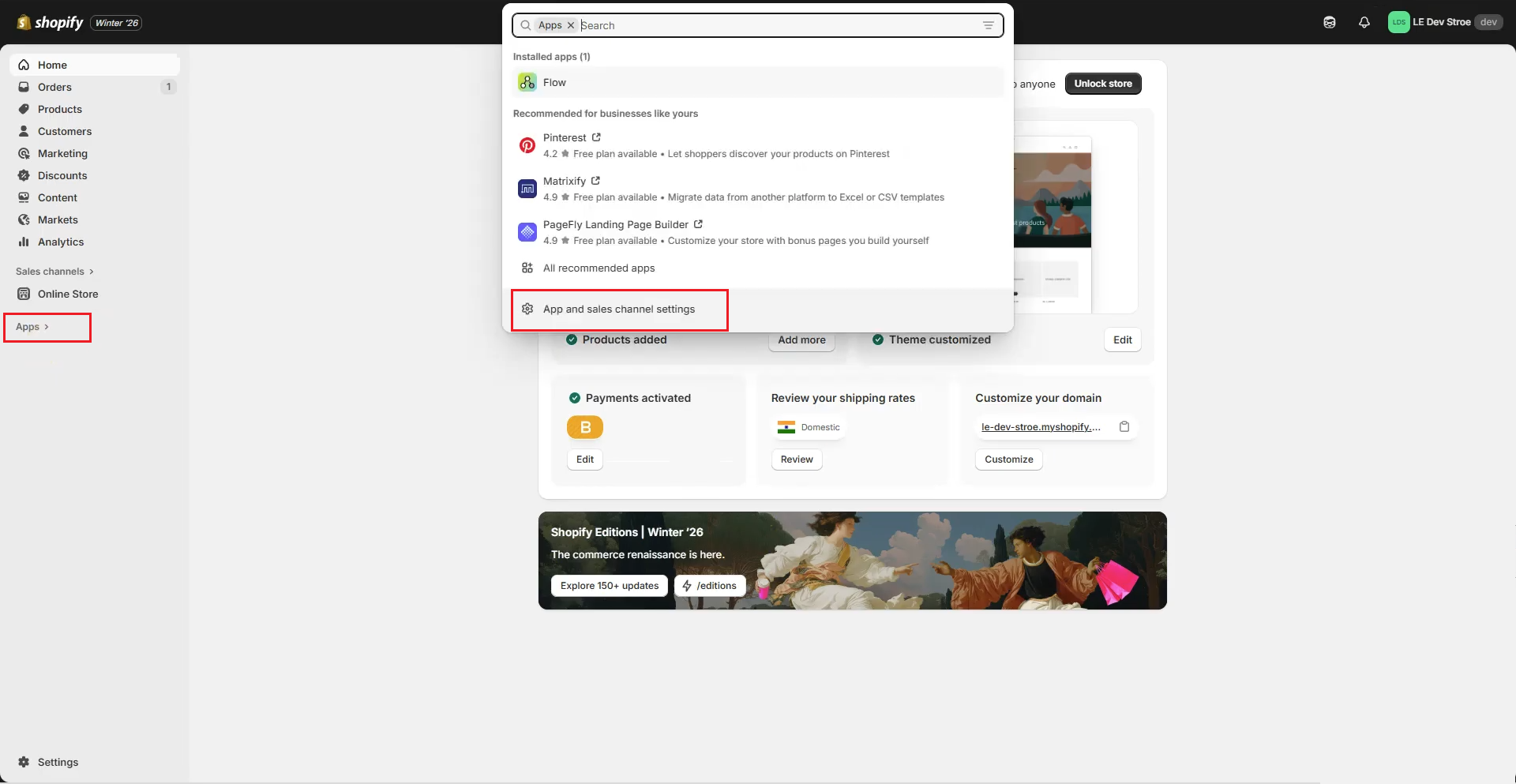
* Click on **Apps**
* Select **Apps and Sales Channel Settings**
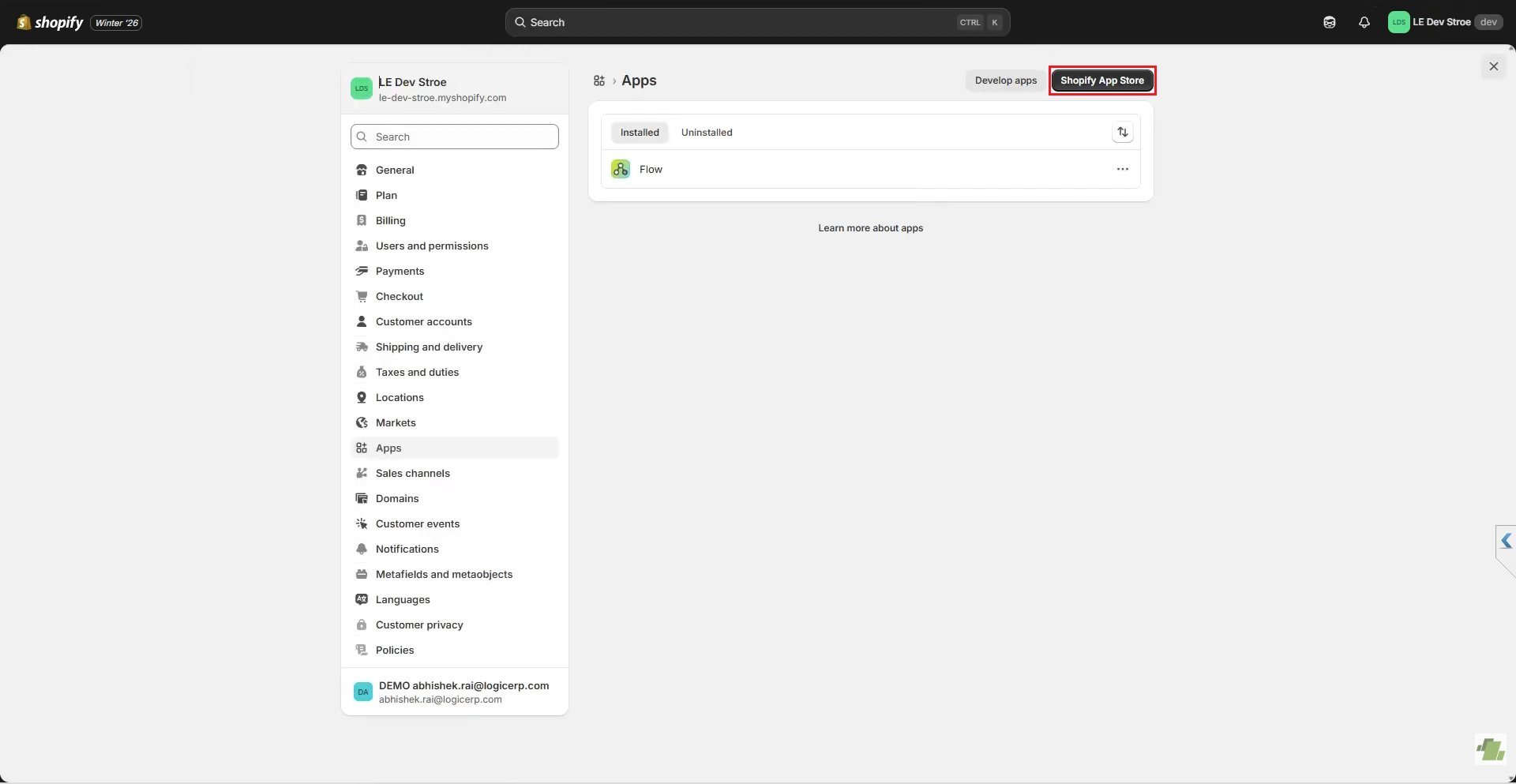
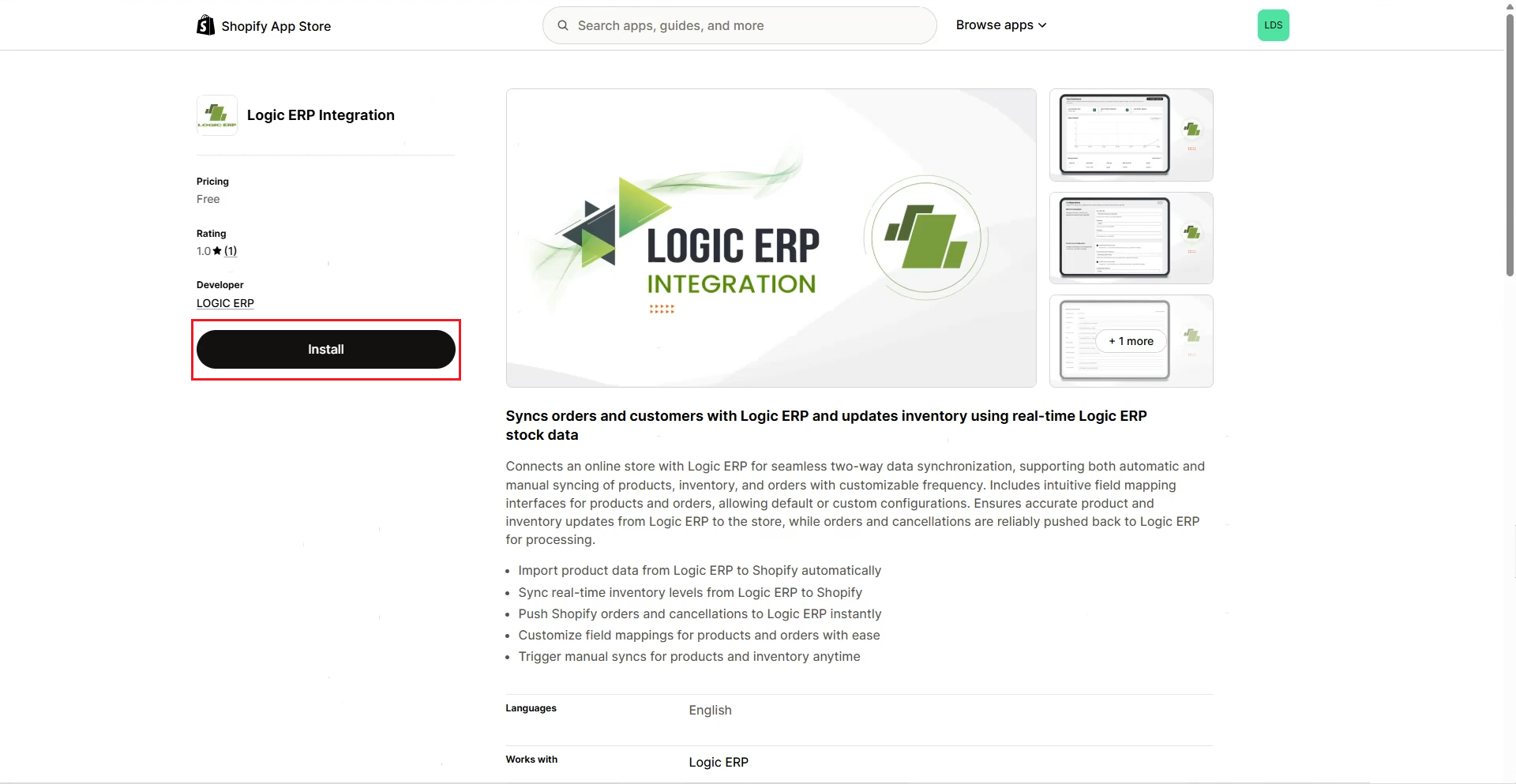
* Open the **Shopify App Store**
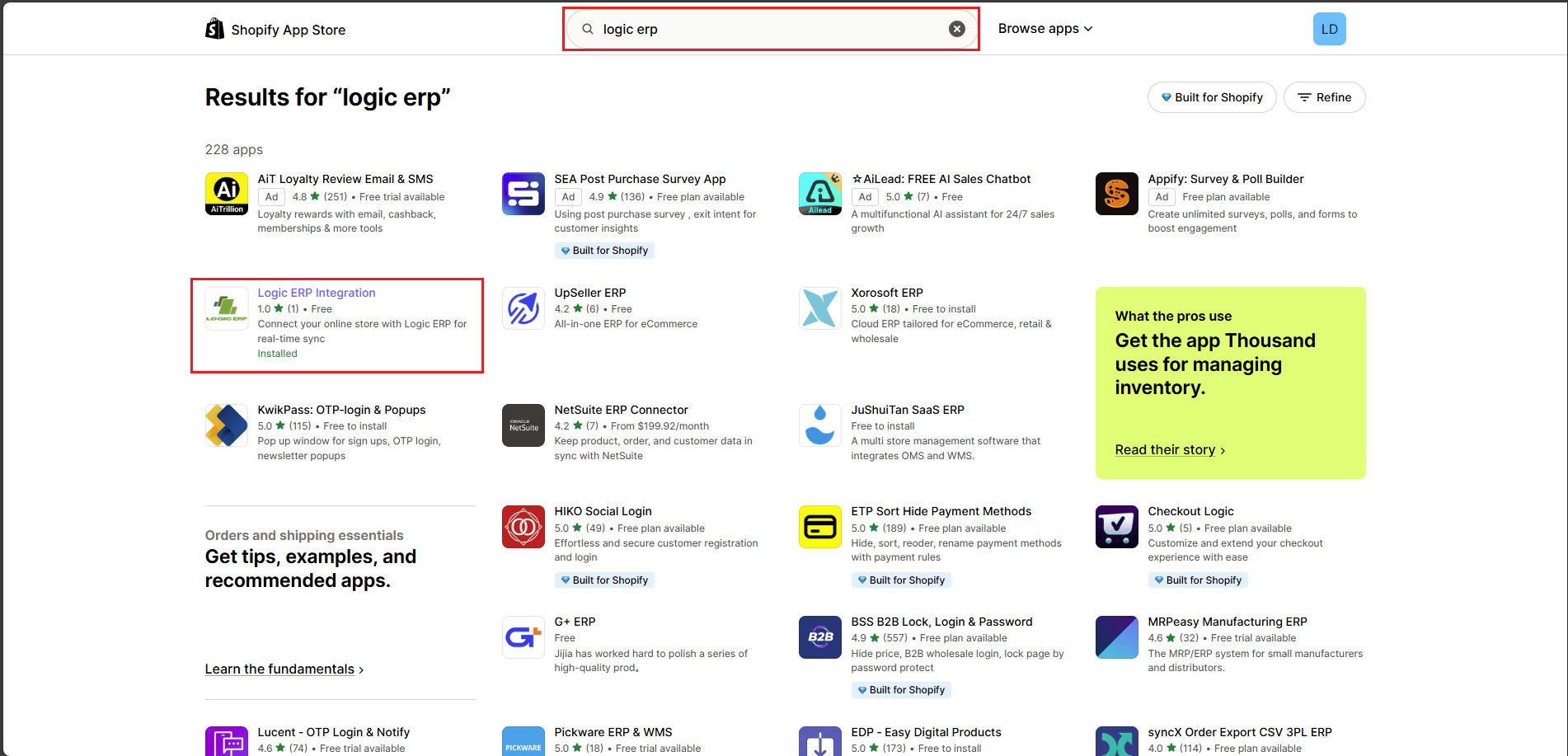
* Search for **Logic ERP Integration**
Once the app appears in the search results:
* Click on the app to review its features
* Click **Install App**
***
### Subscription and App Activation
After successful installation:
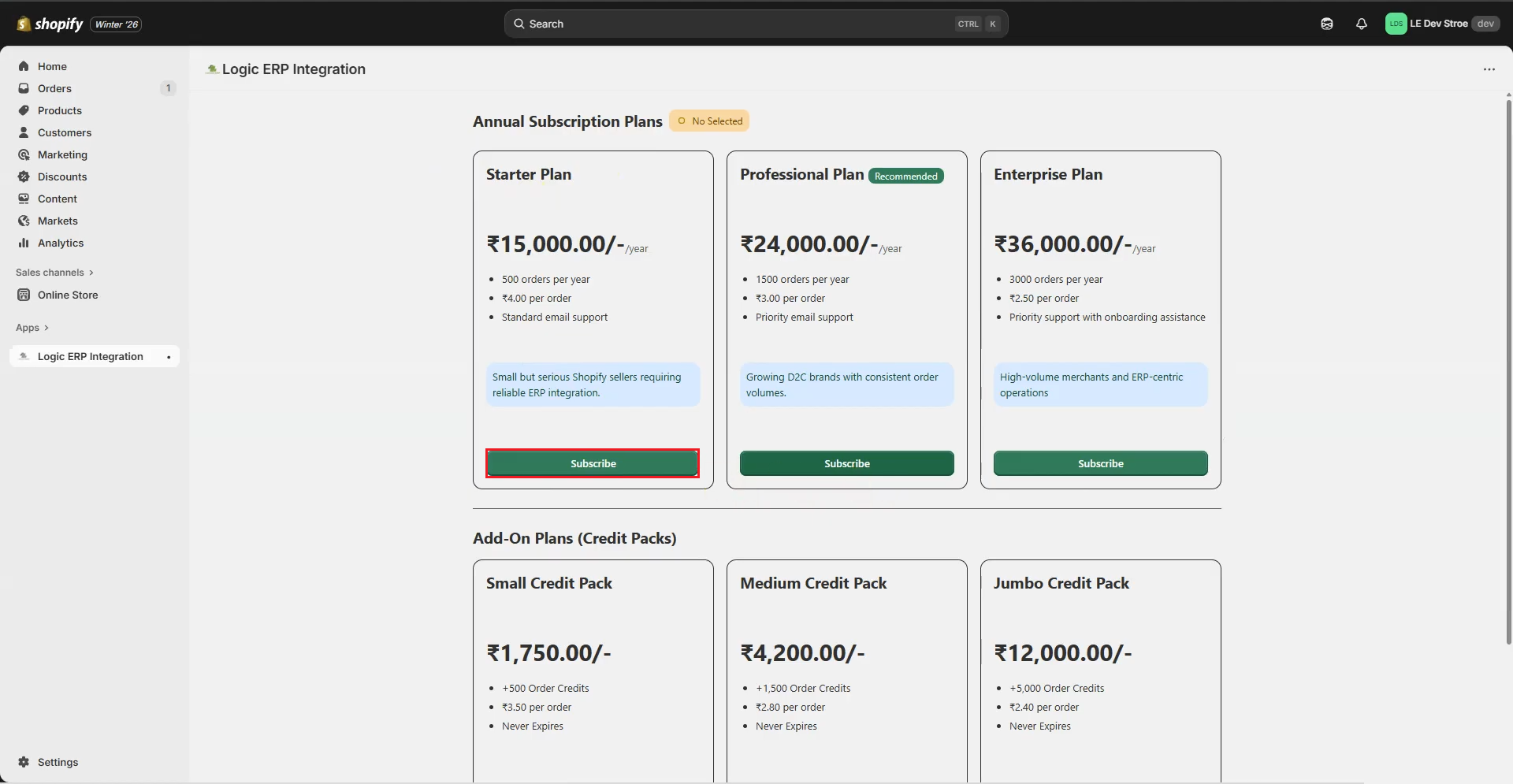
* A subscription window will appear
* Review the available **Annual Subscription Plans** and **Add-on Plans**
* Click **Subscribe** to select your desired plan
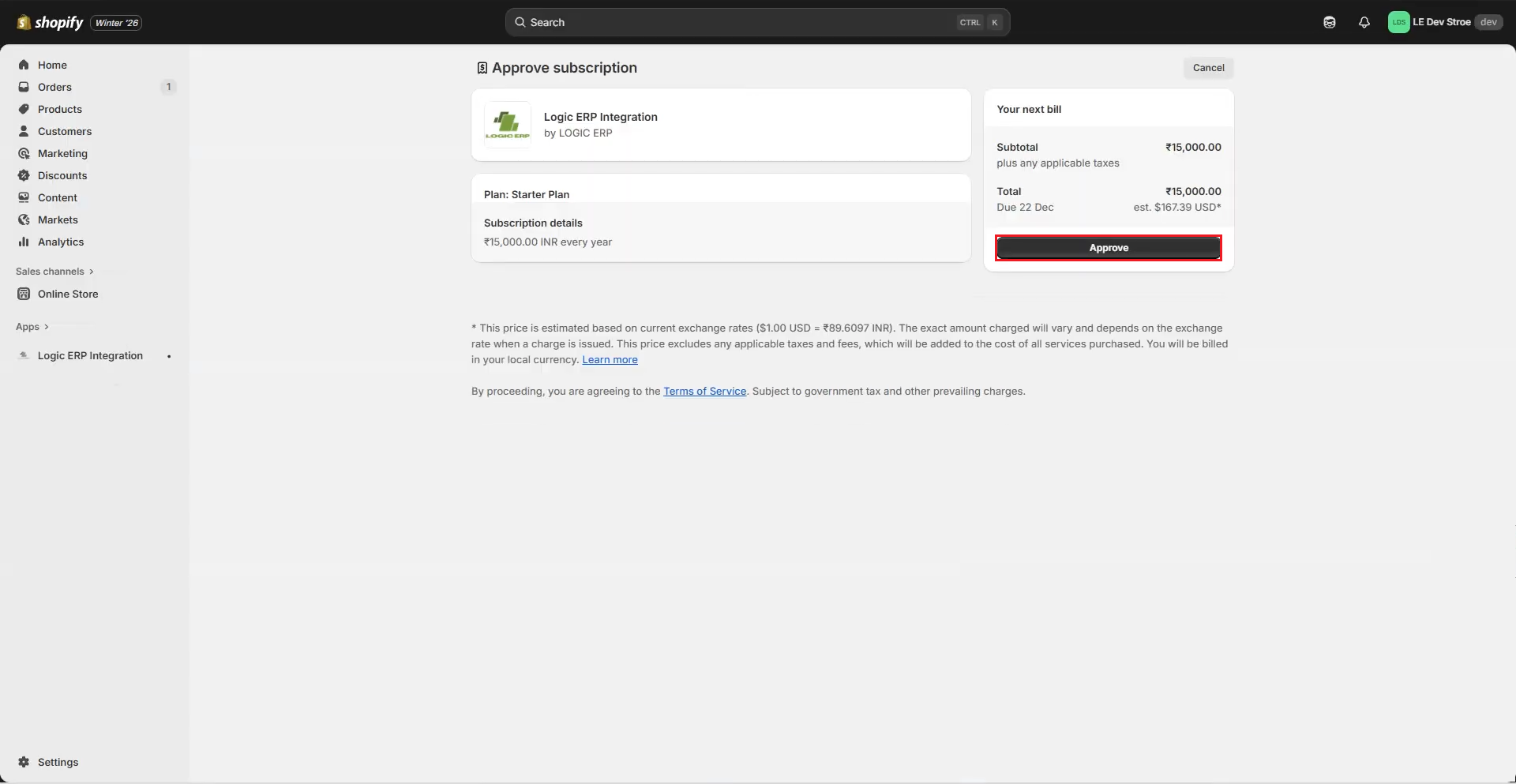
* Click **Approve** to confirm subscription and payment
**Once the payment is completed successfully:**
* Credits will be added to your account
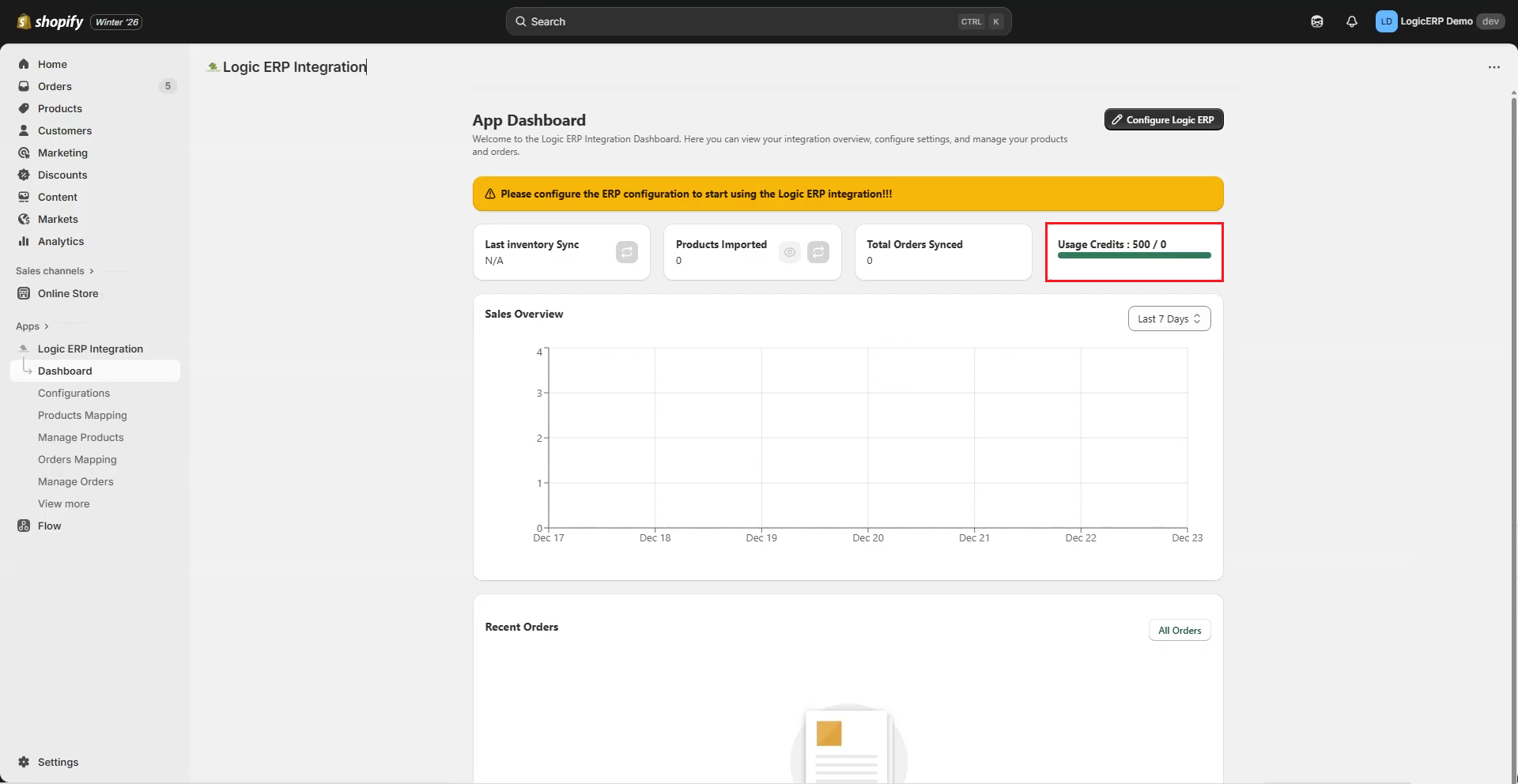
* You will be redirected to the **Logic ERP Integration Dashboard**
***
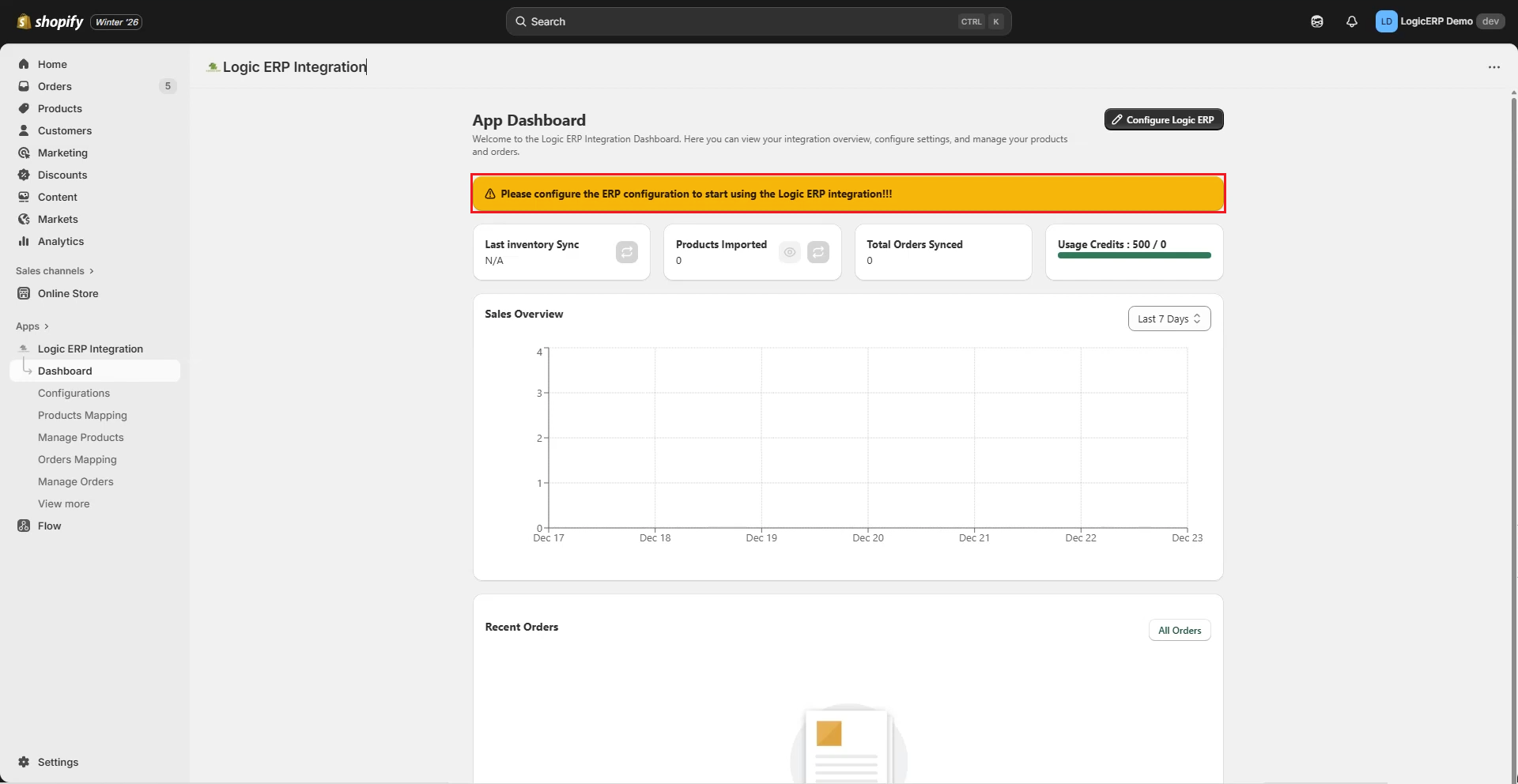
### Accessing the App Dashboard
* The dashboard is the central control panel to:
* Configure ERP settings
* Manage products
* Manage orders
* You will see a prompt to **Configure Logic ERP Settings**
* Click **Configure Logic ERP** or access it from the menu
***
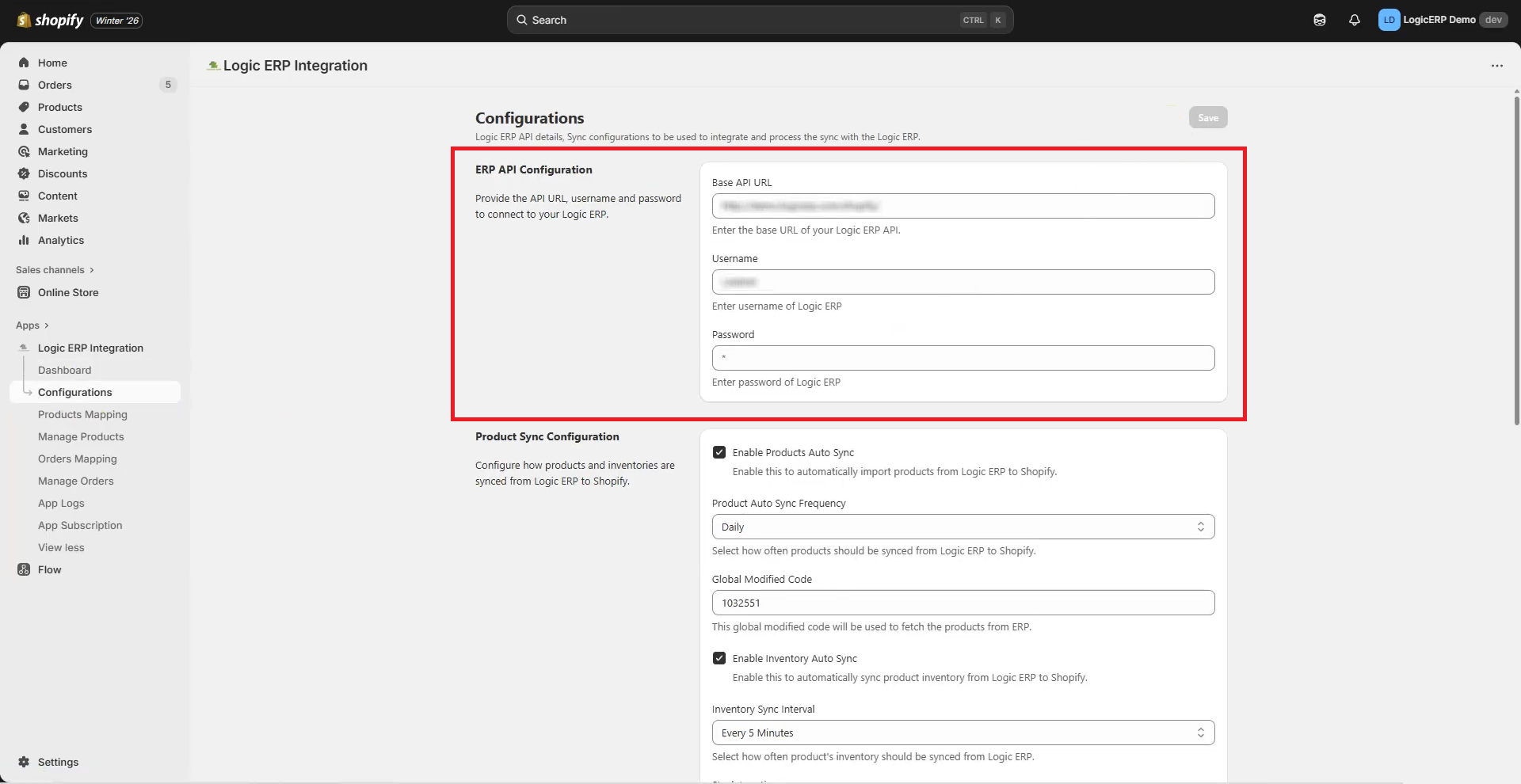
### Logic ERP Configuration Setup
To start the configuration:
* Obtain the following credentials from the **Logic ERP Team**:
* API URL
* Username
* Password
* Enter these credentials in the configuration screen
***
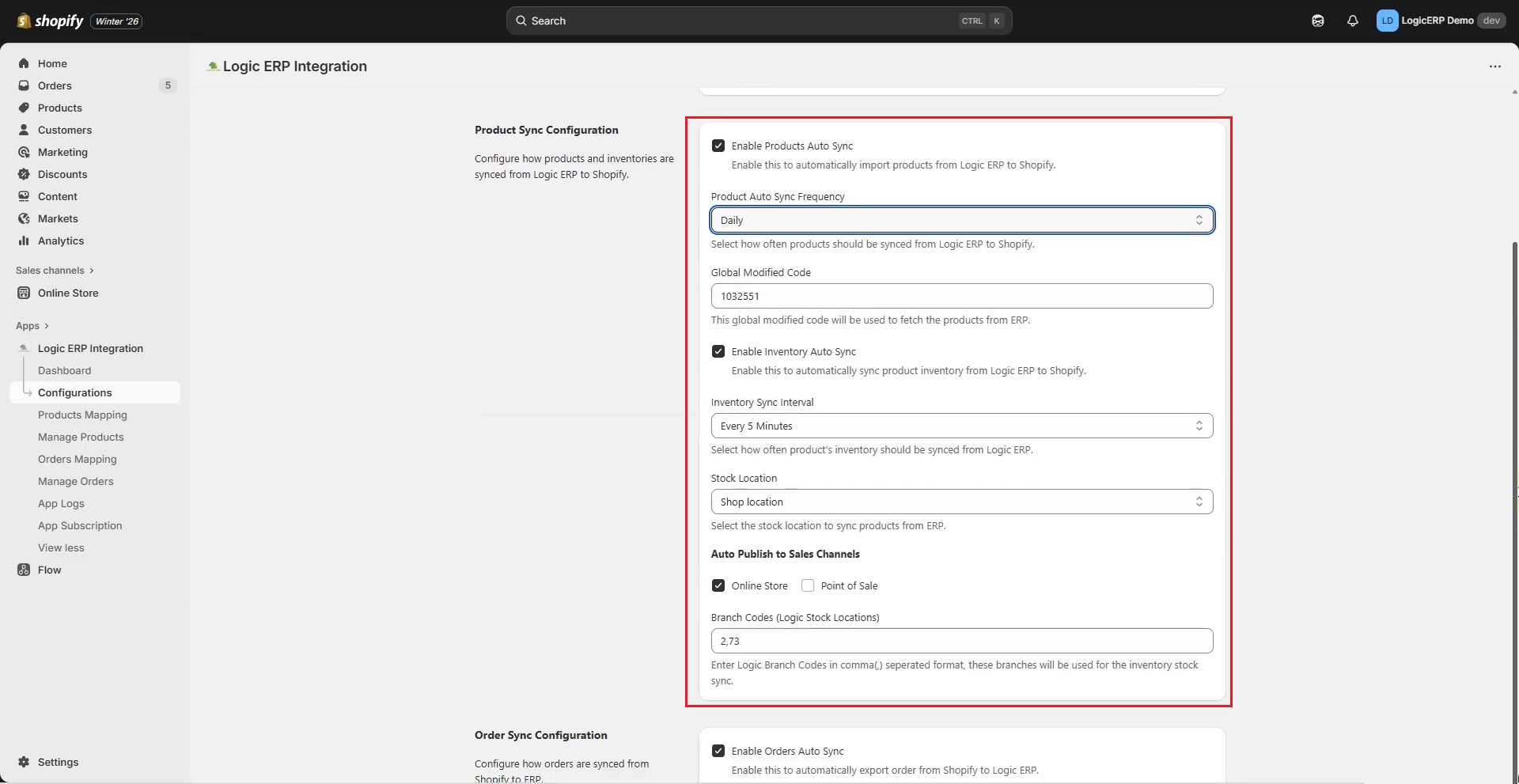
### Product Sync Configuration
* Navigate to **Product Sync Configuration**
* Enable **Product Auto Sync**
* This allows products to be automatically imported from Logic ERP to Shopify
* Select **Product Auto Sync Frequency** from the dropdown
* Defines how often products are synced
* Enable **Inventory Auto Sync**
* Automatically updates stock levels from Logic ERP to Shopify
* Select **Inventory Sync Interval**
* Defines how frequently inventory is synchronized
* Under **Stock Location**:
* Define the Shop Location
* Under **Auto Publish to Sales Channel**:
* Enable **Online Store**
***
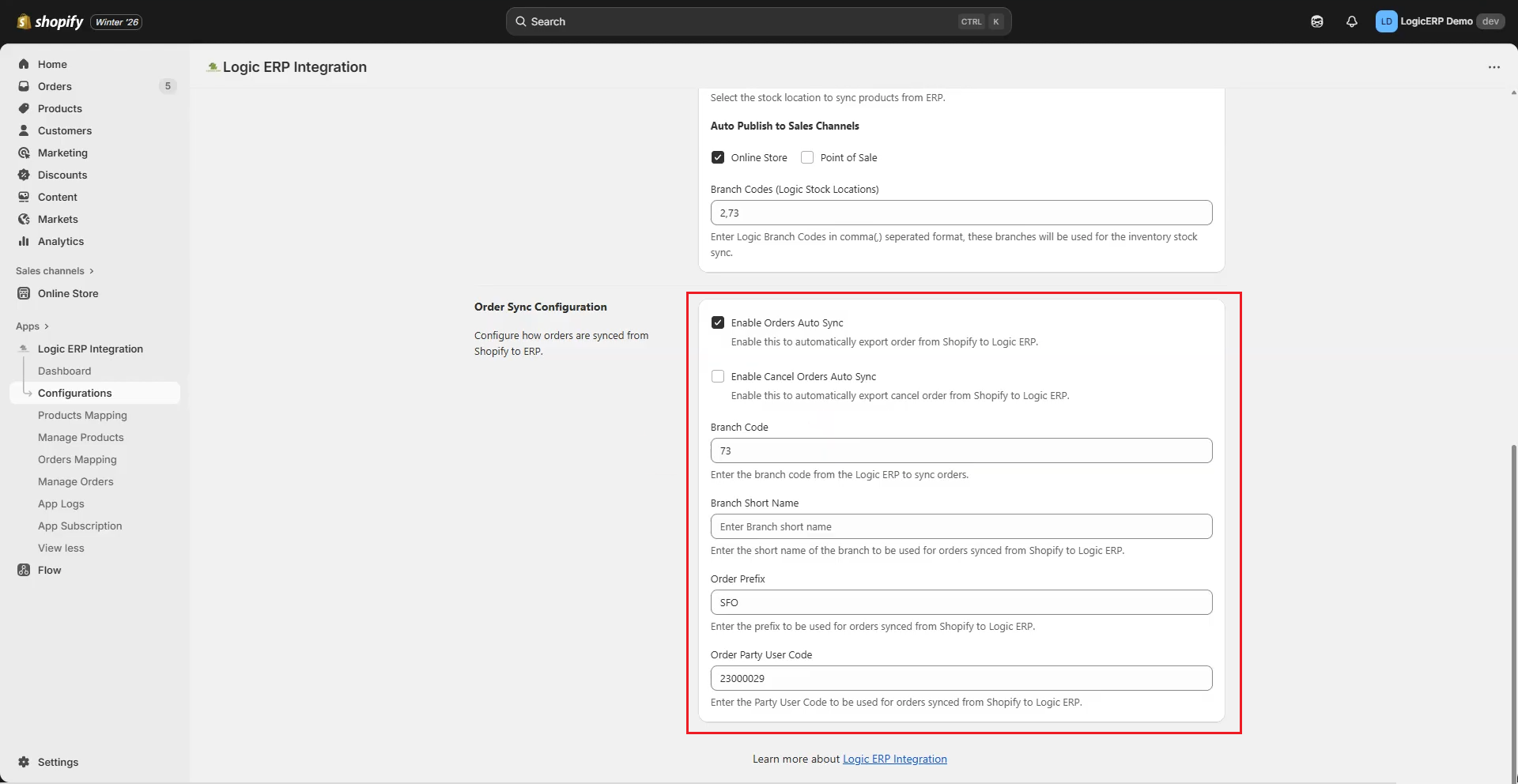
### Order Sync Configuration
* Navigate to **Order Sync Configuration**
* Enable **Order Auto Sync**
* Define the following details carefully:
* Branch Code
* Branch Name
* Order Prefix
* Order Party User Code
* Click **Save** to apply the settings
***Note:*** Correct configuration ensures accurate order transfer from Shopify to Logic ERP.
***
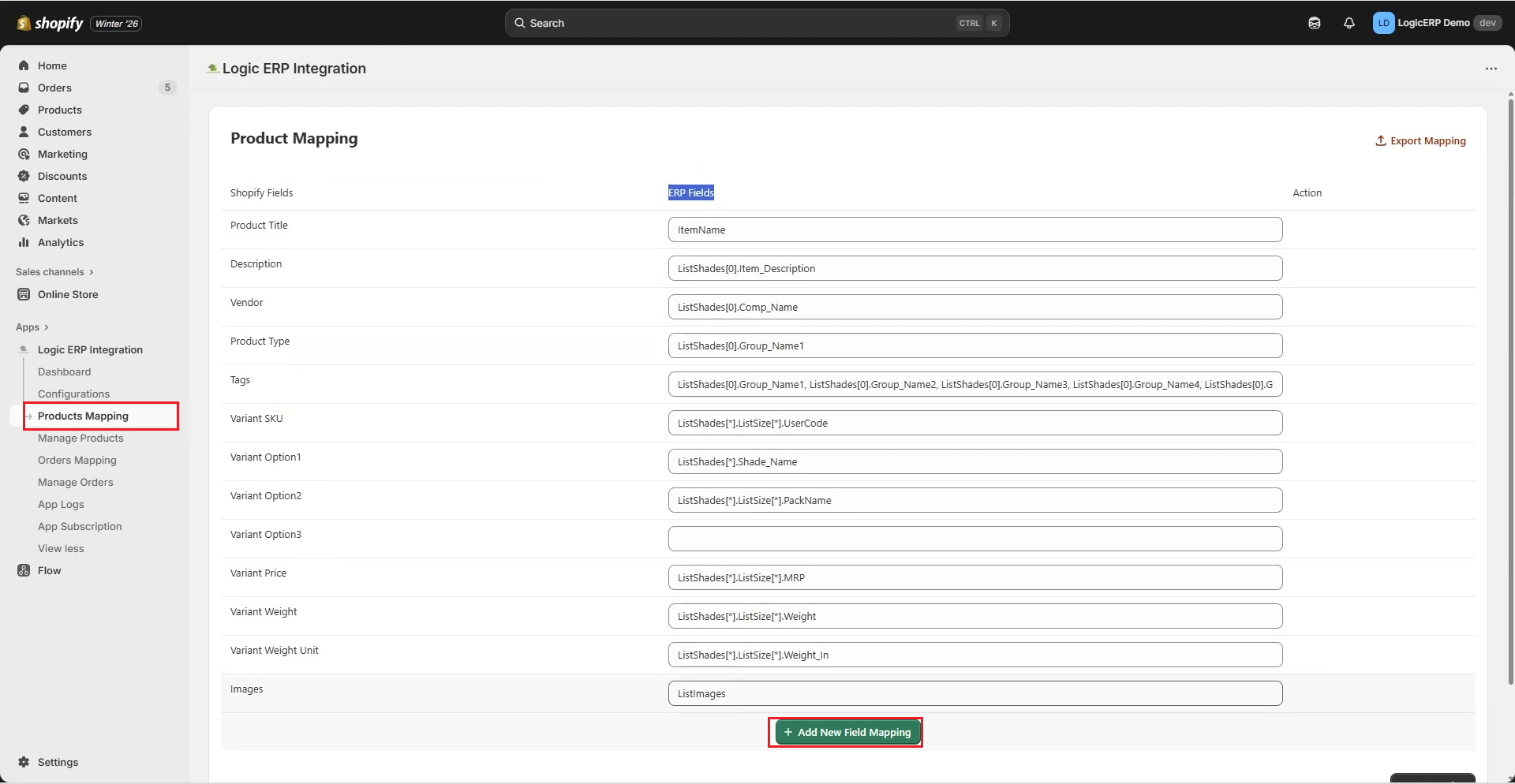
### Product Field Mapping
* Go to **Product Mapping**
* Map **Shopify Fields** with **Logic ERP Fields**
* Default required fields are already configured
* To add custom mappings:
* Click **Add New Field Mapping**
* Define additional fields as required
This ensures product data is stored correctly during synchronization.
***
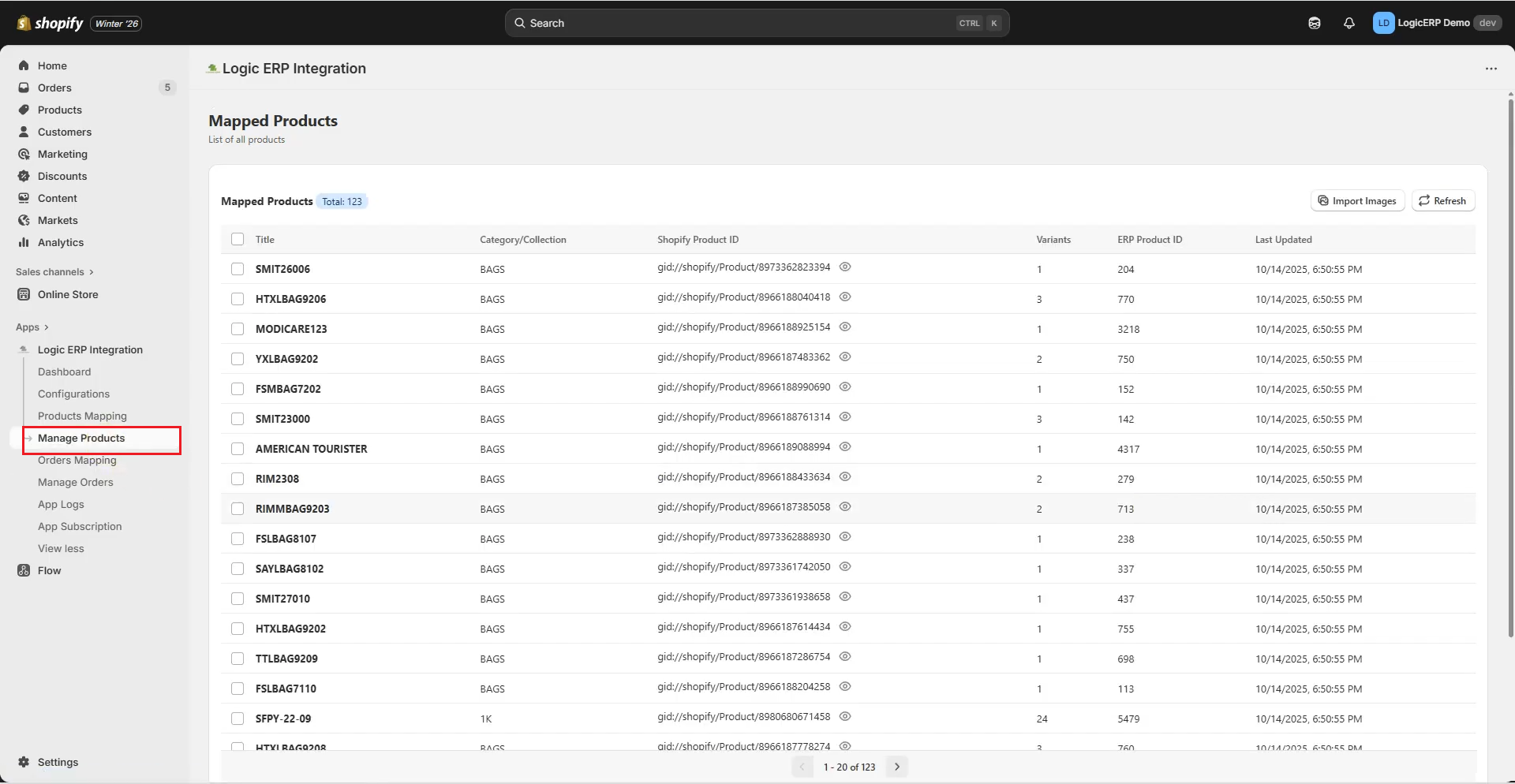
### Managing Products
* Navigate to **Manage Products**
* View the list of:
* Mapped products
* Uploaded products
* Monitor product sync status from this screen
***
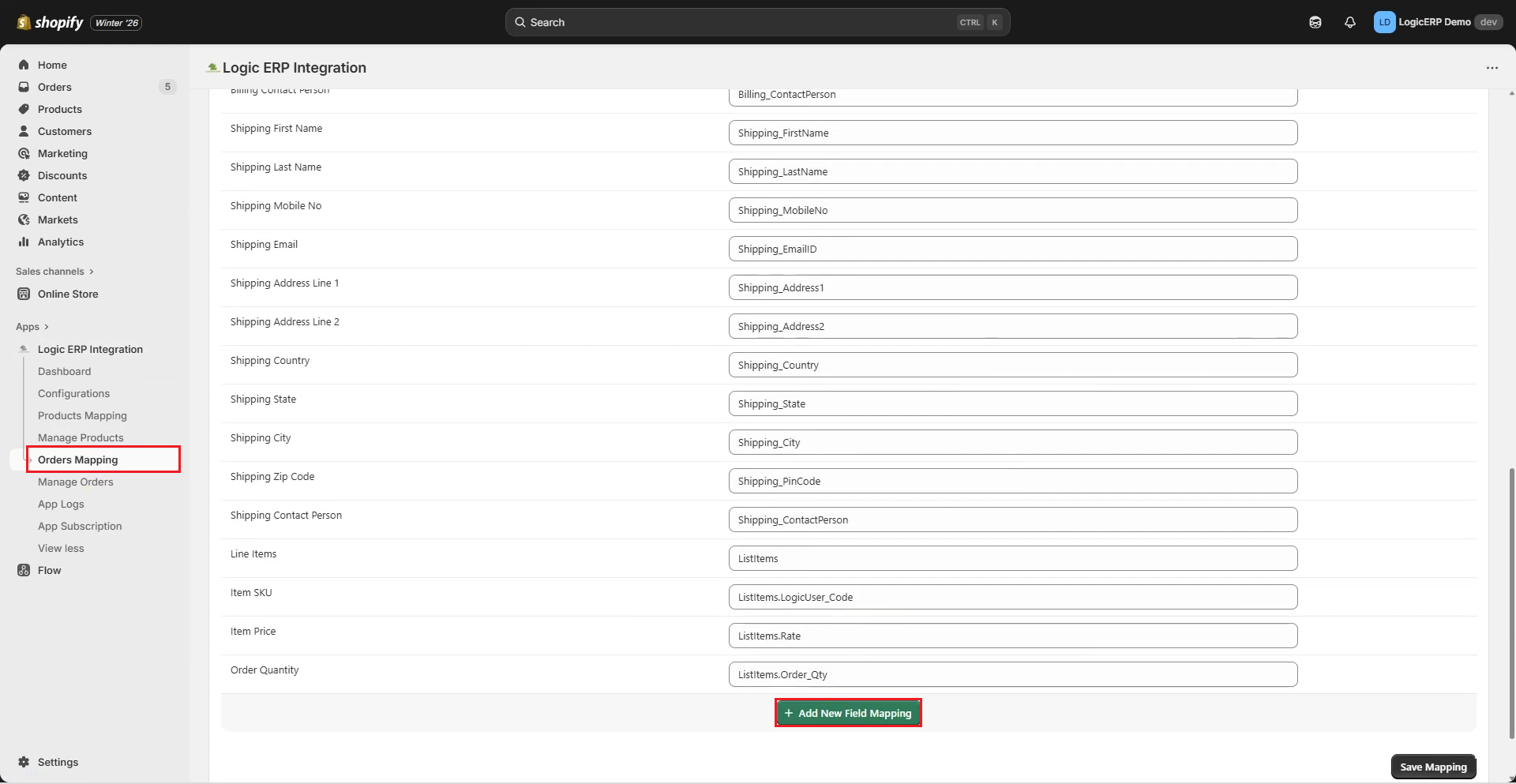
### Order Field Mapping
* Go to **Order Mapping**
* Map Shopify order fields with Logic ERP fields
* Default mappings are available
* To define additional fields:
* Click **Add New Field Mapping**
This ensures all order-related data is accurately captured in Logic ERP.
***
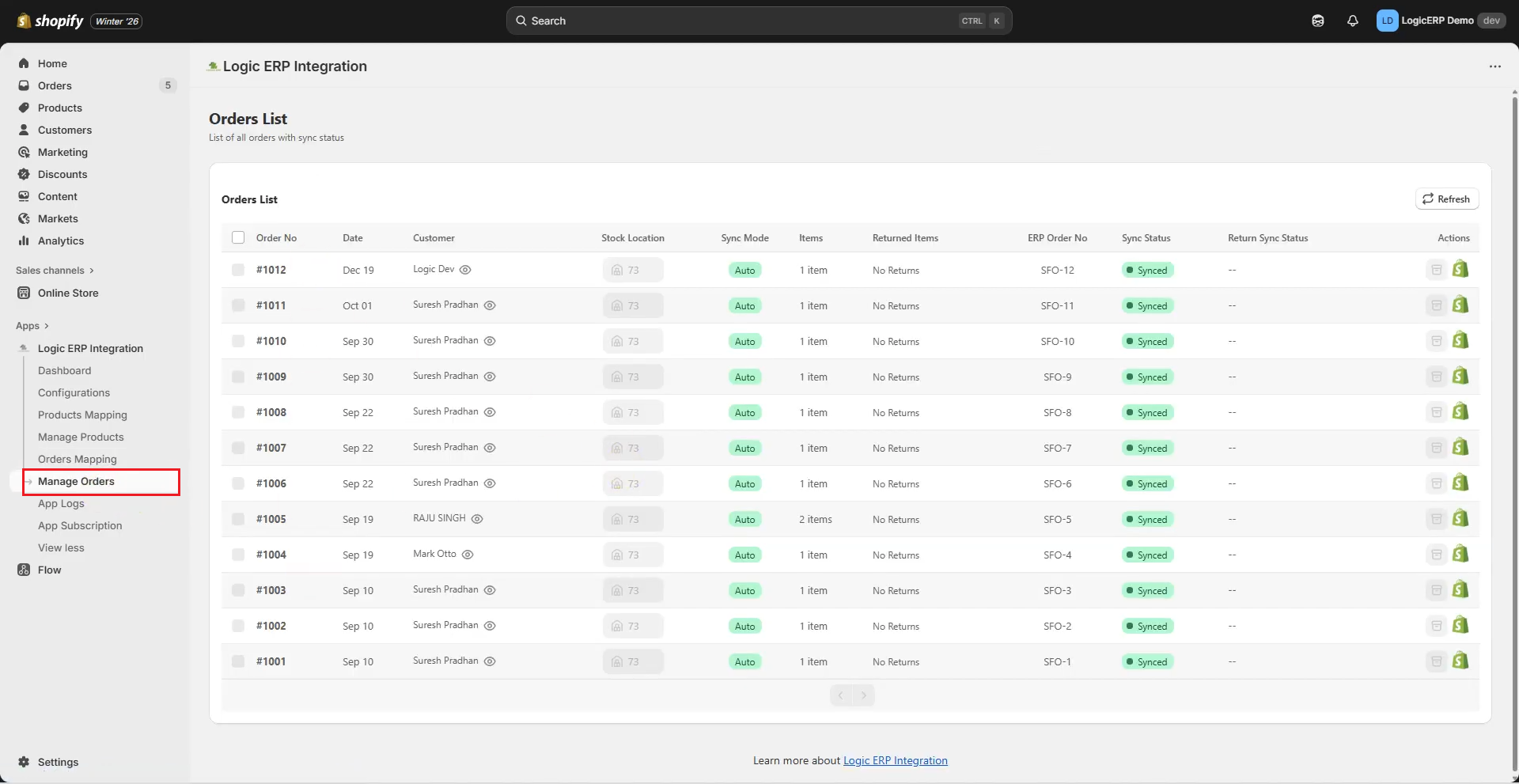
### Managing Orders
* Navigate to **Manage Orders**
* View all synced orders along with their status
* You can check:
* Customer Name
* Order Number
* Order Date
* Sync Status
All successfully synced Shopify orders will be available in Logic ERP.
***
### Verifying Orders in Logic ERP
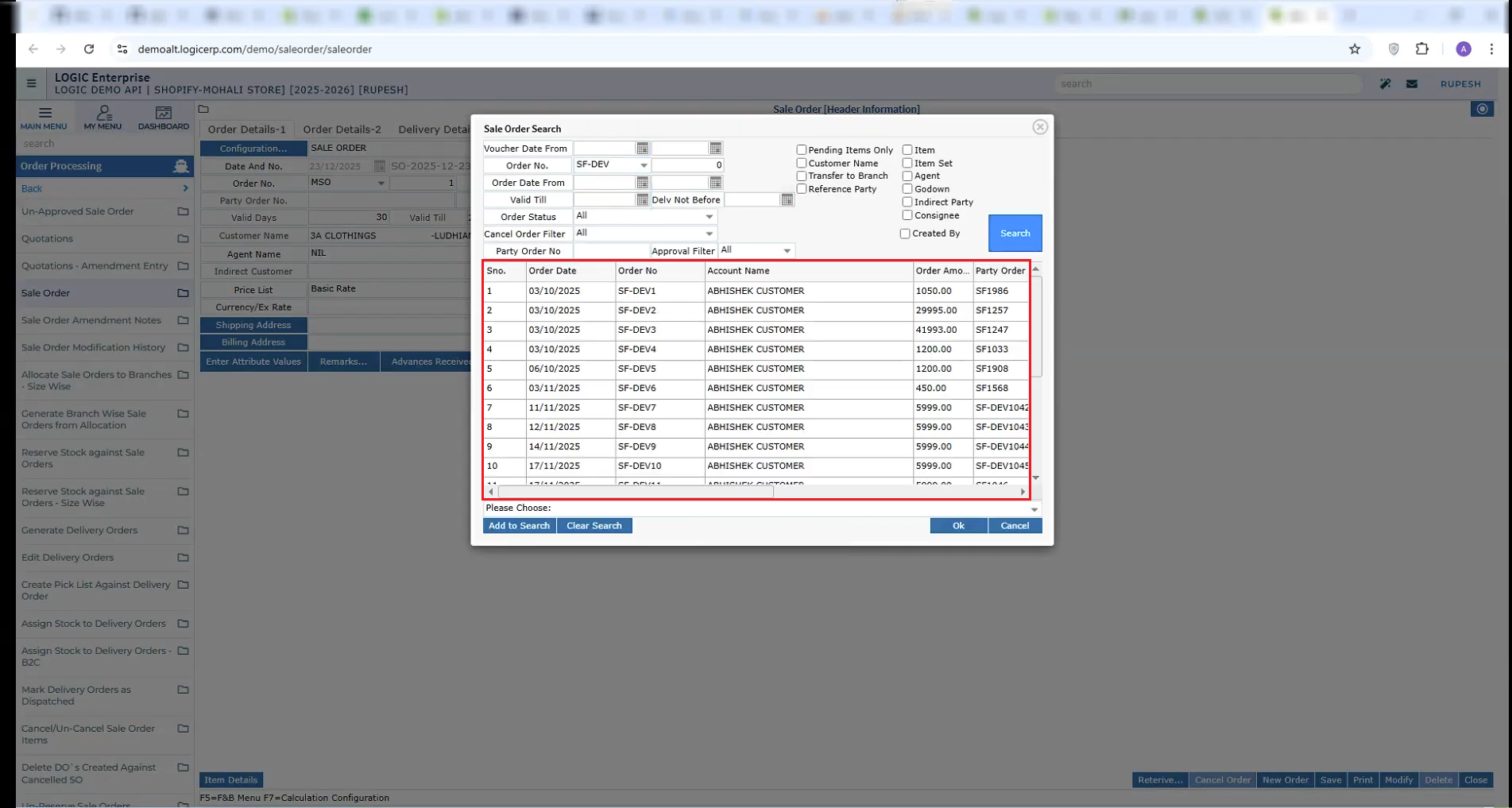
* Open **Sales Order Module** in Logic ERP
* Verify the synced Shopify orders
* Review order details and proceed with further processing
***
### Conclusion
This completes the **Shopify Integration with Logic ERP**, enabling seamless synchronization of **products, inventory, and orders** between both platforms for smooth and automated business operations.
---
# Agent Instructions
This documentation is published with GitBook. GitBook is the documentation platform designed so that both humans and AI agents can read, navigate, and reason over technical content effectively. Learn more at gitbook.com.
## Querying This Documentation
If you need additional information that is not directly available in this page, you can query the documentation dynamically by asking a question.
Perform an HTTP GET request on the current page URL with the `ask` query parameter, and the optional `goal` query parameter:
```
GET https://kb.logicerp.com/logic-erp-installation-configuration-and-troubleshooting-solutions/faqs/integrate-shopify-with-logic-erp.md?ask=&goal=
```
`ask` is the immediate question: it should be specific, self-contained, and written in natural language.
`goal` is optional and describes the broader end goal you are ultimately trying to accomplish on behalf of the user. GitBook uses it to tailor the answer towards what is most useful for that goal.
The response will contain a direct answer to the question and relevant excerpts and sources from the documentation.
Use this mechanism when the answer is not explicitly present in the current page, you need clarification or additional context, or you want to retrieve related documentation sections.