> For the complete documentation index, see [llms.txt](https://kb.logicerp.com/llms.txt). Markdown versions of documentation pages are available by appending `.md` to page URLs; this page is available as [Markdown](https://kb.logicerp.com/logic-erp-installation-configuration-and-troubleshooting-solutions/faqs/reports/configure-item-wise-monthly-sale-report.md).
# Configure Item - wise Monthly Sale Report
**YouTube:** [How to configure Item-wise Monthly Sale Report?](https://youtu.be/0RBSCDFk-eY)
## How to Configure Item - wise Monthly Sale Report?
In this tutorial, we’ll learn how to configure an **Item-Wise Monthly Sales Report** based on **Quantity** and **Net Value** in **Logic ERP**.
***
### **Access the Sale Register Cross Tab Report**
* Navigate to the **Reports/Queries** section.
* Under **Sales Registers**, open the **Sales Register Cross Tab Report**.
* Click on **Configuration** to create a new report.
* Assign a suitable **Configuration Name** for easy identification.
***
### **Set Report Options**
* Navigate to the **Report Options** tab.
* Under **Report Consolidation**, enable both **Period** and **Item** columns.
* From the **Item Consolidation** list, select how you would like the items to be grouped or consolidated in the report.
* In the **Report Totals** section, enable the **Grand Total** option to display overall totals.
* Since this is a monthly report, adjust the **Report Order** by moving **Period** to the top using the **arrow keys**.
* You can also apply **Period-Wise Totals** — if the selected period is monthly, the system will automatically display month-wise totals in the report.
***
### **Configure Transaction Options**
* Navigate to the **Transaction Options** tab.
* Enable the setting to **View Transaction Details**.
* Choose the option to display data **by Quantity**.
***
### **Configure Other Options**
* Navigate to the **Other Options** tab.
* Under the **Columns As** option, select **Period**.
* Set it to **Monthly** to generate a month-wise report.
* Once done, click **Save** to store your configuration.
***
### **Create and Customize the Report**
* From the list of available configurations, select the one you just created and click **Create**.
* By default, all columns will be visible.
* To customize:
* Open **Setup Column Attributes**.
* Unselect all columns first.
* Then select only the required columns for your report.
* Use the **search bar** to locate and enable specific fields such as **Item Name**, **Period**, and **Quantity**.
* Rearrange the column order using the **arrow keys**.
* Save the settings.
***
### **View and Analyze the Report**
* Refresh the report by pressing **F2**.
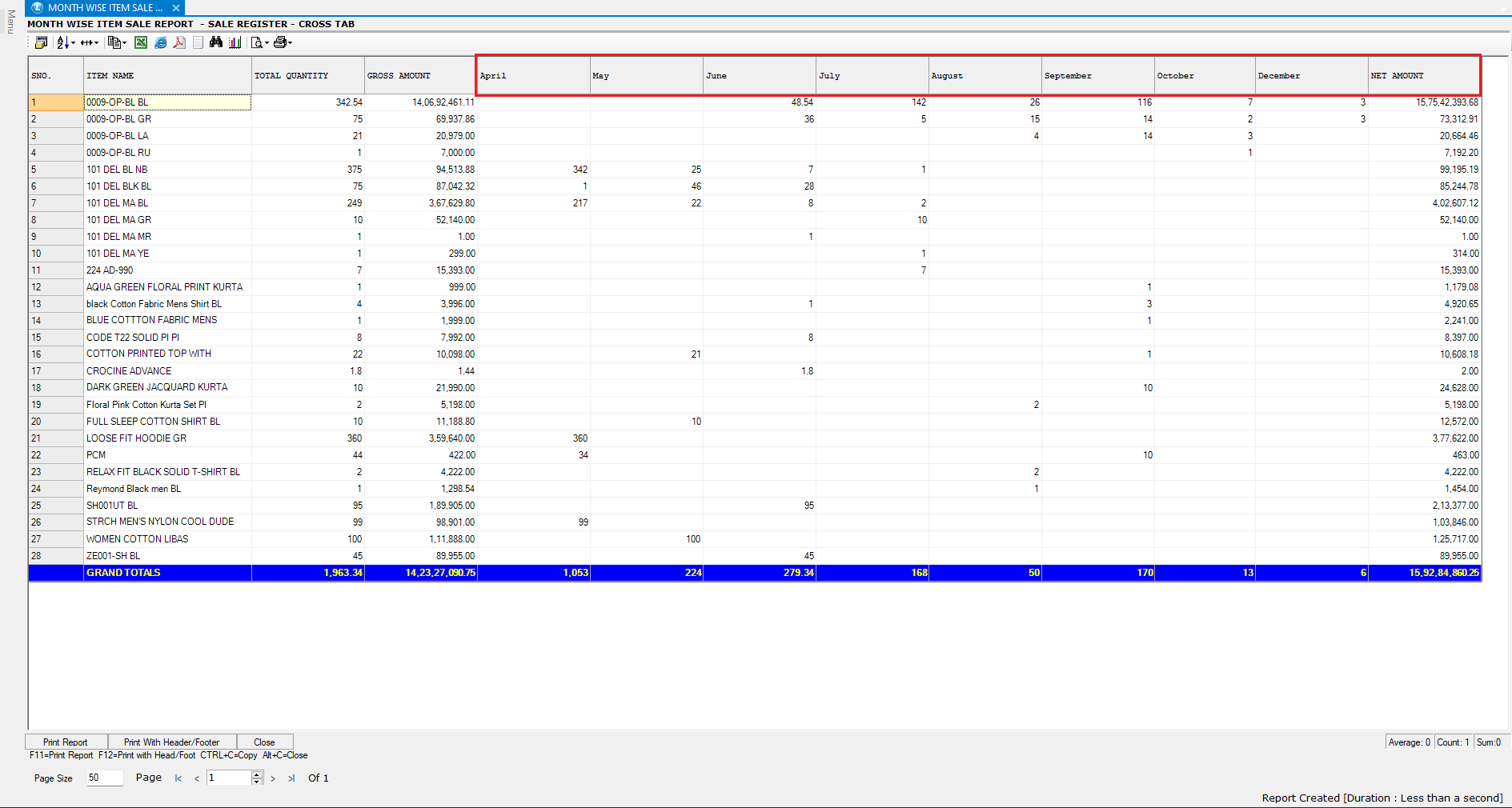
* The report will now display **month-wise sales for each item**, showing the total **quantity sold** for every month.
***
### **Switch to Net Value Report**
* To view the report based on **Net Value** instead of Quantity:
* Tp open configuration window, press F5 key.
* Go to **Transaction Type Settings**.
* Uncheck the **Quantity** option.
* Enable the **Net Sale Value** option.
* Save the configuration and refresh the report.
* The report will now display **month-wise net sales value** for each item.
***
**You have successfully configured an Item-Wise Monthly Sales Report based on Quantity and Net Value in Logic ERP.**
---
# Agent Instructions
This documentation is published with GitBook. GitBook is the documentation platform designed so that both humans and AI agents can read, navigate, and reason over technical content effectively. Learn more at gitbook.com.
## Querying This Documentation
If you need additional information that is not directly available in this page, you can query the documentation dynamically by asking a question.
Perform an HTTP GET request on the current page URL with the `ask` query parameter, and the optional `goal` query parameter:
```
GET https://kb.logicerp.com/logic-erp-installation-configuration-and-troubleshooting-solutions/faqs/reports/configure-item-wise-monthly-sale-report.md?ask=&goal=
```
`ask` is the immediate question: it should be specific, self-contained, and written in natural language.
`goal` is optional and describes the broader end goal you are ultimately trying to accomplish on behalf of the user. GitBook uses it to tailor the answer towards what is most useful for that goal.
The response will contain a direct answer to the question and relevant excerpts and sources from the documentation.
Use this mechanism when the answer is not explicitly present in the current page, you need clarification or additional context, or you want to retrieve related documentation sections.