> For the complete documentation index, see [llms.txt](https://kb.logicerp.com/llms.txt). Markdown versions of documentation pages are available by appending `.md` to page URLs; this page is available as [Markdown](https://kb.logicerp.com/logic-erp-installation-configuration-and-troubleshooting-solutions/faqs/reports/generate-item-group-wise-stock-status-report.md).
# Generate Item Group wise Stock Status Report
**YouTube:** [How to Generate Item Group wise Stock Status Report?](https://www.youtube.com/watch?v=NxBC1ZqZJd4)
## How to Generate Item Group Wise Stock Status Report?
In this tutorial, we’ll learn how to **configure the Item Category-Wise Stock Report** in Logic ERP. This report helps you analyze stock movement and balances grouped by item category.
***
### **Open and Create a New Configuration**
* Navigate to the **Reports/Queries** section.
* Under the **Stock Reports** menu, open **Stock Query (New Report)**.
* Click on **Configuration** to create a new report setup.
* Assign a suitable **Configuration Name** for easy identification.
***
### **Configure Report Options**
* Go to the **Report Options** section.
* Under **Report Consolidation**, enable the **Item Details** option.
* This activates the **Item Consolidation** feature.
* Then, enable the **Group** option under the **Item Consolidation** and move it to the top using the **arrow keys**.
* In the **Report Total** section, enable the **Grand Total** option to display overall totals.
* Lastly, Adjust the **Report Order** by moving **Item Details** to the top.
***
### **Define Group Options**
* Open the **Group Options** tab.
* Set **Group Options** as **Columns**.
* This activates the **Extra Item Group** option.
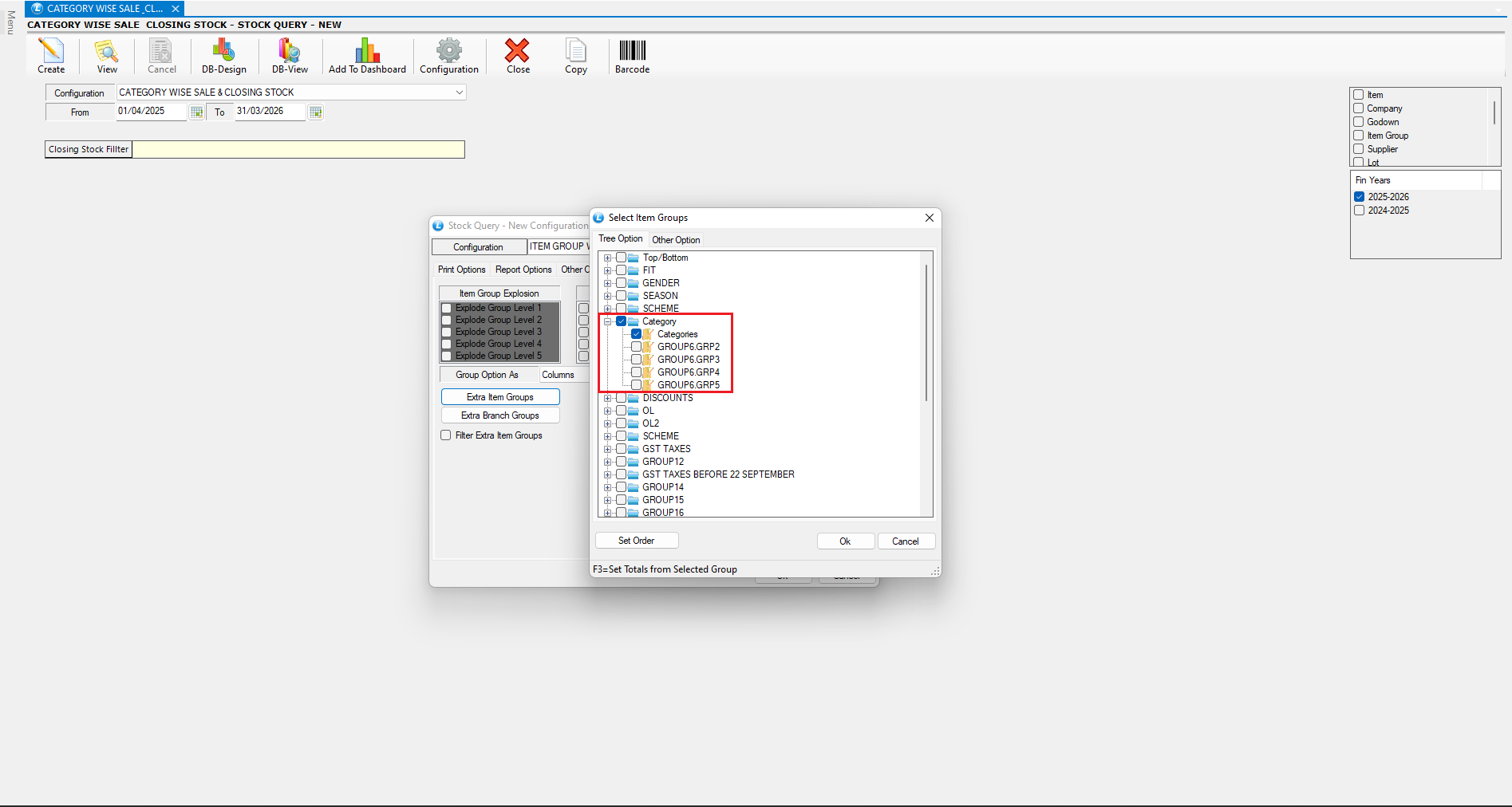
* Click on **Extra Item Group and** select the **Group Category** for which you want to generate the stock report.
***
### **Save and Generate Report**
* Once all settings are configured, **save the configuration**.
* From the list of saved configurations, select the one you just created and click **Create** to generate the report.
***
### **Customize Columns**
* Open **Setup Column Attributes**.
* **Unselect all columns** first, then enable only the required ones:
* Extra Item Group
* Opening Stock
* Purchase
* Purchase Return
* Sale
* Sale Return
* Closing Stock
* Use the **Search Bar** to quickly locate the “Extra Item Group” column.
* Rearrange the column order using the **arrow keys**.
* Save the settings and press **F2** to refresh.
The generated report now displays a **category-wise consolidated stock summary**.
***
### **Configure Report with Item Details**
* To include item-level details in the same report:
* Press **F5** to open the **Configuration Window**.
* Under **Report Options**, go to **Item Consolidation** and enable the **Item Name** option.
* **Apply Group Totals:**
* Navigate to **Group Options**, selecting **Extra Item Groups**, choosing the group, and pressing **F3**.
* Save the changes.
* Next, open **Setup Column Attributes** again.
* Enable the **Item Name** column.
* Save the settings and press **F2** to refresh.
***
### **Final Output**
The final report now displays **item-wise stock details** for each selected category — including opening stock, transactions, and closing balances — giving you a clear overview of your inventory status grouped by category.
---
# Agent Instructions
This documentation is published with GitBook. GitBook is the documentation platform designed so that both humans and AI agents can read, navigate, and reason over technical content effectively. Learn more at gitbook.com.
## Querying This Documentation
If you need additional information that is not directly available in this page, you can query the documentation dynamically by asking a question.
Perform an HTTP GET request on the current page URL with the `ask` query parameter, and the optional `goal` query parameter:
```
GET https://kb.logicerp.com/logic-erp-installation-configuration-and-troubleshooting-solutions/faqs/reports/generate-item-group-wise-stock-status-report.md?ask=&goal=
```
`ask` is the immediate question: it should be specific, self-contained, and written in natural language.
`goal` is optional and describes the broader end goal you are ultimately trying to accomplish on behalf of the user. GitBook uses it to tailor the answer towards what is most useful for that goal.
The response will contain a direct answer to the question and relevant excerpts and sources from the documentation.
Use this mechanism when the answer is not explicitly present in the current page, you need clarification or additional context, or you want to retrieve related documentation sections.