> For the complete documentation index, see [llms.txt](https://kb.logicerp.com/llms.txt). Markdown versions of documentation pages are available by appending `.md` to page URLs; this page is available as [Markdown](https://kb.logicerp.com/logic-erp-installation-configuration-and-troubleshooting-solutions/faqs/reports/generate-item-wise-date-wise-month-wise-profitability-report.md).
# Generate Item- wise / Date- wise / Month wise Profitability Report
**YouTube:** [How to Generate Item-wise/Date-wise/Month-wise Profitability Report?](https://youtu.be/o35DkNkUrEw)
## How to Generate Item- wise / Date- wise / Month wise Profitability Report?
In this tutorial, we’ll learn how to configure the **Day-Wise Profitability Report** and customize it to view profitability on a date-wise, monthly, quarterly, or item-wise basis.
***
### **Open and Create a New Configuration**
* Navigate to the **Reports & Queries** section.
* Under **Sales Registers**, open the **Sales Register Cross Tab Report**.
* Click on **Configuration** to create a new setup.
* Assign a **Configuration Name** for easy identification.
***
### **Enable Period and Totals Options**
* Navigate to **Report Options → Report Consolidation**.
* Enable the **Period** option.
* Go to **Report Totals** and enable the **Grand Total** option.
* Adjust the **Report Order** by moving **Period** to the top using the arrow keys.
***
### **Configure Transaction Options**
* Open **Transaction Options**.
* Enable **Total Quantity** under **TXN Type and Totals**.
***
### **Set Profitability Basis under Other Options**
* Navigate to **Other Options 1**.
* Set **Period** as **Date Wise** from the dropdown list.
* Profitability is calculated as the difference between **Sale Value** and **Purchase Value**.
* Set **User Defined Rate** as **Lot Rate** and define it as the **Purchase Rate**.
* This ensures that the user-defined amount is calculated based on the purchase rate.
***
### **Define Profit or Loss Calculation**
* Navigate to **Other Options 3**.
* The **Difference Amount** represents **Profit or Loss**.
* To calculate it:
* Select Difference - Net Amount
* Select Less - Amount (User Defined)
* Set **Difference in Percentage** on the basis of **Amount User Defined**.
* For the **User Defined Net Amount** (Purchase Value), select the fields to include in the calculation.
***
#### **Save and Generate the Report**
* Save the configuration.
* From the list of available configurations, select the one you just created.
* Click **Create Report** to generate the output.
***
### **Customize Report Columns**
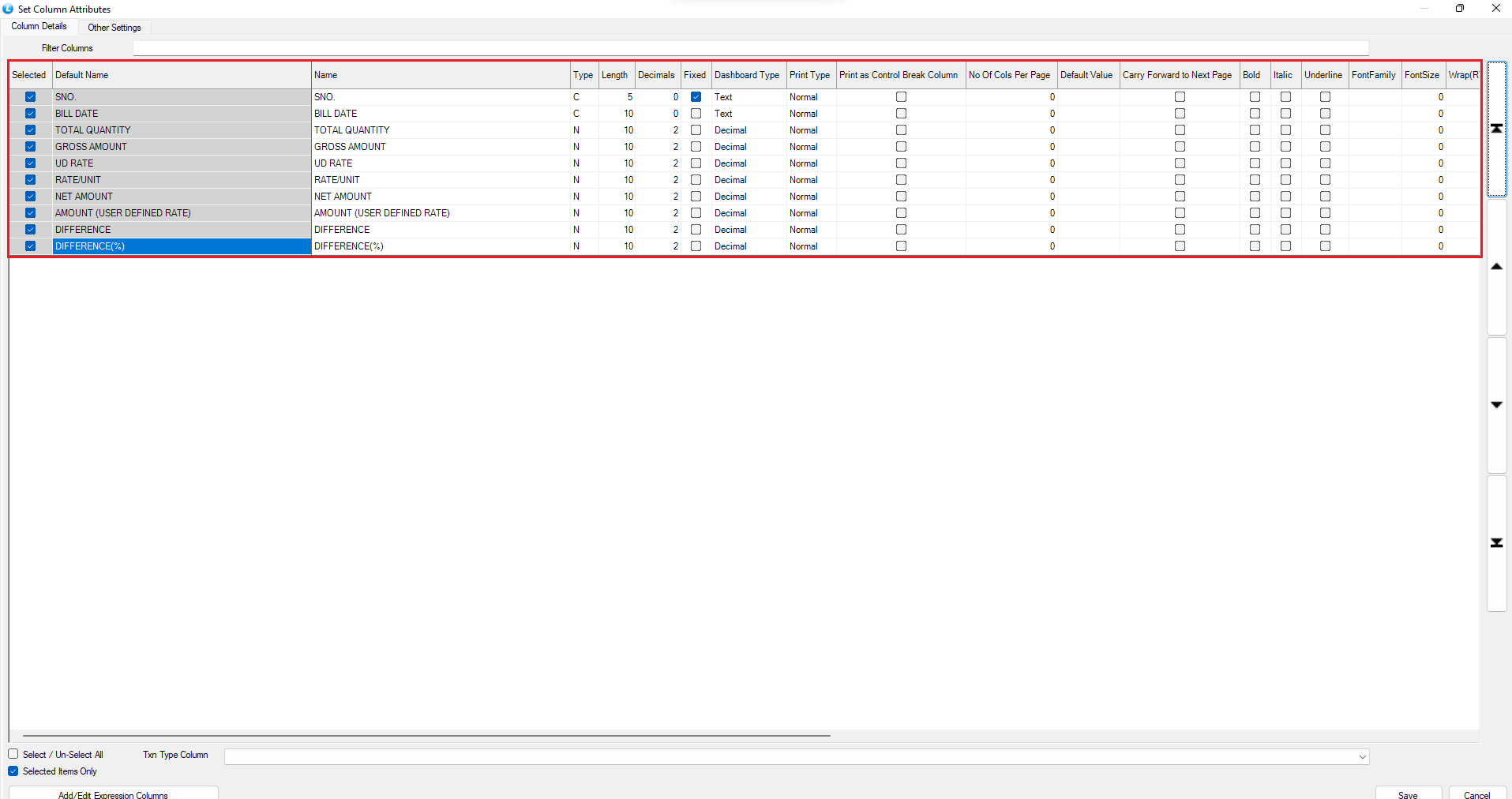
* Open **Setup Column Attributes**.
* Click **Unselect All Columns** to start fresh.
* Select only the required columns.
* Rename column titles by pressing the **Space Key**.
* Rearrange the column order using the **Arrow Keys**.
***
#### **Review the Day-Wise Profitability Report**
The generated report displays **Date-Wise Consolidated Profitability**, showing:
* Save the changes and press **F2** to refresh the report.
* Profit and loss values with corresponding percentages.
* **Red values** indicate a **loss**, while other values represent **profit**.
***
### **View Monthly or Quarterly Profitability**
* To change the view, press **F5** to open **Configuration**.
* Under **Other Options 1**, set **Period** to **Monthly** or **Quarterly** as required.
* Save and refresh to view the updated report.
***
### **Configure Item-Wise Profitability Report**
* Press **F5** to Re-Open the configuration window.
* Under **Report Consolidation**, enable **Item Details**.
* Under **Item Consolidation**, enable **Item Name** and move it to the top in the **Report Order** section.
* Also move **Item Details** to the top using the **Arrow Keys**.
* Configure whether the report should be displayed **Date-Wise** or **Monthly**.
* Save the configuration.
***
### **Display Item Name in Report Columns**
* Open **Setup Column Attributes**.
* Enable the **Item Name** column.
* Save and refresh the report.
***
### **Final Output**
The report now displays **Item-Wise Profitability** with detailed profit or loss amounts and percentage values — viewable by **date, month, or quarter**, as per your configuration.
---
# Agent Instructions
This documentation is published with GitBook. GitBook is the documentation platform designed so that both humans and AI agents can read, navigate, and reason over technical content effectively. Learn more at gitbook.com.
## Querying This Documentation
If you need additional information that is not directly available in this page, you can query the documentation by asking a question.
Perform an HTTP GET request on the following URL with the `ask` and `goal` query parameters:
```
GET https://kb.logicerp.com/logic-erp-installation-configuration-and-troubleshooting-solutions/faqs/reports/generate-item-wise-date-wise-month-wise-profitability-report.md?ask=&goal=
```
`ask` is the immediate question: it should be specific, self-contained, and written in natural language.
`goal` is what the user is ultimately trying to achieve, the reason they need the answer. Sharing it helps GitBook give you a better, more relevant answer. A goal is most helpful when it describes the outcome the user wants rather than restating the question. For example, with `ask=how do I create an API token`, a goal like `automate deployments from our CI pipeline` lets GitBook tailor the answer to that use case.
The response will contain a direct answer to the question and relevant excerpts and sources from the documentation.
Use this mechanism when the answer is not explicitly present in the current page, you need clarification or additional context, or you want to retrieve related documentation sections.