> For the complete documentation index, see [llms.txt](https://kb.logicerp.com/llms.txt). Markdown versions of documentation pages are available by appending `.md` to page URLs; this page is available as [Markdown](https://kb.logicerp.com/logic-erp-installation-configuration-and-troubleshooting-solutions/faqs/production/mill-dyeing-process-from-grey-fabric-to-finished-fabric.md).
# Mill Dyeing Process from Grey Fabric to Finished Fabric
**YouTube:** [How to Configure Mill Dyeing Process from Grey Fabric to Finished Fabric?](https://www.youtube.com/watch?v=Ks8oWV5rJQI)
## How to Configure Mill Dyeing Process from Grey Fabric to Finished Fabric?
In this tutorial, we will walk you through the complete **Mill Production Process Flow in Logic ERP**, explaining each stage—from **master configuration** to **finished fabric receipt and cost finalization**.
***
### Overview of Pre-Configured Masters
Before starting the mill production process, ensure the following masters are already configured in the system. These master's will be used throughout the entire workflow.
***
### Mill Ledger Setup
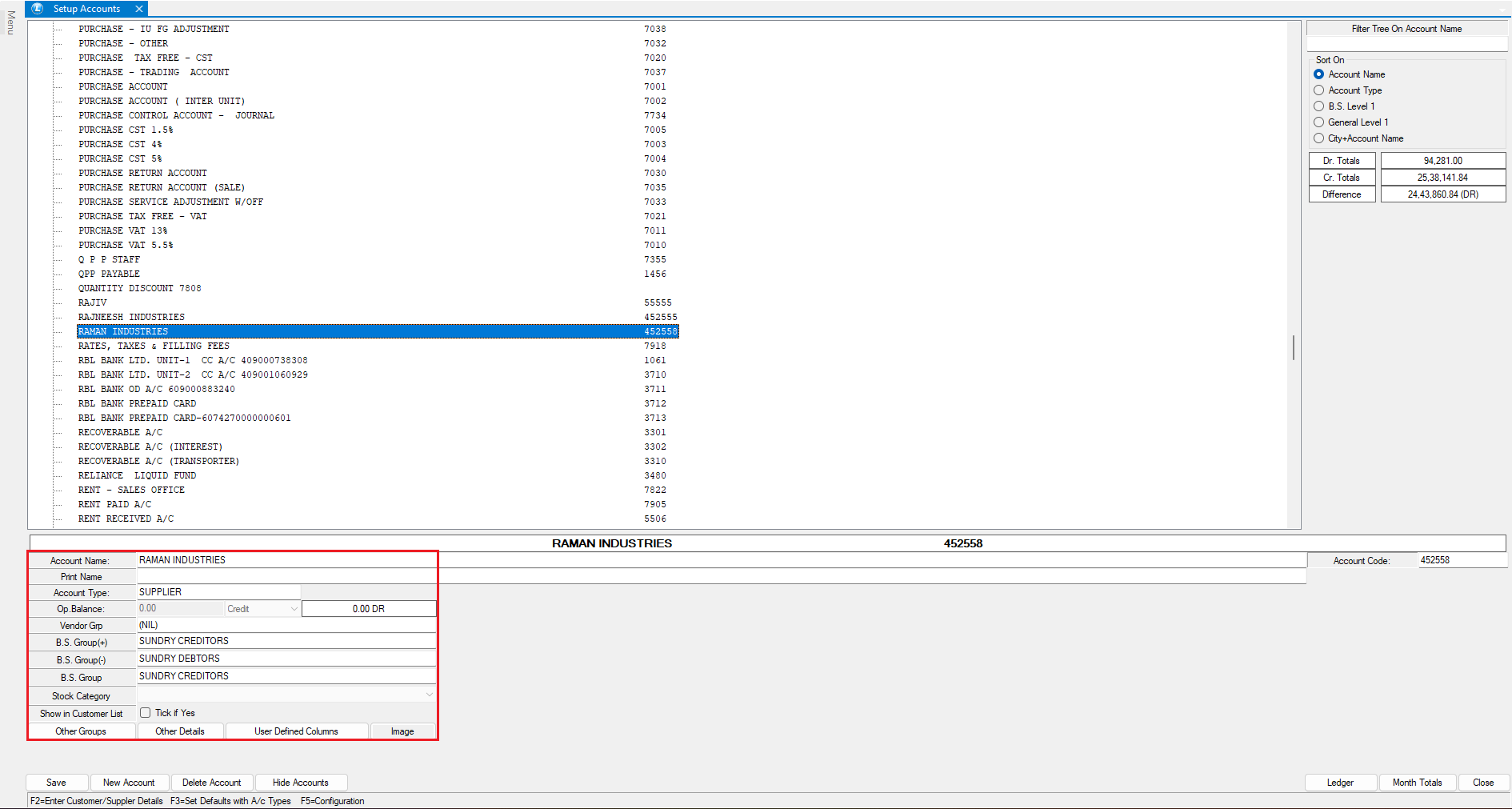
* Navigate to **Setup → New Account Module**
* Create the required **Mill Ledgers**
* These ledgers are used for **issuing stock to mills during production**
Item Master Configuration (Multiple Pack Sizes)
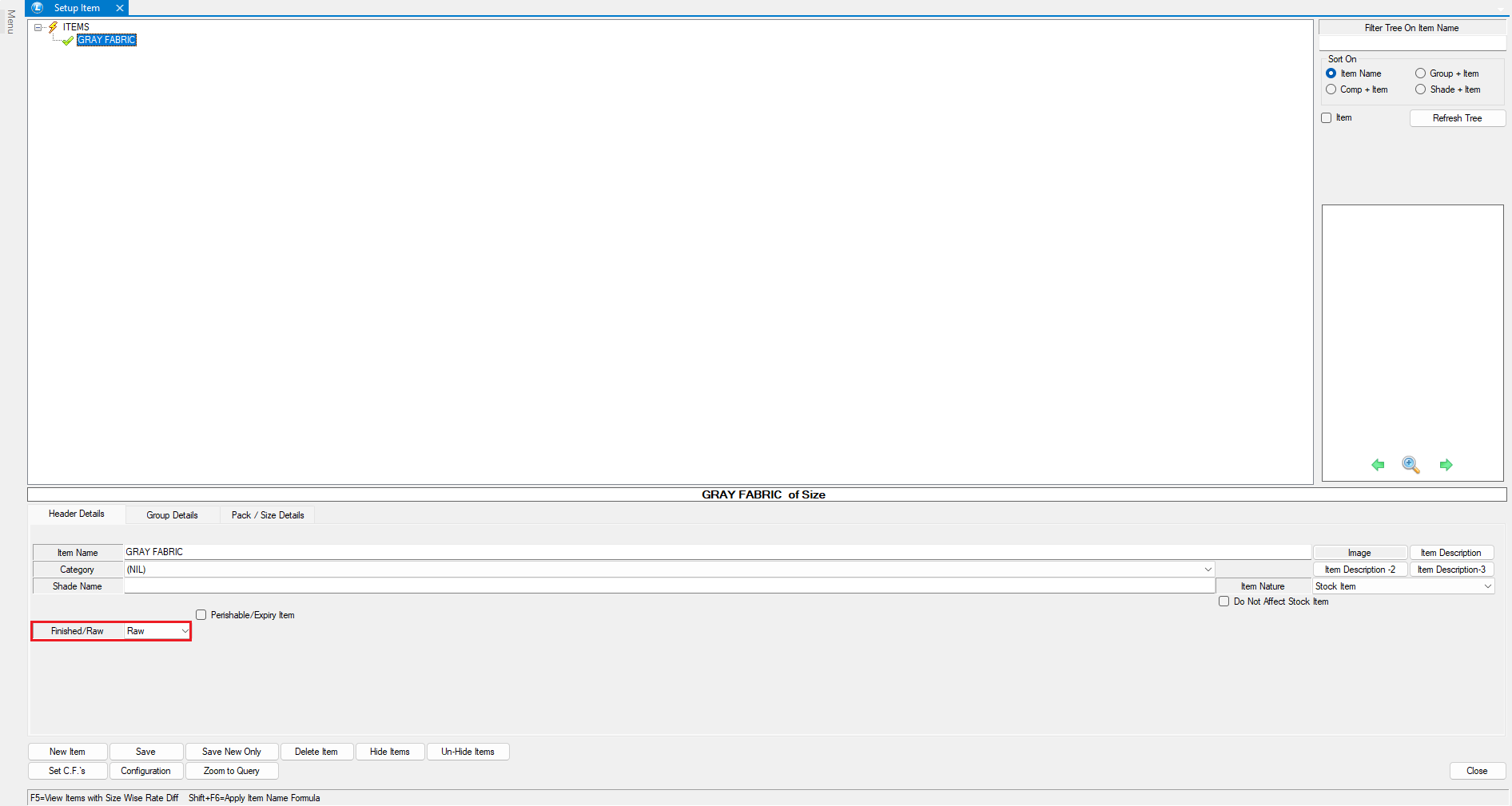
* Go to **Setup → Items → Multiple Pack Sizes**
* Create the following items:
**Raw Material**
* **Grey Fabric**
* Treated as raw material
* Issued for further processes such as **Dyeing** and **Bleaching**
**Finished Goods**
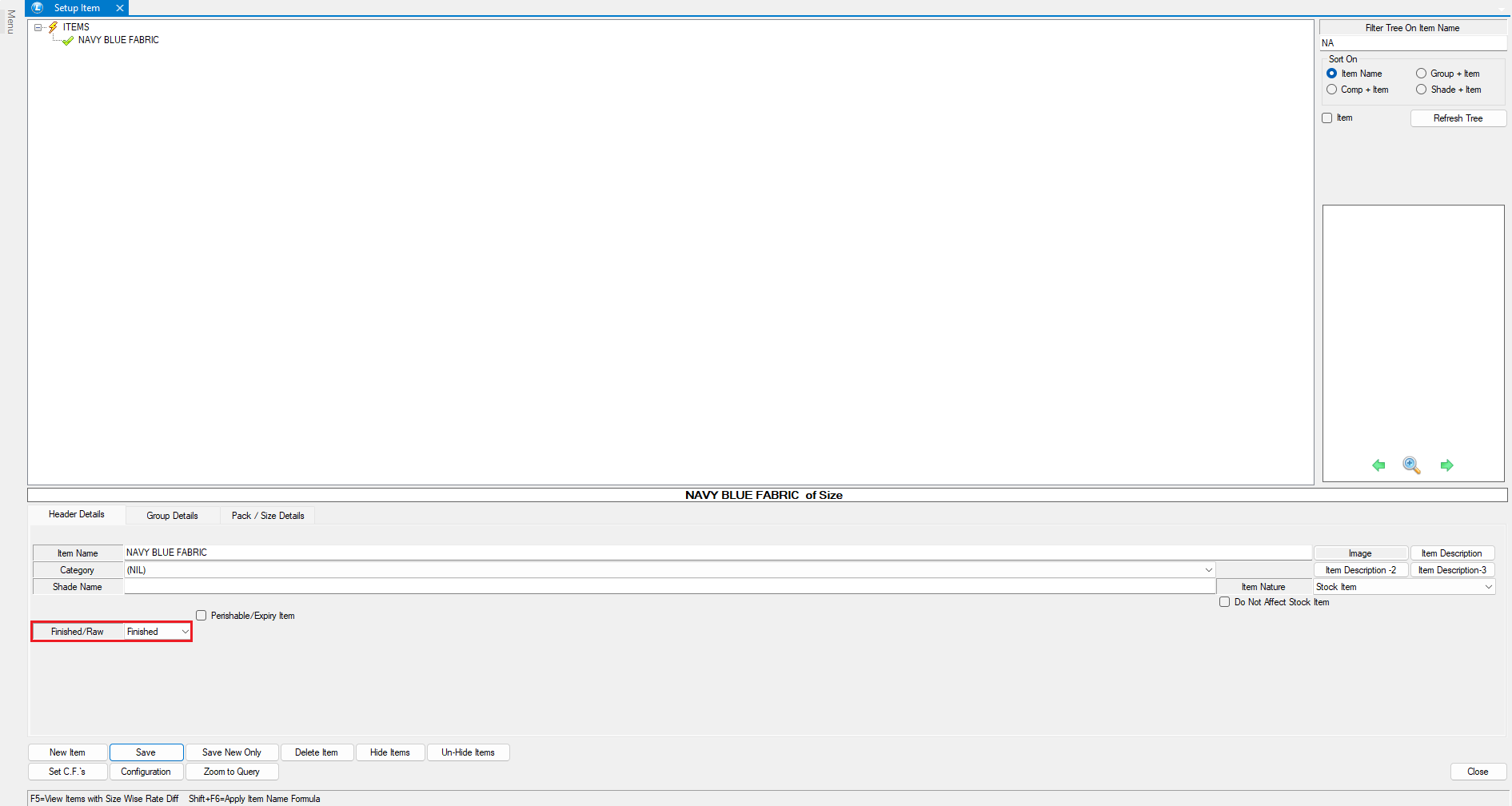
* **Blue Fabric**
* **Navy Blue Fabric**
* Represent final output after mill processing
**Godown (Warehouse) Setup**
* Navigate to **Setup → Godown**
* Create multiple **Mill Godowns**
* These godowns are used for:
* Material movement
* Proper inventory tracking
* Process-wise stock control
***
### Creating the Purchase Order (Raw Material Procurement)
* Go to **Purchase Order Module**
* Enter:
* Supplier Name
* Item (Grey Fabric)
* Quantity (generally ordered in bulk)
* Rate
* Save the **Purchase Order**
***
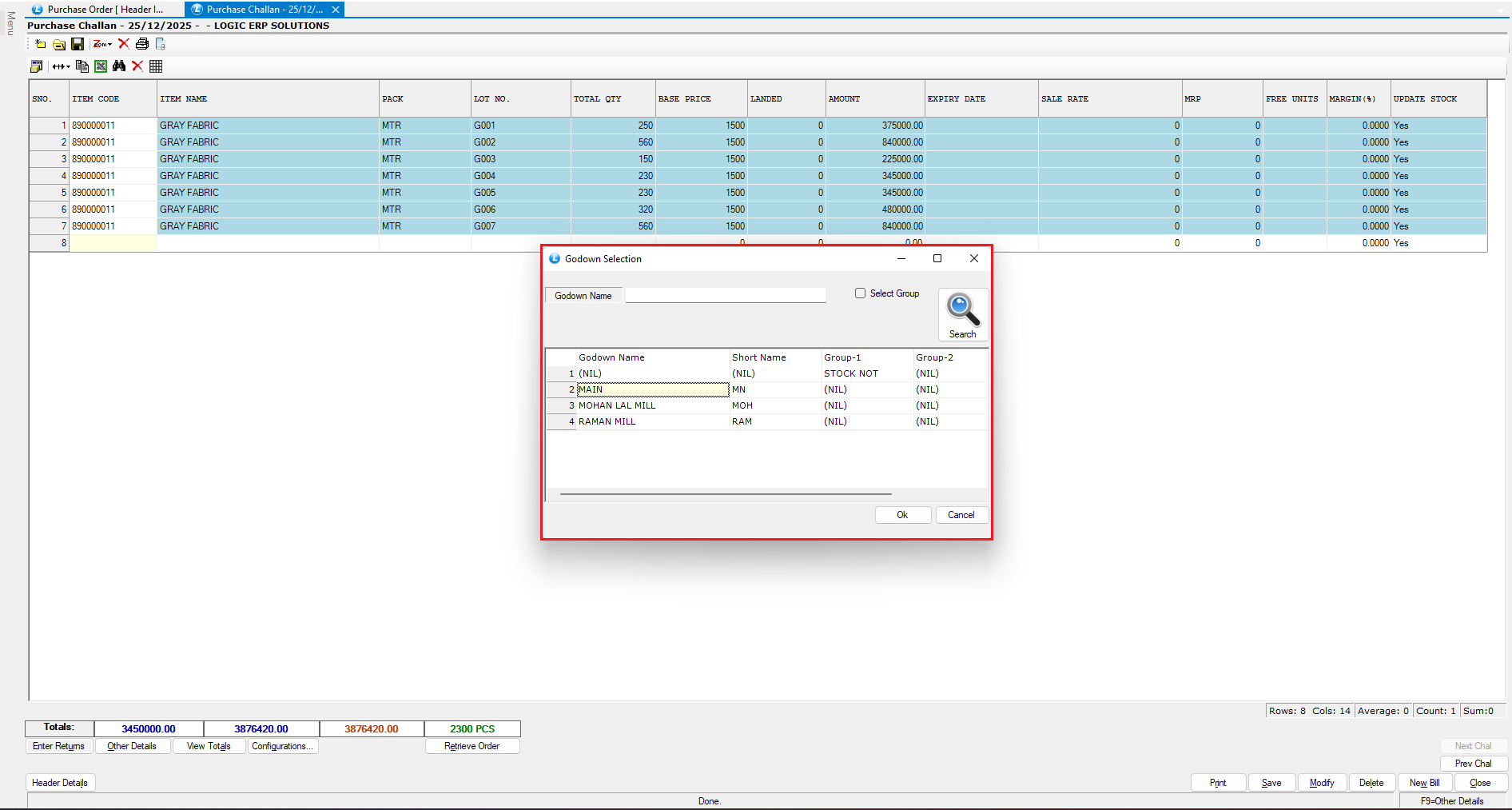
### Purchase Chalan (Purchase Inward with Lot Tracking)
**Configuration Check**
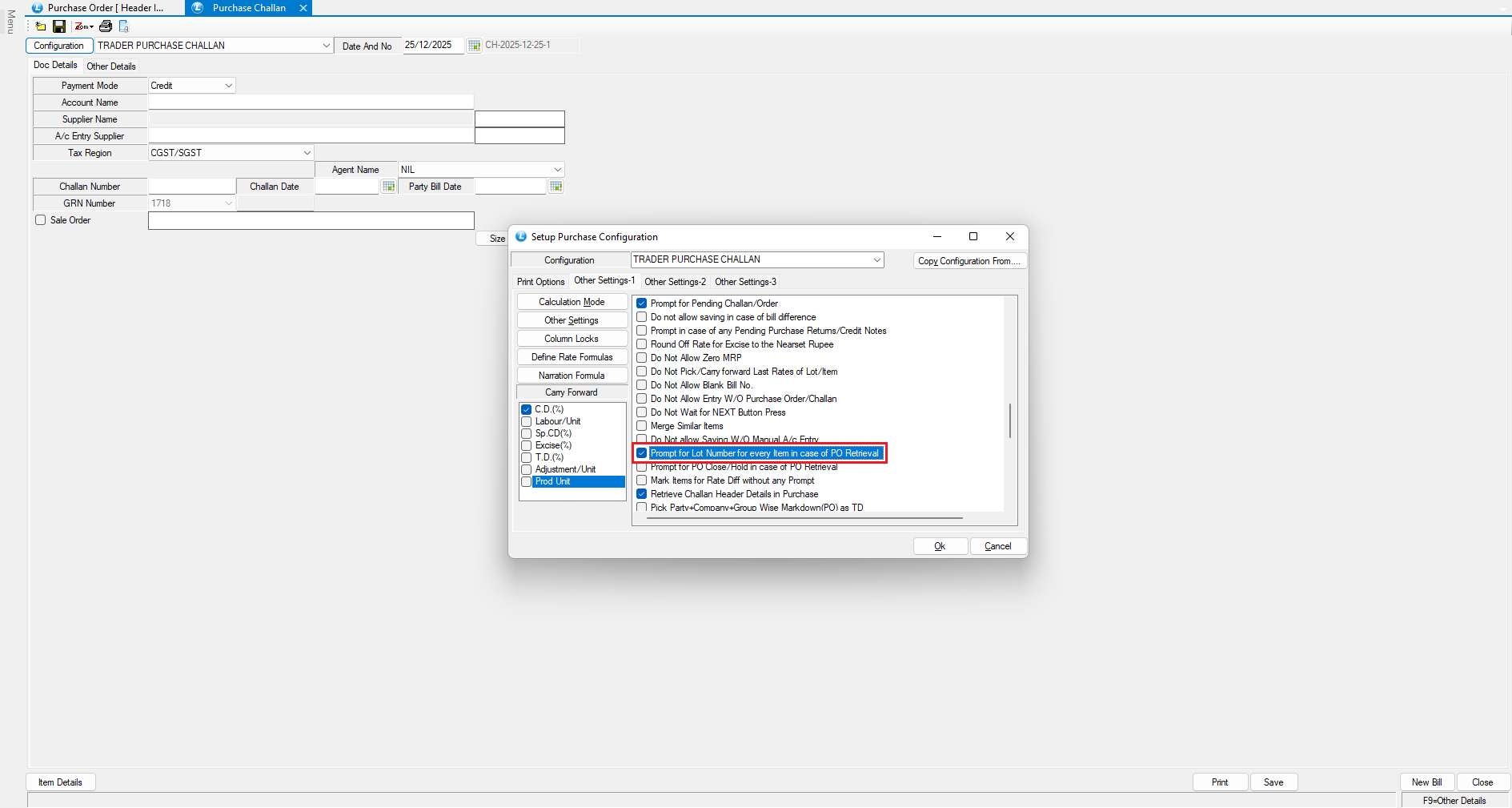
Before creating the purchase chalan:
* Open **Configuration Settings**
* Enable:
* **“Prompt for Lot Number for Every Item during PO Retrieval”**
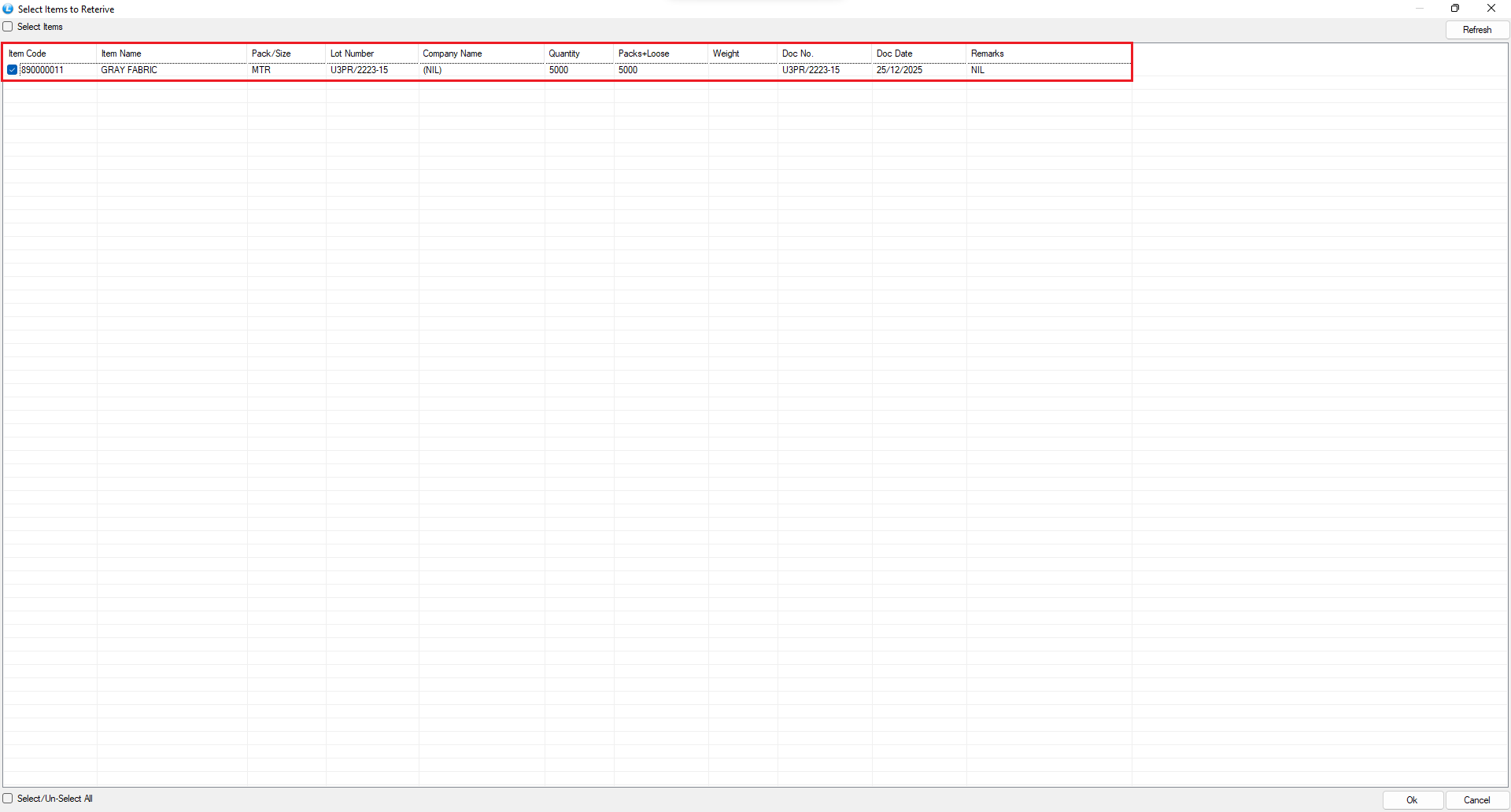
**Retrieve Purchase Order**
* Select Supplier
* Click **Retrieve Order**
* Choose **Purchase Order Delivery Note**
* Select the relevant Purchase Order and click **OK**
* Select the item and proceed
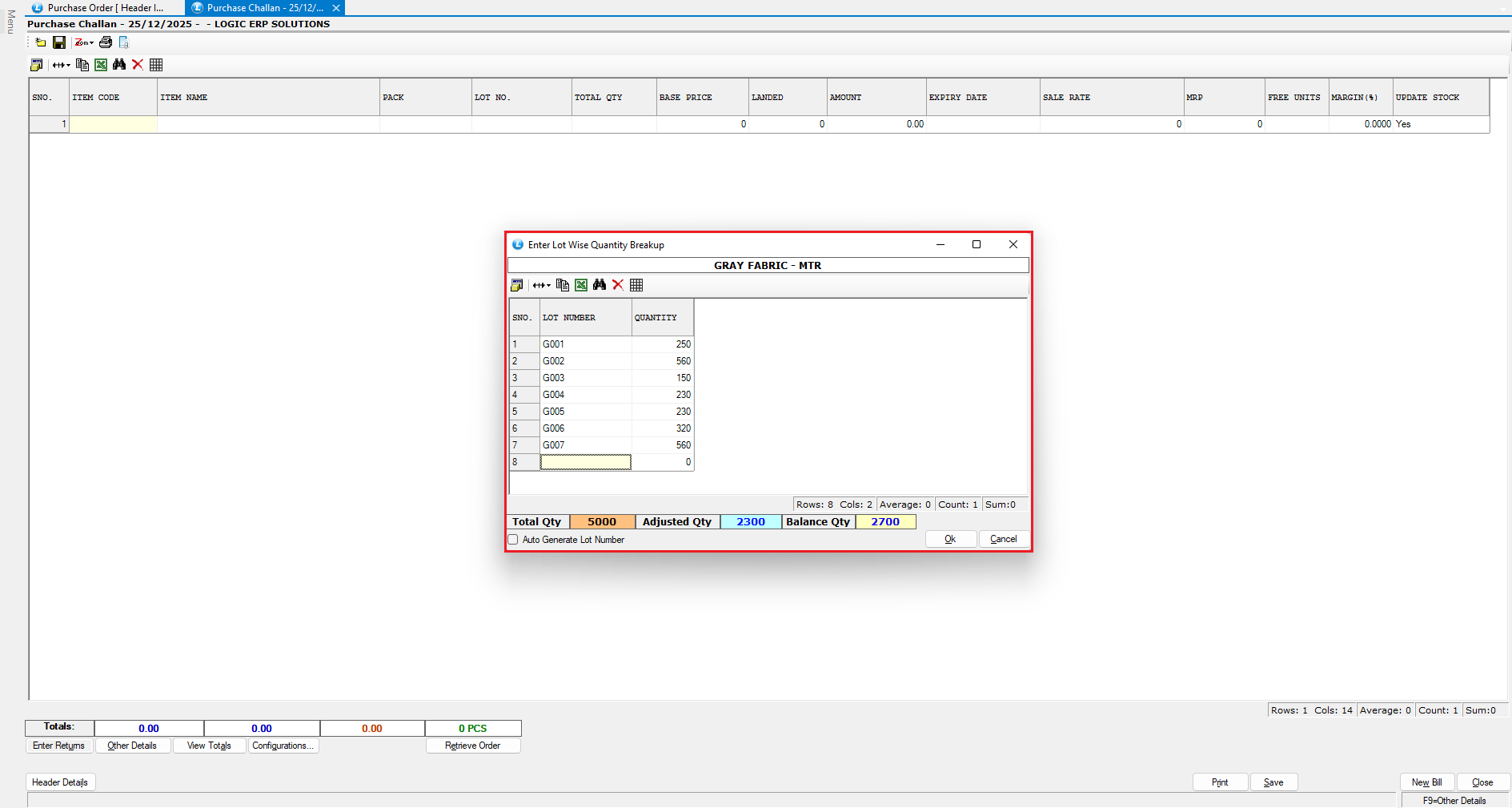
**Lot-Wise Entry**
* The **Lot-wise Quantity Breakup Window** opens
* Enter details provided by the supplier:
* Lot Number
* Bale / Taka Number
* Quantity per lot
*Note:* Bulk fabric is often supplied in multiple lots, bales, or takas, and each must be recorded separately.
**Save Purchase Chalan**
* Verify all lot-wise entries
* Select the appropriate **Godown**
* Save the document
***
### Stock Transfer to Mill for Processing
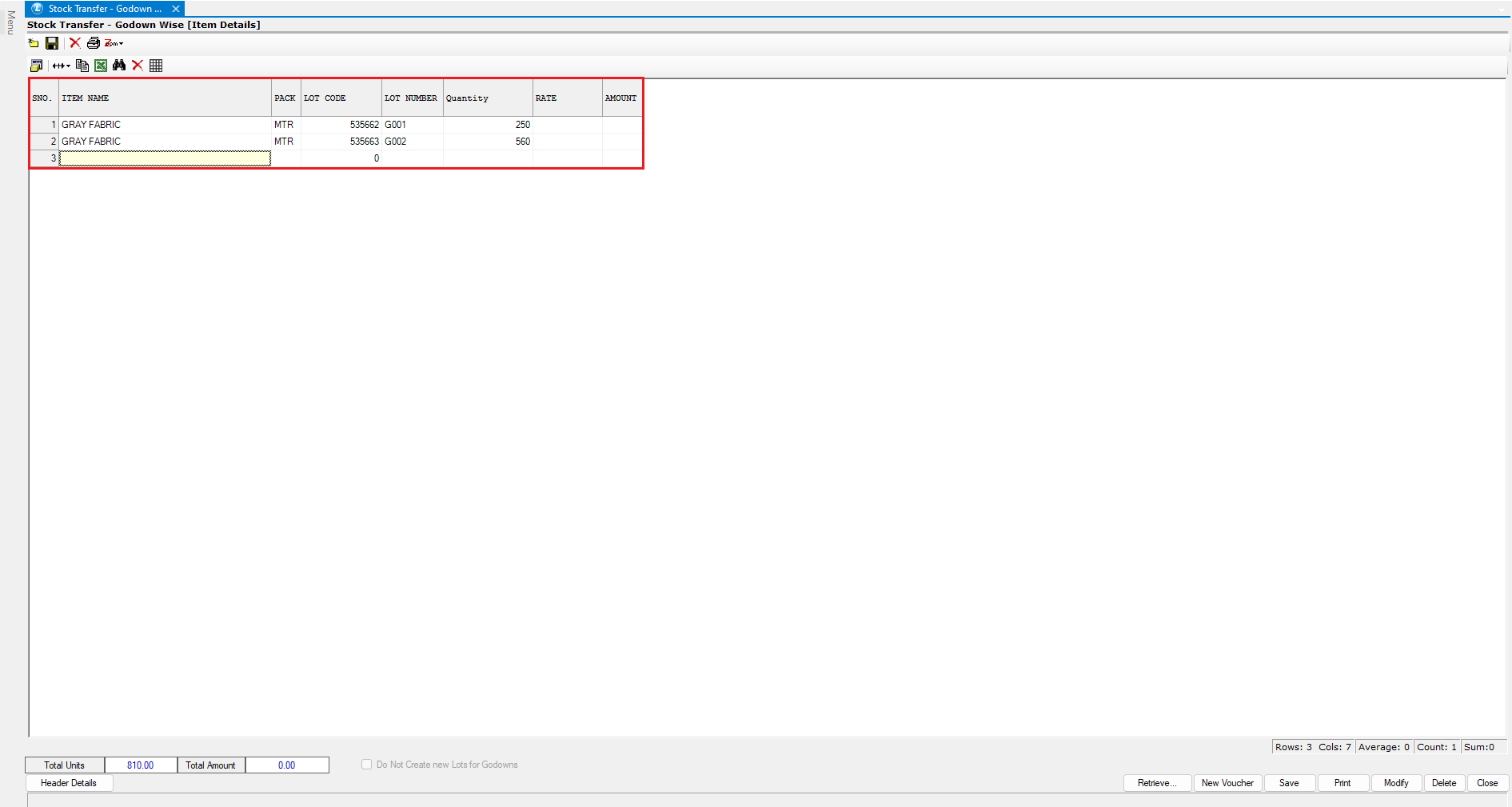
* Go to **Stock Transfer - Godown-Wise**
* Select:
* Mill Ledger
* Source Godown
* Destination (Mill) Godown
* Enter:
* Grey Fabric details
* Lot / Bale / Taka number
* Quantity to be issued
* Save the stock transfer
This completes the **material issue to the mill** for dyeing or bleaching.
***
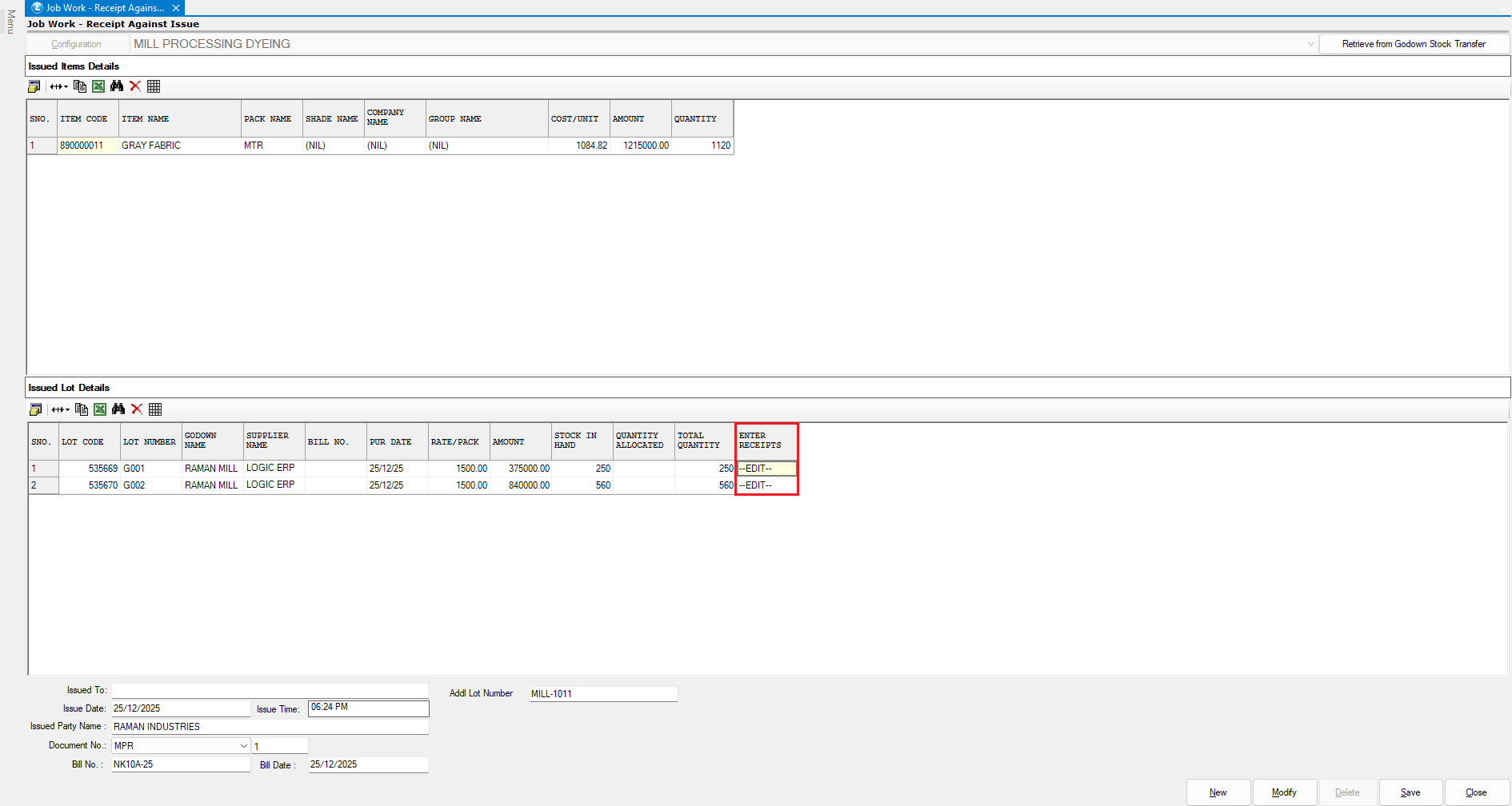
### Job Work Received Against Issue (Mill Processing Receipt)
**Configuration Setup**
Before recording receipt:
* Open **Job Work - Received Against Issue**
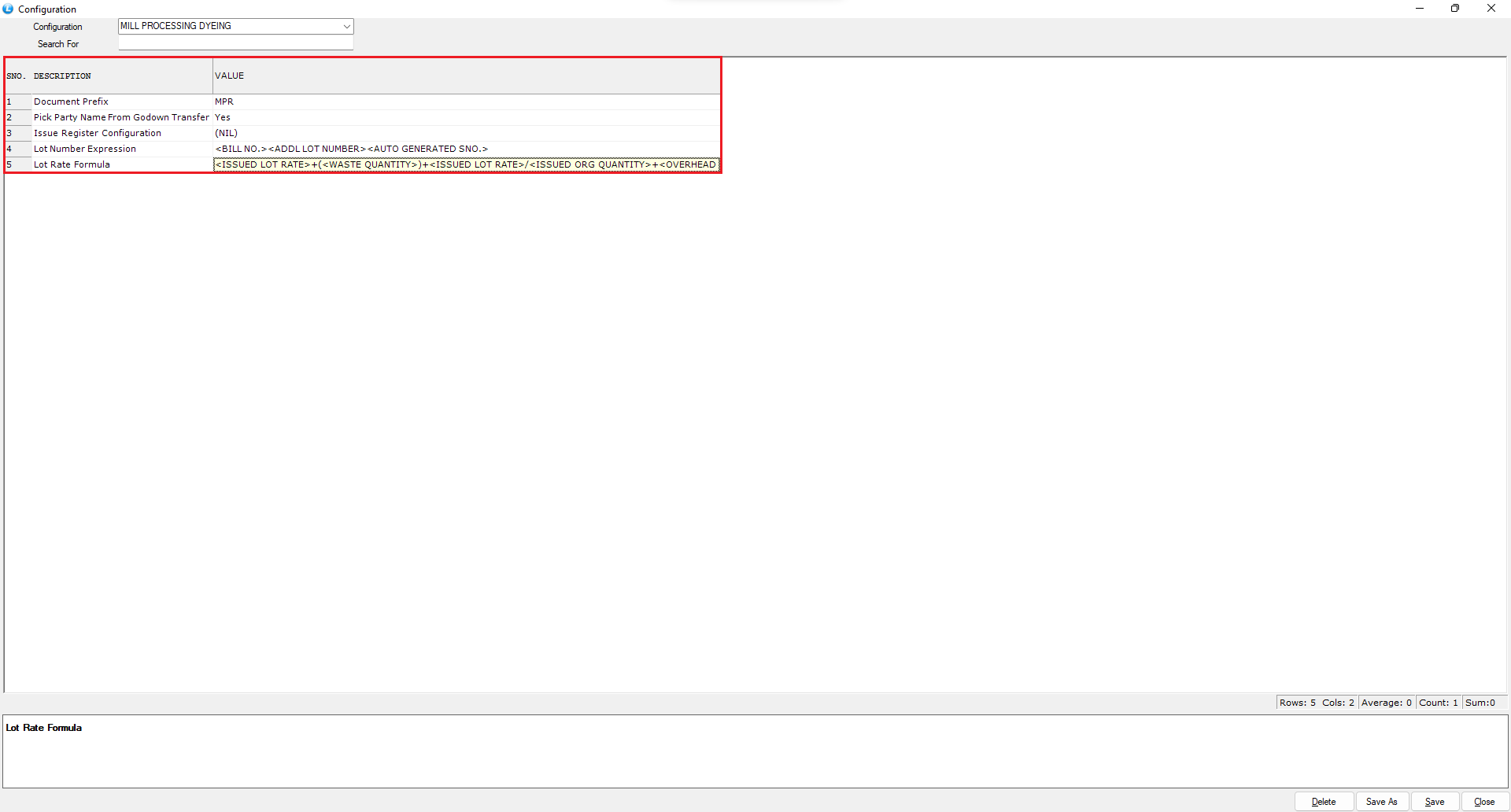
* Click on **Configuration**
* Define:
* **Lot Number Expression** (for automatic lot generation)
* **Lot Rate Formula** (for accurate process-wise costing)
**Retrieve Stock Transfer**
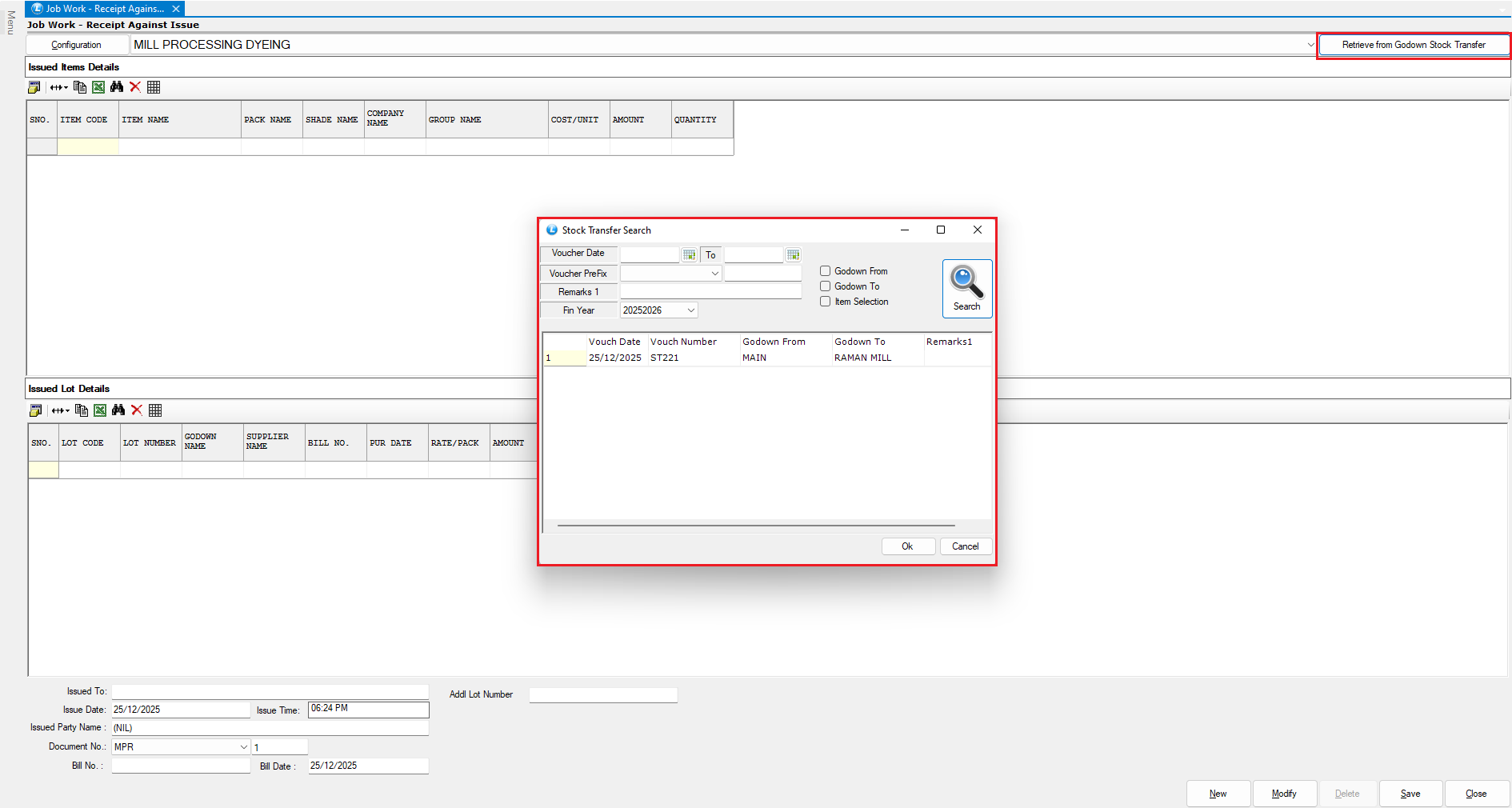
* Click **Retrieve from Godown Stock Transfer**
* Select the relevant transfer document
* The issued details are auto populated:
* Issued Item Details (Grey Fabric)
* Lot-wise issued quantity
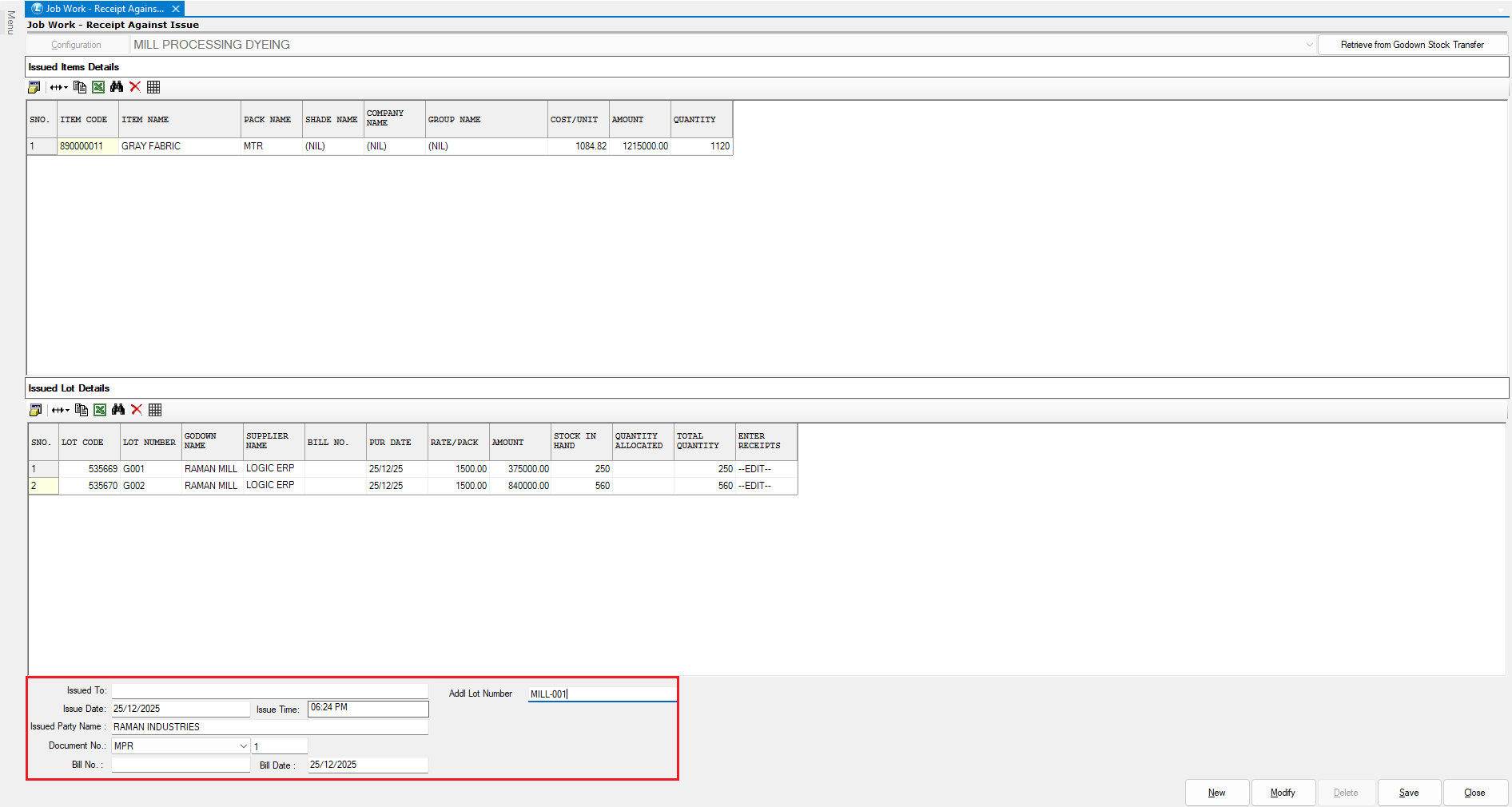
**Enter Receipt Details**
* Enter:
* Bill Number
* Additional Lot Number
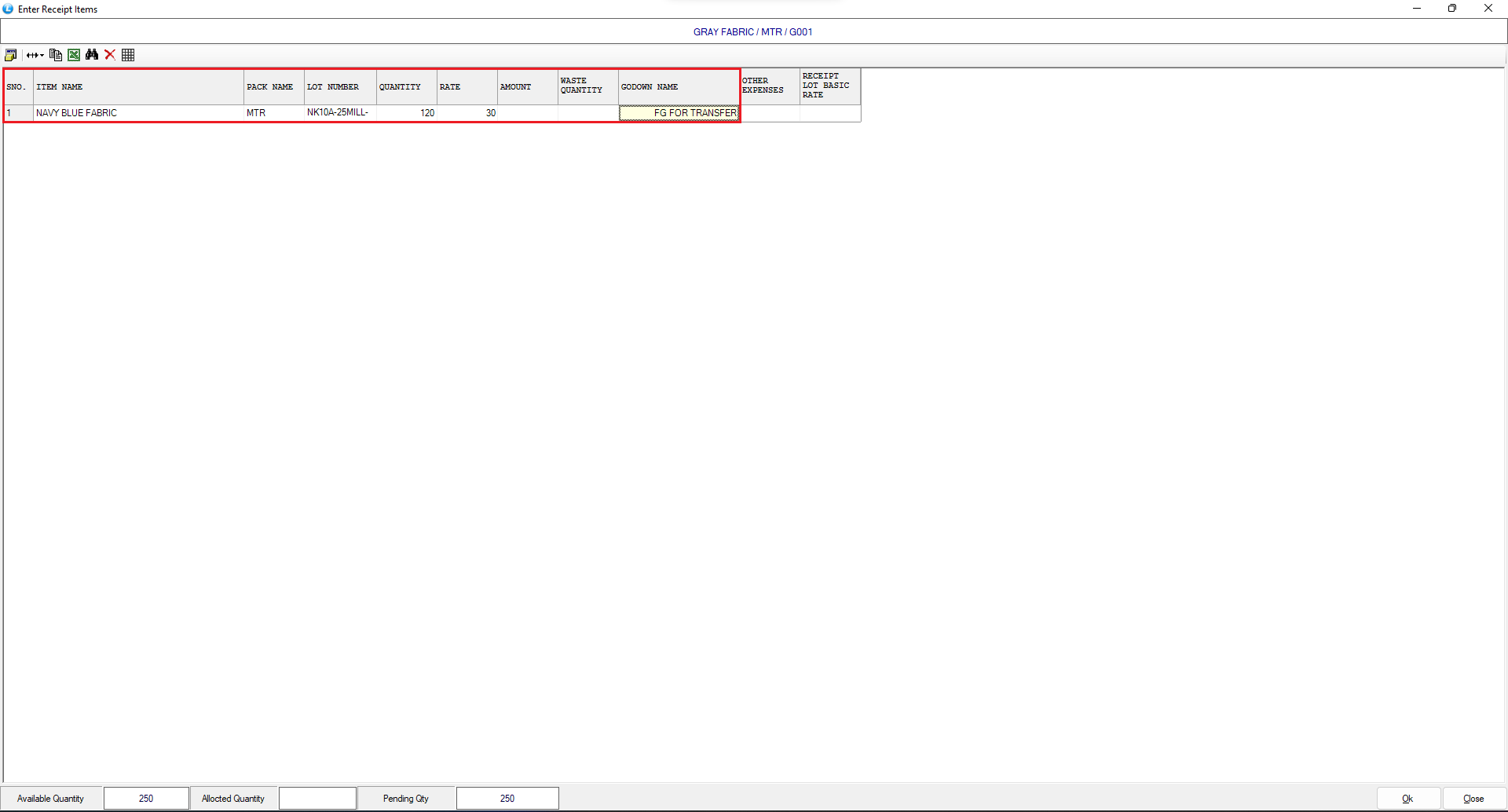
* Click **Edit** under the *Received* option
**For each lot, enter:**
* Finished Item Name
* Received Quantity
* Processing Rate
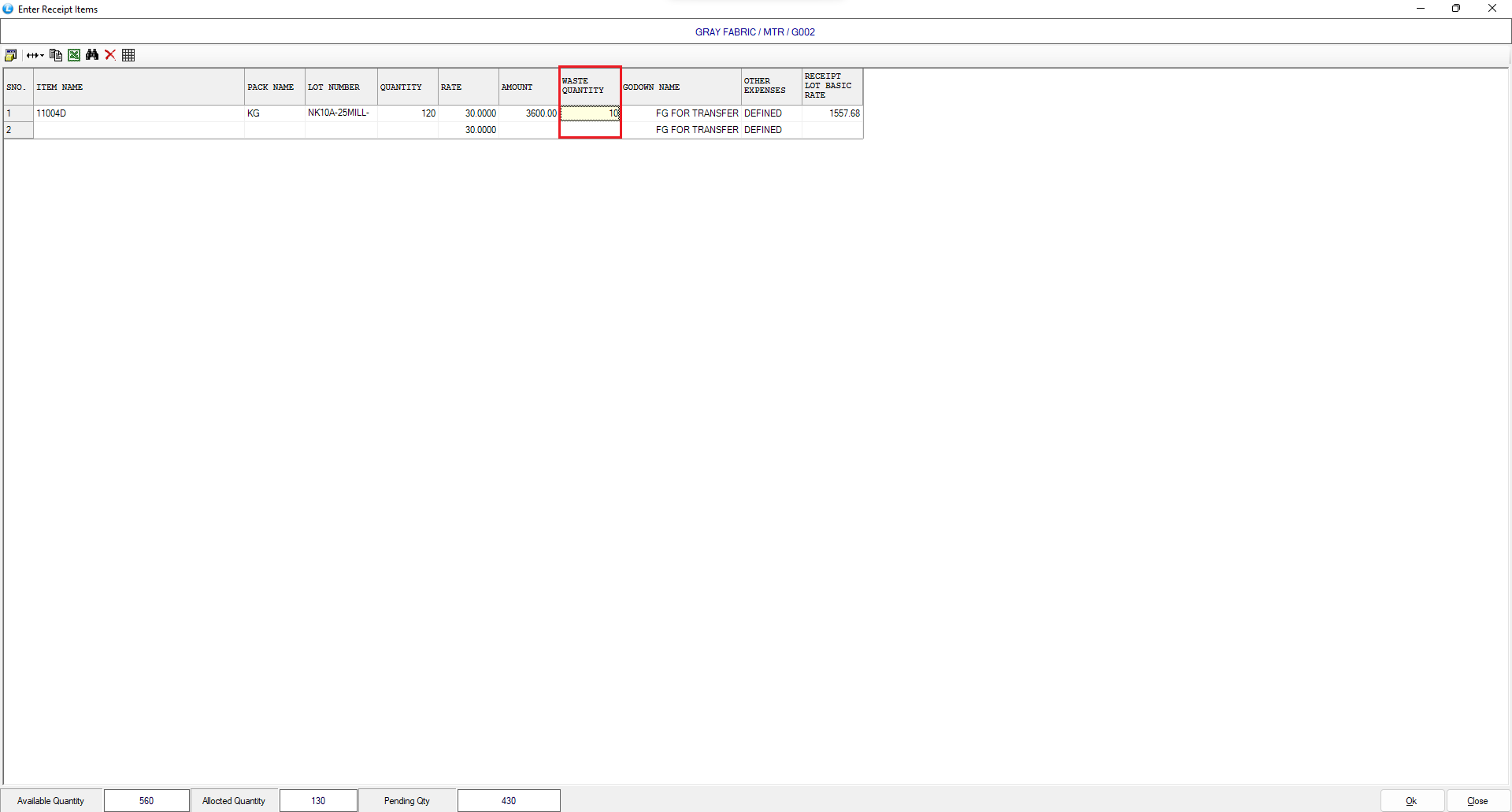
* Waste Quantity (if any)
* Godown for storing received stock
***Note**:*
* Lot numbers for finished items are **auto generated** based on configuration.
* The **Rate Pack** column displays the original purchase rate.
***
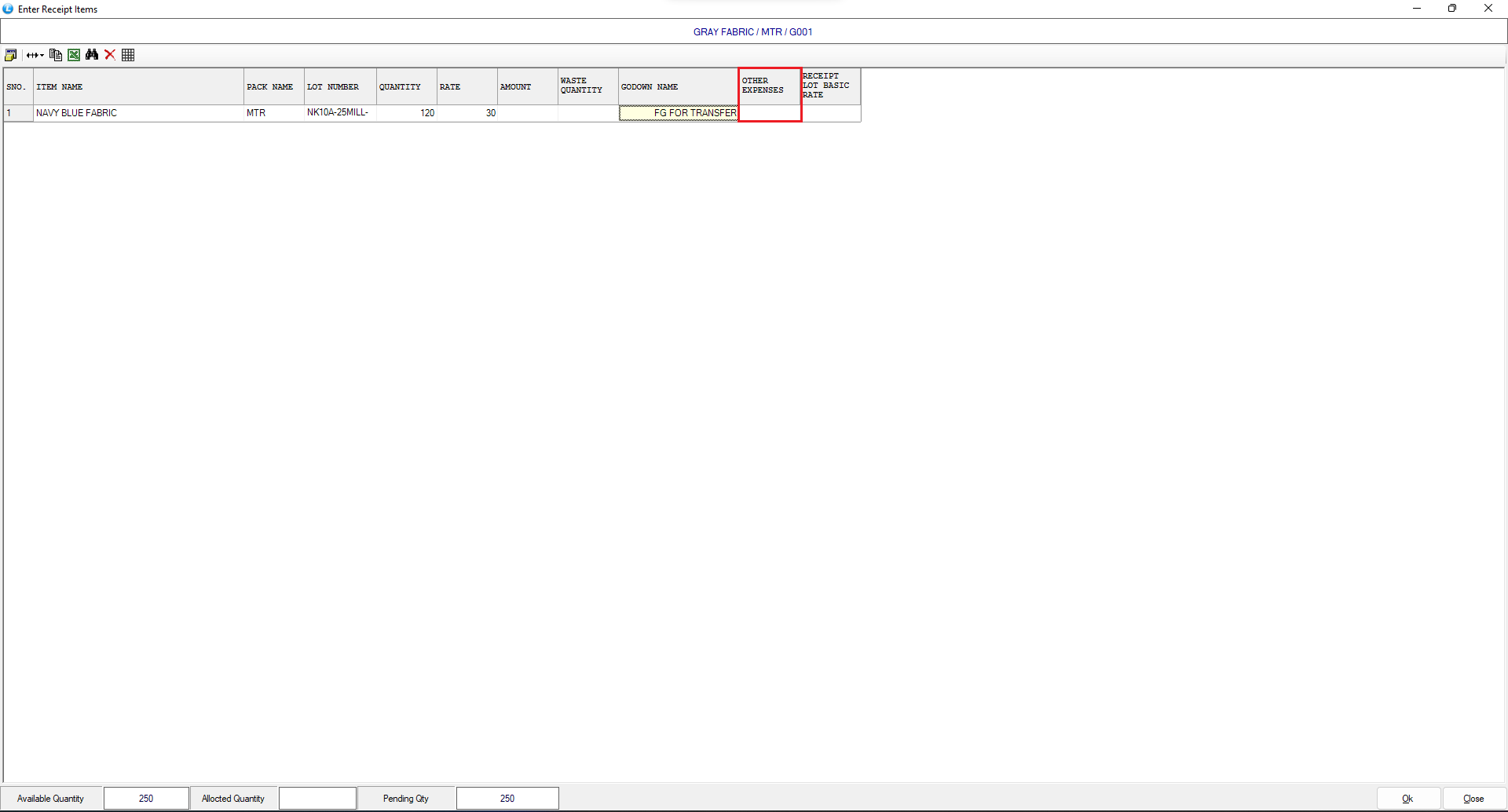
### Recording Additional Expenses
* Use the **Other Expense** column to record extra costs
* Press **Space Bar** to open **Assembly Expense Details**
* Select or create expense heads from:
* **Setup → Assembly Expense Module**
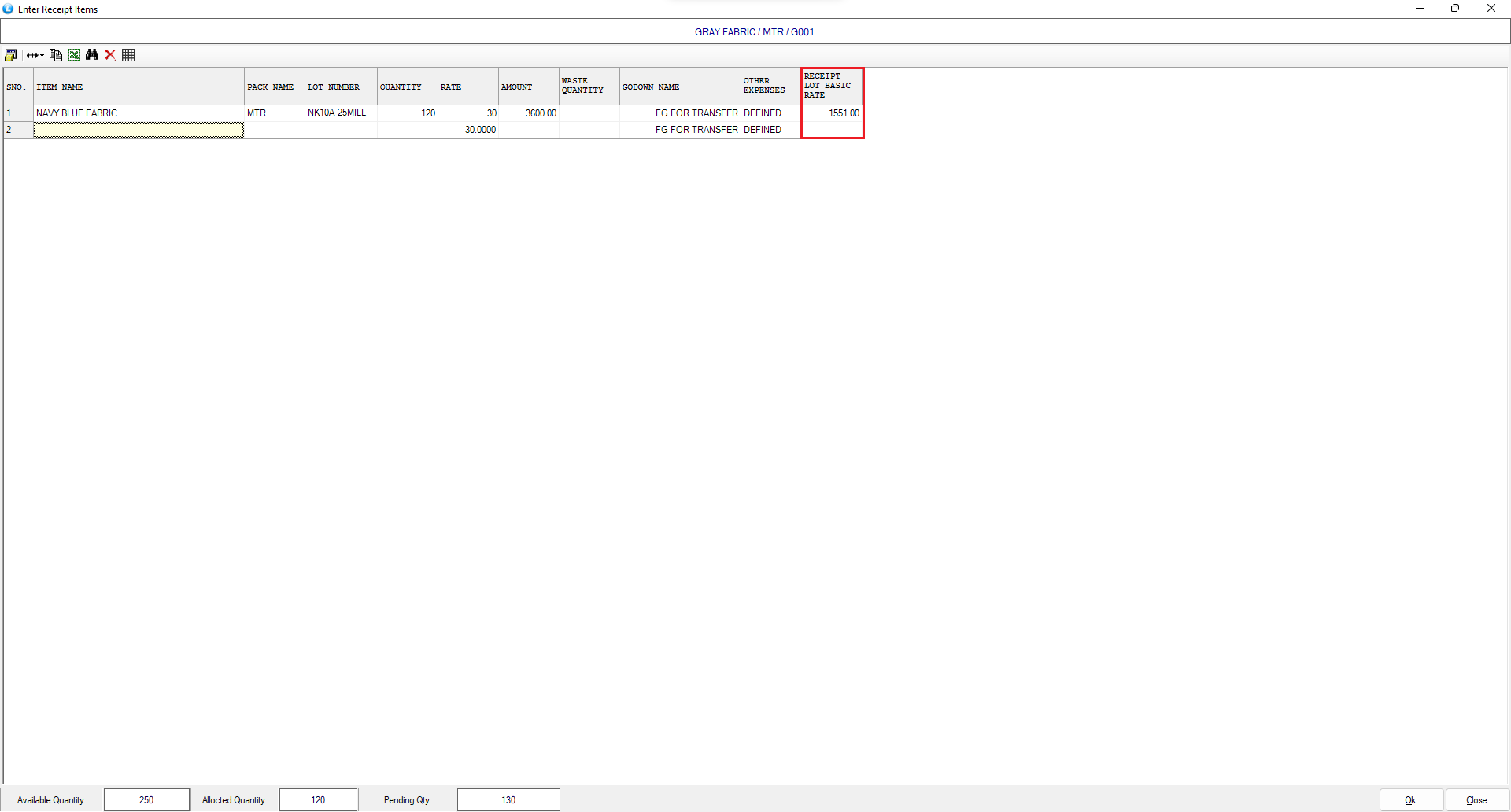
**Once added:**
* The **Basic Rate** of the received lot is automatically recalculated
* Final per-unit cost is updated accurately
***
### Waste / Shrinkage Handling
* Enter wastage or shrinkage quantity (e.g., 10 meters)
* Example:
* Issued Quantity: 180 meters
* Waste: 10 meters
* Net Received: 170 meters
**Result:**
* Basic rate increases due to wastage allocation
* Example rate change:
* Before wastage: ₹191.50
* After wastage: ₹199.83
***
### Finalizing the Receipt
* Repeat the same process for remaining lots
* Lastly, Define **Issue To.**
* Save the **Job Work Received Against Issue** document
* The receipt is now successfully recorded
***
### Reports & Verification
**Job Work Received Against Issue Report**
* View job-order-wise issue vs receipt details
* You can also view "**Stock Query Report"** to Monitor real-time stock availability
***
### Final Cost Verification (Overwrite Lot Rate)
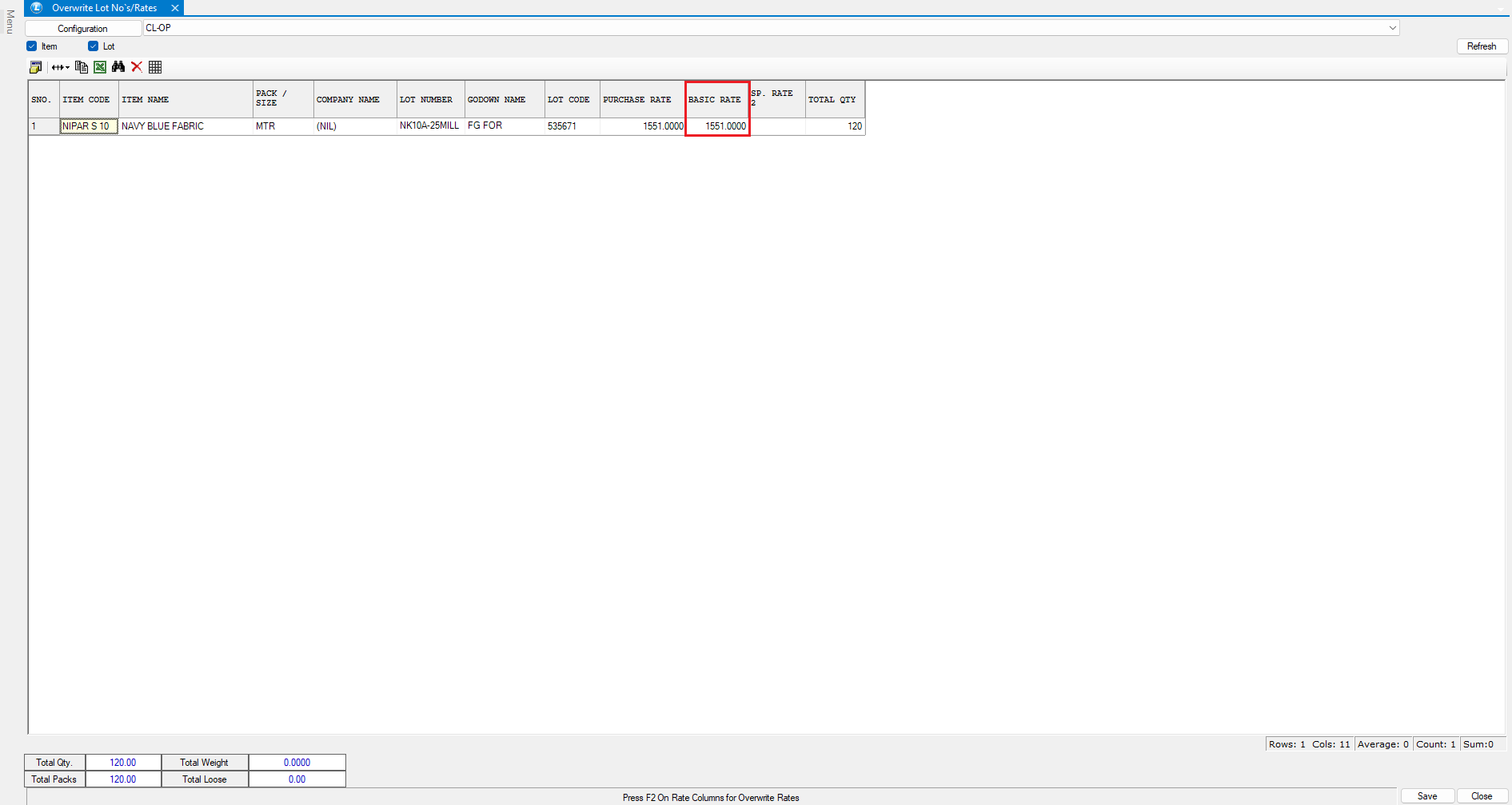
* Go to **Overwrite** **Lot Numbers Rate Module**
* Select the finished fabric item
* Click **Refresh**
The finalized basic rate of the finished fabric is now updated in the system after dyeing and bleaching.
***
### Conclusion
This completes the **end-to-end mill production process flow in Logic ERP**, covering procurement, lot tracking, mill issue, job work receipt, wastage handling, and final cost calculation with full inventory control.
---
# Agent Instructions
This documentation is published with GitBook. GitBook is the documentation platform designed so that both humans and AI agents can read, navigate, and reason over technical content effectively. Learn more at gitbook.com.
## Querying This Documentation
If you need additional information that is not directly available in this page, you can query the documentation dynamically by asking a question.
Perform an HTTP GET request on the current page URL with the `ask` query parameter, and the optional `goal` query parameter:
```
GET https://kb.logicerp.com/logic-erp-installation-configuration-and-troubleshooting-solutions/faqs/production/mill-dyeing-process-from-grey-fabric-to-finished-fabric.md?ask=&goal=
```
`ask` is the immediate question: it should be specific, self-contained, and written in natural language.
`goal` is optional and describes the broader end goal you are ultimately trying to accomplish on behalf of the user. GitBook uses it to tailor the answer towards what is most useful for that goal.
The response will contain a direct answer to the question and relevant excerpts and sources from the documentation.
Use this mechanism when the answer is not explicitly present in the current page, you need clarification or additional context, or you want to retrieve related documentation sections.




%20New.png?alt=media&token=c7dc36dd-f8cb-4e53-a15f-b79701c8bcce)