> For the complete documentation index, see [llms.txt](https://kb.logicerp.com/llms.txt). Markdown versions of documentation pages are available by appending `.md` to page URLs; this page is available as [Markdown](https://kb.logicerp.com/logic-erp-installation-configuration-and-troubleshooting-solutions/faqs/production/add-finished-goods-to-stock-after-production.md).
# Add Finished Goods to Stock After Production
**YouTube:** [How to Add Items to Stock After Production Is Completed?](https://www.youtube.com/watch?v=bjMmbhn7l-Q)
## How to Add Items to Stock After Production Is Completed?
In this tutorial, we will learn how to add **finished items into stock** after completing the entire production cycle in Logic ERP. All previous stages—**Cutting, Stitching, Embroidery, and Washing**—have already been completed. Now, we will move toward the final process: **Packing & Finishing and** then update the finished goods into stock.
***
### **Issue the Final Process (Packing & Finishing)**
* Navigate to the **Issue for Processing – Internal** module.
* Select the **Worker Name** assigned to the packing and finishing task.
* Click on **Process Selection** and choose **Packing & Finishing**.
* Select all required items (Double click on S.no to select all) and click **OK**.
* All items will be retrieved—**Save the document**.
***
### **Record Production Receipt After Finishing**
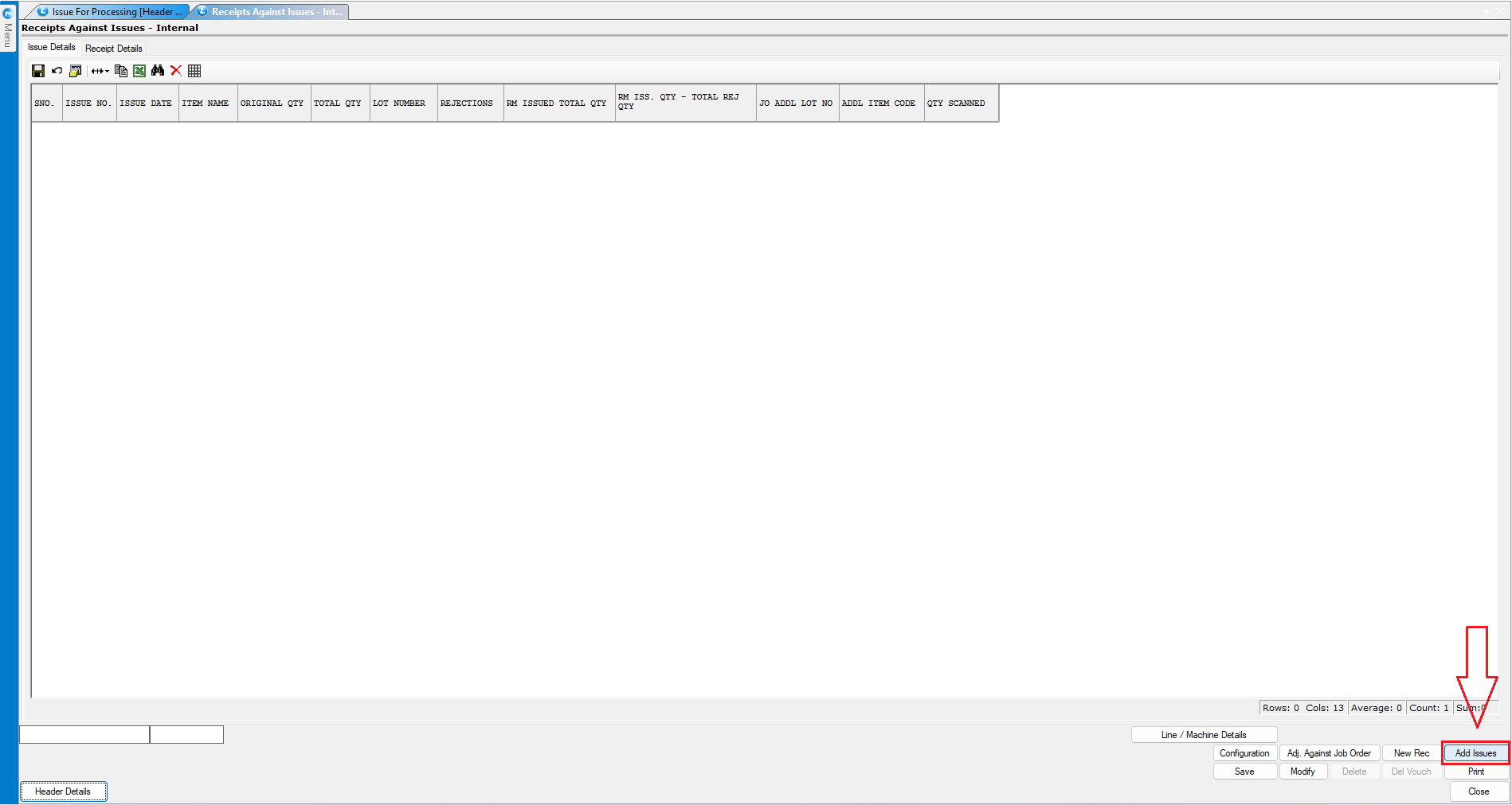
* Since the final process is done **in-house**, open the **Received Against Issue – Internal** module.
* (*If the final process is outsourced, use **Received Against Issue – External** instead.*)
* Select the **Worker** from whom the finished goods are being received.
* Choose the **Packing & Finishing** process.
* Click **Add Issues**
* Verify and select the items to proceed.
* Click **OK**.
***
### **Review Issued and Received Details**
* Under **Issue Details**, review all items previously issued for finishing.
* Under **Received Details**, check all items received after finishing.
* To record worker-related payroll information, press **Spacebar** on the **Payroll Details** field.
***
### **Add All Finished Items into Stock (Optional)**
* You will see an option **Add All in Stock**.
* Enabling this allows you to transfer all finished items into stock directly from this screen.
* However, for this tutorial, we will skip this step and update stock using the **Stock Received Production** module.
***
### **Update Stock Through Stock Received Production Module**
* Save the previous document and navigate to Inventory and open **"Stock Receipt - Production".**
* Select **In-House Production Account** to record finished goods received from internal production.
* In **Item Details**, click **Retrieve Order** and choose **Production Received – Scan Item Codes**.
* Select the **Production Receipt** you want to add to stock.
***
### **Scan and Verify Received Items**
* The **Scan Items for Production Received** window will appear, displaying all received items.
* Scan each item to verify its quantity.
* You can view:
* **Pending Quantity**
* **Scan Quantity**
* **Balance Quantity**
* After scanning all items, click **OK**.
* The scanned items will reflect accurately in the main item list.
* Review the final quantities displayed at the bottom of the screen.
* Once confirmed, **Save the document** to update all finished items into stock.
***
### **Verify Updated Stock in Reports**
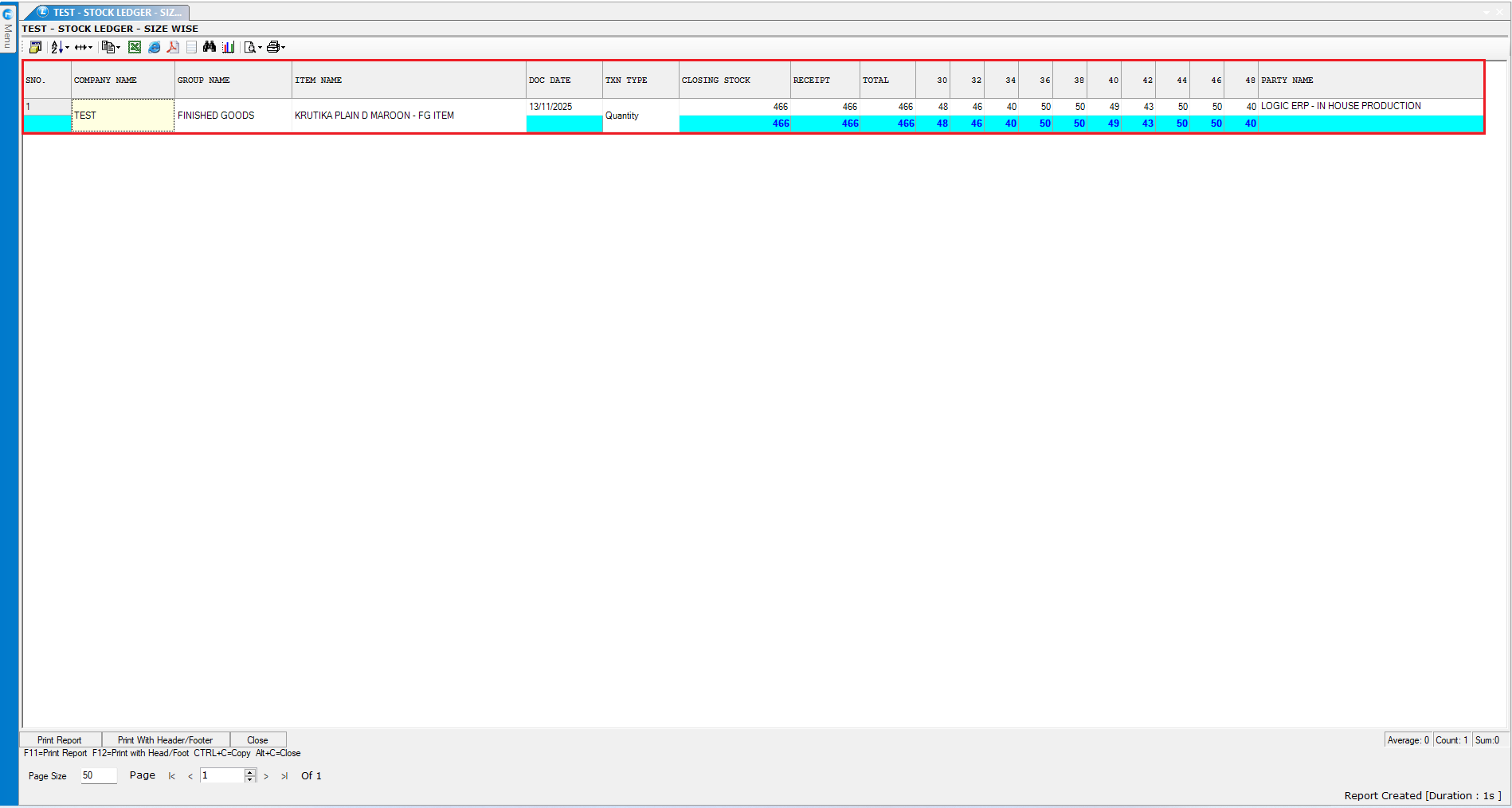
* Navigate to Reports/Queries\Stock Reports and then open **"Stock Ledger - Size Wise".**
* You will see that the finished items have been successfully added to inventory.
* Updated quantities will be visible for each item and size.
***
### **Conclusion**
By following these steps, you can efficiently record production receipts and update finished goods into stock after the final production stage. This ensures that your inventory always reflects accurate and up-to-date quantities.
---
# Agent Instructions
This documentation is published with GitBook. GitBook is the documentation platform designed so that both humans and AI agents can read, navigate, and reason over technical content effectively. Learn more at gitbook.com.
## Querying This Documentation
If you need additional information that is not directly available in this page, you can query the documentation dynamically by asking a question.
Perform an HTTP GET request on the current page URL with the `ask` query parameter, and the optional `goal` query parameter:
```
GET https://kb.logicerp.com/logic-erp-installation-configuration-and-troubleshooting-solutions/faqs/production/add-finished-goods-to-stock-after-production.md?ask=&goal=
```
`ask` is the immediate question: it should be specific, self-contained, and written in natural language.
`goal` is optional and describes the broader end goal you are ultimately trying to accomplish on behalf of the user. GitBook uses it to tailor the answer towards what is most useful for that goal.
The response will contain a direct answer to the question and relevant excerpts and sources from the documentation.
Use this mechanism when the answer is not explicitly present in the current page, you need clarification or additional context, or you want to retrieve related documentation sections.