> For the complete documentation index, see [llms.txt](https://kb.logicerp.com/llms.txt). Markdown versions of documentation pages are available by appending `.md` to page URLs; this page is available as [Markdown](https://kb.logicerp.com/logic-erp-installation-configuration-and-troubleshooting-solutions/faqs/production/generate-job-order-wise-rm-consumption-report.md).
# Generate Job Order–Wise RM Consumption Report
**YouTube:** [How to Generate Job Order- Wise Raw Material Consumption Report?](https://www.youtube.com/watch?v=2RyKd5Xmljo)
## How to Generate Job Order- Wise Raw Material Consumption Report?
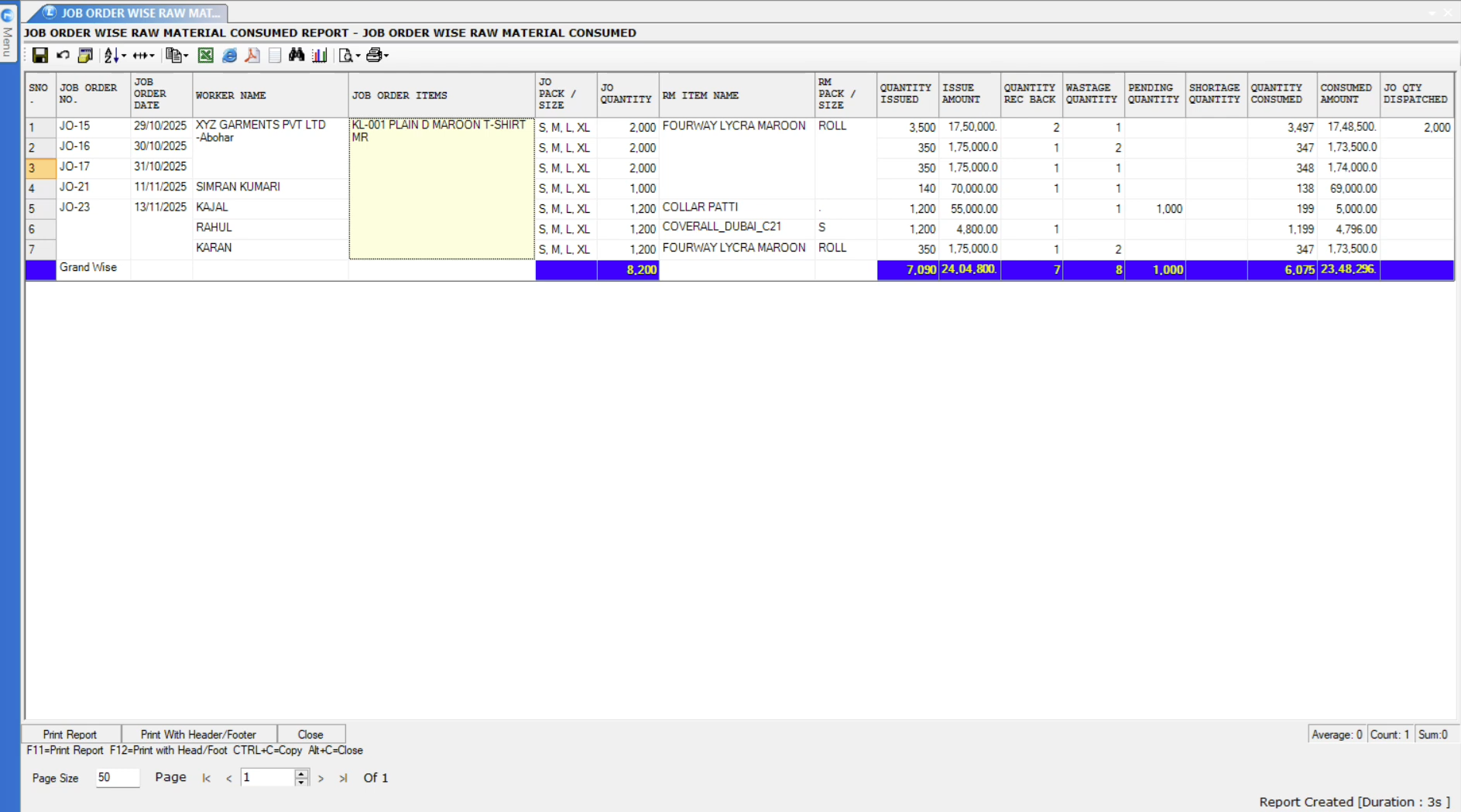
In this tutorial, we will walk you through the process of generating a **Job Order-Wise Raw Material Consumed Report** in Logic ERP. This report helps track raw material movement—from issuance to consumption—ensuring accuracy in production monitoring and inventory management.
***
### **Accessing Reports and Configuration**
* Navigate to Production\Production Reports/Queries\Production Raw Material Reports and then select **"Job Order Wise Raw Material Consumed".**
* Click **Configuration** to create a new report setup.
* Enter a **Report Configuration Name**.
***
### **Set Print Options**
* In the **Print Options** section:
* Enable **Grand Total** to display the overall total for the entire report.
***
### **Configuring Report Options**
* **Report Structure & Consolidation**
* Select the desired **Report Type** to control how data is organized.
* Choose the **Basis for Report Consolidation** to determine how entries will be aggregated.
* **Report View & Sorting**
* In **Report View**, choose the display format and sorting order for the report data.
* **Rate & Quantity Settings**
* Use the **Rate In** option to select which rate should be displayed in the report.
* Use **Quantity In** to define the unit of measurement for displaying quantities.
* **Filtering Options**
* Apply **Job Order Filters** or **Consumption Filters** to generate report data based on specific criteria.
* Select from **Job Issue** or **RM Consumption** to decide whether worker or party details should be shown.
* **Source & Production Quantity Options**
* In **Report From**, choose the source of the report data.
* In **Job Order Quantity Produced As**, choose whether to include production quantities from specific processes.
* **Detail & Measurement Settings**
* Select which details to include from the available options list.
* Define the **Unit of Measurement for Weight** based on the preferred format.
* **Wastage & Weight Settings**
* Use **Wastage on Basis** to specify how wastage should be calculated.
* Use **Pick Weight From** to choose between **Actual Weight** or **Weight Per Unit**.
* **Additional Customization**
* Use the right-side **checkbox options** to refine report calculations and display details according to your requirements.
* After configuring all required settings, click **Save** to save the setup.
* Click **Create** to generate the final report.
***
### **Customizing Report Columns**
* Open **Setup Column Attributes**.
* Click **Unselect All**, then choose only the columns you want to display.
* Rearrange the order using the arrow keys as needed.
* Save the changes and press **F2** to refresh the report.
***
### **Final Output**
* The refreshed report will show updated and customized data.
* This report provides a complete overview of raw material usage, including:
* Material issued
* Material consumed
* Job order-wise consumption details
* Wastage tracking
* Accuracy in production and inventory management
---
# Agent Instructions
This documentation is published with GitBook. GitBook is the documentation platform designed so that both humans and AI agents can read, navigate, and reason over technical content effectively. Learn more at gitbook.com.
## Querying This Documentation
If you need additional information that is not directly available in this page, you can query the documentation dynamically by asking a question.
Perform an HTTP GET request on the current page URL with the `ask` query parameter, and the optional `goal` query parameter:
```
GET https://kb.logicerp.com/logic-erp-installation-configuration-and-troubleshooting-solutions/faqs/production/generate-job-order-wise-rm-consumption-report.md?ask=&goal=
```
`ask` is the immediate question: it should be specific, self-contained, and written in natural language.
`goal` is optional and describes the broader end goal you are ultimately trying to accomplish on behalf of the user. GitBook uses it to tailor the answer towards what is most useful for that goal.
The response will contain a direct answer to the question and relevant excerpts and sources from the documentation.
Use this mechanism when the answer is not explicitly present in the current page, you need clarification or additional context, or you want to retrieve related documentation sections.