> For the complete documentation index, see [llms.txt](https://kb.logicerp.com/llms.txt). Markdown versions of documentation pages are available by appending `.md` to page URLs; this page is available as [Markdown](https://kb.logicerp.com/logic-erp-installation-configuration-and-troubleshooting-solutions/faqs/production/generate-purchase-orders-from-job-order-raw-material-requirements.md).
# Generate Purchase Orders from Job Order Raw Material Requirements
**YouTube:** [How to Generate Purchase Orders from Job Order Raw Material Requirements?](https://www.youtube.com/watch?v=X6bZQOccmL0)
## How to Generate Purchase Orders from Job Order Raw Material Requirements?
In this tutorial, we will walk you through the process of **creating Purchase Orders directly from raw material requirements defined in a Job Order** in Logic ERP. This feature helps automate procurement, ensures timely availability of materials, and improves production planning efficiency.
***
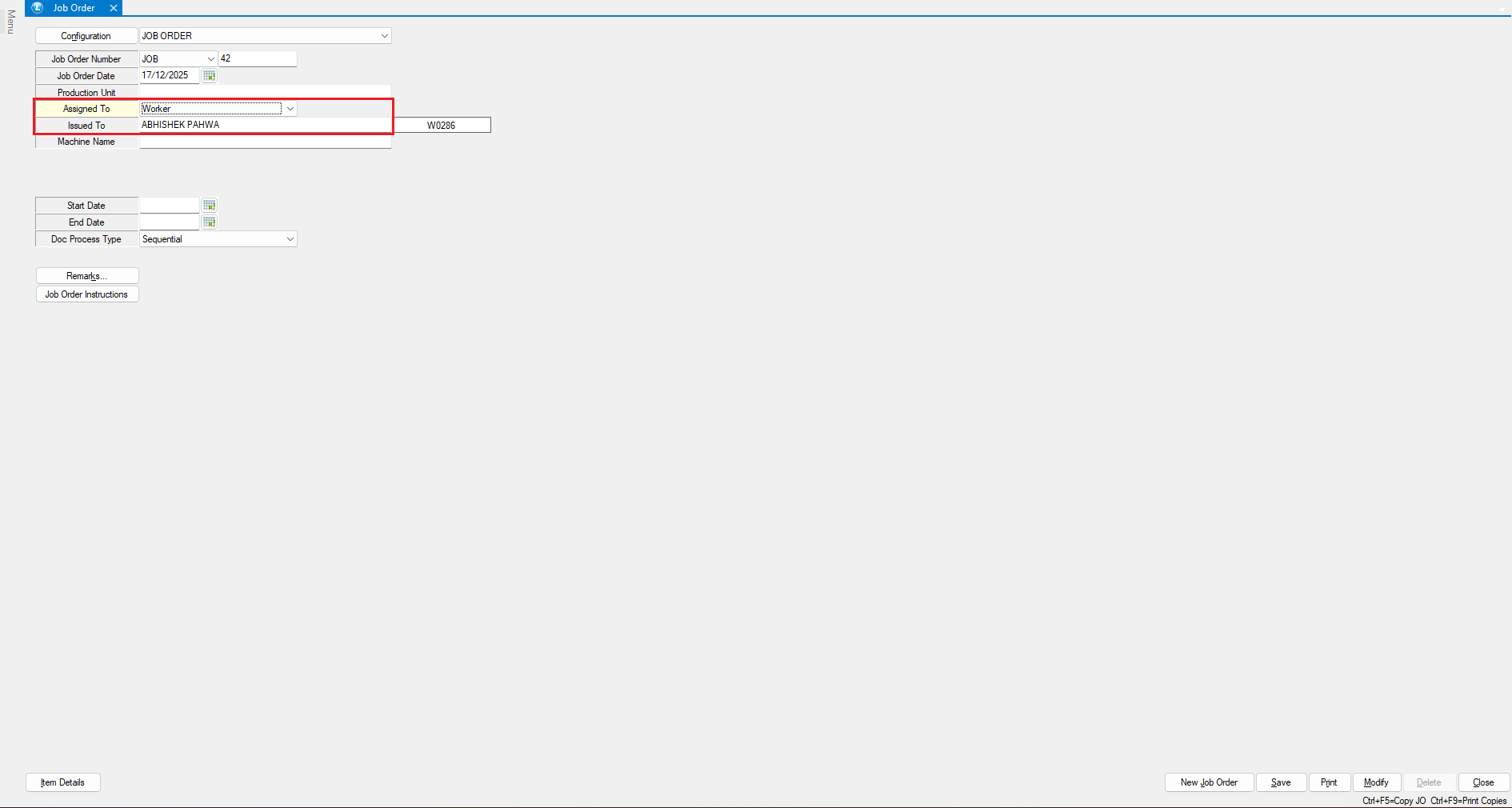
### **Access to Job Order**
**Select Party Type**
* Choose whether the job order will be handled by:
* an **Internal Worker**, or
* an **External Party**
* Select the **Worker Name**
**Enter Job Order Details**
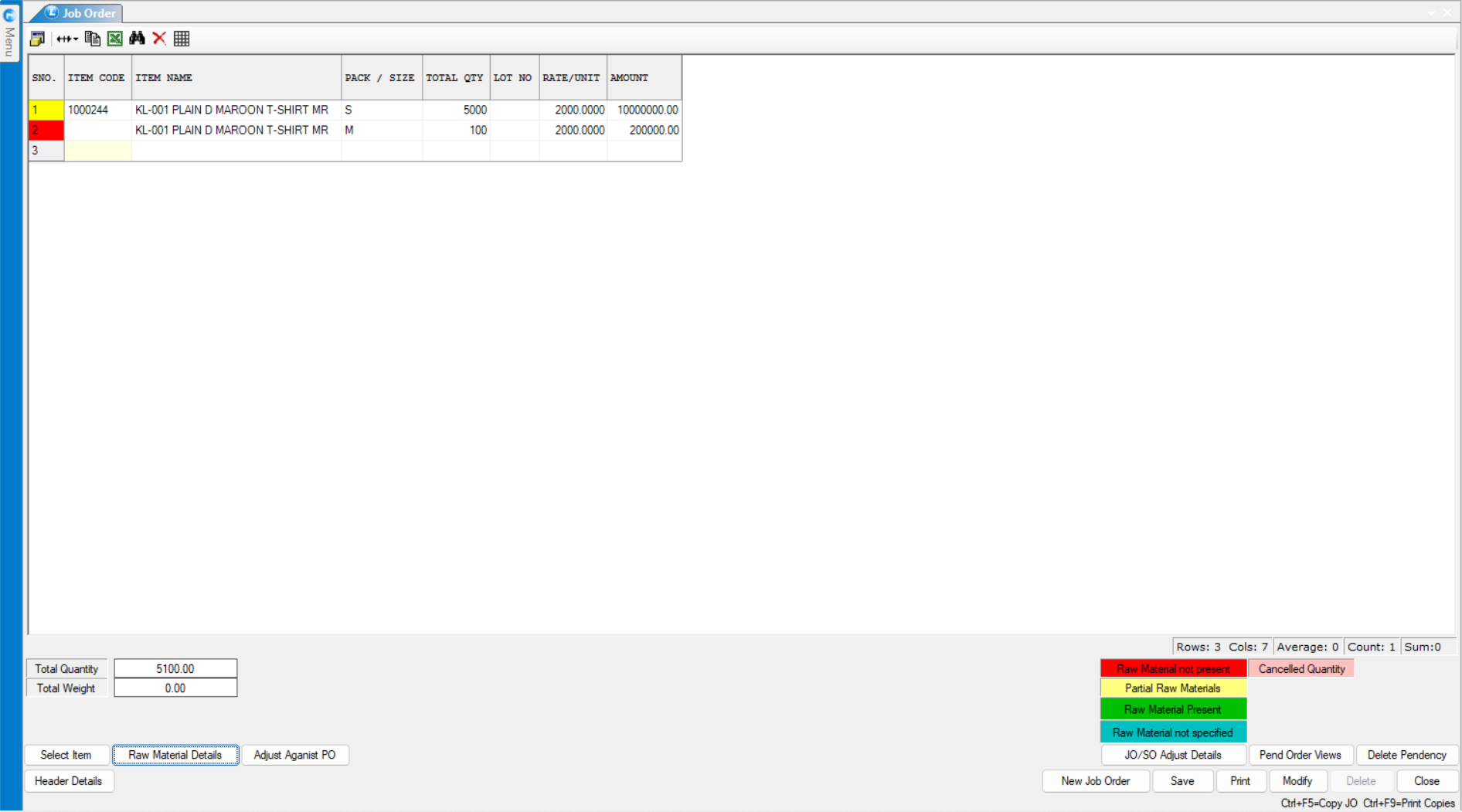
* Enter the **Item to be Produced**
* Specify the **Production Quantity**
**Understanding Item Flags**
* **Red Flag**: No raw material is available for the item
* **Yellow Flag**: Partial raw material is available
***
### **View Raw Material Details**
* Click on **Raw Material Details**
* This screen displays:
* Process-wise raw material requirements
* Required quantity
* Available stock
* Reserved stock
* Issued quantity
* Pending Purchase Order requirements
This overview helps identify shortages and plan procurement effectively.
* Save the **Job Order** document
***
### **Generate Purchase Orders from JO Raw Material Requirement**
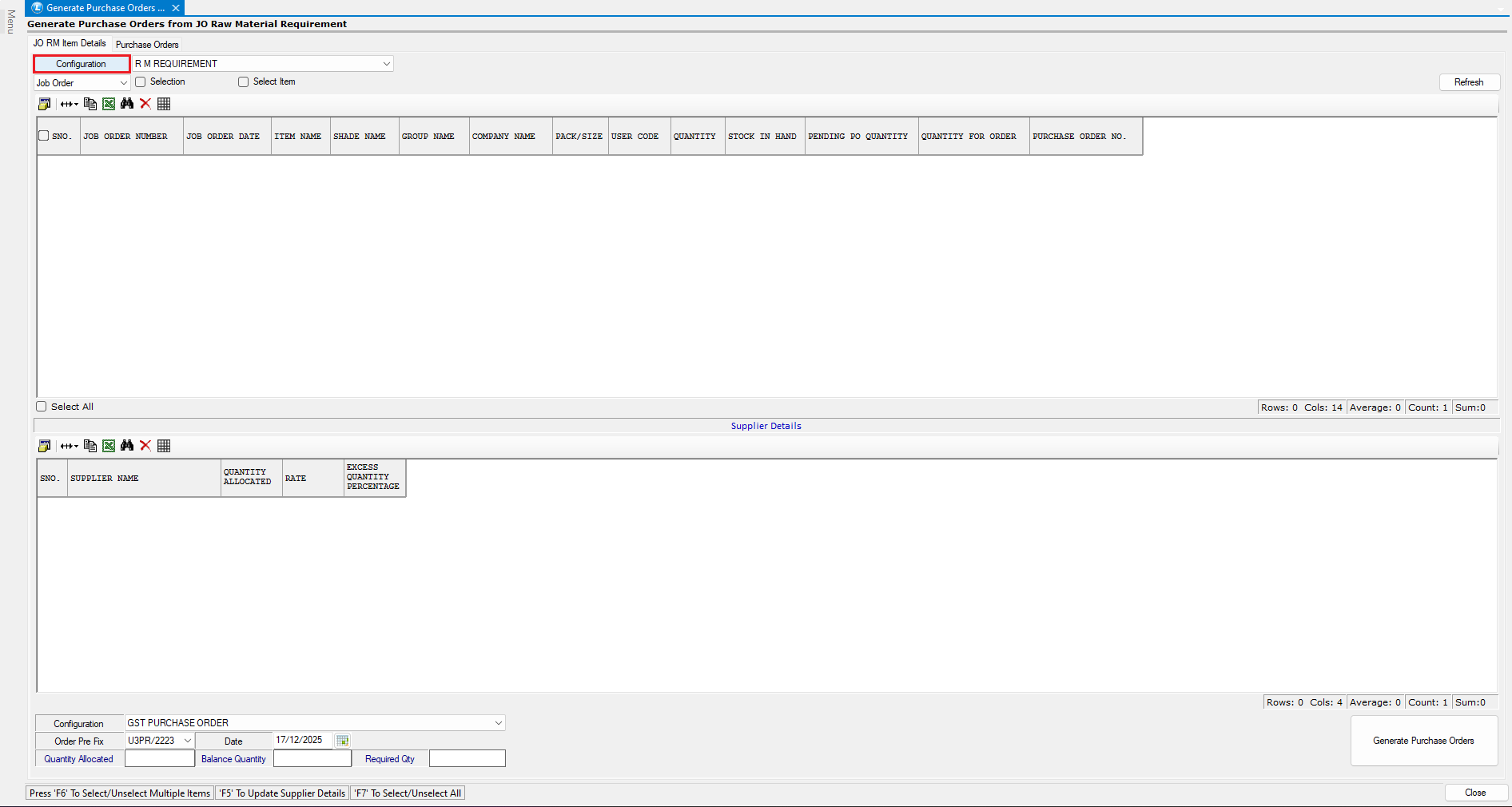
* Navigate to **Generate Purchase Orders from JO Raw Material Requirement**
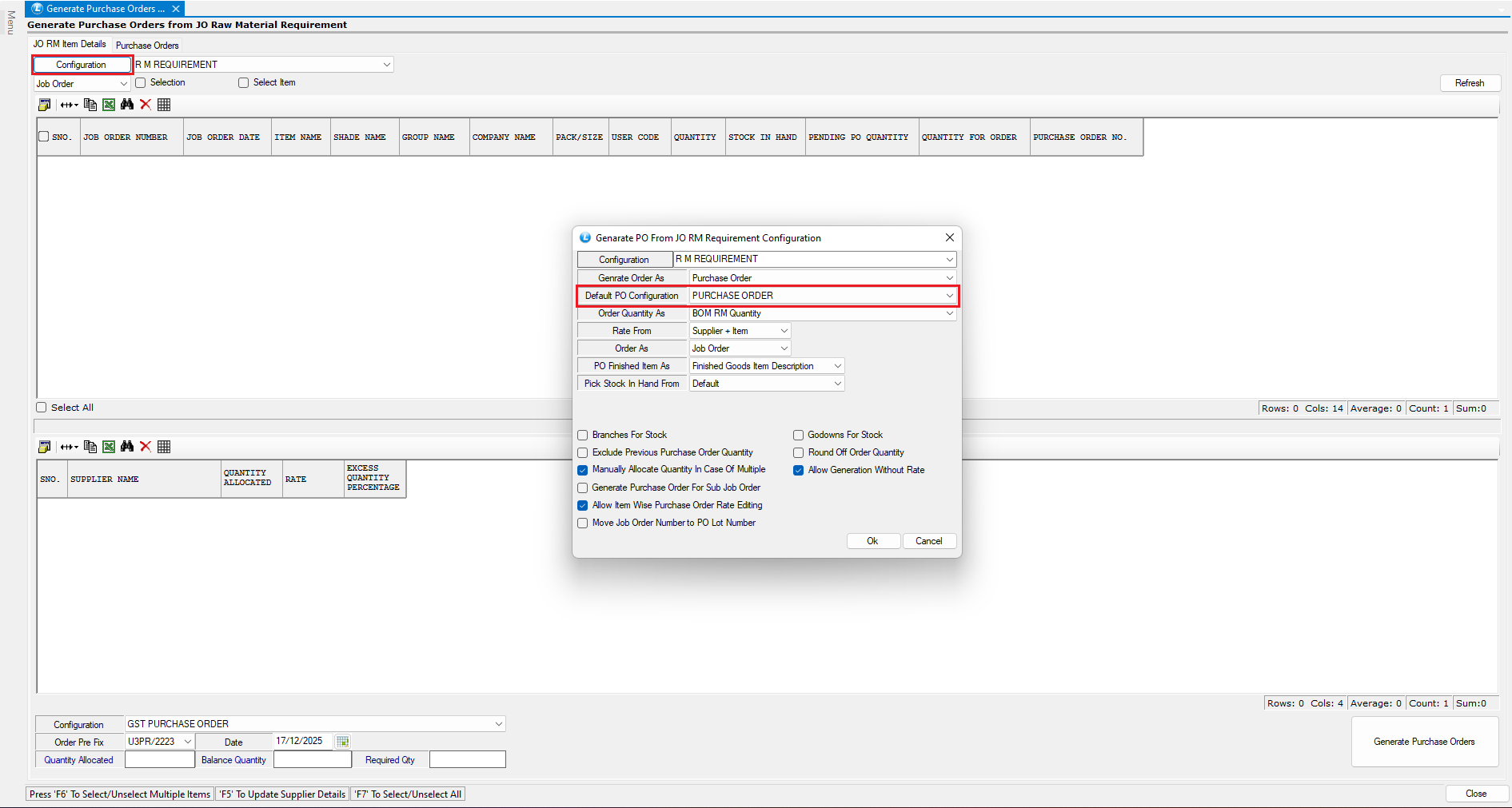
* Open the **Configuration** screen.
**Link Default PO Configuration**
* Select the **Default Purchase Order Configuration**
* This ensures predefined settings are automatically applied
* **Order Quantity**: Define how PO quantity is calculated
* **Rate From**: Define the source for item rates
***
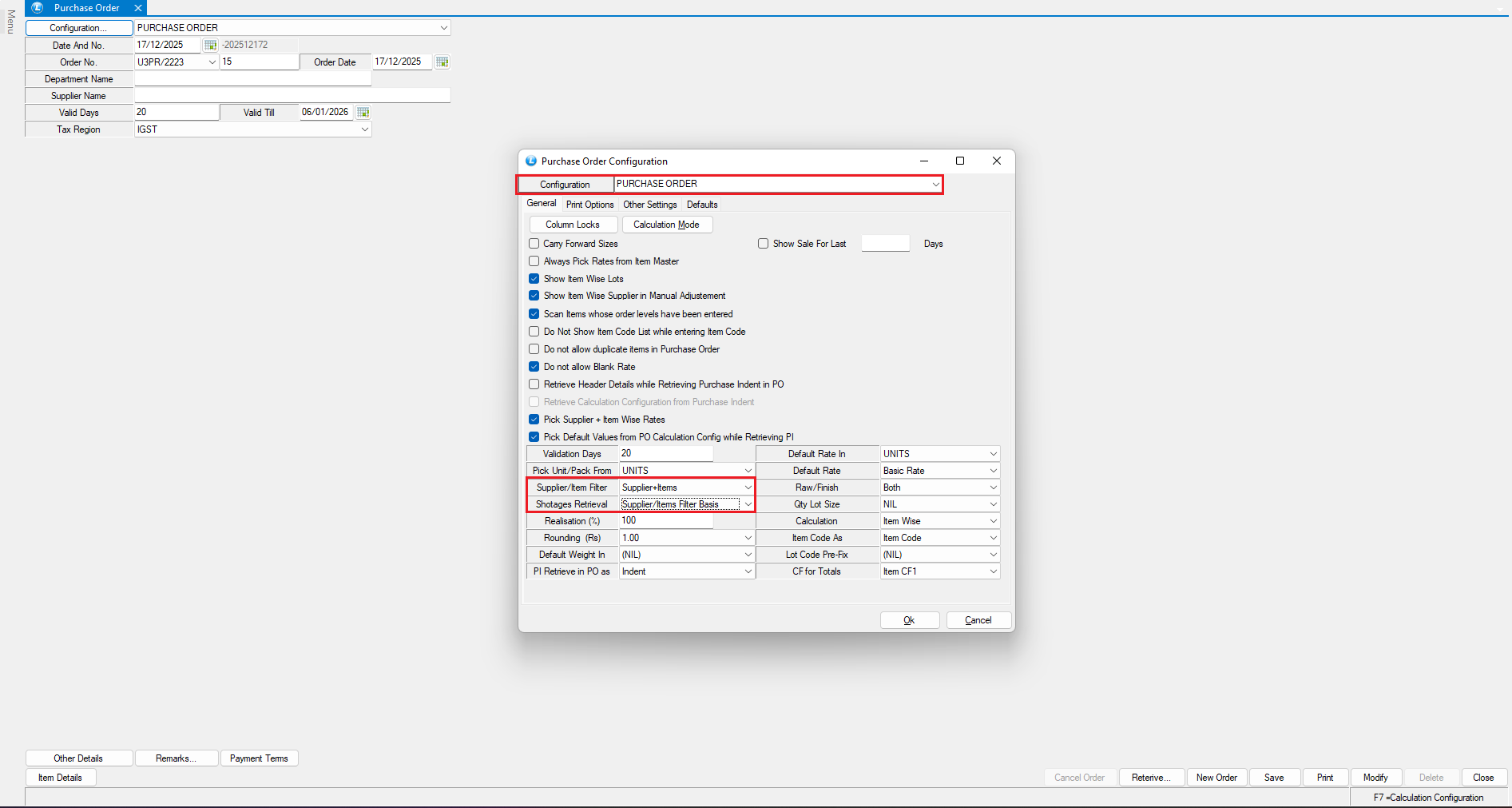
### **Review Purchase Order Configuration**
* Open the **Purchase Order Module**
* Go to **Configuration**
* Select the **Default PO Configuration**
**Key Configuration Settings**
* **Supplier Item Filter**: Supplier + Items
* **Shortage Retrieval**: Supplier Item Filter Basis
***
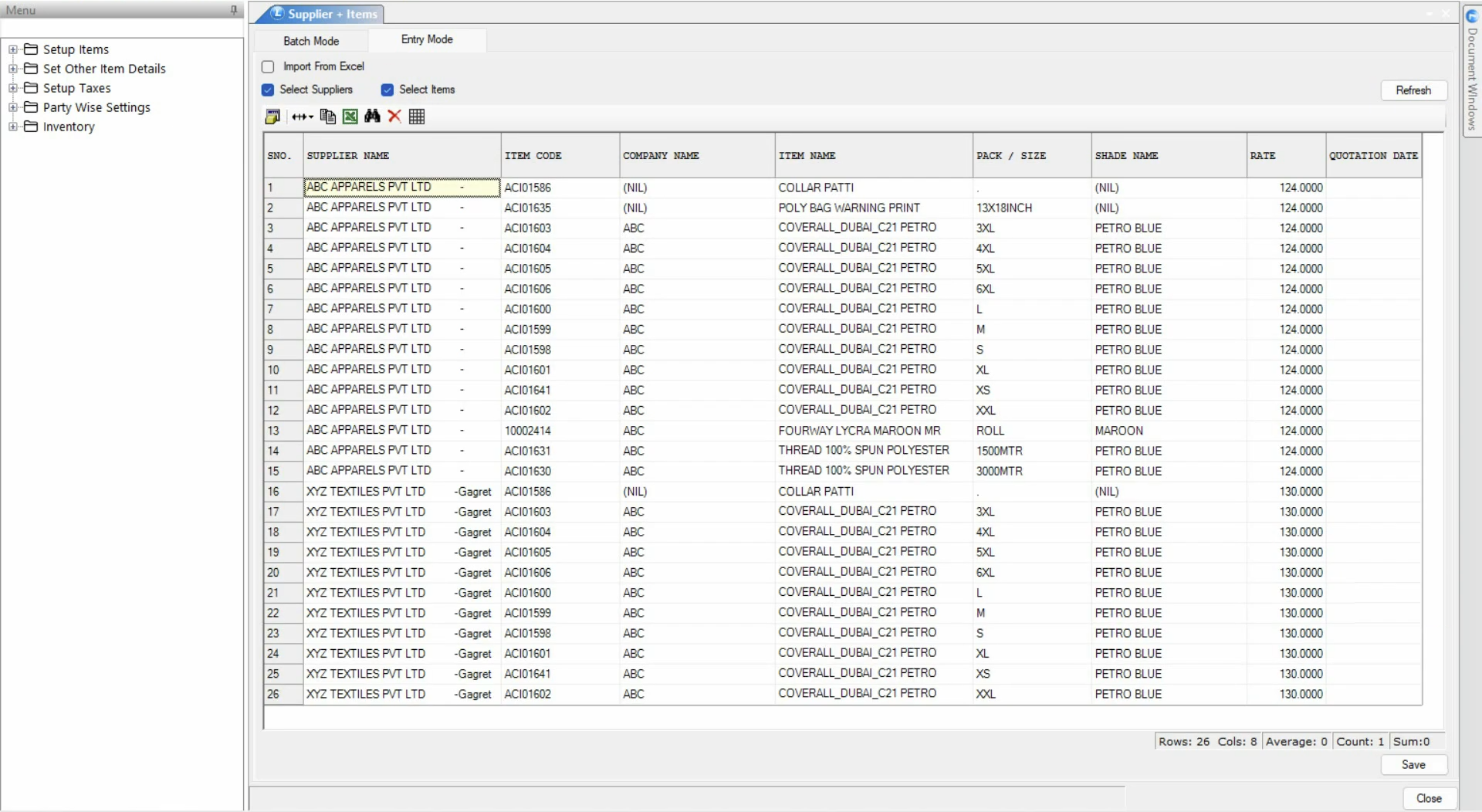
### **Link Supplier with Items and Rates**
**Open Supplier + Items Module**
* Navigate to Setup\Party Wise Settings and then select **"Supplier + Items".**
* This module allows you to:
* Map suppliers with items
* Define item-wise purchase rates
**Link Supplier**
* Select the **Supplier**
* Select the **Items**
* Enter the **Rate**
* Save the data
* Repeat the process to link additional suppliers if required.
***
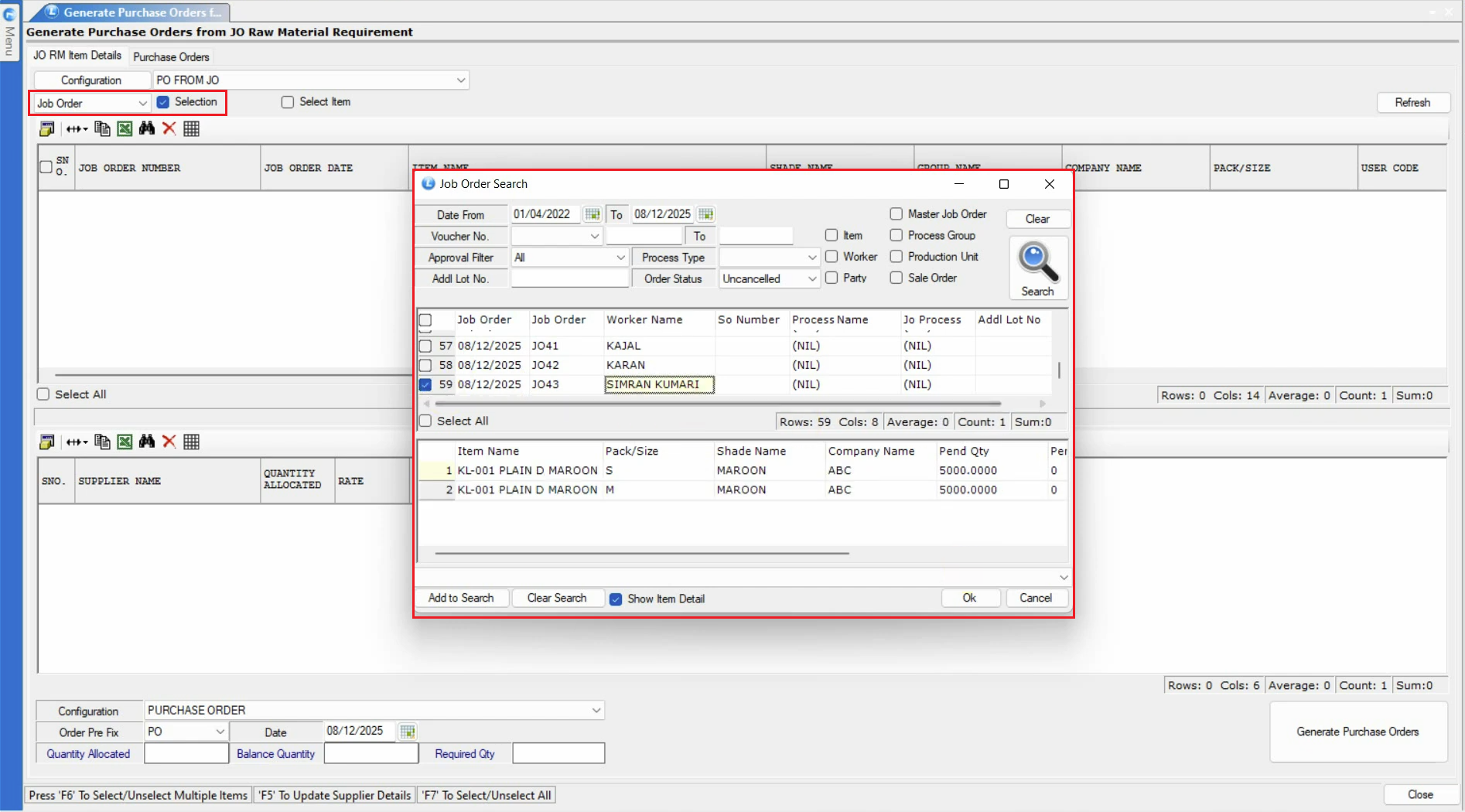
### **Generate Purchase Orders from Job Order**
* Navigate to **Generate Purchase Orders from JO Raw Material Requirement**
* Click on **Job Order Selection**
* You may select:
* A **single job order**, or
* **Multiple job orders** simultaneously
* Click **OK**
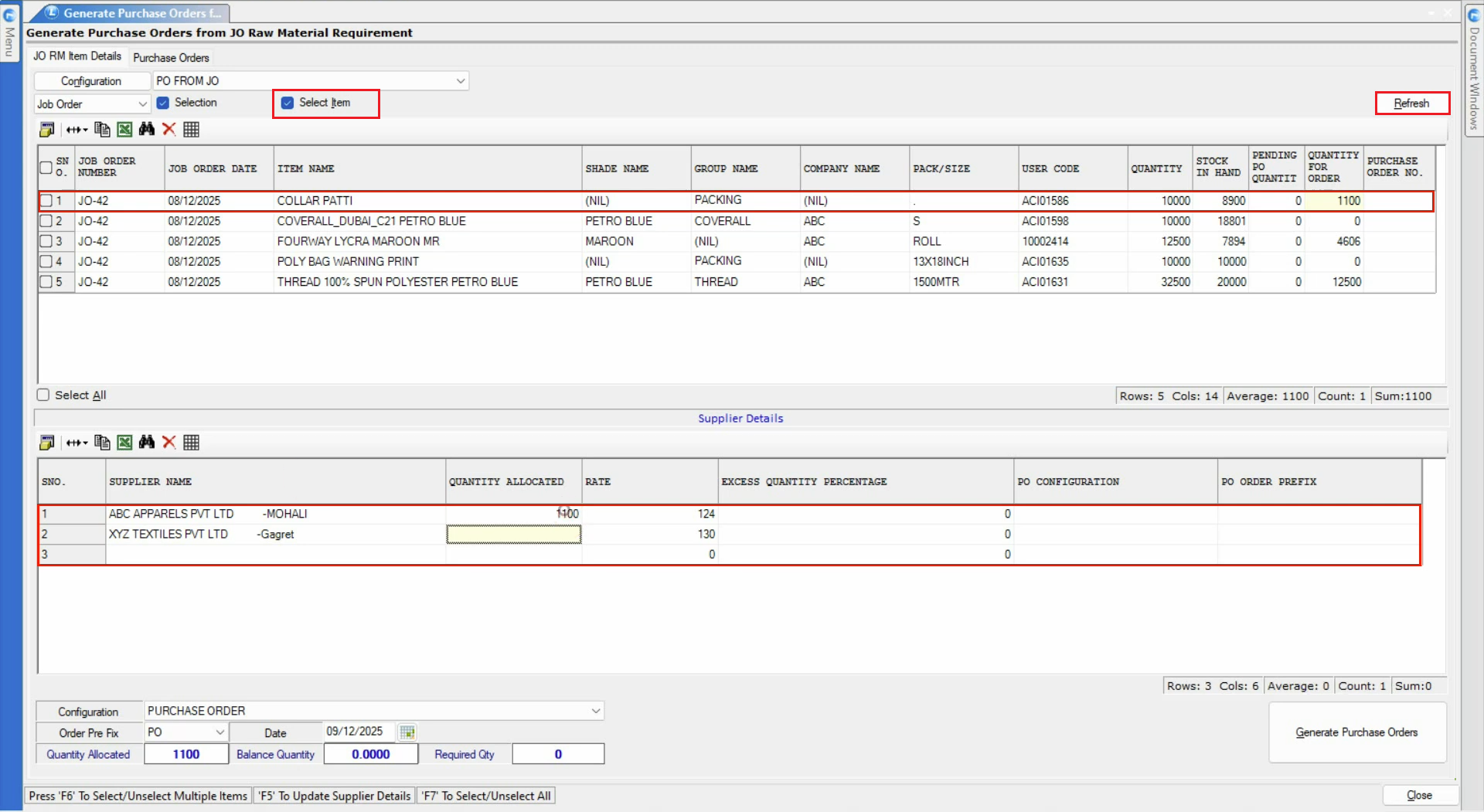
* Select the required items
* Click **Refresh**
***
**Review Raw Material Requirements**
* The system displays raw material requirements based on:
* BOM requirements
* Available stock
* Reserved quantities
* Pending PO quantities
* PO quantities are calculated automatically as per configuration
**Supplier Quantity Distribution**
* If an item is linked with multiple suppliers:
* The system distributes the PO quantity evenly
* Example: 1100 units → 550 units per supplier
* You can manually modify quantities if you want to order from a specific supplier
**Zero Quantity Scenario**
* If the **Quantity for Order** shows zero:
* It means no purchase is required
* Available stock and pending POs already meet the requirement
***
### **Generate and Save Purchase Orders**
* Select specific raw materials if required
* Click **Generate Purchase Orders**
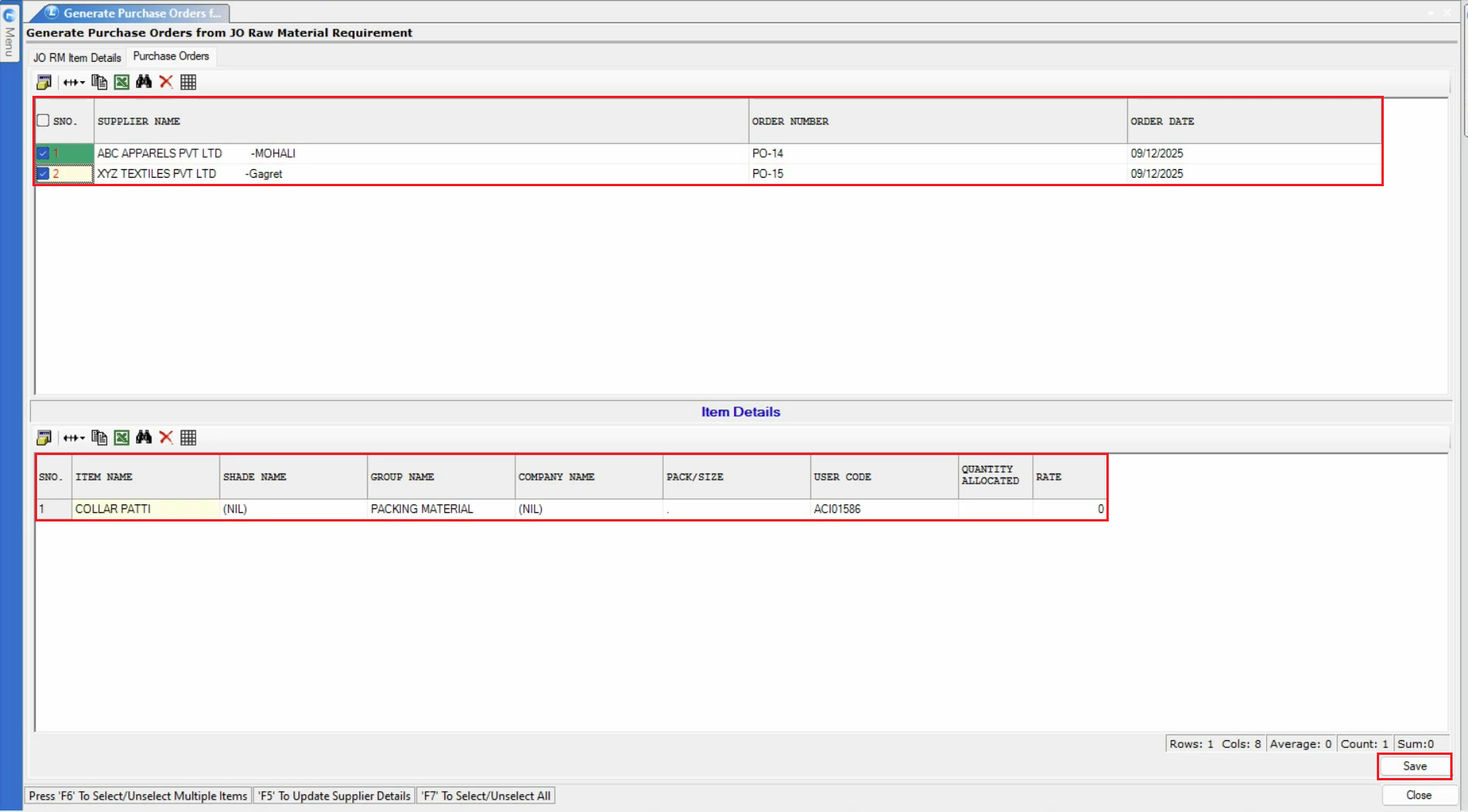
**Generated PO Screen**
* Top section shows:
* Supplier names
* Purchase Order numbers
* Order dates
* Bottom section displays:
* Item-wise details for each PO
* Select the **Purchase Order Document**
* Click **Save**
***
### **Review Generated Purchase Orders**
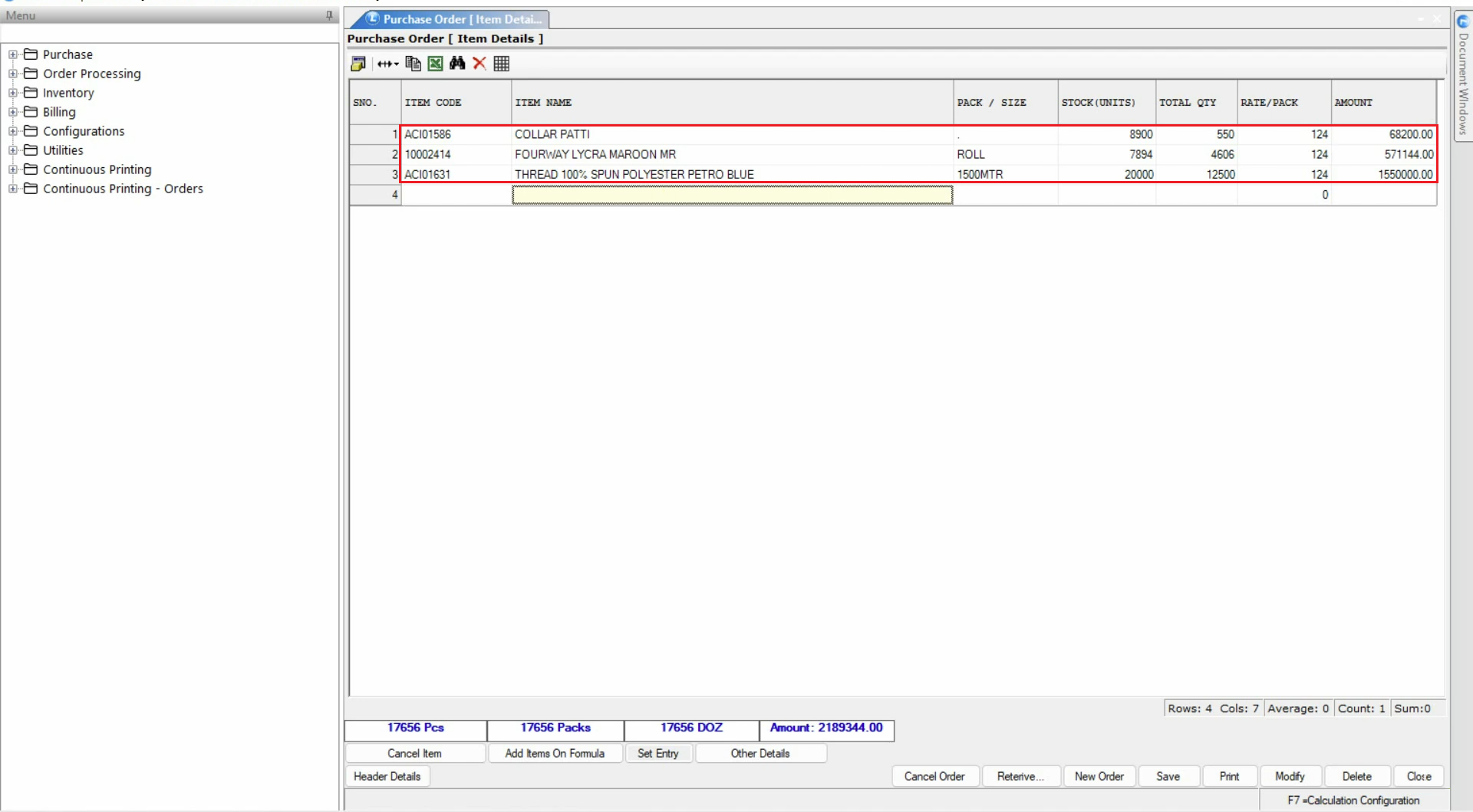
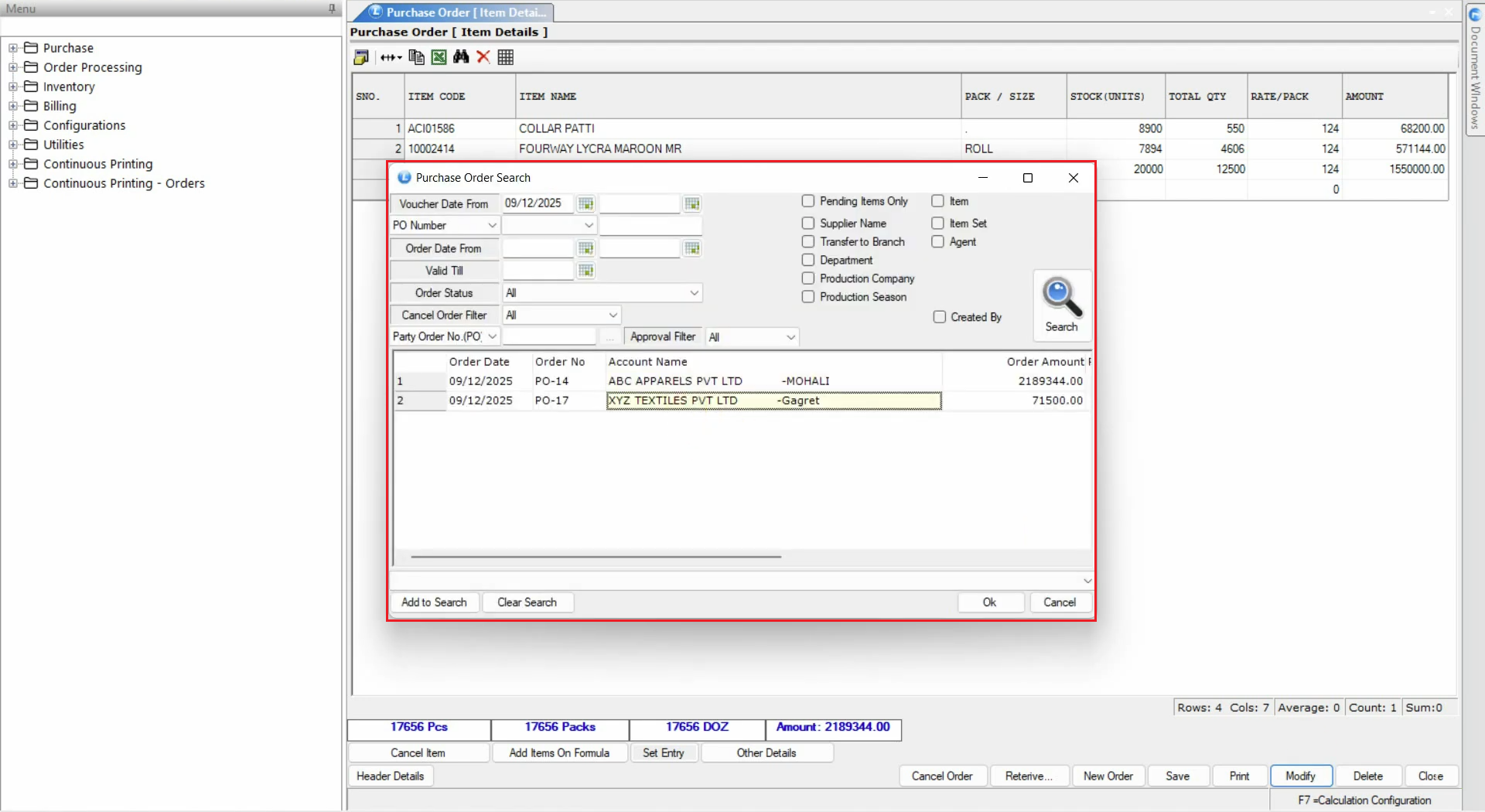
* Navigate to the **Purchase Order Module**
* Open the newly created purchase order
* Verify:
* Supplier details
* Item quantities
* Rates
* Reference to Job Order
The purchase orders generated from **Job Order Raw Material Requirements** are now successfully reflected in the system.
***
### **Conclusion**
Generating Purchase Orders directly from Job Order raw material requirements in Logic ERP ensures accurate procurement, avoids shortages, and aligns purchasing with production needs. With supplier–item linking, automated quantity calculation, and flexible configuration, this process significantly improves planning and operational efficiency.
---
# Agent Instructions
This documentation is published with GitBook. GitBook is the documentation platform designed so that both humans and AI agents can read, navigate, and reason over technical content effectively. Learn more at gitbook.com.
## Querying This Documentation
If you need additional information that is not directly available in this page, you can query the documentation dynamically by asking a question.
Perform an HTTP GET request on the current page URL with the `ask` query parameter, and the optional `goal` query parameter:
```
GET https://kb.logicerp.com/logic-erp-installation-configuration-and-troubleshooting-solutions/faqs/production/generate-purchase-orders-from-job-order-raw-material-requirements.md?ask=&goal=
```
`ask` is the immediate question: it should be specific, self-contained, and written in natural language.
`goal` is optional and describes the broader end goal you are ultimately trying to accomplish on behalf of the user. GitBook uses it to tailor the answer towards what is most useful for that goal.
The response will contain a direct answer to the question and relevant excerpts and sources from the documentation.
Use this mechanism when the answer is not explicitly present in the current page, you need clarification or additional context, or you want to retrieve related documentation sections.