> For the complete documentation index, see [llms.txt](https://kb.logicerp.com/llms.txt). Markdown versions of documentation pages are available by appending `.md` to page URLs; this page is available as [Markdown](https://kb.logicerp.com/logic-erp-installation-configuration-and-troubleshooting-solutions/faqs/production/create-a-production-job-order-using-multi-level-bom.md).
# Create a Production Job Order Using Multi - level BOM
**YouTube:** [How to Create a Production Job Order Using Multi - level BOM ?](https://www.youtube.com/watch?v=gTeiEjb6P1I)
## How to Create a Production Job Order Using Multi - level BOM?
In this tutorial, we will walk you through the complete process of creating job orders using a **multi-level Bill of Materials (BOM)**. You will learn how multi-level BOMs streamline production, improve material planning, and automatically generate linked sub–job orders for all semi-finished and raw material requirements.
***
### **View the Multi-Level BOM Structure**
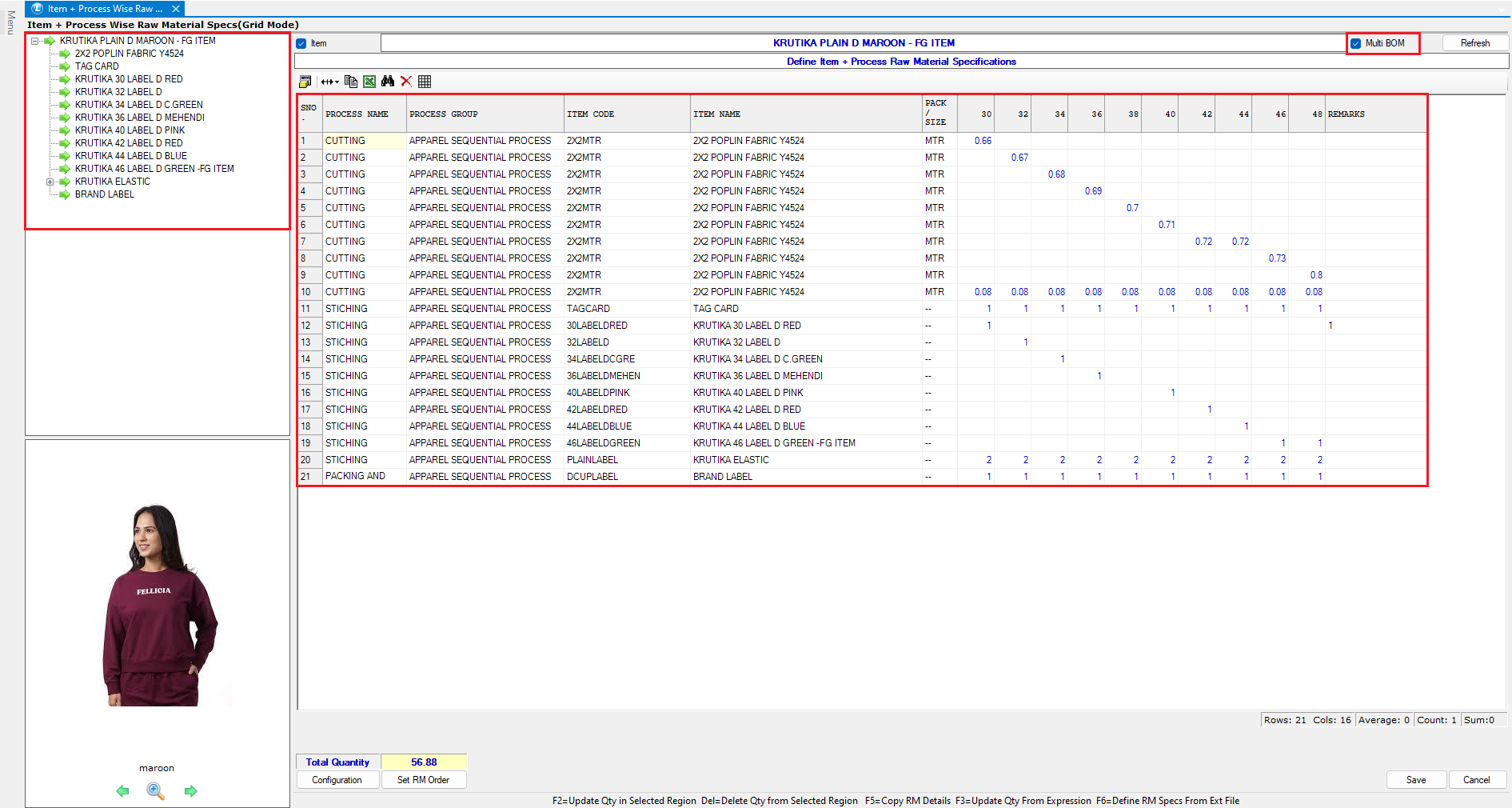
* Navigate to **Item + Process → Raw Material Specs → Grade Mode**.
* Here you can see the **multi-level Bill of Materials** created for the selected item.
* The **left panel** displays the entire BOM hierarchy in a **tree format**, showing:
* The **finished product**
* All **semi-finished components**
* Their respective **production stages**
### **Benefits of Multi-Level BOM**
* Automatically links the **main job order** with all **sub job orders**
* Ensures accurate **material planning**
* Provides seamless **production tracking** across all levels
* Improves **consumption control** and **costing accuracy**
***
### **Creating a Standard Job Order**
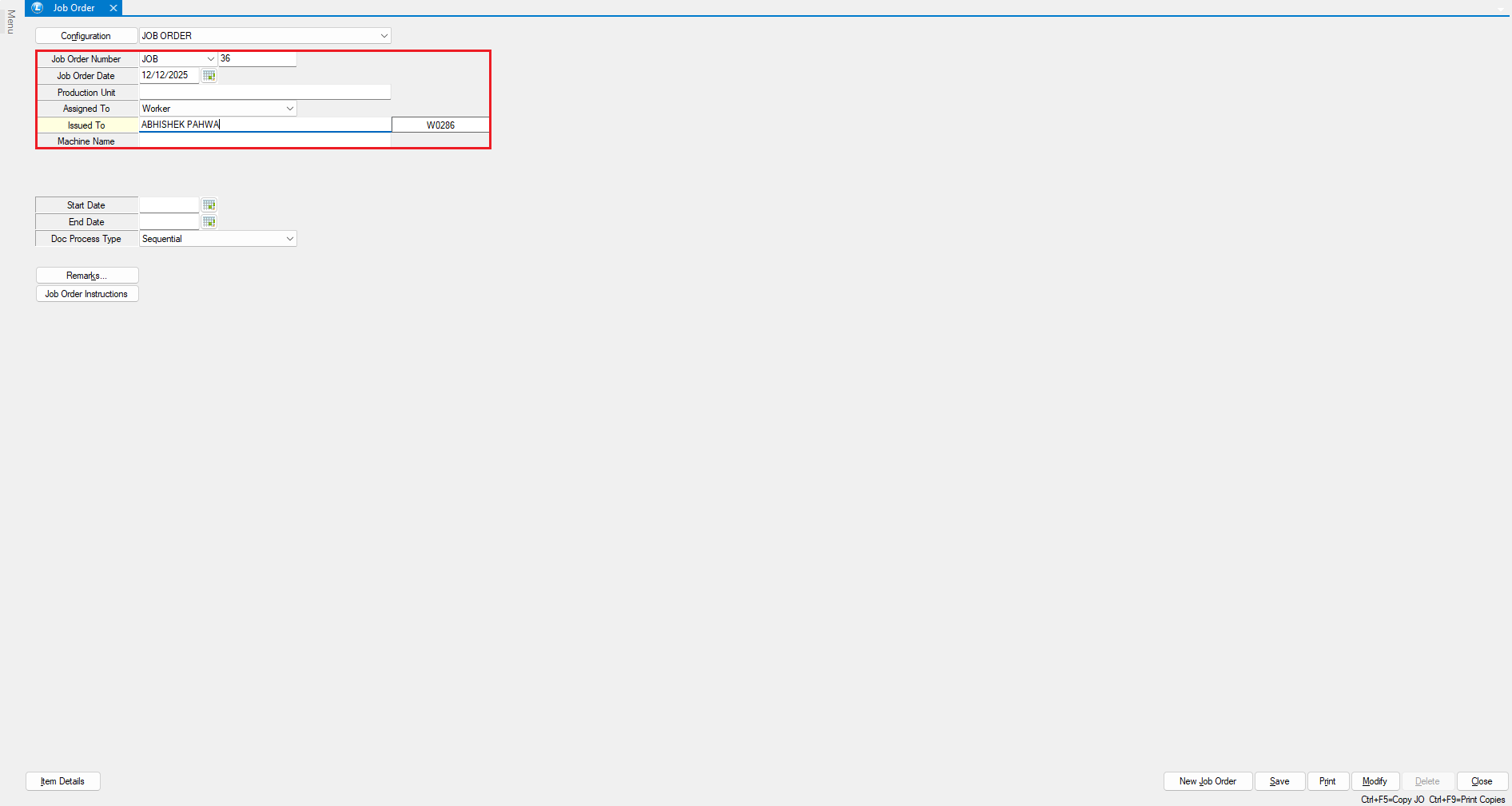
#### **Select Party Type**
* Choose whether the job is to be completed by:
* An **Internal Worker**, or
* An **External Party**
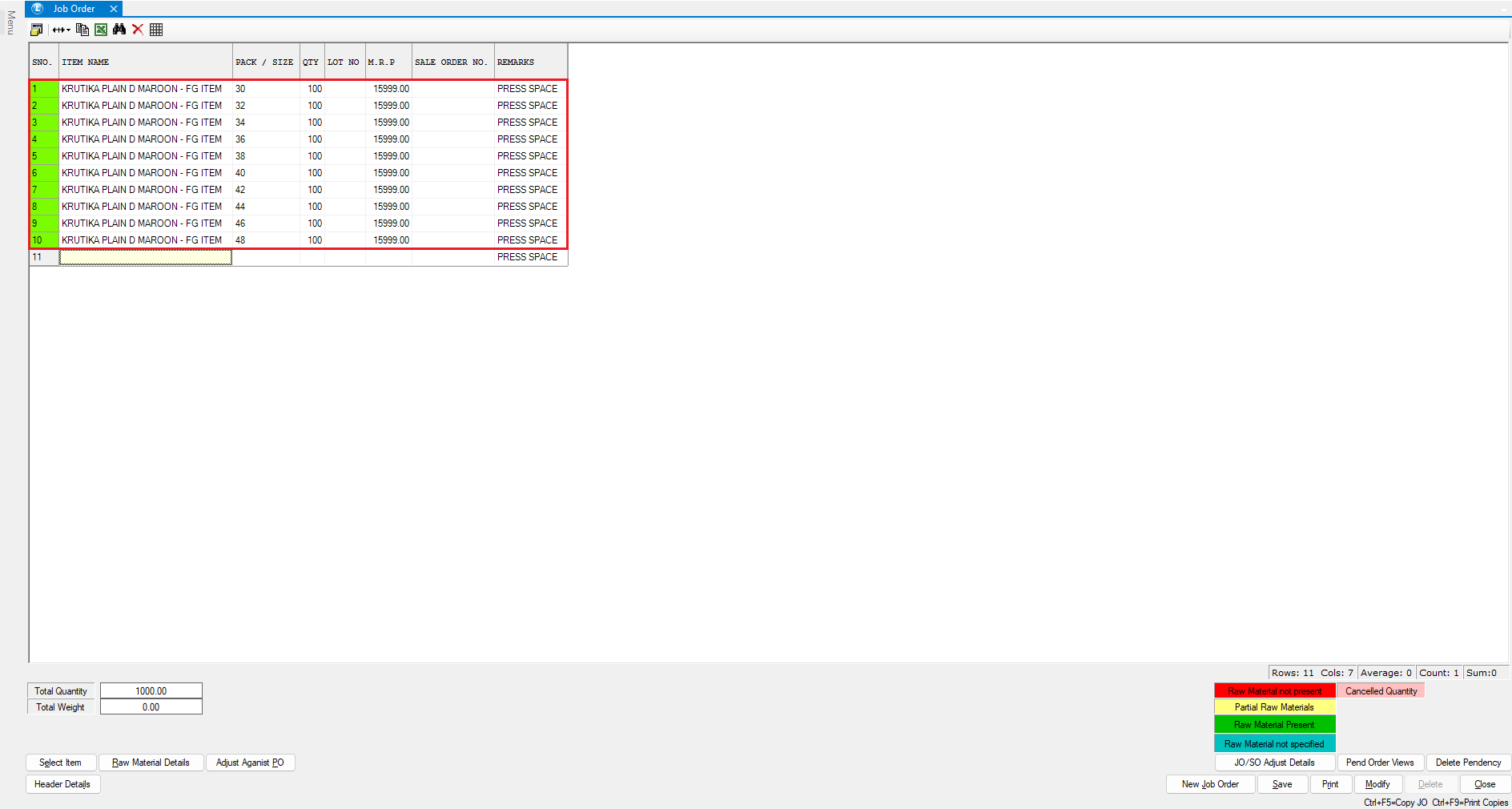
#### **Create the Job Order**
* Select the **Worker Name**
* Enter the **Item to be Produced**
* Specify the **Quantity**
* Save the job order
***
### **Creating a Job Order Using a Multi-Level BOM**
#### **Open the Multi-Level Job Order Module**
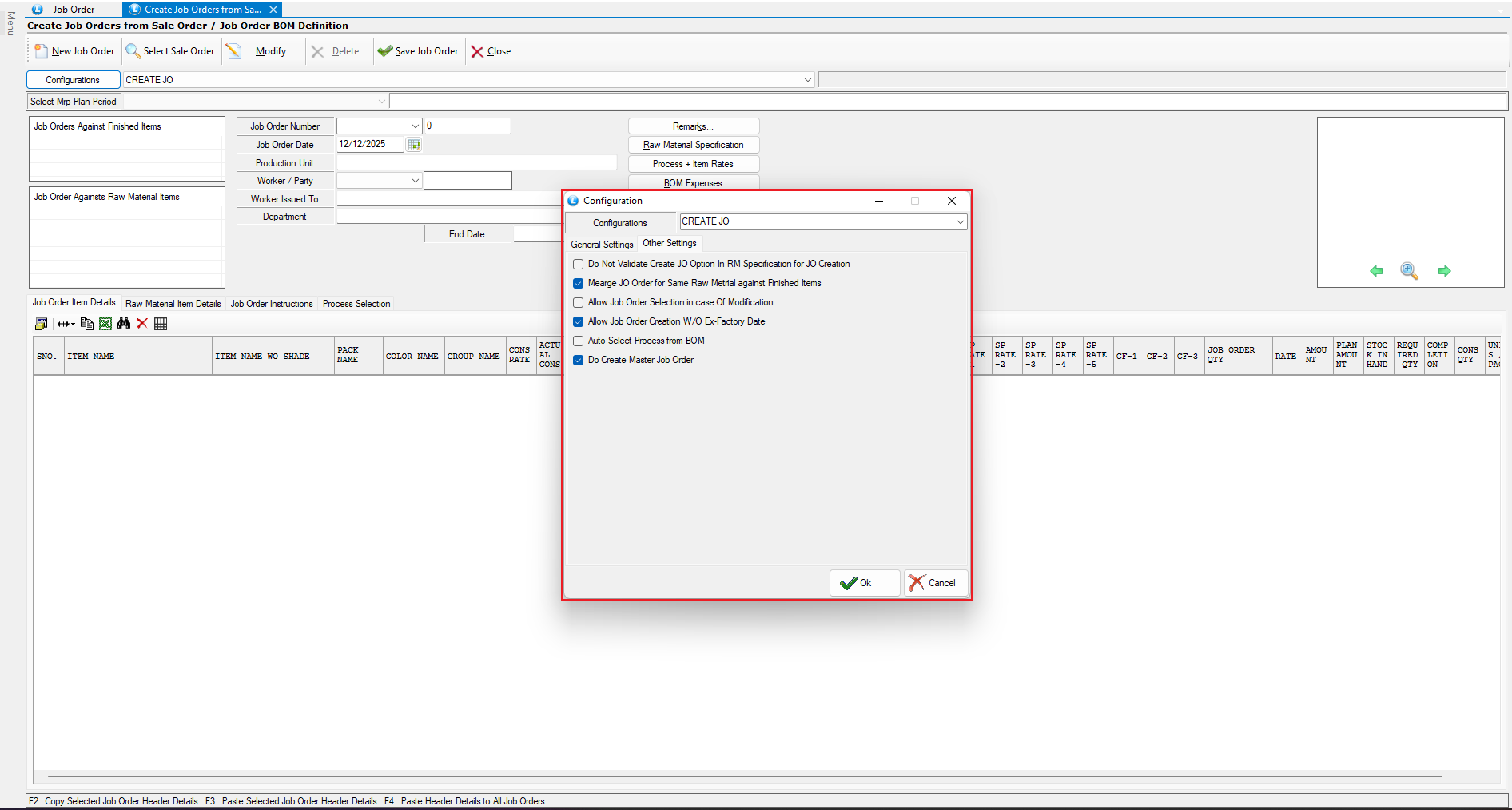
* Go to **Create Job Orders from Sale Order / Job Order BOM Definition**
* Open the **Configuration** screen
#### **Set General Setting for Job Order Creation**
* Define Create JO From:
* Select the **job order** as the source
* Define Auto Pick JO Party As:
* Choose **Supplier + Items** for automated selection
#### **Configure Other Settings for Multi-Level BOM**
* Adjust additional settings in **Other Settings**
* Enable required options for multi-level execution
* Since the job order is created from an existing one, the system will **not create another master job order** for the same finished item
***
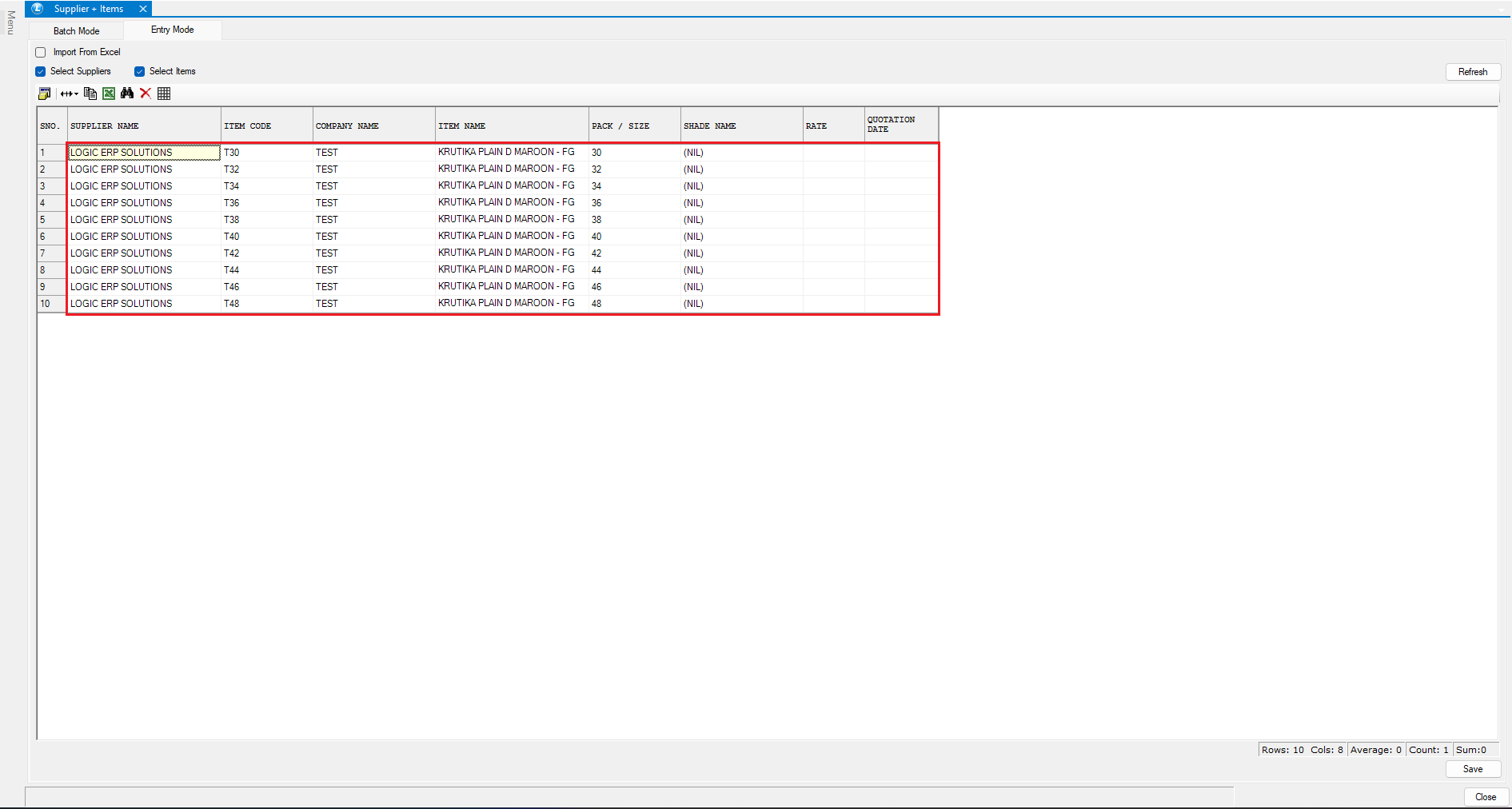
### **Linking Supplier with Items (Supplier + Item Linking)**
#### **Link the Supplier**
* Select the **Supplier**
* Choose the **Items** to be linked
* The system now knows which supplier is responsible for which item
***
### **Generate Multi-Level Job Orders**
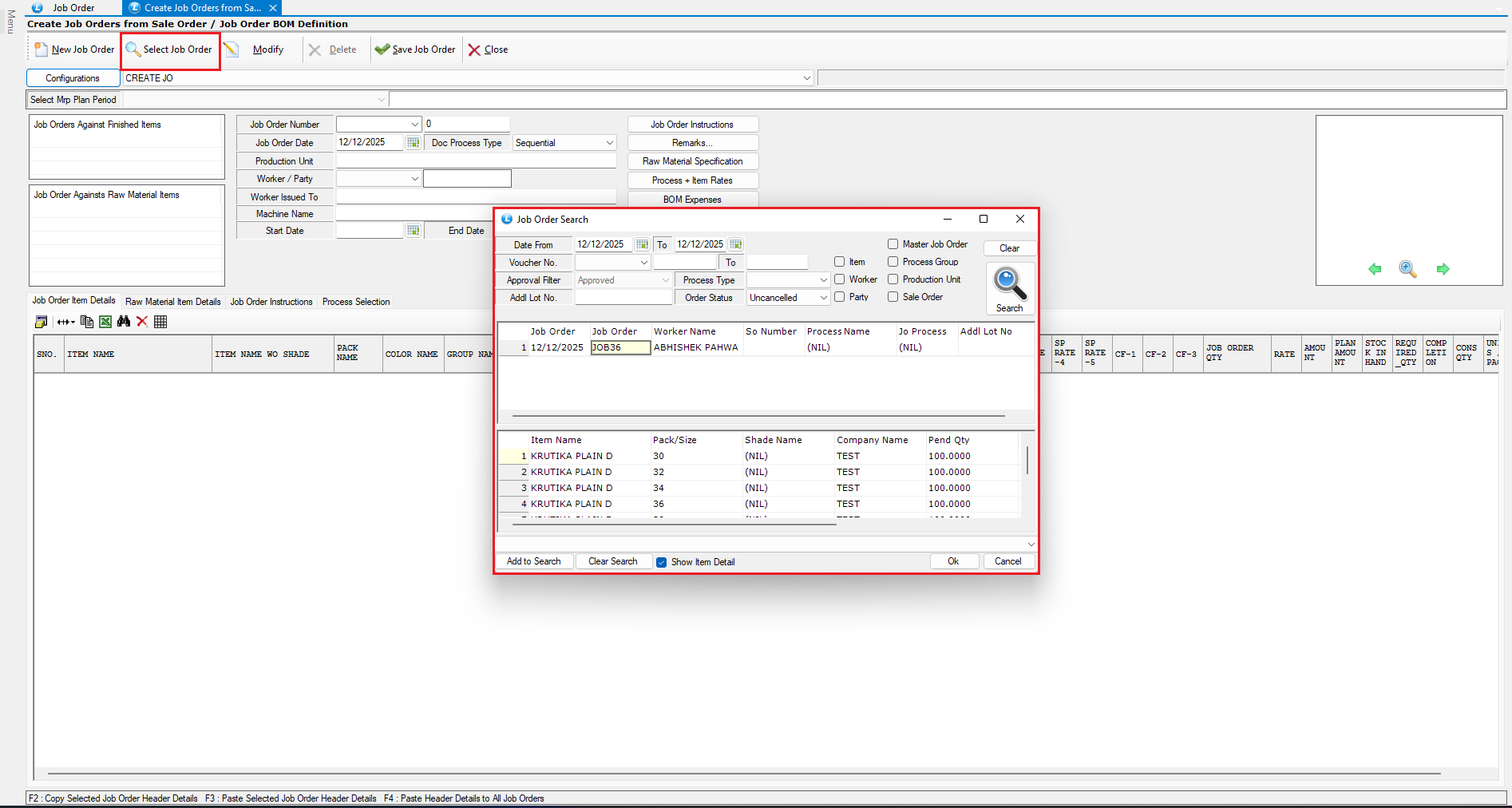
#### **Select the Base Job Order**
* Click **Select Job Order**
* Choose the existing job order from the list
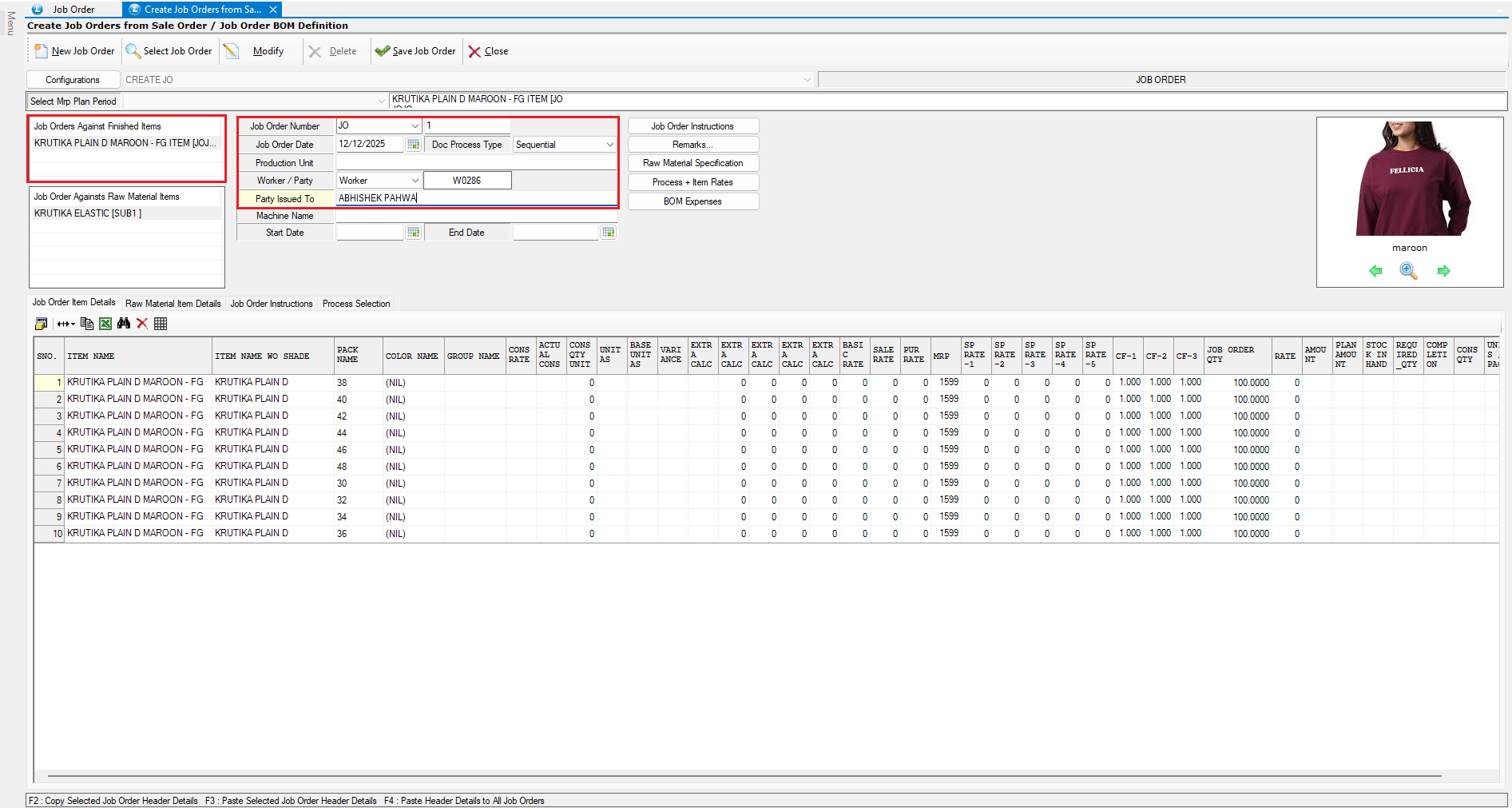
#### **View the Job Order Hierarchy**
* The **Job Orders Against Finished Items** section displays the **main job order**
* Selecting it shows:
* Full production details
* Semi-finished stage breakdown
* Raw material dependencies
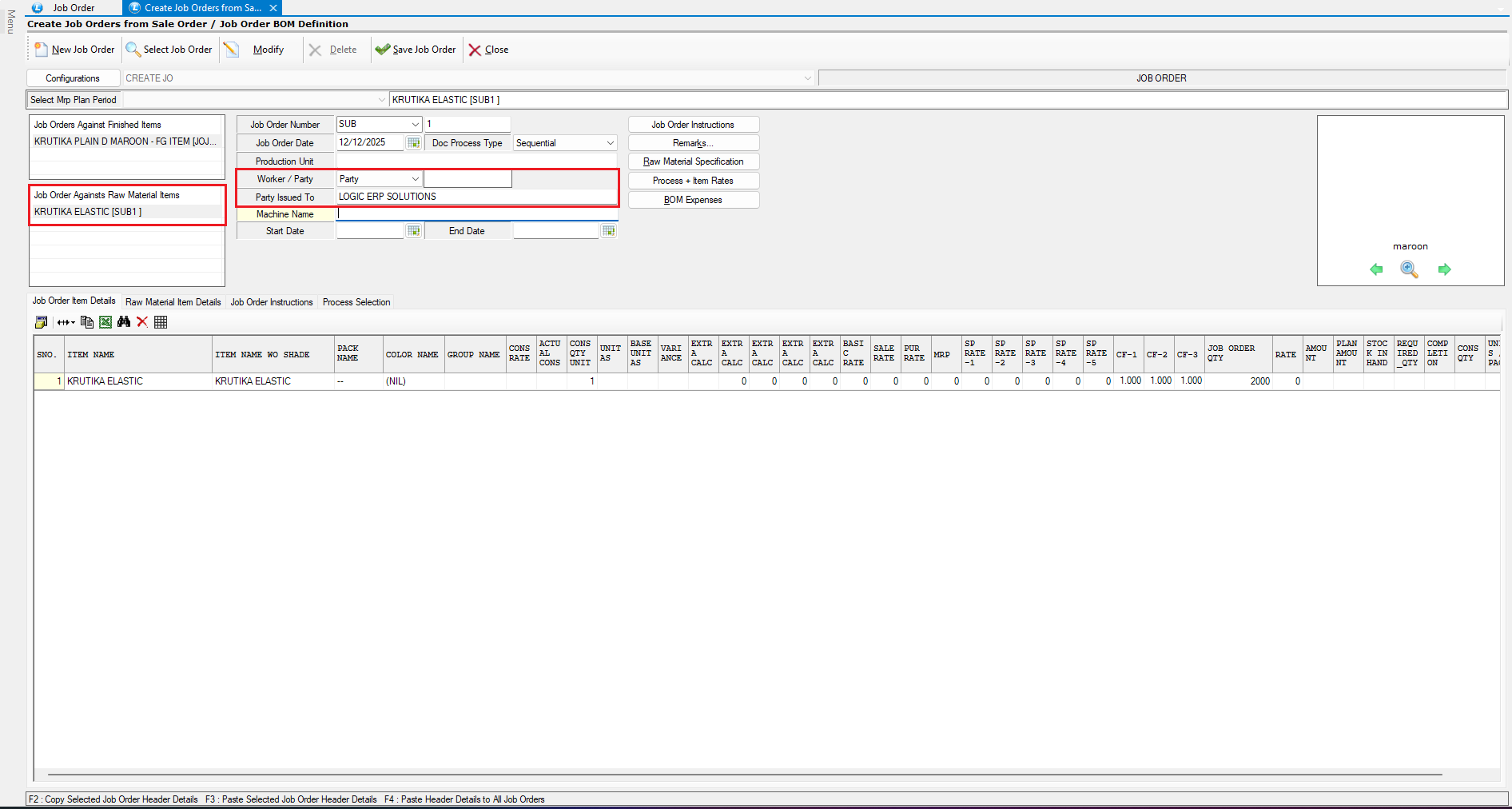
#### **View Auto-Generated Sub Job Orders & Party Auto-Selection**
* The **Job Orders Against Raw Material Items** section lists all **sub job orders** automatically generated from the multi-level BOM
* These represent:
* Raw materials
* Semi-finished components
* Since we selected **Supplier + Items** and performed linking:
* The system **automatically picks** the correct party for each sub job order
* You may view and edit details of each item in the **bottom section**
#### **Save the Job Order**
* Review all details carefully
* Click **Save** to complete the multi-level job order creation process
***
### **Reviewing the Pending Job Order Report**
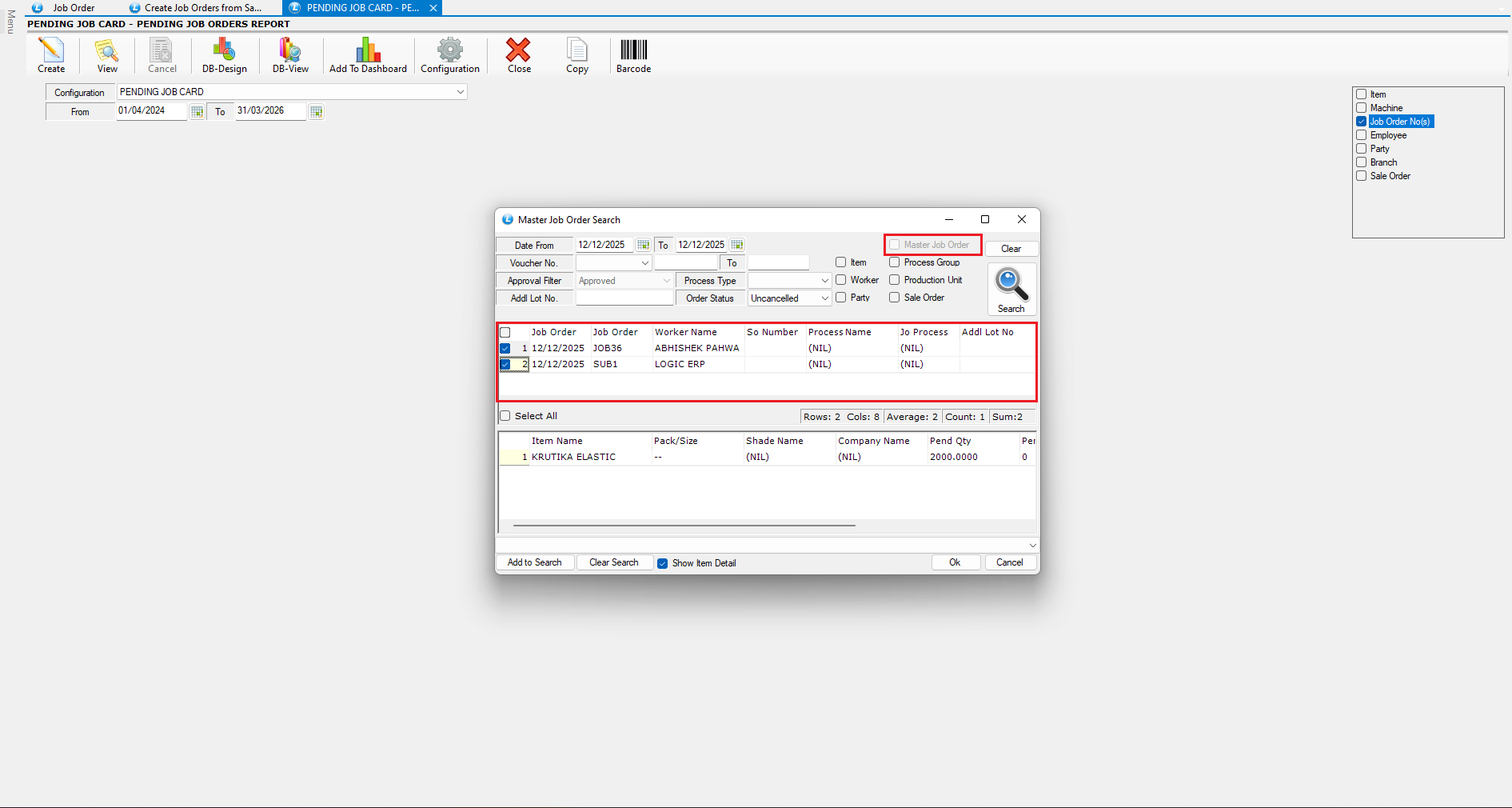
#### **Apply Filters**
* Open the **Pending Job Order Report**
* Use filters such as:
* **Job Order Number**
* **Master Job Order**
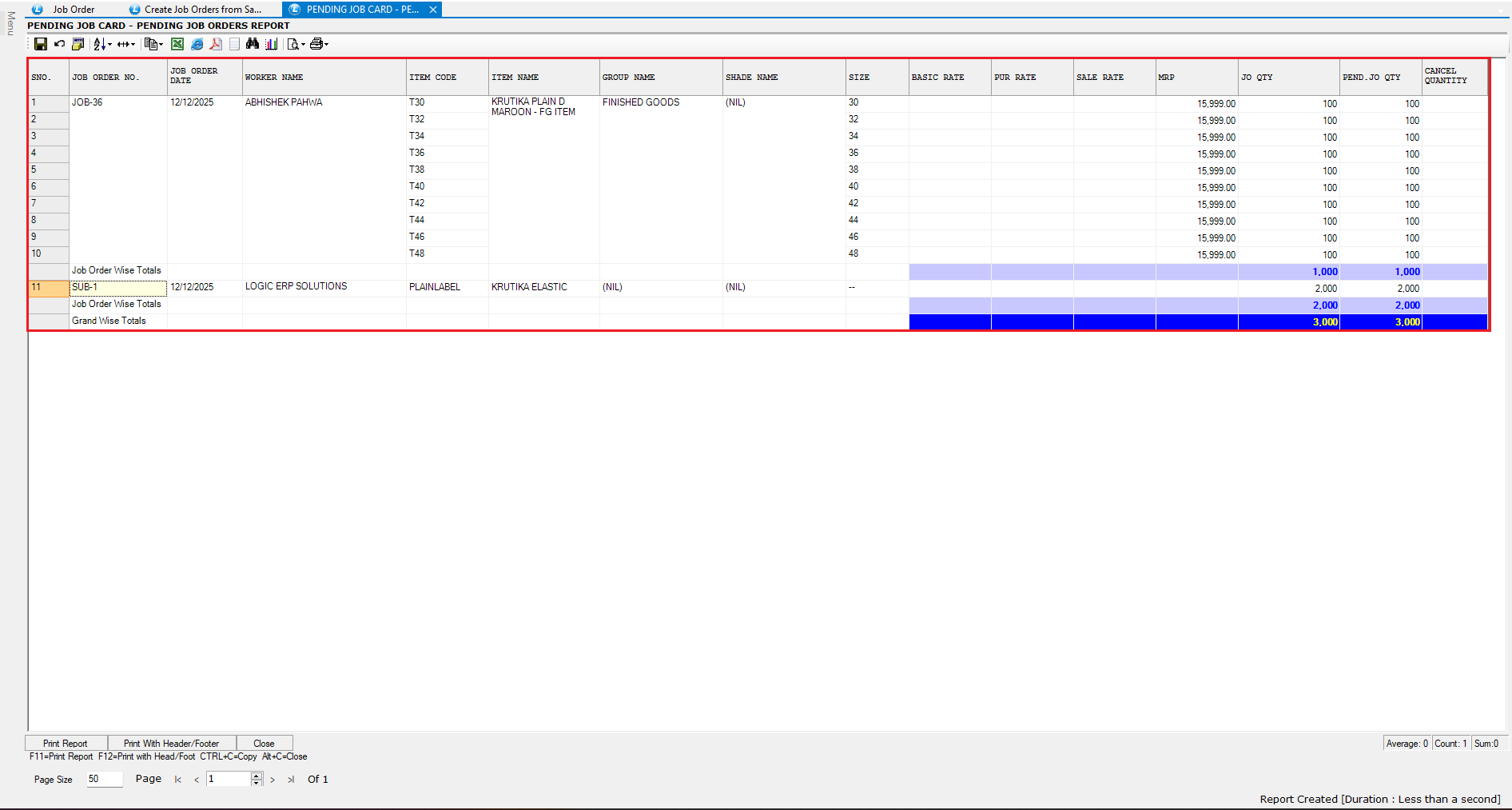
#### **View Linked Job Orders**
* Applying the **Master Job Order** filter shows:
* The **main job order**
* All **associated sub job orders**
* This filter can also be used in other production reports for consolidated tracking
***
### **Conclusion**
Using a **multi-level Bill of Materials** in Logic ERP enables automated sub-job order creation, structured production planning, and accurate consumption tracking. With proper configuration and supplier-item linking, the system ensures a seamless, efficient workflow across all production levels.
---
# Agent Instructions
This documentation is published with GitBook. GitBook is the documentation platform designed so that both humans and AI agents can read, navigate, and reason over technical content effectively. Learn more at gitbook.com.
## Querying This Documentation
If you need additional information that is not directly available in this page, you can query the documentation dynamically by asking a question.
Perform an HTTP GET request on the current page URL with the `ask` query parameter, and the optional `goal` query parameter:
```
GET https://kb.logicerp.com/logic-erp-installation-configuration-and-troubleshooting-solutions/faqs/production/create-a-production-job-order-using-multi-level-bom.md?ask=&goal=
```
`ask` is the immediate question: it should be specific, self-contained, and written in natural language.
`goal` is optional and describes the broader end goal you are ultimately trying to accomplish on behalf of the user. GitBook uses it to tailor the answer towards what is most useful for that goal.
The response will contain a direct answer to the question and relevant excerpts and sources from the documentation.
Use this mechanism when the answer is not explicitly present in the current page, you need clarification or additional context, or you want to retrieve related documentation sections.