> For the complete documentation index, see [llms.txt](https://kb.logicerp.com/llms.txt). Markdown versions of documentation pages are available by appending `.md` to page URLs; this page is available as [Markdown](https://kb.logicerp.com/logic-erp-installation-configuration-and-troubleshooting-solutions/faqs/production/define-a-multi-level-bill-of-materials-bom-in-production.md).
# Define a Multi - Level Bill of Materials (BOM) in Production
**YouTube:** [How to Generate Raw Material Requisition Against Job Order in Production?](https://www.youtube.com/watch?v=-Jrrz_tP2PE)
## How to Define a Multi - Level Bill of Materials (BOM) in Production?
In this tutorial, we will walk you through the complete process of defining **multi-level Bills of Materials (BOM)** in Logic ERP. Multi-level BOMs are essential when products require multiple internal production stages and semi-finished items need their own independent production. Let’s begin.
***
### **Accessing the Raw Material Specification Screen**
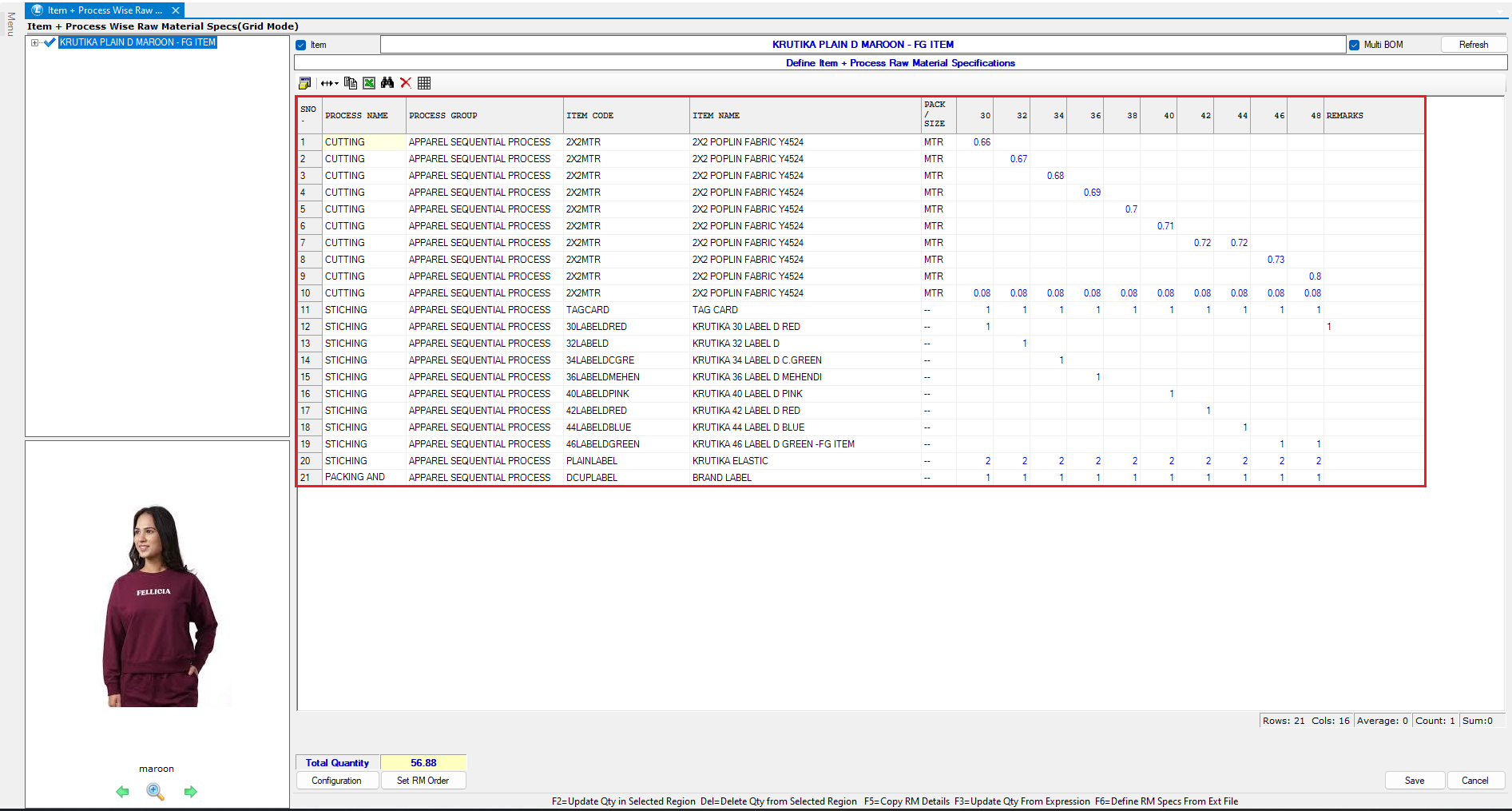
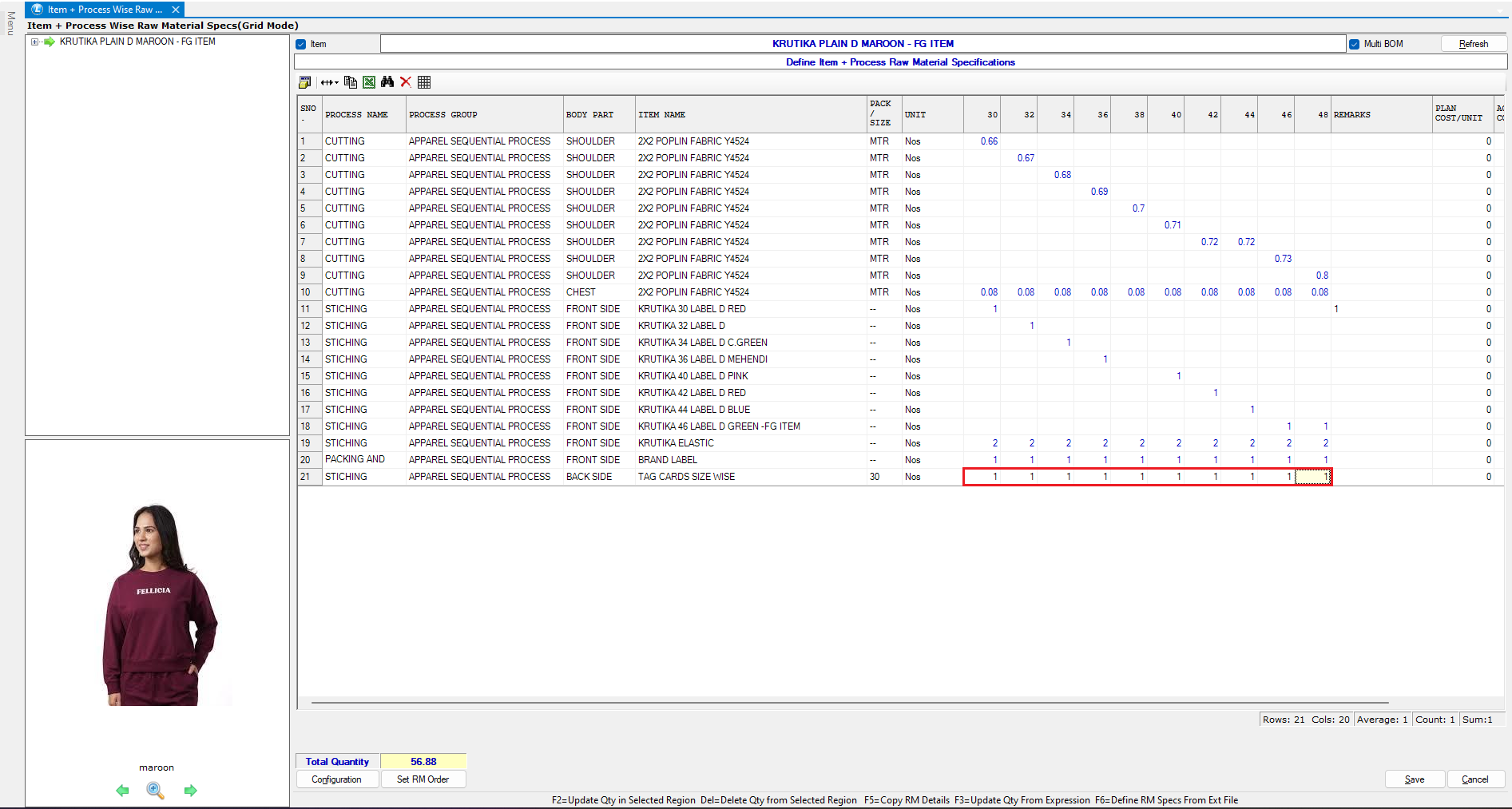
* Navigate to **Items + Process → Raw Material Specs (Grid Mode)**.
* Select the **Item** for which you want to define the BOM.
* Click **Refresh** to load the existing Bill of Materials for that item.
***
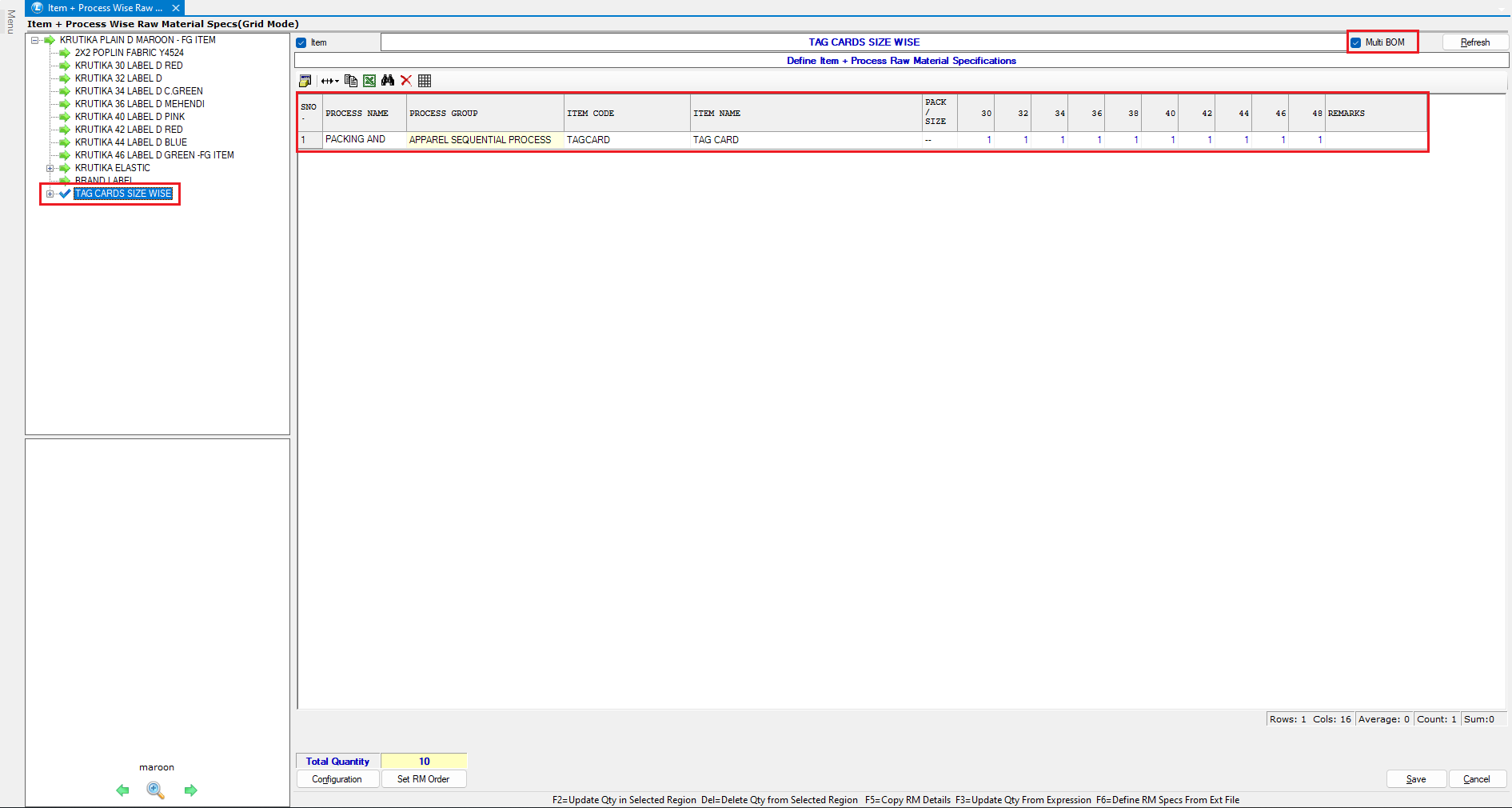
### **Enabling Multi-Level BOM (Multi BOM)**
To create multi-stage production structures:
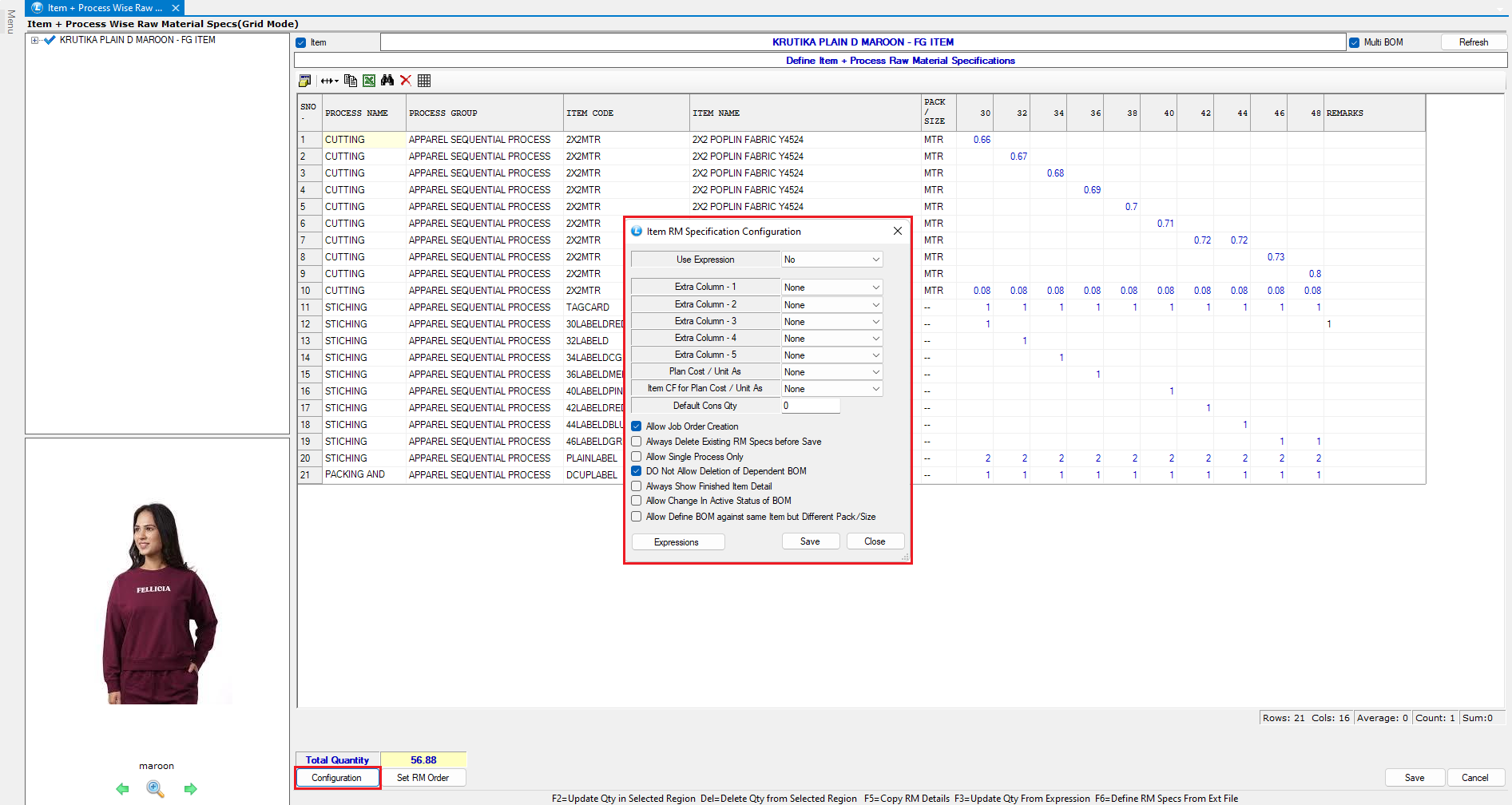
* Tick the **Multi BOM** checkbox.
* If the option is not visible, go to **Configuration** and enable **Multi BOM** settings.
* This feature is required when:
* The finished product requires **semi-finished components**
* Each semi-finished component has its own **independent production process**
**Example:**\
If producing **Item A** requires manufacturing **Item B** and **Item C**, each with separate production stages, a **multi-level BOM** becomes necessary.
***
### **Defining Process-Wise BOM**
To add BOM details for a specific production stage:
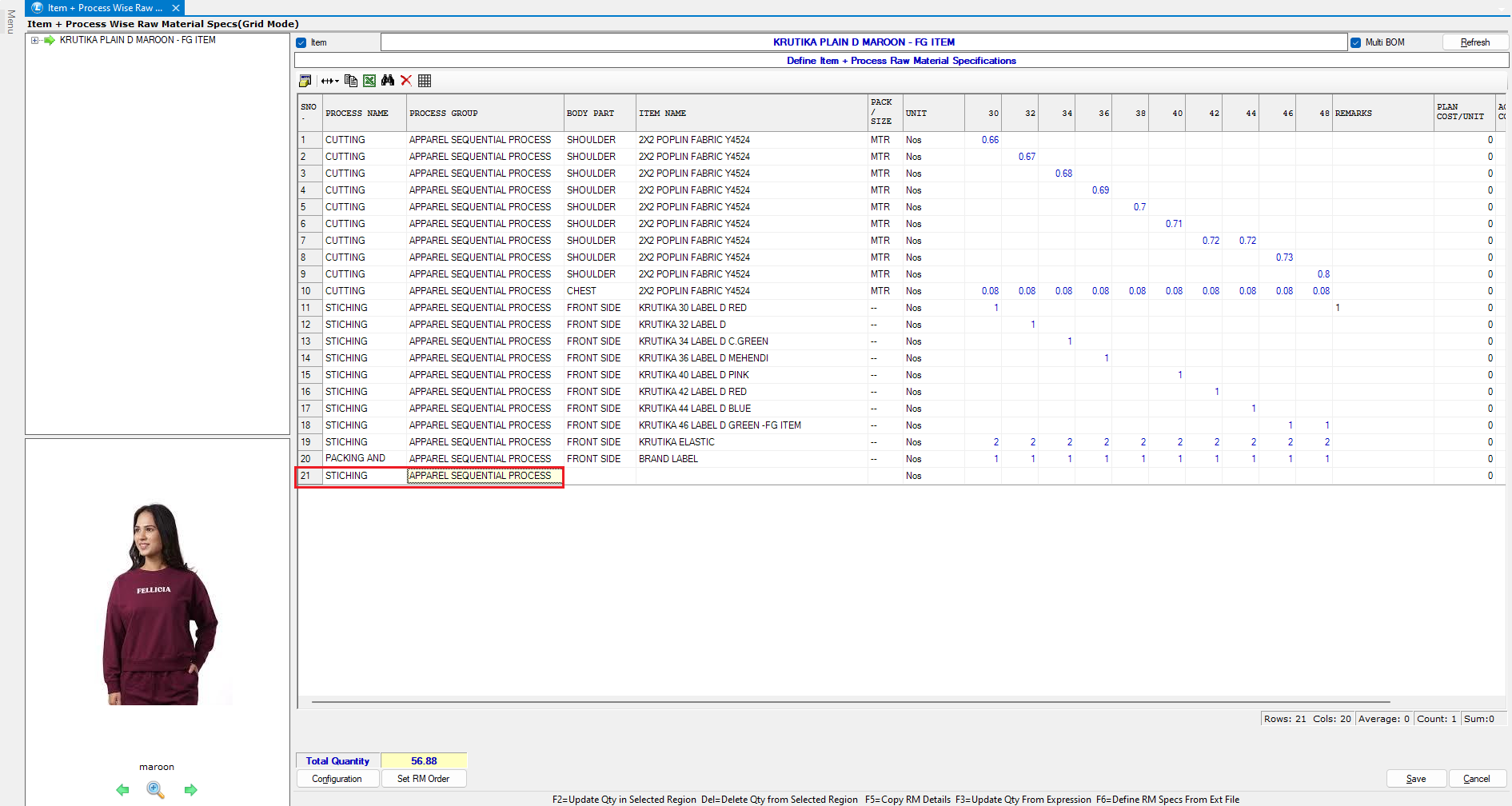
#### **3.1 Select the Production Process**
* Choose the **Process Name**.
* The related **Process Group** appears automatically.
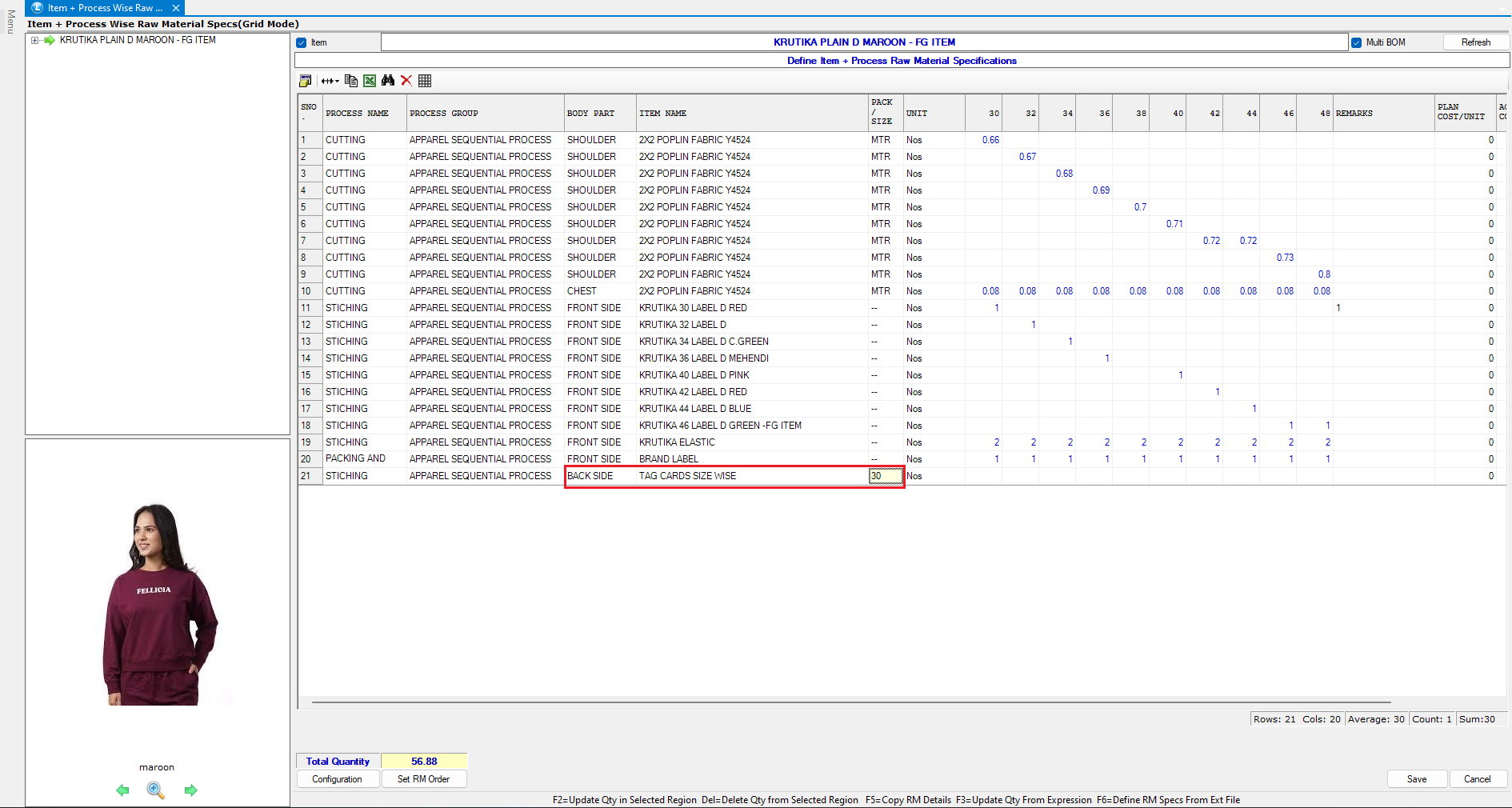
#### **3.2 Choose Relevant Raw Material**
* Select the **Body Part**.
* Then select the **Raw Material Item** required for that process.
#### **3.3 Size-Wise Material Consumption**
* In the **Sizes** column, define the **quantity of raw material required** for each size.
* This ensures accurate and size-based consumption planning.
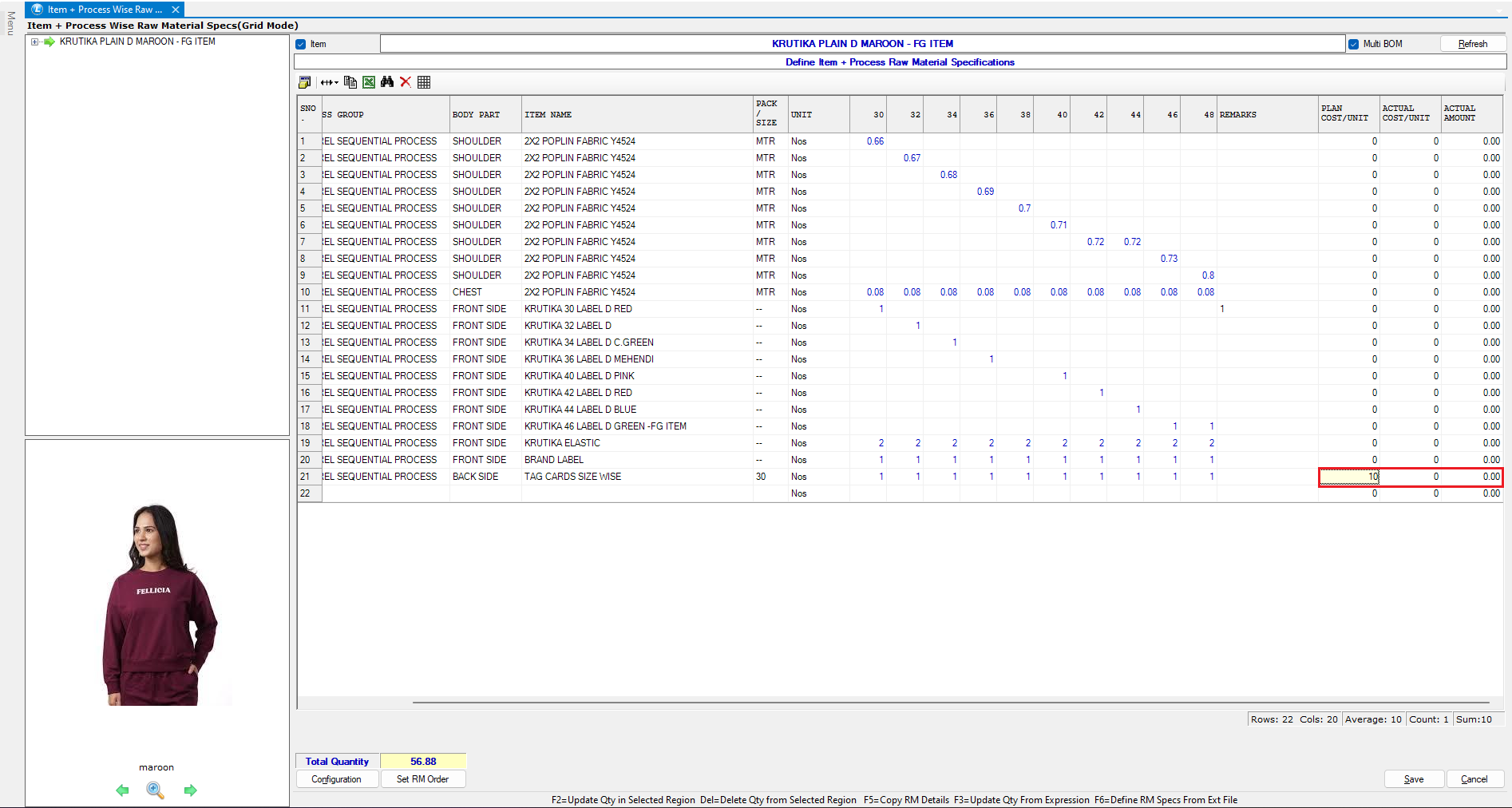
#### **3.4 Costing Information**
* **Plan Cost Per Unit**: Estimated or standard raw material cost.
* **Actual Cost Per Unit** and **Actual Amount Used**:
* Recorded during production
* Helps track real-time consumption and variance analysis.
* After entering all details, click **Save**.
***
### **Understanding the Multi-Level BOM Tree Structure**
* The **left panel** displays the complete multi-level BOM hierarchy in a **tree format**.
* It helps you:
* Visualize production stages
* Track semi-finished components
* Understand material dependencies clearly
***
### **Adding Semi-Finished Components**
If your product includes semi-finished items:
* Define a separate BOM for each **semi-finished component**.
* Link these components to the **finished product’s master BOM**.
* **Mandatory:** Ensure **Multi BOM** is enabled for semi-finished items.
* Without this option, the system **will not generate separate job orders** for semi-finished items in future production stages.
***
### **Useful Shortcut Keys**
To speed up BOM creation, use the shortcuts shown at the bottom of the screen:
* **F2** – Update quantity for the selected region
* **Delete** – Remove quantity from the selected region
* **F5** – Copy raw material details
* **F3** – Update quantity using an expression
* **F6** – Import raw material specifications from an external file
These shortcuts significantly enhance efficiency when managing large and complex BOMs.
***
## **Conclusion**
By enabling Multi BOM and defining stage-wise raw materials, size-based consumption, and separate BOMs for semi-finished goods, you can build a precise and structured multi-level Bill of Materials. This ensures accurate production planning, cost control, and efficient job order generation within Logic ERP.
---
# Agent Instructions
This documentation is published with GitBook. GitBook is the documentation platform designed so that both humans and AI agents can read, navigate, and reason over technical content effectively. Learn more at gitbook.com.
## Querying This Documentation
If you need additional information that is not directly available in this page, you can query the documentation by asking a question.
Perform an HTTP GET request on the following URL with the `ask` and `goal` query parameters:
```
GET https://kb.logicerp.com/logic-erp-installation-configuration-and-troubleshooting-solutions/faqs/production/define-a-multi-level-bill-of-materials-bom-in-production.md?ask=&goal=
```
`ask` is the immediate question: it should be specific, self-contained, and written in natural language.
`goal` is what the user is ultimately trying to achieve, the reason they need the answer. Sharing it helps GitBook give you a better, more relevant answer. A goal is most helpful when it describes the outcome the user wants rather than restating the question. For example, with `ask=how do I create an API token`, a goal like `automate deployments from our CI pipeline` lets GitBook tailor the answer to that use case.
The response will contain a direct answer to the question and relevant excerpts and sources from the documentation.
Use this mechanism when the answer is not explicitly present in the current page, you need clarification or additional context, or you want to retrieve related documentation sections.