> For the complete documentation index, see [llms.txt](https://kb.logicerp.com/llms.txt). Markdown versions of documentation pages are available by appending `.md` to page URLs; this page is available as [Markdown](https://kb.logicerp.com/logic-erp-installation-configuration-and-troubleshooting-solutions/faqs/production/mapping-items-with-processes-in-discrete-production.md).
# Mapping Items with Processes in Discrete Production
YouTube: [How to Map Items to Processes in Discrete Production?](https://www.youtube.com/watch?v=YIqVPwI-uhA)
## How to Map Items to Processes in Discrete Production?
This tutorial explains how to **link items with production processes** in discrete production and how to **predefine process-item linking** for faster and error-free job order creation.
***
### **Access to Job Order for Discrete Production**
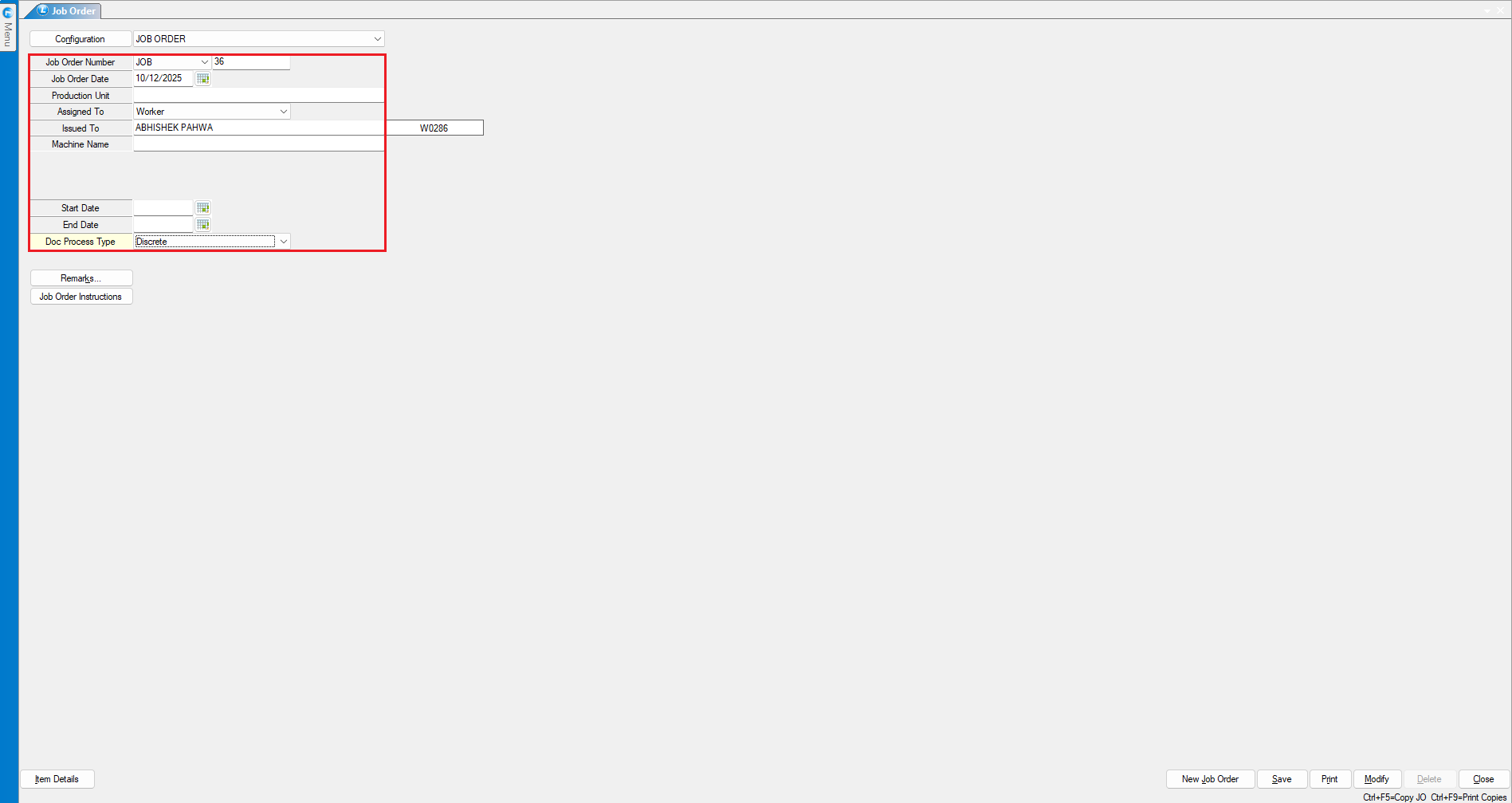
* Open the **Job Order** module.
* Create a **new job order**.
* Select:
* **Worker Type:** Internal or External
* **Worker Name**
* **Document Process Type:** *Discrete*
* Enter:
* **Item to be produced**
* **Production quantity**
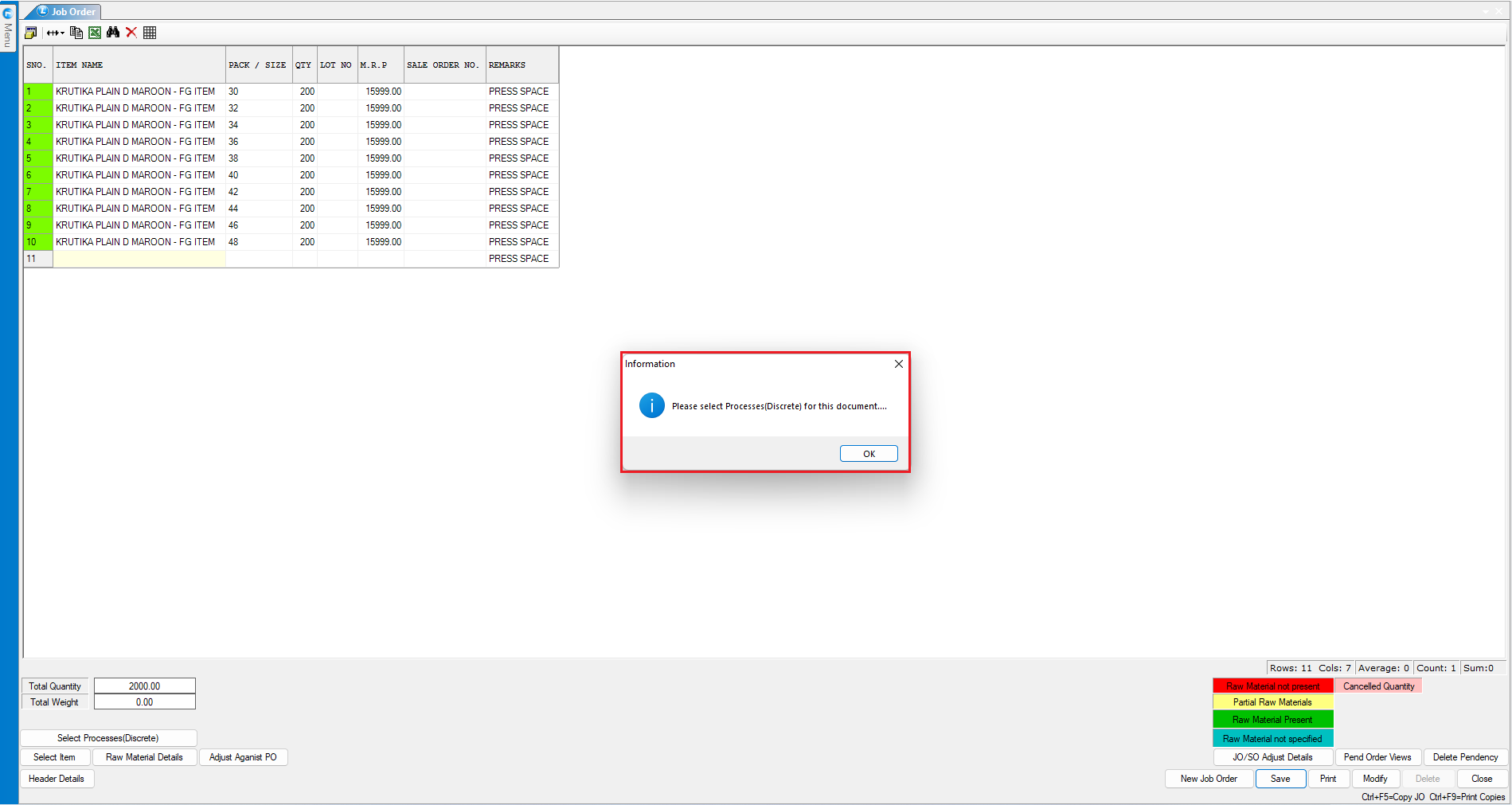
* Click **Save**.
* If a discrete process is not selected, the system will prompt you to **assign a discrete process before saving**.
***
### **Link Process to Item During Job Order Creation**
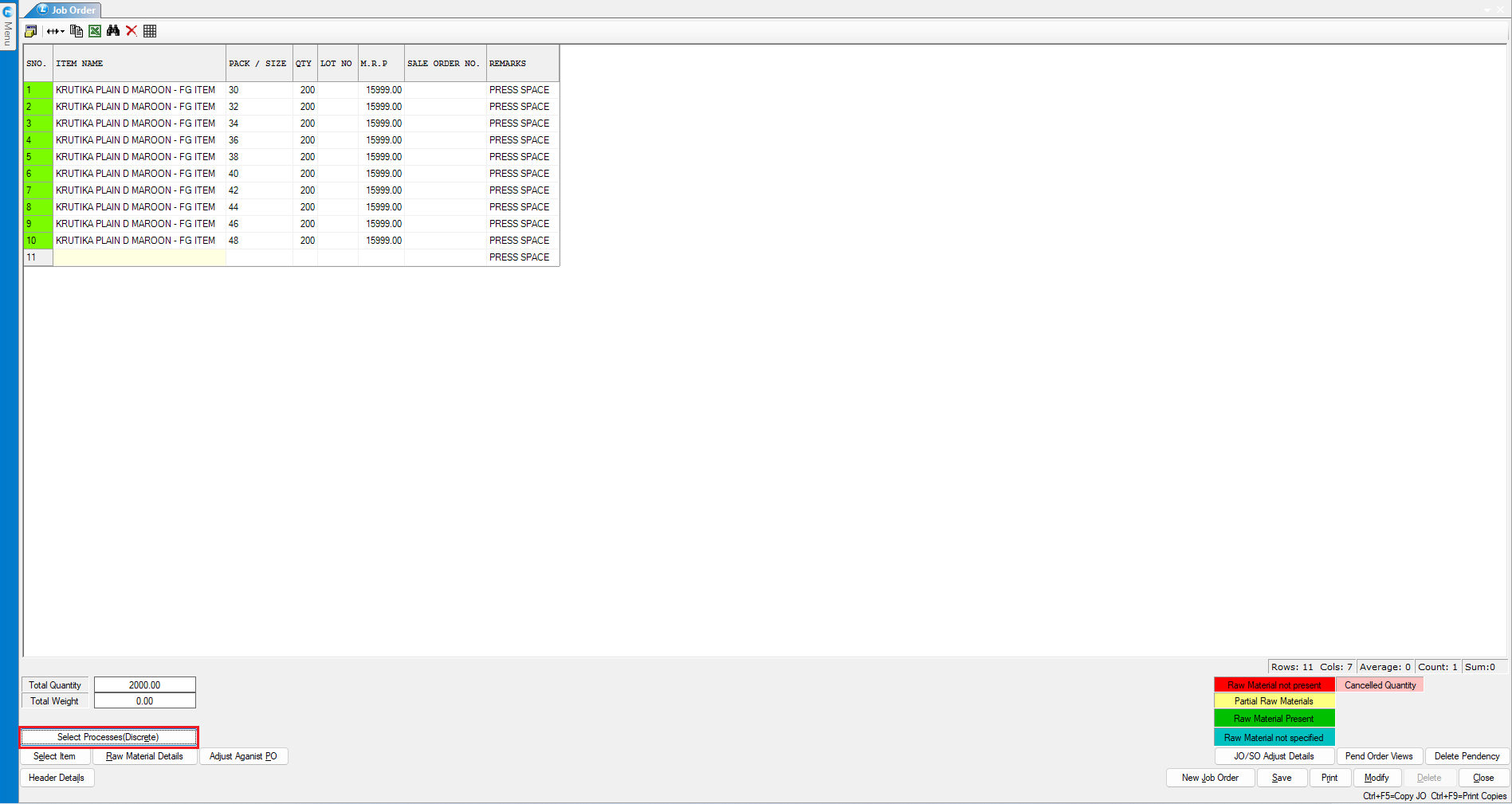
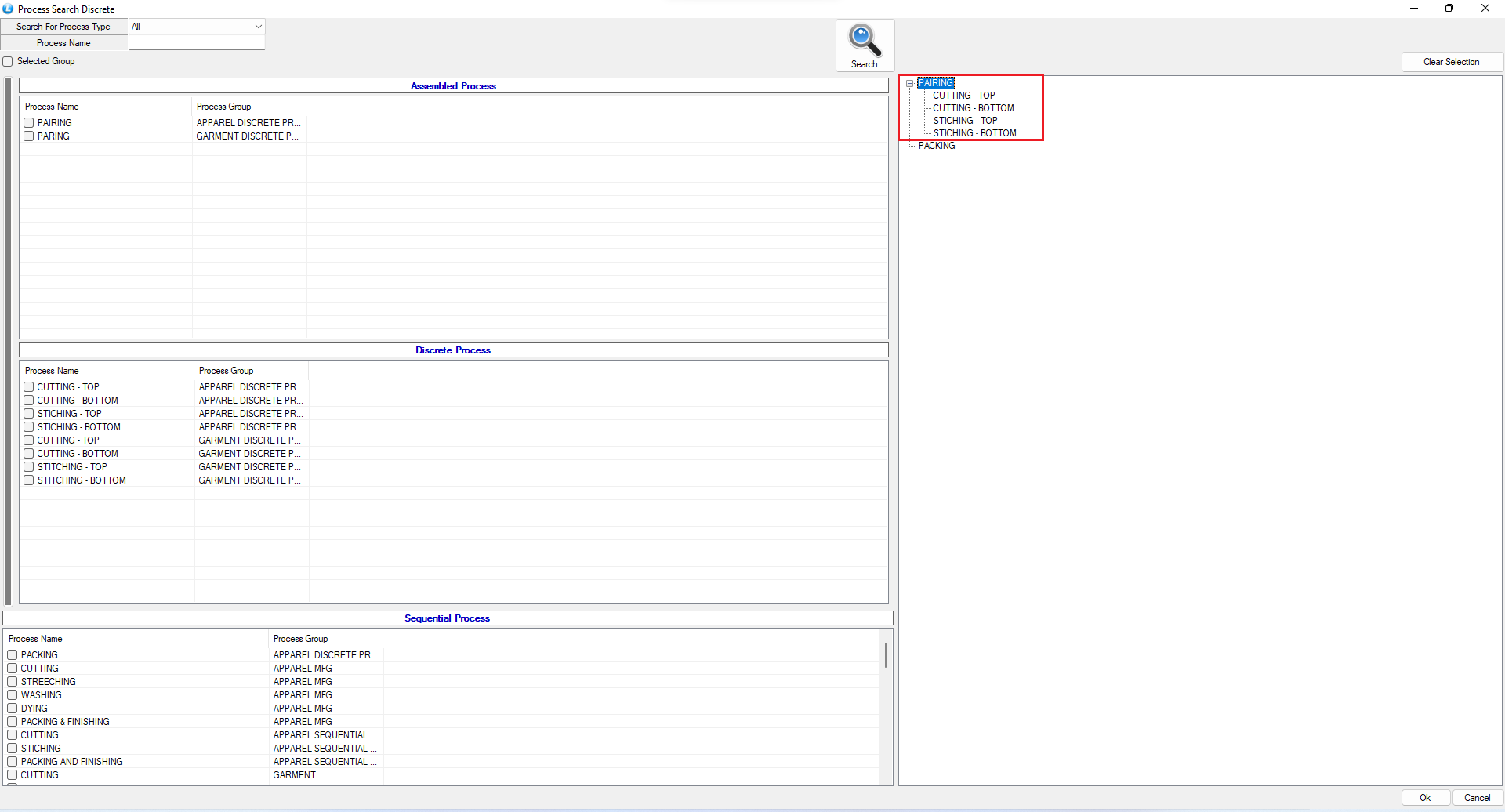
* When the system prompts: click the **“Select Process Discrete”** button.
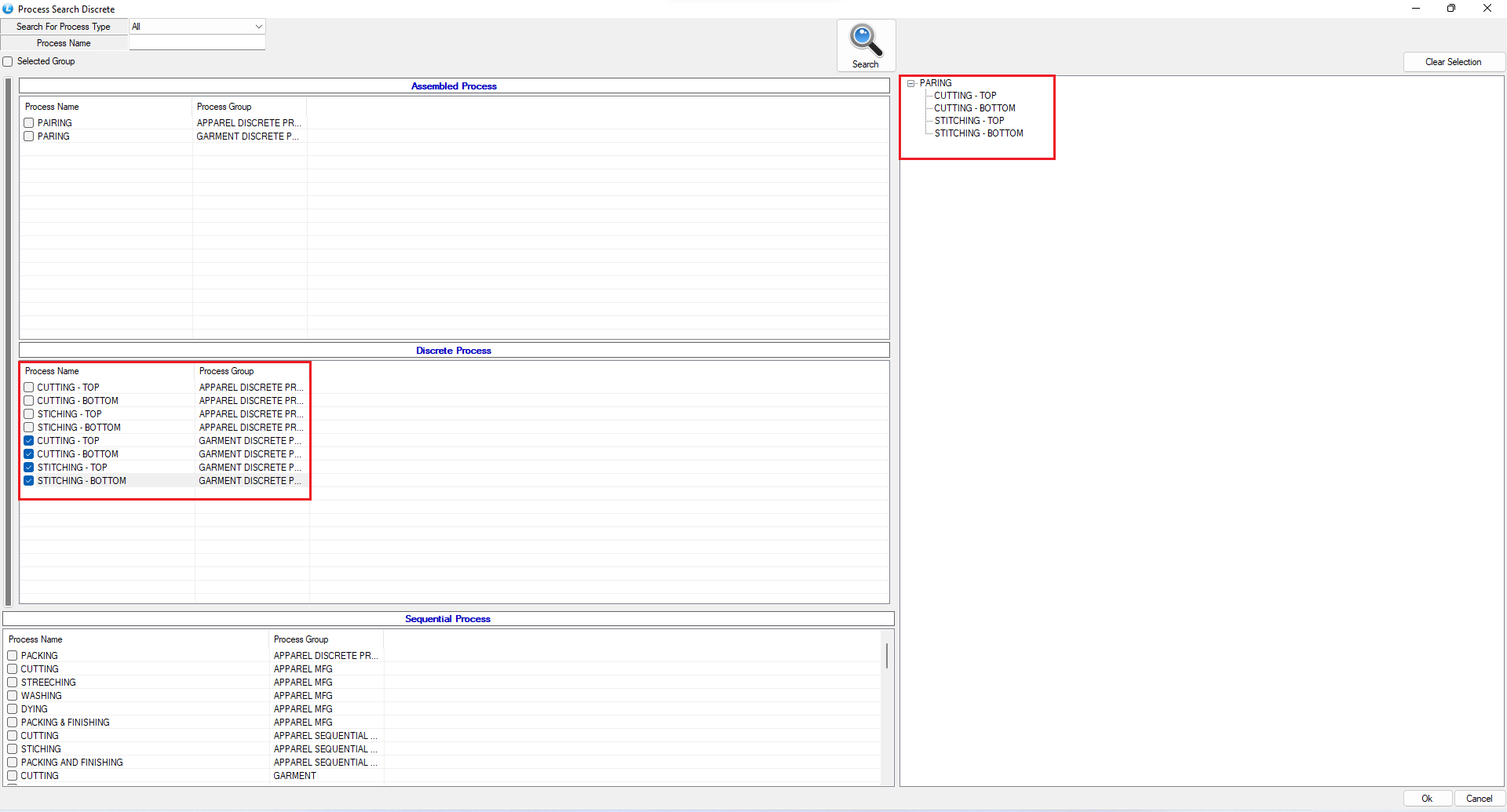
* Select the **required production process**.
* The **process tree** will appear on the right panel.
* Review the displayed process flow.
* Click **OK** and then **Save** the job order.
The job order is now successfully created with linked processes.
***
### **Pre-Link Items with Processes (Optional but Recommended)**
To avoid manual linking every time:
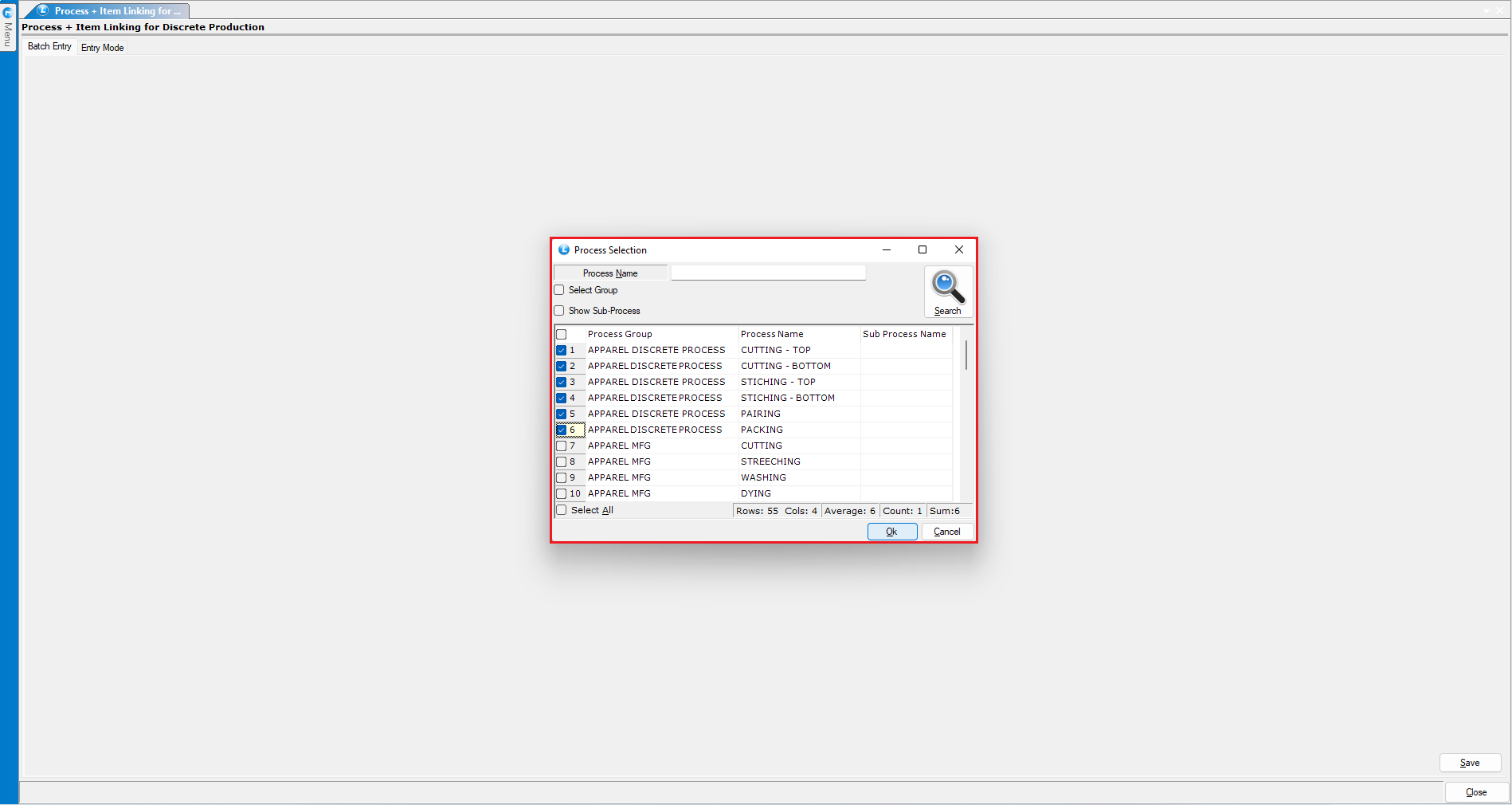
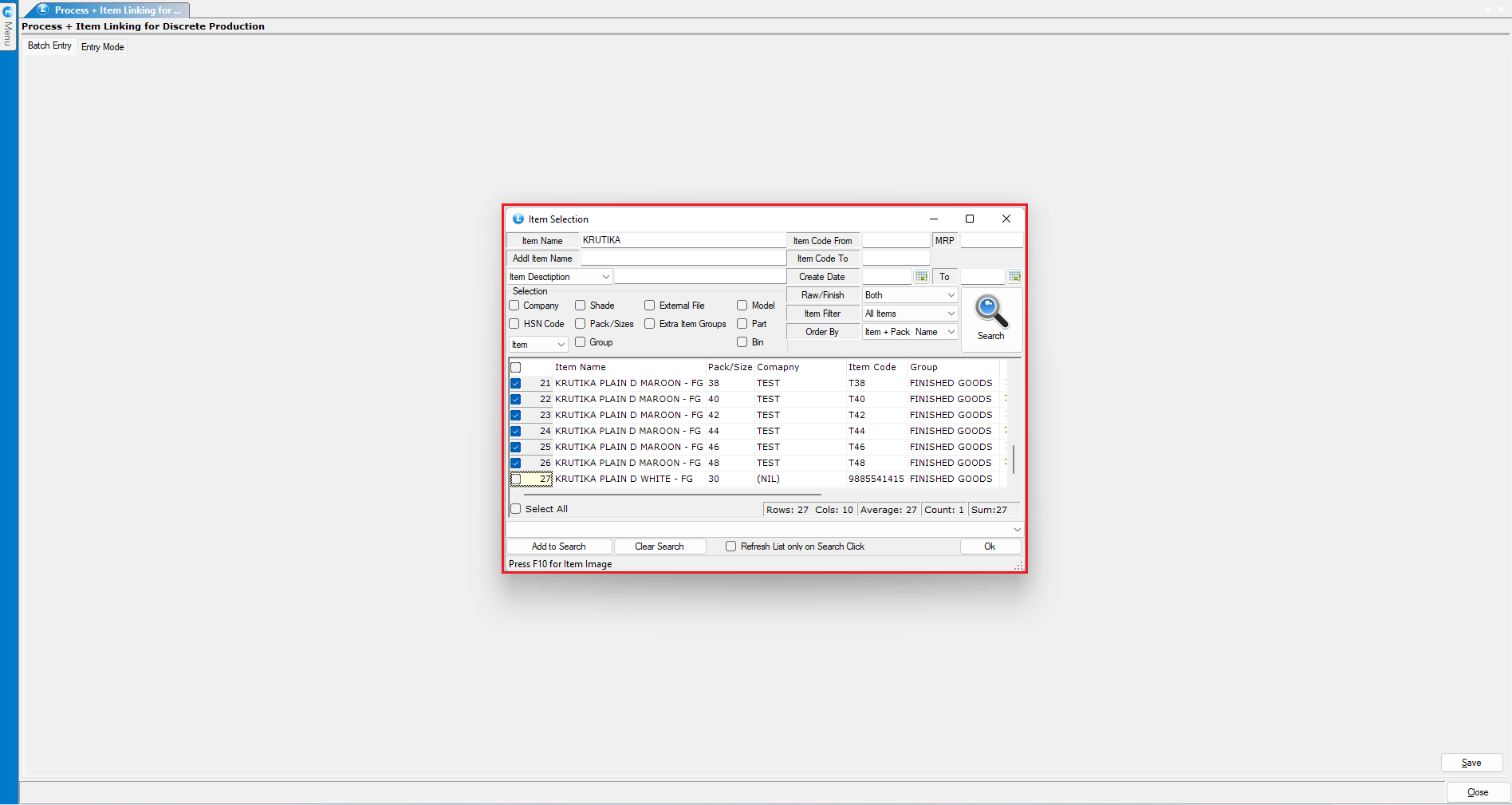
* Go to **Process + Item Linking for Discrete Production**.
* Select the **Process**.
* Select the **Item** to be linked.
* Define:
* **Completion Days**
* **Estimated Time**
* **Applicable Rates**
* Click **Save**.
The process is now permanently linked to the selected item.
***
### **Create Job Order Using Pre-Linked Process**
* Open **Job Order**.
* Select:
* **Worker Name**
* **Document Process Type:** *Discrete*
* Enter:
* **Item**
* **Quantity**
* Click on **Select Processes (Discrete)**.
* The **predefined process tree appears automatically**.
* Click **OK** and **Save**.
The job order is created instantly without manual process selection.
***
### **Conclusion**
Linking items with processes in **Discrete Production** ensures:
* Faster job order creation
* Reduced manual effort
* Improved production accuracy
* Standardized workflows
---
# Agent Instructions
This documentation is published with GitBook. GitBook is the documentation platform designed so that both humans and AI agents can read, navigate, and reason over technical content effectively. Learn more at gitbook.com.
## Querying This Documentation
If you need additional information that is not directly available in this page, you can query the documentation dynamically by asking a question.
Perform an HTTP GET request on the current page URL with the `ask` query parameter, and the optional `goal` query parameter:
```
GET https://kb.logicerp.com/logic-erp-installation-configuration-and-troubleshooting-solutions/faqs/production/mapping-items-with-processes-in-discrete-production.md?ask=&goal=
```
`ask` is the immediate question: it should be specific, self-contained, and written in natural language.
`goal` is optional and describes the broader end goal you are ultimately trying to accomplish on behalf of the user. GitBook uses it to tailor the answer towards what is most useful for that goal.
The response will contain a direct answer to the question and relevant excerpts and sources from the documentation.
Use this mechanism when the answer is not explicitly present in the current page, you need clarification or additional context, or you want to retrieve related documentation sections.