> For the complete documentation index, see [llms.txt](https://kb.logicerp.com/llms.txt). Markdown versions of documentation pages are available by appending `.md` to page URLs; this page is available as [Markdown](https://kb.logicerp.com/logic-erp-installation-configuration-and-troubleshooting-solutions/faqs/production/set-up-sequential-and-discrete-production-processes.md).
# Set Up Sequential & Discrete Production Processes
**YouTube:** [How to Set Up Sequential and Discrete Production Processes?](https://www.youtube.com/watch?v=ndiZUma4Enc)
## How to Set Up Sequential and Discrete Production Processes?
In this tutorial, we will walk you through the complete process of creating **Sequential** and **Discrete** process groups in **Logic ERP**. These process groups help define how production operations are executed—either in a fixed order (sequential) or simultaneously (discrete). Let’s get started.
***
### **Accessing Process Group Setup**
* Go to **Production Module → Production Setups → Setup Process Groups/Processes**.
* Existing process groups (if any) will be displayed here.
***
Creating a Sequential Process Group
#### **Understanding Sequential (Dependent) Processes**
* Sequential processes follow a **strict order**.
* The **next process starts only after the previous one is completed**.
#### **Create a New Sequential Process Group**
* Right-click on the process group list → **New Process Group**.
* Enter a suitable **name** for the sequential process group.
* The new process group will now appear in the list.
#### **Add Processes Under the Sequential Group**
* Right-click the newly created group → **New Process**.
* Enter:
* **Process Name**
* **Rate Per Unit**
* **Process Type: Sequential**
* Optional:
* Enable **Allow Create Bundle** (useful for innerwear production after cutting).
* Define **Bundle Prefix** and **Bundle Prefix Formula** (used only in sequential processes).
* Click **Save**.
* The process (e.g., Cutting) is now added to the group.
#### **Add Additional Processes & Subprocesses**
* Repeat the steps above to add remaining processes.
* For subprocesses: Right-click on a process → **Add Subprocess**.
* Subprocesses help track **worker-wise piece rates** for multiple internal tasks\
(e.g., stitching line operations performed by different workers).
#### **Sequential Group Completed**
* After adding all required processes/subprocesses, your sequential process group is ready.
***
Creating a Discrete Process Group
#### **Understanding Discrete (Parallel) Processes**
* Discrete processes allow **multiple operations to run simultaneously**.
* Production does **not** follow a fixed step-by-step order.
#### **Create a New Discrete Process Group**
* Right-click on the process group list → **New Process Group**.
* Enter the appropriate name.
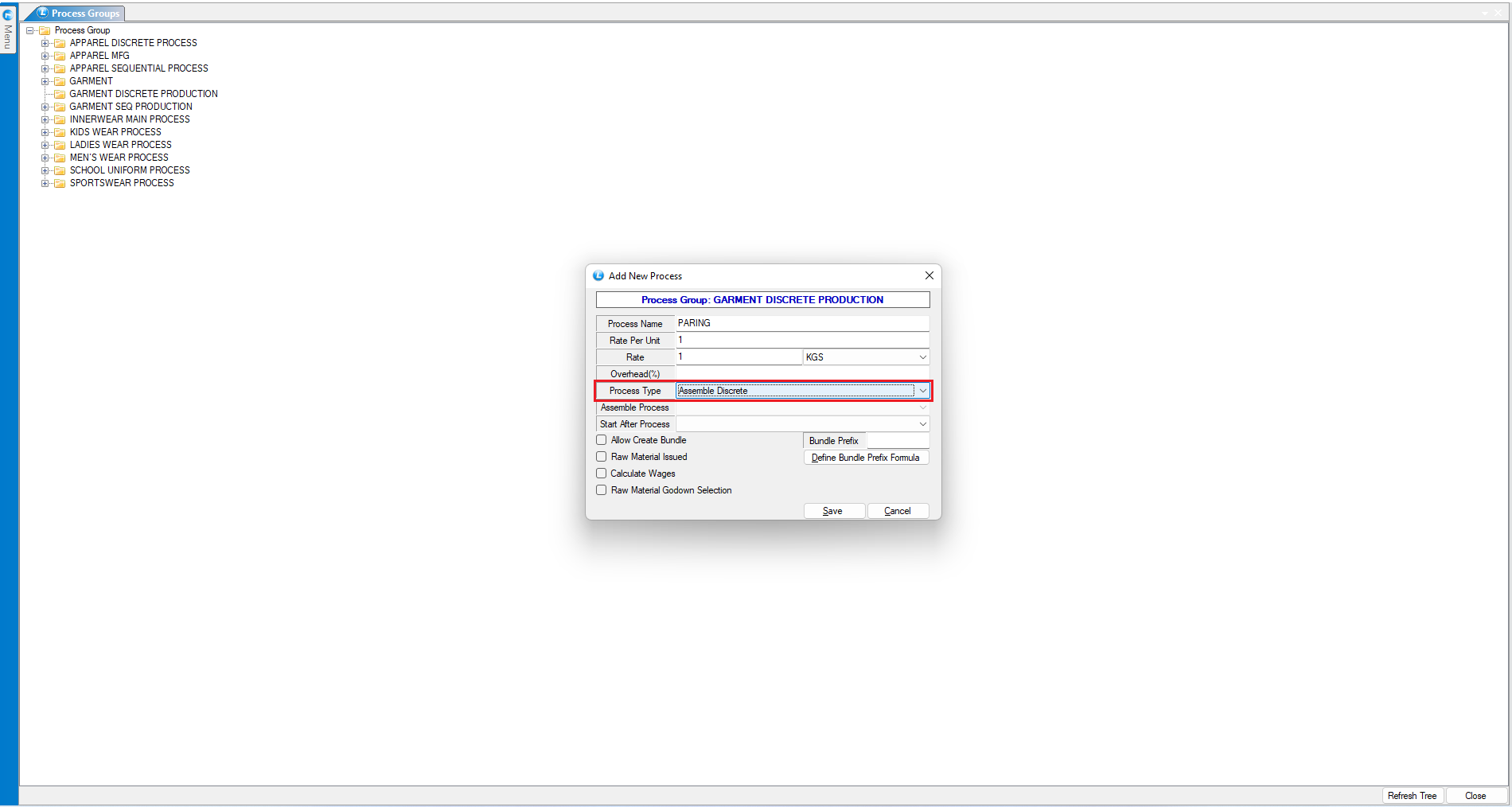
#### **Add the First Assembly (Pairing) Process**
* Right-click on the discrete group → **New Process**.
* Enter:
* **Process Name** (e.g., Pairing)
* **Rate Per Unit**
* **Process Type: Assemble Discrete**
* Click **Save**.
> **Important**
The **pairing/assembly** process must be created **first**, as all other discrete processes will be linked to it later.
***
### **Adding Remaining Discrete Processes**
* For each new discrete process:
* Enter **Process Name**
* Enter **Rate Per Unit**
* Select **Process Type: Discrete**
* Choose **Assemble Process: Pairing** (or your primary assembly process)
* Click **Save**
#### **Process Flow Guidelines**
* All discrete processes from **Cutting → Stitching** must be defined as **Discrete**.
* Each must reference the **Pairing** process under *Assemble Process*.
#### **Final Packing Process**
* Since **Packing** is the final stage in discrete production:
* Select **Process Type: Sequential.**
* Save and position it after the assembly stage.
***
### **Manage and Organize Processes**
* Right-click the process group to:
* **Edit** a process
* **Delete** a process
* **Rearrange** process order as required
***
### **Conclusion**
Using these steps, you can efficiently create and manage both **Sequential** and **Discrete** process groups in Logic ERP—giving you full control over production workflows and helping streamline your manufacturing operations.
---
# Agent Instructions
This documentation is published with GitBook. GitBook is the documentation platform designed so that both humans and AI agents can read, navigate, and reason over technical content effectively. Learn more at gitbook.com.
## Querying This Documentation
If you need additional information that is not directly available in this page, you can query the documentation dynamically by asking a question.
Perform an HTTP GET request on the current page URL with the `ask` query parameter, and the optional `goal` query parameter:
```
GET https://kb.logicerp.com/logic-erp-installation-configuration-and-troubleshooting-solutions/faqs/production/set-up-sequential-and-discrete-production-processes.md?ask=&goal=
```
`ask` is the immediate question: it should be specific, self-contained, and written in natural language.
`goal` is optional and describes the broader end goal you are ultimately trying to accomplish on behalf of the user. GitBook uses it to tailor the answer towards what is most useful for that goal.
The response will contain a direct answer to the question and relevant excerpts and sources from the documentation.
Use this mechanism when the answer is not explicitly present in the current page, you need clarification or additional context, or you want to retrieve related documentation sections.