> For the complete documentation index, see [llms.txt](https://kb.logicerp.com/llms.txt). Markdown versions of documentation pages are available by appending `.md` to page URLs; this page is available as [Markdown](https://kb.logicerp.com/logic-erp-learning-hub-tutorials-and-best-practices/setups/configurations/sale-voucher-configuration/other-settings-2/multiple-price-list-rates.md).
# Multiple Price List Rates
**YouTube:** [How to Enable Multiple Price List Rates in Sale Bill?](https://www.youtube.com/watch?v=XjM-BJXvK0s\&t=30s)
## How to Enable Multiple Price List Rates in Sale Bill?
In this tutorial, we'll explore how to efficiently manage **Multiple Price List Rates** in your ERP system—making your billing smarter, more flexible, and error-free.
***
### **Enabling the Feature**
* Navigate to **Sale Voucher Configuration**.
* Select the relevant **Billing Series**.
* Under **Other Settings 2**,
* Locate the option Labeled as:
> **"Multiple Price List Rates"**
* This setting supports several **parameter types**, each offering unique control over price calculations.
* None
* Multi Price List Rates
* Party+Item Groups Defaults
* Party+Item Markdowns
* Default From Price List
### **Reviewing Each Configuration Option Individually**
### **Option 1 - Multi Price List Rates – None (Default Behavior)**
* First, enable this option in the configuration settings.
* Navigate to **Define Multiple Price Lists** module.
* Firstly, Define Item wise Expense name.
* In the **Configuration** tab define **Expense Name & Formula Configuration** (e.g., `MRP - 20%`)
### **Billing Impact:**
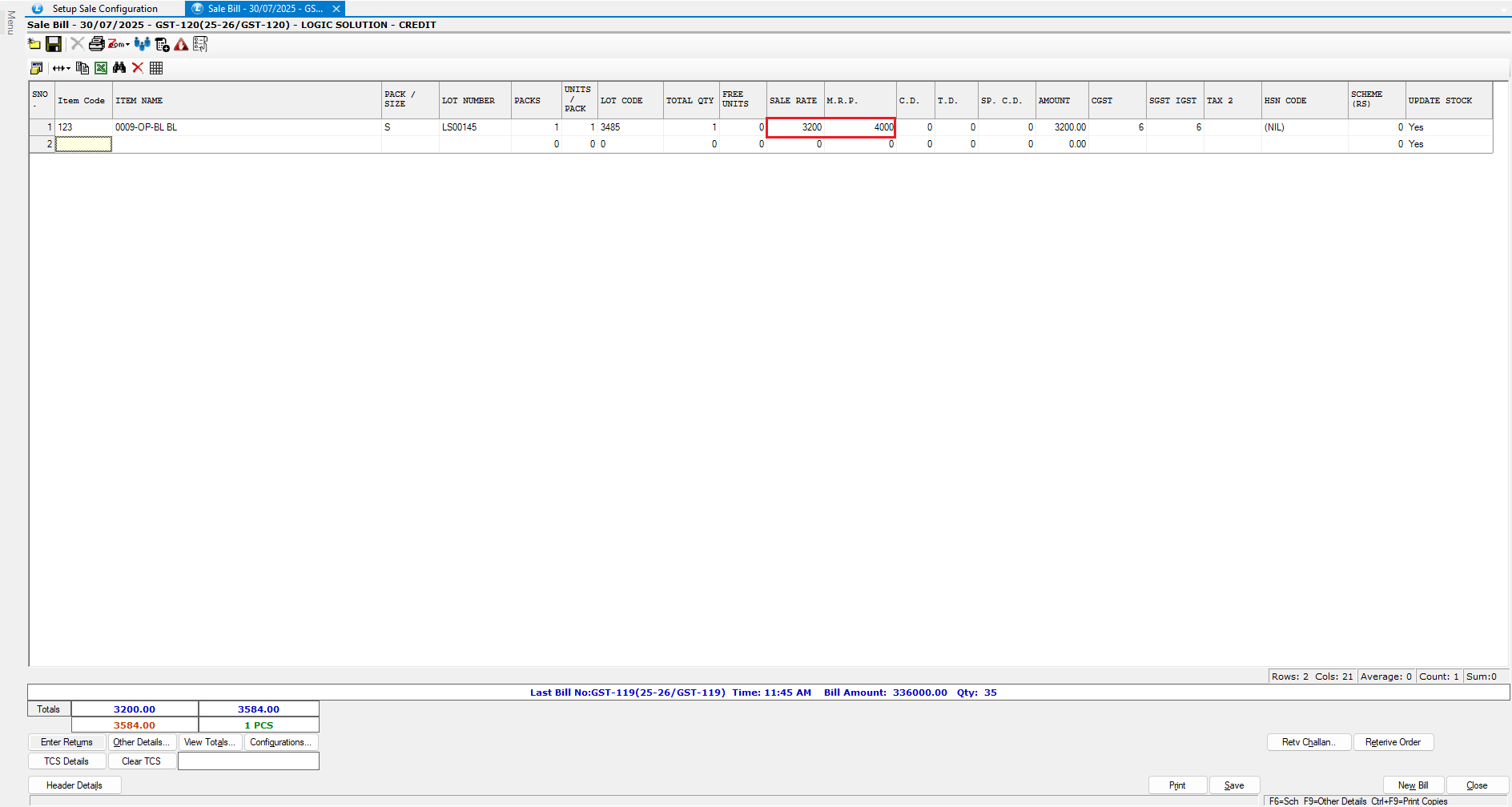
* In the billing window, select the configured price list.
* For example:
* **MRP** = ₹4,000
* **Sale Rate** = ₹3,200 (Auto-calculated as MRP - 20%)
***
### **Option 2 - Party + Item Group Defaults**
* First, enable this option in the configuration settings.
* Navigate to: Setup\Set Other Item Details and then select **"Define Item Wise Price Lists".**
* **Specify the Details as Outlined Below**
* **Price List & Expense Name**
* Go to "**Price List Configuration"**:
* Select base rate and desired expense.
* **After that, Access to:**
* **Define Party + Item Group Defaults for PL Elements**
* **Setup Example:**
* Item Group: *Jeans*
* Party: *Specific Customer*
* Rate: **MRP - 30%**
### **Billing Impact:**
* Select price list **PL**.
* Add an item categorized under *Jeans*.
* System auto-applies the **30% markdown**.
* Press **F4** on the rate field to view price list application details.
***
### **Option 3 - Party + Item Markdown**
* First, enable this option in the configuration settings.
* Navigate to: Setup\Set Other Item Details and then Select "**Define Party + Company + Group/Item Wise Tax/Markdowns".**
* Define the data according to your requirement.
* For example, refer to the image shown below.
### **Billing Behavior:**
* Navigate to the Bill and create a new Sale Bill.
* Set the **Price List = MRP** (Markdowns always apply on MRP).
* During billing:
* **MRP** = ₹1,000
* **Rate** = ₹950 (MRP - 5%)
***
### **Option 4 - Default from Price List**
* First, enable this option in the configuration settings.
* Navigate to **Define Item-Wise Price List**.
* Create a Price List with Associated Expenses
* In **Price List Configuration**:
* Set **Default Value** (e.g., MRP - 15%)
### **Billing Impact:**
* Navigate to billing and create a new **"Sale Bill".**
* Select price list **PL**.
* Define the Item and details.
* System calculates rate using the default rule.
* For example: ₹1,000 - 15% = ₹850
***
### **Summary Table**
| Parameter Type | Configuration Module | Billing Impact |
| ------------------------------- | -------------------------------------------- | ----------------------------------------------- |
| **None** | Define Multiple Price Lists | Formula-based dynamic pricing (e.g., MRP - 20%) |
| **Party + Item Group Defaults** | Define Itemized Price List + Party Mapping | Party-item specific pricing (e.g., Jeans - 30%) |
| **Party + Item Markdown** | Party + Company + Group/Item Markdown Module | MRP-based markdown per item/party |
| **Default from Price List** | Define Item-Wise Price List | Static rate based on pre-defined values |
***
### **Pro Tip**
Always ensure:
* Item Groups and Party Accounts are **properly mapped**.
* Base Rates (e.g., MRP, Sale Price) are **accurately set**.
* Press **F4** on the rate field in billing to view active pricing logic.
***
---
# Agent Instructions
This documentation is published with GitBook. GitBook is the documentation platform designed so that both humans and AI agents can read, navigate, and reason over technical content effectively. Learn more at gitbook.com.
## Querying This Documentation
If you need additional information that is not directly available in this page, you can query the documentation dynamically by asking a question.
Perform an HTTP GET request on the current page URL with the `ask` query parameter, and the optional `goal` query parameter:
```
GET https://kb.logicerp.com/logic-erp-learning-hub-tutorials-and-best-practices/setups/configurations/sale-voucher-configuration/other-settings-2/multiple-price-list-rates.md?ask=&goal=
```
`ask` is the immediate question: it should be specific, self-contained, and written in natural language.
`goal` is optional and describes the broader end goal you are ultimately trying to accomplish on behalf of the user. GitBook uses it to tailor the answer towards what is most useful for that goal.
The response will contain a direct answer to the question and relevant excerpts and sources from the documentation.
Use this mechanism when the answer is not explicitly present in the current page, you need clarification or additional context, or you want to retrieve related documentation sections.