> For the complete documentation index, see [llms.txt](https://kb.logicerp.com/llms.txt). Markdown versions of documentation pages are available by appending `.md` to page URLs; this page is available as [Markdown](https://kb.logicerp.com/logic-erp-learning-hub-tutorials-and-best-practices/setups/configurations/setup-bill-series-wise-discount-slabs.md).
# Setup Bill Series Wise Discount Slabs
**YouTube:** [How to Set Up Bill Series–Wise Discount Slabs for Sales?](https://www.youtube.com/watch?v=q8wEgf-wBqU)
## How to Set Up Bill Series–Wise Discount Slabs for Sales?
In this tutorial, we will learn how to **configure series-wise discount slabs in Logic ERP**.
***
### Set Up Series-Wise Discount Slabs
* Navigate to the **Setup Module** from the main menu
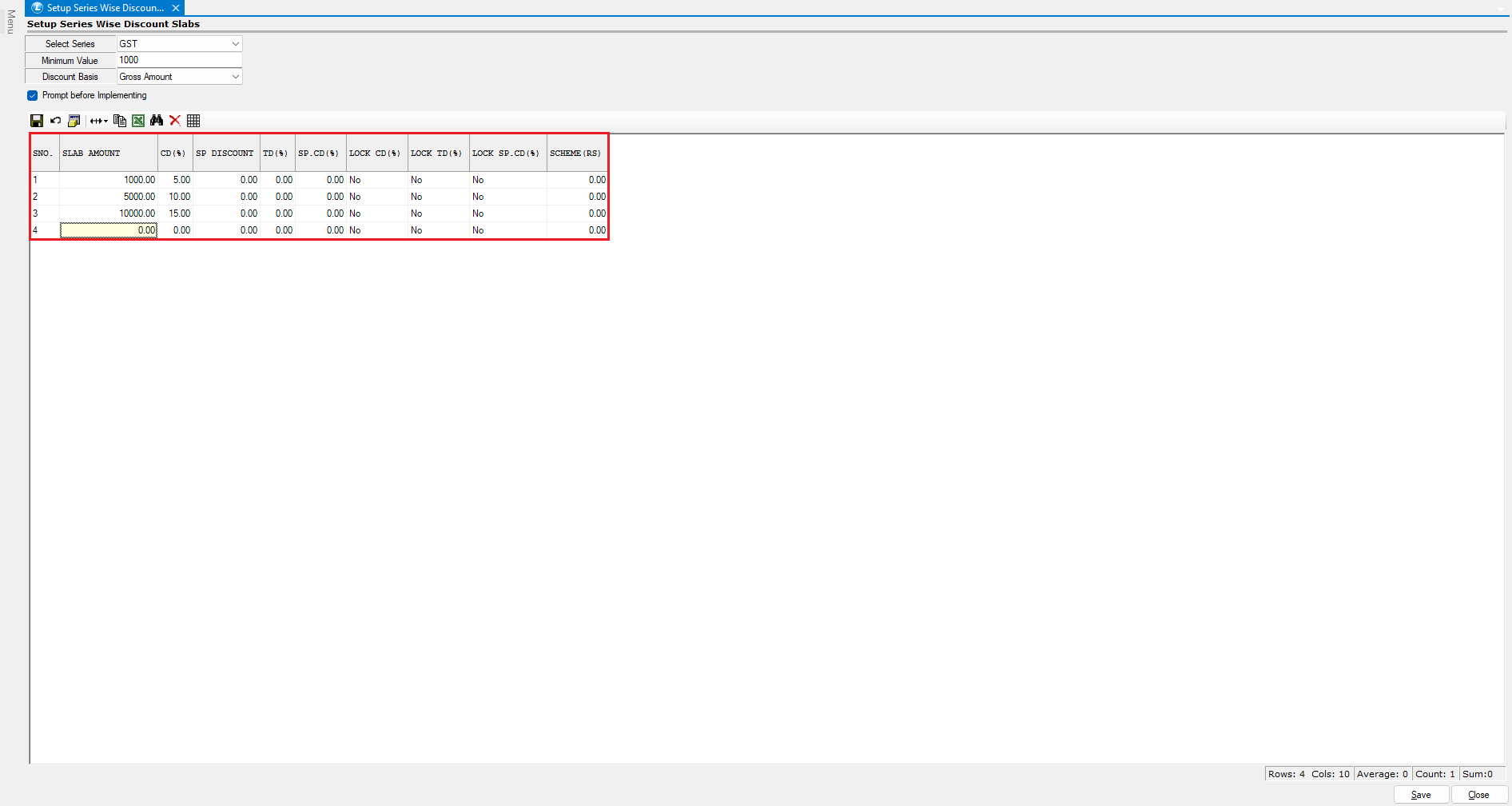
* Under **Configurations**, click to open **Setup Series-Wise Discount Slabs**
**Configure Discount Parameters**
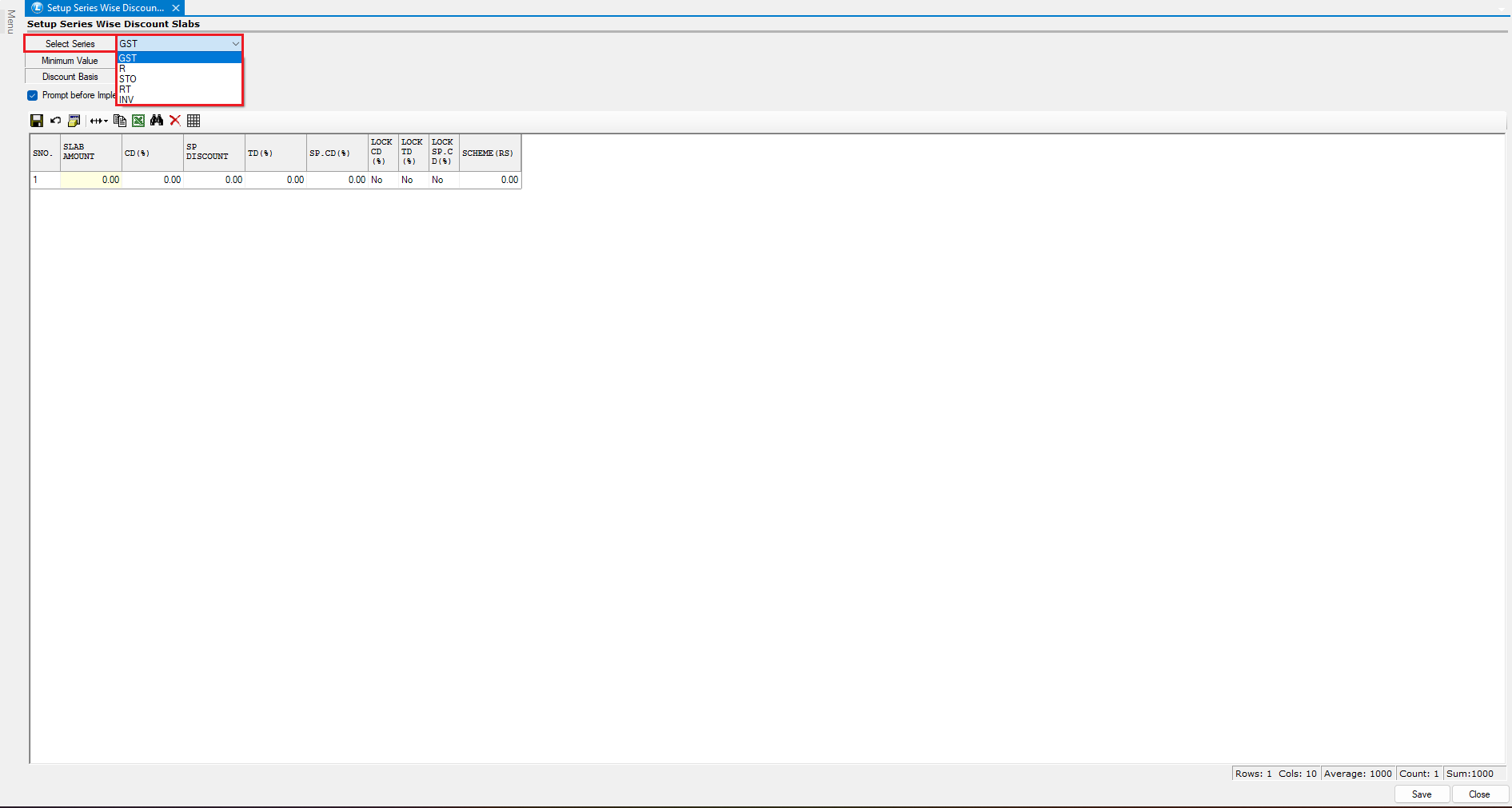
* Select the **required voucher series** from the dropdown for which the slab-wise discount will be applied
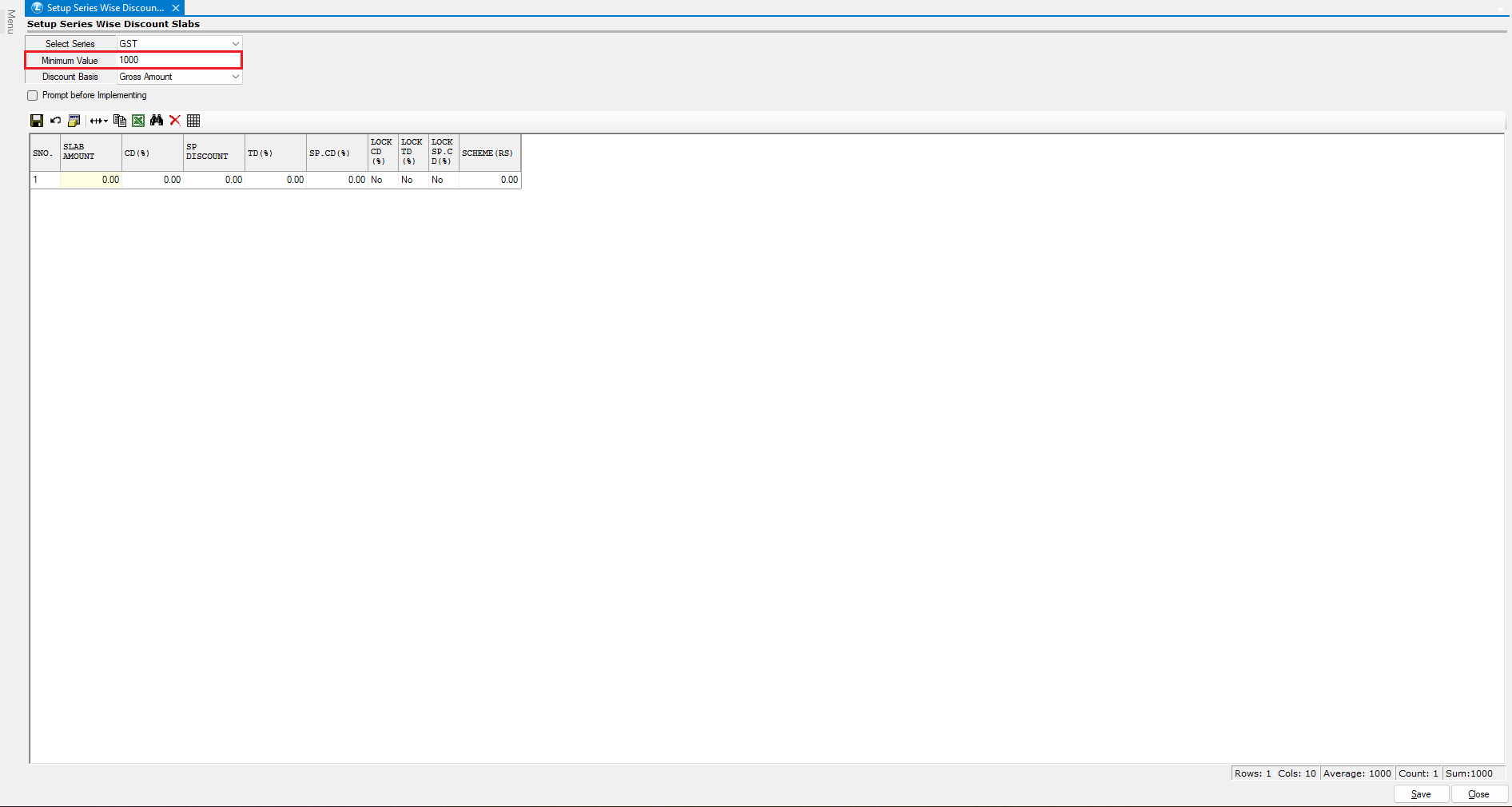
* Define the **minimum value** required to become eligible for the discount
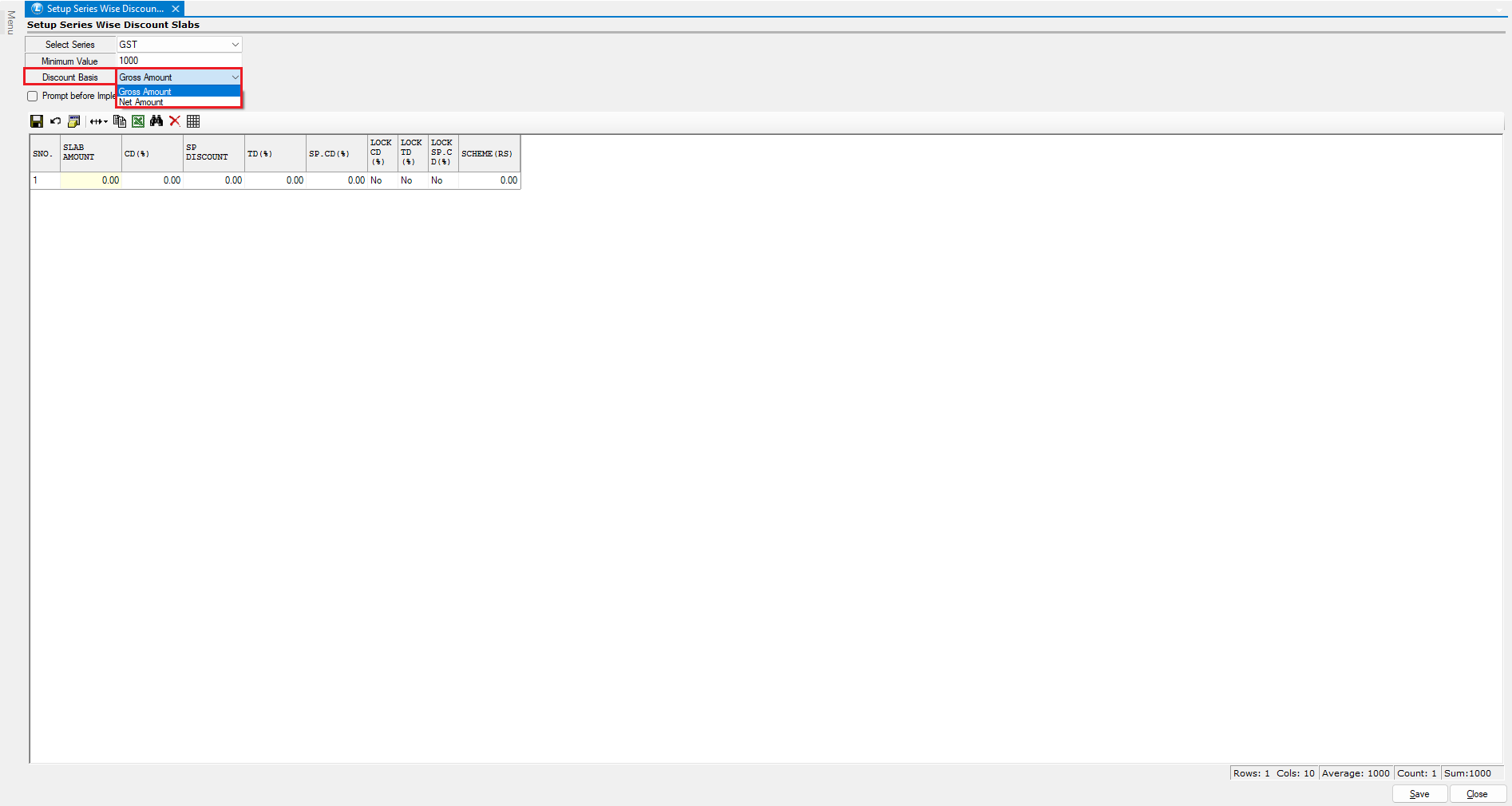
* Choose the **discount calculation basis**:
* **Gross Amount**
* **Net Amount**
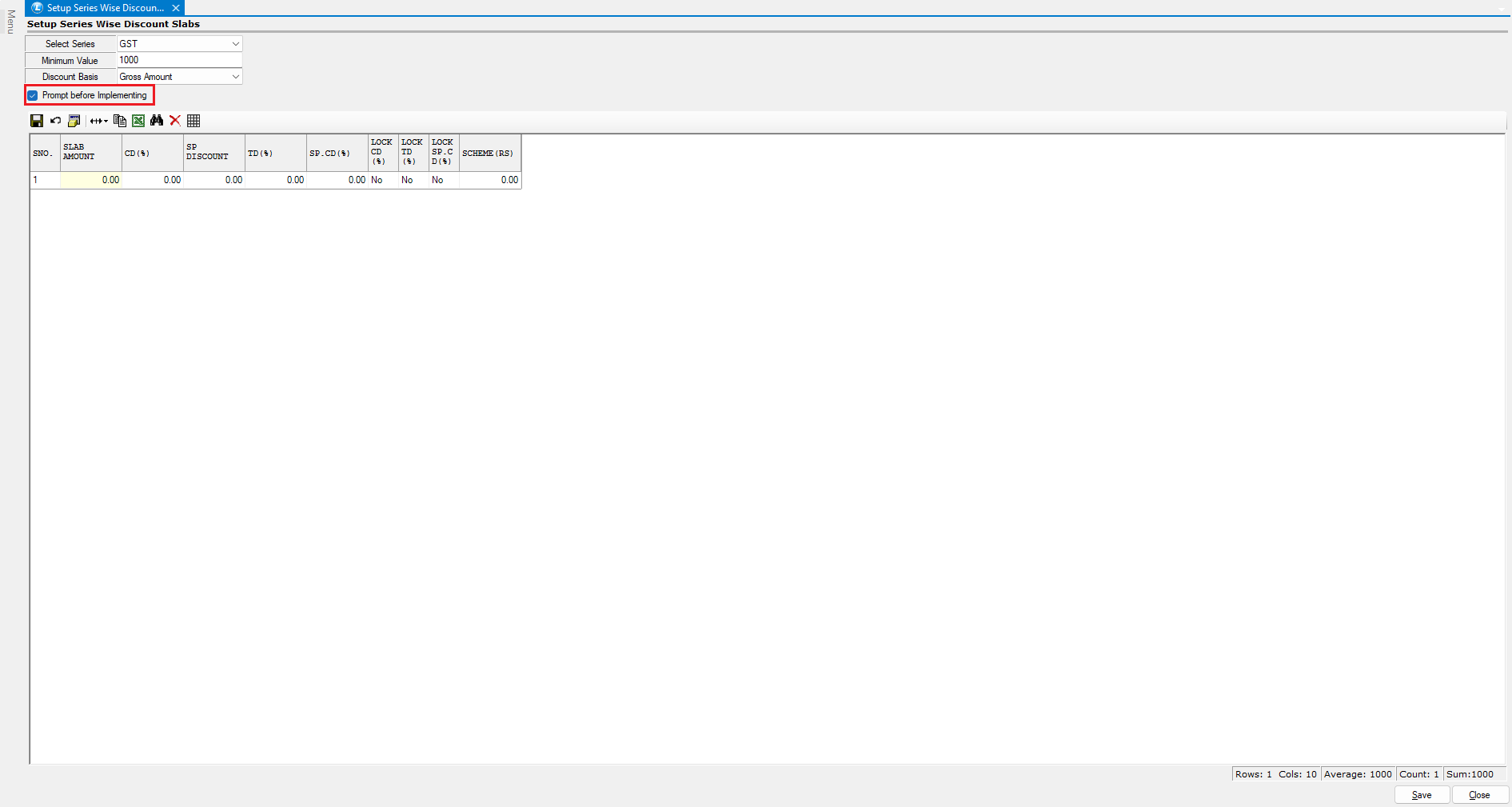
* Enable the **Prompt Before Implementing Discount** option so the system asks for confirmation before applying the discount
**Define Discount Slabs**
* In the grid provided, enter the **slab amounts**
* Configure discounts either:
* On a **percentage basis**
* As a **fixed value in rupees**, as per your requirement
* In this example, we are defining the **Cash Discount (CD)** on a percentage basis
* After defining all slabs correctly, click **Save**
***
### Apply Series-Wise Discount During Billing
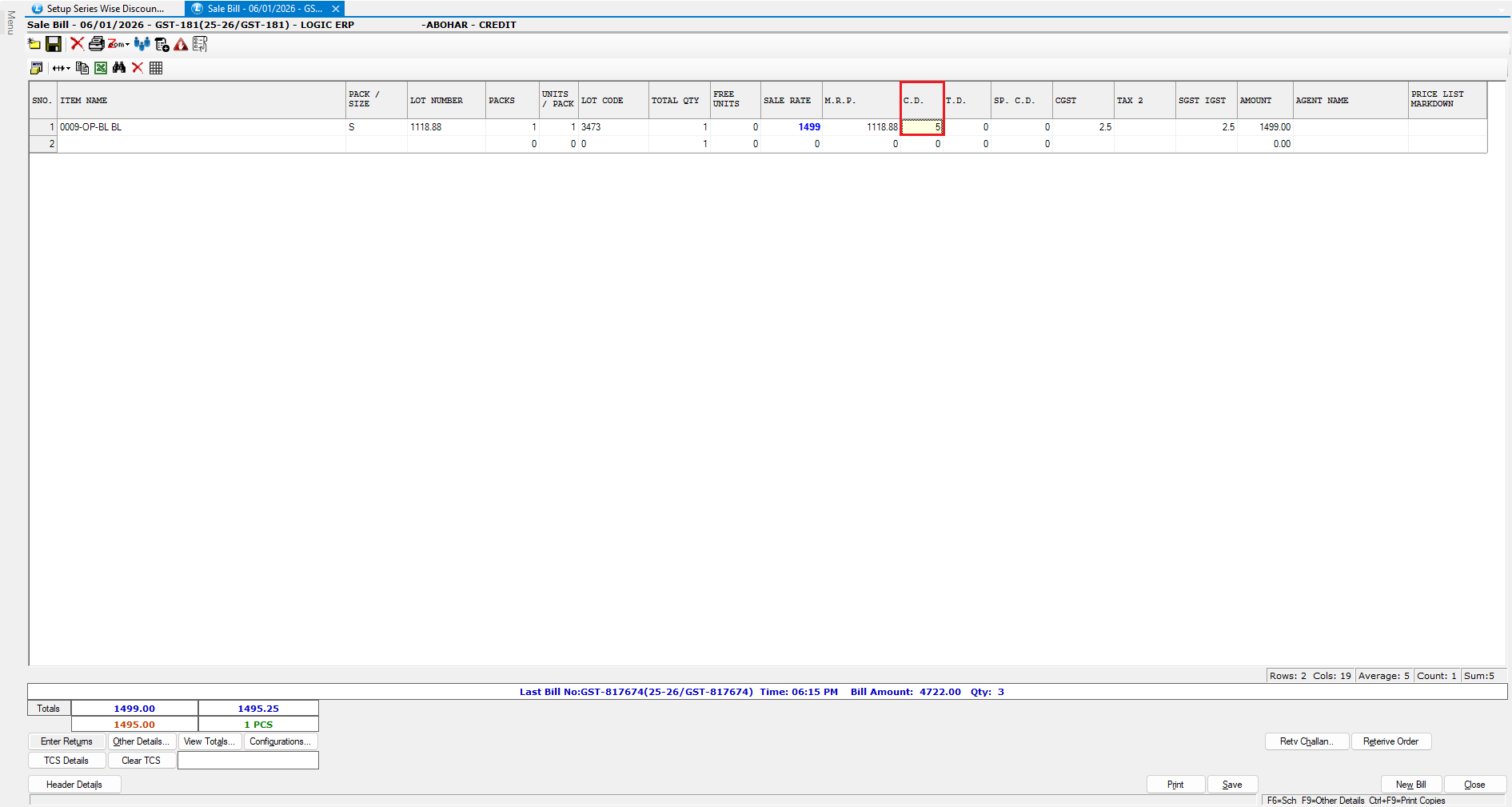
* Open the **Sales Bill** window from the menu bar
* Initiate a new transaction and enter the required items
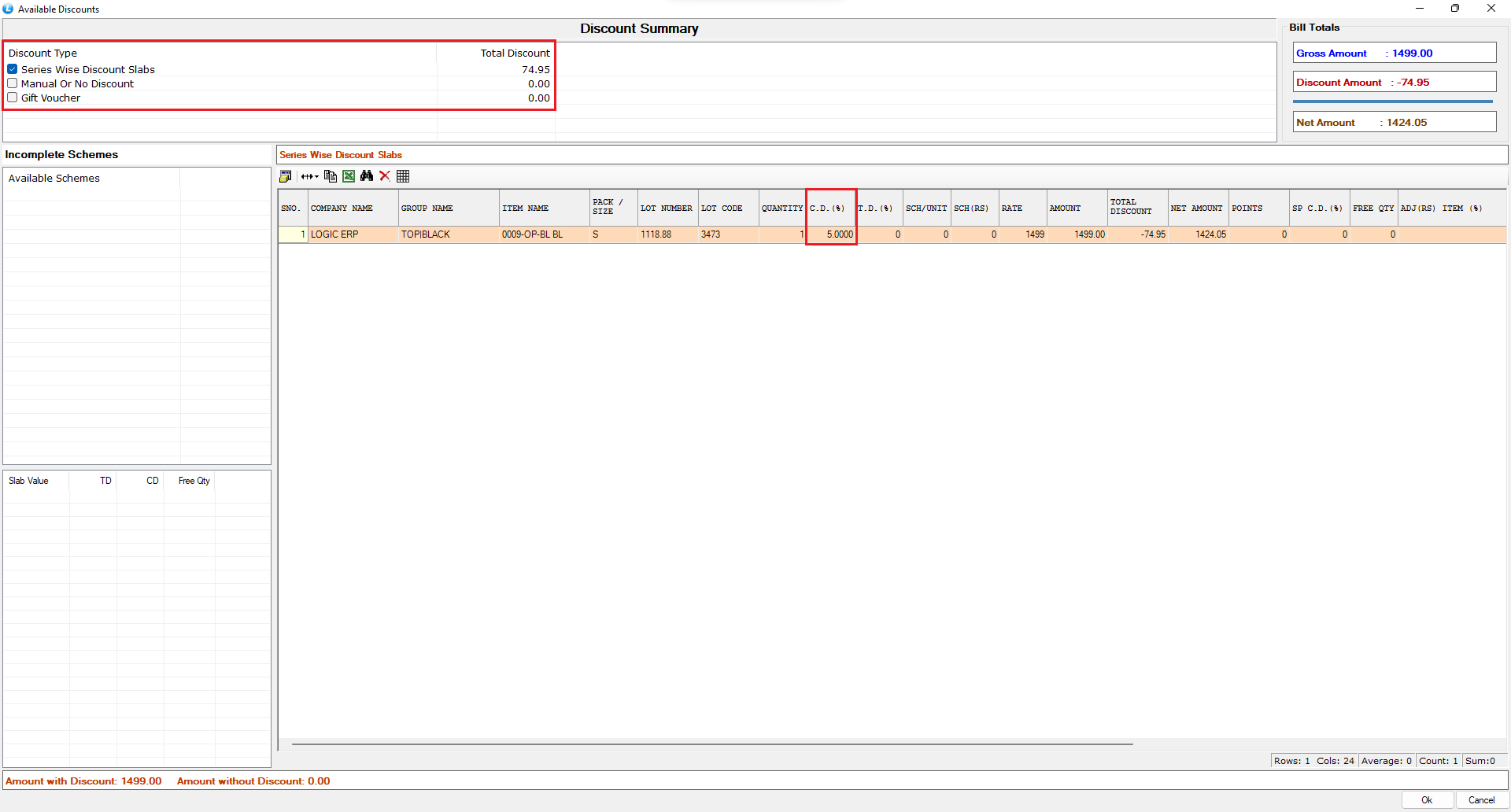
* While saving the voucher, the **series-wise discount scheme** appears under **Available Schemes**
Based on the slab criteria fulfilled, the corresponding discount is displayed
* Select the scheme
* The system prompts for confirmation to apply the discount
* Click **Yes** to proceed
* A **5% discount** is applied to the bill
***
### Verify Discount for Higher Slab
* Create a **new voucher**
* Increase the item rate so the **gross amount falls into the second slab**
* Save the voucher again
* Select the same discount scheme
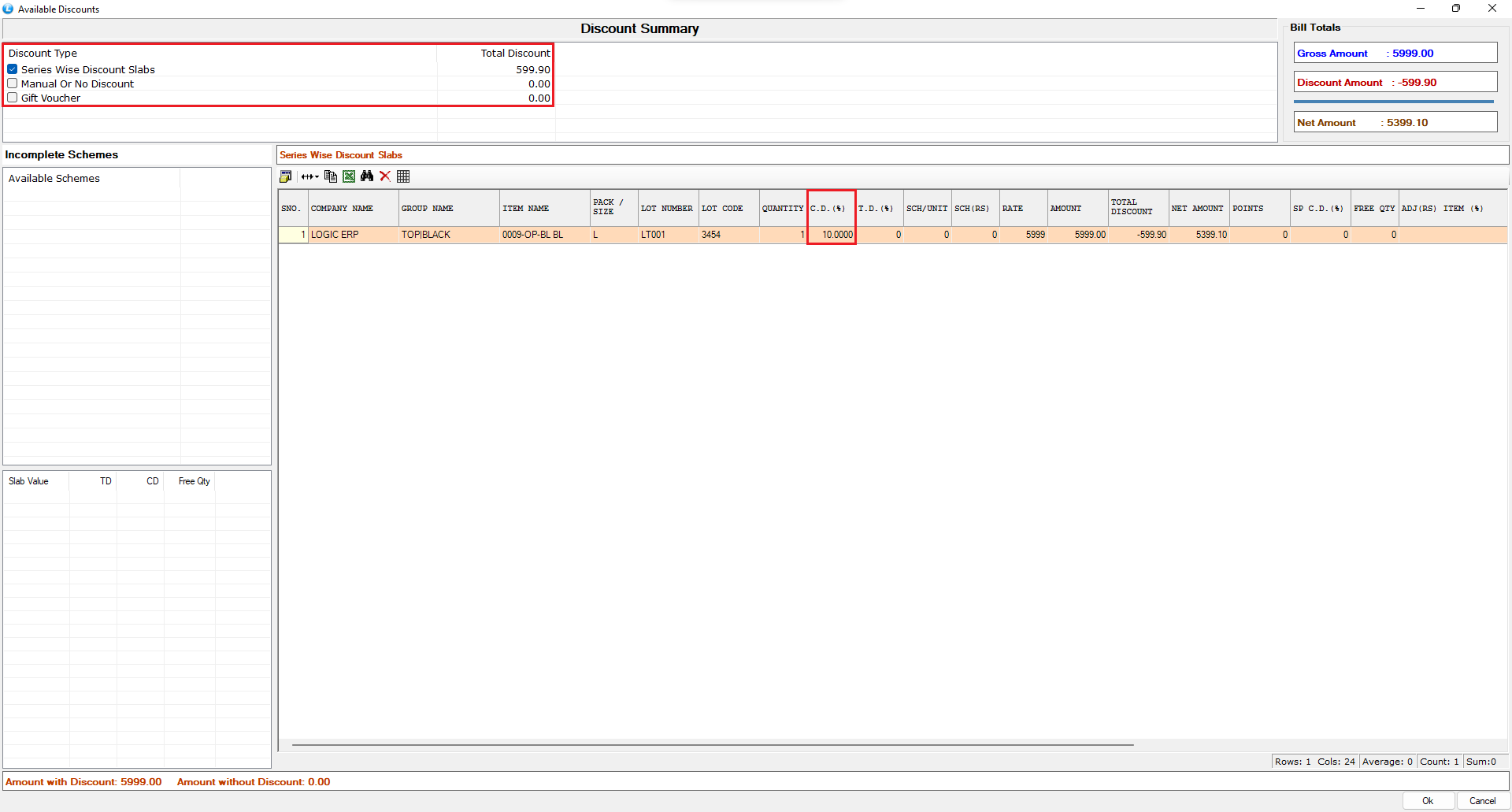
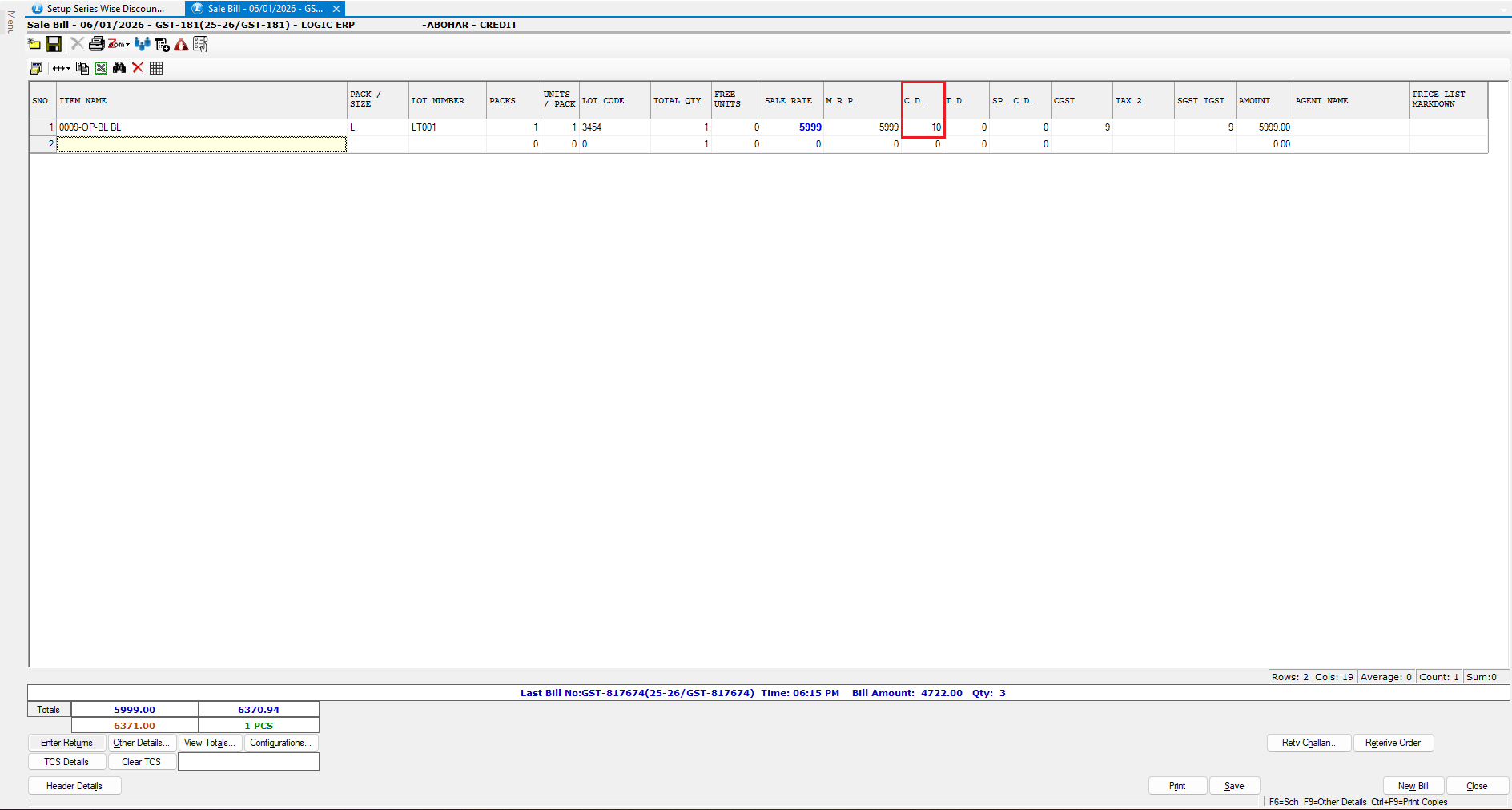
This time, a **10% discount** is displayed
* Enable the scheme and proceed
* The **10% discount** is successfully applied to the bill
***
### Conclusion
Series-wise discount slabs in Logic ERP allow businesses to apply **automatic, value-based discounts** depending on the voucher series and transaction amount, ensuring flexible pricing control and improved billing efficiency.
---
# Agent Instructions
This documentation is published with GitBook. GitBook is the documentation platform designed so that both humans and AI agents can read, navigate, and reason over technical content effectively. Learn more at gitbook.com.
## Querying This Documentation
If you need additional information that is not directly available in this page, you can query the documentation dynamically by asking a question.
Perform an HTTP GET request on the current page URL with the `ask` query parameter, and the optional `goal` query parameter:
```
GET https://kb.logicerp.com/logic-erp-learning-hub-tutorials-and-best-practices/setups/configurations/setup-bill-series-wise-discount-slabs.md?ask=&goal=
```
`ask` is the immediate question: it should be specific, self-contained, and written in natural language.
`goal` is optional and describes the broader end goal you are ultimately trying to accomplish on behalf of the user. GitBook uses it to tailor the answer towards what is most useful for that goal.
The response will contain a direct answer to the question and relevant excerpts and sources from the documentation.
Use this mechanism when the answer is not explicitly present in the current page, you need clarification or additional context, or you want to retrieve related documentation sections.