> For the complete documentation index, see [llms.txt](https://kb.logicerp.com/llms.txt). Markdown versions of documentation pages are available by appending `.md` to page URLs; this page is available as [Markdown](https://kb.logicerp.com/logic-erp-installation-configuration-and-troubleshooting-solutions/faqs/scheme/implement-lot-or-purchase-date-wise-scheme-in-sale-bill.md).
# Implement Lot or Purchase Date wise Scheme in Sale Bill
**YouTube:** [How to set up Lot/Batch or Purchase Date–based scheme in Sale Bill?](https://youtu.be/EnoDHDEbhKA)
## How to Configure Lot or Purchase Date wise Scheme in Logic ERP?
This tutorial explains how to configure a **Lot or Purchase Date–Wise Scheme** in Logic ERP and apply it during sale billing.
***
### **Access to Scheme Campaign**
* Navigate to **Configuration** and open **Setup Scheme Campaign**.
* Click **Refresh**, then enter the **Scheme Campaign Name**.
* Define the **Active Period** of the scheme.
* Click **Save**.
***
### **Set Group Options**
* Open the **Group Options** tab.
* Select the **Scheme Campaign** created.
* Enter the **Group Name** in the *Scheme Group Type* column.
* Press **Space** and choose the **Scheme Type**.
* In the **Filter Type** column, select **Lot Purchase Date**.
* Define the **Filter Start Date** and **Filter End Date**.
* Click **Save**.
**Purpose:**\
Only items belonging to the selected brand and whose **lot purchase date** falls within the defined date range will qualify for the scheme.
***
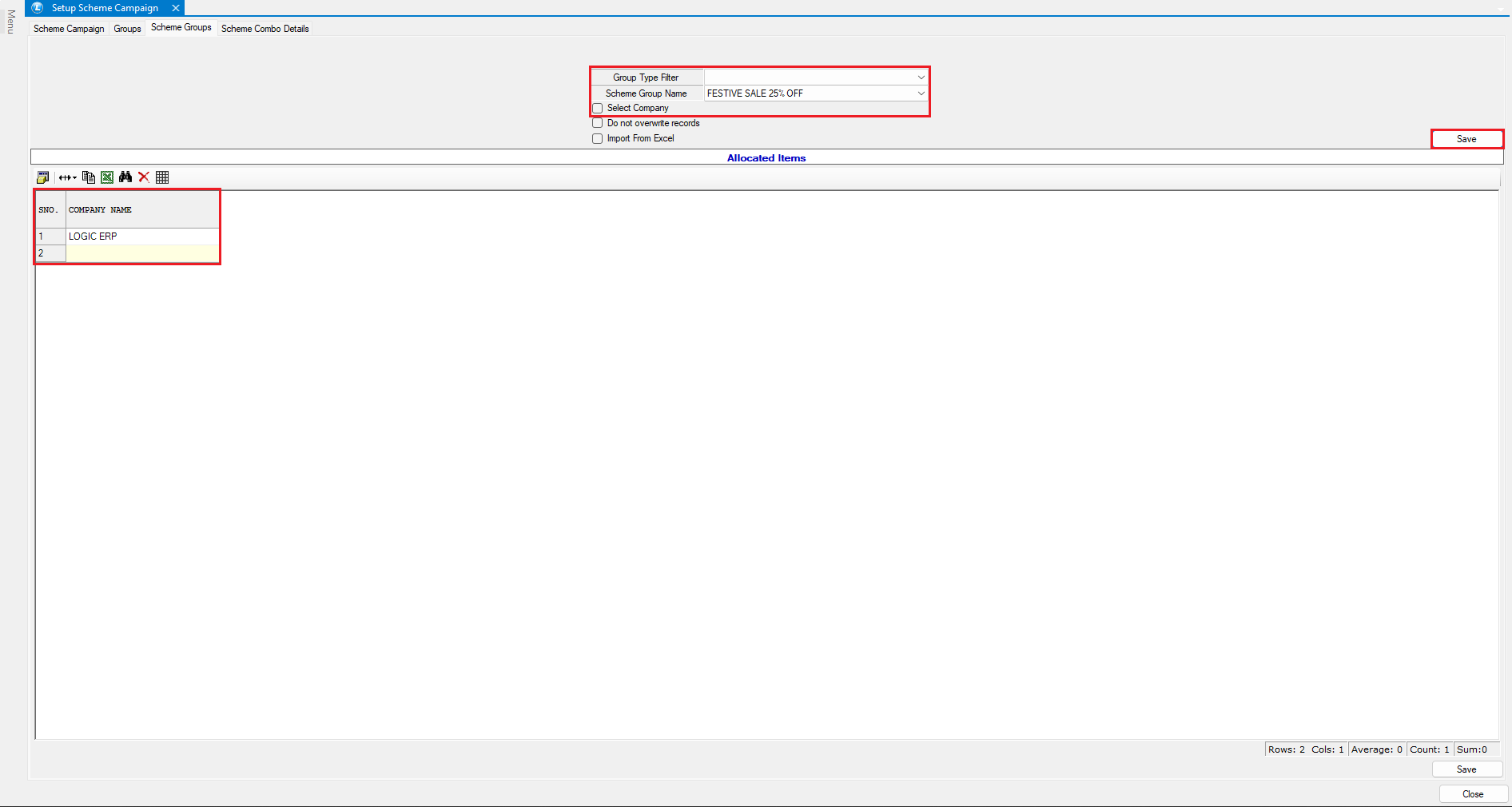
### **Select Applicable Company/Brand**
* Open the **Scheme Group** tab.
* Choose the **Company / Brand** to which the scheme will be applied.
* Click **Save**.
***
### **Configure Scheme Slab**
* Navigate to **Scheme Campaign Slab Details**.
* Select the relevant **Scheme Campaign**.
* Enter **1** in the *Minimum Quantity* field.
* Set **Scheme Basis = Quantity**.
* In the *Slab Value* column, enter **1**.
* Define **CD Discount = 25%**.
* Click **Save**.
***
### **Implement Scheme in Sale Bill**
* Create a **New Sale Bill**.
* Add items that:
* Belong to the **selected brand**, and
* Have **lot purchase dates within the defined filter range**.
* Add one more item with a **lot purchase date outside** the defined range.
* Save the voucher and **tick to enable the scheme**.
**Result:**
* Only eligible items (based on lot purchase date) will show the scheme applied.
* Items outside the date range remain **excluded**.
***
### **Conclusion**
By following these steps, you can easily configure and apply a **Lot or Purchase Date–Wise Scheme** in Logic ERP. This setup ensures that discounts are applied accurately based on the purchase dates of individual lots, improving scheme control and maintaining billing accuracy.
---
# Agent Instructions
This documentation is published with GitBook. GitBook is the documentation platform designed so that both humans and AI agents can read, navigate, and reason over technical content effectively. Learn more at gitbook.com.
## Querying This Documentation
If you need additional information that is not directly available in this page, you can query the documentation dynamically by asking a question.
Perform an HTTP GET request on the current page URL with the `ask` query parameter, and the optional `goal` query parameter:
```
GET https://kb.logicerp.com/logic-erp-installation-configuration-and-troubleshooting-solutions/faqs/scheme/implement-lot-or-purchase-date-wise-scheme-in-sale-bill.md?ask=&goal=
```
`ask` is the immediate question: it should be specific, self-contained, and written in natural language.
`goal` is optional and describes the broader end goal you are ultimately trying to accomplish on behalf of the user. GitBook uses it to tailor the answer towards what is most useful for that goal.
The response will contain a direct answer to the question and relevant excerpts and sources from the documentation.
Use this mechanism when the answer is not explicitly present in the current page, you need clarification or additional context, or you want to retrieve related documentation sections.