> For the complete documentation index, see [llms.txt](https://kb.logicerp.com/llms.txt). Markdown versions of documentation pages are available by appending `.md` to page URLs; this page is available as [Markdown](https://kb.logicerp.com/logic-erp-learning-hub-tutorials-and-best-practices/billing/enter-prescription-against-sale-bill.md).
# Enter Prescription against Sale Bill
**YouTube:** [How to Configure Prescription Management in Sales Bills?](https://www.youtube.com/watch?v=AP5o8YnWkWc)
## How to Configure Prescription Management in Sales Bills?
In this tutorial, we will learn how to **enter and manage prescriptions against a sales bill in Logic ERP**, including uploading prescription documents, defining prescription details, and retrieving past patient data efficiently.
***
### Create a Sales Bill with Prescription Details
* Open the **Sale Bill – Touch Screen** module.
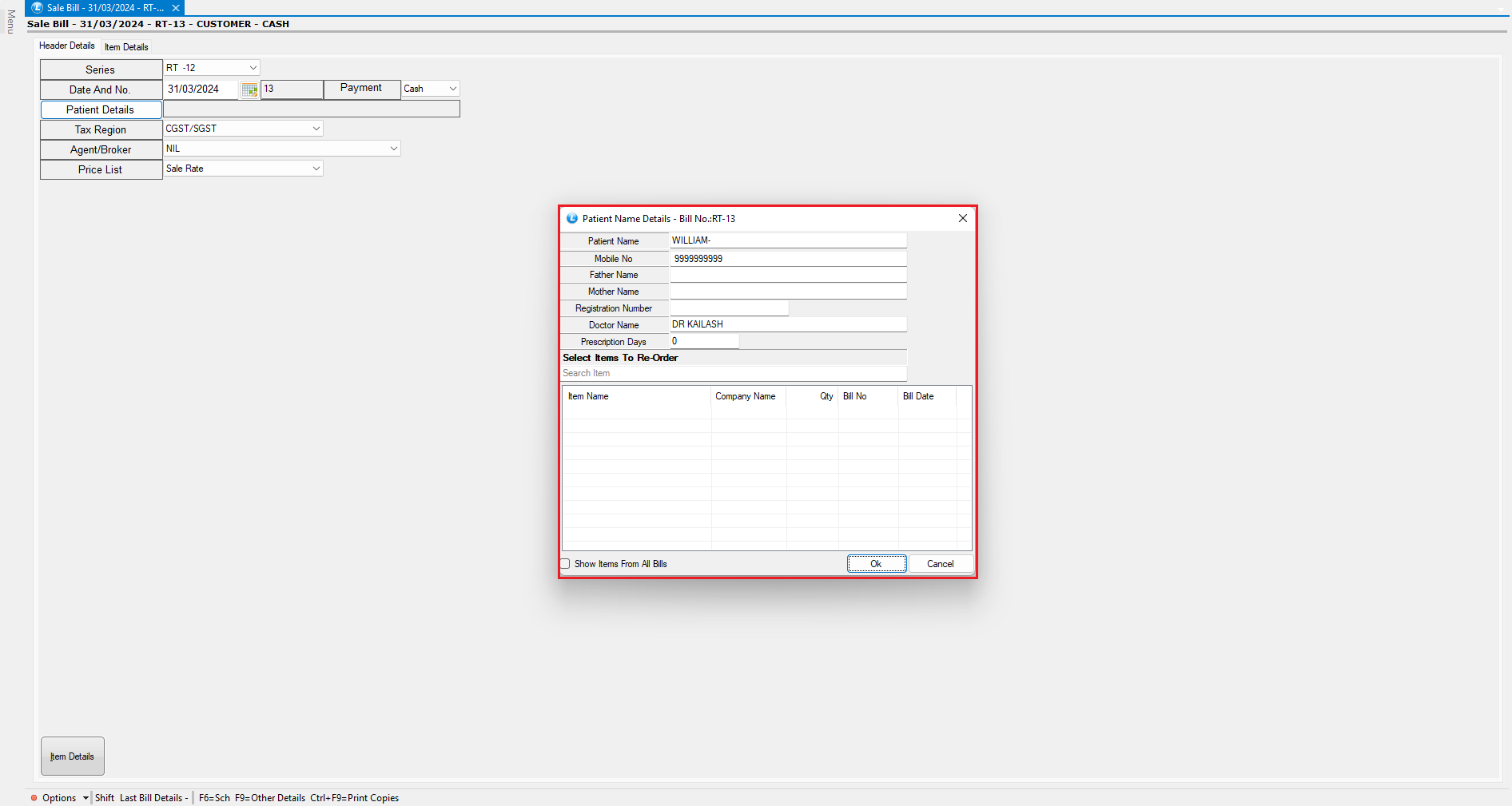
* Enter the **patient details** along with the **doctor’s name**.
* Specify the **prescription validity in days**.
* For example, enter **10 days**.
**Attach the Doctor’s Prescription Document**
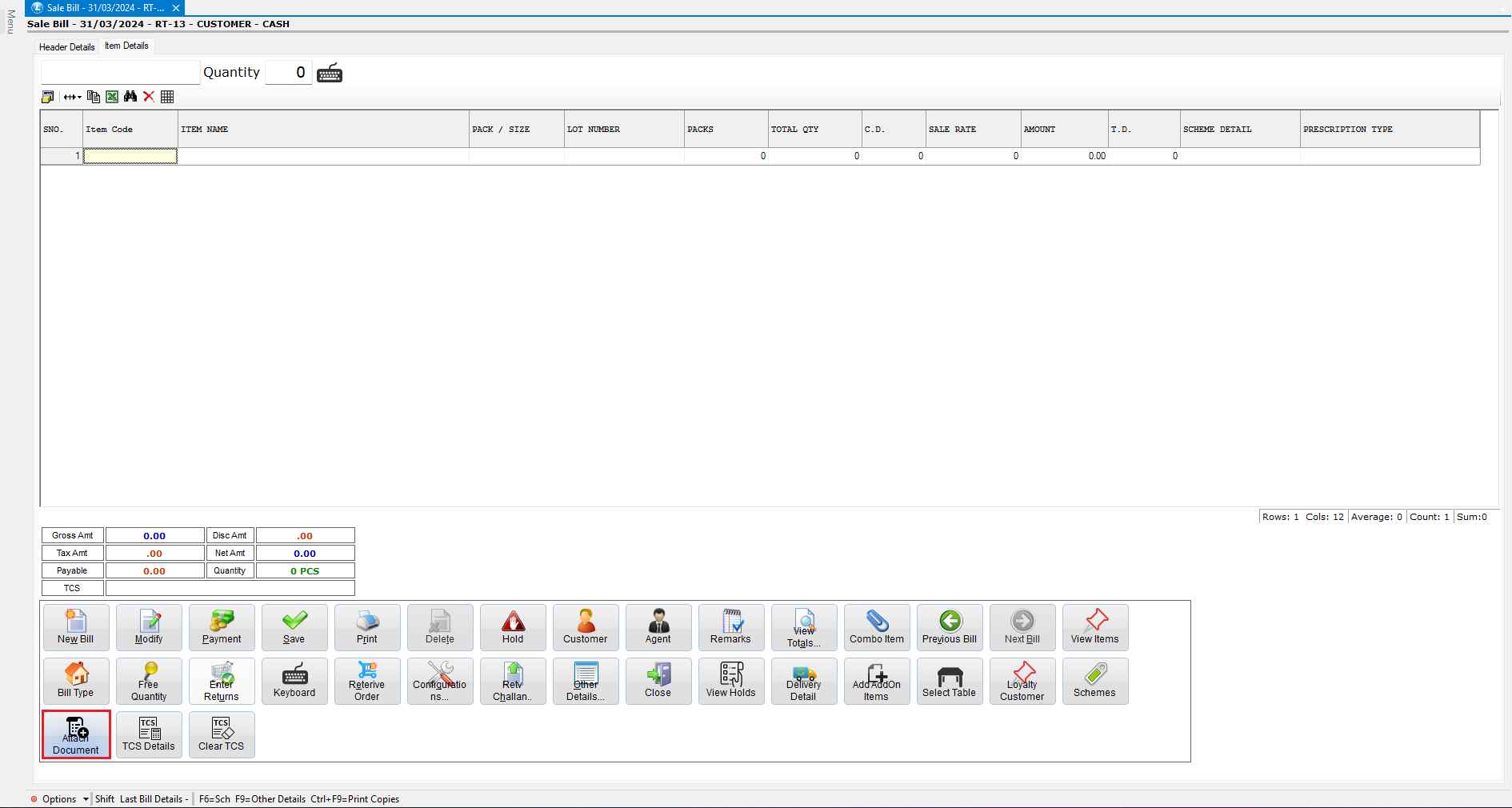
* Click on **Attach Document**.
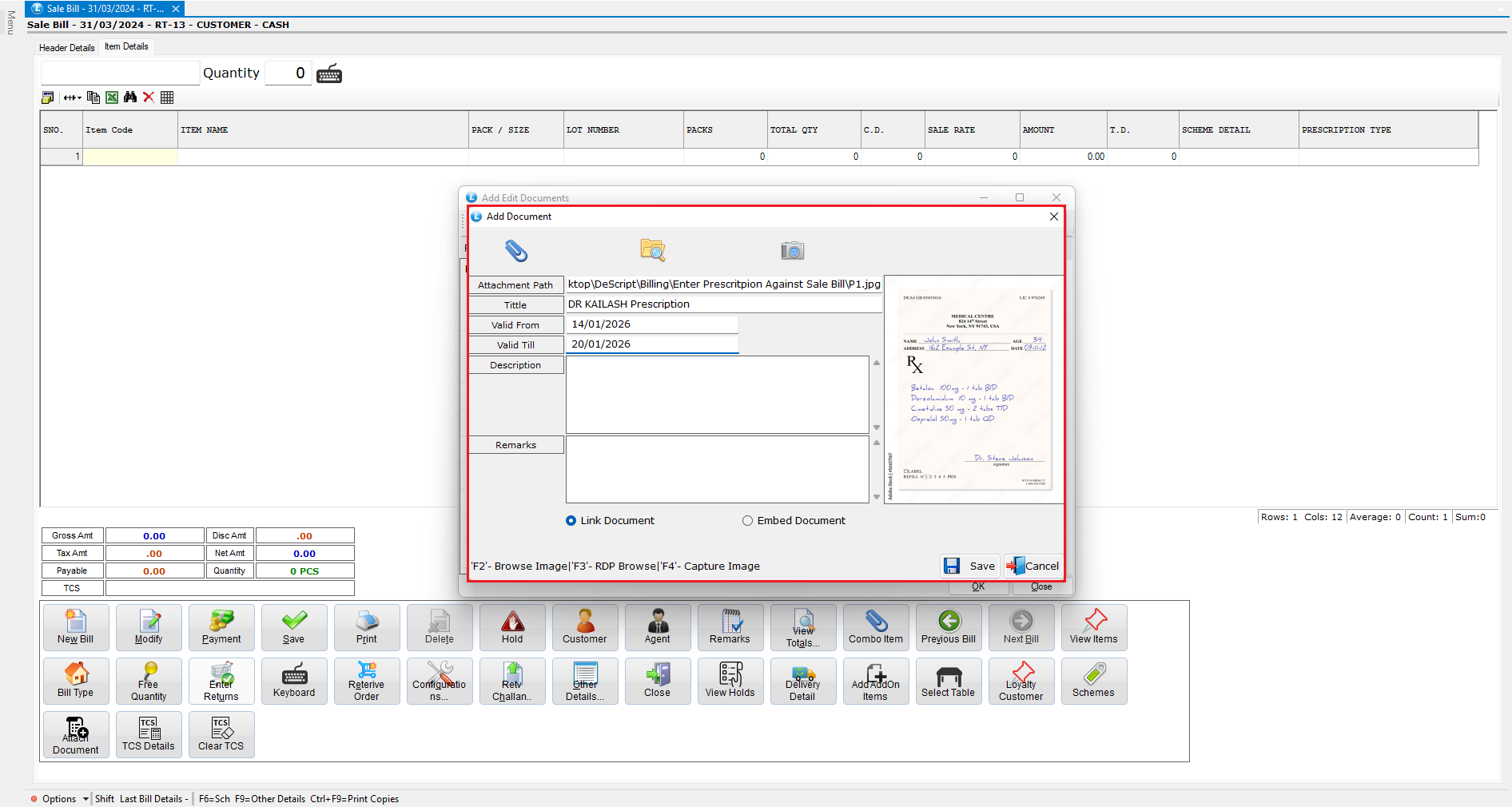
* Select **Document** and use the **browse icon** to upload the prescription image from your system.
* Optionally, enter:
* Document title
* Validity description
* Remarks
**Camera Capture Option**
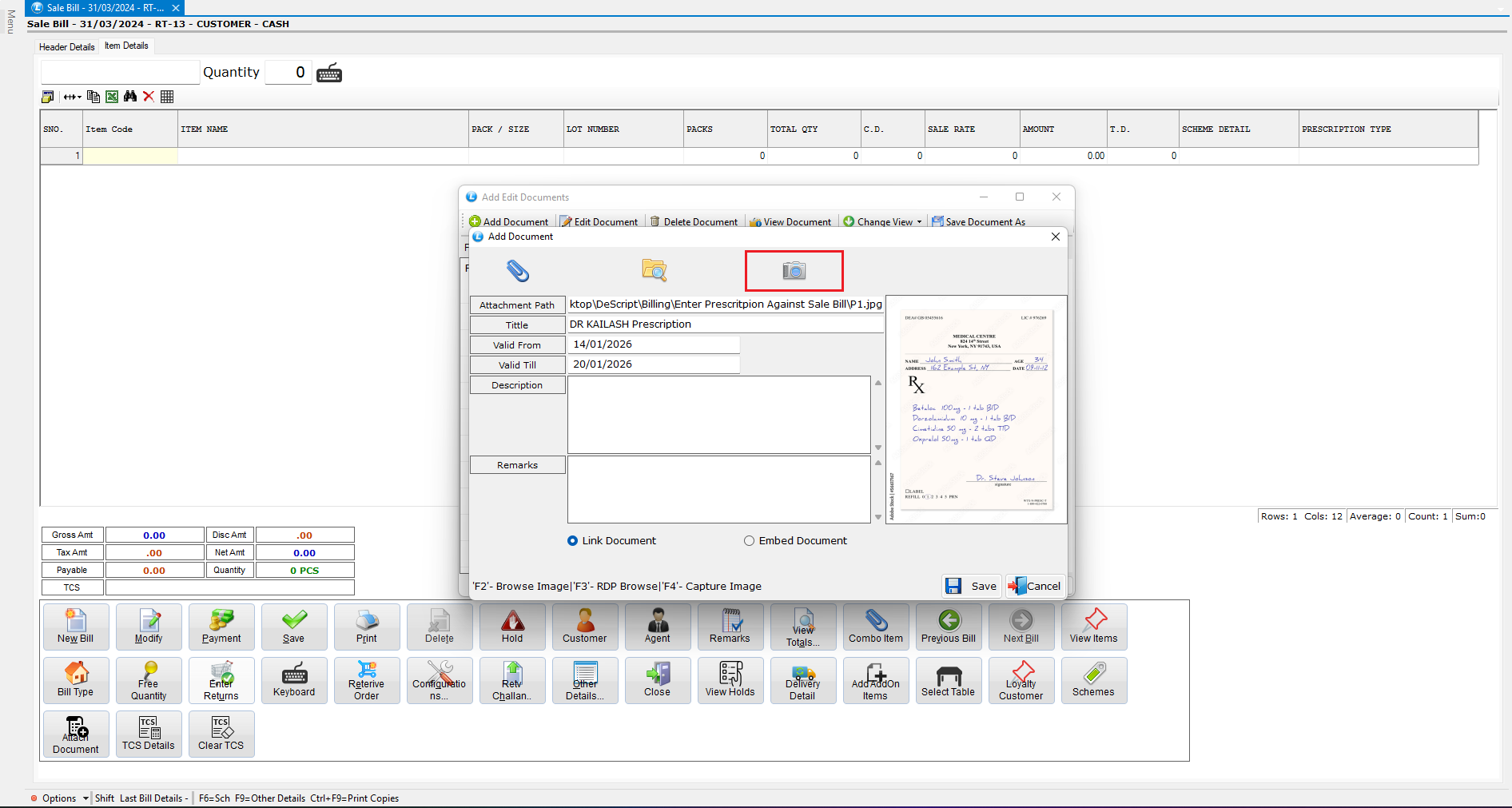
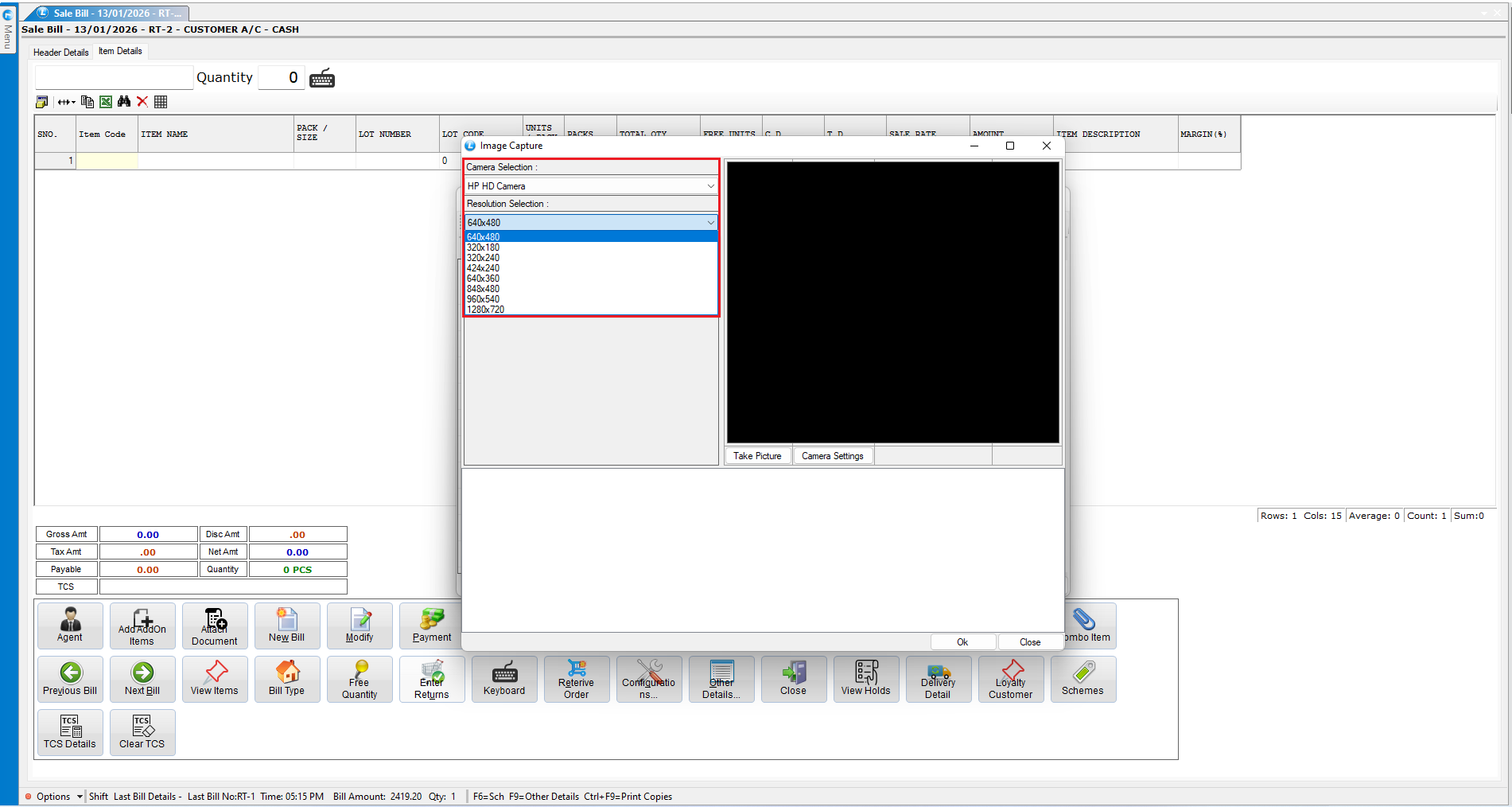
* You can also scan or capture the prescription using a **webcam**.
* Select the required **camera and resolution**.
* Click **Take Picture** to capture the prescription instantly.
* Click **Save** to store the prescription.
* The entered prescription details can be viewed in the prescription section.
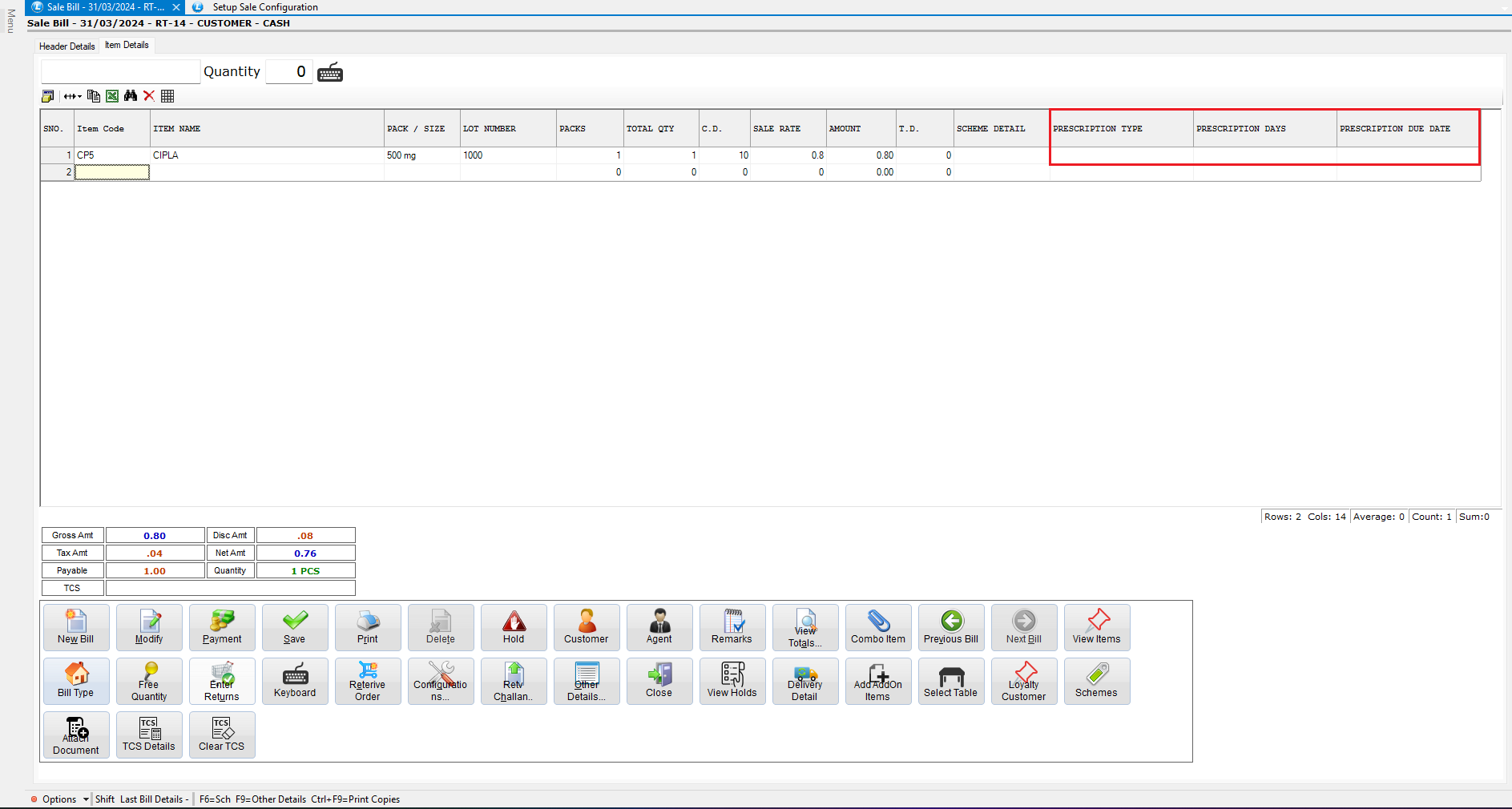
**Enter Items with Prescription Type**
* Scan or enter the items.
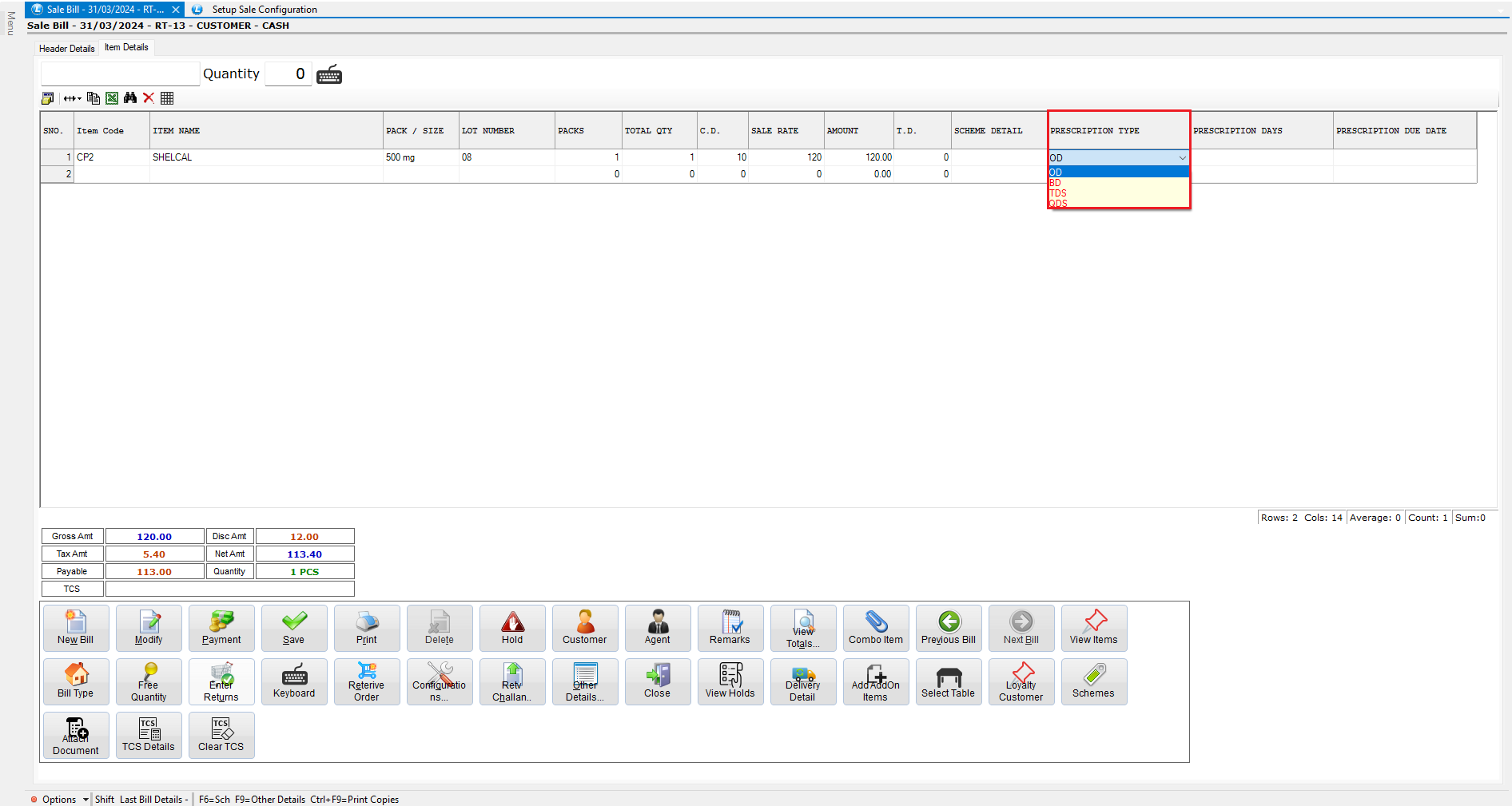
* Select the **Prescription Type**, such as:
* **OD** – Once Daily
* **BD** – Twice Daily
* **TDS** – Three Times a Day
* **QDS** – Four Times a Day
* Select **OD**.
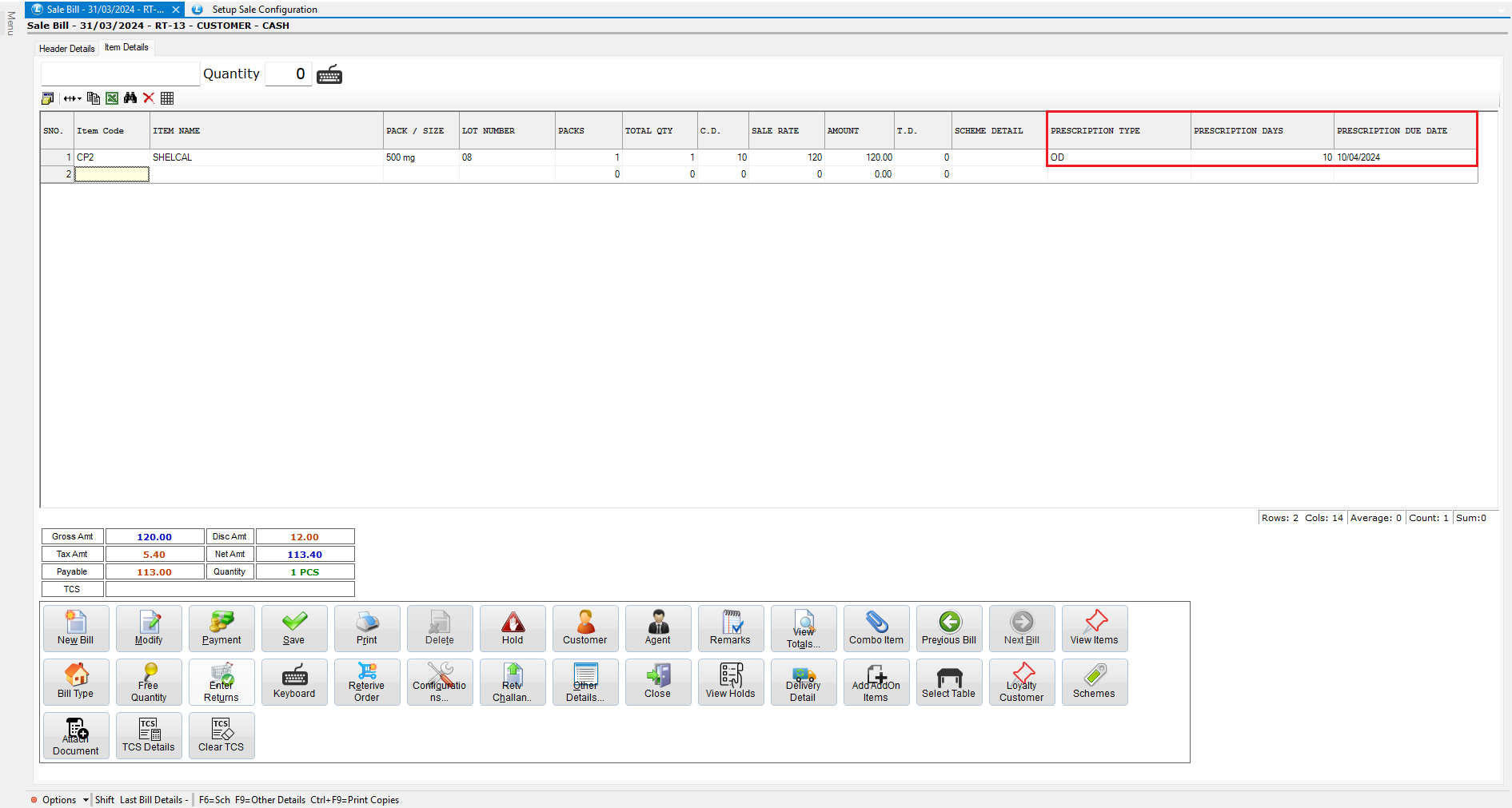
* Once selected, the system automatically calculates and updates:
* Prescription days
* Prescription due date
* Add additional items if required.
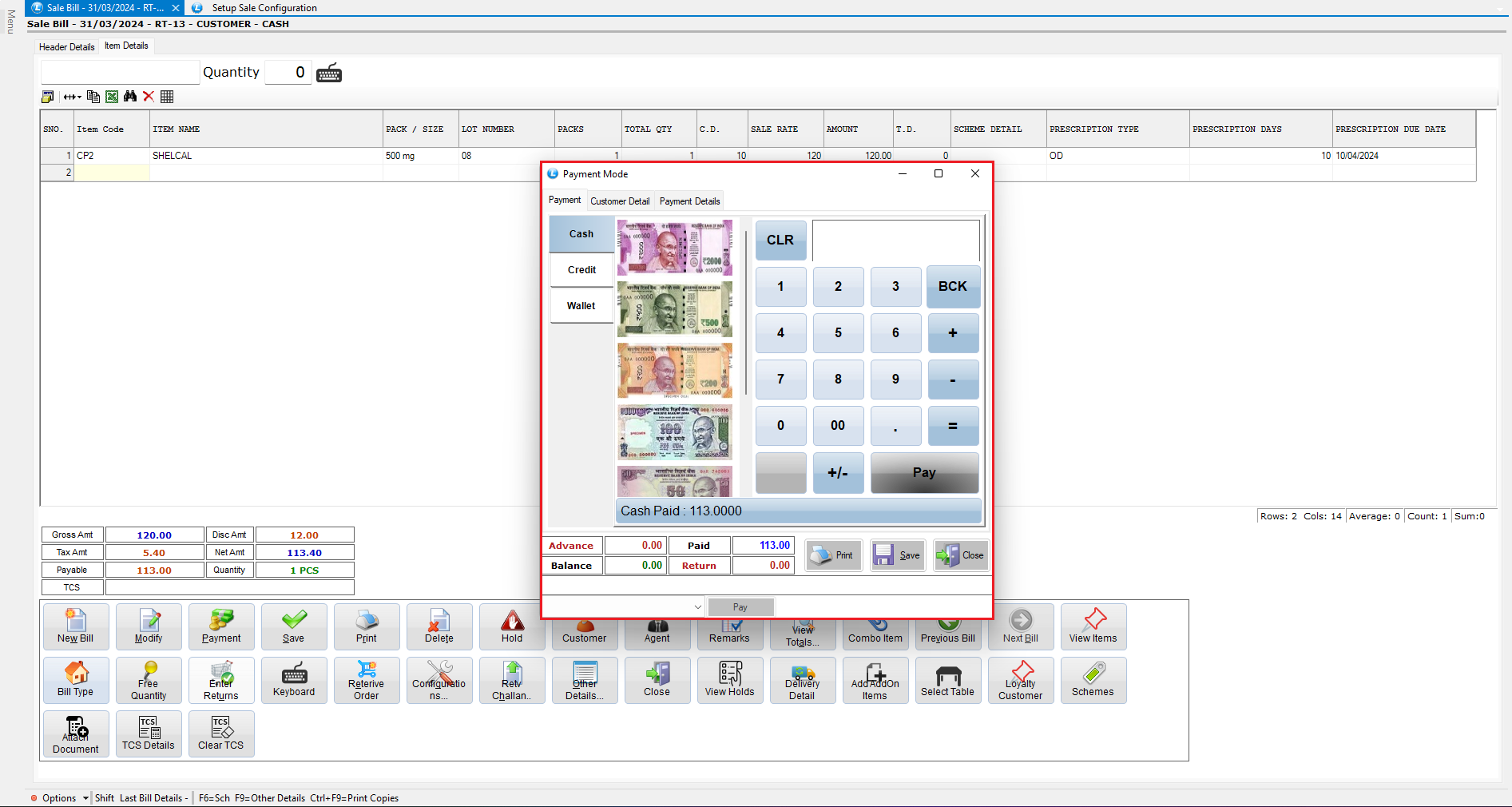
* Enter the **payment details** and **save the bill**.
The sales bill is now successfully generated with prescription details.
***
### Create a Sales Bill Without Prescription Details
* Generate another sales bill.
* Skip entering:
* Prescription days
* Prescription type
* Attach the prescription document if required.
* Complete item entry, enter payment details, and **save the bill**.
***
### Add Prescription Details After Bill Generation
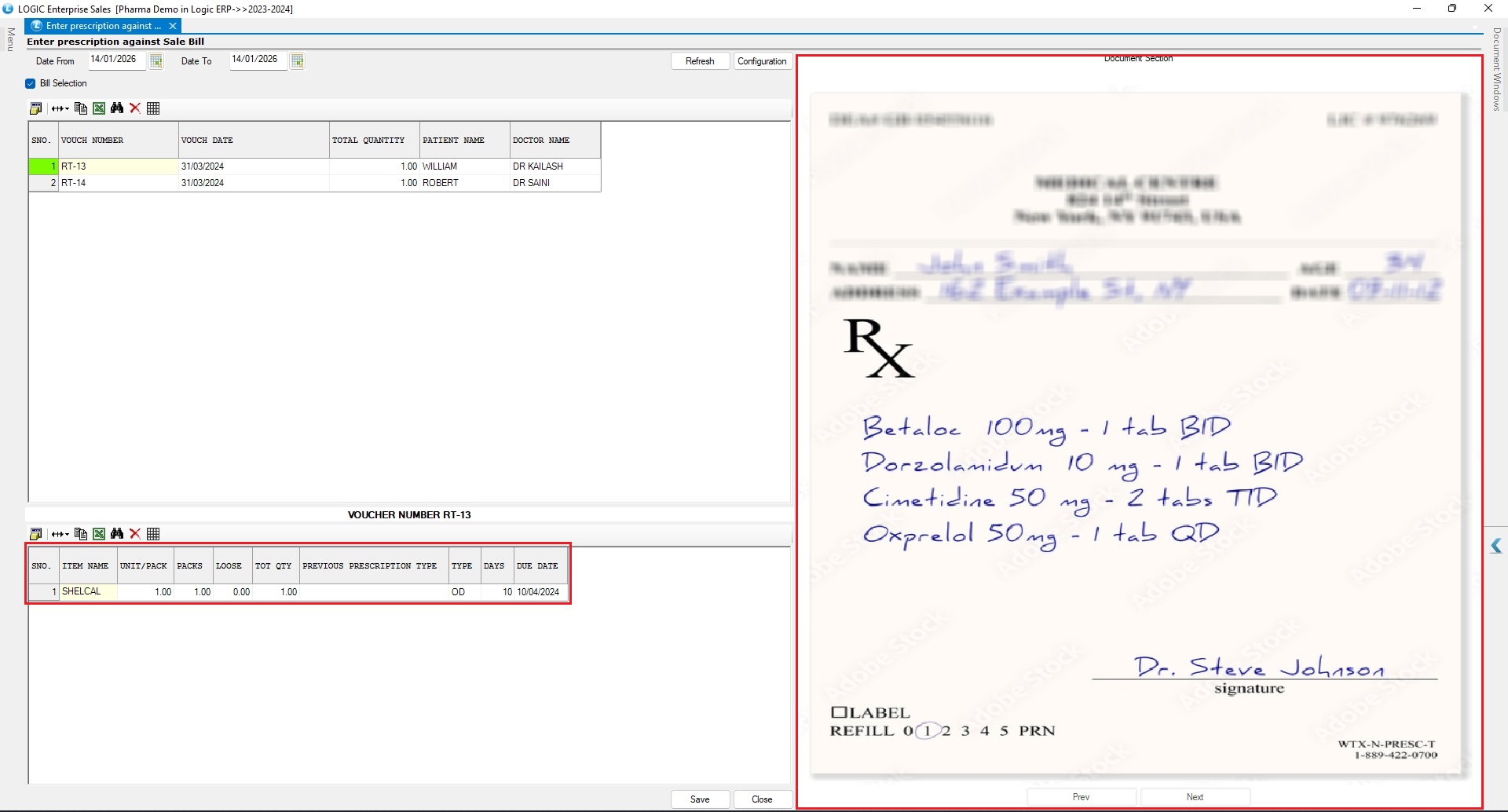
* Navigate to the **Enter Prescription Against Sale Bill** module.
* In the **upper section**, you will see the list of sales bills.
* In the **lower section**, details of the selected bill are displayed.
**Observations:**
* For the first bill, prescription details are already reflected.
* For the second bill, prescription fields appear blank.
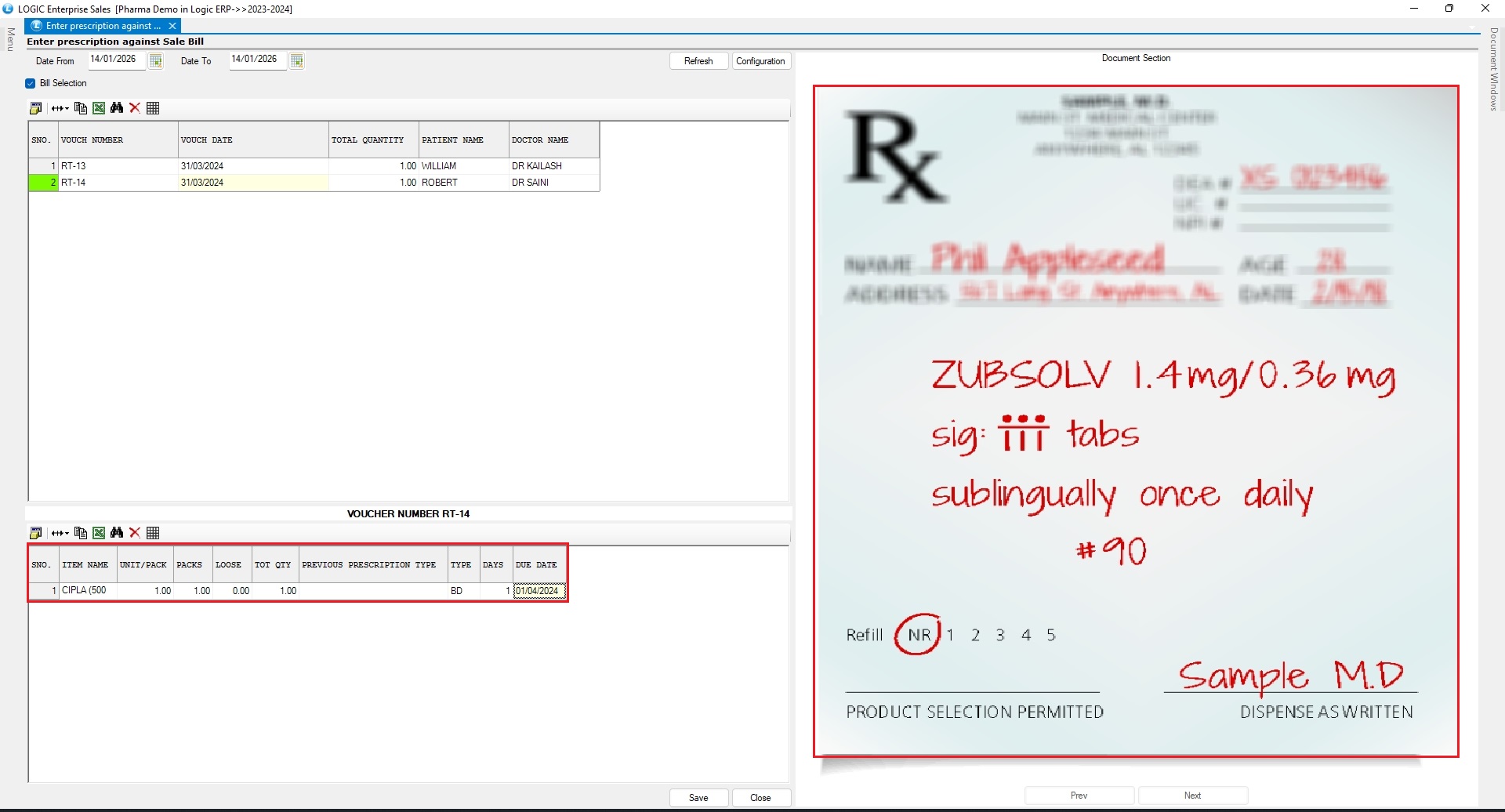
* Select the bill without prescription details.
* Enter the required prescription information.
* Click **Save**.
This allows you to **add or update prescription details later** from a single, centralized screen.
***
### Retrieve Previous Patient & Prescription Details
* Return to the **Sale Bill** window.
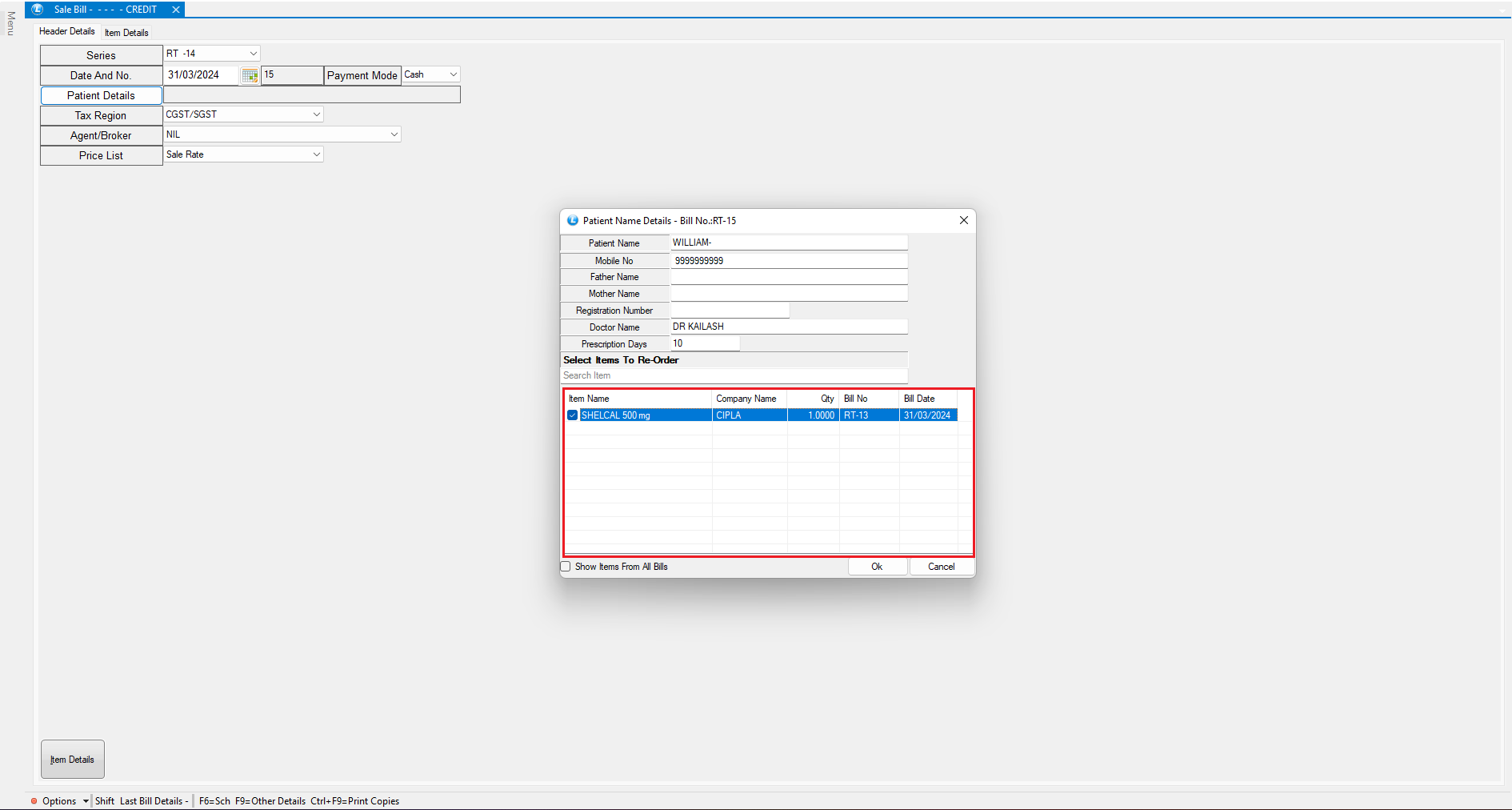
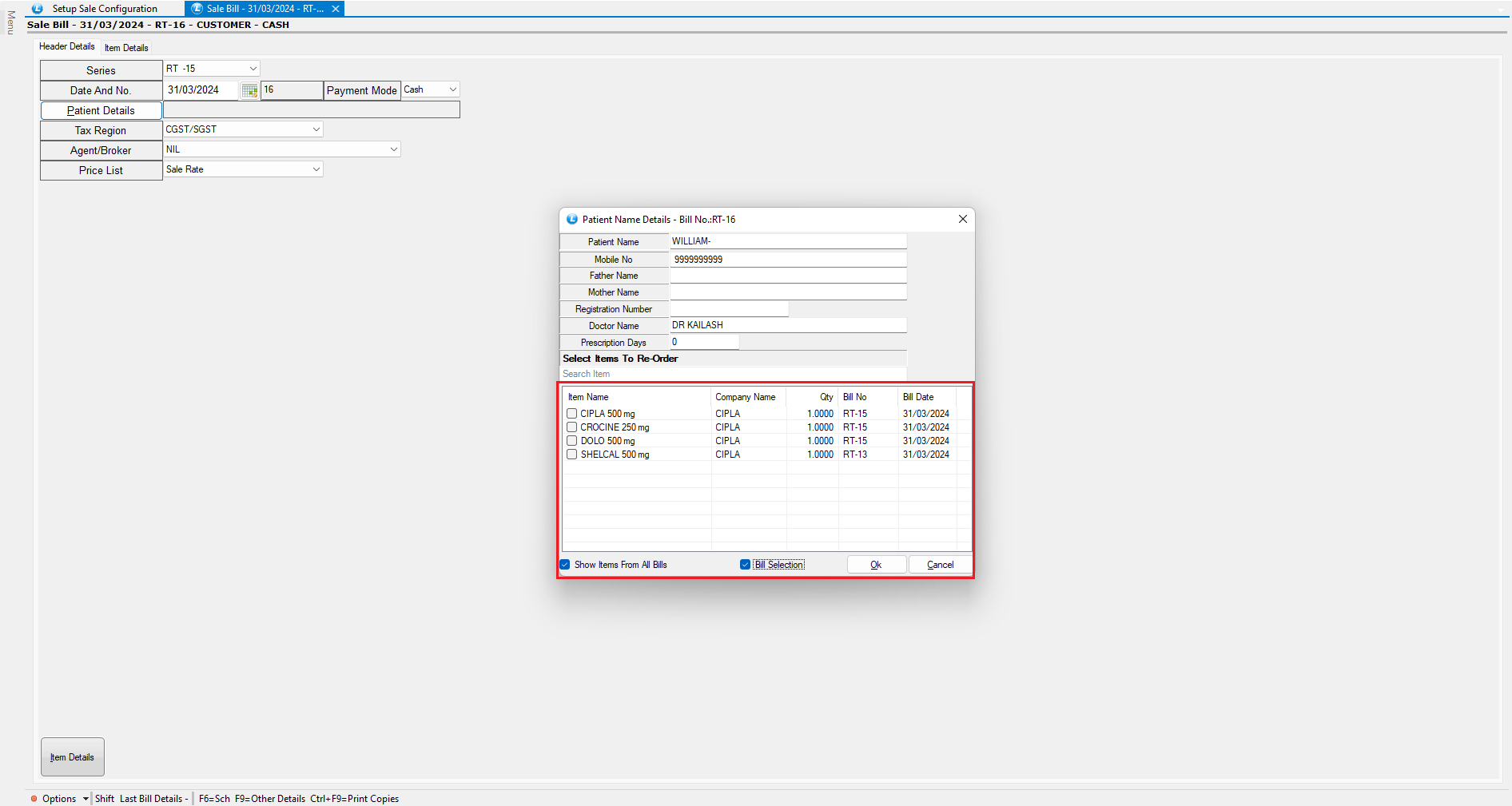
* Enter an **existing patient’s name**.
* The system automatically fetches:
* The **last consulted doctor**
* Items sold in the patient’s **previous bill**
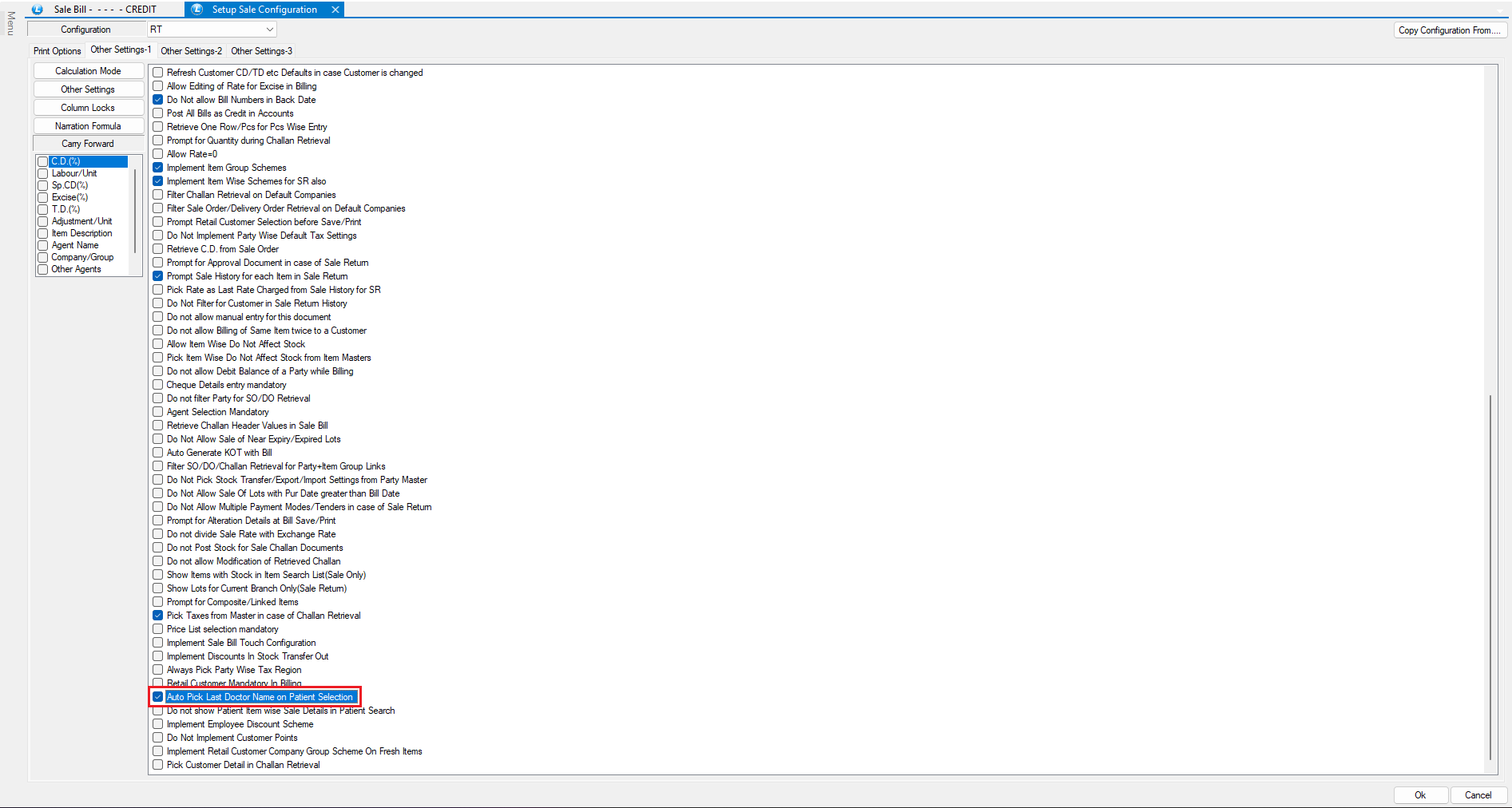
> **Important:**\
> Ensure the option **“Auto pick last doctor name on patient selection”** is enabled in the **Sale Voucher Configuration** for the selected billing series.
**Retrieve Items from Previous Bills**
* The bottom section displays items from the patient’s **last bill**.
* Select items directly to retrieve them.
* To view items from **all previous bills**, click **Show Items from All Bills**.
* Enter the prescription days.
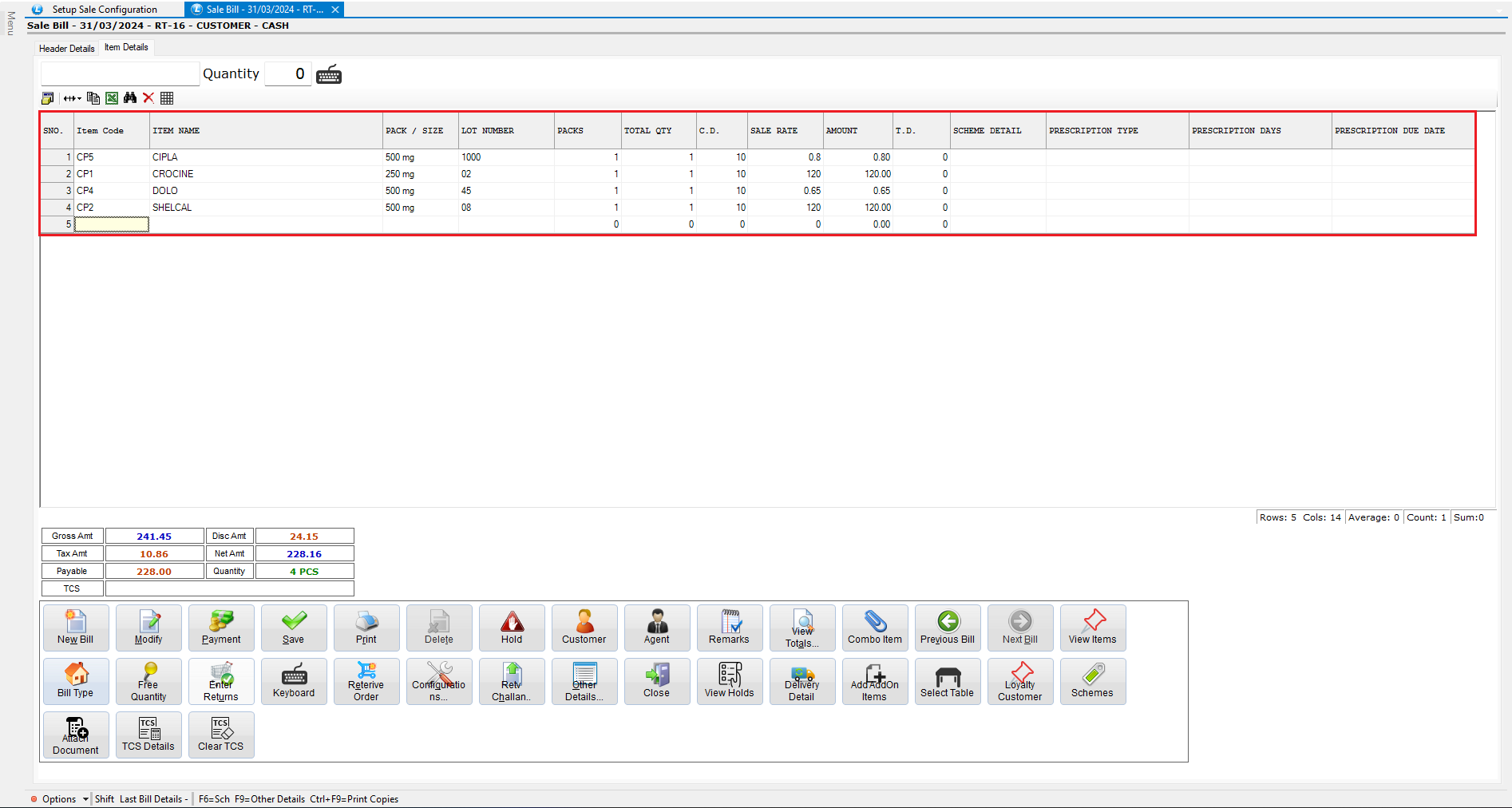
* Select the required items to retrieve.
* Items will appear in the **Item Details** section.
* Add any additional items if required.
* Enter payment details and **save the bill**.
***
### View Patient-Wise Prescription Report
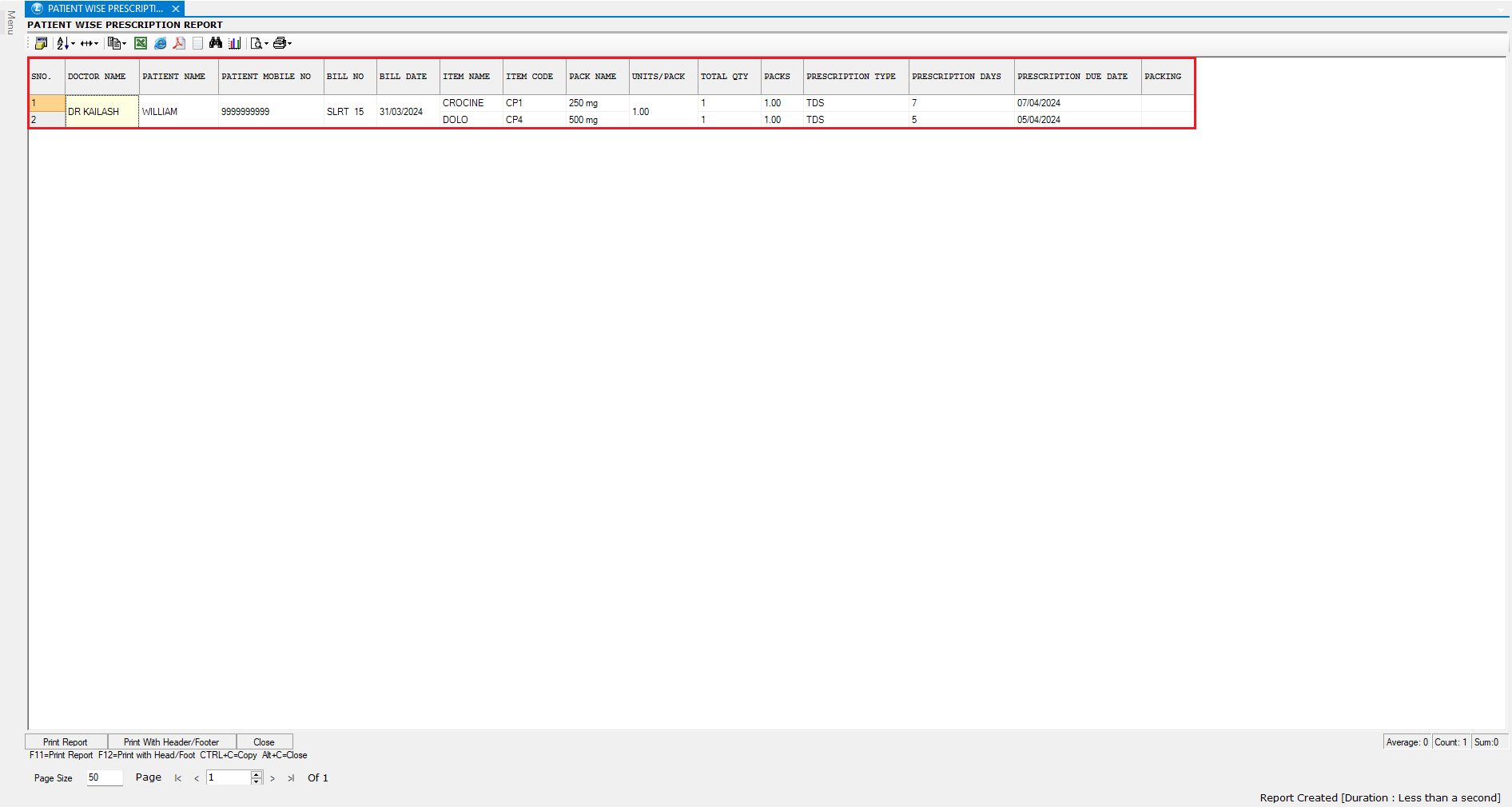
* Open the **Patient-Wise Prescription Report**.
* This report provides:
* A consolidated view of all prescriptions
* Easy tracking of prescribed medicines
* Quick review of patient prescription history
***
### Conclusion
Using prescription features in Logic ERP helps you:
* Maintain accurate medical records
* Improve billing efficiency
* Enable quick repeat sales for returning patients
* Ensure prescription compliance and traceability
---
# Agent Instructions
This documentation is published with GitBook. GitBook is the documentation platform designed so that both humans and AI agents can read, navigate, and reason over technical content effectively. Learn more at gitbook.com.
## Querying This Documentation
If you need additional information that is not directly available in this page, you can query the documentation dynamically by asking a question.
Perform an HTTP GET request on the current page URL with the `ask` query parameter, and the optional `goal` query parameter:
```
GET https://kb.logicerp.com/logic-erp-learning-hub-tutorials-and-best-practices/billing/enter-prescription-against-sale-bill.md?ask=&goal=
```
`ask` is the immediate question: it should be specific, self-contained, and written in natural language.
`goal` is optional and describes the broader end goal you are ultimately trying to accomplish on behalf of the user. GitBook uses it to tailor the answer towards what is most useful for that goal.
The response will contain a direct answer to the question and relevant excerpts and sources from the documentation.
Use this mechanism when the answer is not explicitly present in the current page, you need clarification or additional context, or you want to retrieve related documentation sections.