> For the complete documentation index, see [llms.txt](https://kb.logicerp.com/llms.txt). Markdown versions of documentation pages are available by appending `.md` to page URLs; this page is available as [Markdown](https://kb.logicerp.com/logic-erp-learning-hub-tutorials-and-best-practices/user-access/logic-global-admin/sale/sale-settings-2/do-not-update-previous-year-closing-stock-in-case-previous-year-challan-is-retrieved-in-current-year.md).
# Do Not Update Previous Year Closing Stock in case Previous Year Challan is Retrieved in Current Year
**YouTube:** [How to Stop Previous Year Closing Stock Update When Old Challan is Retrieved in Current Year?](https://www.youtube.com/watch?v=bLdgEtb3L9Q)
## How to Stop Previous Year Closing Stock Update When Old Challan is Retrieved in Current Year?
This tutorial explains how to **restrict automatic updates to the previous year’s stock** when a **Challan from a previous financial year is retrieved and used in the current financial year.**
***
### **Default Behavior (Without Restriction)**
* A **Challan** is created in the **previous financial year** for a quantity of 7.
* The **closing stock** reflects the issue, e.g., **stock = 3**.
* You perform **book closing** and log into the **current financial year**.
* A new **Sale Bill** is created using the **Retrieve Challan** option to bring in the previous year’s Challan.
* After saving the bill, if you log back into the **previous financial year** and check the stock report:
* The stock incorrectly shows **restored to 10**, as if the Challan wasn’t transacted.
***
### **Enable Stock Restriction Setting**
To prevent this unintended stock update in the previous year:
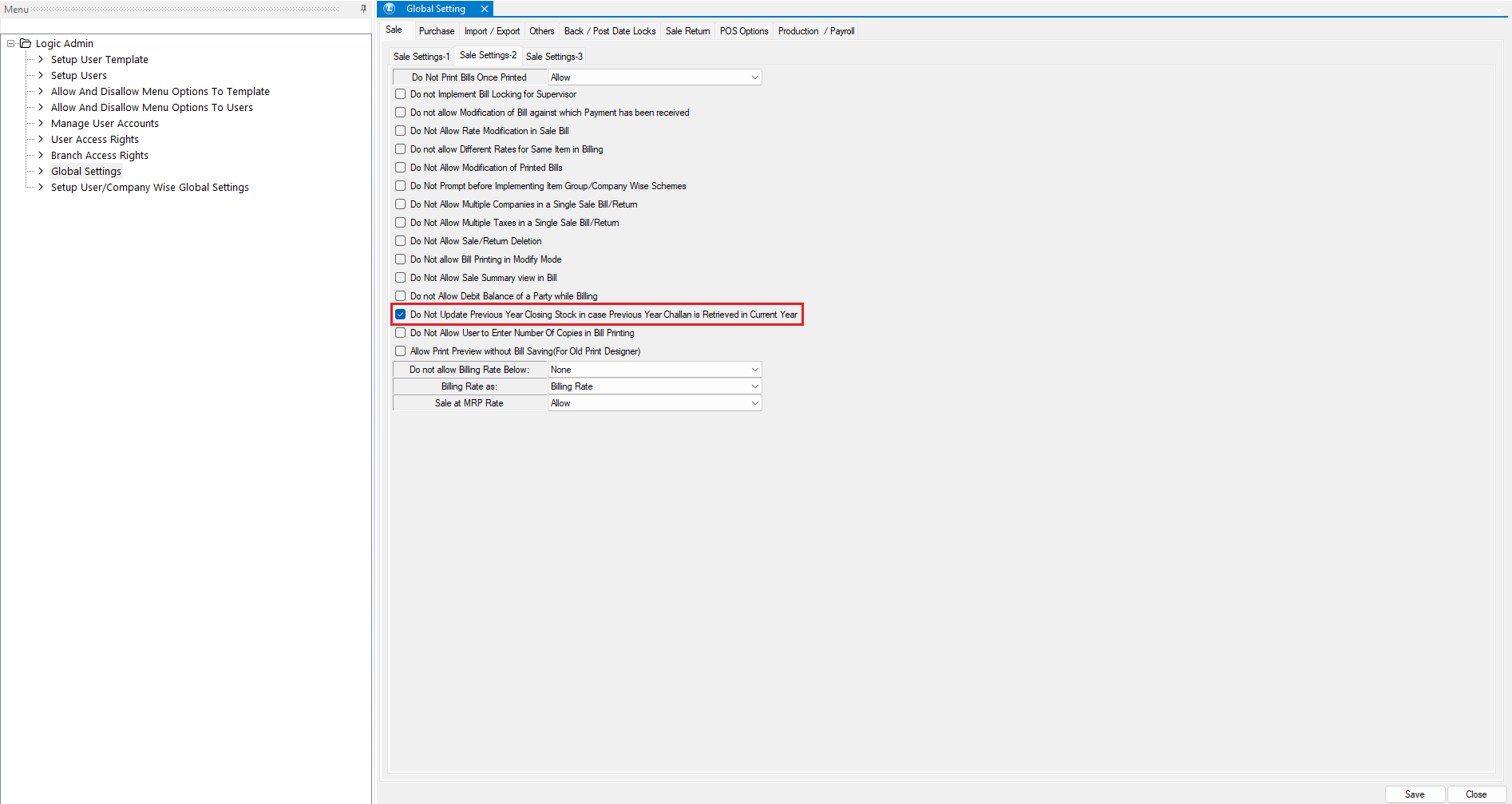
* **Open** Logic Admin.
* Go to **Global Settings**.
* Navigate to the **Sales Settings 2** section.
* Enable the setting:
> **"Do Not Update Previous Year Closing Stock in case Previous Year Challan is Retrieved in Current Year"**
* Click **Save** and **Restart** the software for the setting to apply.
***
## **After Enabling the Setting – Updated Process**
Let’s test the feature after enabling the restriction:
* A **Challan** is created in the **previous year** for a quantity of 5.
* The **closing stock** shows as **5** (correct).
* Log into the **current financial year**.
* Open a **new sale bill** and retrieve the Challan from the previous year.
* Save the transaction.
* Log back into the **previous year**, open the stock report.
### **Result:**
* The **stock remains 5**.
* The **previous year’s closing stock is not altered**, even though the Challan was used in the current year.
***
### **Benefits of This Feature**
| Benefit | Description |
| -------------------- | -------------------------------------------------------------- |
| Stock Integrity | Ensures historical stock data remains unchanged. |
| Accurate Audit Trail | Financial year boundaries are respected for compliance. |
| Simplified Reporting | Prevents confusion during year-end audits and reconciliations. |
***
### **Best Practices**
* Always enable this feature **before starting operations in the new financial year**.
* Clearly communicate to users that retrieving past year Challans will not impact last year’s stock.
* Run reconciliation reports after enabling this setting to confirm behavior.
---
# Agent Instructions
This documentation is published with GitBook. GitBook is the documentation platform designed so that both humans and AI agents can read, navigate, and reason over technical content effectively. Learn more at gitbook.com.
## Querying This Documentation
If you need additional information that is not directly available in this page, you can query the documentation dynamically by asking a question.
Perform an HTTP GET request on the current page URL with the `ask` query parameter, and the optional `goal` query parameter:
```
GET https://kb.logicerp.com/logic-erp-learning-hub-tutorials-and-best-practices/user-access/logic-global-admin/sale/sale-settings-2/do-not-update-previous-year-closing-stock-in-case-previous-year-challan-is-retrieved-in-current-year.md?ask=&goal=
```
`ask` is the immediate question: it should be specific, self-contained, and written in natural language.
`goal` is optional and describes the broader end goal you are ultimately trying to accomplish on behalf of the user. GitBook uses it to tailor the answer towards what is most useful for that goal.
The response will contain a direct answer to the question and relevant excerpts and sources from the documentation.
Use this mechanism when the answer is not explicitly present in the current page, you need clarification or additional context, or you want to retrieve related documentation sections.