> For the complete documentation index, see [llms.txt](https://kb.logicerp.com/llms.txt). Markdown versions of documentation pages are available by appending `.md` to page URLs; this page is available as [Markdown](https://kb.logicerp.com/logic-erp-installation-configuration-and-troubleshooting-solutions/faqs/payroll/track-employee-loans-and-advances-in-payroll.md).
# Track Employee Loans & Advances in Payroll
**YouTube:** [How to Record and Track Employee Loans/Advances in Payroll?](https://youtu.be/fbt5oF6GDBA)
## How to Record and Track Employee Loans / Advances in Payroll?
In this tutorial, we will learn how **loans and advances** are recorded, calculated, and adjusted during **payroll generation** in **Logic ERP**. We will walk through the complete workflow—from setting up loan accounts to posting entries in Accounts and viewing loan reports.
***
### **Create an Employee Loan Account**
#### **Steps**
* Navigate to **Setup Module → New Account Setup**.
* Enter the **Employee Loan Account Name**.
* Set **Account Type: Current Assets**.
* Click **Save** to create the account.
***
### **Issue the Loan Through Bank Payment (If Accounts Linking Required)**
#### **Why This Step?**
If payroll is linked with the Accounts module, the loan must be issued through a **Bank Payment Entry**.
#### **Steps**
* Navigate to **Accounts Module → Bank Payment Entry**.
* Enter:
* **Loan Amount**
* **Employee Loan Account**
* **Narration** (optional)
* Click **Save** to post the payment.
***
### **Record Worker Wise Loan Entry**
#### **Steps**
* Go to **Payroll Entry Module → Worker Wise Loan Entry**.
* Select the **Employee**.
* Define:
* **Loan Date**
* **Loan Amount**
* **Loan Tenure (in months)**
* System automatically calculates the **Monthly Installment**.
* Enter **Installment Start Date**.
* Keep **Loan Mode Type** as default.
* Map the **Loan Account Name** (for posting GL entries).
* Add **Narration** (press space key).
* Review and **Save** the loan entry.
***
### **Mark Employee Attendance**
#### **Steps**
* Open **Attendance Register Month Wise**.
* Select **Payroll Month** and **Employee**.
* Mark attendance for the full month.
* Save and close.
***
### **Generate Payroll With Loan Installment Deduction**
#### **Steps**
* Navigate to **Payroll Entry Menu → Payroll Generation**.
* Select:
* **Payroll Month**
* **Employee Name**
* Click **Recalculate**.
#### **System Output**
* The **Installment Amount** will appear under the **Loan Installment** column.
* The installment will be **automatically deducted** from the employee’s **Net Salary**.
#### **Loan Info Button**
* Shows:
* Total Loan Amount
* Paid Installments
* Pending Balance
* Repayment Details
* Installment amount can be edited if necessary.
* Click **Save** to store payroll details.
***
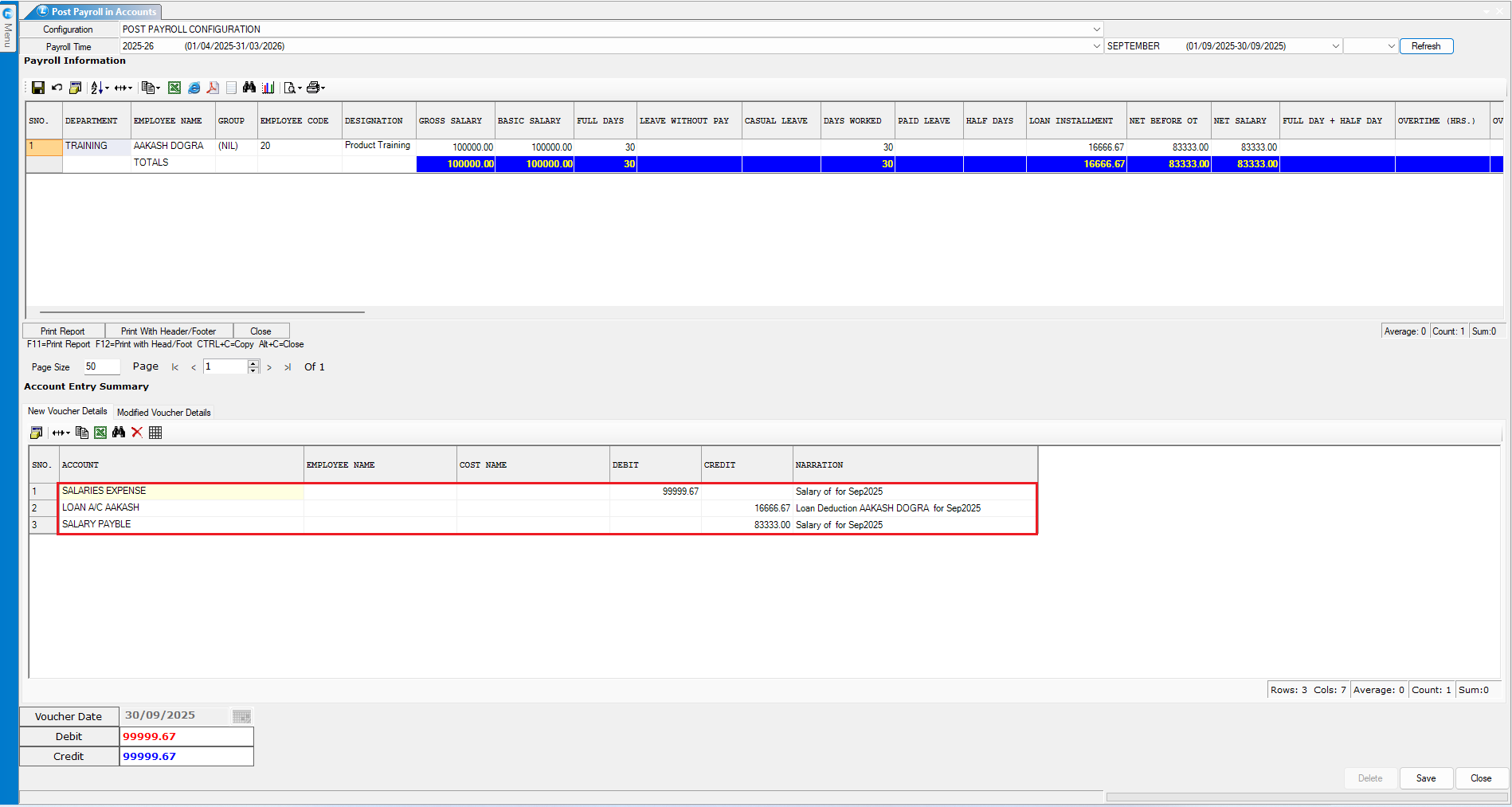
### **Post Payroll to Accounts**
#### **Steps**
* Open **Post Payroll to Accounts** window.
* Select **Payroll Month** → Click **Refresh**.
* The **Employee Loan Account** will appear as a **Credit Entry**.
* Click **Save Voucher**.
***
### **View Loan Posting in Ledger Report**
#### **Steps**
* Go to **Financial Reports → Ledger Report**.
* Select the **Loan Account**.
* Click **Generate Report**.
#### **What You’ll See**
* First loan installment posted automatically.
* Updated **Running Balance**.
* Each month, installments continue to post as payroll is generated.
***
### **View Employee-Wise Loan Details Report**
#### **Steps**
* Go to **Payroll Reports → Worker Wise Loan Report**.
* Select the **Employee**.
* Click **Create**.
#### **Report Displays**
* Total Loan Amount Issued
* Installments Paid
* Pending Installments
* Remaining Loan Balance
***
### **Record Early Loan Repayment (Advance Payment)**
#### **Steps in Payroll Module**
* Navigate to **Worker Wise Payment/Advance Entry**.
* Select **Employee**.
* Review previously paid installments.
* Click **New Entry**.
* Choose **Entry Type**.
* Enter:
* **Entry Date**
* **Amount**
* **Narration**
* Click **Save**.
#### **If Accounts Linking Is Enabled**
Record corresponding bank receipt:
* Go to **Accounts Module → Bank Receipt Voucher**.
* Enter the **Amount**, **Loan Account**, and **Narration**.
* Click **Save**.
#### **Verify in Ledger**
* Open **Ledger Report** again.
* Updated **Loan Balance** will reflect the advance repayment.
***
### **Conclusion**
Using these steps, you can efficiently manage **Employee Loans and Advances** in Logic ERP—from issuance and installment deductions to ledger posting and repayment tracking. This process ensures accurate payroll calculations and seamless synchronization with the Accounts module.
---
# Agent Instructions
This documentation is published with GitBook. GitBook is the documentation platform designed so that both humans and AI agents can read, navigate, and reason over technical content effectively. Learn more at gitbook.com.
## Querying This Documentation
If you need additional information that is not directly available in this page, you can query the documentation dynamically by asking a question.
Perform an HTTP GET request on the current page URL with the `ask` query parameter, and the optional `goal` query parameter:
```
GET https://kb.logicerp.com/logic-erp-installation-configuration-and-troubleshooting-solutions/faqs/payroll/track-employee-loans-and-advances-in-payroll.md?ask=&goal=
```
`ask` is the immediate question: it should be specific, self-contained, and written in natural language.
`goal` is optional and describes the broader end goal you are ultimately trying to accomplish on behalf of the user. GitBook uses it to tailor the answer towards what is most useful for that goal.
The response will contain a direct answer to the question and relevant excerpts and sources from the documentation.
Use this mechanism when the answer is not explicitly present in the current page, you need clarification or additional context, or you want to retrieve related documentation sections.