> For the complete documentation index, see [llms.txt](https://kb.logicerp.com/llms.txt). Markdown versions of documentation pages are available by appending `.md` to page URLs; this page is available as [Markdown](https://kb.logicerp.com/logic-erp-installation-configuration-and-troubleshooting-solutions/faqs/payroll/overtime-setup-in-payroll.md).
# Overtime Setup in Payroll
**YouTube:** [How to set up Overtime Calculation in Payroll?](https://www.youtube.com/watch?v=Yzx889eEic0)
## How to set up Overtime Calculation in Payroll?
In this tutorial, we will learn how to **configure and calculate Overtime (OT)** for payroll generation in **Logic ERP**.
***
### **Access to Grade Setup**
* Navigate to the **Main Menu** → **Payroll Setups** → **Setup Grades** window.
* Here, you can define overtime settings for both **new** and **existing grades**.
* Select the desired **Grade** and enable the checkbox:
> **“Use new calculation engine for overtime and undertime calculation.”**
* This activates the overtime configuration options for that grade.
***
### **Configure Overtime Settings**
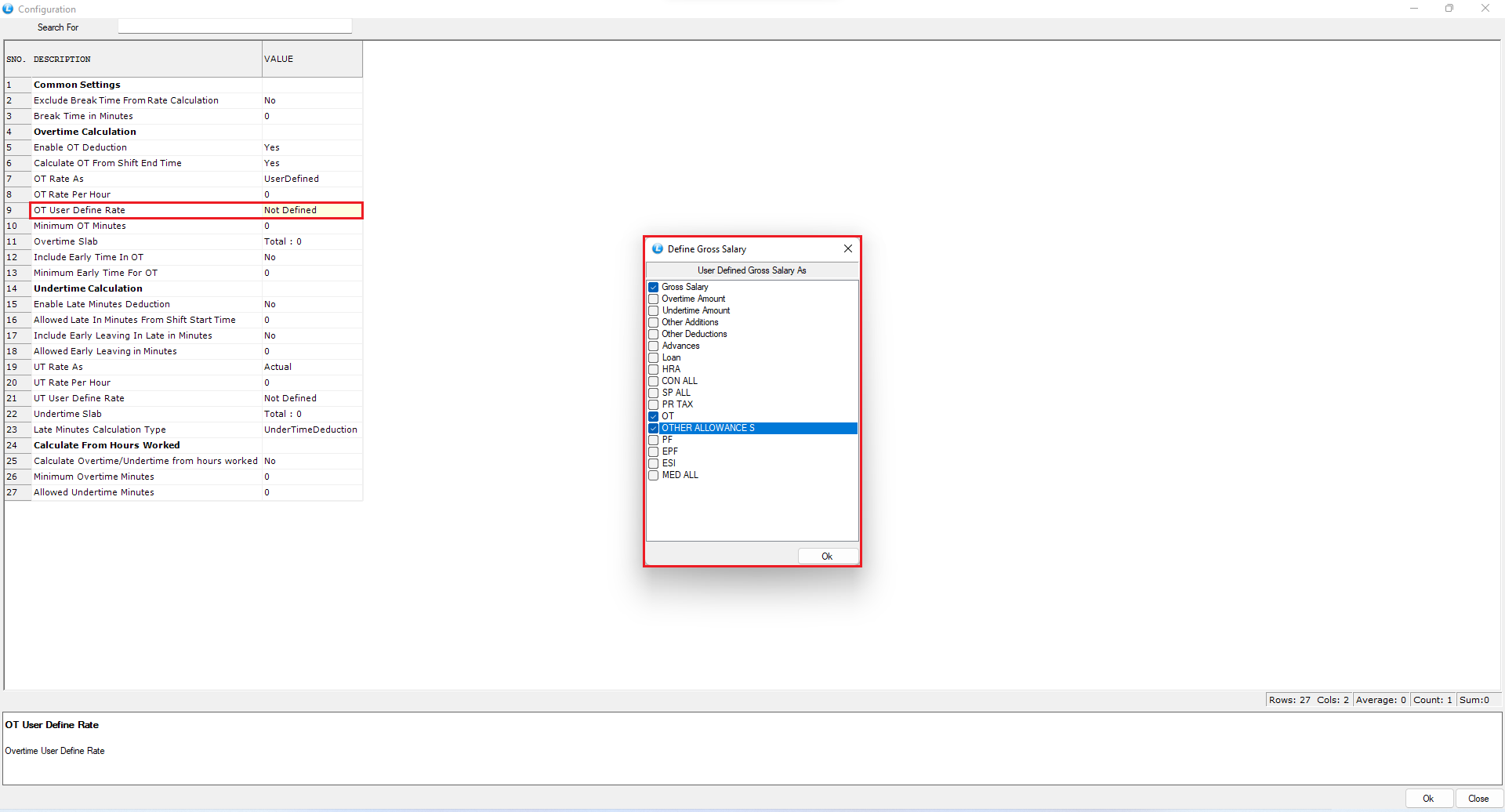
* Press the **Space Key** to open the configuration window.
* Now, set the following options:
* **Enable OT Deduction** – to allow overtime computation.
* **Calculate Overtime from Shift End Time** – ensures overtime is calculated only after the scheduled shift ends.
* **Overtime Rate as Field:**
* Select **Actual** for a fixed rate per hour and specify the **Overtime Rate per Hour**.
* To define a **custom calculation**, select **User Defined** from the dropdown.
* When using **User Defined**, press the **Space Key** on **OT User Defined Rate Setting** and tick the **Gross Components** (such as Basic, DA, or HRA) that should be included in overtime calculation.
* Next, configure additional parameters:
* **Minimum OT Minutes** – define the minimum extra time that qualifies for overtime.
* **Include Early Time in OT** – enable this option if early login before shift start should count toward OT.
* **Minimum Early Time in Minutes** – specify how much early time will be considered.
* Once all configurations are complete, click **OK** to save the settings.
***
### **Mark Employee Attendance**
* Navigate to **Payroll Entries** → **Attendance Register**.
* Select the **Employee**, then define their **Time In** and **Time Out**.\
For example:
* Standard Shift: 8 hours
* Actual Worked: 09:30 hours
* Here, the employee worked **01:30 additional hours**, which will be considered as **Overtime**.\
Click **Save** to record the attendance.
***
### **Generate Payroll**
* Next, go to **Payroll Entry** → **Payroll Generation**.
* Select the **Employee** and the **Payroll Month**, then click **Recalculate**.
* The system will display the payroll details on the screen, showing:
* **Total Overtime Hours** ( 1.5 hours in this case)
* **Overtime Salary** calculated as per the defined rate or user-defined formula.
> #### **OT Formula Steps:**
* **Per Day Salary =** Total Monthly Salary ÷ Total Days in a Month
* **Per Day Salary** = ₹100,000 ÷ 30 = **₹3,333.33**
* **Per Hour Salary =** Per Day Salary ÷ Total Working Hours per Day
* **Per Hour Salary** = ₹3,333.33 ÷ 8 = **₹416.67**
* **Overtime Amount =** Per Hour Salary × Total OT Hours
* **Overtime Amount** = ₹416.67 × 1.5 = **₹625.00**
***
### **Result**
You have successfully configured and calculated **Overtime** in **Logic ERP**.\
The system now automatically includes the OT amount during **Payroll Generation**, based on employee working hours and configured rate settings.
---
# Agent Instructions
This documentation is published with GitBook. GitBook is the documentation platform designed so that both humans and AI agents can read, navigate, and reason over technical content effectively. Learn more at gitbook.com.
## Querying This Documentation
If you need additional information that is not directly available in this page, you can query the documentation by asking a question.
Perform an HTTP GET request on the following URL with the `ask` and `goal` query parameters:
```
GET https://kb.logicerp.com/logic-erp-installation-configuration-and-troubleshooting-solutions/faqs/payroll/overtime-setup-in-payroll.md?ask=&goal=
```
`ask` is the immediate question: it should be specific, self-contained, and written in natural language.
`goal` is what the user is ultimately trying to achieve, the reason they need the answer. Sharing it helps GitBook give you a better, more relevant answer. A goal is most helpful when it describes the outcome the user wants rather than restating the question. For example, with `ask=how do I create an API token`, a goal like `automate deployments from our CI pipeline` lets GitBook tailor the answer to that use case.
The response will contain a direct answer to the question and relevant excerpts and sources from the documentation.
Use this mechanism when the answer is not explicitly present in the current page, you need clarification or additional context, or you want to retrieve related documentation sections.