> For the complete documentation index, see [llms.txt](https://kb.logicerp.com/llms.txt). Markdown versions of documentation pages are available by appending `.md` to page URLs; this page is available as [Markdown](https://kb.logicerp.com/logic-erp-installation-configuration-and-troubleshooting-solutions/faqs/payroll/configure-leave-sandwich-policy-in-payroll.md).
# Configure Leave Sandwich Policy in Payroll
**YouTube:** [How to Configure Leave Sandwich Policy in Payroll?](https://youtu.be/l0KIS5eTPnE)
## How to Configure Leave Sandwich Policy in Payroll?
In this tutorial, we will learn how to apply the **Sandwich Policy** in Payroll within **Logic ERP**. This policy converts paid holidays into **Leave Without Pay (LWP)** when leave is taken immediately before and after a holiday. Let’s walk through the entire process.
***
### **Marking Employee Attendance**
#### **Step-by-Step**
* Navigate to Main Menu/Payroll Entry Menu and then select **Attendance Register Month Wise**.
* Select the **Payroll Month**.
* Choose the **Employee** from the search list.
* Click **Refresh**.
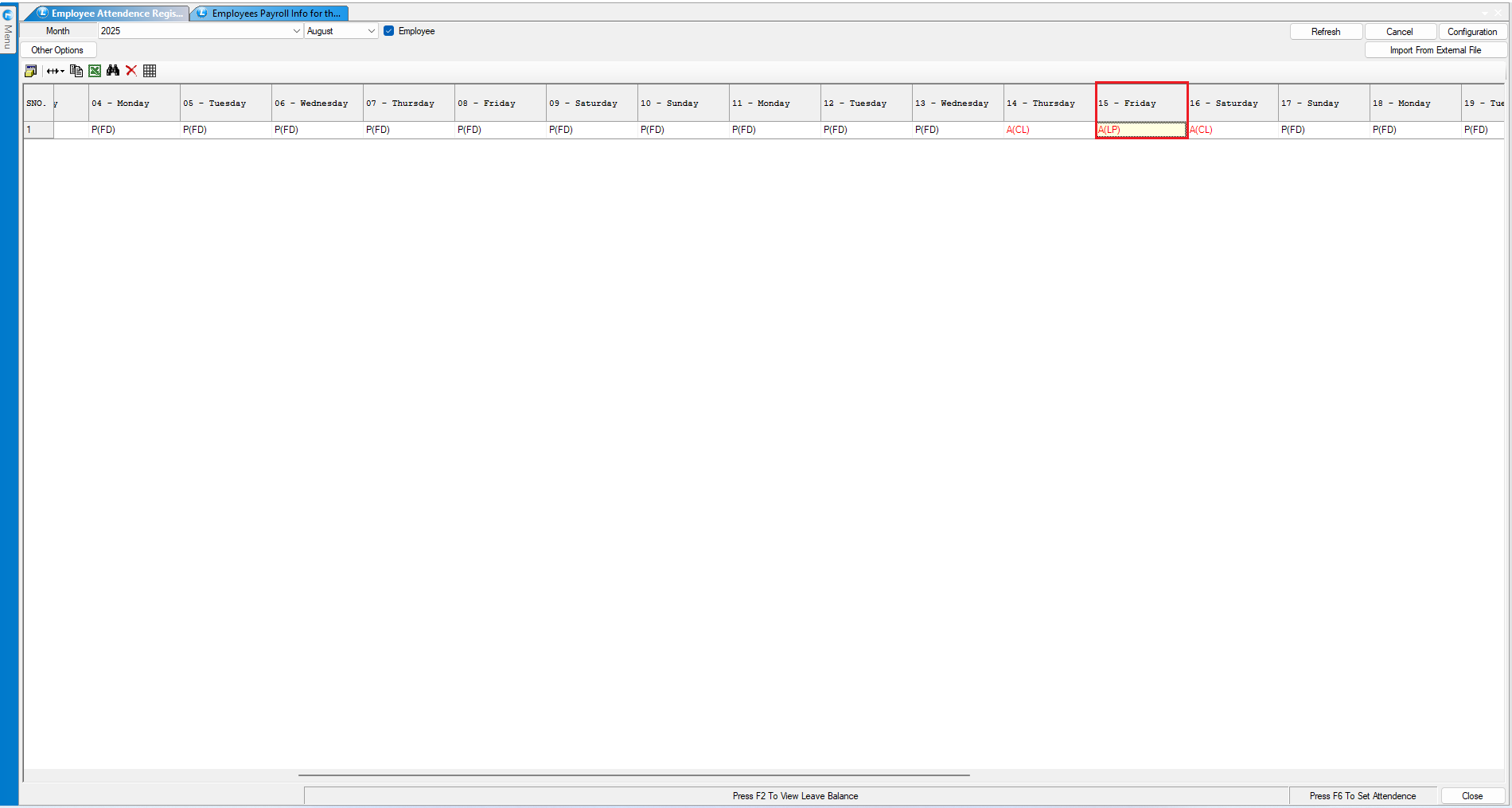
* Double-click on the “Serial No.” column to open the attendance entry window for the entire month.
* **Note:** If you want to mark attendance for a single day, you can press the **F6** key on that day and mark the attendance.
* Example scenario:
* **15th August** is marked as a **Paid Holiday**.
* Employee has taken **Casual Leave** on **14th and 16th August**.
* Mark these casual leaves accordingly.
***
### **Enabling and Testing the Sandwich Policy**
#### **Configure Sandwich Policy**
* Open **Payroll Generation** window.
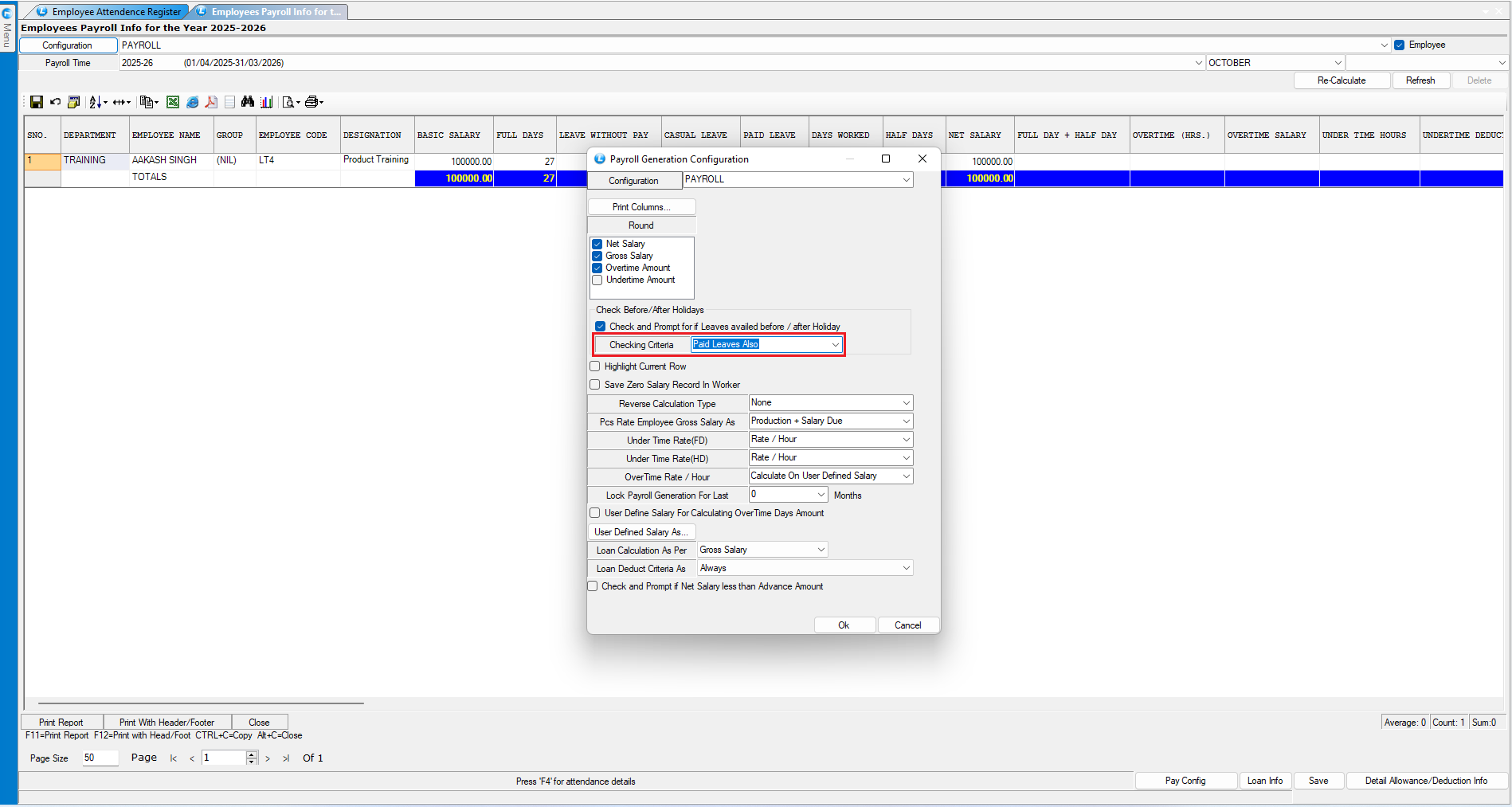
* Before generating payroll, click **Configuration**.
* Enable the option:\
**“Check and prompt if leaves are availed before/after a holiday.”**
* Two checking criteria are available:
1. **Default**
2. **Paid Leave Also**
***
### **Implementing the Default Checking Criteria**
#### **Recalculate Payroll**
* Select the **Payroll Month** and the **Employee**.
* Click **Recalculate**.
#### **System Prompt**
* A pop-up appears highlighting:
* The **holiday(s)** involved.
* The **leave taken before/after** the holiday.
#### **Applying the Sandwich Condition**
* Tick the holiday shown in the pop-up.
* Click **Update Leaves**.
* Result:
* The paid holiday (**15th Aug**) converts to **Leave Without Pay (LWP)**.
* **Paid Leave = 0**
* **Leave Without Pay = 1**
* **Casual Leave = 2**
#### **Verify in Attendance**
* Return to **Attendance Register** → Click **Refresh**.
* The previously marked **Paid Holiday** is now updated to **LWP**.
***
### **Implementing the Second Checking Criteria: “Paid Leave Also”**
#### **Mark Attendance for New Scenario**
* Select the payroll month and refresh the attendance.
* Example scenario:
* Paid Holidays: **2nd & 3rd October**
* Casual Leave: **1st & 4th October**
* Total consecutive leaves: **4 days**.
#### **View Default Calculation**
* Go to **Payroll Generation** → Select employee → **Recalculate**.
* The system shows:
* **2 Paid Holidays**
* **2 Casual Leaves**
#### **Enable Advanced Sandwich Check**
* Open **Configuration**.
* Change checking criteria to:\
**“Paid Leave Also.”**
* Save configuration.
* Click **Recalculate** again.
#### **Apply Sandwich Impact**
* A window appears showing the holiday dates.
* Tick both holidays.
* Click **Update Leaves**.
#### **Result**
* Both **Paid Holidays** are converted to **Leave Without Pay (LWP)**.
* Any holiday falling between leave taken before/after gets marked as **LWP**.
* **Note:** If holidays are predefined in the setup under Employee-wise Holiday, only then the Sandwich Policy will be applied.
#### **Verify in Attendance**
* Return to **Attendance Register** → Click **Refresh**.
* The updated holiday entries now reflect **Leave Without Pay**.
***
### **Conclusion**
This is how the **Sandwich Policy** can be easily configured and applied in Logic ERP.\
By following these steps, you can ensure accurate payroll calculations when employees take leave adjacent to paid holidays.
***
---
# Agent Instructions
This documentation is published with GitBook. GitBook is the documentation platform designed so that both humans and AI agents can read, navigate, and reason over technical content effectively. Learn more at gitbook.com.
## Querying This Documentation
If you need additional information that is not directly available in this page, you can query the documentation dynamically by asking a question.
Perform an HTTP GET request on the current page URL with the `ask` query parameter, and the optional `goal` query parameter:
```
GET https://kb.logicerp.com/logic-erp-installation-configuration-and-troubleshooting-solutions/faqs/payroll/configure-leave-sandwich-policy-in-payroll.md?ask=&goal=
```
`ask` is the immediate question: it should be specific, self-contained, and written in natural language.
`goal` is optional and describes the broader end goal you are ultimately trying to accomplish on behalf of the user. GitBook uses it to tailor the answer towards what is most useful for that goal.
The response will contain a direct answer to the question and relevant excerpts and sources from the documentation.
Use this mechanism when the answer is not explicitly present in the current page, you need clarification or additional context, or you want to retrieve related documentation sections.