> For the complete documentation index, see [llms.txt](https://kb.logicerp.com/llms.txt). Markdown versions of documentation pages are available by appending `.md` to page URLs; this page is available as [Markdown](https://kb.logicerp.com/logic-erp-installation-configuration-and-troubleshooting-solutions/faqs/gst/gst-state-validation-error-in-gst-return.md).
# GST State Validation Error in GST Return
**YouTube:** [How to Fix GST State Validation Error in GST Return?](https://www.youtube.com/watch?v=1pMRgaeuQPs)
## How to Fix GST State Validation Error in GST Return?
In this tutorial, we will guide you through the process of **validating GST State details** while generating **GST returns** in Logic ERP.
***
### **Open GST Return Module**
* Navigate to the **GST Returns** module.
* Select **GSTR-1** as the return type.
* Choose the **relevant time period** for which you want to generate the return.
* Click the **Generate** button to proceed.
***
#### **Identify Invalid Data Error**
* Upon generation, if the system displays an **Invalid Data Error**, it indicates missing or incorrect details.
* In the **B2B section**, look for **red flags** beside certain entries — these mark records with invalid or incomplete information.
* The error message will state: **“Party GST State not specified.”**
***
#### **Review Error Details**
* Open the **GSTR Error Details** section to view a detailed list of invalid data entries.
* Here, you can see:
* The total number of **B2B invoices** with errors (e.g., 22 entries).
* Specific **error descriptions** such as missing or incorrect state names and codes.
***
#### **Correct Party State Details**
* Navigate to the Setup/Setup Accounts and Select **Setup New Account** module.
* Open each **relevant party account**.
* Verify and ensure that:
* **State Name** is correctly entered.
* **State Code** corresponds to the correct GST state.
* After verifying, **save** the details.
***
#### **Regenerate the Return**
* Return to the **GST Returns** module.
* Click **Generate** again to recreate the report.
* After corrections:
* The **Invalid Data Error** will no longer appear.
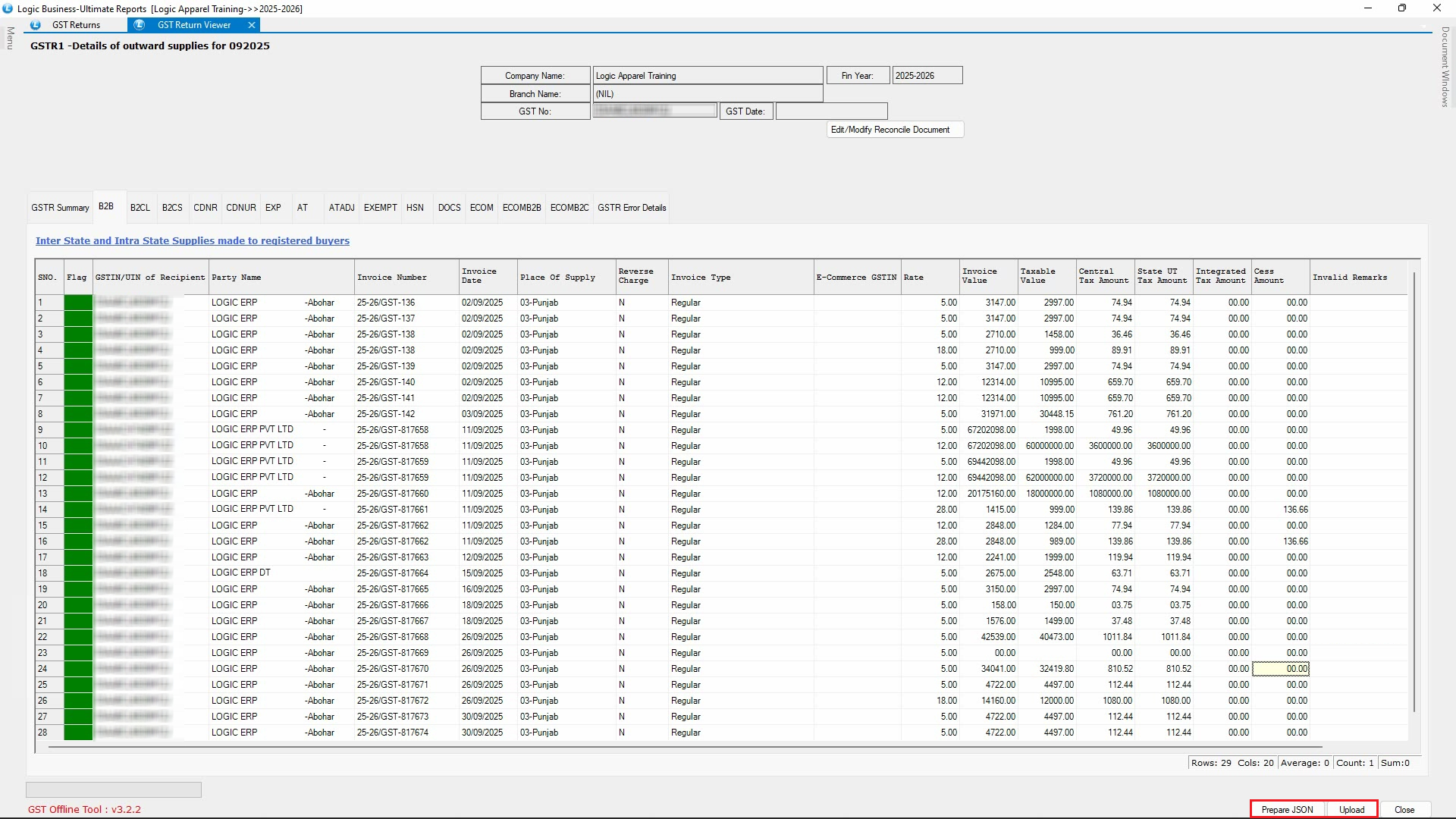
* In the **B2B section**, red flags will turn **green**, indicating that data is now **validated and error-free**.
* In the **GST Error Details**, the previous error count (e.g., 22) will now show **zero**.
***
#### **Export and Upload the Return**
Once the data is validated, you can proceed with filing your return through one of the following methods:
**Option 1: Create JSON File**
* Generate a **JSON file** and upload it directly to the **GST Portal**.
**Option 2: Export to Excel**
* Click the **Upload** button and select **Export to Excel**.
* The Excel file will be created for import into the **GST Offline Tool**.
***
#### **Upload via GST Offline Tool**
* Open the **GST Offline Tool** and choose **Import Excel**.
* Select the recently exported file and click **Yes** to import.
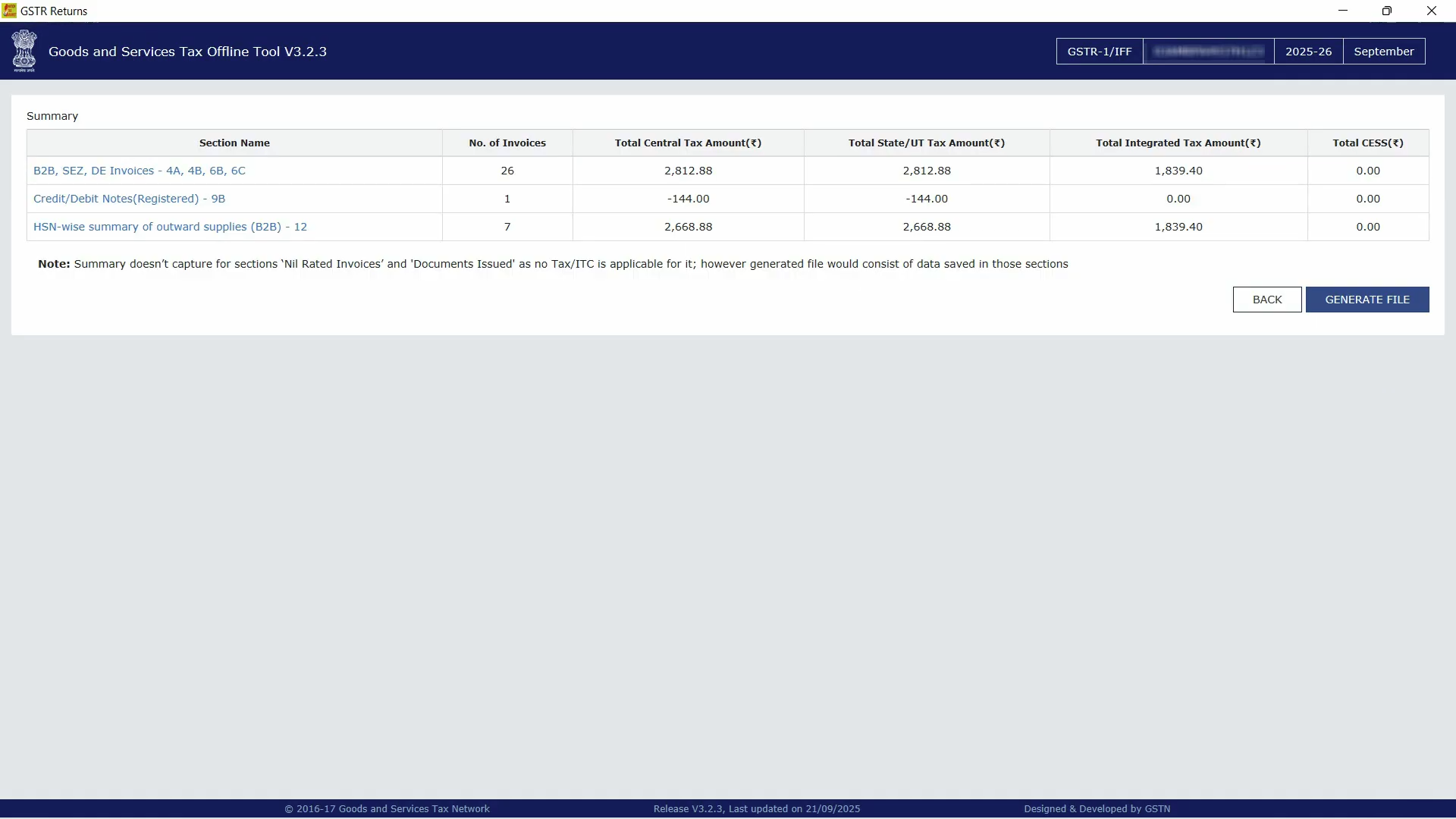
* The file will upload successfully, and a **summary** of the imported data will appear.
* Finally, click **Generate File** to upload and submit your return.
***
#### **Final Outcome**
You have now successfully:
* Validated the GST state details for all B2B entries.
* Resolved data errors.
* Exported and uploaded a **clean, validated GSTR-1 return** through the Logic ERP system.
---
# Agent Instructions
This documentation is published with GitBook. GitBook is the documentation platform designed so that both humans and AI agents can read, navigate, and reason over technical content effectively. Learn more at gitbook.com.
## Querying This Documentation
If you need additional information that is not directly available in this page, you can query the documentation by asking a question.
Perform an HTTP GET request on the following URL with the `ask` and `goal` query parameters:
```
GET https://kb.logicerp.com/logic-erp-installation-configuration-and-troubleshooting-solutions/faqs/gst/gst-state-validation-error-in-gst-return.md?ask=&goal=
```
`ask` is the immediate question: it should be specific, self-contained, and written in natural language.
`goal` is what the user is ultimately trying to achieve, the reason they need the answer. Sharing it helps GitBook give you a better, more relevant answer. A goal is most helpful when it describes the outcome the user wants rather than restating the question. For example, with `ask=how do I create an API token`, a goal like `automate deployments from our CI pipeline` lets GitBook tailor the answer to that use case.
The response will contain a direct answer to the question and relevant excerpts and sources from the documentation.
Use this mechanism when the answer is not explicitly present in the current page, you need clarification or additional context, or you want to retrieve related documentation sections.