> For the complete documentation index, see [llms.txt](https://kb.logicerp.com/llms.txt). Markdown versions of documentation pages are available by appending `.md` to page URLs; this page is available as [Markdown](https://kb.logicerp.com/logic-erp-learning-hub-tutorials-and-best-practices/setups/set-other-item-details/allocate-items-for-barcode-printing.md).
# Allocate Items for Barcode Printing
**YouTube:** [How to Allocate Items for Barcode Printing?](https://www.youtube.com/watch?v=rQbrtXmcLH4)
## How to Allocate Items for Barcode Printing?
In this tutorial, we will learn how to **allocate items for barcode printing in Logic ERP**. You will understand how barcode printing is controlled at the item level, how to enable or disable it, and how to quickly allocate multiple items for barcode printing in one go.
***
### **Check Barcode Printing Settings in Item Master**
* Navigate to the **Main Menu**
* Open the **Setup Module**
* Go to **Setup Items**
* Click on **Setup Items – Multiple Pack/Size**
#### **Actions**
* Search and select the required item
* Go to the **Pack Size Details** section
* Locate the option **“Do Not Print Barcode”**
#### **Important Note**
* If **Do Not Print Barcode** is enabled:
* Barcode printing for that item is completely restricted
* The system will not allow barcode generation for this item
***
### **Understand the Barcode Printing Restriction**
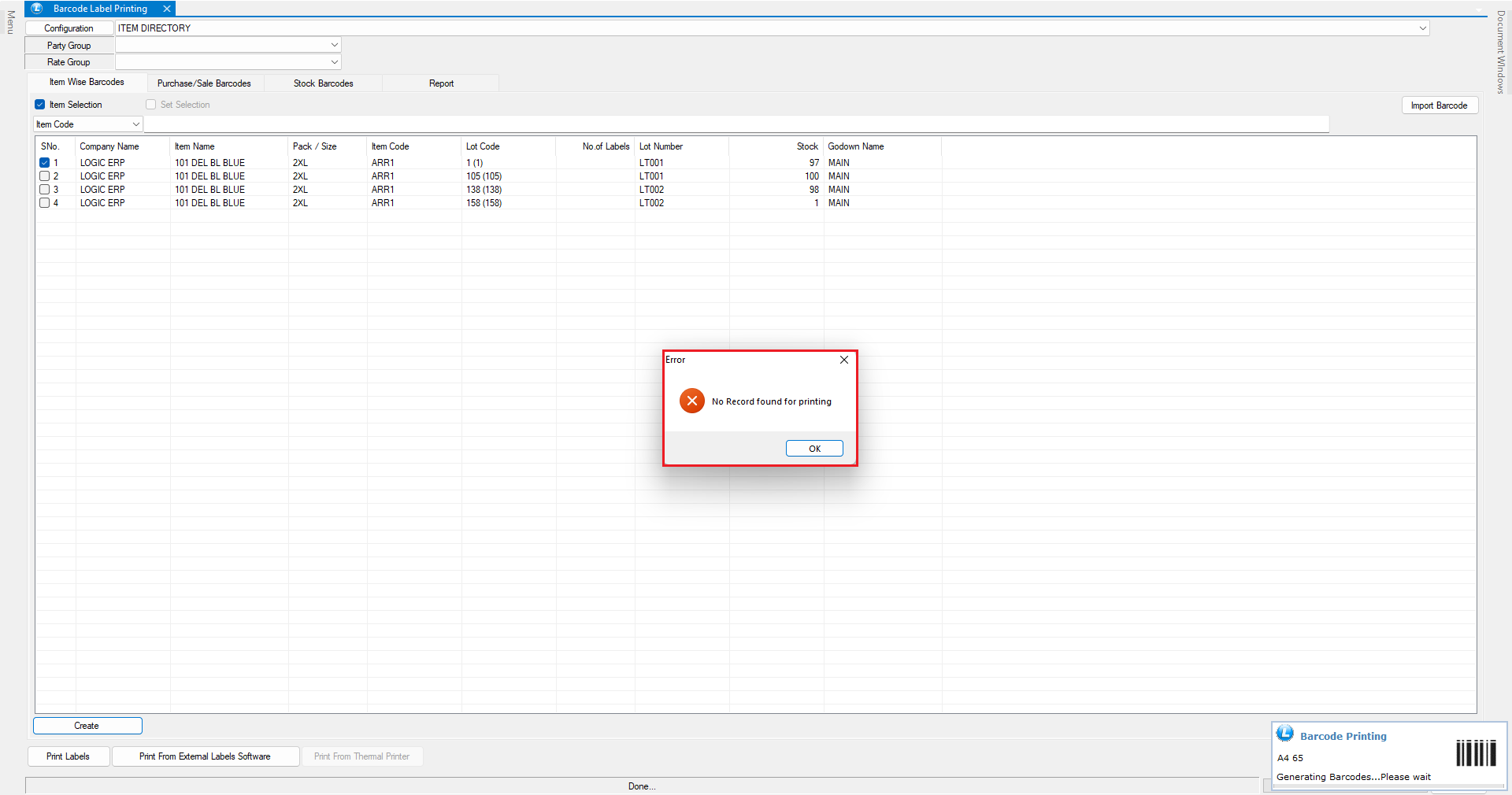
* Open the **Barcode Label Printing** window
* Select the same item
* Click **Create / Print Barcode**
#### **Result**
* The system displays an error message: **“No Record found for printing”**
* This confirms that barcode printing is blocked due to the item-level restriction
***
### **Enable Barcode Printing for Items**
To allow barcode printing:
* Go back to the **Item Master**
* Disable the **Do Not Print Barcode** option for the item
* Save the changes
***
### **Permanently Disable the Restriction for New Items**
If you want all **future items** to be barcode-enabled by default:
* Open **Configuration**
* Locate the **Do Not Print Barcode** default setting
* Untick the option
* Save the configuration
> This setting applies only to **newly created items**.\
> Existing items will still retain their previous settings.
***
### **Allocate Multiple Items for Barcode Printing (Bulk Method)**
To enable barcode printing for **existing items in bulk**:
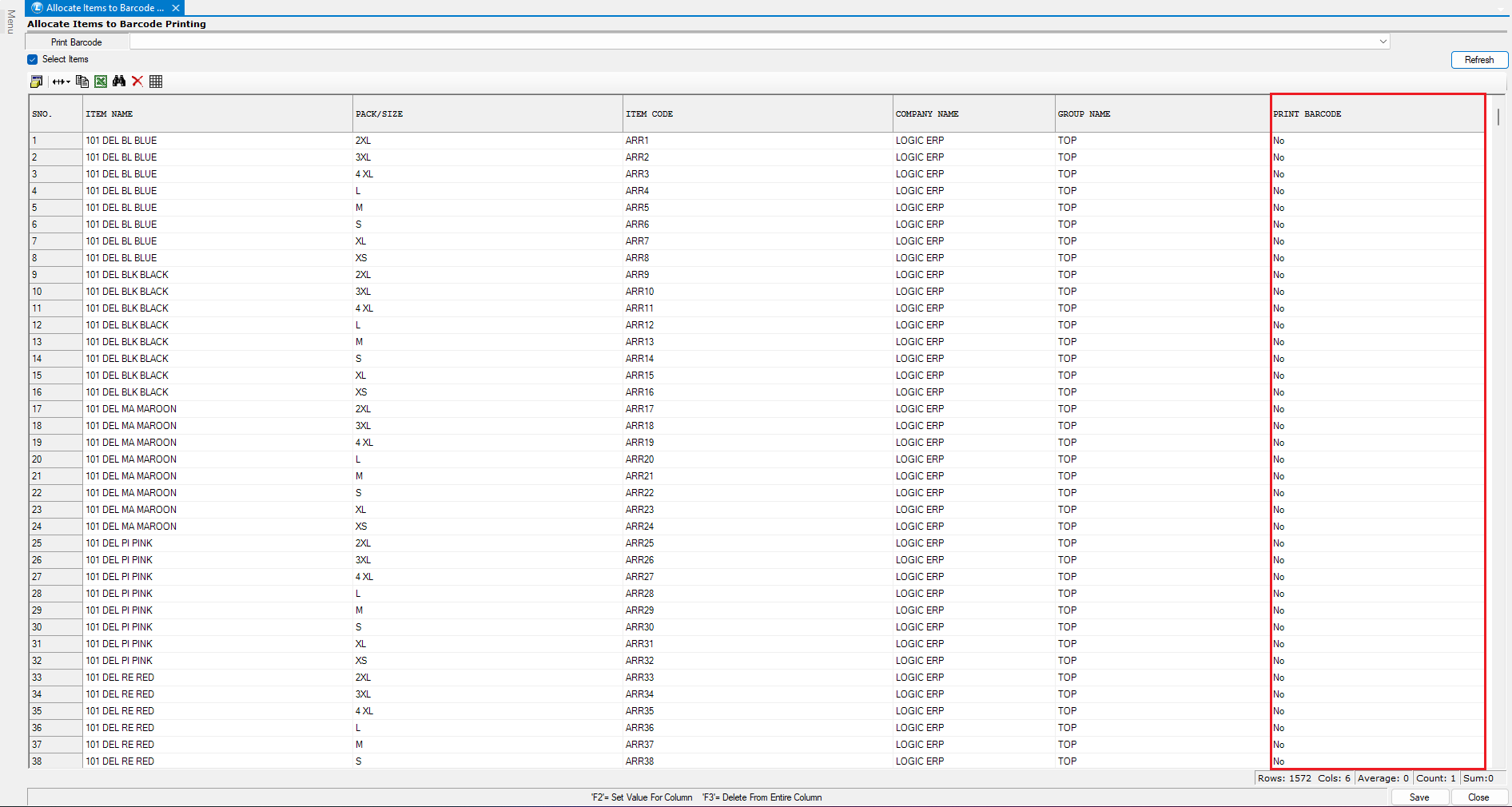
* Navigate to **Main Menu → Set Other Item Details**
* Open **Allocate Items to Barcode**
#### **Actions**
* Select all items for which barcode printing is:
* Disabled, or
* Not yet allocated
* Press **F2** in the **Print Barcode** column
* Select **Yes**
* Save the changes
***
### **Verify Barcode Printing**
* Open the **Barcode Label Printing** window again
* Select the allocated items
* Click **Create / Print Barcode**
* Barcodes will now generate successfully
***
### **Conclusion**
Allocating items for barcode printing in Logic ERP ensures:
* Accurate item identification
* Faster billing and stock operations
* Smooth barcode generation without errors
By using both **item-level control** and the **bulk allocation feature**, you can efficiently manage barcode printing for both existing and newly created items.
---
# Agent Instructions
This documentation is published with GitBook. GitBook is the documentation platform designed so that both humans and AI agents can read, navigate, and reason over technical content effectively. Learn more at gitbook.com.
## Querying This Documentation
If you need additional information that is not directly available in this page, you can query the documentation dynamically by asking a question.
Perform an HTTP GET request on the current page URL with the `ask` query parameter, and the optional `goal` query parameter:
```
GET https://kb.logicerp.com/logic-erp-learning-hub-tutorials-and-best-practices/setups/set-other-item-details/allocate-items-for-barcode-printing.md?ask=&goal=
```
`ask` is the immediate question: it should be specific, self-contained, and written in natural language.
`goal` is optional and describes the broader end goal you are ultimately trying to accomplish on behalf of the user. GitBook uses it to tailor the answer towards what is most useful for that goal.
The response will contain a direct answer to the question and relevant excerpts and sources from the documentation.
Use this mechanism when the answer is not explicitly present in the current page, you need clarification or additional context, or you want to retrieve related documentation sections.