> For the complete documentation index, see [llms.txt](https://kb.logicerp.com/llms.txt). Markdown versions of documentation pages are available by appending `.md` to page URLs; this page is available as [Markdown](https://kb.logicerp.com/logic-erp-learning-hub-tutorials-and-best-practices/setups/setup-accounts/setup-pre-defined-narration.md).
# Setup Pre Defined Narration
**YouTube:** [How to Create and Manage Pre defined Narration?](https://www.youtube.com/watch?v=iazRoSR6L64)
## How to Create and Manage Pre defined Narration?
Predefined narrations help streamline data entry in accounting vouchers by allowing users to select ready-made text instead of typing it manually each time. In this tutorial, we will guide you through the complete process of configuring predefined narration in Logic ERP and using it while recording vouchers.
***
### **Access to the Predefined Narration Setup**
* Navigate to the **Setup** menu.
* Under the **Setup Accounts** section, open the **Predefined Narration Setup** window.
***
### **Create Your Predefined Narrations**
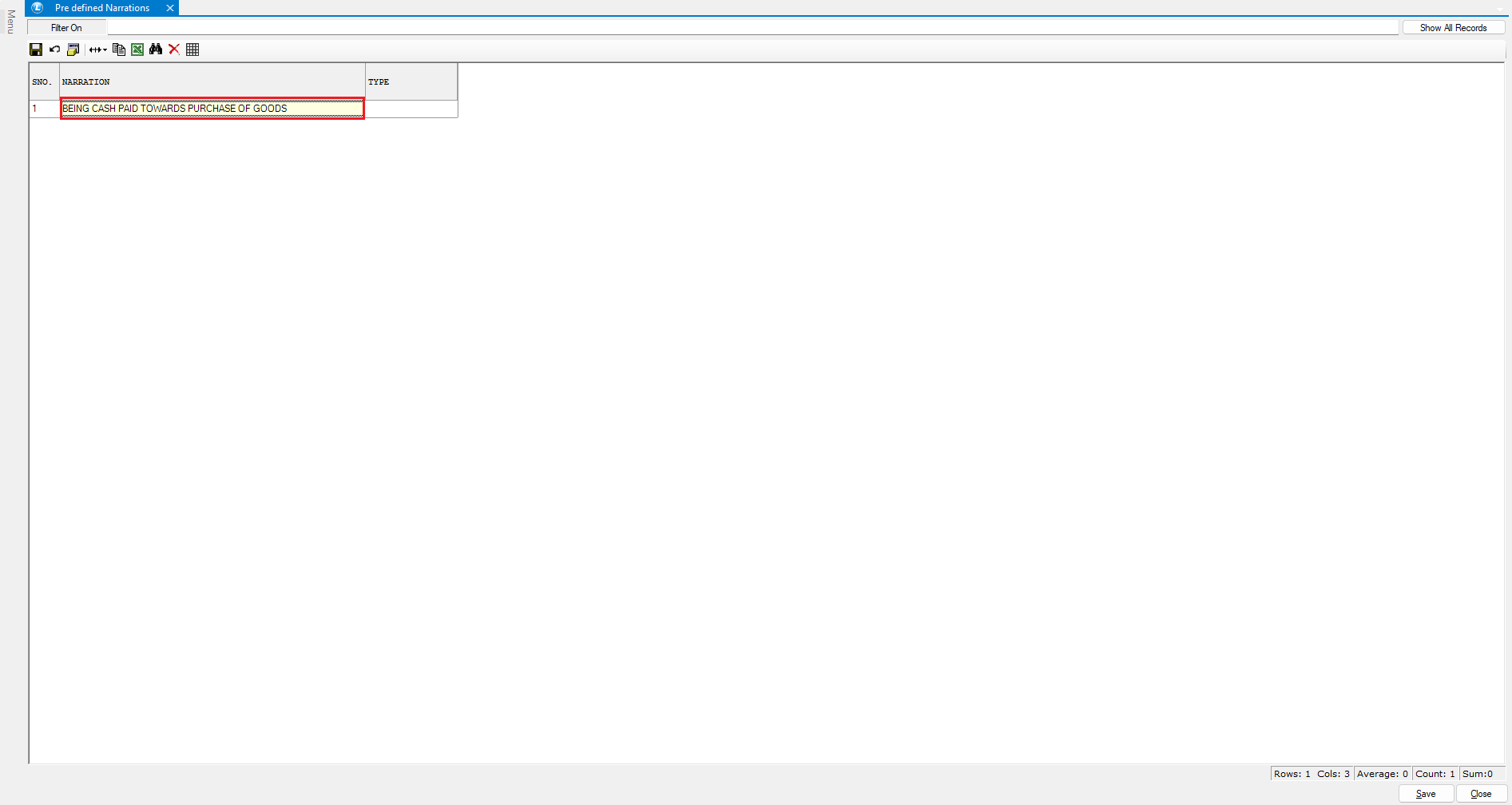
* Enter the required **Narration Text** in the provided field.
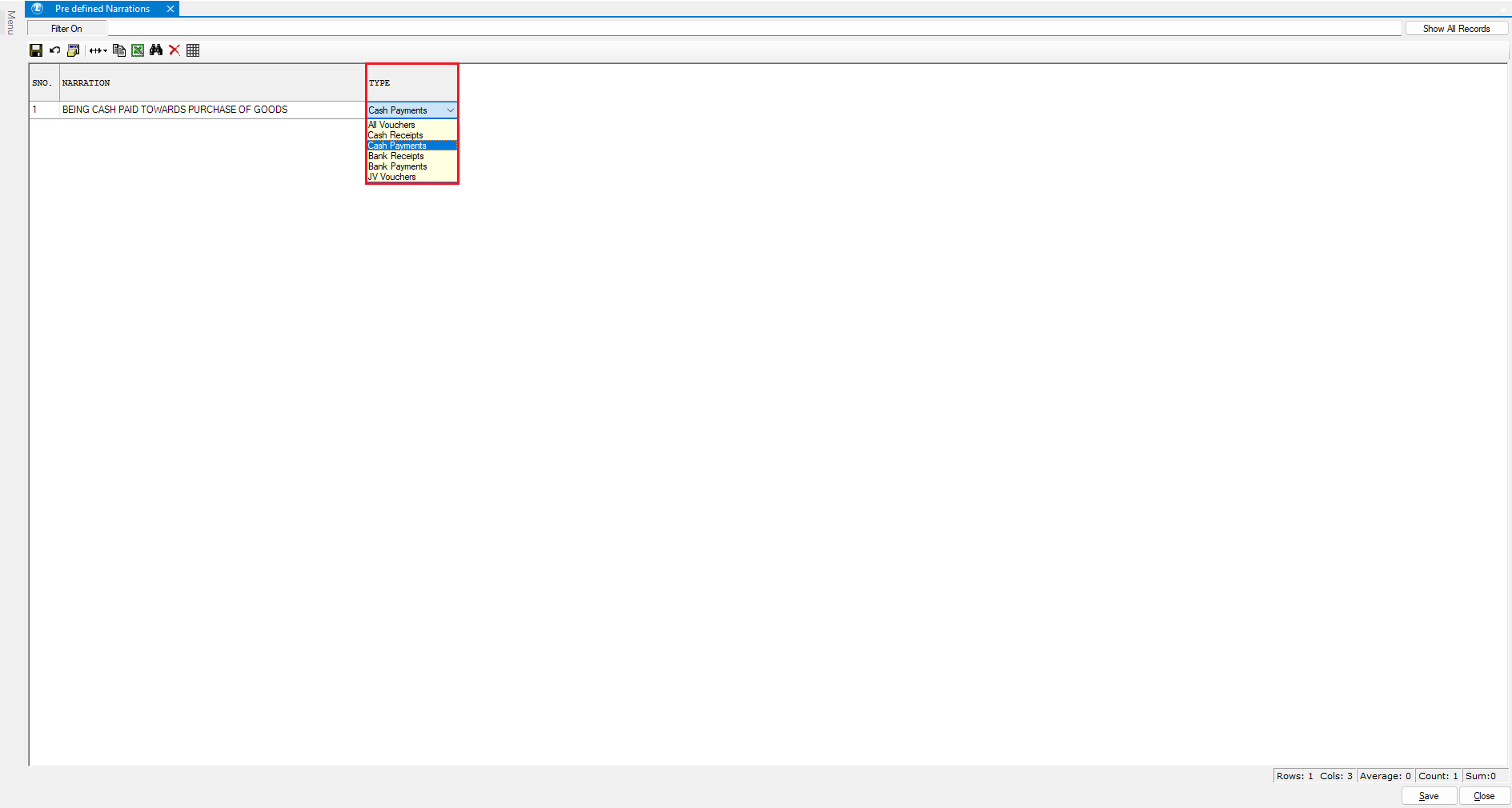
* In the **Type** column, press the **Space** key to select the voucher type.
* You may assign the narration to:
* **All Voucher Types**, or
* A **Specific Voucher Type** (e.g., Cash Payment, Sale, Purchase).
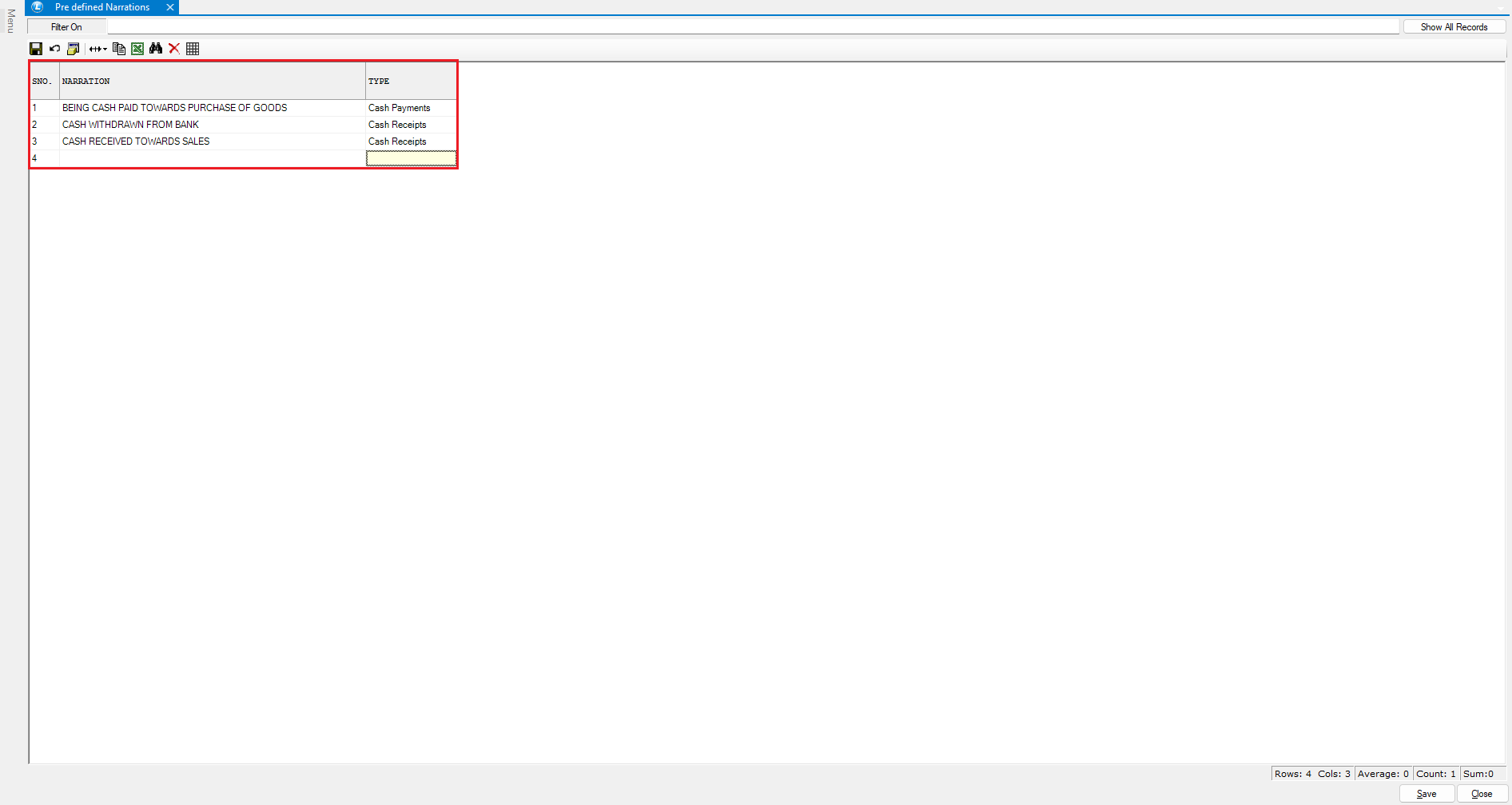
* Add multiple predefined narrations as needed.
* Save your entries once all required narrations are added.
***
### **Apply Predefined Narration in a Voucher**
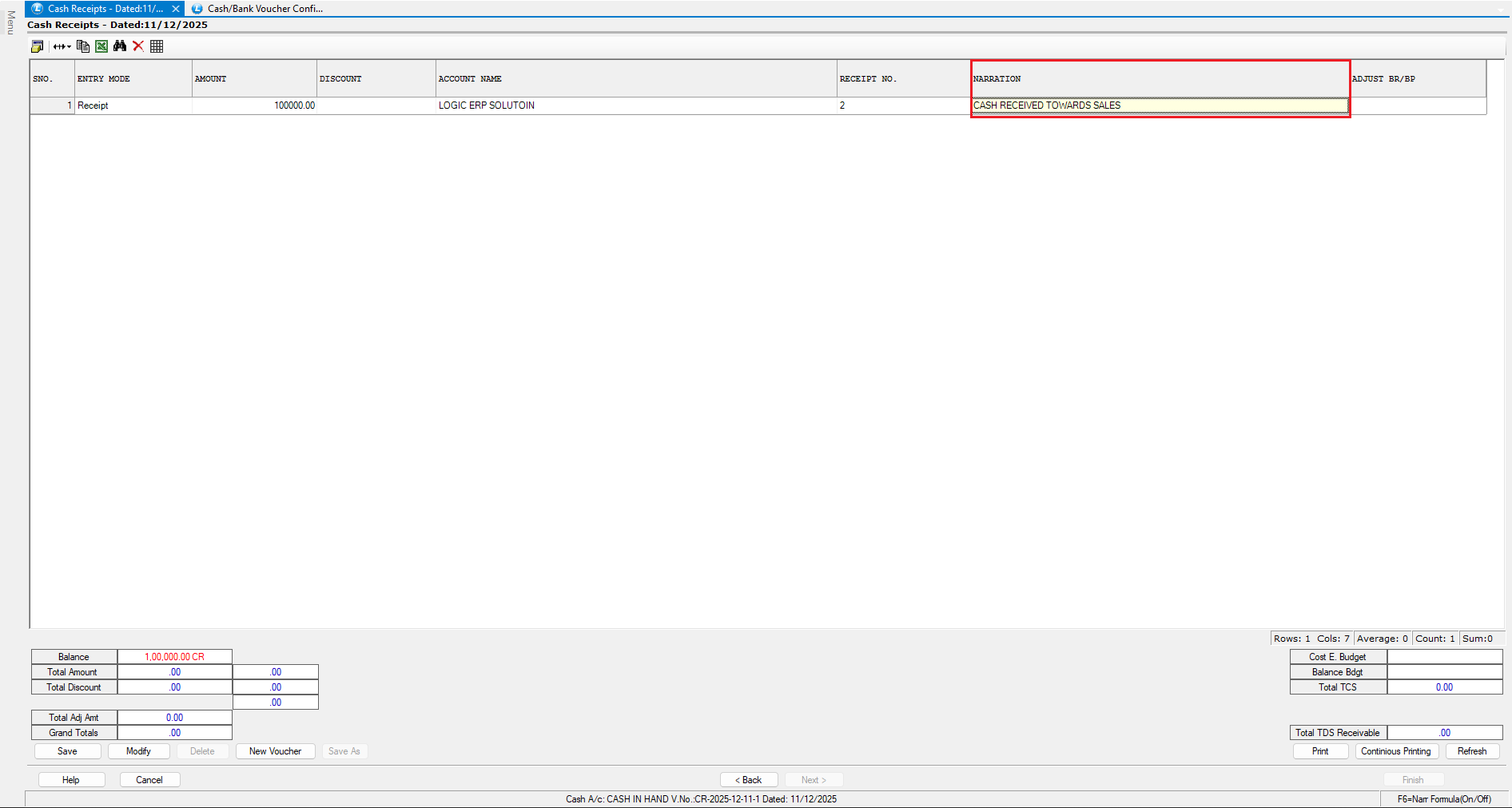
* Open the **Cash Payment Voucher** (or any other voucher based on your configuration).
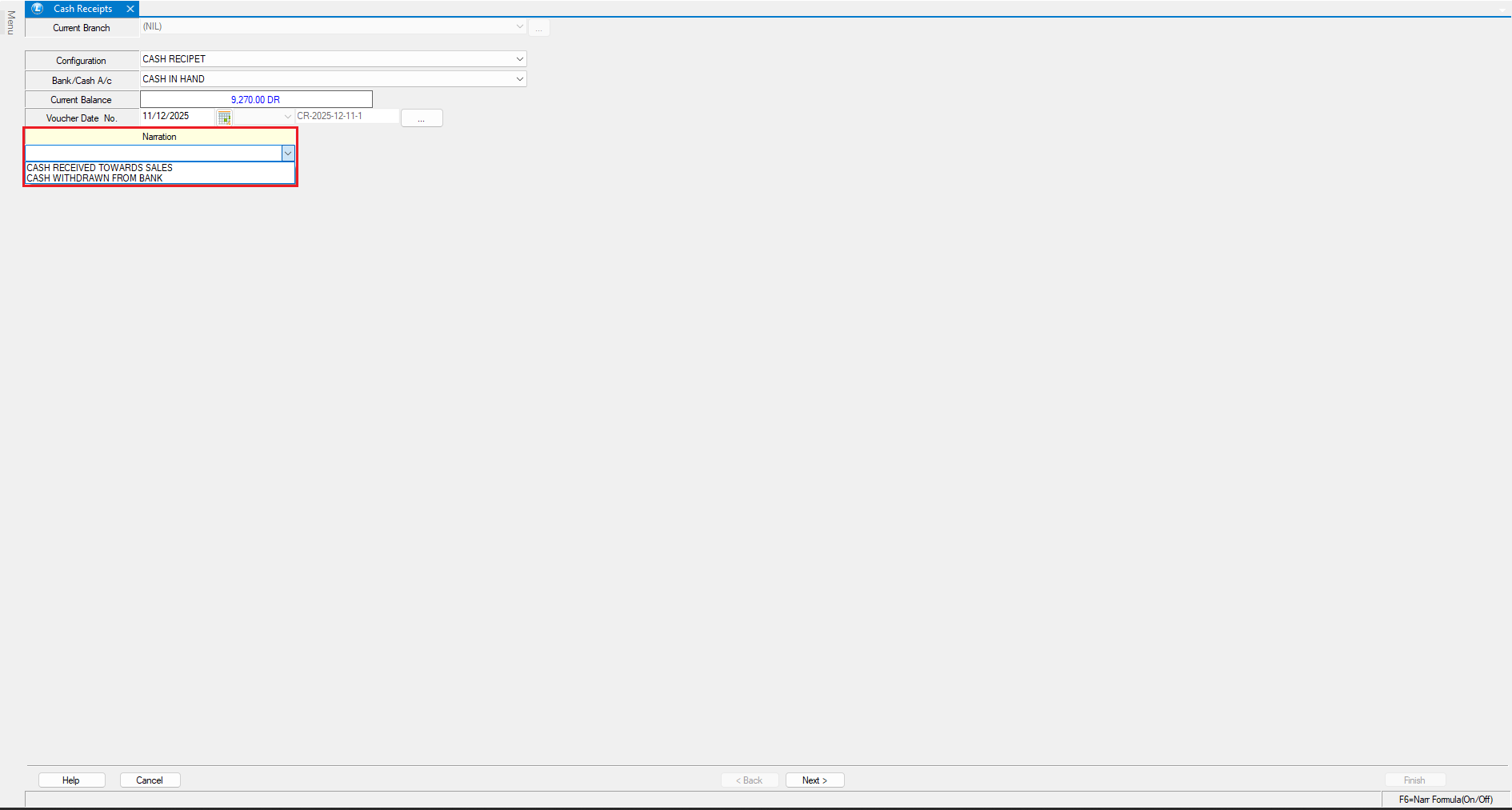
* In the **Narration Field**, click on the dropdown list.
* Select any predefined narration from the available list.
* The selected narration will automatically appear in the **Voucher Details Grid**.
* You can manually edit or refine the narration if required.
* Complete the voucher entry and save it.
***
### **Verify in Ledger Reports**
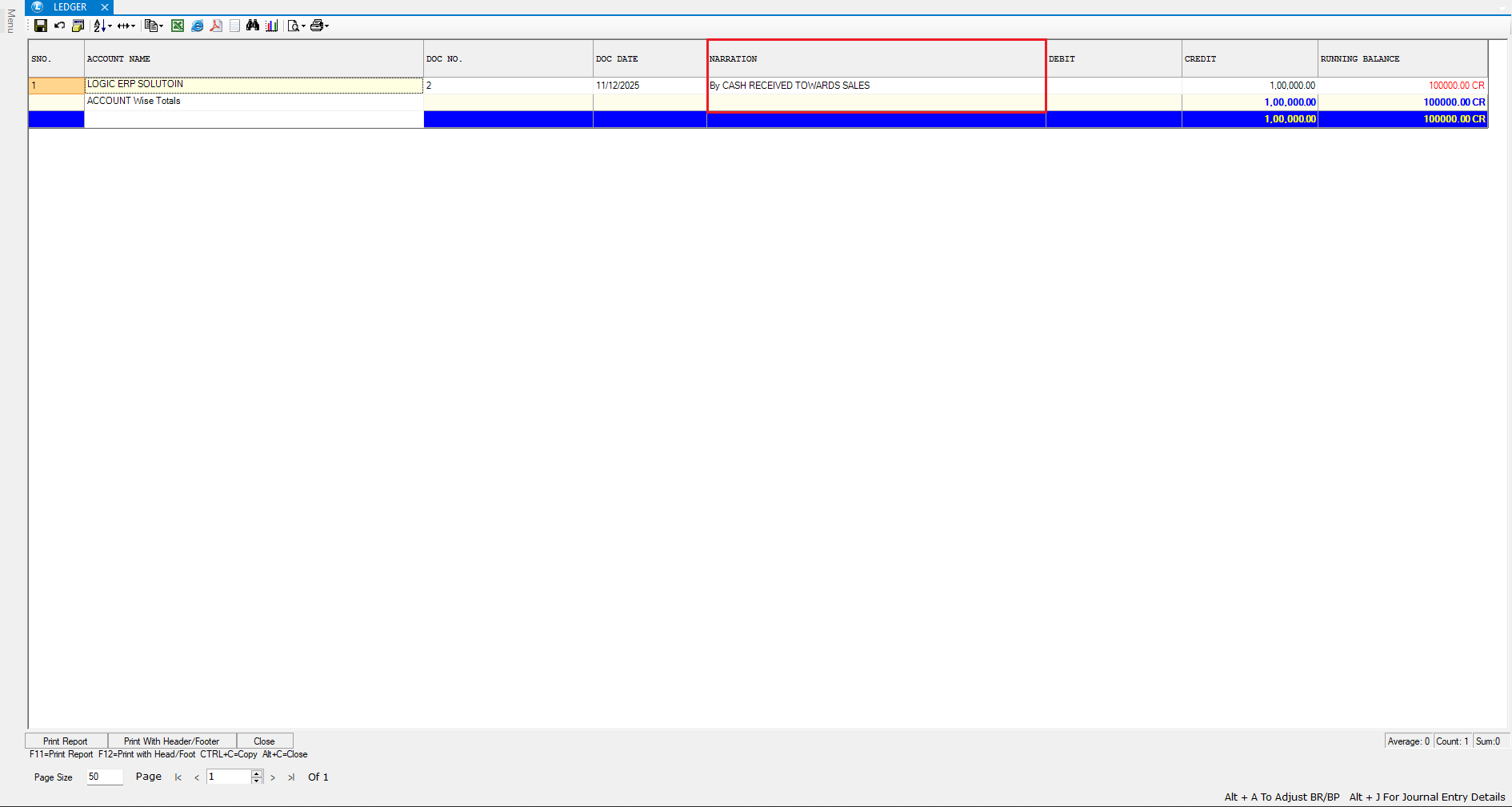
* Open the respective **Ledger Report** for the voucher you entered.
* The narration used in the voucher will be displayed in the report exactly as recorded.
***
## **Conclusion**
By configuring predefined narrations, you can significantly reduce time spent on repetitive typing and ensure consistency across all accounting entries. This feature not only enhances accuracy but also improves the overall efficiency of voucher processing and reporting.
---
# Agent Instructions
This documentation is published with GitBook. GitBook is the documentation platform designed so that both humans and AI agents can read, navigate, and reason over technical content effectively. Learn more at gitbook.com.
## Querying This Documentation
If you need additional information that is not directly available in this page, you can query the documentation dynamically by asking a question.
Perform an HTTP GET request on the current page URL with the `ask` query parameter, and the optional `goal` query parameter:
```
GET https://kb.logicerp.com/logic-erp-learning-hub-tutorials-and-best-practices/setups/setup-accounts/setup-pre-defined-narration.md?ask=&goal=
```
`ask` is the immediate question: it should be specific, self-contained, and written in natural language.
`goal` is optional and describes the broader end goal you are ultimately trying to accomplish on behalf of the user. GitBook uses it to tailor the answer towards what is most useful for that goal.
The response will contain a direct answer to the question and relevant excerpts and sources from the documentation.
Use this mechanism when the answer is not explicitly present in the current page, you need clarification or additional context, or you want to retrieve related documentation sections.