> For the complete documentation index, see [llms.txt](https://kb.logicerp.com/llms.txt). Markdown versions of documentation pages are available by appending `.md` to page URLs; this page is available as [Markdown](https://kb.logicerp.com/logic-erp-learning-hub-tutorials-and-best-practices/setups/setup-accounts/setup-account-groups.md).
# Setup Account Groups
**YouTube:** [How to create Account Groups in Logic ERP?](https://www.youtube.com/watch?v=XPs35TnKRQY)
## How to create Account Groups in Logic ERP?
This tutorial explains the **end-to-end process of creating, structuring, and allocating Account Groups** in **Logic ERP**, using its multi-level grouping system.
***
### **Open Account Group Setup**
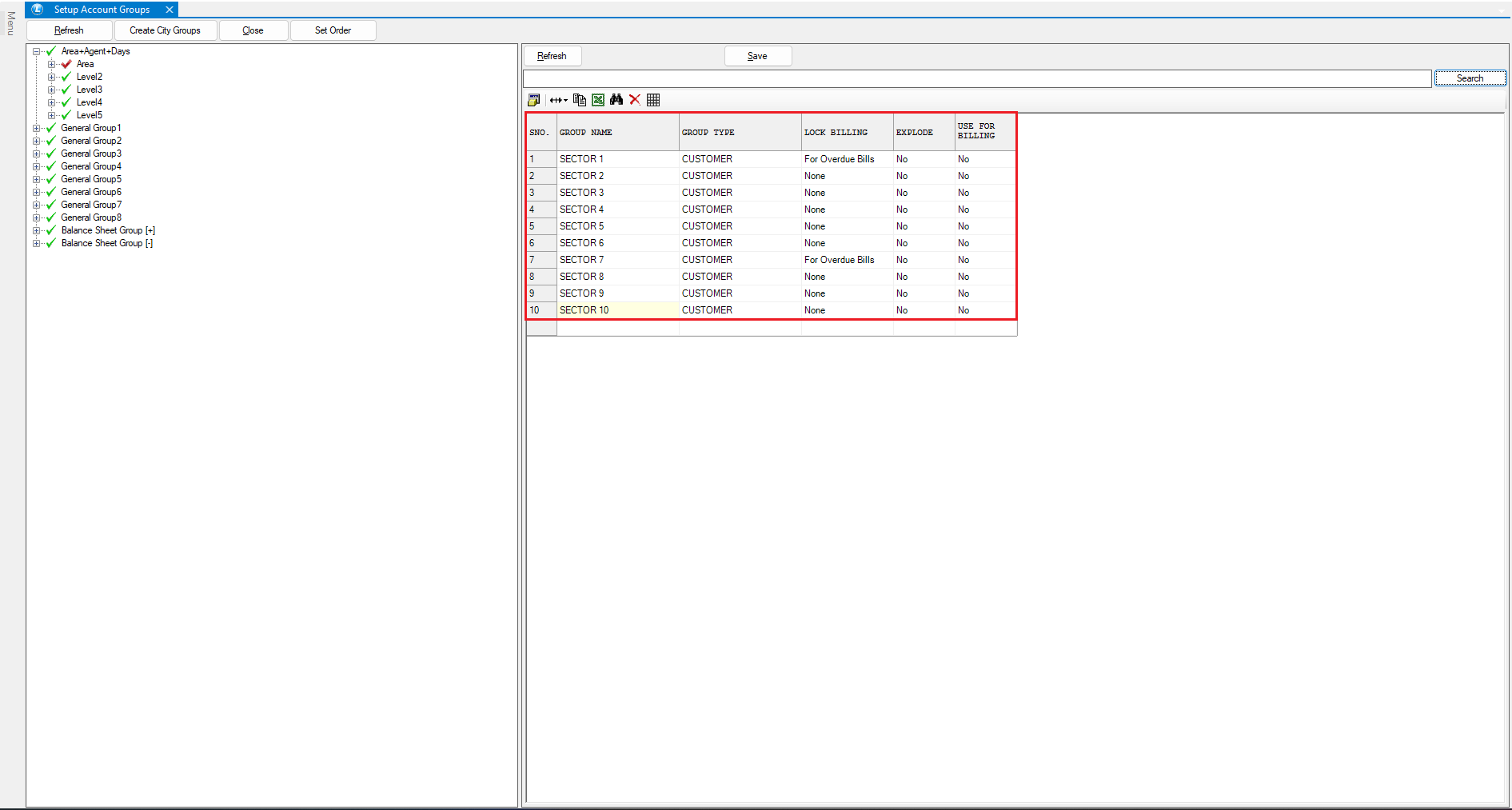
* Navigate to Setup/Setup Accounts and select **"Setup Account Groups"**.
* You will see **10 General Groups**, out of which **2 are Balance Sheet Groups** by default.
* Each group supports **5 hierarchical levels**.
***
#### **Create or Rename an Account Group**
* Click on any available group to **rename it** as required.
* This renamed group will act as the **parent group**.
***
#### **Create Level 1 Groups (Areas)**
* Select **Level 1** and rename it (example: *Areas*).
* Click **Refresh** to start creating entries.
* Open **Column Attributes** and remove unnecessary columns.
* Enter the **Area Name**.
* Select the correct **Group Type**:
* Choose **Customer** if grouping customers.
* Optionally, enable **Billing Logic** based on *Due* or *Overdue* bills.
* Create as many areas as required.
* Click **Save**, then expand the group to view created areas.
***
#### **Create Level 2 Groups (Agents)**
* Move to **Level 2**.
* Enter the **Agent Name**.
* Select the appropriate **Group Type**.
* Create multiple agents as needed.
* Click **Save** to confirm.
***
### **Create Level 3 Groups (Days of the Week)**
* Navigate to **Level 3**.
* Create entries such as **Monday, Tuesday, Wednesday**, etc.
* The process remains the same as Level 1 and Level 2.
* Similarly, you can configure **Level 4 and Level 5** if required.
***
### **Allocate Customers to Areas**
* Select an **Area** at Level 1.
* Click on **Allocate**.
* Select the customers belonging to that area.
* Click **OK** to confirm.
***Note:*** One account can belong to **only one group**.
***
### **Allocate Areas to Agents**
* Select an **Agent** at Level 2.
* Allocate the relevant **Areas** to that agent.
* Click **OK**.
* ***Note:*** One area cannot be allocated to multiple agents.
***
### **Allocate Agents to Days**
* Select a **Day** at Level 3.
* Allocate the required **Agents/Salesmen**.
* Follow the same allocation process as earlier levels.
* Agents can be distributed across different days.
***
### **Set Order of Groups or Accounts**
* Select the required group.
* Click **Refresh → Set Order**.
* Use the **arrow keys** to arrange the order as needed.
* Save the changes.
***
### **Working with Balance Sheet Groups**
* By default, **2 Balance Sheet Groups** are available.
* You can **add more Balance Sheet Groups** if required.
* All accounts must belong to **one Balance Sheet Group**.
* To change a group:
* Select the account
* Press **OK** to reassign
***
### **Deallocate & Reallocate Groups**
* To correct a wrong allocation:
* Select the group (example: *Friday*)
* Click **Deallocate**
* Select the account/agent and press **OK**
* Then go to the correct group (example: *Wednesday*) and **Allocate** again.
* This deallocation process can be done at **any group level**.
***
### **Conclusion**
The Account Group feature in Logic ERP allows you to build a **powerful, multi-level structure** for customers, agents, areas, and schedules—ensuring better control, reporting, and operational efficiency.
---
# Agent Instructions
This documentation is published with GitBook. GitBook is the documentation platform designed so that both humans and AI agents can read, navigate, and reason over technical content effectively. Learn more at gitbook.com.
## Querying This Documentation
If you need additional information that is not directly available in this page, you can query the documentation dynamically by asking a question.
Perform an HTTP GET request on the current page URL with the `ask` query parameter, and the optional `goal` query parameter:
```
GET https://kb.logicerp.com/logic-erp-learning-hub-tutorials-and-best-practices/setups/setup-accounts/setup-account-groups.md?ask=&goal=
```
`ask` is the immediate question: it should be specific, self-contained, and written in natural language.
`goal` is optional and describes the broader end goal you are ultimately trying to accomplish on behalf of the user. GitBook uses it to tailor the answer towards what is most useful for that goal.
The response will contain a direct answer to the question and relevant excerpts and sources from the documentation.
Use this mechanism when the answer is not explicitly present in the current page, you need clarification or additional context, or you want to retrieve related documentation sections.