> For the complete documentation index, see [llms.txt](https://kb.logicerp.com/llms.txt). Markdown versions of documentation pages are available by appending `.md` to page URLs; this page is available as [Markdown](https://kb.logicerp.com/logic-erp-learning-hub-tutorials-and-best-practices/utilities/import-masters-transactions-from-external-files/import-sale-orders-from-external-file.md).
# Import Sale Orders From External File
**YouTube:** [Bulk Sale Order creation through Excel](https://www.youtube.com/watch?v=JYiYR41TN5E\&t=52s)
## Bulk Sale Order creation through Excel
This tutorial explains how to **import multiple Sales Orders at once** in Logic ERP using an Excel file. This feature eliminates manual entry, saves time, and improves efficiency by allowing bulk data upload in just a few steps.
***
### **Objective of This Feature**
* Import multiple Sales Orders in one go
* Eliminate manual data entry
* Reduce errors and save time
* Improve efficiency in bulk order processing
***
### **Prepare Excel File**
**Data Preparation**
* Create an **Excel sheet** with Sales Order details
* Include required columns such as:
* Party Name
* Item Name
* Quantity
* Rate
* Company, etc.
**Note**
* Ensure data is accurate and properly formatted
***
### **Open Import Option**
* Go to **Main Menu**
* Click on **Utilities** and then select **Import Master Transactions from External Files**
* Open "**Import Sales Orders from External File"**
**Create Configuration**
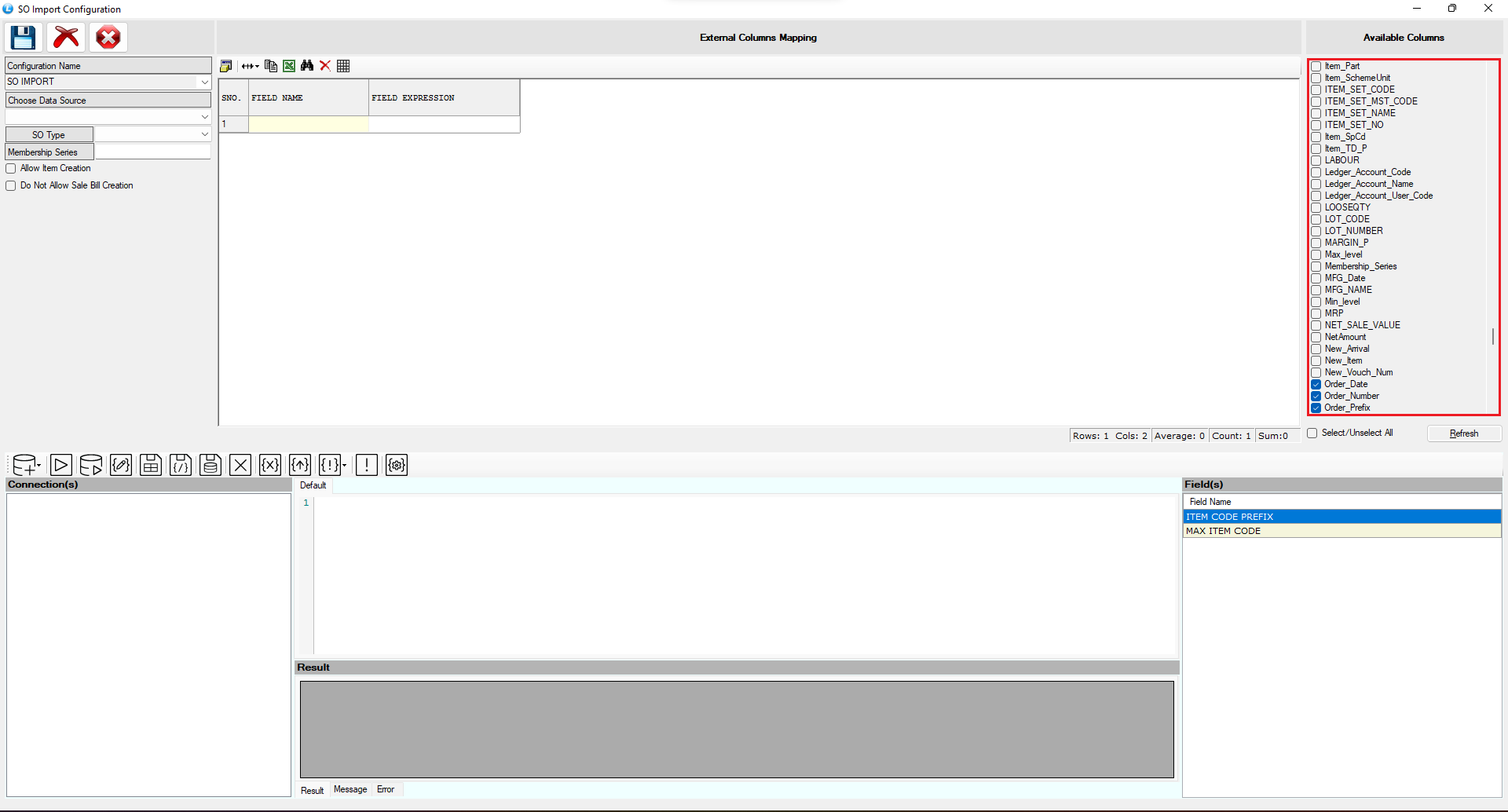
* Click on **Configuration**
* Enter a **Configuration Name**
* Press **Tab**
**Column Selection**
* Select all required columns present in the Excel file
* Selection depends on the data you want to import
**Save Configuration**
* Click on **Refresh**
* Click **Save**
***
### **Create Connection (Excel Link)**
* Go to **Connection**
* Select **Microsoft Excel**
* Click on **New Connection**
* Enter a **Connection Name**
***
#### **Select Excel File**
* Choose the newly created connection
* Browse and select your **Excel file**
* Select the appropriate **Sheet**
***
#### **Map Excel Columns**
* Map Excel columns with system fields
* In **Field Expression Column**:
* Press **Spacebar** to open dropdown
* Select the correct column
* Click **Save** to store configuration
***
#### **Import Sales Orders**
* Enter **Sales Order Prefix**
* Browse the Excel file again
* Click on **Refresh**
**System Behavior**
* All Sales Order data will be displayed
* Click on **Save** to import data
***
### **Verify Imported Data**
* Open **Sales Order Module**
* Check the imported entries
**Result**
* All Sales Orders are successfully imported
***
### **Key Benefits**
* Saves significant time in bulk entry
* Reduces manual errors
* Simplifies large order processing
* Improves overall productivity
***
### **Best Practice Tips**
* Always verify Excel data before importing
* Ensure correct column mapping
* Use proper naming for configurations
* Test with small data before bulk import
***
### **Final Outcome**
* Multiple Sales Orders imported in one process
* Faster and more efficient workflow
* Accurate and structured data entry
* Better handling of bulk transactions
---
# Agent Instructions
This documentation is published with GitBook. GitBook is the documentation platform designed so that both humans and AI agents can read, navigate, and reason over technical content effectively. Learn more at gitbook.com.
## Querying This Documentation
If you need additional information that is not directly available in this page, you can query the documentation by asking a question.
Perform an HTTP GET request on the following URL with the `ask` and `goal` query parameters:
```
GET https://kb.logicerp.com/logic-erp-learning-hub-tutorials-and-best-practices/utilities/import-masters-transactions-from-external-files/import-sale-orders-from-external-file.md?ask=&goal=
```
`ask` is the immediate question: it should be specific, self-contained, and written in natural language.
`goal` is what the user is ultimately trying to achieve, the reason they need the answer. Sharing it helps GitBook give you a better, more relevant answer. A goal is most helpful when it describes the outcome the user wants rather than restating the question. For example, with `ask=how do I create an API token`, a goal like `automate deployments from our CI pipeline` lets GitBook tailor the answer to that use case.
The response will contain a direct answer to the question and relevant excerpts and sources from the documentation.
Use this mechanism when the answer is not explicitly present in the current page, you need clarification or additional context, or you want to retrieve related documentation sections.