> For the complete documentation index, see [llms.txt](https://kb.logicerp.com/llms.txt). Markdown versions of documentation pages are available by appending `.md` to page URLs; this page is available as [Markdown](https://kb.logicerp.com/logic-erp-learning-hub-tutorials-and-best-practices/user-access/setup-user-template.md).
# Setup User Template
**YouTube:** [How to Configure Templates for User Rights?](https://youtu.be/tEbLvWxCoAY)
## How to Configure Templates for User Rights?
In this tutorial, you will learn how to **create User Templates and assign them to multiple users**. User Templates help administrators **control menu access and permissions**, ensuring that users can only perform actions that are allowed for their role.
***
### Open the User Access Module
To begin setting up user templates:
* Go to the **Main Menu**.
* Navigate to the **User Access Module**.
* Before creating a template, ensure that **users are already set up in the system**.
* As shown in the example, **several users are already created** and ready for template assignment.
***
### Create a User Template
Now create a template that will define access rights for users.
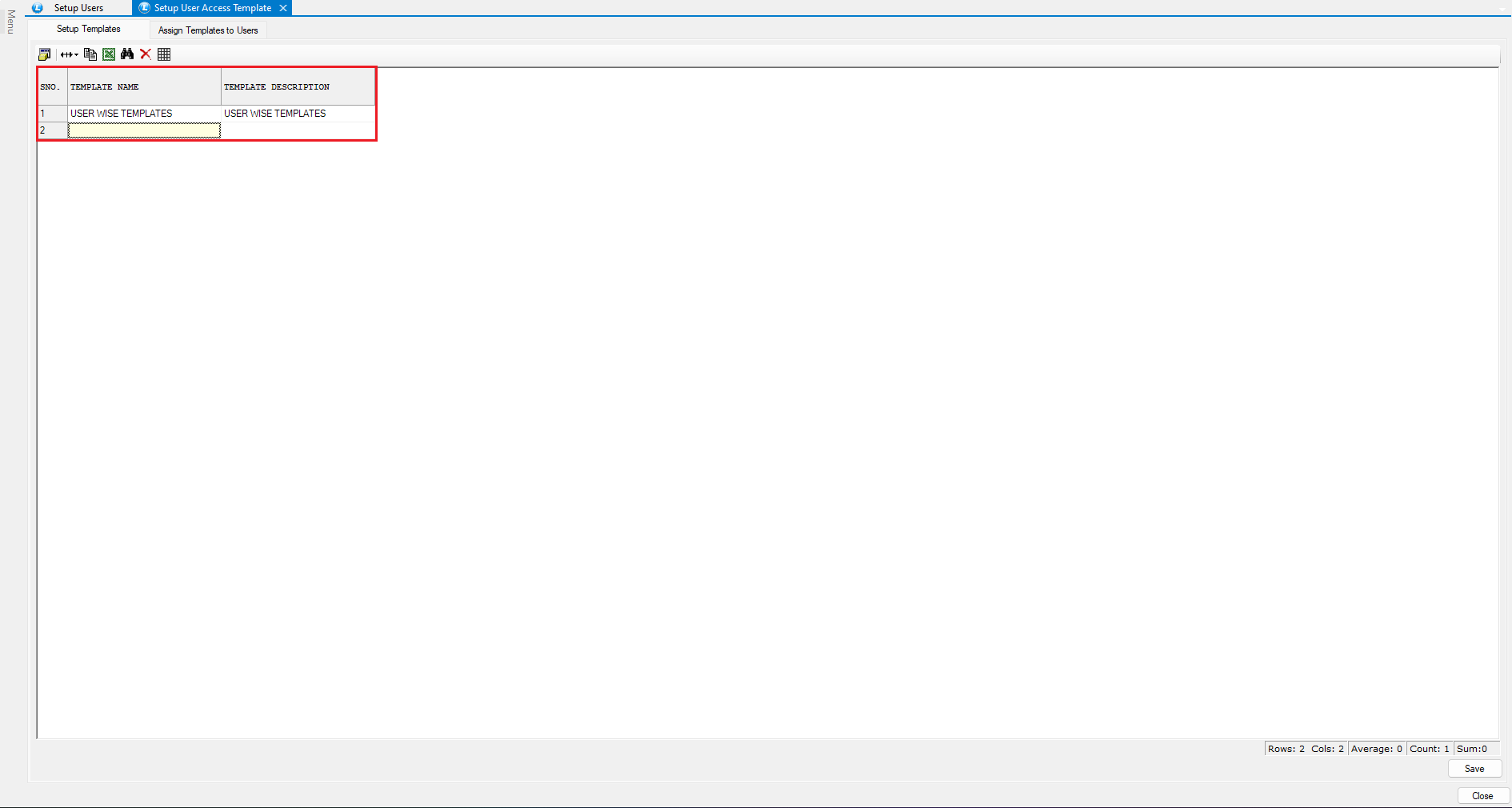
* Open the **Setup User Template** window.
* Enter the following details:
* **Template Name**
* **Description**
* Click **Save**.
This template will later be used to **control access and permissions for multiple users**.
***
### Configure Menu Access for the Template
Next, define which menus and modules users can access.
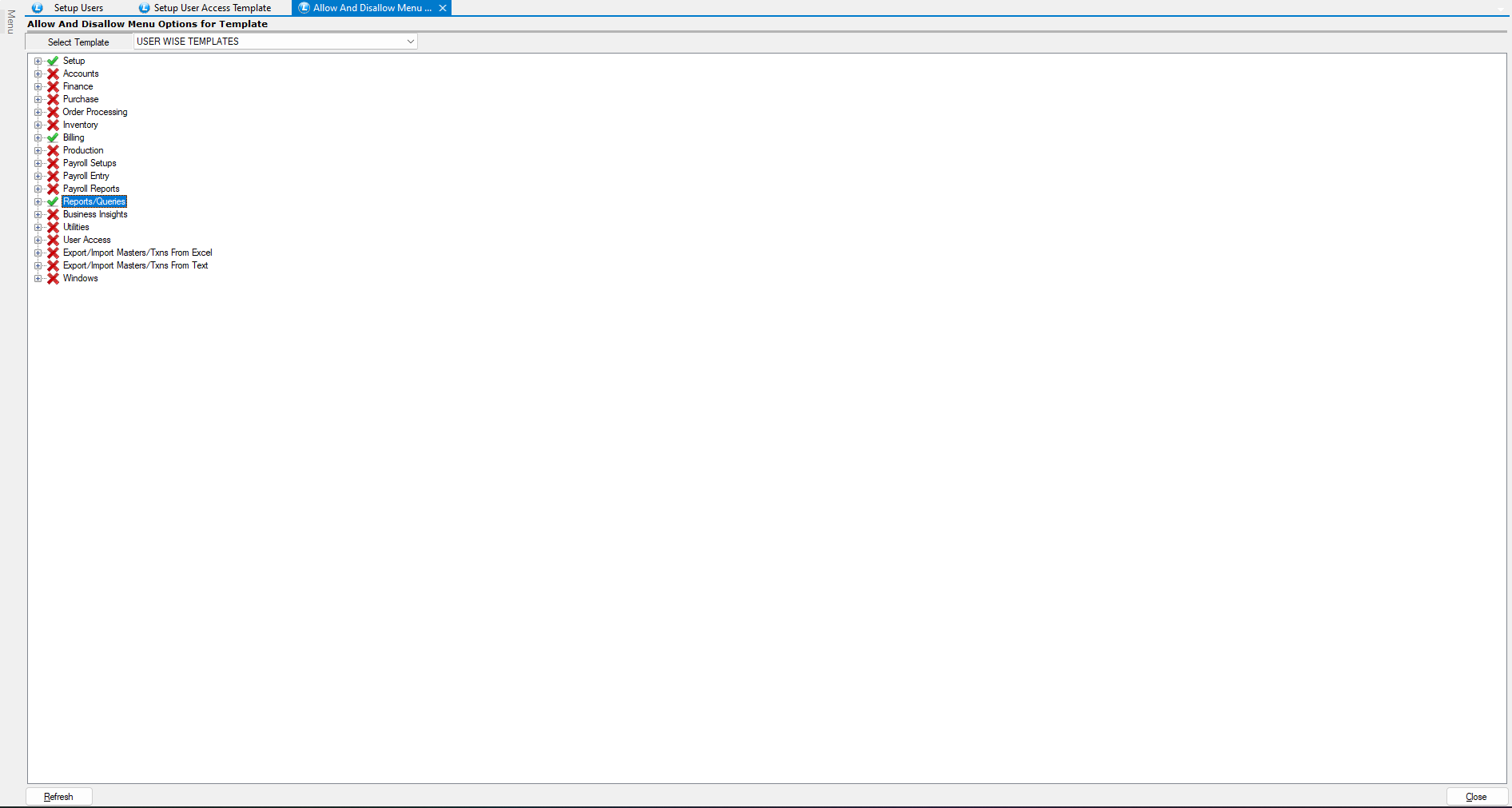
* Open the **Allow and Disallow Menu Options to Template** window.
* Select the **Template** you created.
* Choose the **modules and menu items** that should be accessible.
**Grant Permissions**
* **Right-click on a menu item** to enable it.
* You can also grant additional permissions such as:
* **Modification Rights**
* **Printing Rights**
Enable all the **required menu options and permissions** for the template.
***
### Assign the Template to Users
Once the template permissions are configured, assign it to users.
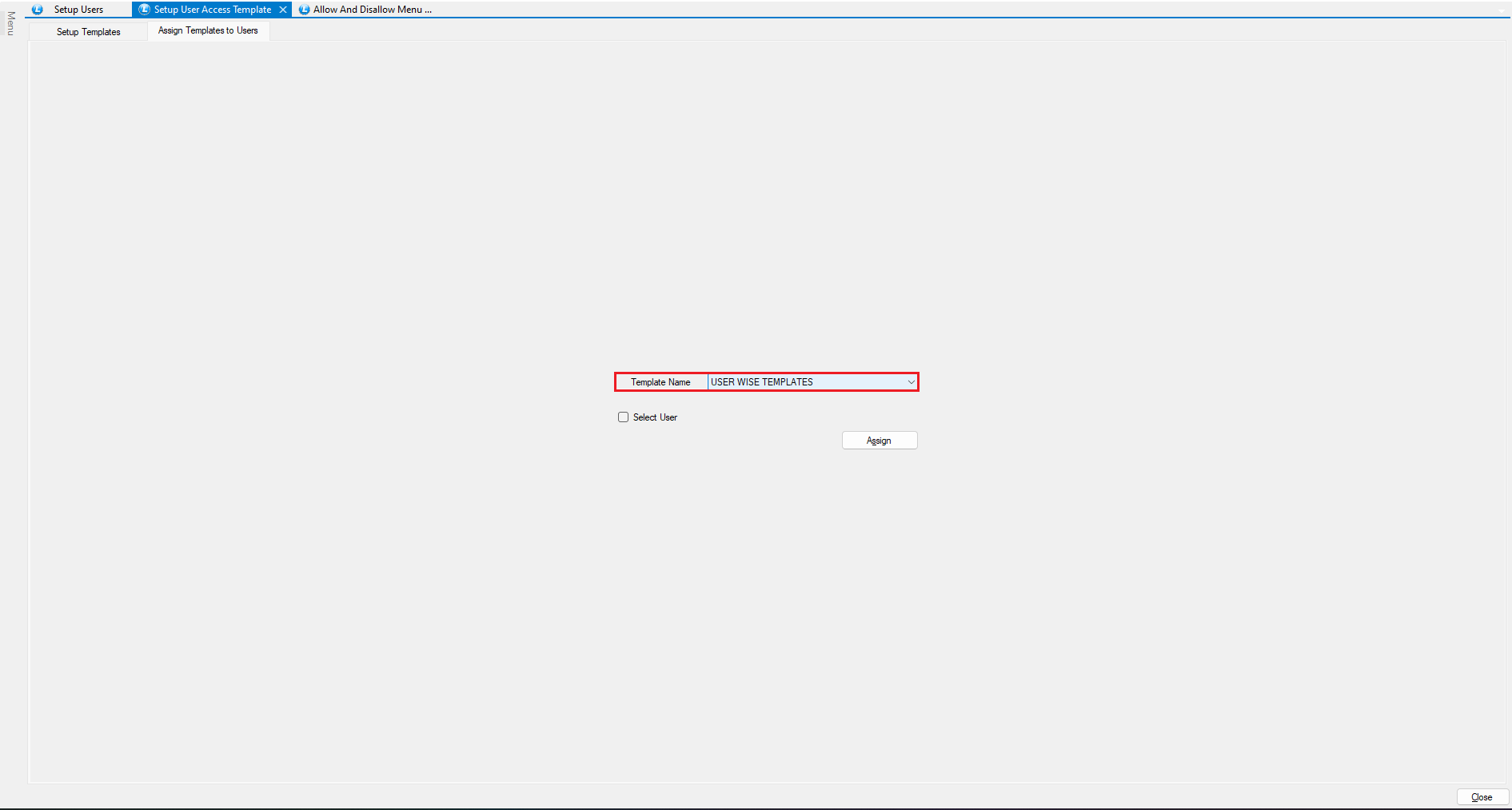
* Go back to the **User Template Window**.
* Open the **Assigned Templates to Users** tab.
* Select the **Template**.
* Choose the **users** who should receive this template.
* Click **Assign**.
**Key Advantage:** A single template can be **assigned to multiple users at once**, saving time and ensuring consistent access control.
***
### Verify User Access
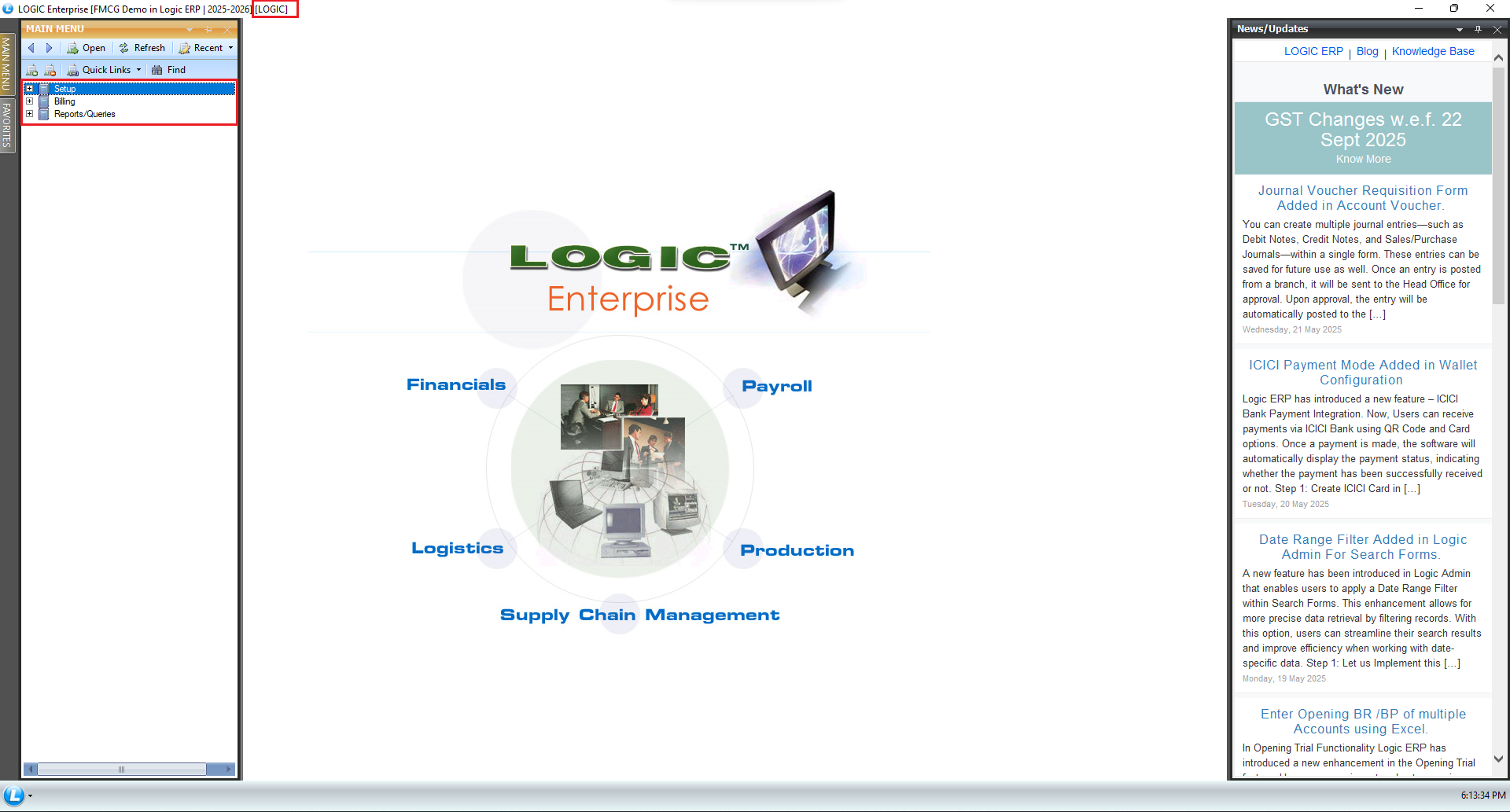
* After assigning the template, log in using one of the assigned user accounts.
**You will notice:**
* Only the **menu items allowed in the template** appear in the **menu bar**.
* Restricted options will **not be visible**.
This confirms that the **template permissions are working correctly**.
***
### Example – Creating and Modifying a Sale Bill
* To understand how permissions affect user actions, follow this example:
**Creating a Sale Bill**
* Open the **Sale Bill window**.
* Create a **new sale bill**.
* Enter the required details.
* Click **Save**.
The system allows the user to **save the bill successfully**.
#### Attempting to Modify the Bill
* Now try to **open the same bill in Modify Mode**.
* The system will **restrict this action** and prevent modifications.
***
### Why the Restriction Happens
This restriction occurs because:
* **Modification rights were not granted** in the assigned user template.
* The system enforces **user permissions defined in the template settings**.
This ensures that users can **only perform actions that are permitted**, helping maintain **data security and operational control**.
***
## Benefits of Using User Templates
* Centralized user permission management
* Assign permissions to multiple users quickly
* Improved system security
* Prevent unauthorized changes
* Maintain consistency across user roles
***
**User Templates are now successfully configured and assigned.**
---
# Agent Instructions
This documentation is published with GitBook. GitBook is the documentation platform designed so that both humans and AI agents can read, navigate, and reason over technical content effectively. Learn more at gitbook.com.
## Querying This Documentation
If you need additional information that is not directly available in this page, you can query the documentation dynamically by asking a question.
Perform an HTTP GET request on the current page URL with the `ask` query parameter, and the optional `goal` query parameter:
```
GET https://kb.logicerp.com/logic-erp-learning-hub-tutorials-and-best-practices/user-access/setup-user-template.md?ask=&goal=
```
`ask` is the immediate question: it should be specific, self-contained, and written in natural language.
`goal` is optional and describes the broader end goal you are ultimately trying to accomplish on behalf of the user. GitBook uses it to tailor the answer towards what is most useful for that goal.
The response will contain a direct answer to the question and relevant excerpts and sources from the documentation.
Use this mechanism when the answer is not explicitly present in the current page, you need clarification or additional context, or you want to retrieve related documentation sections.