> For the complete documentation index, see [llms.txt](https://kb.logicerp.com/llms.txt). Markdown versions of documentation pages are available by appending `.md` to page URLs; this page is available as [Markdown](https://kb.logicerp.com/logic-erp-learning-hub-tutorials-and-best-practices/user-access/setup-user-allow-and-disallow-menus-options-and-user-reports.md).
# Setup User, Allow and Disallow Menus Options and User Reports
**YouTube:** [How to setup users in Logic ERP and grant access rights to them?](https://www.youtube.com/watch?v=yfOhHxRjNvo\&t=25s)
## How to setup users in Logic ERP and grant access rights to them?
This tutorial provides a comprehensive guide on how to **Setup Users and Assign Access Rights** within the software. It explains how to create multiple Users, control their permissions, monitor activities through Logs, and simplify access management using templates. By the end of this tutorial, you will be able to efficiently manage user roles, enhance data security, and maintain accountability across operations.
***
### **Why Create Multiple Users?**
* Restrict access to specific menu options for different users
* Control permissions for **modification and deletion** of documents and masters
* Maintain a detailed **activity log** of all user actions
* Enable **Individual login credentials** for enhanced security
***
### **How to Set Up a New User**
* Navigate to **User Access** and open **Setup Users**
* Enter the **User Name**
* Set a **Password** for login authentication
* Mark as **Demo User** (if applicable)
* Demo users cannot create masters or documents
* Add **Contact Details** (Phone & Email) for communication and approvals
* Enable **Supervisor Rights** (if required)
* Option to **Disable User** when needed
* Click **Save** to complete the setup
**How to Disable a User**
* Select the user from the list
* Navigate to **Disable User column**
* Tick the checkbox (Press Spacebar)
* Press Enter and click **Save**
**Filter User Visibility**
* View **Active Users** only
* View **Disabled Users** only
* Select **All Users** to display both active and inactive users
* Click **Refresh** to apply filters
***
### **Granting User Rights & Permissions**
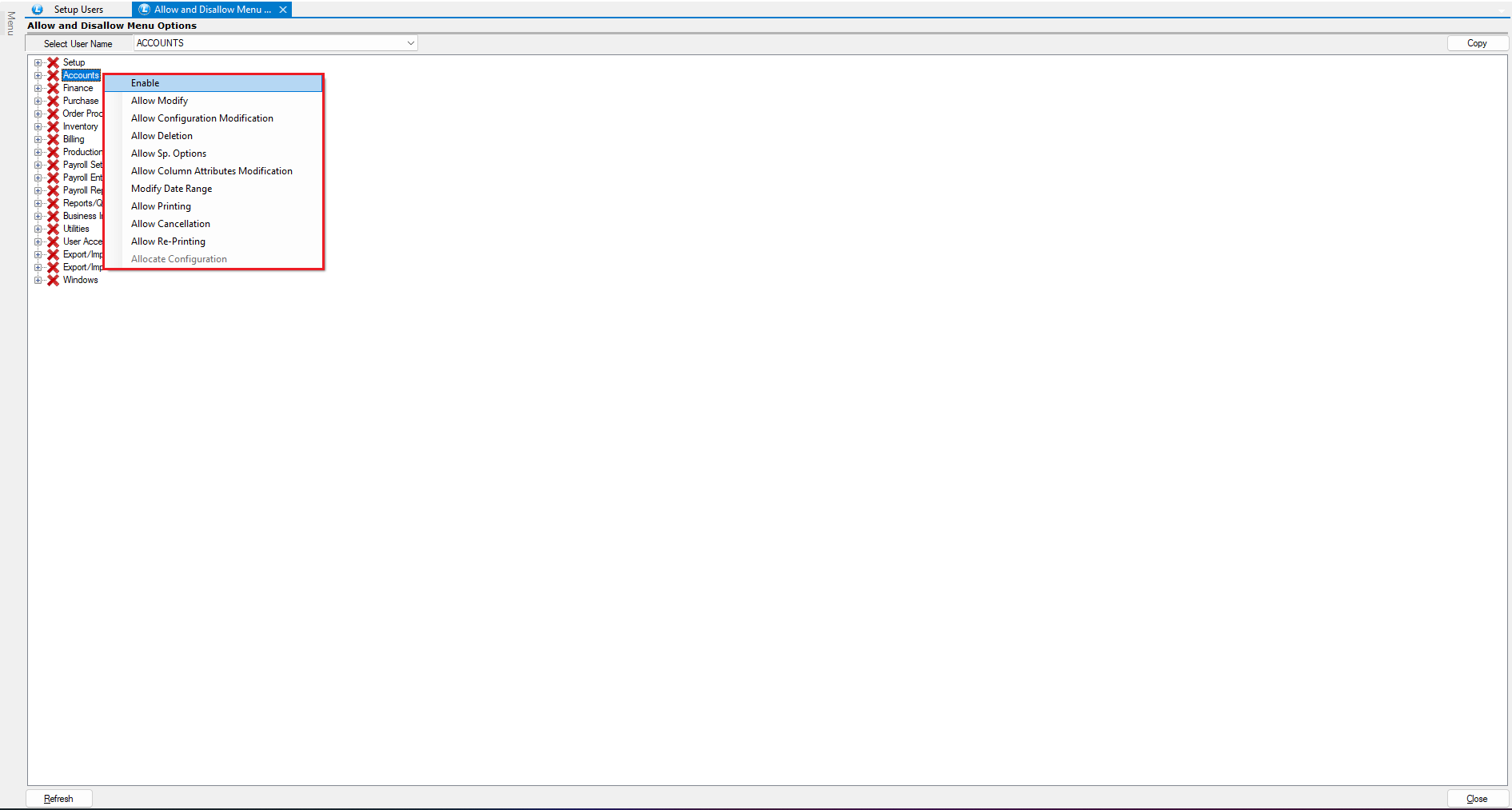
* Navigate to **Allow and Disallow Menus Options**
* Select the Desired **User**
* Click **Refresh** (Mandatory Step)
**Enable Menu Access**
* If you want to assign rights to the entire menu, simply right-click on the main menu.
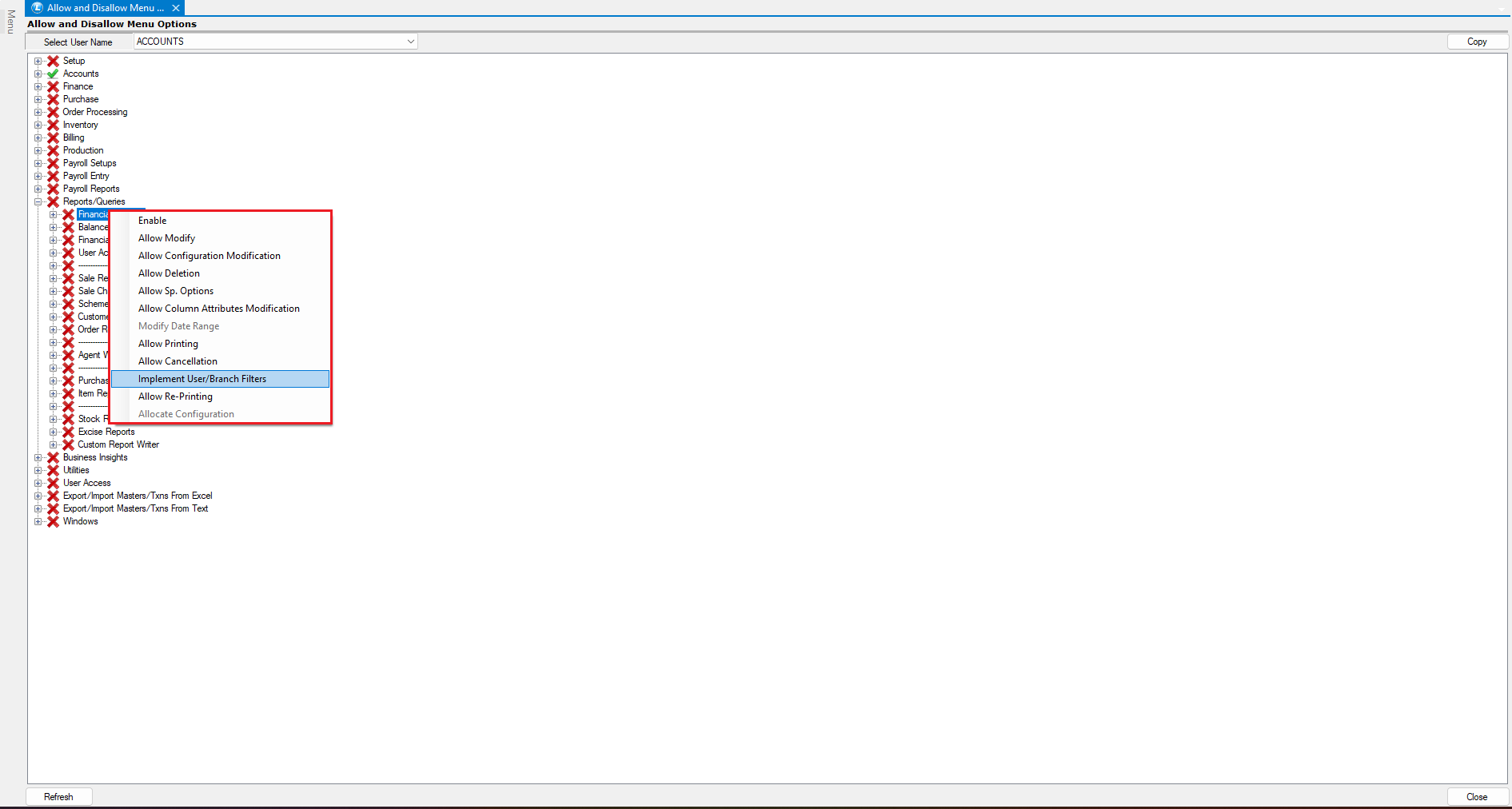
* If you do not want to give access to all sub-menus (i.e., you want to allow only selected modules):
* Expand the main menu.
* Right-click on the specific sub-menus for which you want to grant rights.
**Understanding Indicators**
* Green Tick → Enabled
* Red Cross → Disabled
**Permission Controls Explained**
* **Allow Modify** → Edit documents
* **Allow Configuration Modification** → Change system settings
* **Allow Deletion** → Delete records
* **Allow Special Options** → Customize document/master fields
* **Allow Printing** → Print documents
* **Allow Cancel** → Cancel transactions
* **Allow Reprinting** → Reprint documents
***
#### **Report Access Control (If required)**
* Enable access to **Specific Reports**
* Restrict reports based on:
* Branch
* Configuration
* Applied filters
***
### **Copy User Rights**
* Click on **Copy**
* Select:
* **Source User** (from whom rights are copied)
* **Destination User**
* Click **Copy** to apply
***
### **Implement User Permissions**
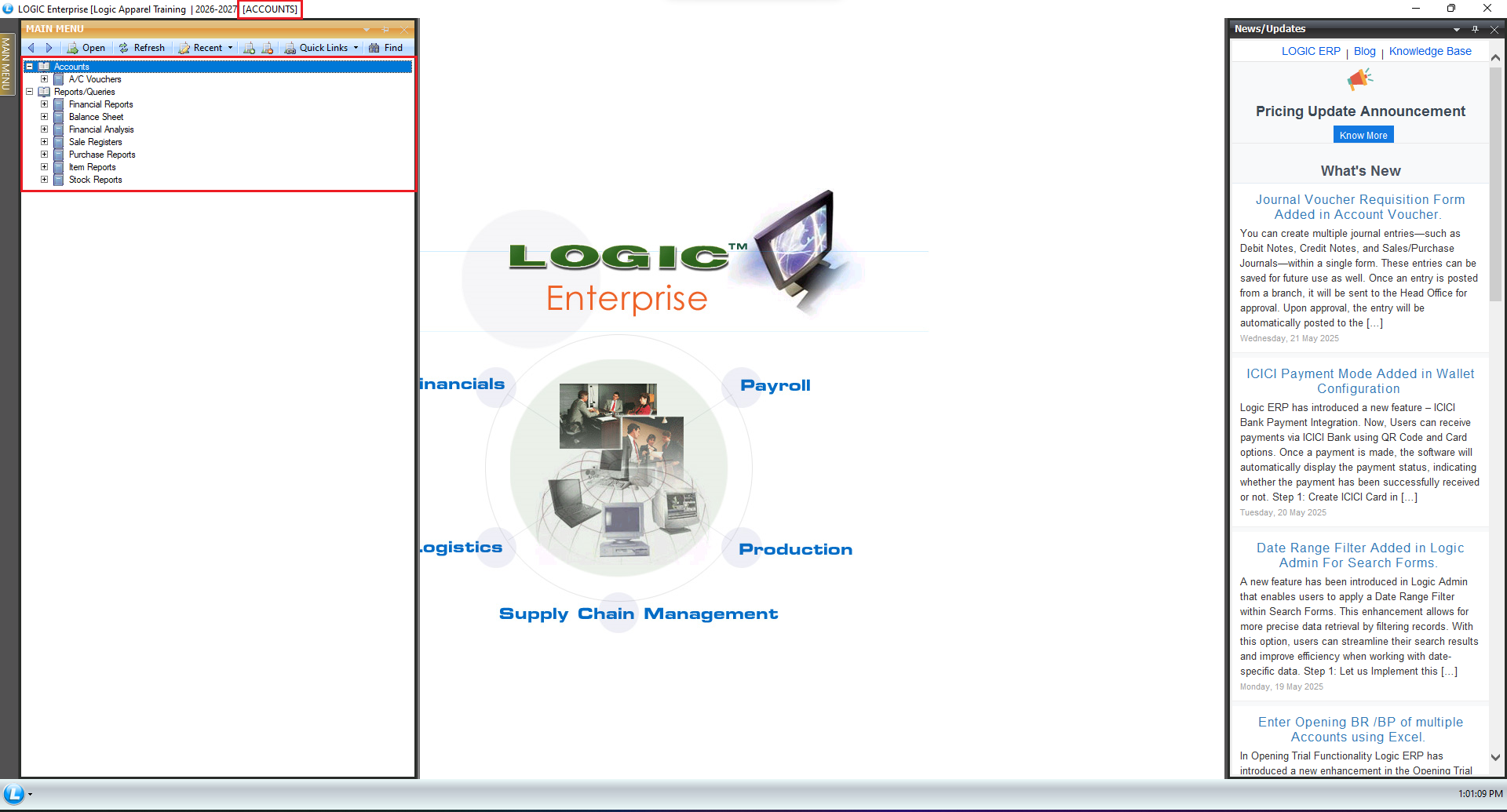
* Log in using the newly created user
* **Verify:**
* Visible menu options
* Allowed actions (modify, delete, print, etc.)
* **System will:**
* Allow actions if permission is granted
* Show **error messages** if restricted
***
### **User Activity & Audit Reports**
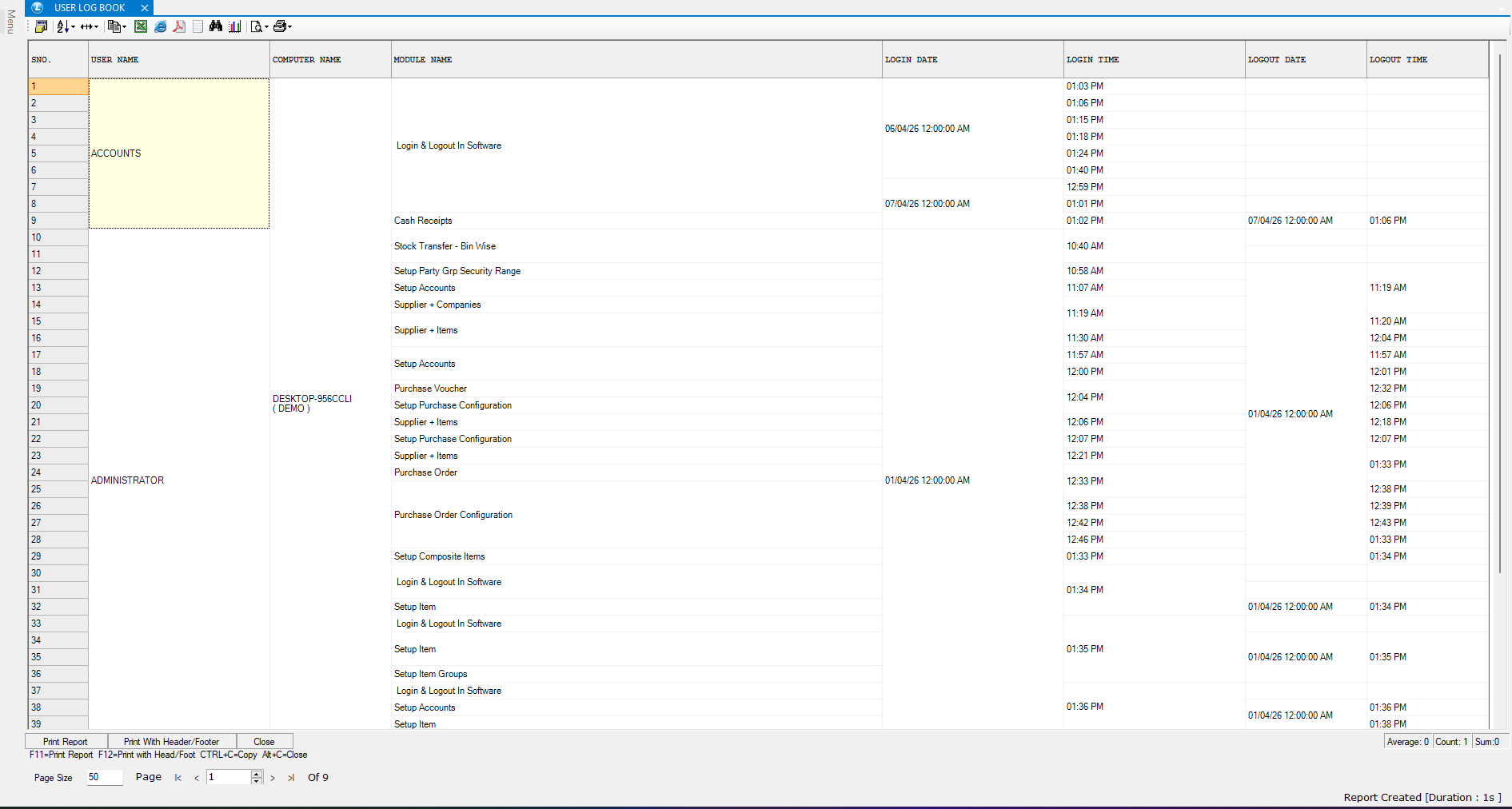
* Navigate to **User Access** and expand **User Access Reports**
* Here, you will find multiple Reports available.
* **User Log Book**
* Tracks login/logout activity
* Records performed actions
* **Master Modification Log**
* Tracks changes in master data
* Displays user, date, and time
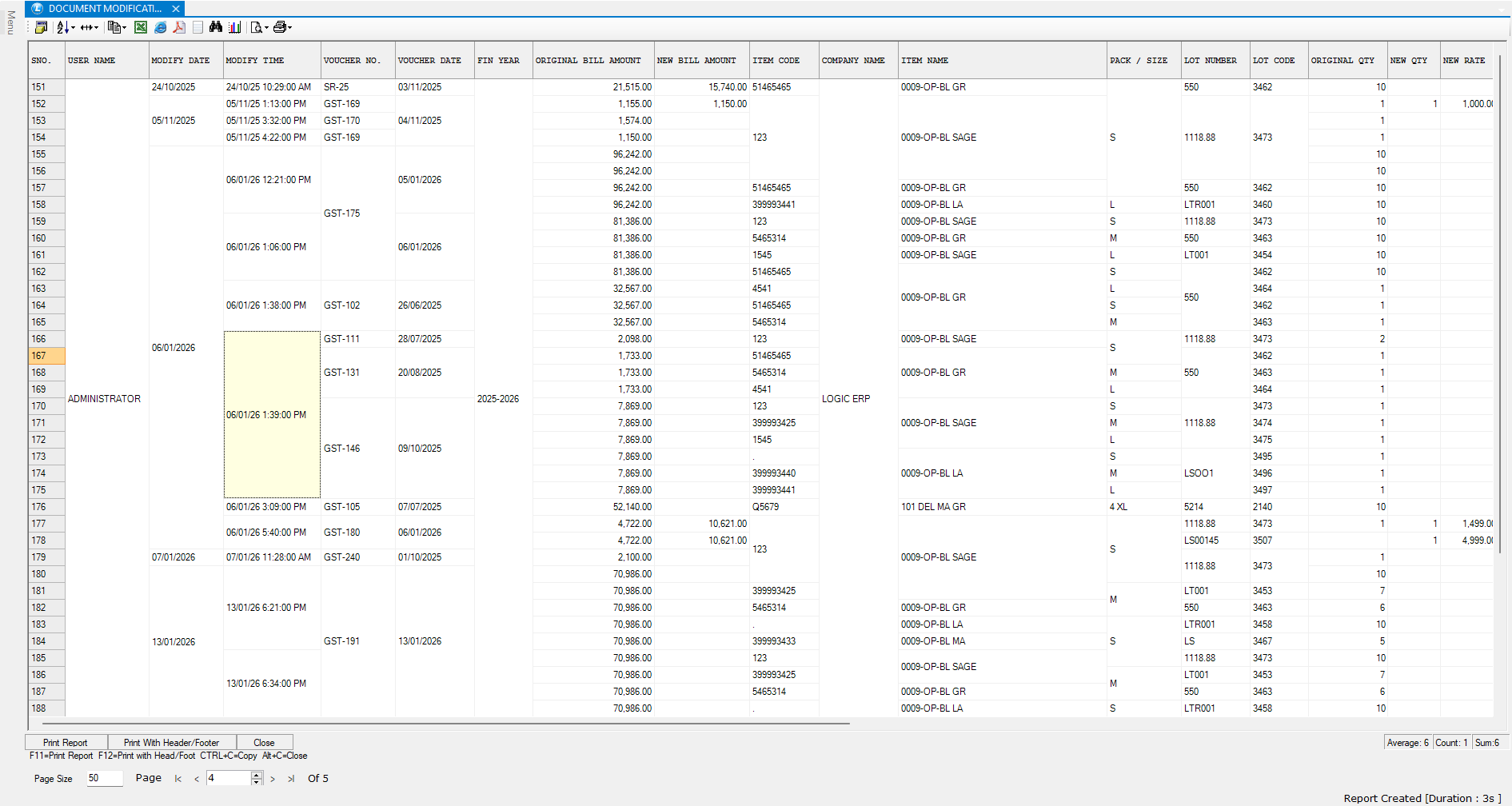
* **Document Modification Log**
* Shows original vs modified values
* Includes filters for specific documents
***
### **Using User Templates for Efficiency**
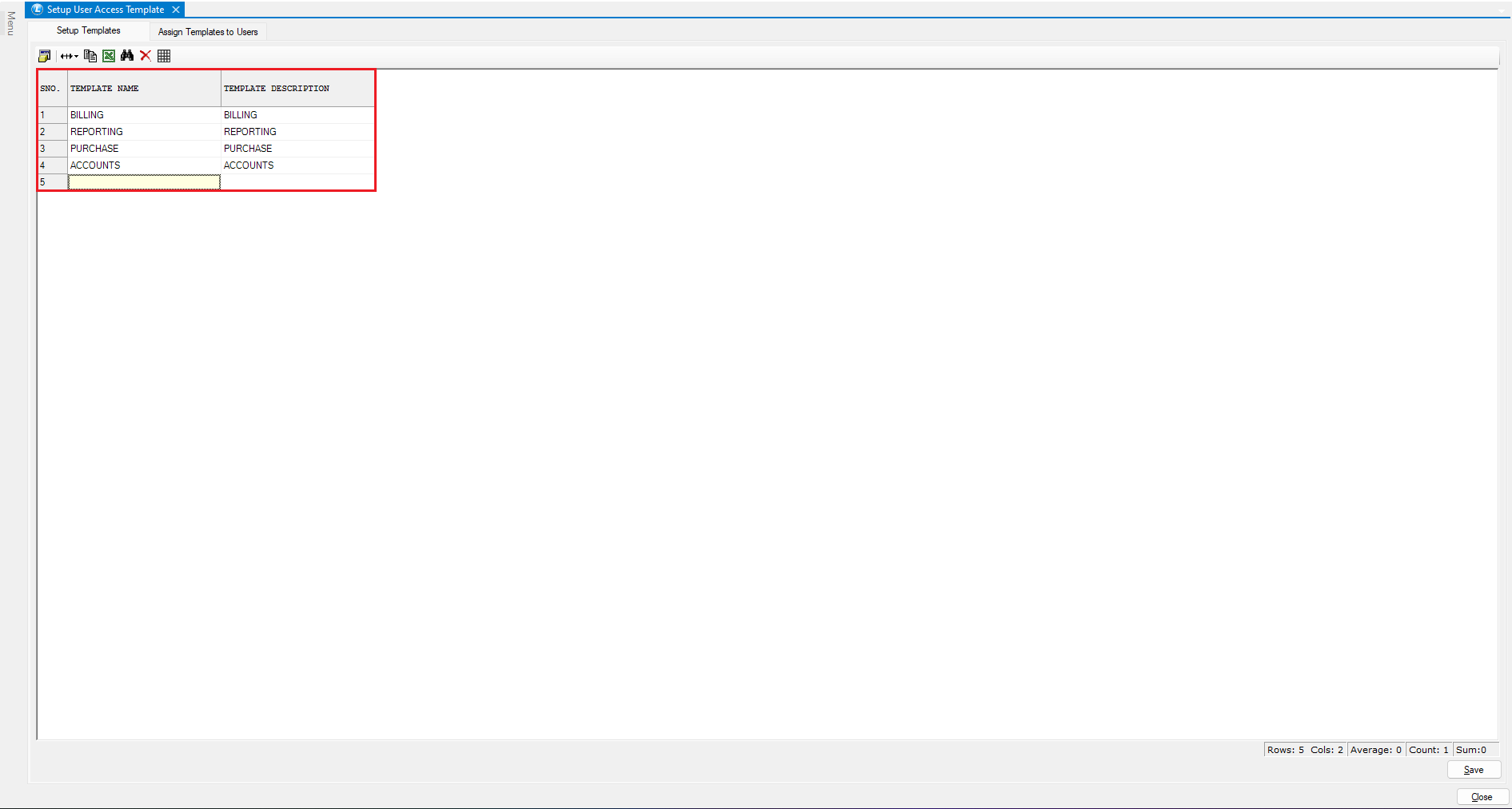
* Go to **Setup User Template**
* Create templates (e.g., Billing, Reporting)
* Save the template
**Assign Rights to Templates**
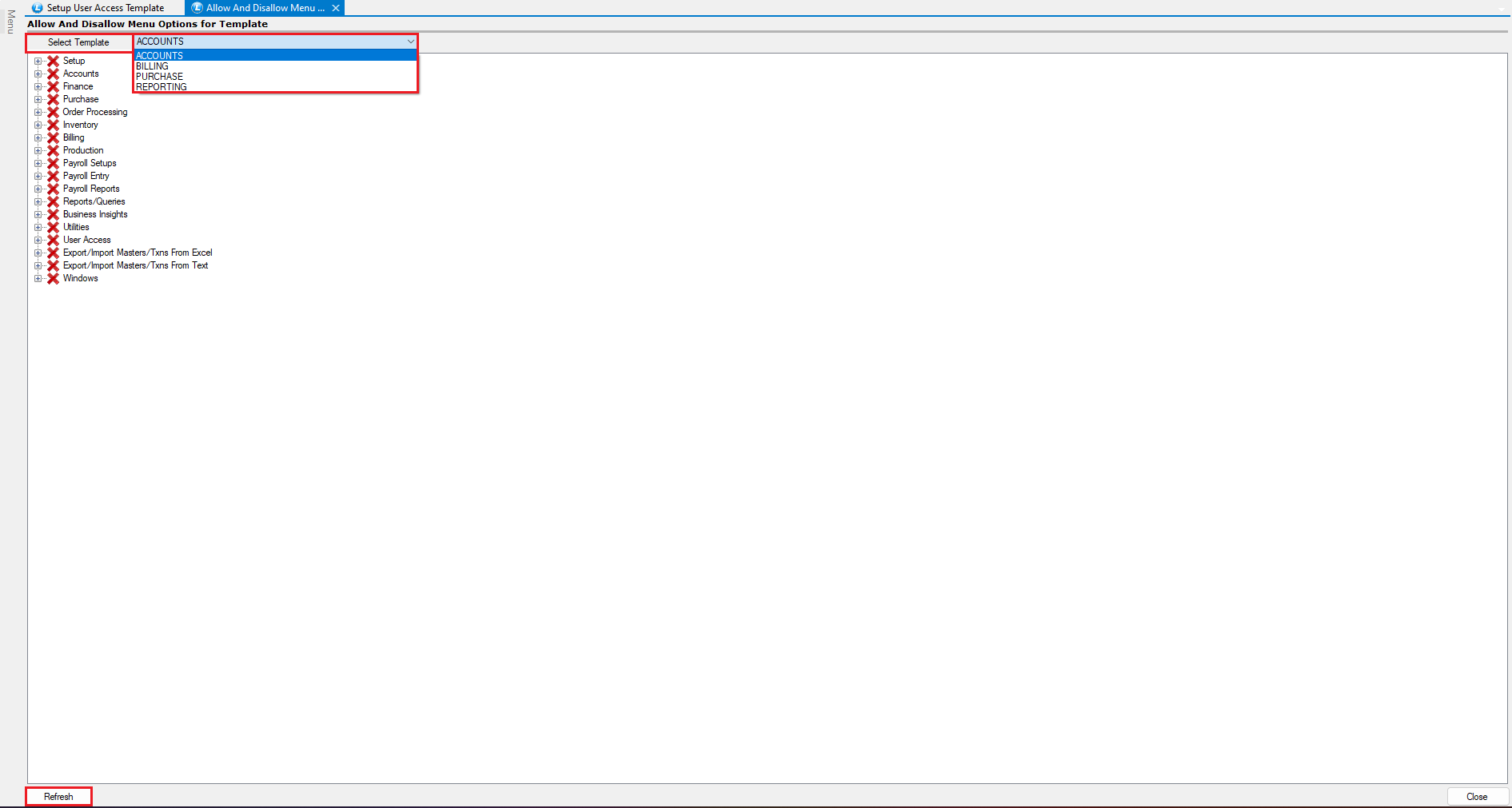
* Navigate to **Allow/Disallow Menu Options to Template**
* Select template → Click Refresh
* Assign permissions (same as user rights)
**Assign Templates to Users**
* Return to **Setup User Template** window.
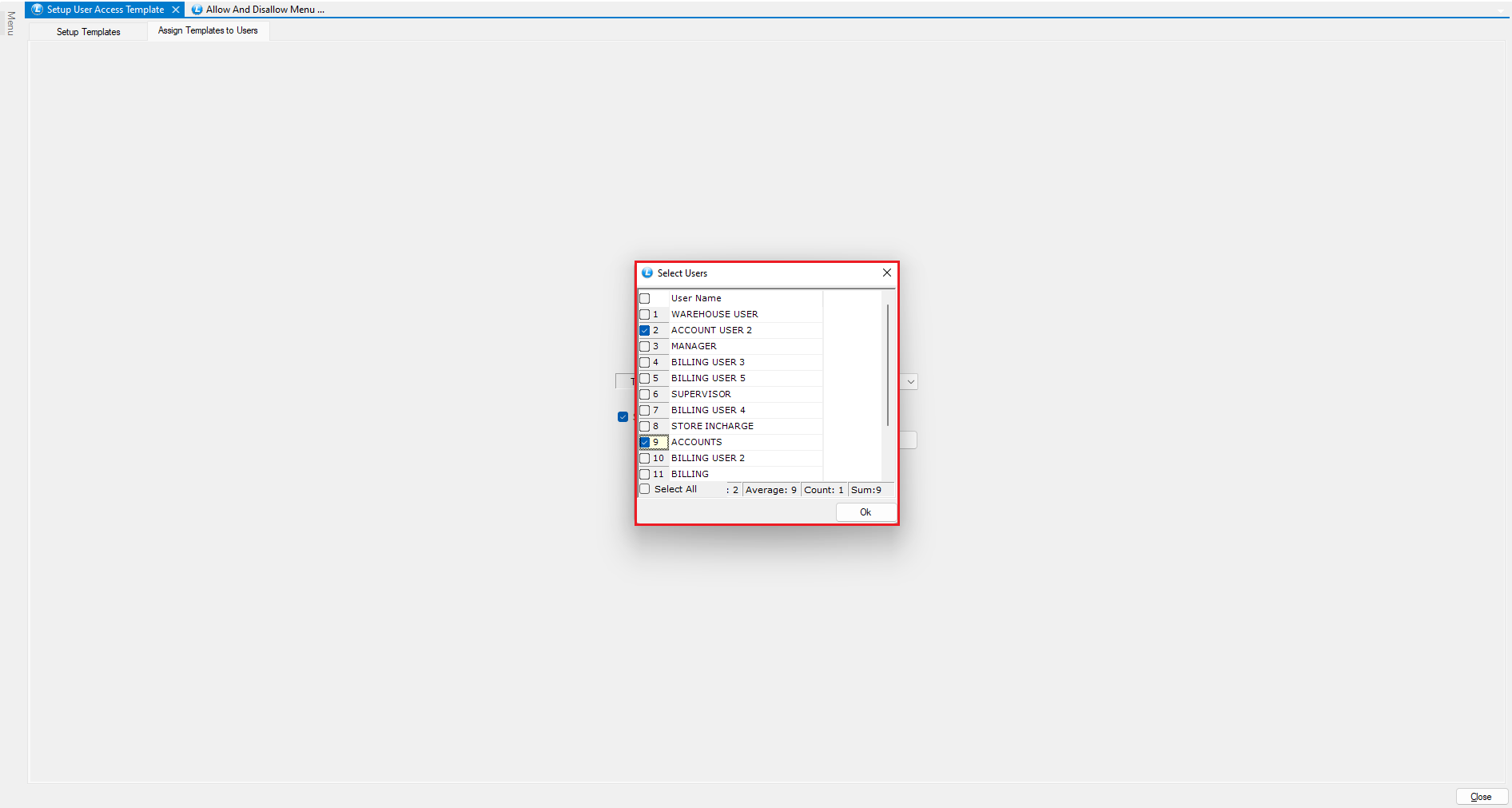
* Open **Assign Templates to Users Tab**
* Select Template
* Choose one or multiple users
* Click **Assign**
***
### **Benefits of Using Templates**
* Saves time in large organizations
* Ensures consistent access control
* Assign permissions to multiple users in one step
* Simplifies user management process
***
### **Final Outcome**
* Users see **only authorized options**
* Unauthorized actions are restricted with error messages
* Complete **audit trail** ensures transparency and accountability
---
# Agent Instructions
This documentation is published with GitBook. GitBook is the documentation platform designed so that both humans and AI agents can read, navigate, and reason over technical content effectively. Learn more at gitbook.com.
## Querying This Documentation
If you need additional information that is not directly available in this page, you can query the documentation dynamically by asking a question.
Perform an HTTP GET request on the current page URL with the `ask` query parameter, and the optional `goal` query parameter:
```
GET https://kb.logicerp.com/logic-erp-learning-hub-tutorials-and-best-practices/user-access/setup-user-allow-and-disallow-menus-options-and-user-reports.md?ask=&goal=
```
`ask` is the immediate question: it should be specific, self-contained, and written in natural language.
`goal` is optional and describes the broader end goal you are ultimately trying to accomplish on behalf of the user. GitBook uses it to tailor the answer towards what is most useful for that goal.
The response will contain a direct answer to the question and relevant excerpts and sources from the documentation.
Use this mechanism when the answer is not explicitly present in the current page, you need clarification or additional context, or you want to retrieve related documentation sections.