> For the complete documentation index, see [llms.txt](https://kb.logicerp.com/llms.txt). Markdown versions of documentation pages are available by appending `.md` to page URLs; this page is available as [Markdown](https://kb.logicerp.com/logic-erp-learning-hub-tutorials-and-best-practices/user-access/logic-global-admin/purchase/pick-lot-wise-rates-from-branch+lot-rates-if-available.md).
# Pick Lot Wise Rates from Branch+Lot Rates if available
**YouTube:** [How to Pick Lot wise Rates from Branch + Lot Rates, if Available in Purchase?](https://www.youtube.com/watch?v=er0oMj65Dxk)
## How to Pick Lot wise Rates from Branch + Lot Rates, if Available in Purchase?
In this tutorial, we’ll learn how to enable a feature in **Logic ERP** that ensures item rates are picked **lot-wise based on branch-specific rates**. This is especially useful when managing **multi-branch inventory with different valuation needs**.
***
### **Enable the Setting in Global Settings:**
* Open **Logic Admin**.
* Navigate to **Global Settings**.
* Under **“Purchase Settings”**
* Locate and enable the option labeled as:
> **“Pick Lot Wise Rates from Branch + Lot Rates if available”**
* Click **Save**, then **restart** the software for the changes to take effect.
***
### **Create Stock Transfer from Head Office to Branch**
* Open the **Stock Transfer** window at the **Head Office**.
* Select an item with an existing **lot rate of ₹1,399**.
* **Modify** the rate to ₹1,099 and **save** the stock transfer document.
***
### **Export the Stock Transfer Document**
* Navigate to the main menu → **Utilities → Export/Import Branch Wise Data**.
* Open the **Export Stock Transfer – Virtual Branches** utility.
* Select the **target branch** and the relevant stock transfer document.
* Click **Refresh**, mark the bill as **Export = Yes**, then click **Export**.
***
### **Import the Document in the Receiving Branch**
* Log into the **receiving branch (e.g., Madhukar)**.
* Open the **Import Stock Transfer – Virtual Branches** utility.
* Click **Refresh** to view available documents.
* Define the:
* **Configuration Name**
* **Supplier**
* **Godown**
* **GRN Prefix**
* Mark the document as **Import = Yes** and click **Start Import**.
***
### **Verify the Rate in the Imported Document**
* Open the **Stock Transfer In** window in the Madhukar branch.
* Open the **Imported document**.
**Result**: The item rate appears as **₹1,099**, as per the branch-specific lot rate.
***
### **Cross-Verify Lot Rates in Both Branches**
**In Madhukar Branch:**
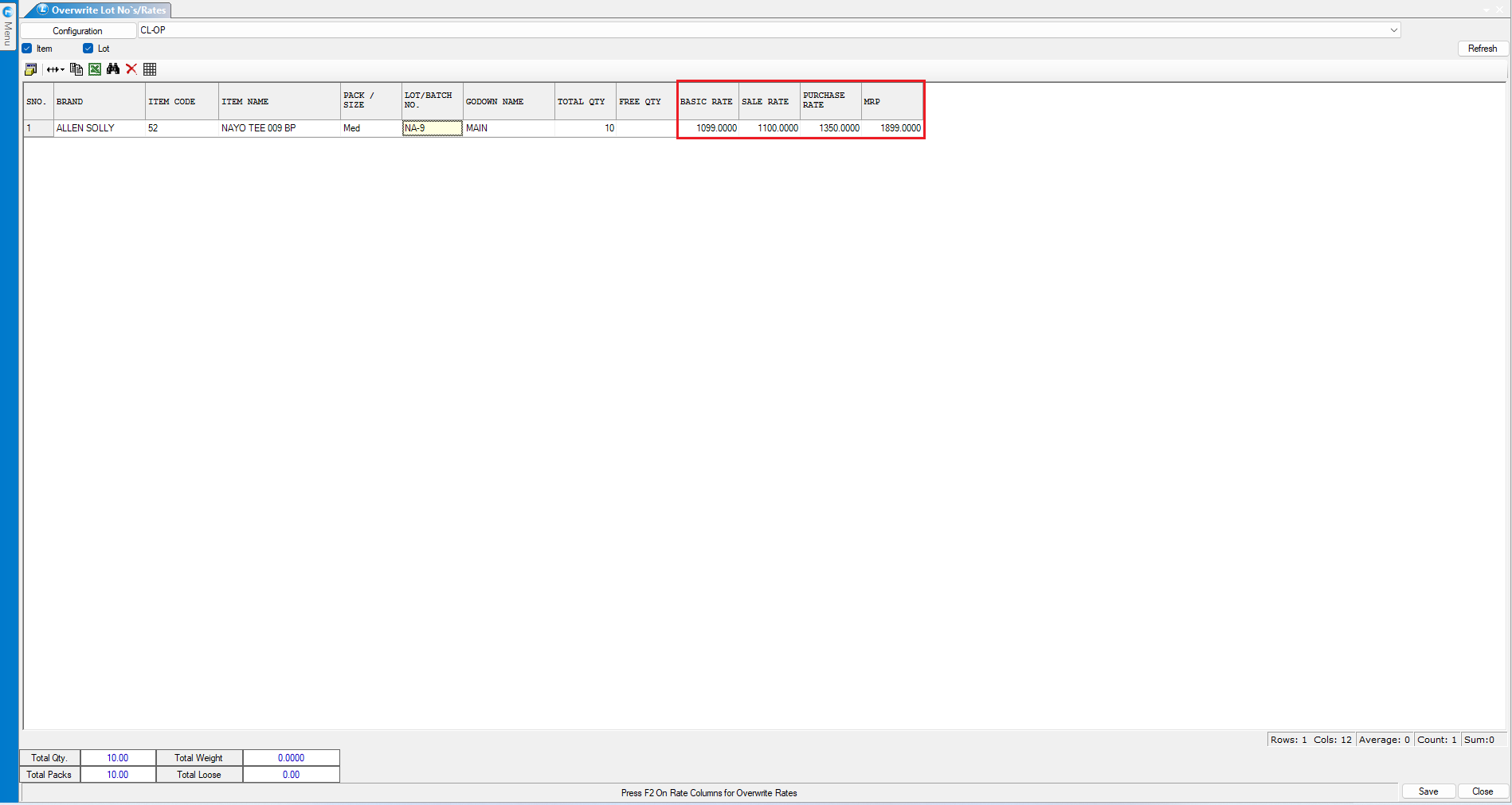
* Go to **Overwrite Lot Rates**.
* Select the **same item and lot** → Click **Refresh**.
* You’ll see the rate as **₹1,099**.
**In Head Office:**
* Repeat the same steps in **Overwrite Lot Rates**.
* You’ll see the **original rate of ₹1,399** remains **unchanged**, confirming that branch-specific lot rates are **isolated**.
***
### **Conclusion**
This feature ensures that:
* **Branch-level control** over rates is maintained.
* **Lot-specific pricing** can vary across branches.
* **Data integrity** remains intact during inter-branch transactions.
Ideal for organizations that manage **differentiated pricing policies** across branches or regions.
---
# Agent Instructions
This documentation is published with GitBook. GitBook is the documentation platform designed so that both humans and AI agents can read, navigate, and reason over technical content effectively. Learn more at gitbook.com.
## Querying This Documentation
If you need additional information that is not directly available in this page, you can query the documentation dynamically by asking a question.
Perform an HTTP GET request on the current page URL with the `ask` query parameter, and the optional `goal` query parameter:
```
GET https://kb.logicerp.com/logic-erp-learning-hub-tutorials-and-best-practices/user-access/logic-global-admin/purchase/pick-lot-wise-rates-from-branch+lot-rates-if-available.md?ask=&goal=
```
`ask` is the immediate question: it should be specific, self-contained, and written in natural language.
`goal` is optional and describes the broader end goal you are ultimately trying to accomplish on behalf of the user. GitBook uses it to tailor the answer towards what is most useful for that goal.
The response will contain a direct answer to the question and relevant excerpts and sources from the documentation.
Use this mechanism when the answer is not explicitly present in the current page, you need clarification or additional context, or you want to retrieve related documentation sections.