> For the complete documentation index, see [llms.txt](https://kb.logicerp.com/llms.txt). Markdown versions of documentation pages are available by appending `.md` to page URLs; this page is available as [Markdown](https://kb.logicerp.com/logic-erp-learning-hub-tutorials-and-best-practices/user-access/logic-global-admin/purchase/allow-auto-debit-note-creation-of-stock-transfer-documents-also.md).
# Allow Auto Debit Note creation of Stock Transfer Documents also
**YouTube:** [How to Enable Automatic Debit Note Creation for Stock Transfer Documents?](https://www.youtube.com/watch?v=hrVnm_sCQXs)
## How to Enable Automatic Debit Note Creation for Stock Transfer Documents?
This tutorial explains how to **enable and use the feature that automatically generates Debit Notes for Stock Transfer Documents** in the ERP system.
***
### **Enable the Setting in Global Settings:**
* Open **Logic Admin**.
* Navigate to **Global Settings**.
* Go to the **Purchase Settings** section.
* Locate and enable the option labeled as :
> **"Allow Auto Debit Note creation of Stock Transfer Documents also"**
* **Save** the settings and **restart the software** for the changes to take effect.
***
### Import Stock Transfer Document
* Navigate to Utilities\Export/Import Branch Wise Data\Options\Export/Import Data.
* Open the **Import Stock Transfer - Virtual Branches** window.
* Define the voucher details (Date, Series, Branch, etc.).
* Select **"Yes"** to import the Stock Transfer document.
* Once imported, the document will appear under:
> **Purchase Module → Stock Transfer In**
***
### Perform Physical Stock Verification
* Select the imported Stock Transfer document.
* Begin scanning the received goods.
* Suppose the expected quantity is **10 units**, but **only 9 are received**.
* Enter **Physical Quantity = 9**, then **save** the document.
* Click **Convert Goods in Transit as Received**.
* This will add the verified 9 units to inventory.
***
### Generate Debit Note for Quantity Difference
* Navigate to:
> **Purchase Module → Generate Rate Difference / Physical Stock Debit Notes**
* Select the relevant **Stock Transfer voucher**.
* Click **Refresh**.
* Click **Generate Debit Note**.
> A **Debit Note for the 1 missing unit** will be created automatically.
***
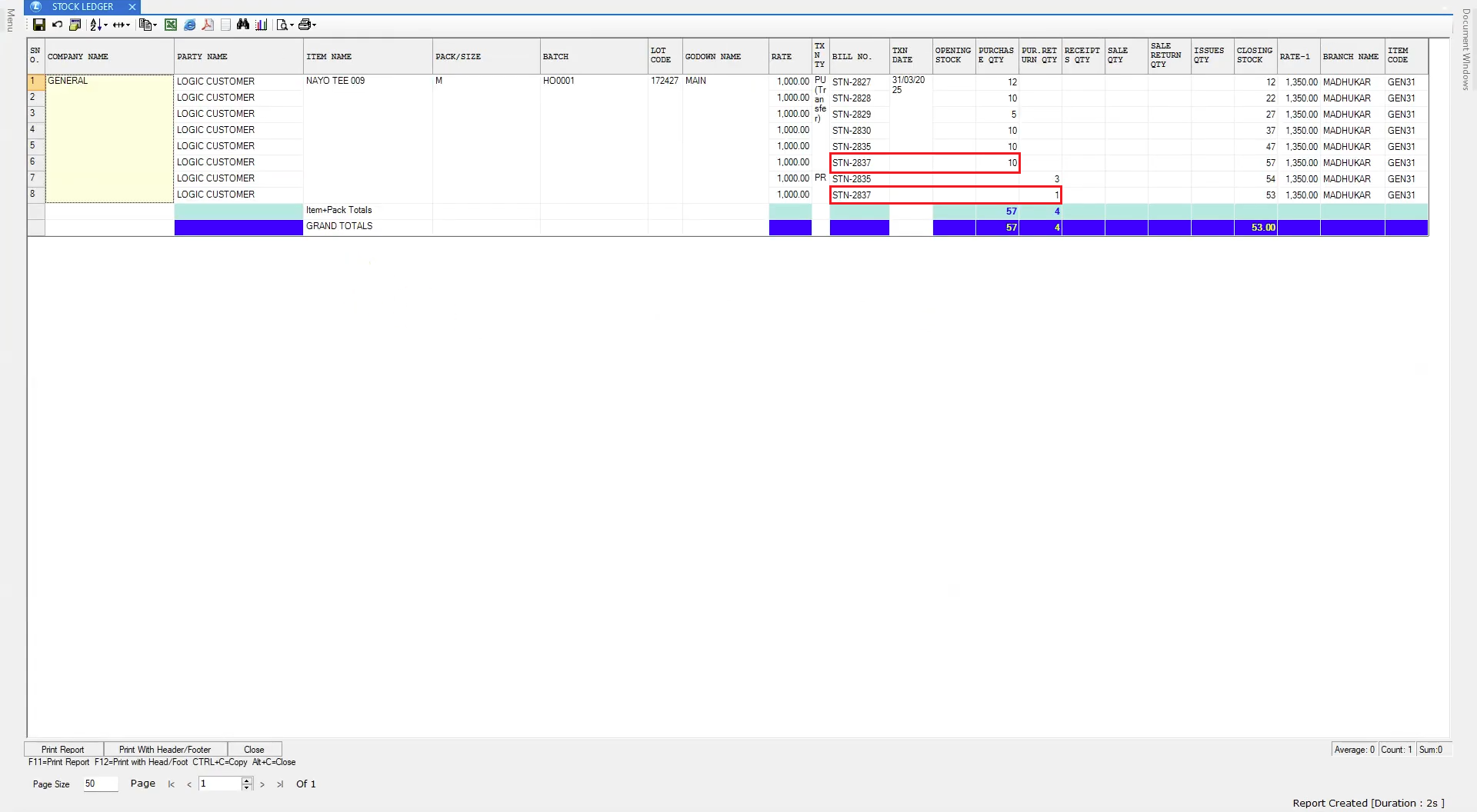
### Verify in Stock Ledger Report
* Open the **Stock Ledger Report**.
* You will see:
* **Imported Quantity**: 10 units
* **Physically Received**: 9 units
* **Debit Note Issued**: 1 unit
* You can **double-click** on the Debit Note entry to view full details.
***
### Summary
By enabling this feature, your ERP system can automatically generate Debit Notes for quantity differences in Stock Transfers, helping maintain:
* **Inventory Accuracy**
* **Financial Transparency**
* **Reduced Manual Effort**
---
# Agent Instructions
This documentation is published with GitBook. GitBook is the documentation platform designed so that both humans and AI agents can read, navigate, and reason over technical content effectively. Learn more at gitbook.com.
## Querying This Documentation
If you need additional information that is not directly available in this page, you can query the documentation dynamically by asking a question.
Perform an HTTP GET request on the current page URL with the `ask` query parameter, and the optional `goal` query parameter:
```
GET https://kb.logicerp.com/logic-erp-learning-hub-tutorials-and-best-practices/user-access/logic-global-admin/purchase/allow-auto-debit-note-creation-of-stock-transfer-documents-also.md?ask=&goal=
```
`ask` is the immediate question: it should be specific, self-contained, and written in natural language.
`goal` is optional and describes the broader end goal you are ultimately trying to accomplish on behalf of the user. GitBook uses it to tailor the answer towards what is most useful for that goal.
The response will contain a direct answer to the question and relevant excerpts and sources from the documentation.
Use this mechanism when the answer is not explicitly present in the current page, you need clarification or additional context, or you want to retrieve related documentation sections.