> For the complete documentation index, see [llms.txt](https://kb.logicerp.com/llms.txt). Markdown versions of documentation pages are available by appending `.md` to page URLs; this page is available as [Markdown](https://kb.logicerp.com/logic-erp-learning-hub-tutorials-and-best-practices/user-access/assign-alphabets-to-numbers.md).
# Assign Alphabets to Numbers
**YouTube:** [How to Assign Alphabets to Numbers for Printing Encrypted Rates in Barcodes?](https://www.youtube.com/watch?v=cugDk7bEbzc)
## How to Assign Alphabets to Numbers for Printing Encrypted Rates in Barcodes?
In this tutorial, we’ll learn how to **assign alphabets to numbers** and use this mapping for **rate encryption in barcode labels** in **Logic ERP**.
***
### **Open the Assign Alphabets to Numbers Module**
* Navigate to the **Assign Alphabets to Numbers** module.
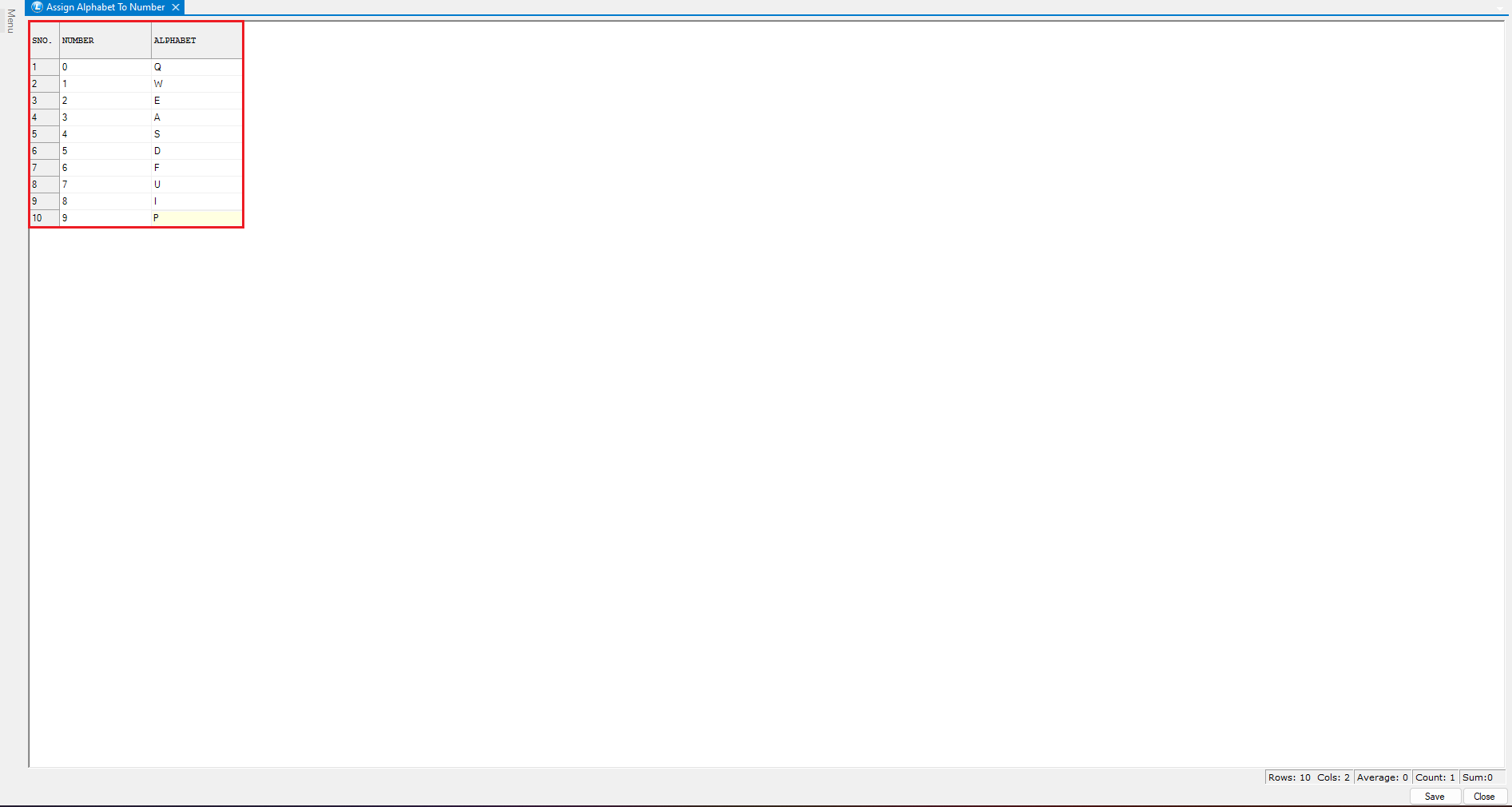
* You will see **digits from 0 to 9** listed in the **Number** column.
**Map Alphabets to Numbers**
* In the **Alphabet** column, assign a **unique alphabet** to each number (0–9).
* This alphabet-to-number mapping will be used for **barcode rate encryption**.
* Ensure every digit from **0 to 9** has a corresponding alphabet.
* Click **Save** to apply the configuration.
***
### **Preview Barcode Labels (Without Encryption)**
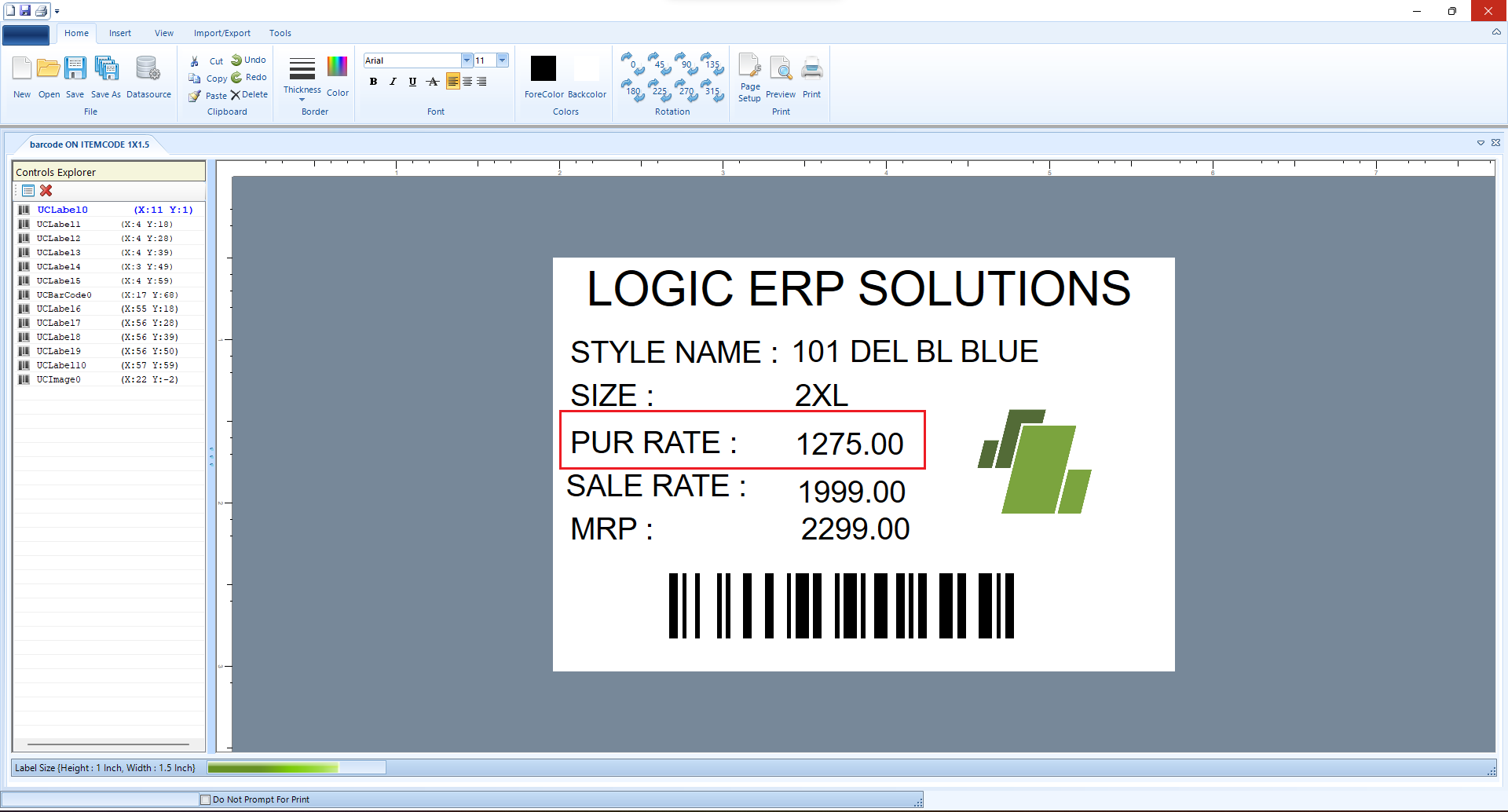
* Open **Barcode Label Printing** for **Purchase Voucher Items**.
* Preview the barcode labels.
* At this stage, **rate values appear in normal numeric format**.
***
### **Enable Rate Encryption**
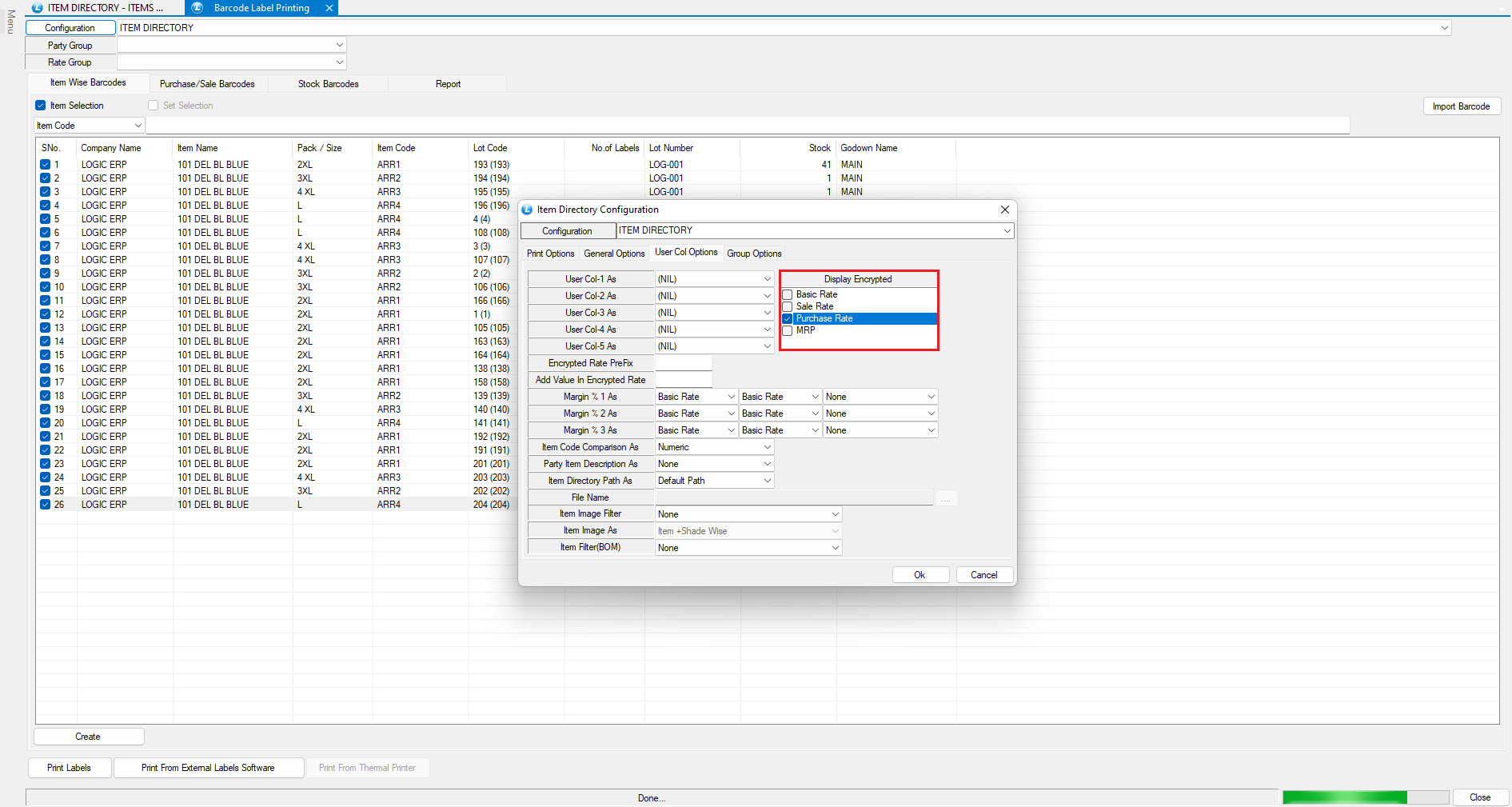
* Open the **Configuration Menu**.
* Go to **User Column Options**.
* Locate the option **Display Encrypted**.
* This feature allows encryption for fields such as:
* Basic Rate
* Sale Rate
* Purchase Rate
* MRP
* Select **Purchase Rate** for encryption.
* Save the configuration.
***
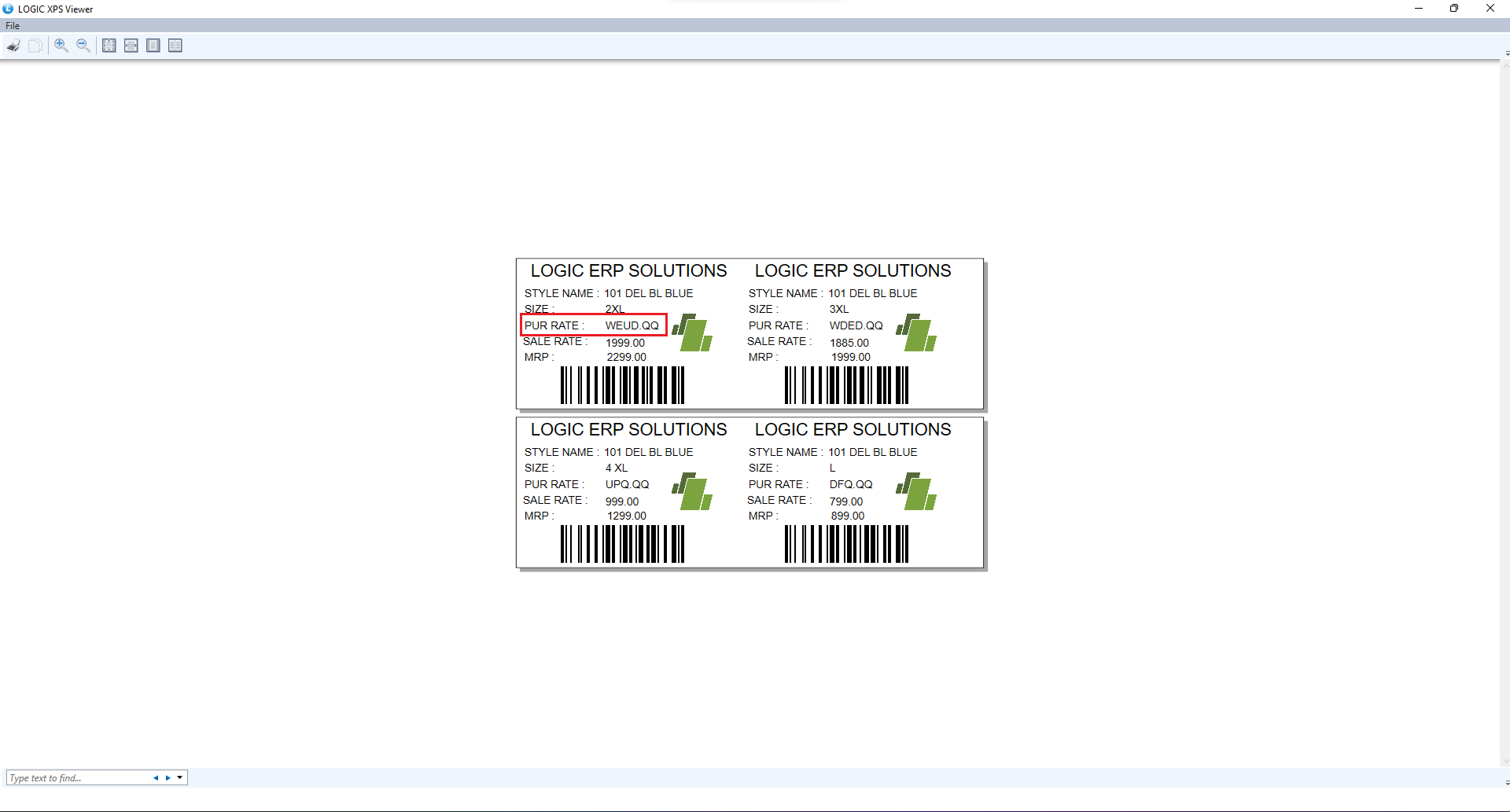
### **Verify Encrypted Barcode Label**
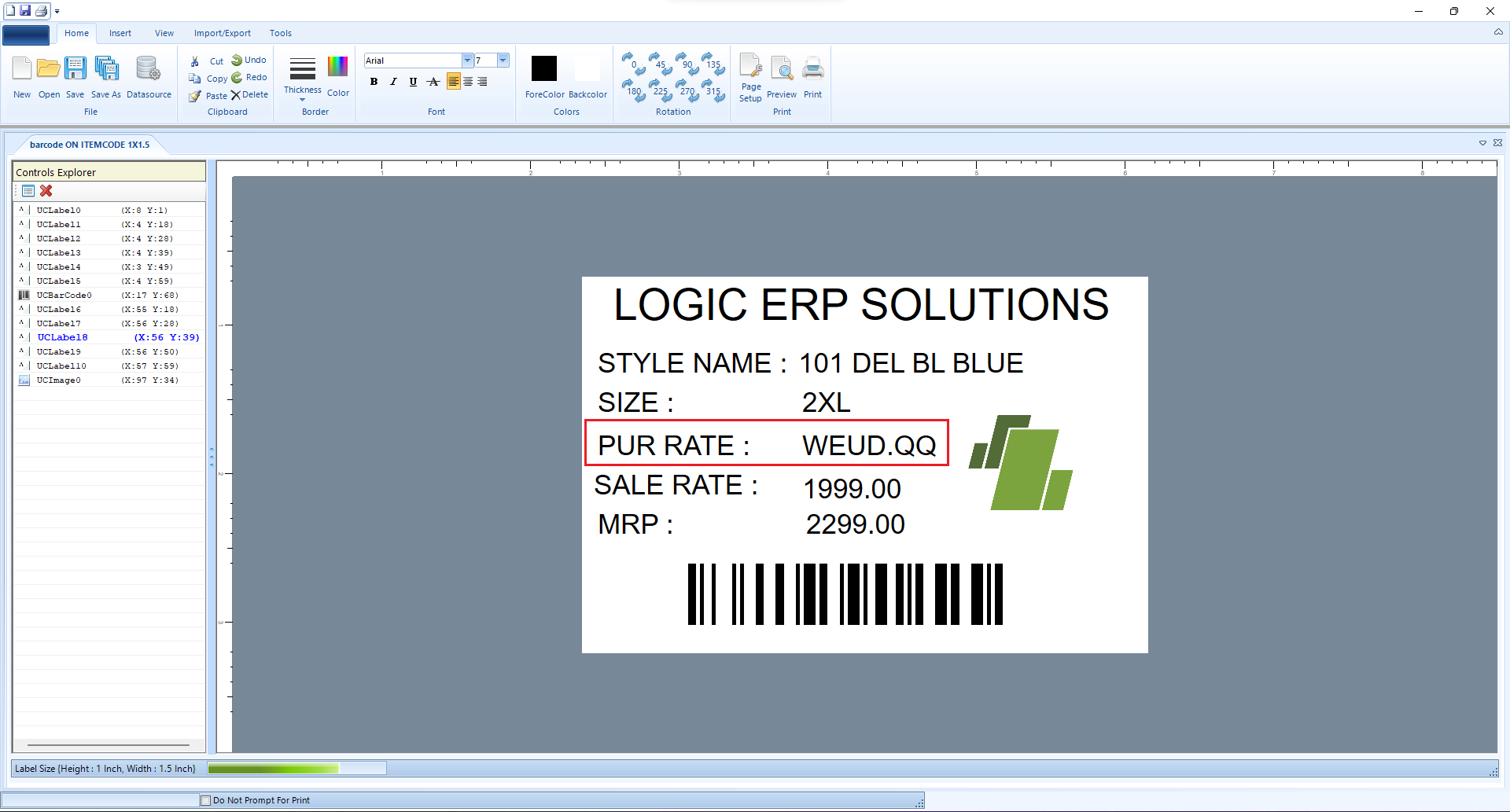
* Preview the **barcode label** again.
* The **Purchase Rate** will now appear in **alphabetically encrypted format** instead of numeric values.
***
### **Conclusion**
The Assign Alphabets to Numbers feature helps protect sensitive pricing information by encrypting rates in barcode labels, ensuring that internal pricing details remain secure while still allowing barcode functionality.
---
# Agent Instructions
This documentation is published with GitBook. GitBook is the documentation platform designed so that both humans and AI agents can read, navigate, and reason over technical content effectively. Learn more at gitbook.com.
## Querying This Documentation
If you need additional information that is not directly available in this page, you can query the documentation dynamically by asking a question.
Perform an HTTP GET request on the current page URL with the `ask` query parameter, and the optional `goal` query parameter:
```
GET https://kb.logicerp.com/logic-erp-learning-hub-tutorials-and-best-practices/user-access/assign-alphabets-to-numbers.md?ask=&goal=
```
`ask` is the immediate question: it should be specific, self-contained, and written in natural language.
`goal` is optional and describes the broader end goal you are ultimately trying to accomplish on behalf of the user. GitBook uses it to tailor the answer towards what is most useful for that goal.
The response will contain a direct answer to the question and relevant excerpts and sources from the documentation.
Use this mechanism when the answer is not explicitly present in the current page, you need clarification or additional context, or you want to retrieve related documentation sections.