> For the complete documentation index, see [llms.txt](https://kb.logicerp.com/llms.txt). Markdown versions of documentation pages are available by appending `.md` to page URLs; this page is available as [Markdown](https://kb.logicerp.com/logic-erp-learning-hub-tutorials-and-best-practices/setups/setup-items/setup-items-multiple-pack-sizes/configuration-multiple-packs-sizes/configuration-options-1/item-name-as.md).

# Item Name As

YouTube: [How to Set the Display Order of Shade and Group 10 in Item Name Creation?](https://www.youtube.com/watch?v=ECJTGfwgzJo)

## How to Set the Display Order of Shade and Group 10 in Item Name Creation?

In this tutorial, we will walk you through how to create dynamic item names in **Logic ERP** by combining the **item name, shade, and Group 10 short name**. Whether you prefer the format **Item + Shade + Group 10** or **Item + Group 10 + Shade**, this guide will show you how to configure it efficiently using formulas to streamline your item creation process.

***

### **Accessing Item Name Configuration**

* Navigate to the Setups/Setup Items and then click on "Setup Items Multiple Packs/Sizes".
* Click on Configuration.
* Locate the option and enable "Append Group 10 Short Name To Item Name" under the Configuration option - 1.

<figure><img src="/files/6mz4NcRmgxRVgQlQtDK4" alt=""><figcaption><p>Click on the option to enable it as instructed.</p></figcaption></figure>

* Locate the "**Item Name As"** Options
  * This allows you to define item names in your preferred format:
    * **Item + Shade + Group 10**
    * **Item + Group 10 + Shade**

<figure><img src="/files/ky9YQdNpiQZ6MGfhFzUE" alt=""><figcaption><p>The above picture illustrates the dropdown to select the option from given parameters for item name.  </p></figcaption></figure>
***

### **Creating an Item Using "Item + Shade + Group 10"**

1. Create a new item and enter the required details.
2. **Define Group 10** (e.g., Fabric Name).
3. Save the item and check the result.
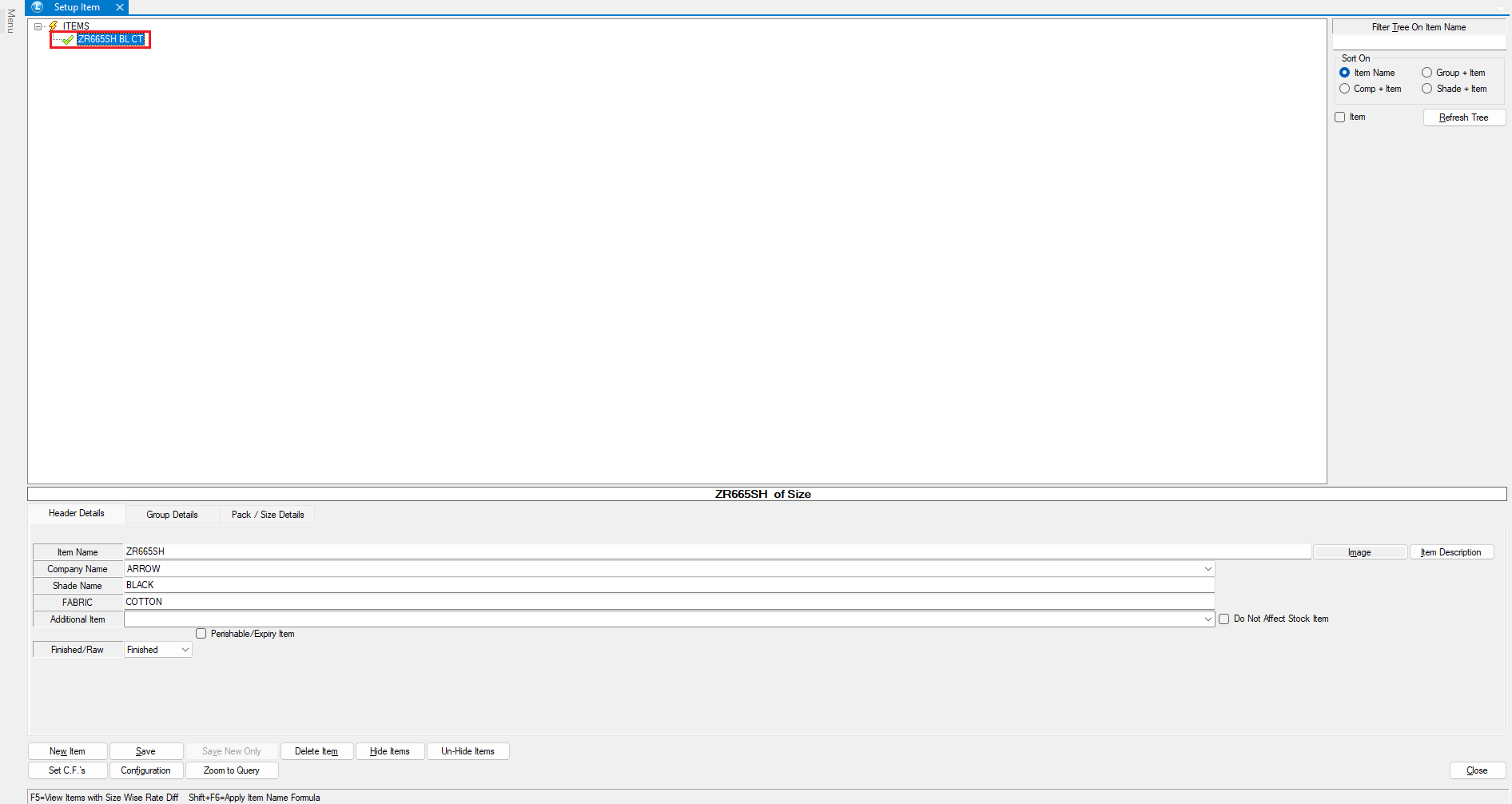
4. The item name will be automatically generated by **appending the shade and Group 10 short name** to the base item.

<figure><img src="/files/z2pgMkOlZlPLMWQbKWJQ" alt=""><figcaption><p>The above shown picture illustrates the item created using the defined format using "item + shade+ Group 10".</p></figcaption></figure>

***

### **Creating an Item Using "Item + Group 10 + Shade"**

1. Follow the same steps as above but select the **Item + Group 10 + Shade** format.
2. Save the item.
3. Now, the **Group 10 short name appears before the shade**, ensuring a structured and consistent naming format.

<figure><img src="/files/RXkot9O8CFb9PCeIObZB" alt=""><figcaption><p>The above shown picture illustrates the item created using the defined format using "item + Group 10 +shade".</p></figcaption></figure>

***

### Benefits of Using **Dynamic Item Names**

* **Improved Organization** – Helps categorize items efficiently.
* **Easy Identification** – Makes searching and managing inventory seamless.
* **Automation & Accuracy** – Reduces manual errors and ensures consistency.

This method is particularly beneficial for **retail, inventory management, and manufacturing**, where structured naming improves workflow efficiency.

***

Now that you've learned how to **automate item name generation**, try it out in **Logic ERP** to enhance your inventory management.\ <br>


---

# Agent Instructions
This documentation is published with GitBook. GitBook is the documentation platform designed so that both humans and AI agents can read, navigate, and reason over technical content effectively. Learn more at gitbook.com.

## Querying This Documentation
If you need additional information that is not directly available in this page, you can query the documentation dynamically by asking a question.

Perform an HTTP GET request on the current page URL with the `ask` query parameter, and the optional `goal` query parameter:

```
GET https://kb.logicerp.com/logic-erp-learning-hub-tutorials-and-best-practices/setups/setup-items/setup-items-multiple-pack-sizes/configuration-multiple-packs-sizes/configuration-options-1/item-name-as.md?ask=<question>&goal=<endgoal>
```

`ask` is the immediate question: it should be specific, self-contained, and written in natural language.
`goal` is optional and describes the broader end goal you are ultimately trying to accomplish on behalf of the user. GitBook uses it to tailor the answer towards what is most useful for that goal.

The response will contain a direct answer to the question and relevant excerpts and sources from the documentation.

Use this mechanism when the answer is not explicitly present in the current page, you need clarification or additional context, or you want to retrieve related documentation sections.
