> For the complete documentation index, see [llms.txt](https://kb.logicerp.com/llms.txt). Markdown versions of documentation pages are available by appending `.md` to page URLs; this page is available as [Markdown](https://kb.logicerp.com/logic-erp-learning-hub-tutorials-and-best-practices/setups/setup-items/setup-items-multiple-pack-sizes/configuration-multiple-packs-sizes/configuration-options-1/item-code-pre-fix.md).
# Item Code Pre-Fix
**YouTube:** [How to Use Item Code Prefix to Generate Item Codes in Item Creation?](https://www.youtube.com/watch?v=7yB1wOm346I\&t=104s)
In this tutorial, we’ll explore a powerful feature in **Logic ERP**: configuring **item code prefixes** to maintain consistency, improve efficiency, and streamline inventory management.
***
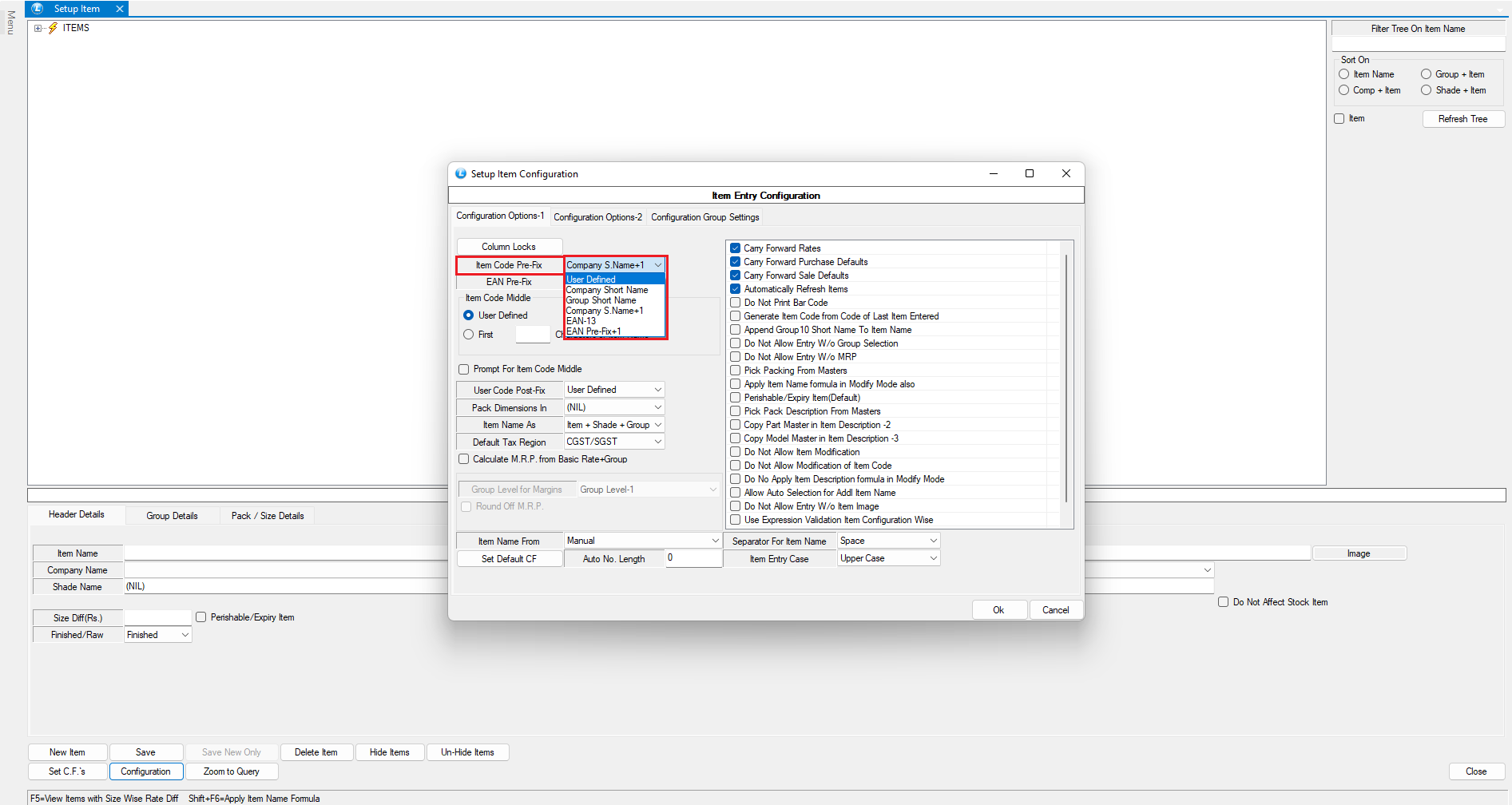
### **Access Item Configuration**
* Navigate to: **Setup** and then expand **Setup Items.**
* Select **"Setup Items Multiple Packs/Sizes".**
* Click on **“Configuration”** to open the feature window.
* You will now see various options to configure item code prefixes.
***
#### **Option 1: User-Defined Item Code**
* Select **User Defined** from the prefix options.
* Manually enter your desired **Item Code** in the provided field.
*Use when you want complete control over item code formatting.*
"This image illustrates how you can manually enter the item code. Ensure the 'Item Code' checkbox is ticked when using the 'User Defined' option."
***
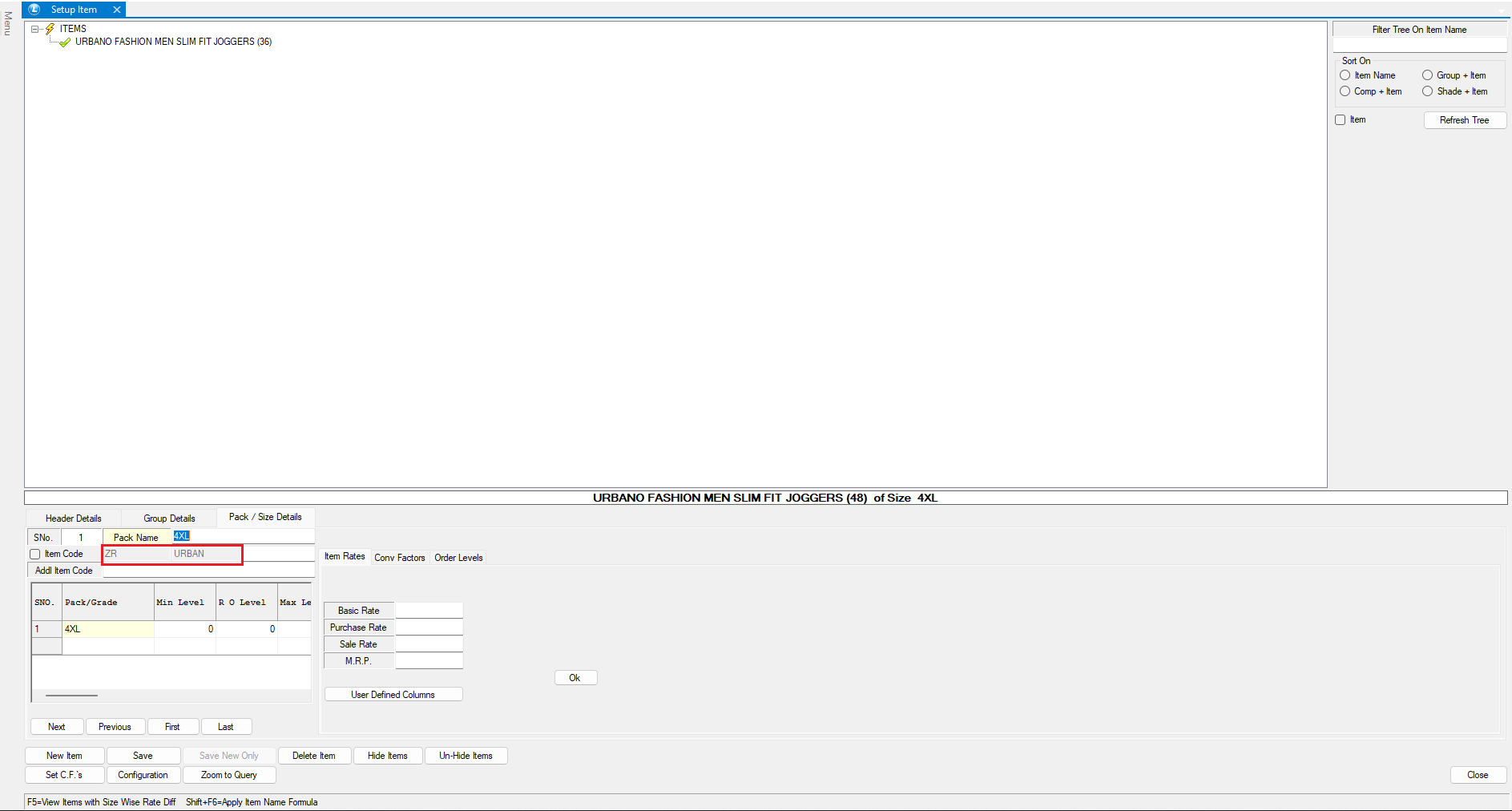
#### **Option 2: Company Short Name + Item Name**
* Set the prefix to use the **Company Short Name**.
* For the **Middle Item Code**:
* Option A: Enter it manually
* Option B: Auto-generate using first 5 characters of the item name
* Save the item.
*Result:* The item code is generated using the company short name + 5-character item name snippet.
* Example: Item name is **"URBANO FASHION MEN SLIM FIT JOGGERS (36)"** and Brand name is **"Zara"**
***
#### **Option 3: Group Short Name + Item Name**
* Set prefix to **Group Short Name**.
* Use first 5 characters of the item name for the middle section.
* Save the item.
*Result:* Item code is created using group short name + 5 characters from item name.
* Example: Group Name is **"Upper"** and "Item the Name is **"Funeral Apparel Distressed Thermal Long Sleeve T-Shirt (S)"**
***
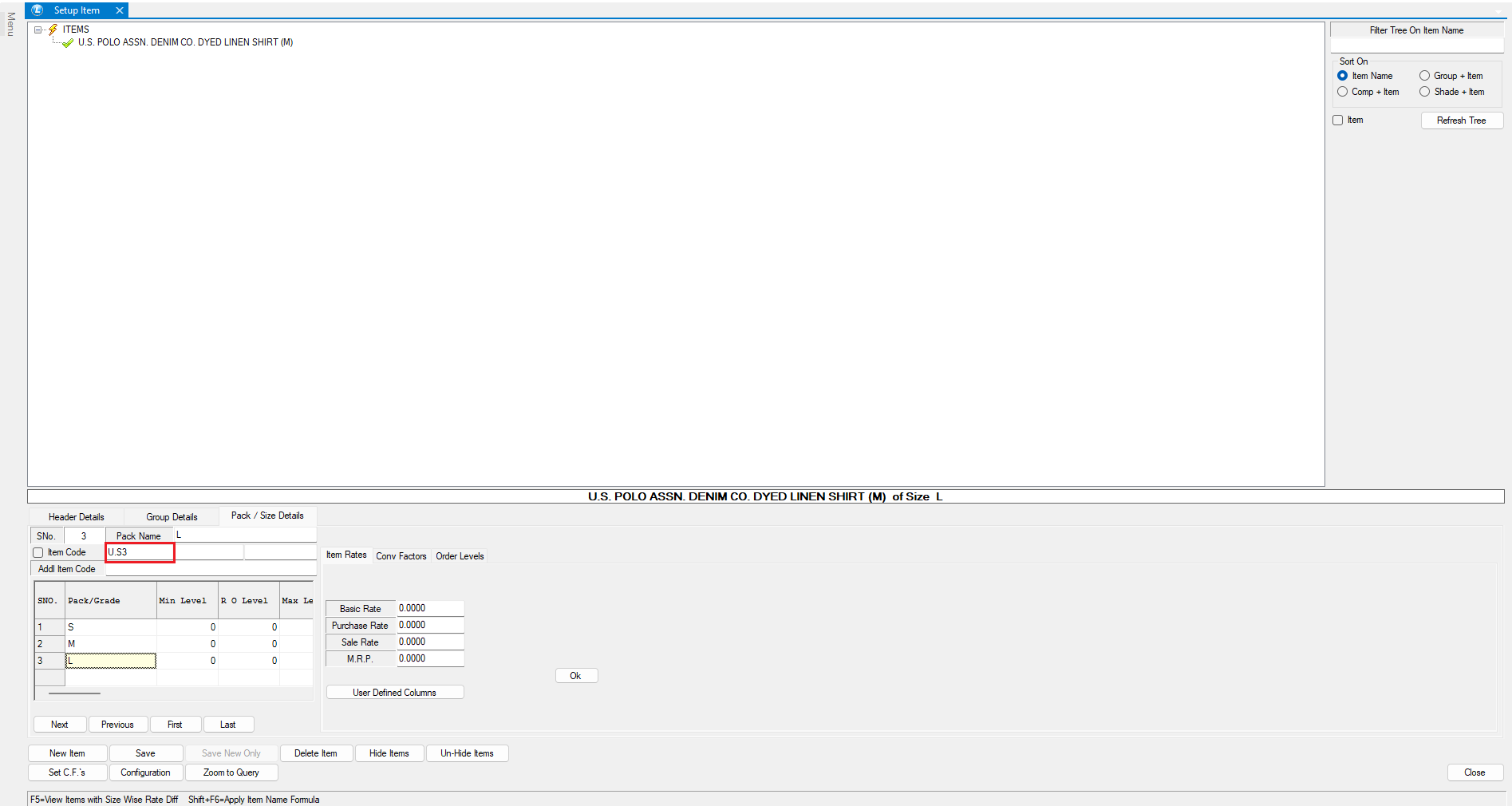
#### **Option 4: Company Short Name + Auto Increment**
* Choose **Company Short Name** as prefix.
* Enable **Auto Increment Numbering**.
* Save the item.
*Result:* Item code generated using company short name + sequential number.
* Eaxmple: Company Name is U.S Polo.
***
#### **Option 5: EAN-13 Barcode Format**
* Set prefix to match the format of **EAN-13** (13-digit barcode standard).
* Logic ERP will handle the remaining digits to comply with EAN-13.
* Save the item.
*Result:* Item code generated using your defined EAN prefix + compliant digits.
* Example: EAN 13 Prefix is SET as "1234567"
***
#### **Option 6: EAN Prefix + Auto Increment**
* Configure with **EAN Prefix**.
* Enable **Auto Increment**.
* Save the item.
*Result:* System generates item code with EAN prefix followed by sequential numbering.
* Example: EAN Pre-Fix - is SET as Logic.
***
### **Benefits of Using Item Code Prefixes**
* Enhances **inventory consistency**
* Reduces **manual errors**
* Improves **searchability and reporting**
* Facilitates **barcode integration**
***
### **Conclusion**
By leveraging the item code prefix feature in Logic ERP, you ensure a structured, automated, and scalable approach to inventory coding—leading to better organization and smoother operations.
---
# Agent Instructions
This documentation is published with GitBook. GitBook is the documentation platform designed so that both humans and AI agents can read, navigate, and reason over technical content effectively. Learn more at gitbook.com.
## Querying This Documentation
If you need additional information that is not directly available in this page, you can query the documentation by asking a question.
Perform an HTTP GET request on the following URL with the `ask` and `goal` query parameters:
```
GET https://kb.logicerp.com/logic-erp-learning-hub-tutorials-and-best-practices/setups/setup-items/setup-items-multiple-pack-sizes/configuration-multiple-packs-sizes/configuration-options-1/item-code-pre-fix.md?ask=&goal=
```
`ask` is the immediate question: it should be specific, self-contained, and written in natural language.
`goal` is what the user is ultimately trying to achieve, the reason they need the answer. Sharing it helps GitBook give you a better, more relevant answer. A goal is most helpful when it describes the outcome the user wants rather than restating the question. For example, with `ask=how do I create an API token`, a goal like `automate deployments from our CI pipeline` lets GitBook tailor the answer to that use case.
The response will contain a direct answer to the question and relevant excerpts and sources from the documentation.
Use this mechanism when the answer is not explicitly present in the current page, you need clarification or additional context, or you want to retrieve related documentation sections.