> For the complete documentation index, see [llms.txt](https://kb.logicerp.com/llms.txt). Markdown versions of documentation pages are available by appending `.md` to page URLs; this page is available as [Markdown](https://kb.logicerp.com/logic-erp-learning-hub-tutorials-and-best-practices/setups/setup-items/setup-item-c.f.-descriptions.md).
# Setup Item C.F. Descriptions
**YouTube:** [How to Setup UOM Conversion Factor Descriptions for Items?](https://www.youtube.com/watch?v=CLpw1g9Kz2c)
## How to Setup UOM Conversion Factor Descriptions for Items?
In this tutorial, we will learn how to **define and use Item Conversion Factor (CF) Descriptions in Logic ERP**. CF descriptions help standardize unit conversions such as *Piece, Box, Carton, Kg, Bag*, or any other unit structure required for your business operations.
***
### **Access to** Setup Item C.F. Descriptions
* Navigate to the **Main Menu**
* Open the **Setup Module**
* Go to **Setup Item**
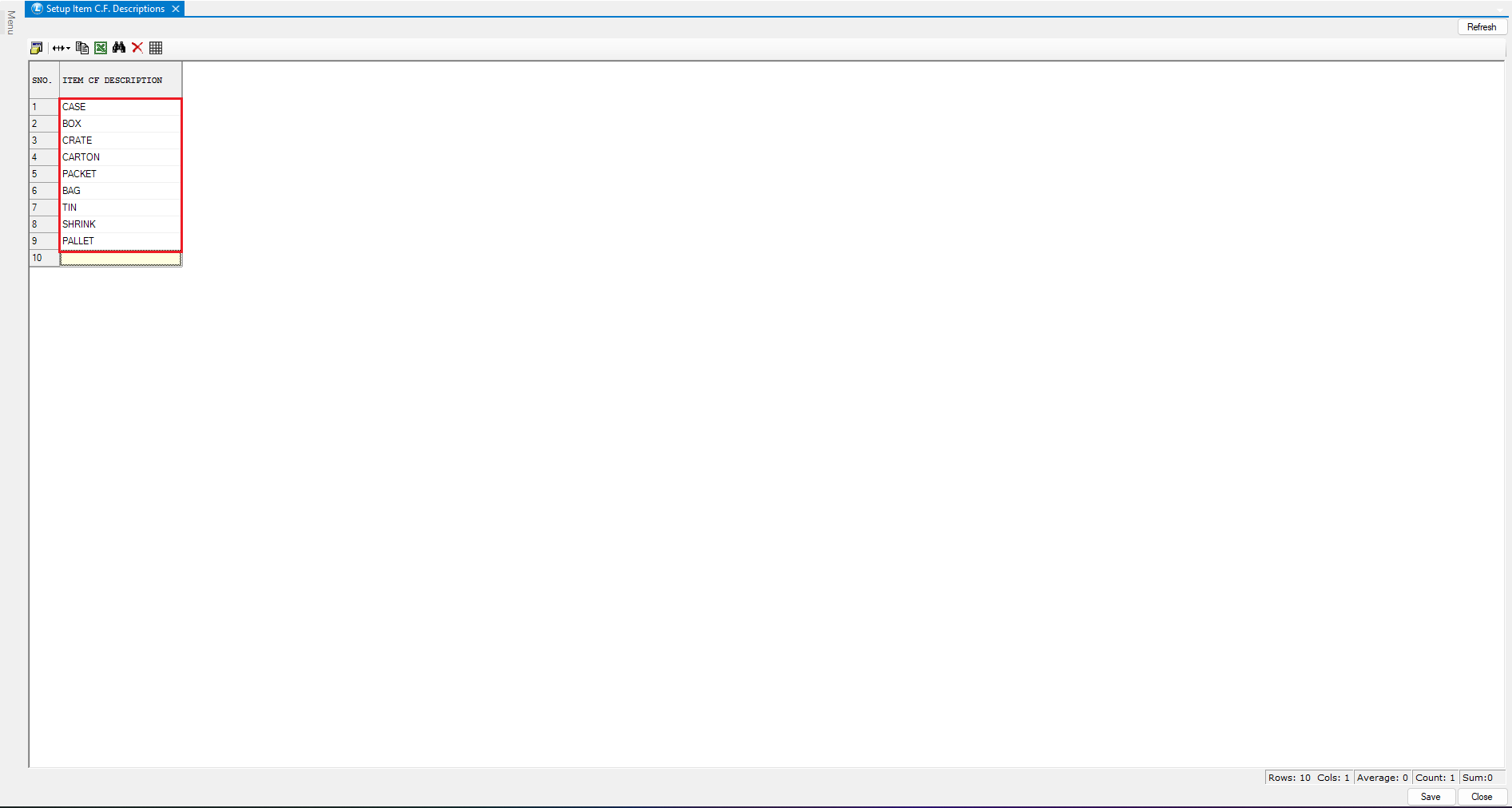
* Click on **Setup Item CF Descriptions**
#### **Actions**
* Define required **CF Descriptions** such as:
* Case, Box, Piece etc.
* Any custom unit relevant to your business.
* Save the details
These CF descriptions will now be available across the system for item configuration.
***
### **Use CF Descriptions in Item Master**
Once CF descriptions are defined, they can be used while creating or modifying items.
* Open **Item Master Setup**
* Create a new item by entering all required **basic item details**
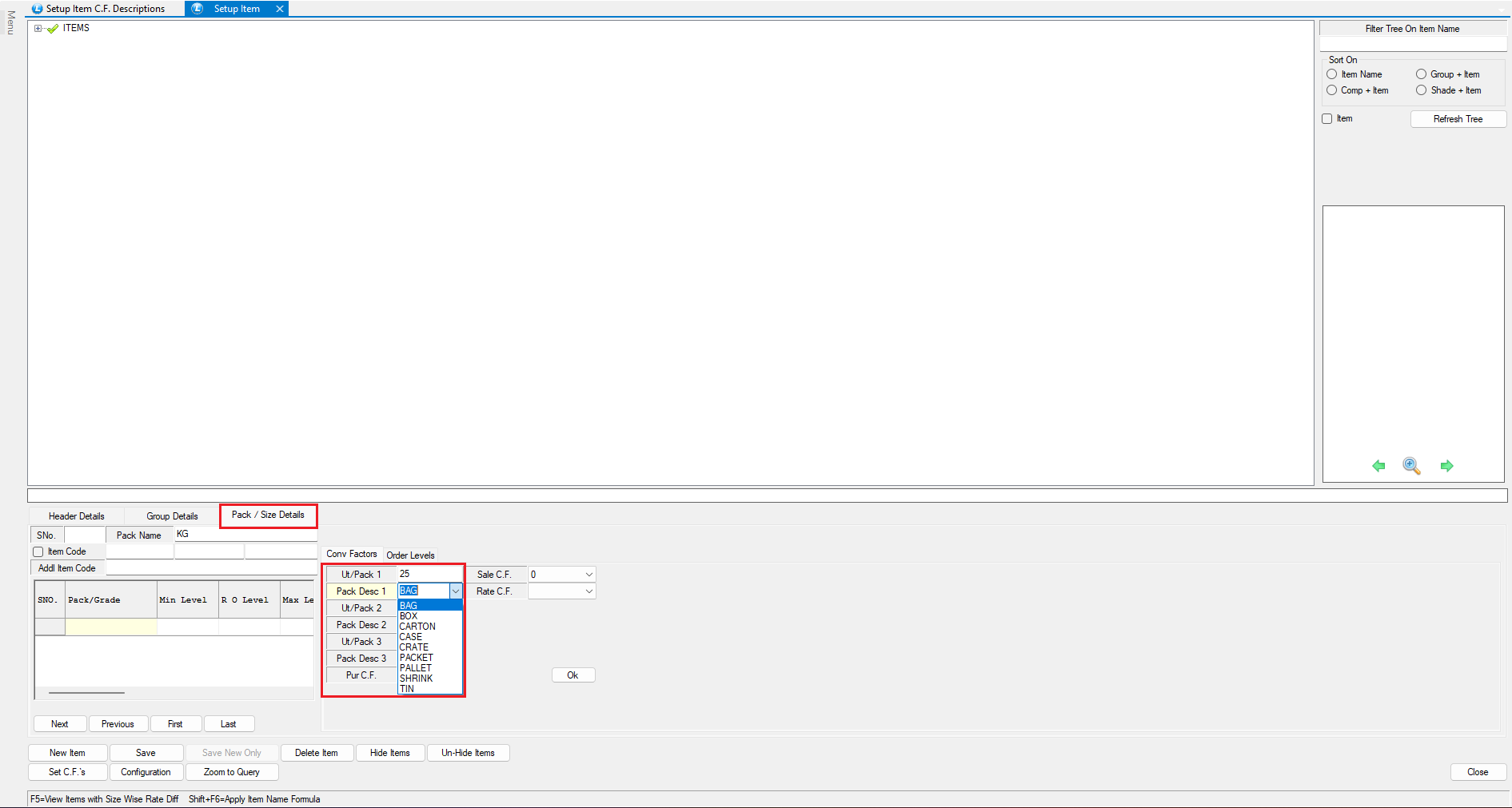
* Navigate to the **Pack Details** section
* **Define Pack Details and Conversion Factors**
* Enter the **Pack Name**
* Click on **CF Options**
#### **Define Conversion Units**
* Specify **Unit per Pack**
* Example: If an item is received in a **25 Kg bag**, enter *25* as the unit per pack
* In the **Pack Description** field:
* Select the required CF description from the predefined dropdown list\
*(e.g., Bag, Box, Carton, etc.)*
> 💡 This ensures consistent unit handling across purchase, sales, and stock transactions.
***
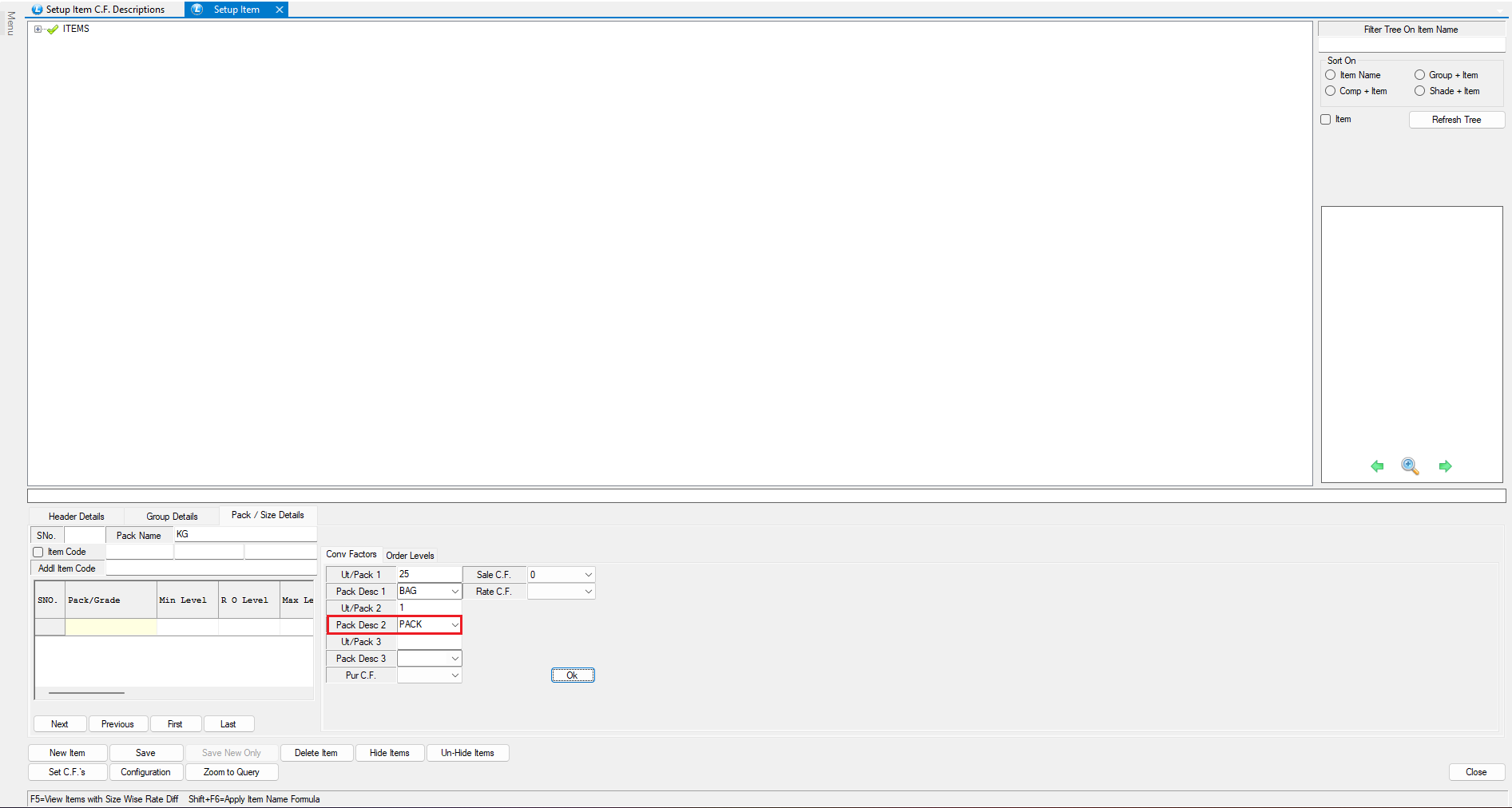
### **Manual Pack Description (Optional)**
* If required, you can also **manually enter a pack description**
* This provides flexibility for unique or one-time unit definitions
***
### **Conclusion**
Setting up Item Conversion Factor (CF) Descriptions in Logic ERP allows you to:
* Maintain standardized unit definitions
* Accurately manage pack-wise and unit-wise conversions
* Ensure consistency across inventory, purchase, and sales transactions
This setup plays a crucial role in **accurate stock control, reporting, and operational efficiency**.
---
# Agent Instructions
This documentation is published with GitBook. GitBook is the documentation platform designed so that both humans and AI agents can read, navigate, and reason over technical content effectively. Learn more at gitbook.com.
## Querying This Documentation
If you need additional information that is not directly available in this page, you can query the documentation dynamically by asking a question.
Perform an HTTP GET request on the current page URL with the `ask` query parameter, and the optional `goal` query parameter:
```
GET https://kb.logicerp.com/logic-erp-learning-hub-tutorials-and-best-practices/setups/setup-items/setup-item-c.f.-descriptions.md?ask=&goal=
```
`ask` is the immediate question: it should be specific, self-contained, and written in natural language.
`goal` is optional and describes the broader end goal you are ultimately trying to accomplish on behalf of the user. GitBook uses it to tailor the answer towards what is most useful for that goal.
The response will contain a direct answer to the question and relevant excerpts and sources from the documentation.
Use this mechanism when the answer is not explicitly present in the current page, you need clarification or additional context, or you want to retrieve related documentation sections.