> For the complete documentation index, see [llms.txt](https://kb.logicerp.com/llms.txt). Markdown versions of documentation pages are available by appending `.md` to page URLs; this page is available as [Markdown](https://kb.logicerp.com/logic-erp-learning-hub-tutorials-and-best-practices/setups/setup-items/setup-harmonious-codes-description.md).
# Setup Harmonious Codes/Description
**YouTube:** [How to Enter HSN codes manually or via Excel import?](https://www.youtube.com/watch?v=nozOsDInF6E)
## How to Enter HSN codes manually or via Excel import?
This tutorial explains how to manually create new HSN codes, import HSN codes through an Excel file, and configure HSN Code Groups in Logic ERP. By the end of this guide, you will understand how to efficiently manage HSN codes and organize them for streamlined item classification.
***
### **Access to HSN Setup Window**
* Navigate to the **Main Menu**.
* Open the **Setup Module**.
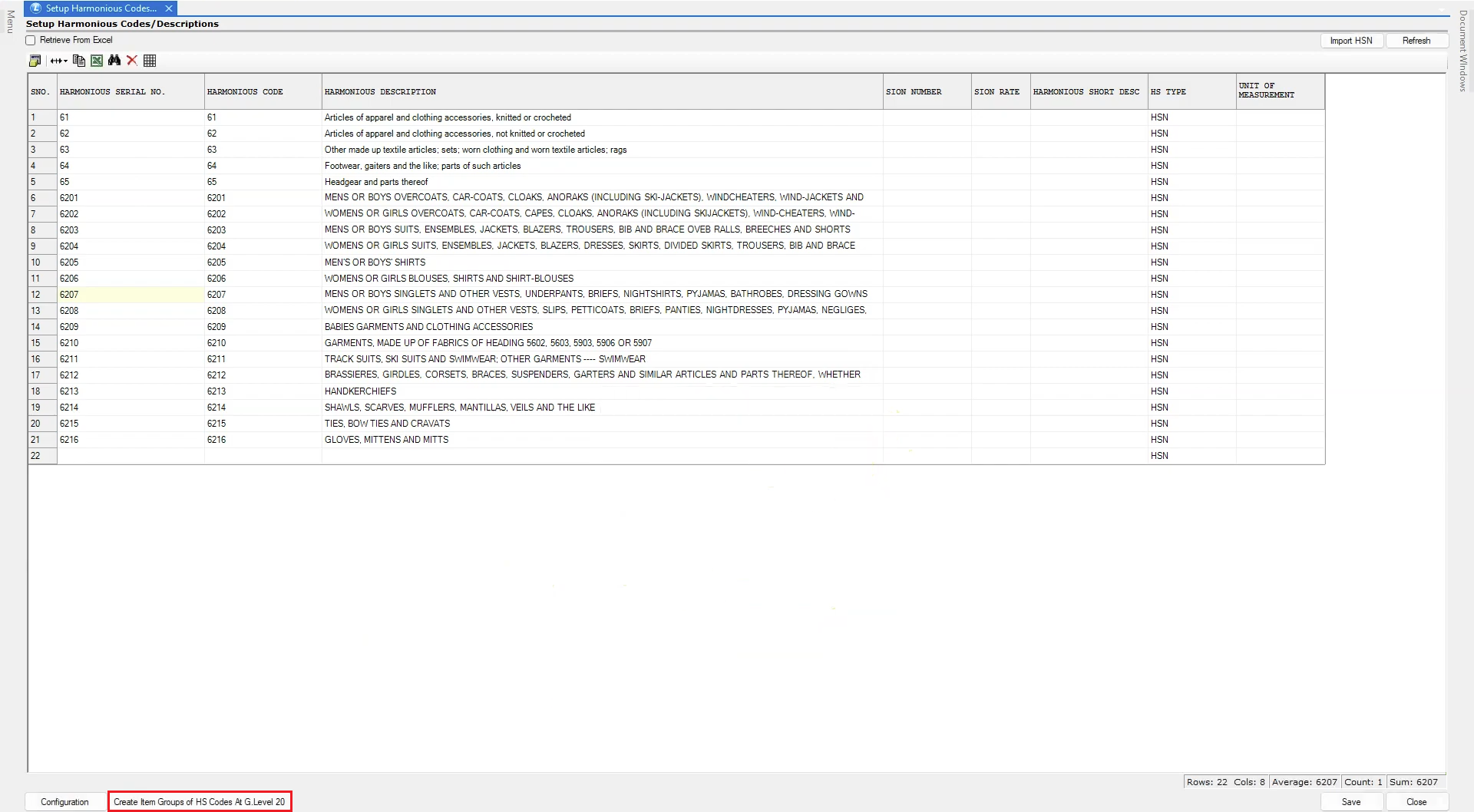
* Under **Setup Items**, click **Setup Harmonious Codes**.
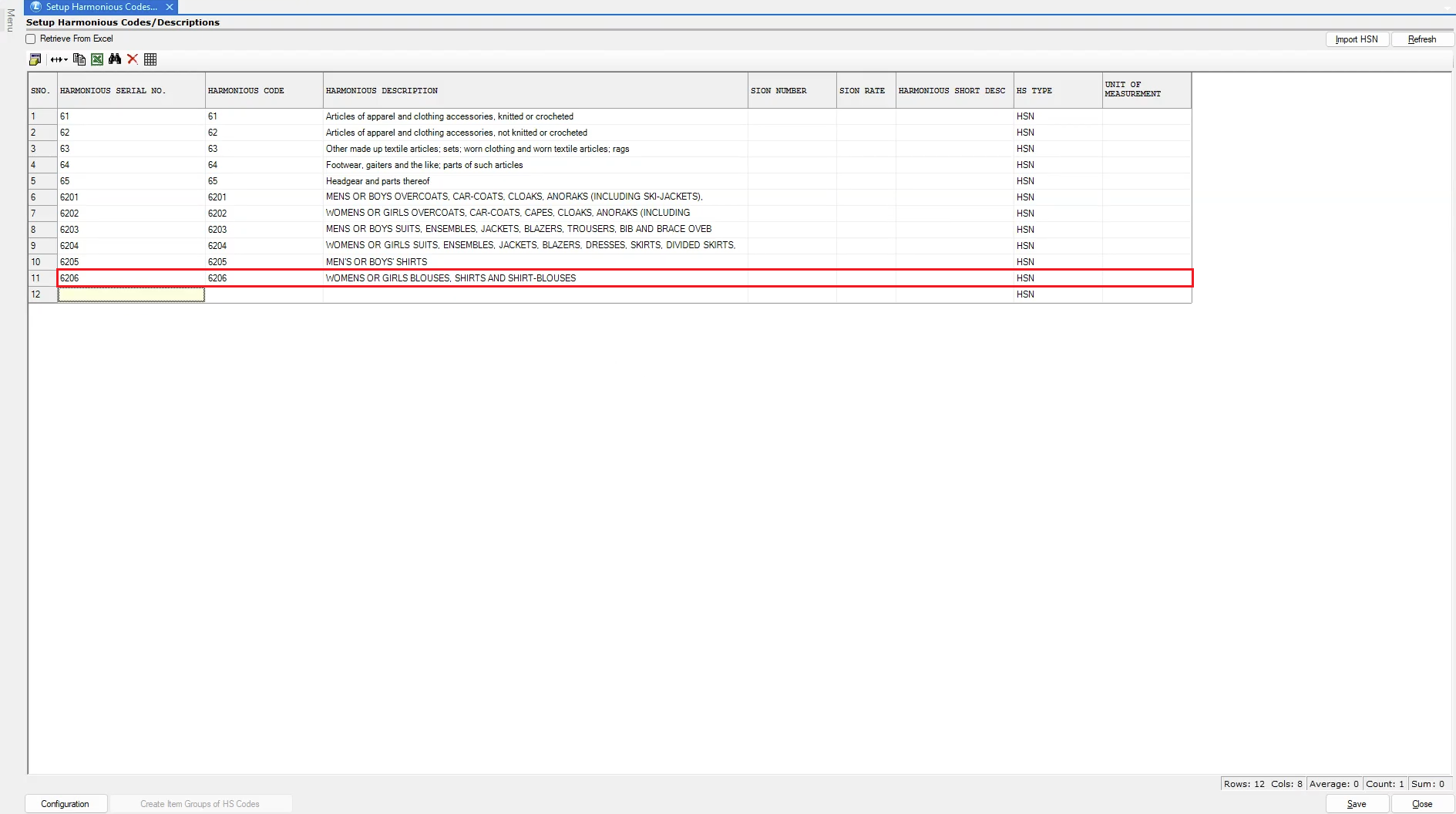
* Here you can view and manage all existing HSN codes.
***
### **Create a New HSN Code Manually**
* Enter the **HSN Serial Number** and **HSN Code**.
* The system will automatically fetch the **Description** for the entered code.
* Click **Save** to store the new HSN code.
***
### **Import HSN Codes Using Excel**
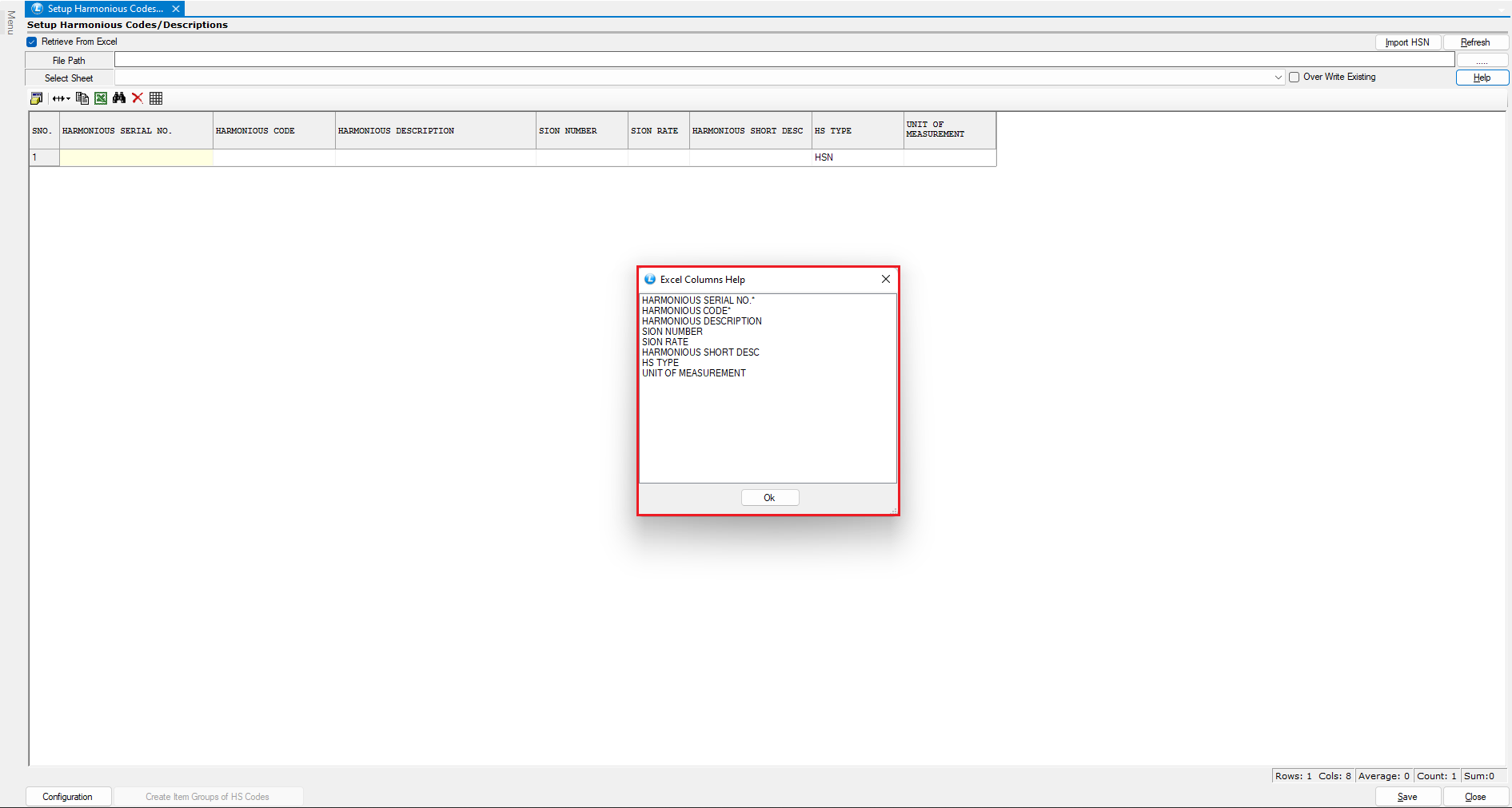
* Click on **Retrieve from Excel**.
* A **Help** option is available, explaining the Excel format and the mandatory fields (marked with an asterisk `*`).
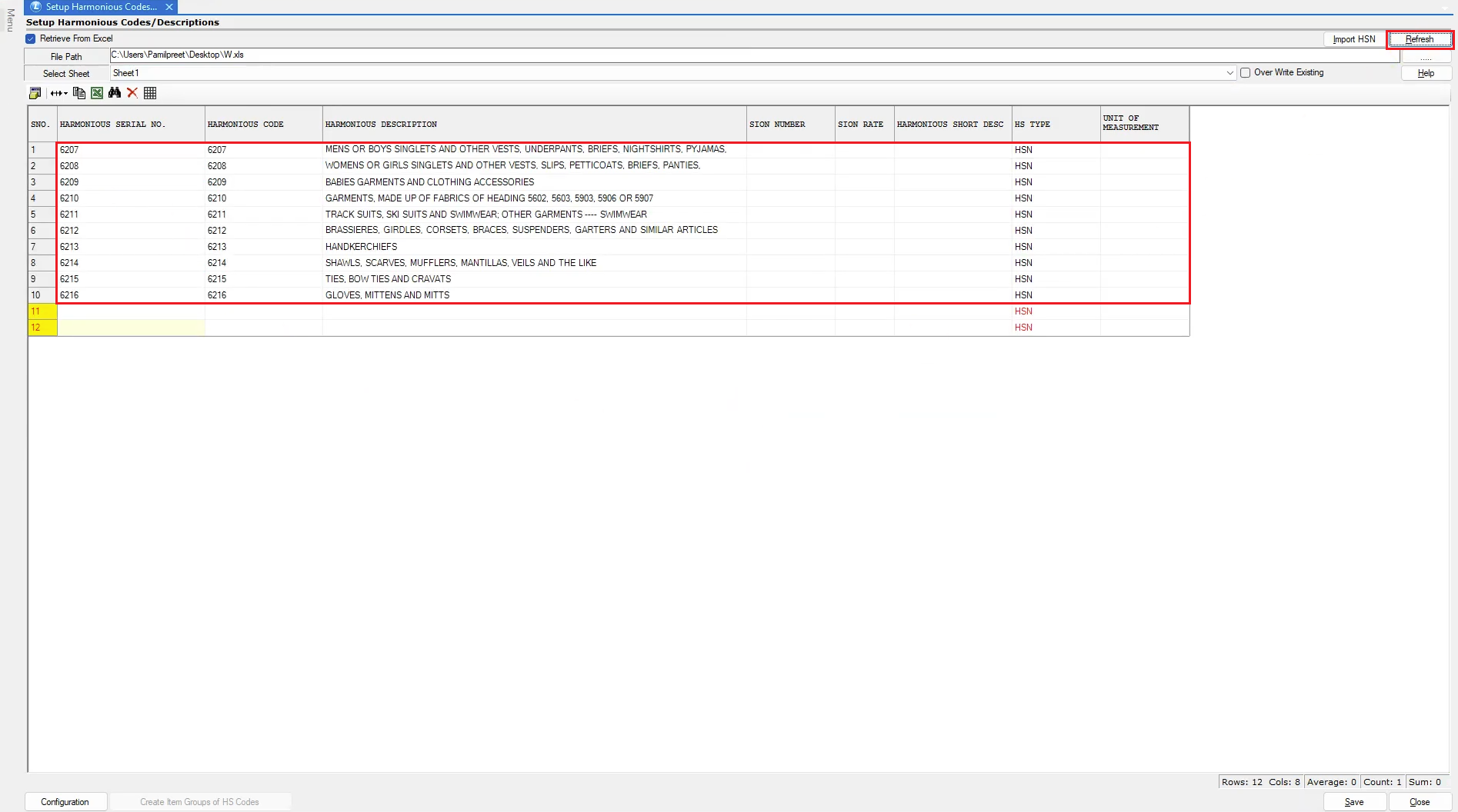
* Browse and select the Excel file from your device.
* Click **Refresh** to load HSN details from the sheet.
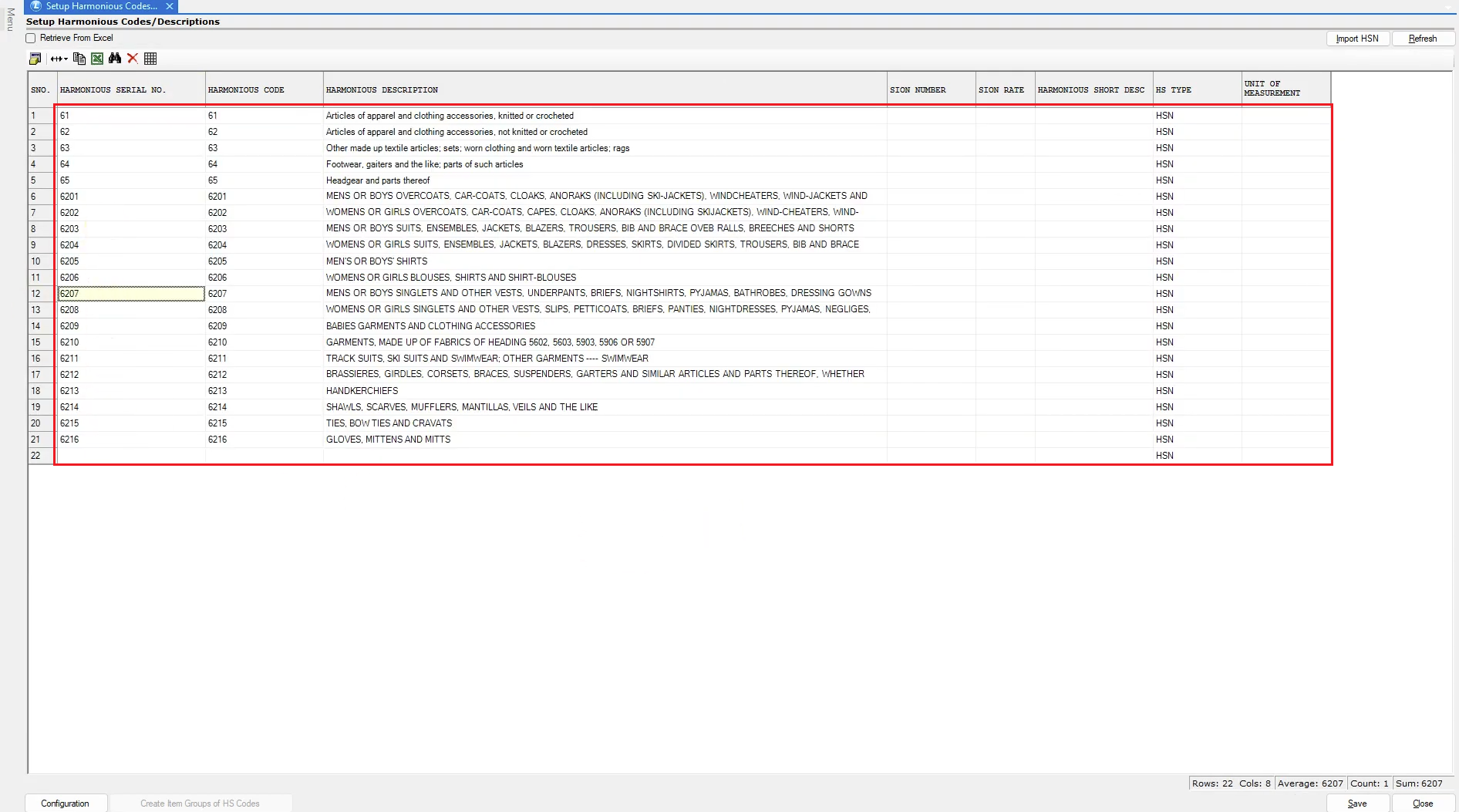
* Press **Alt + S** or click the **Save** button to apply the imported records.
***
### **Configure HSN Code Groups**
* In the HSN window, click the **Configuration** button at the bottom.
* Choose the desired **Group Level** for HSN classification.
* Click **Save** to confirm.
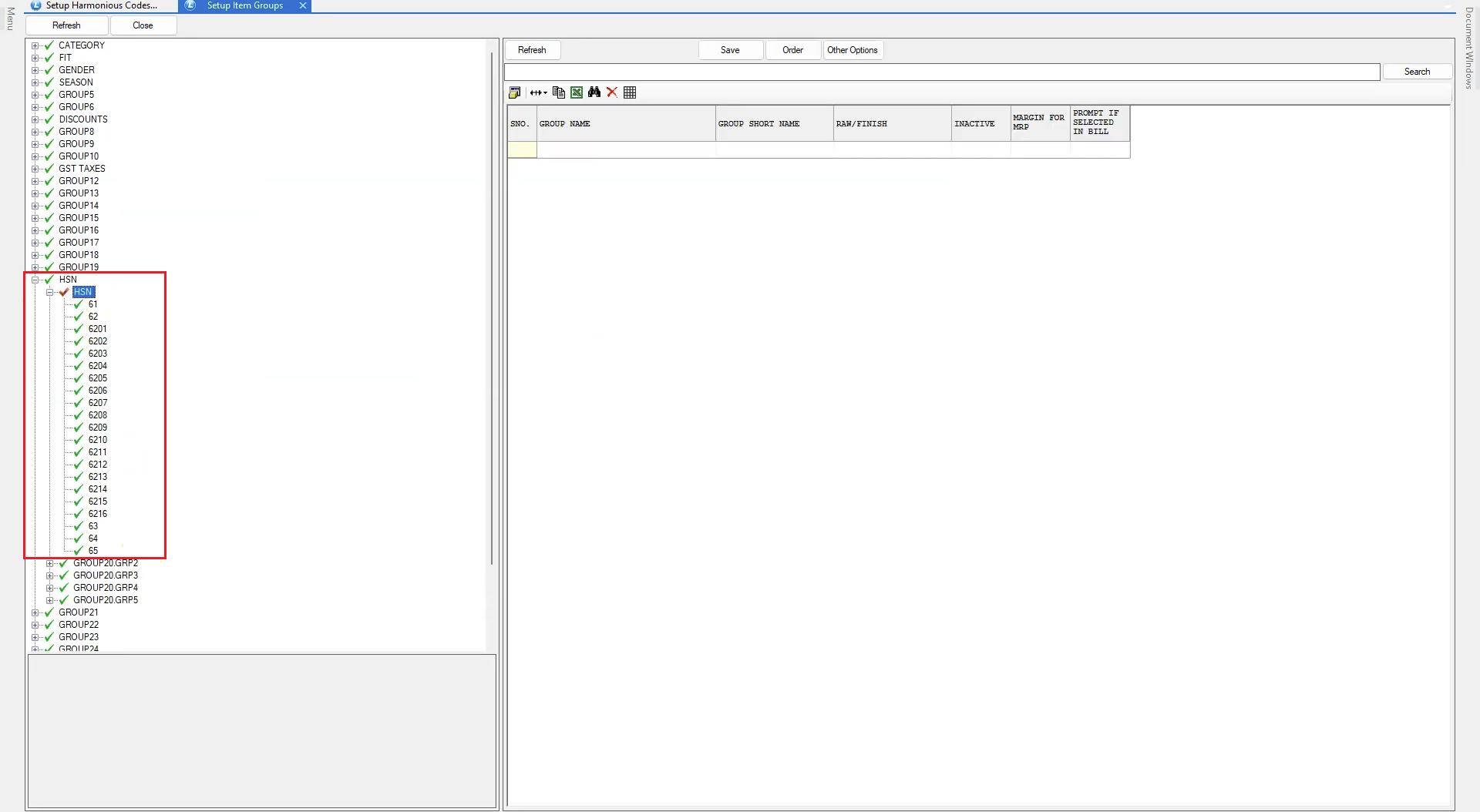
* Select **Create Item Groups for HSN Codes**.
* The system will automatically generate item groups based on the selected level.
* Review the generated groups under **Setup → Item Groups**.
* Example: If Group Level 20 is selected, all HSN codes will appear under that level.
* Rename the group (e.g., “HSN”) for better clarity.
***
### **Import Chapter-Wise HSN Codes (Optional)**
* The system database already contains standard chapters.
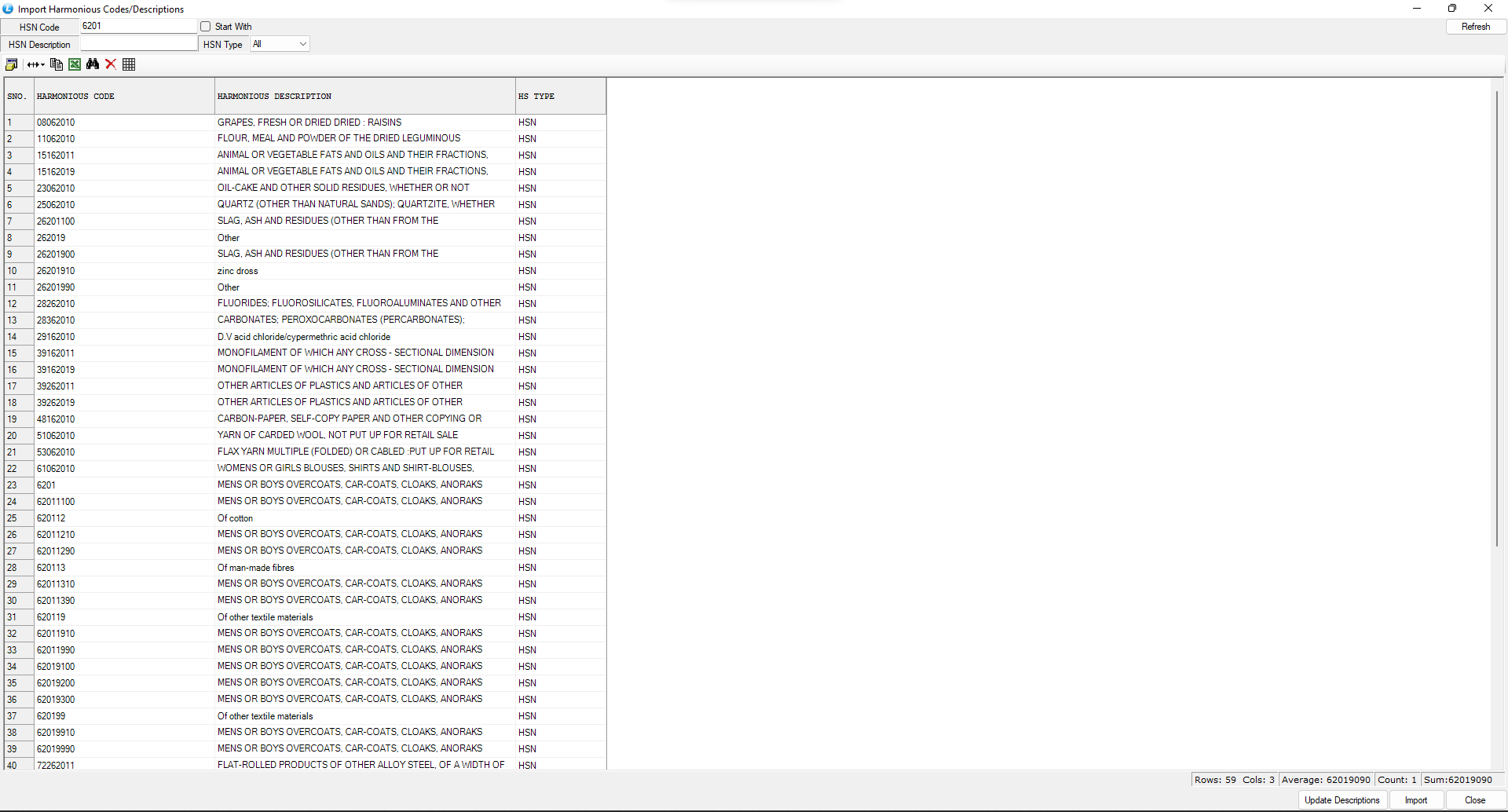
* Use the **Import** feature to retrieve HSN codes based on your requirements.
* Enter the **HSN Code Digits** and define the **Type**.
* You will see a **Start With** checkbox:
* **Unchecked**: Retrieves all HSN codes that contain the entered digits anywhere.
* **Checked**: Retrieves only those HSN codes that *begin* with the entered digits.
* Click **Refresh** to load filtered HSN codes.
* Click **Update Description**, then click **Import** to add them.
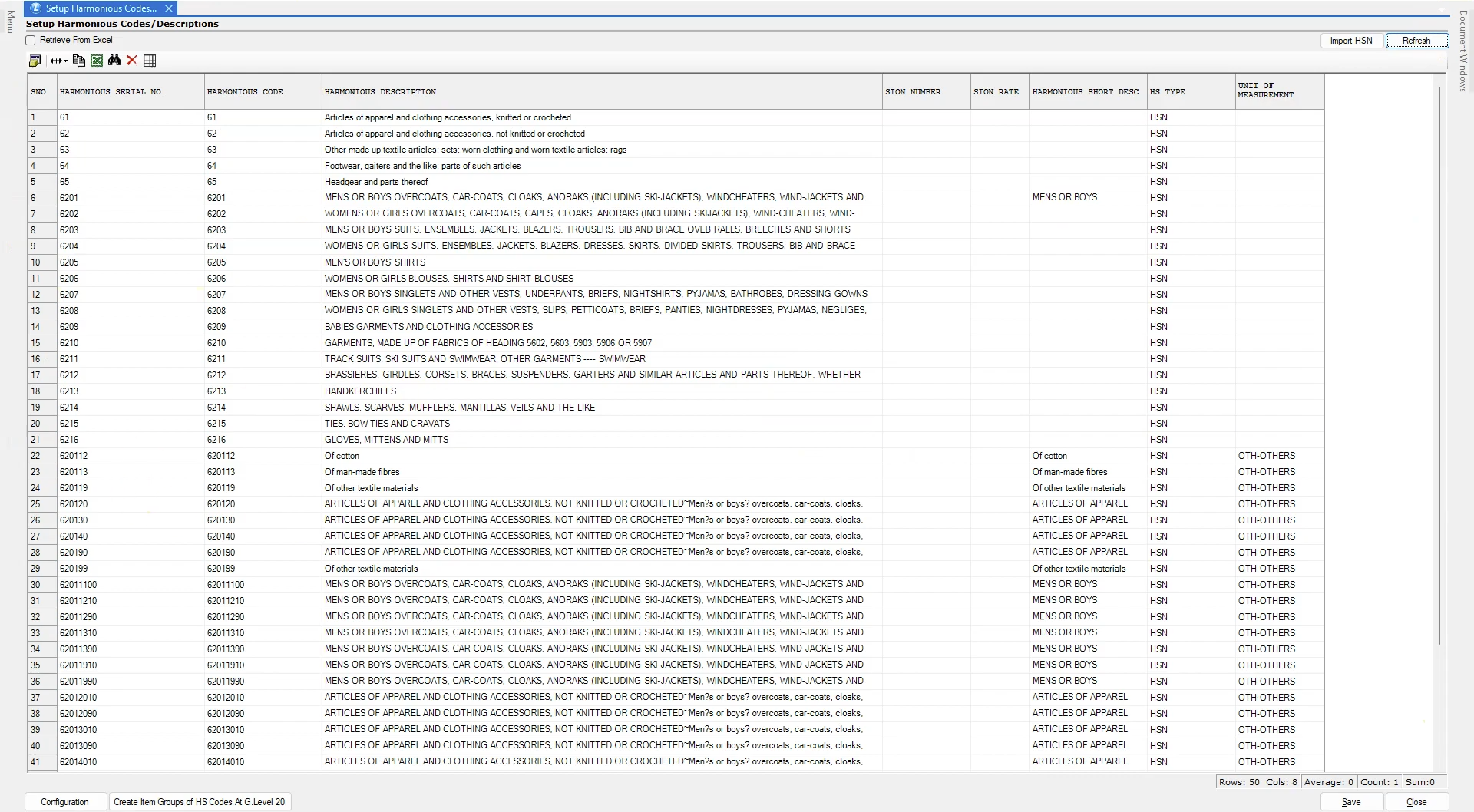
* Close the import window and click **Refresh** again.
* The filtered chapters/HSN codes will now be visible.
* Click **Save** to finalize the update.
***
## **Conclusion**
Managing HSN codes in Logic ERP becomes simple and efficient when using the available manual entry, Excel import, and automated grouping features. By following this tutorial, you can quickly create accurate HSN records, maintain organized item groups, and ensure compliance with taxation and reporting standards.
---
# Agent Instructions
This documentation is published with GitBook. GitBook is the documentation platform designed so that both humans and AI agents can read, navigate, and reason over technical content effectively. Learn more at gitbook.com.
## Querying This Documentation
If you need additional information that is not directly available in this page, you can query the documentation by asking a question.
Perform an HTTP GET request on the following URL with the `ask` and `goal` query parameters:
```
GET https://kb.logicerp.com/logic-erp-learning-hub-tutorials-and-best-practices/setups/setup-items/setup-harmonious-codes-description.md?ask=&goal=
```
`ask` is the immediate question: it should be specific, self-contained, and written in natural language.
`goal` is what the user is ultimately trying to achieve, the reason they need the answer. Sharing it helps GitBook give you a better, more relevant answer. A goal is most helpful when it describes the outcome the user wants rather than restating the question. For example, with `ask=how do I create an API token`, a goal like `automate deployments from our CI pipeline` lets GitBook tailor the answer to that use case.
The response will contain a direct answer to the question and relevant excerpts and sources from the documentation.
Use this mechanism when the answer is not explicitly present in the current page, you need clarification or additional context, or you want to retrieve related documentation sections.