> For the complete documentation index, see [llms.txt](https://kb.logicerp.com/llms.txt). Markdown versions of documentation pages are available by appending `.md` to page URLs; this page is available as [Markdown](https://kb.logicerp.com/logic-erp-learning-hub-tutorials-and-best-practices/setups/setup-accounts/setup-customer-database/enter-customer-points-opening-balance.md).
# Enter Customer Points Opening Balance
**YouTube:** [How to Enter Retail Customer Loyalty Points Opening Balance Manually or via Excel?](https://www.youtube.com/watch?v=1KgCv9eewhE)
## How to Enter Retail Customer Loyalty Points Opening Balance Manually or via Excel?
In this tutorial, we will guide you through the process of **entering customer points opening balance** in **Logic ERP** and demonstrate how these points can be redeemed during billing.
***
### Enter Customer Points Opening Balance
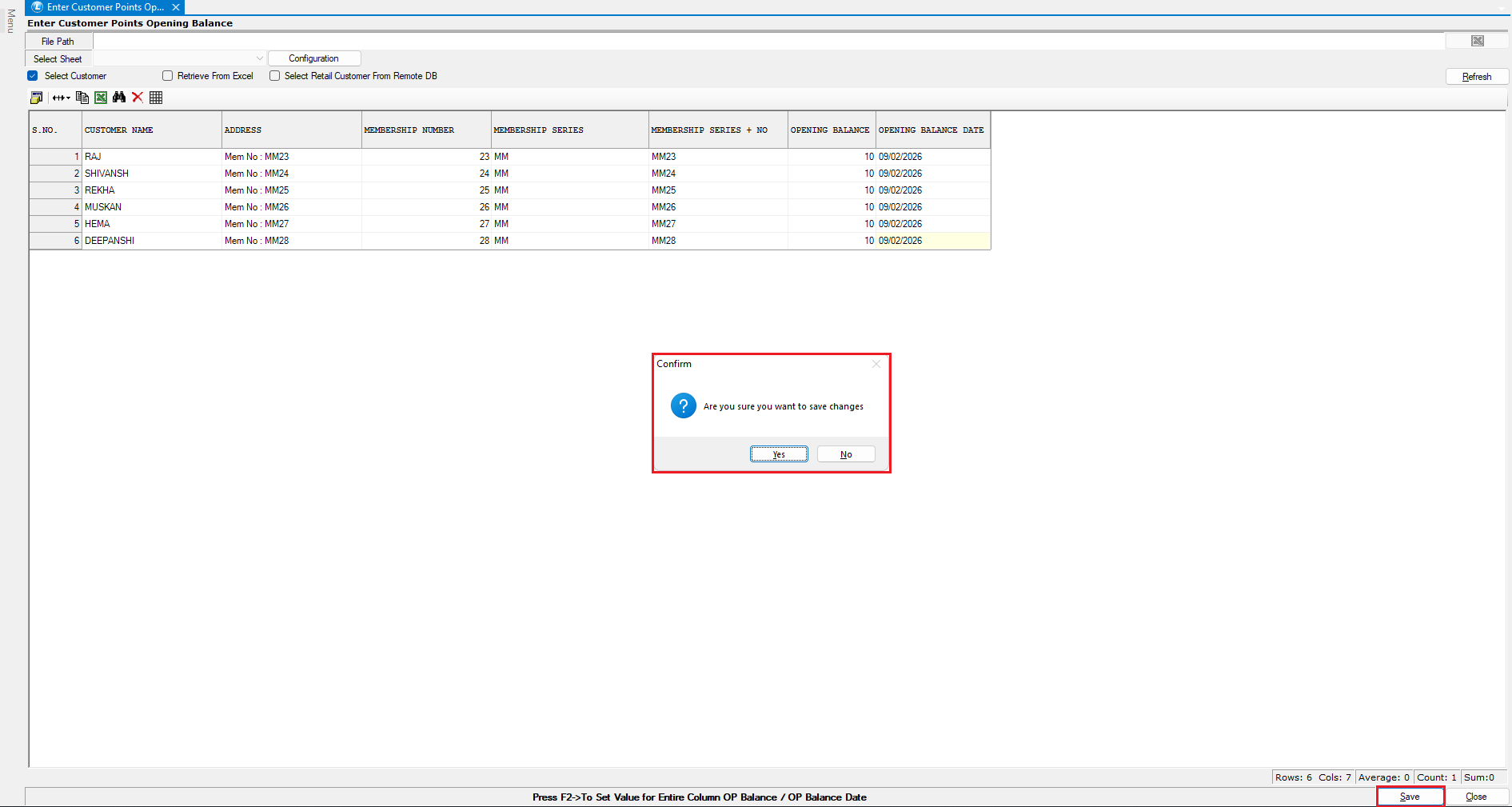
* Navigate to the **Enter Customer Points Opening Balance** module.
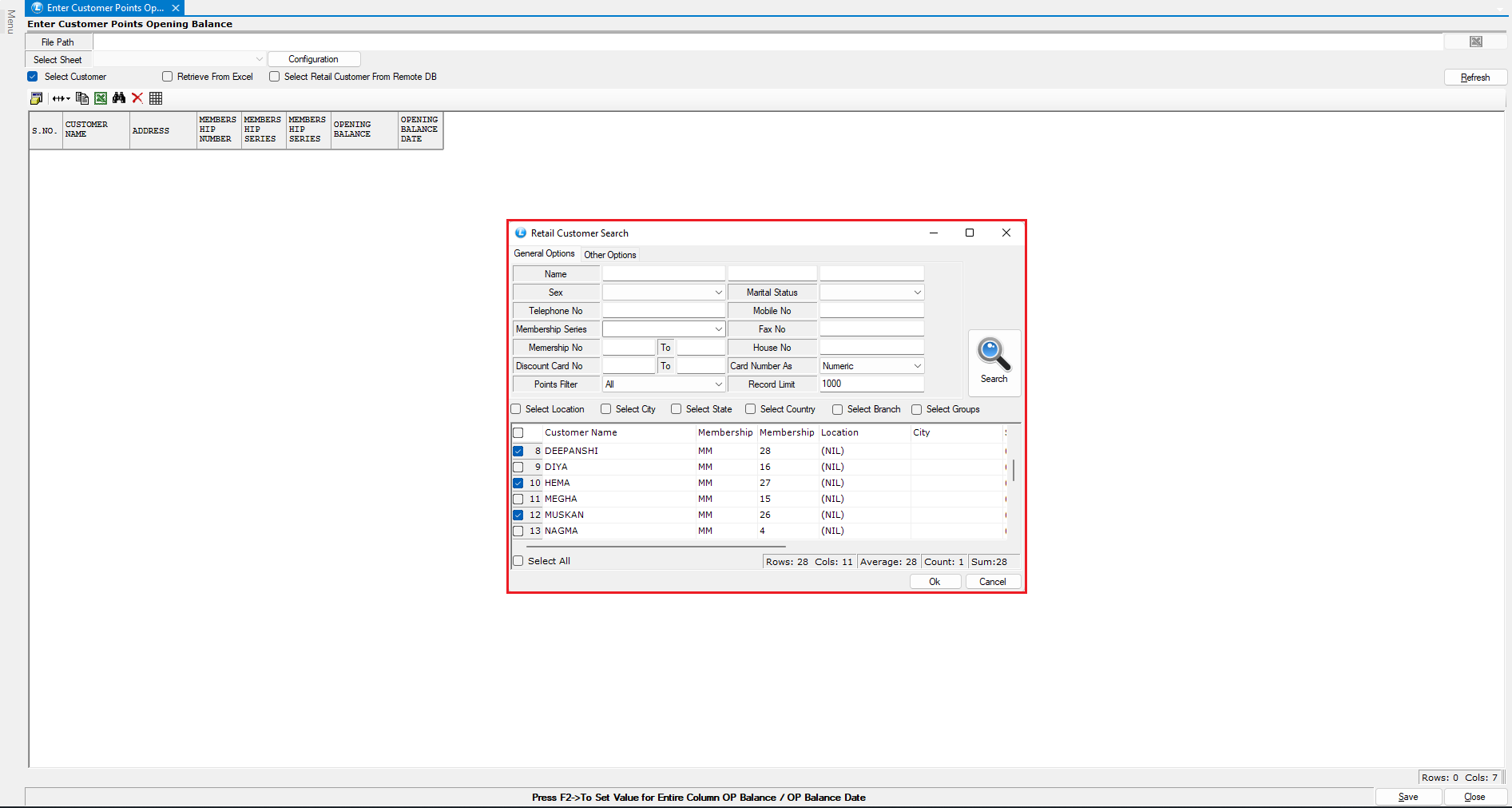
* Select the **customer** for whom you want to define the opening balance.
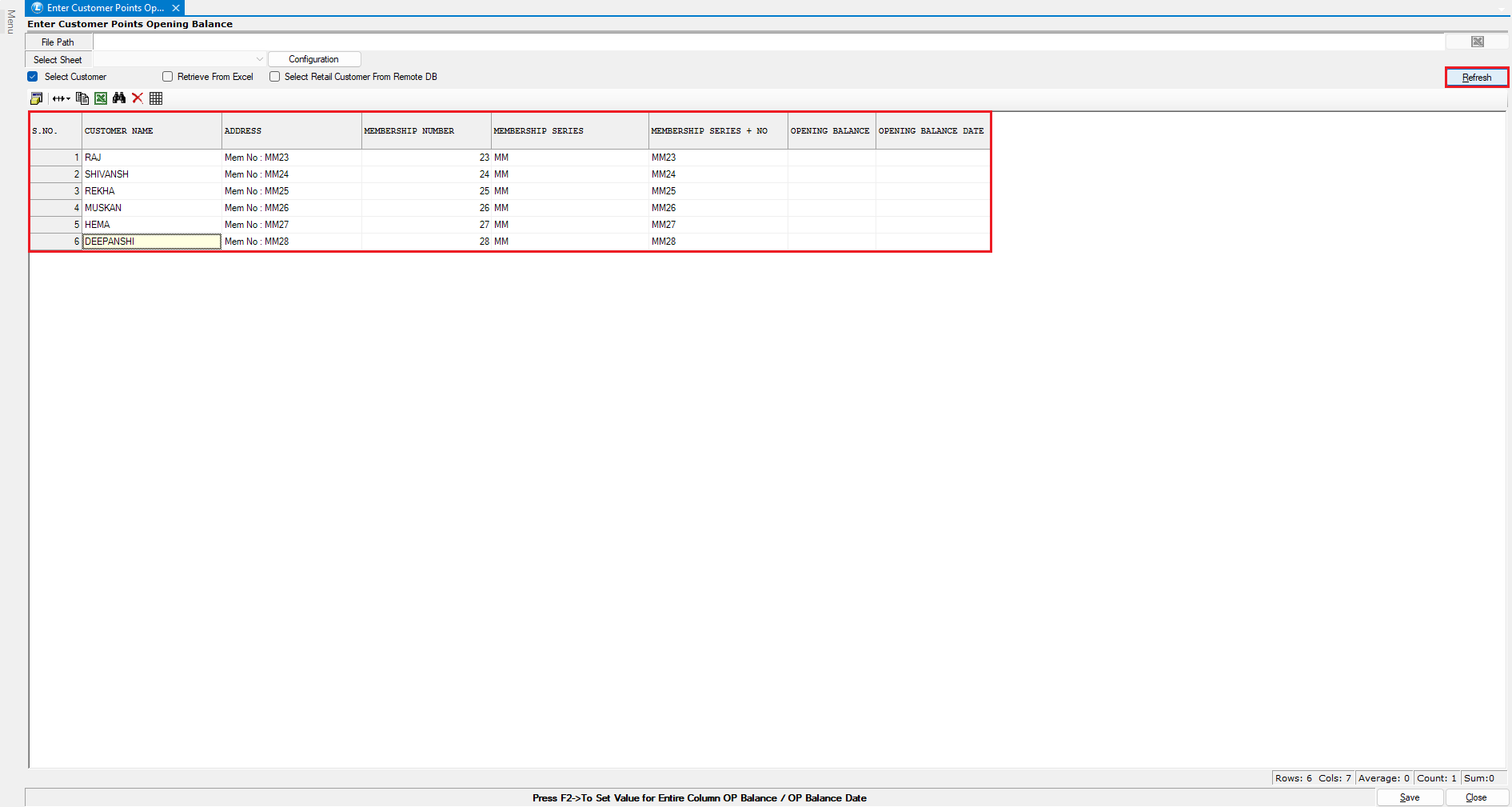
* Click **Refresh** to load the selected customer details.
***
### Enter Opening Balance Details
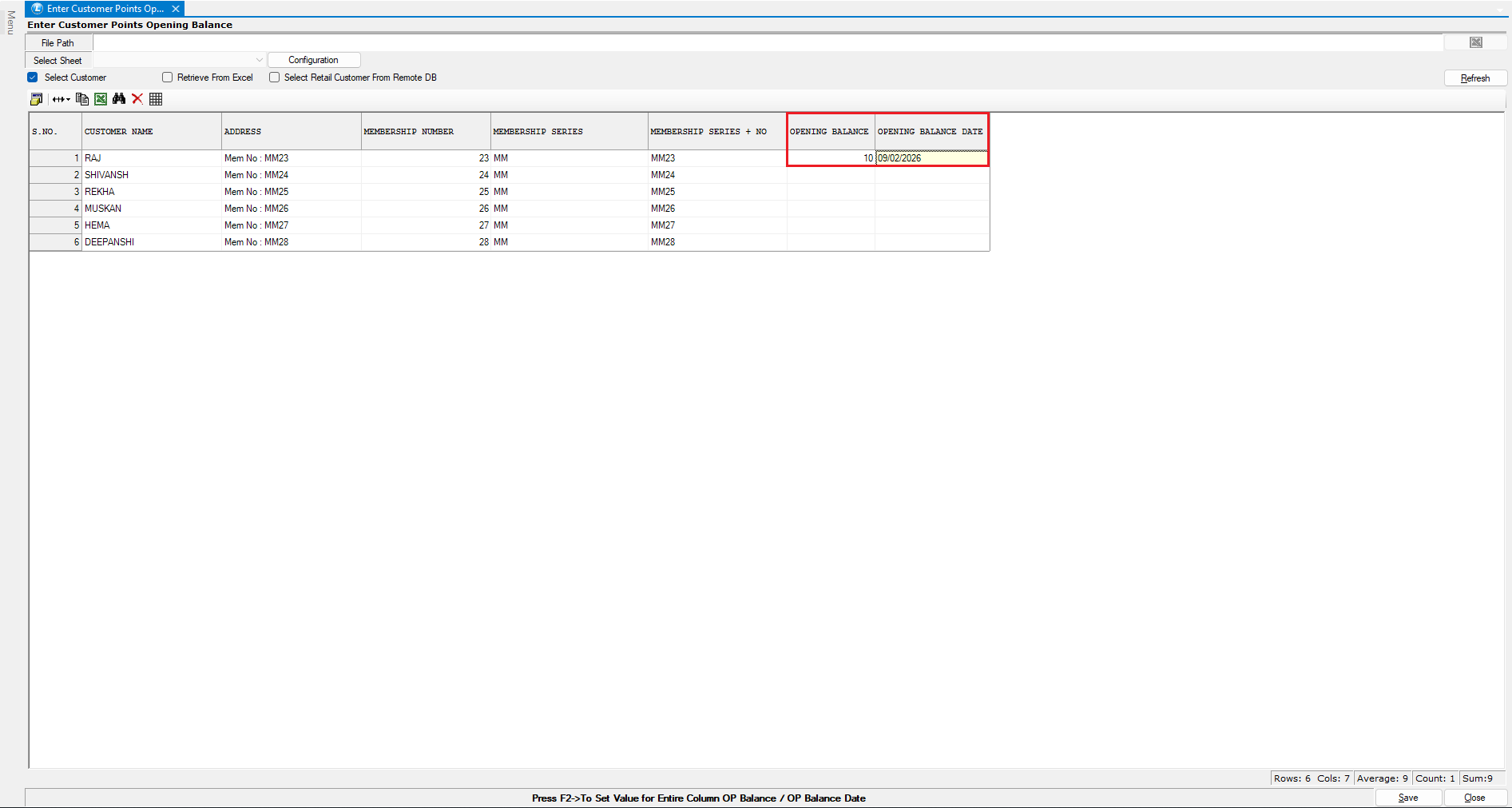
* Enter the **Opening Balance Date** and the corresponding **Customer Points Opening Balance**.
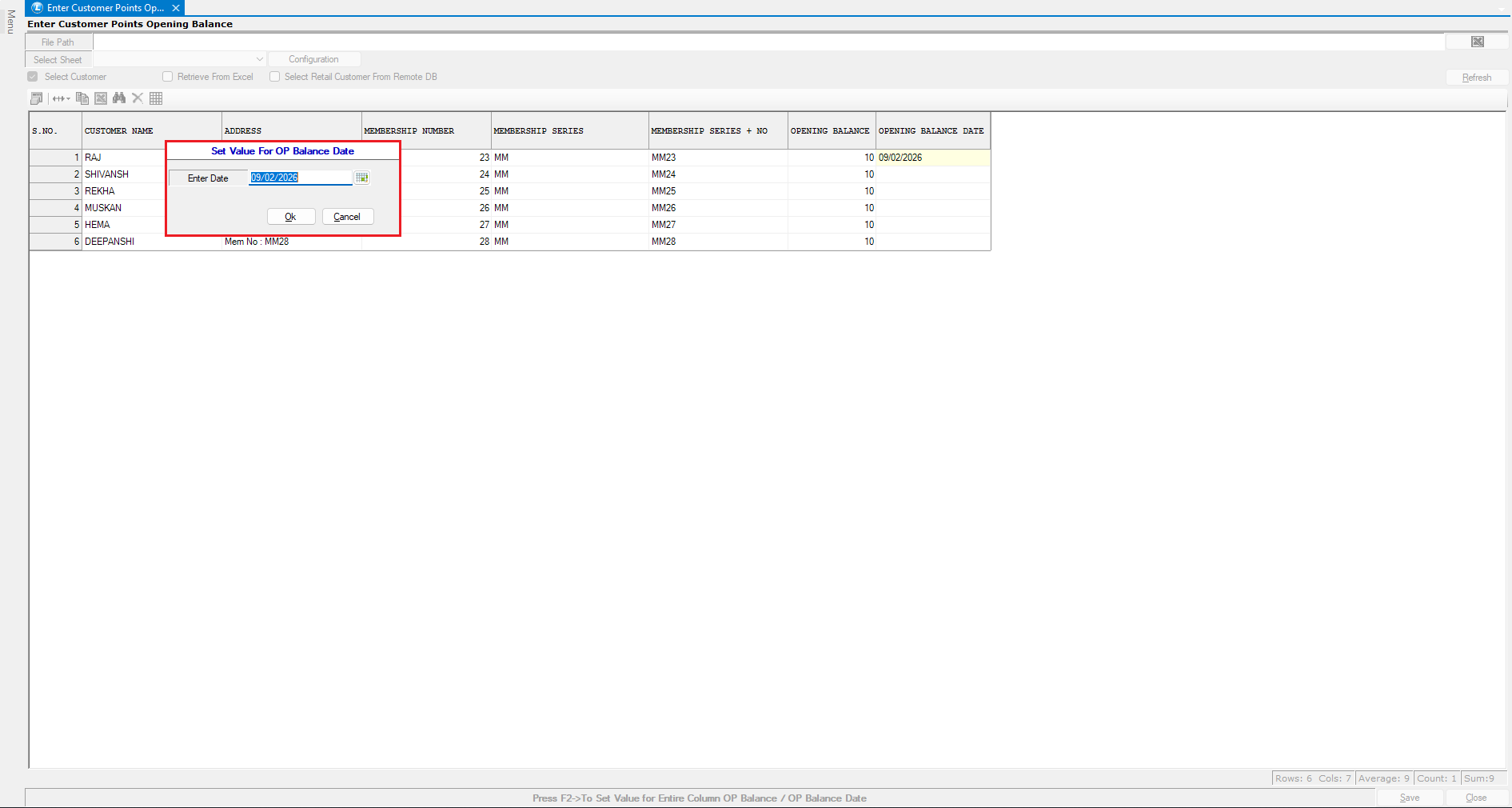
* To apply the same value across the entire column:
* Press the **F2 key**
* Select the required date or value
* The selected value will be applied to all rows in a single action.
* After entering the details, click **Save**.
This completes the **manual entry** of customer points opening balance.
***
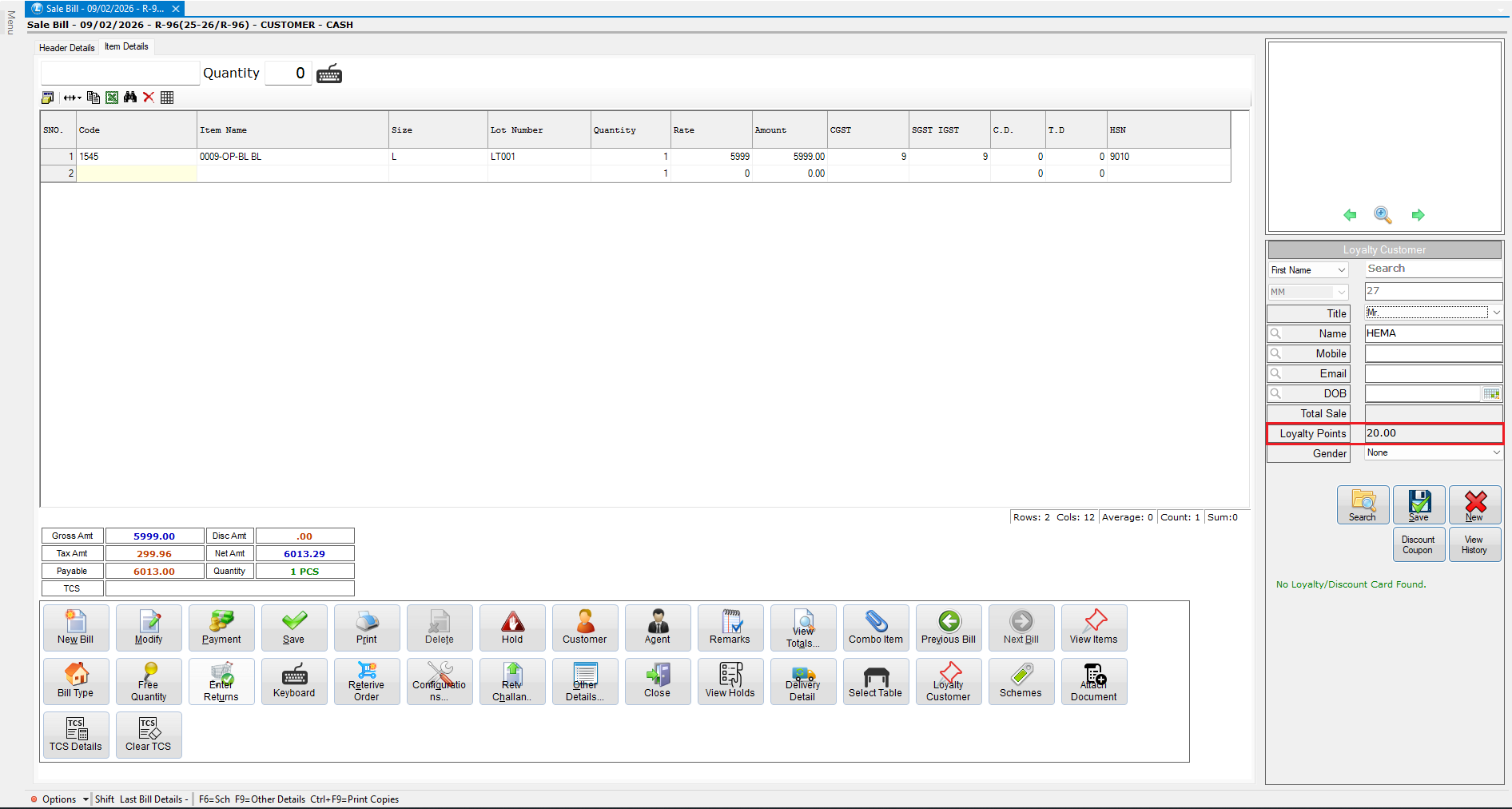
### Verify Points in Billing Module
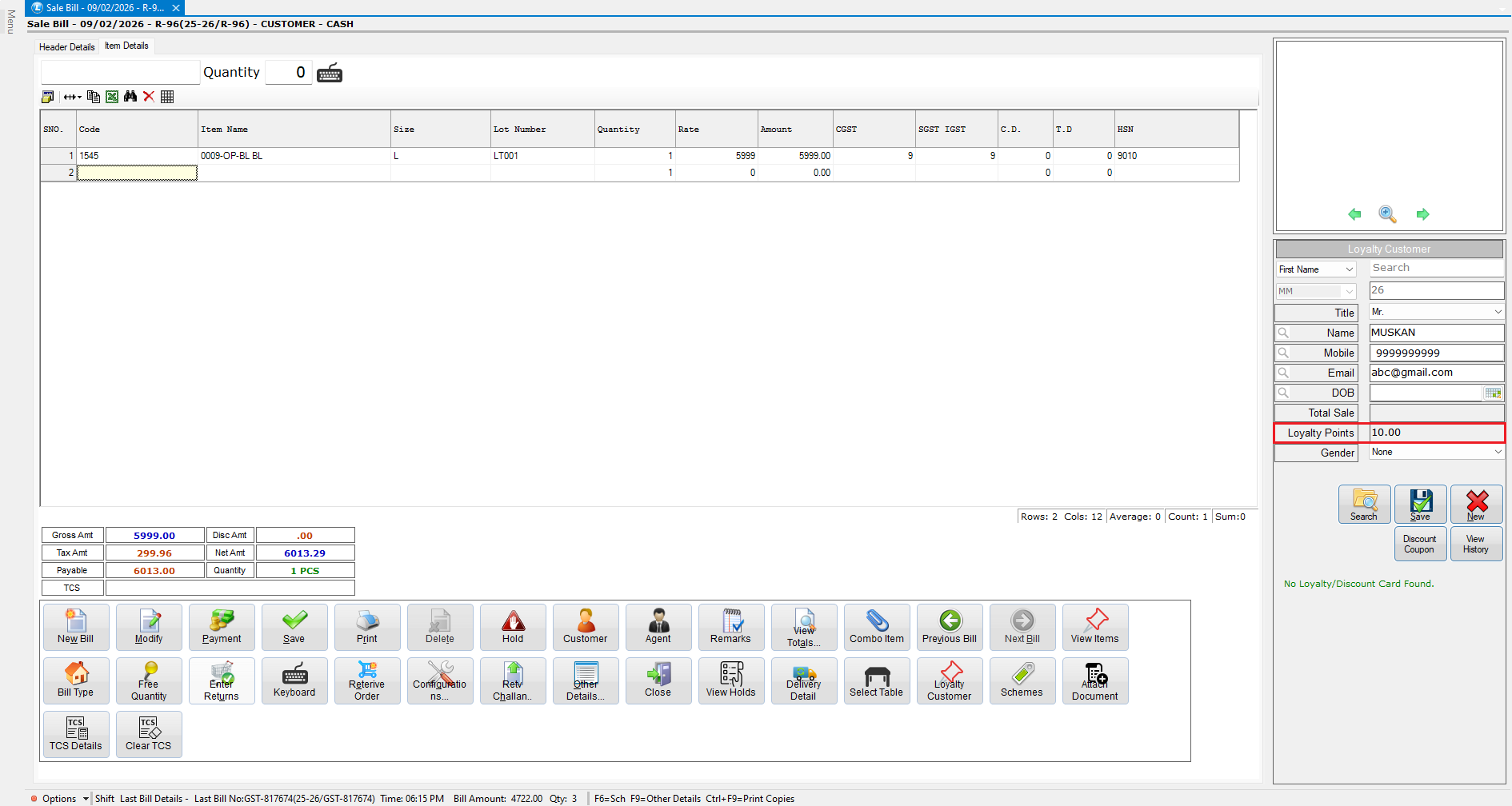
* Open the **Billing module**.
* Select the same customer whose opening point balance was entered.
As you can observe, the **opening balance of 10 loyalty points** is correctly reflected for the customer.
***
### Redeem Customer Points During Billing
* Proceed with billing for the selected customer.
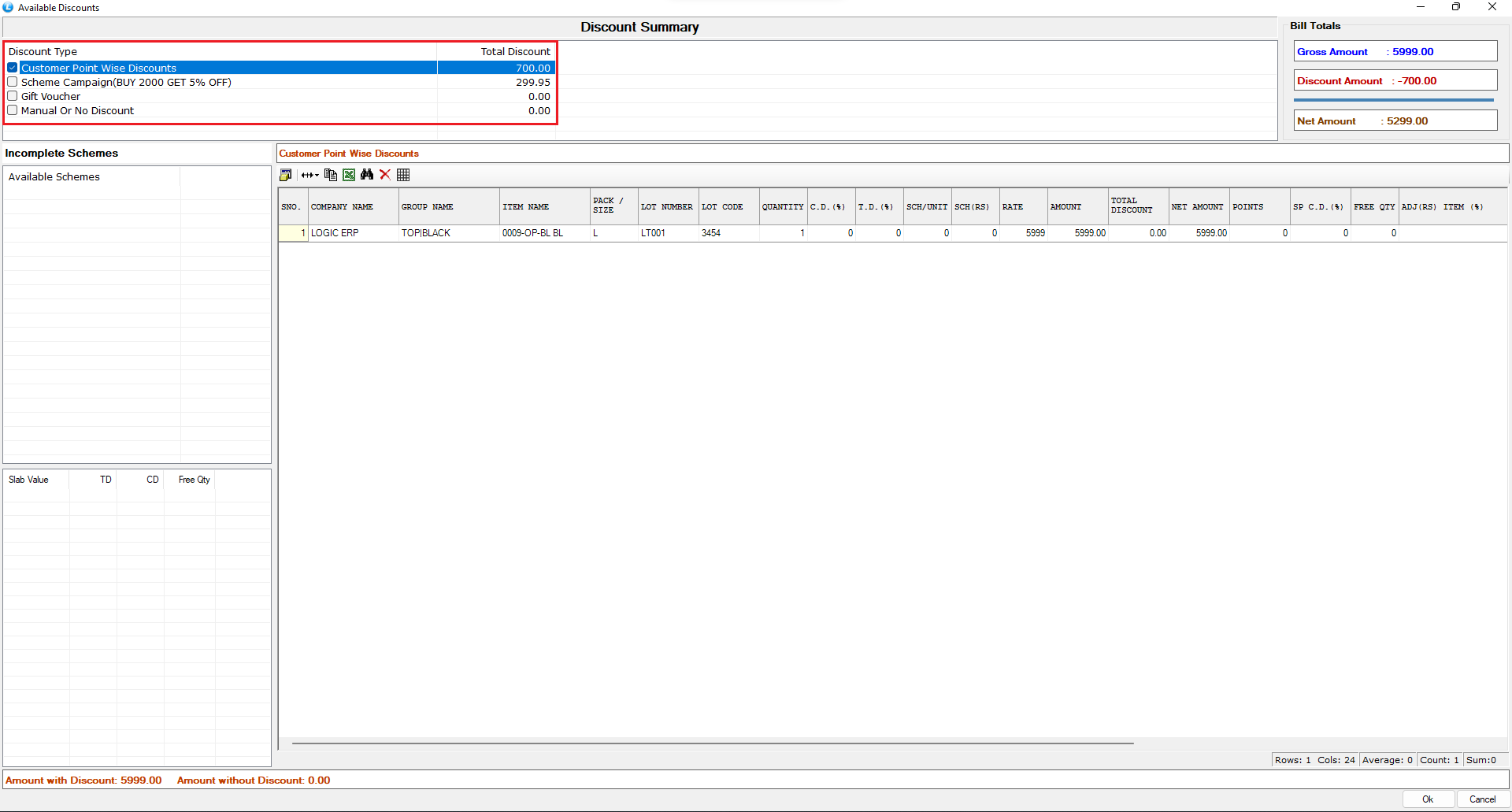
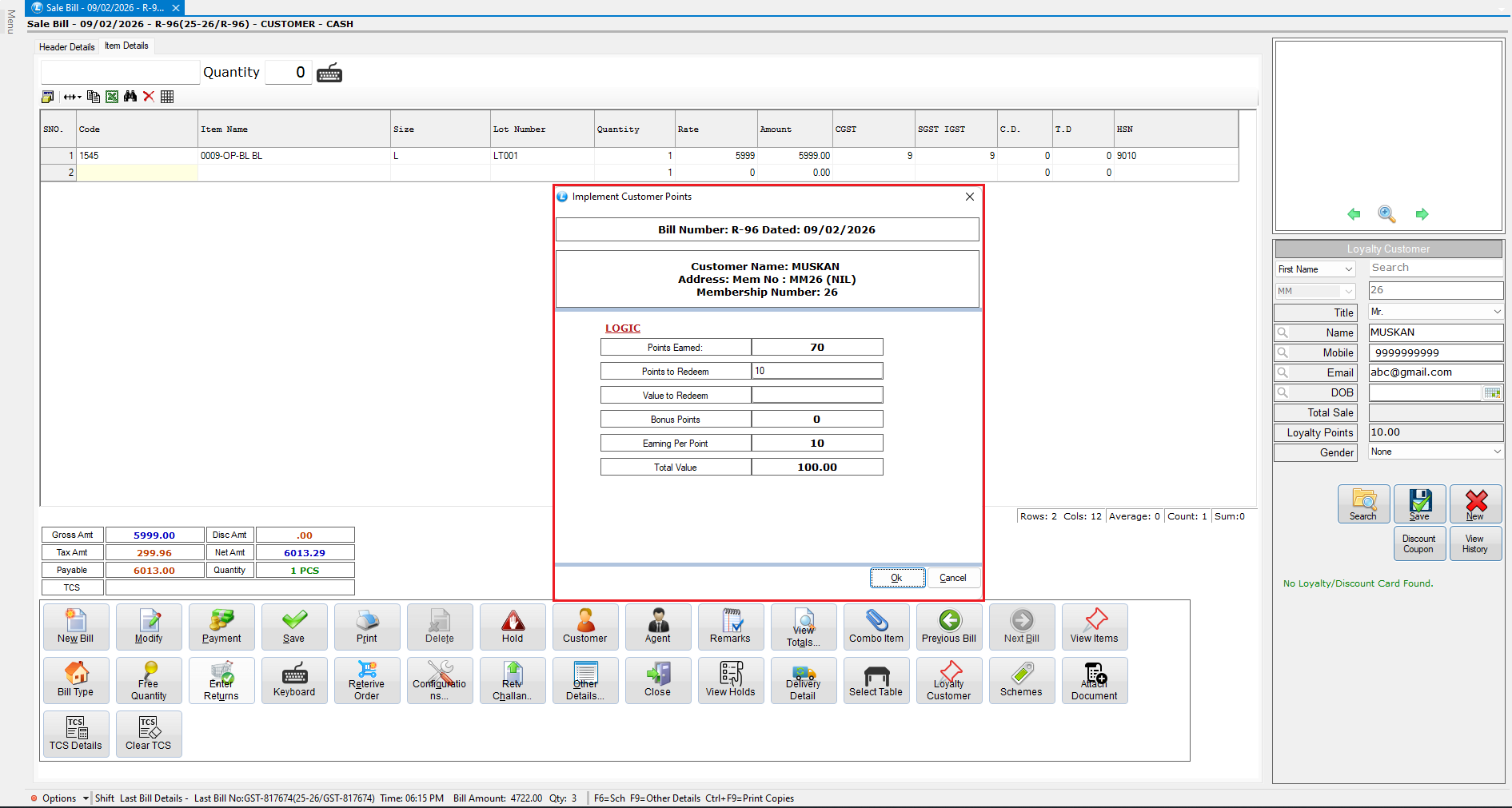
* Upon saving the bill, the **Available Discounts** window appears showing the applicable **points-based discount**.
* Select the discount and click **OK**.
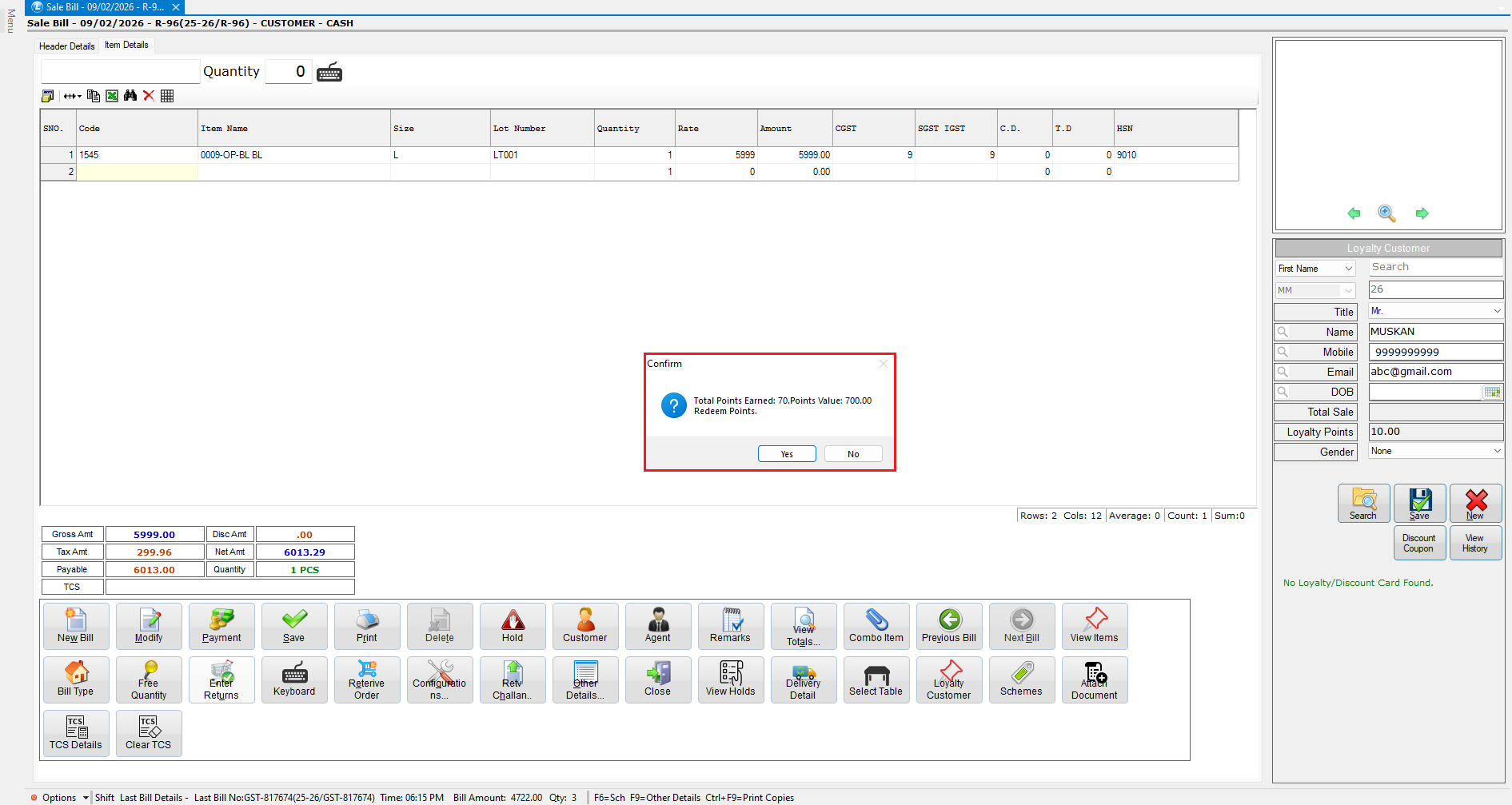
* A confirmation window displays:
* Total points earned
* Points value as per configuration
* Click **Yes** to redeem points on the current bill.
* Enter the number of points to redeem and click **OK**.
* Save the bill to complete the transaction.
***
### Import Customer Points Opening Balance from Excel
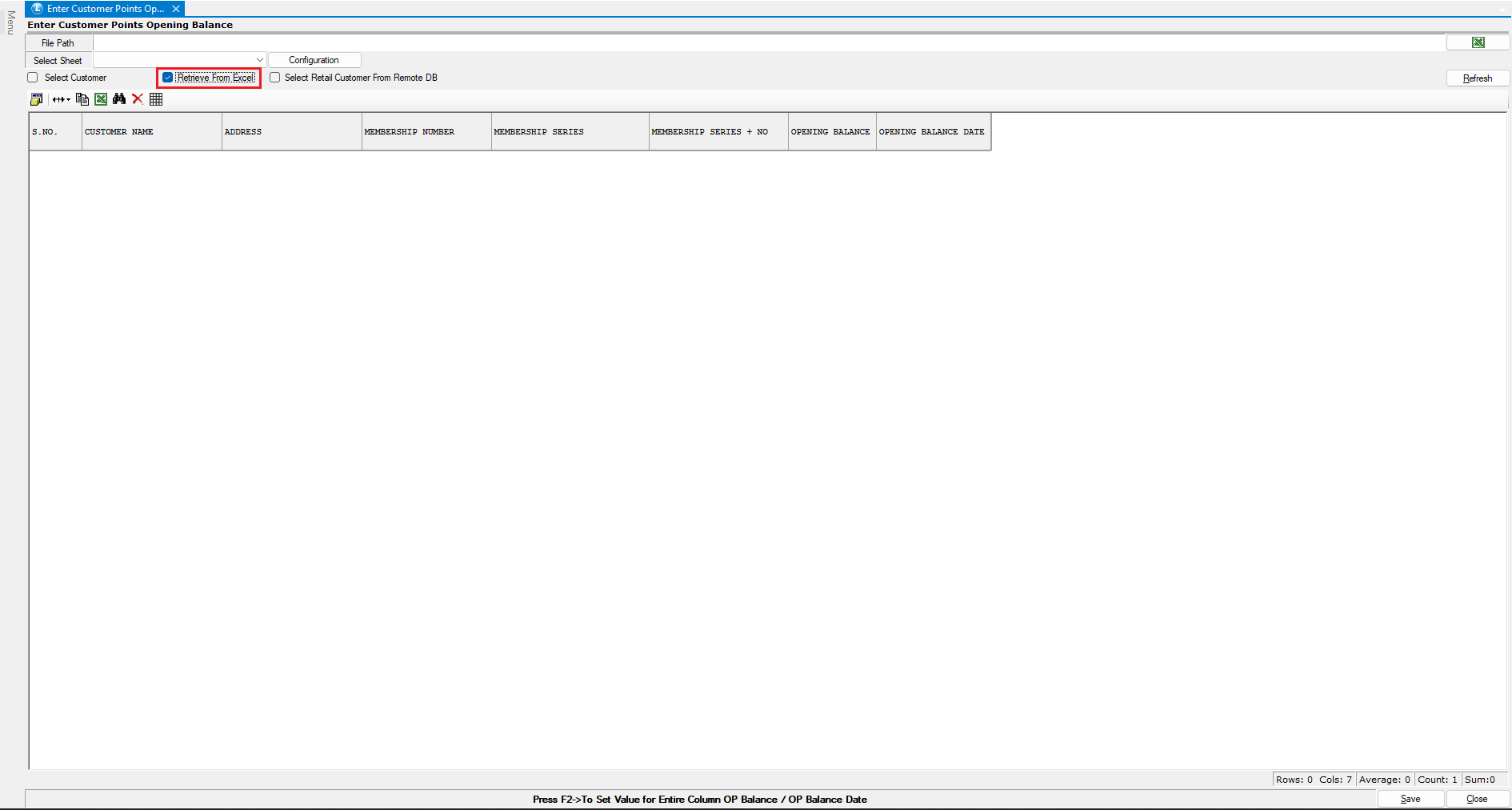
* Return to the **Enter Customer Points Opening Balance** module.
* Select **Retrieve from Excel**.
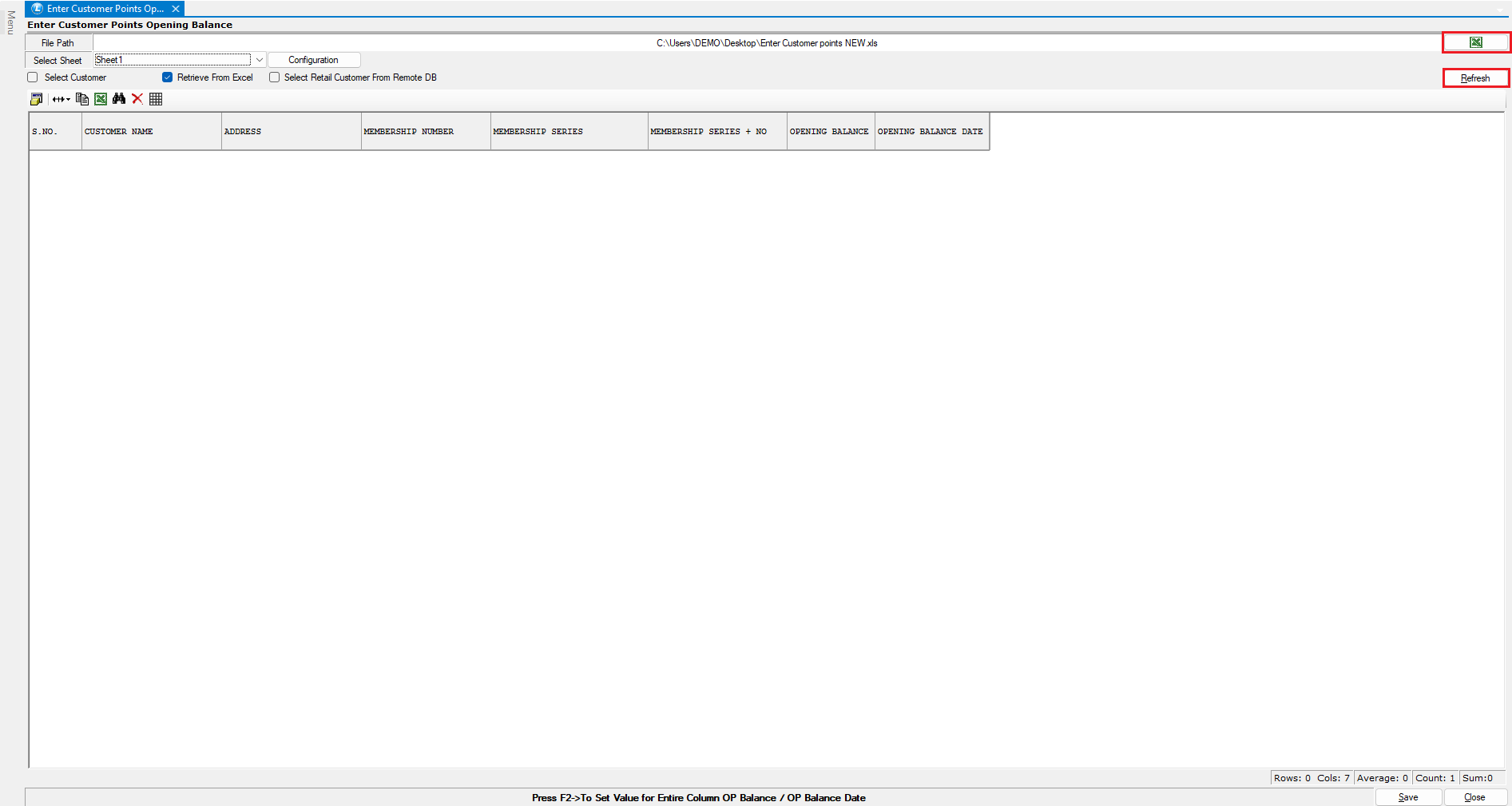
* Click on the **Excel icon** to browse and select the prepared Excel file.
* Click **Refresh** to load the data.
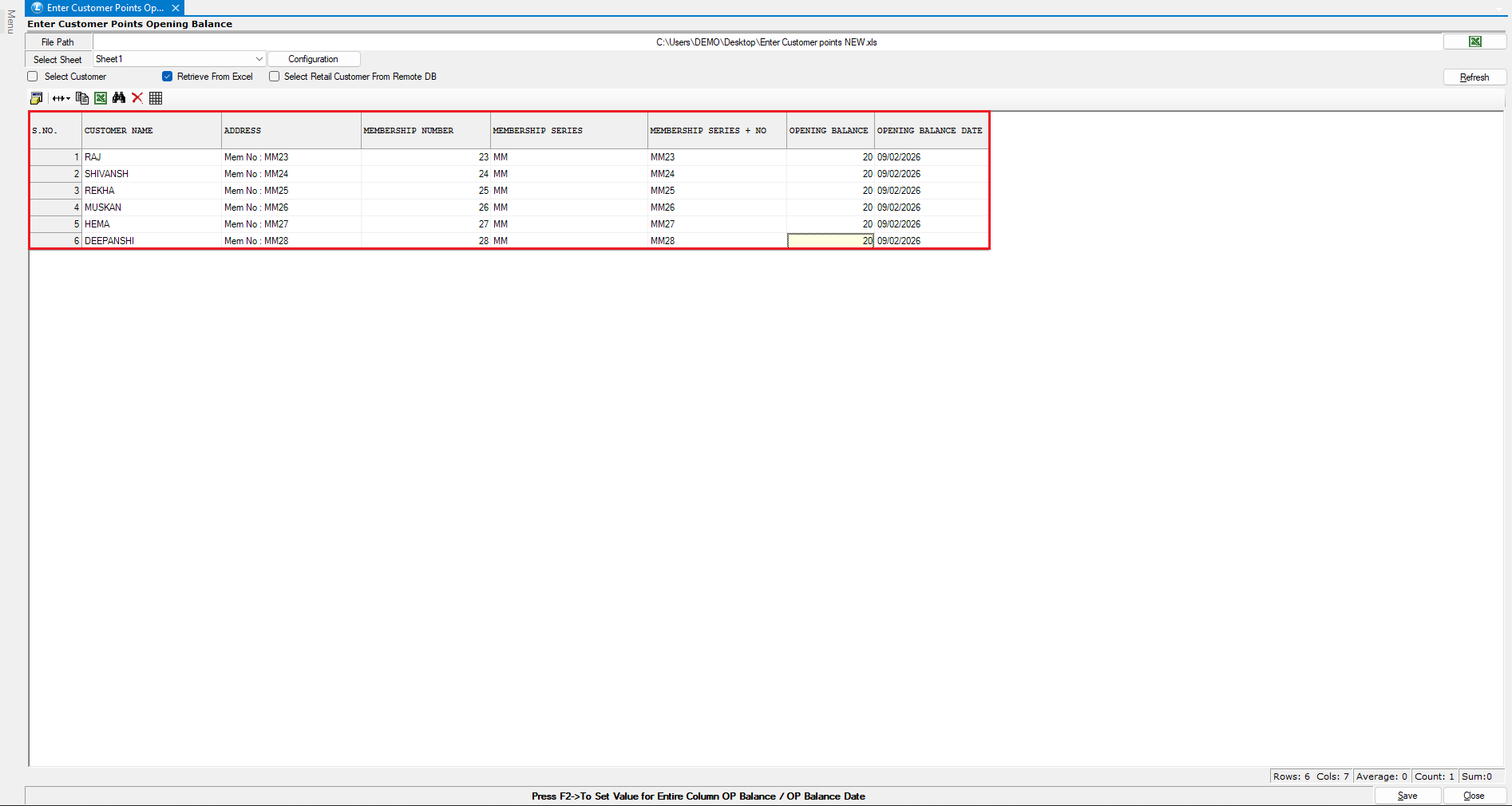
* As observed, the imported customer points opening balance details are accurately reflected.
* Click **Save** to complete the import.
This allows you to update opening balances for **multiple customers simultaneously**, saving time and reducing manual effort.
***
### Verify Imported Points in Billing
* Open the **Billing module**.
* Select a customer whose points were imported from Excel.
You will see that the **opening point balance is correctly reflected**, confirming a successful import.
***
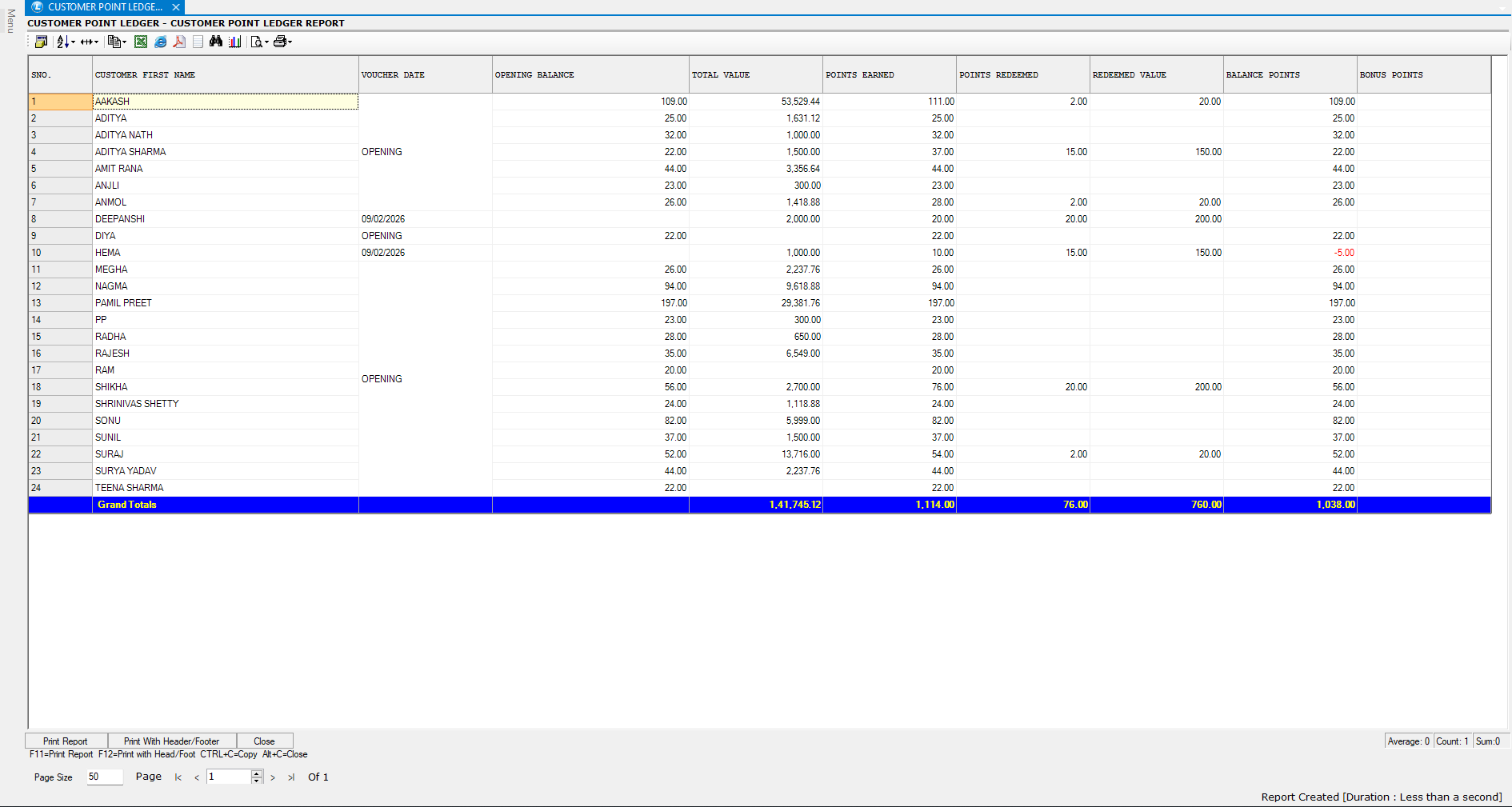
### Customer Point Ledger Report
Finally, open the **Customer Point Ledger Report**.\
This report provides a **detailed view of customer loyalty points**, including:
* Opening balance
* Points earned
* Points redeemed
* Closing balance
***
### Summary
* Customer points opening balance can be entered **manually or via Excel import**
* Points are automatically reflected in billing
* Customers can redeem points during sales transactions
* Customer Point Ledger Report enables complete tracking and transparency
---
# Agent Instructions
This documentation is published with GitBook. GitBook is the documentation platform designed so that both humans and AI agents can read, navigate, and reason over technical content effectively. Learn more at gitbook.com.
## Querying This Documentation
If you need additional information that is not directly available in this page, you can query the documentation dynamically by asking a question.
Perform an HTTP GET request on the current page URL with the `ask` query parameter, and the optional `goal` query parameter:
```
GET https://kb.logicerp.com/logic-erp-learning-hub-tutorials-and-best-practices/setups/setup-accounts/setup-customer-database/enter-customer-points-opening-balance.md?ask=&goal=
```
`ask` is the immediate question: it should be specific, self-contained, and written in natural language.
`goal` is optional and describes the broader end goal you are ultimately trying to accomplish on behalf of the user. GitBook uses it to tailor the answer towards what is most useful for that goal.
The response will contain a direct answer to the question and relevant excerpts and sources from the documentation.
Use this mechanism when the answer is not explicitly present in the current page, you need clarification or additional context, or you want to retrieve related documentation sections.