> For the complete documentation index, see [llms.txt](https://kb.logicerp.com/llms.txt). Markdown versions of documentation pages are available by appending `.md` to page URLs; this page is available as [Markdown](https://kb.logicerp.com/logic-erp-learning-hub-tutorials-and-best-practices/setups/setup-accounts/setup-agents/setup-item-wise-commission.md).
# Setup Item Wise Commission
**YouTube:** [How to Set Up Item Wise Commission?](https://www.youtube.com/watch?v=tAnVWQmk98Y)
## How to Set Up Item Wise Commission?
In this tutorial, you will learn how to **define and track item-wise commission** in Logic ERP.\
This feature helps businesses **automatically calculate commissions on sales based on items**, improving accuracy and efficiency.
***
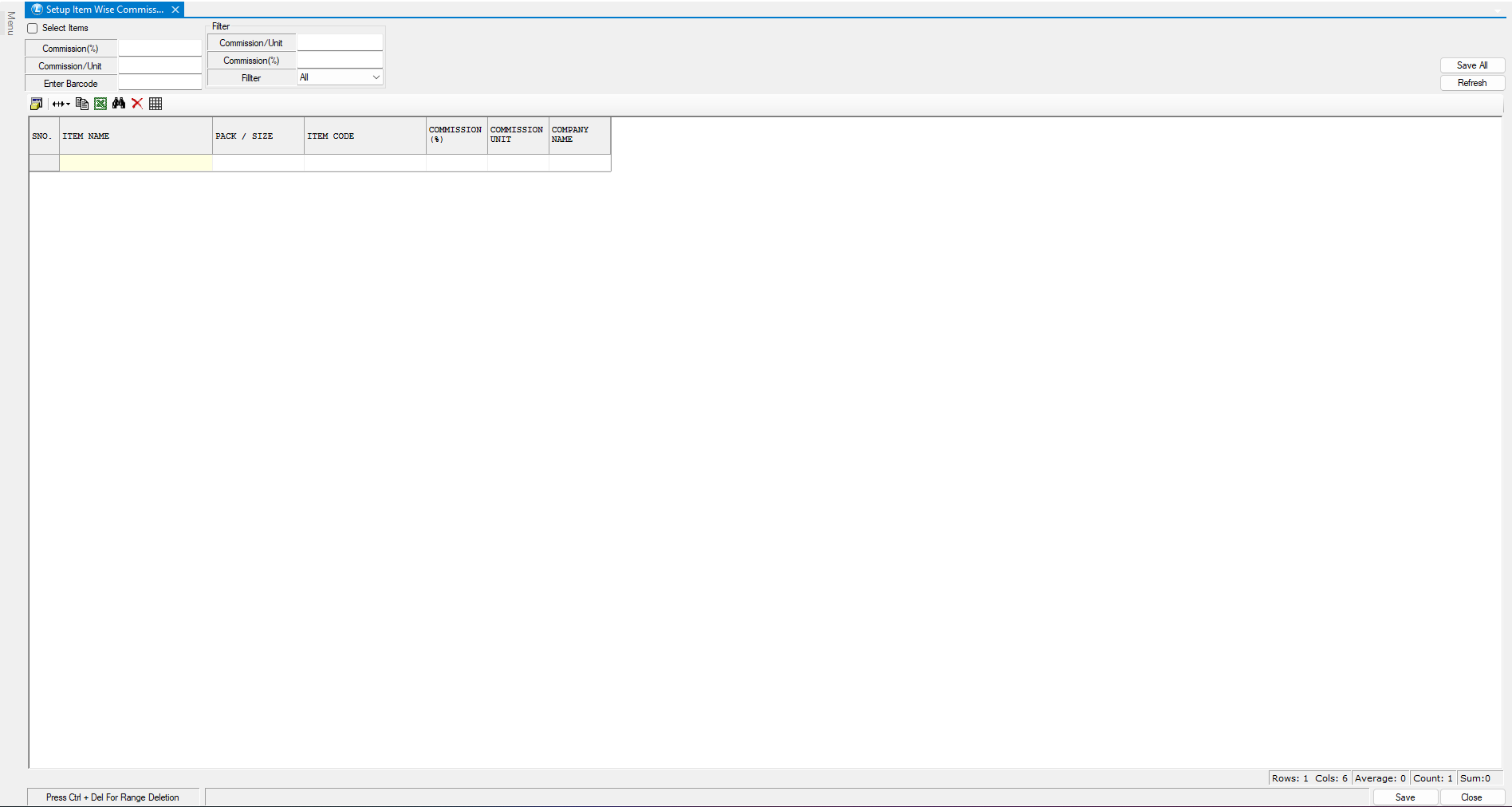
### Open Item-Wise Commission Setup
**To begin:**
* Navigate to the **Main Menu**.
* Open the **Setup Module**.
* Navigate to **Setup Agent Section**.
* Click on **Setup Item Wise Commission**.
* This window allows you to **define commission rules for items**.
***
### Define Commission for Individual Items
* You can assign commission directly to a single item.
* **Enter:**
* Commission Percentage (%)\
**OR**
* Commission Per Unit
* Scan or enter the **Item Barcode**
* Once Done click to **Save All** and **Refresh.**
**Result:** Commission is assigned to the selected item.
***
### Define Commission for Multiple Items
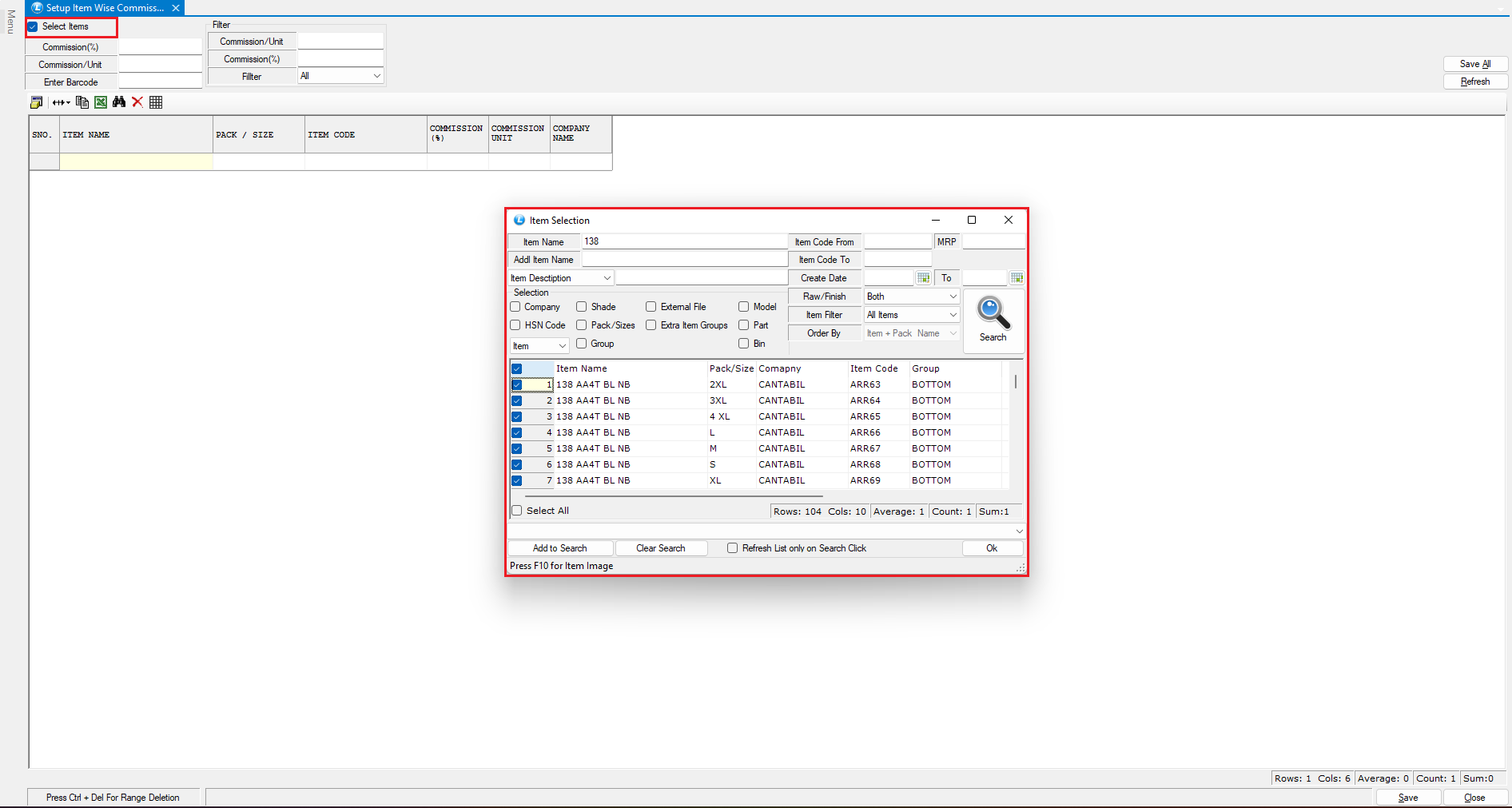
* You can also assign commission in bulk.
**Steps:**
* Select multiple items from the **Search List**.
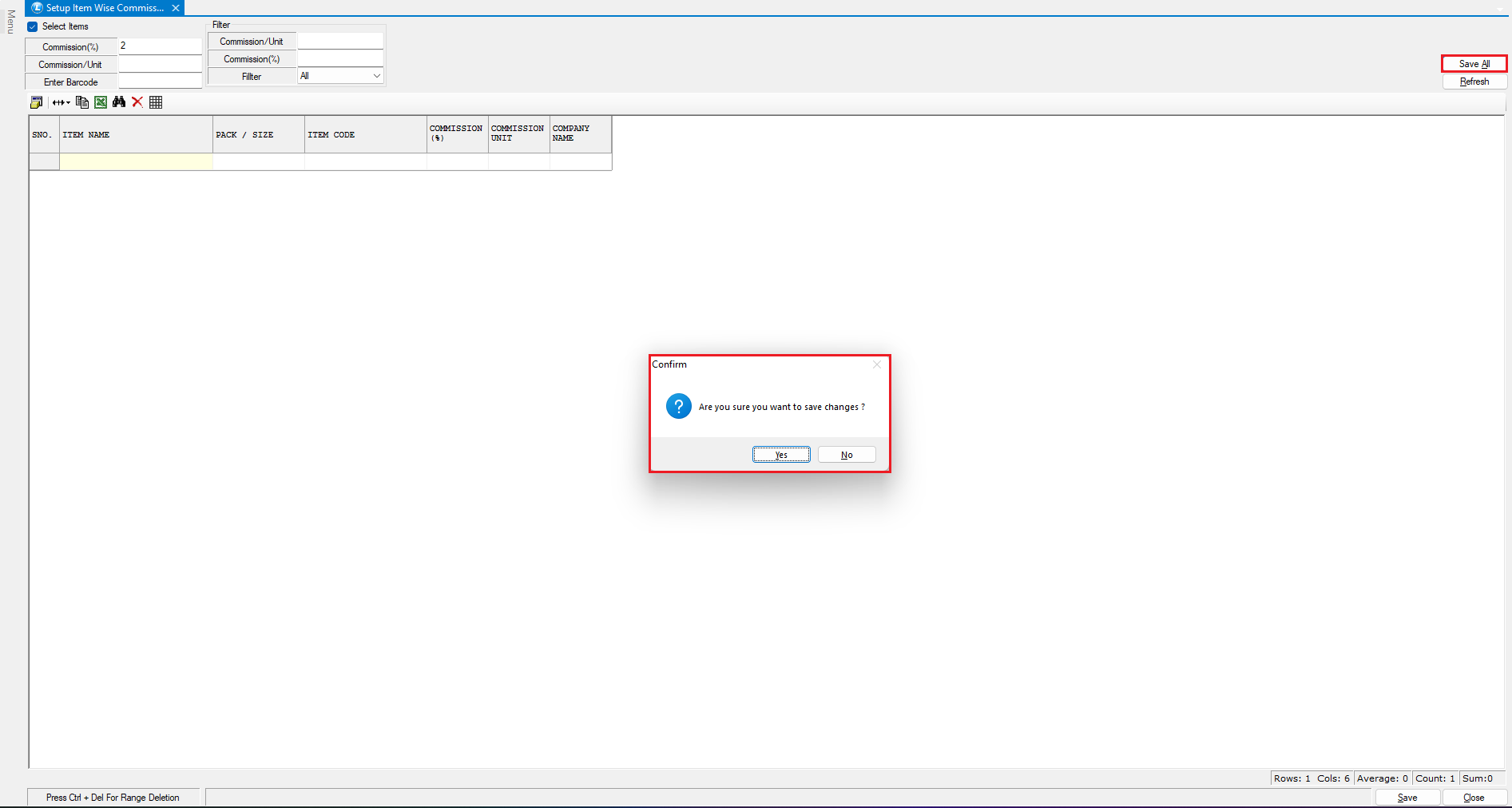
* Define:
* Commission Percentage (%)\
**OR**
* Commission Per Unit
* Click **Save All**
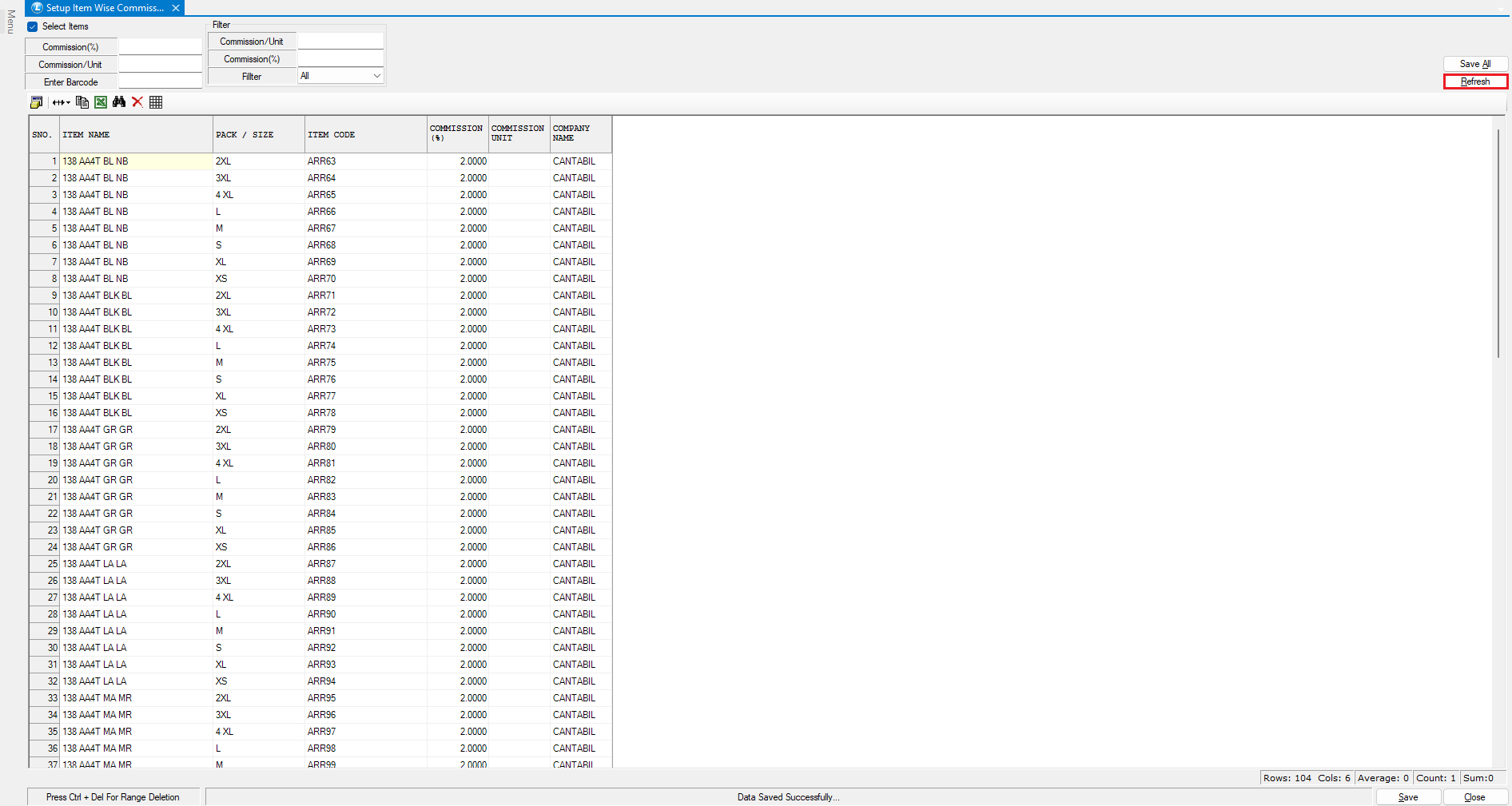
**Review Commission Setup**
* Click on **Refresh** to review all entries.
* Ensures all commission settings are correctly applied.
***
### Automatic Commission Calculation
Once setup is complete:
* During **Sales Transactions**, the system will automatically:
* Calculate commission for selected items
* Apply defined percentage or per-unit commission
***
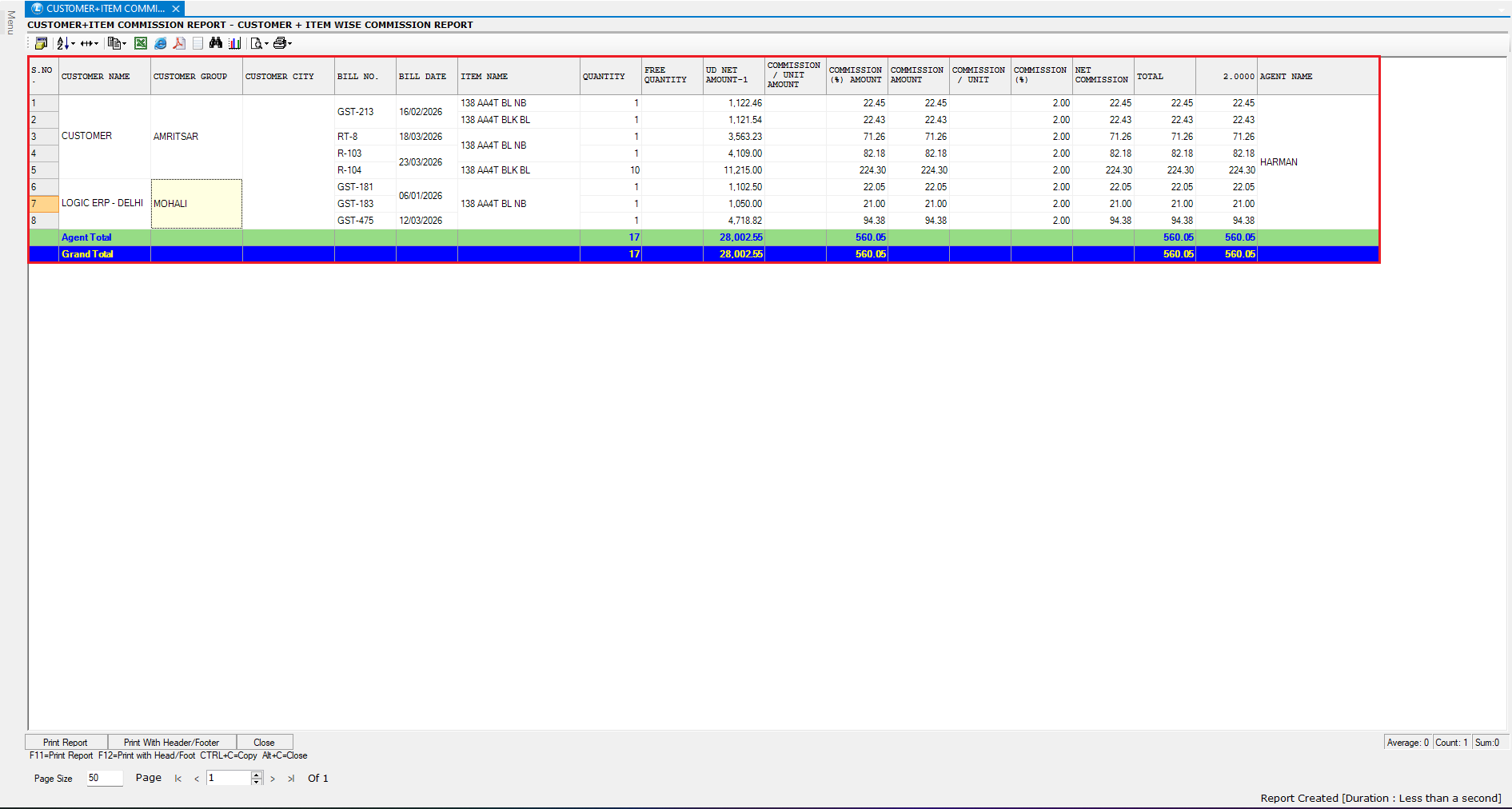
### View Commission Reports
To analyze commission data:
* Go to **Reports/Queries Module**.
* Navigate to:
* **Customer + Item Sales Analysis**
* Open **Customer + Item Wise Commission Report**
**Apply Filters & Generate Report**
* Apply filters such as:
* Customer
* Item
* Date Range
* Generate the report.
**Report Insights**
The report displays:
* **Item-wise commission details**
* Commission calculated based on:
* Total sales
* Defined commission rules
Helps in tracking **earnings and performance accurately**.
***
### Key Benefits of Item-Wise Commission
* Automated commission calculation
* Flexible setup (item-wise or bulk)
* Supports % and per-unit commission
* Accurate reporting and tracking
* Saves time and reduces manual errors
***
### Final Outcome
You have successfully learned how to:
* Define **Item-Wise Commission**
* Apply commission for **single or multiple items**
* Automatically calculate commission during sales
* Analyze commission using **reports**
Your system is now optimized for **efficient commission management and tracking**.
---
# Agent Instructions
This documentation is published with GitBook. GitBook is the documentation platform designed so that both humans and AI agents can read, navigate, and reason over technical content effectively. Learn more at gitbook.com.
## Querying This Documentation
If you need additional information that is not directly available in this page, you can query the documentation dynamically by asking a question.
Perform an HTTP GET request on the current page URL with the `ask` query parameter, and the optional `goal` query parameter:
```
GET https://kb.logicerp.com/logic-erp-learning-hub-tutorials-and-best-practices/setups/setup-accounts/setup-agents/setup-item-wise-commission.md?ask=&goal=
```
`ask` is the immediate question: it should be specific, self-contained, and written in natural language.
`goal` is optional and describes the broader end goal you are ultimately trying to accomplish on behalf of the user. GitBook uses it to tailor the answer towards what is most useful for that goal.
The response will contain a direct answer to the question and relevant excerpts and sources from the documentation.
Use this mechanism when the answer is not explicitly present in the current page, you need clarification or additional context, or you want to retrieve related documentation sections.