> For the complete documentation index, see [llms.txt](https://kb.logicerp.com/llms.txt). Markdown versions of documentation pages are available by appending `.md` to page URLs; this page is available as [Markdown](https://kb.logicerp.com/logic-erp-learning-hub-tutorials-and-best-practices/setups/set-other-item-details/setup-godown-groups.md).
# Setup Godown Groups
**YouTube:** [How to Set Up and Use Godown Groups?](https://youtu.be/3vf_UdkyXj0)
## How to Set Up and Use Godown Groups?
This tutorial explains how to **set up Godown Groups in Logic ERP** and demonstrates their practical usage in inventory management. You will learn how to create and organize Godown groups, assign Godowns, use them during purchase transactions, and generate group-wise stock reports for better control and analysis.
***
### **Objective of Godown Groups**
* Organize multiple godowns into logical groups
* Simplify **stock allocation and tracking**
* Enable **filtered selection during transactions**
* Generate **group-wise inventory reports**
***
### **Accessing Godown Group Setup**
* Navigate to Main Menu and expand **"Setup"** Module
* Go to **Set Other Items Details**
* Click on **“Setup Godown Groups”**
**Understanding Default Groups**
* System provides **5 default groups**
* These can be customized as per business requirements
***
### **Updating Godown Groups Caption**
* To update the group name caption, right click to rename the group.
* Update the **Group Caption**
* Click **OK**.
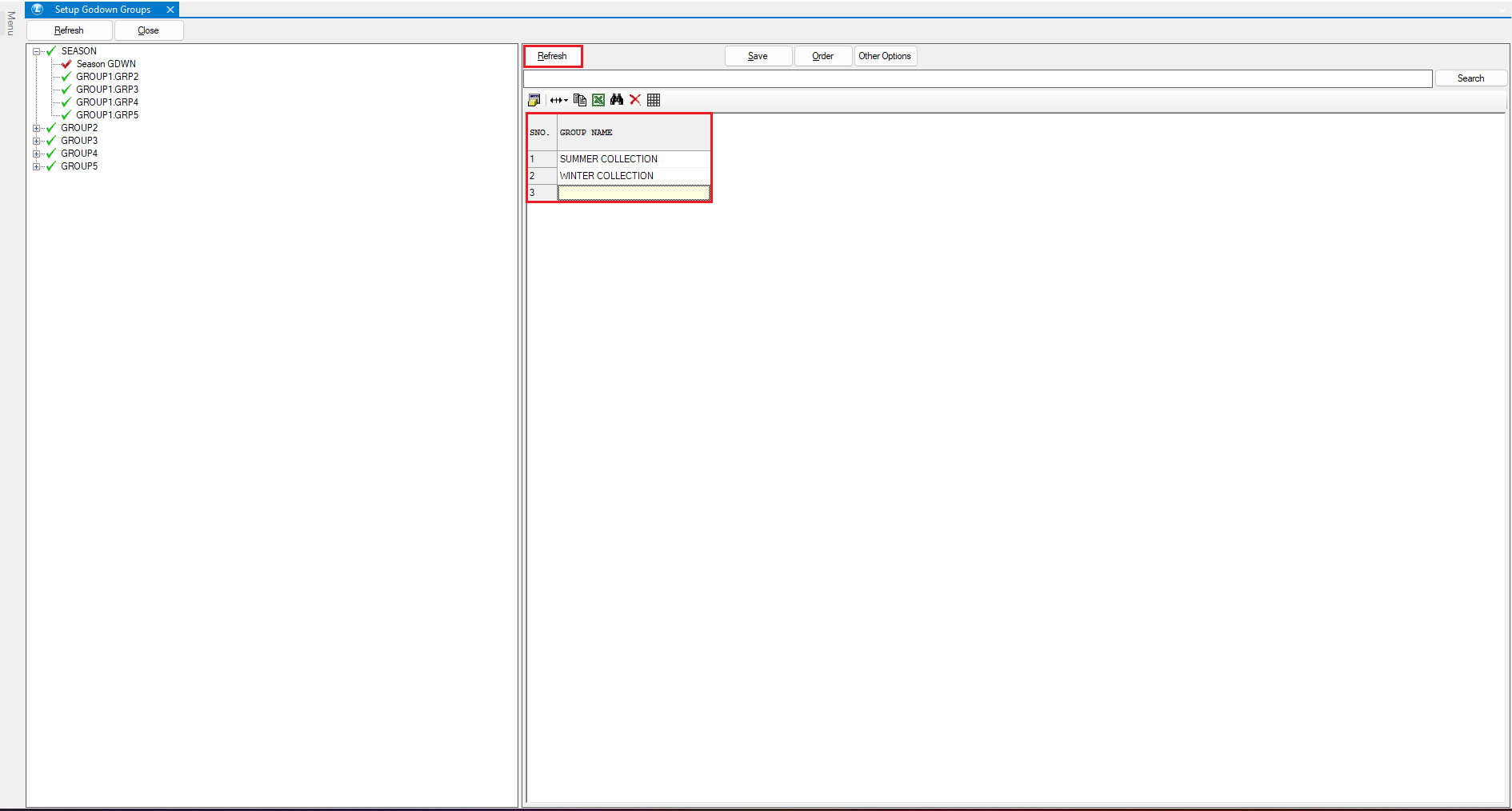
* Once saved, expand the newly created group and select **Group Level 1**.
* Click the **Refresh** button to add groups.
* Enter group names in the available columns.
* Click **“Save”** to apply the changes.
***
### **Allocating Godowns to Groups**
* Select the Desired **Godown Group**
* Right-click → Click **Allocate Godown**
* Choose from the list of existing Godowns
* Assign required Godowns to the selected group
* **Organizing Multiple Groups**
* Repeat the process to create multiple groups
* Assign different Godowns to each group
* Helps in structured inventory management
***
### **Using Godown Groups in Purchase Entry**
**Enable Required Configuration**
* Open **Purchase Voucher Configuration**
* Go to **Other Settings 1**
* Locate and enable the option Labeled as:
> **“Prompt Godown for Purchase Voucher at Document End”**
**Creating Purchase Entry**
* Create a **New Purchase Voucher**
* At the time of saving:
* System prompts for **Godown Selection**
**Filtering Using Godown Groups**
* All Godowns will initially be visible
* First, Click on **Select Group**,
* Then, select the **Godown Group** created earlier.
* **System will:** Filter and display only Godowns within that Group.
***
### **Viewing Godown Group-wise Stock Report**
* Navigate to **Reports/Queries** and expand **Stock Reports**
* Open **Stock Query (New Report)**
**Apply Filter**
* Select **Godown Group Filter**
* Choose the required group
**Result**
* Displays stock of all items
* Covers all Godowns under the selected group
***
### **Key Benefits of Godown Groups**
* Improves **inventory organization**
* Speeds up **Godown selection during transactions**
* Enables **better stock visibility**
* Simplifies **reporting and analysis**
***
### **Final Outcome**
* Godowns are **logically grouped and managed**
* Users can easily select relevant Godowns
* Stock reports become **more structured and insightful**
* Overall inventory control becomes **efficient and streamlined**
---
# Agent Instructions
This documentation is published with GitBook. GitBook is the documentation platform designed so that both humans and AI agents can read, navigate, and reason over technical content effectively. Learn more at gitbook.com.
## Querying This Documentation
If you need additional information that is not directly available in this page, you can query the documentation dynamically by asking a question.
Perform an HTTP GET request on the current page URL with the `ask` query parameter, and the optional `goal` query parameter:
```
GET https://kb.logicerp.com/logic-erp-learning-hub-tutorials-and-best-practices/setups/set-other-item-details/setup-godown-groups.md?ask=&goal=
```
`ask` is the immediate question: it should be specific, self-contained, and written in natural language.
`goal` is optional and describes the broader end goal you are ultimately trying to accomplish on behalf of the user. GitBook uses it to tailor the answer towards what is most useful for that goal.
The response will contain a direct answer to the question and relevant excerpts and sources from the documentation.
Use this mechanism when the answer is not explicitly present in the current page, you need clarification or additional context, or you want to retrieve related documentation sections.