> For the complete documentation index, see [llms.txt](https://kb.logicerp.com/llms.txt). Markdown versions of documentation pages are available by appending `.md` to page URLs; this page is available as [Markdown](https://kb.logicerp.com/logic-erp-learning-hub-tutorials-and-best-practices/setups/set-other-account-details/setup-currency.md).
# Setup Currency
**YouTube:** [How to Set Up Currency and Exchange Rates?](https://www.youtube.com/watch?v=HHYXBnHV6cc)
## How to Set Up Currency and Exchange Rates?
In this tutorial, we will learn how to **set up currencies and define exchange rates in Logic ERP**, and understand how currency conversion works during billing transactions.
***
### Currency Master Setup
To begin, configure the currency master in Logic ERP.
* Navigate to the **Setup** from the main menu
* Go to **Other Account Details**
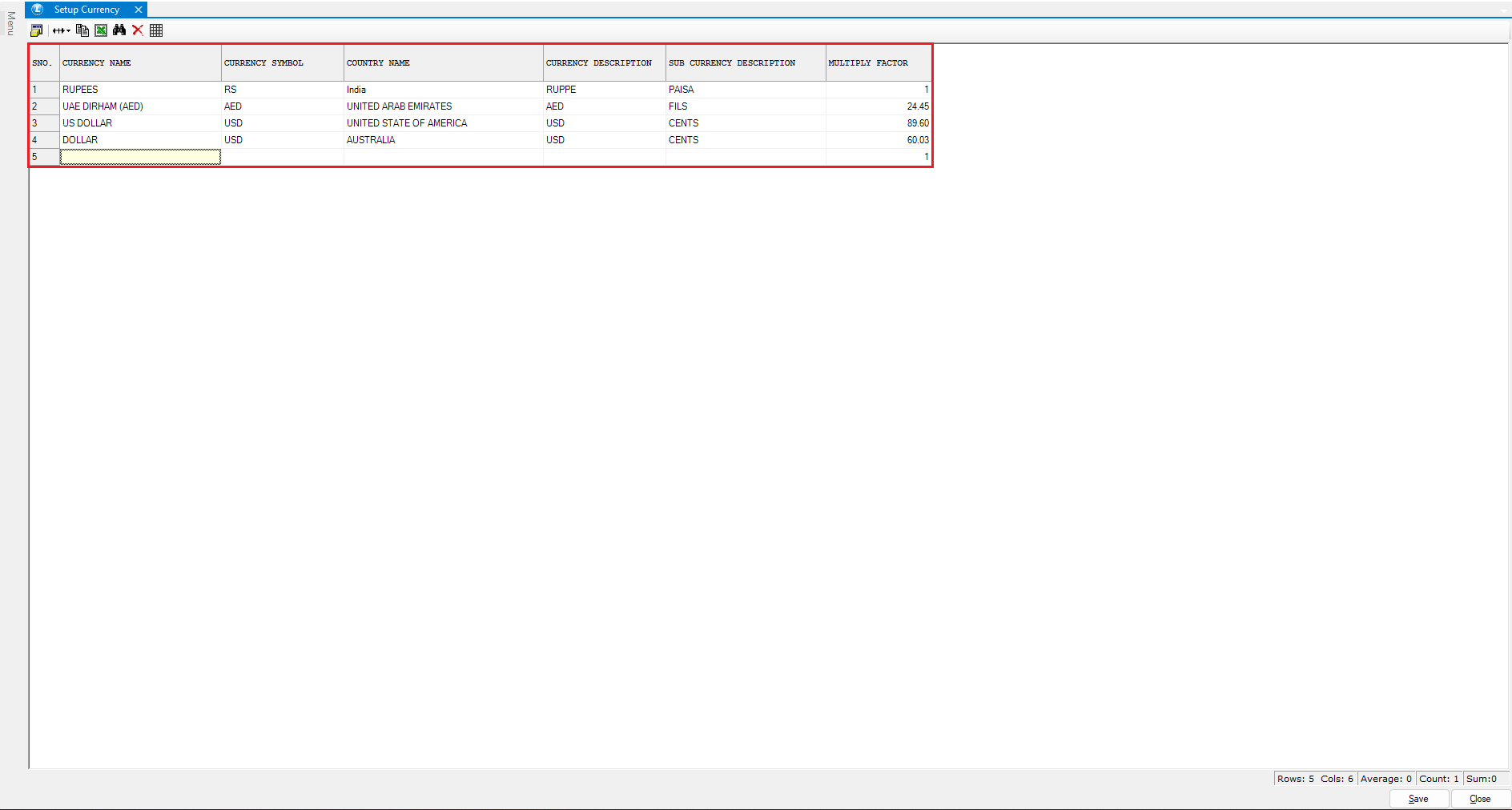
* Click to open the **Setup Currency** window
Add a New Currency
* Review the list of currencies already defined in the system
* To create a new currency, enter the following details:
* Currency Name
* Currency Symbol
* Country Name
* Currency Description
* Sub Description
* Multiply Factor (as required)
* After defining all details, click **Save**
***
### Defining Currency Exchange Rates
Once the currency master is created, define the exchange rate.
* Navigate to the **Setup** from the main menu
* Go to **Other Account Details**
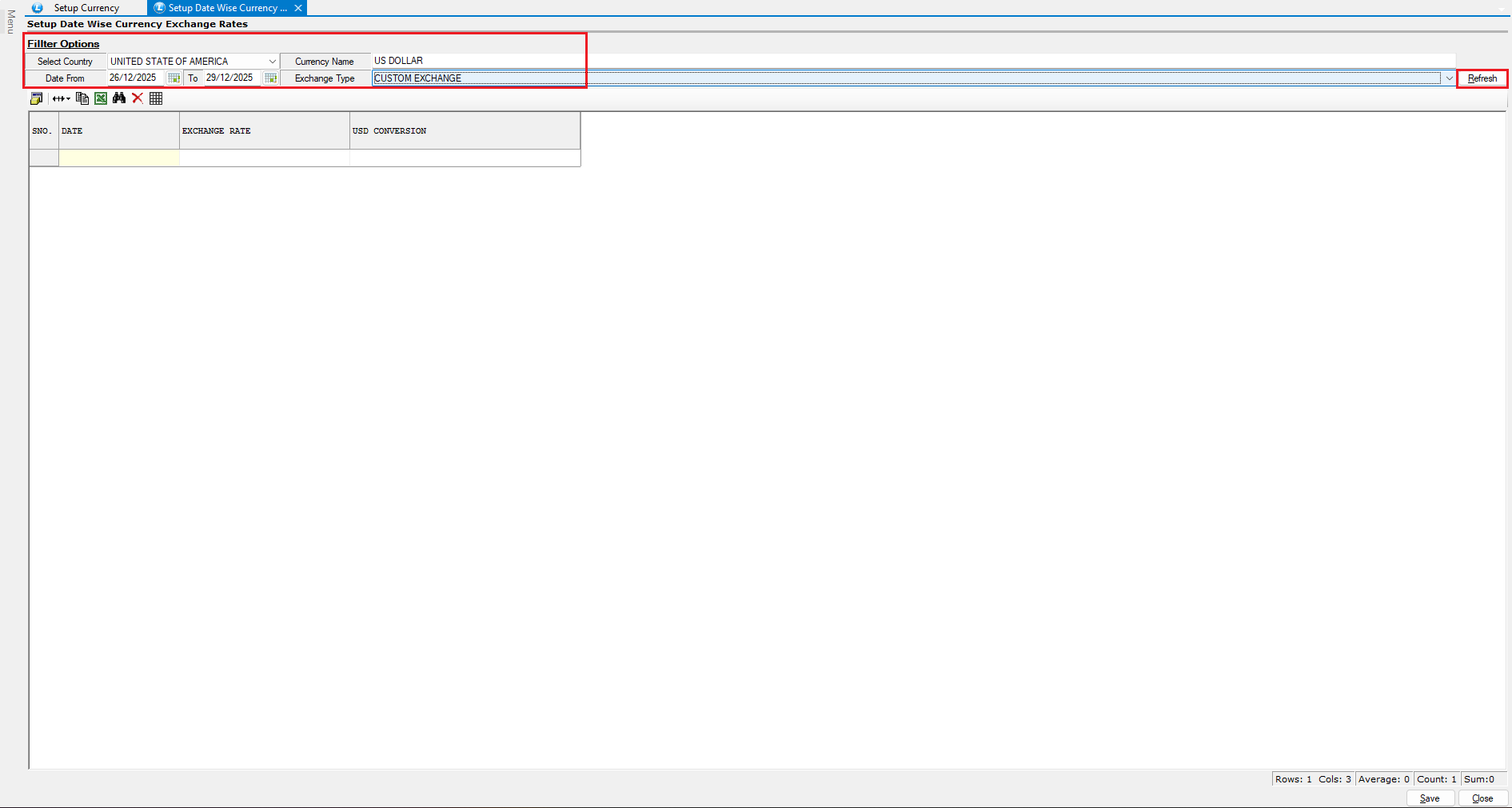
* open **Setup Date-Wise Currency Exchange Rate**
* Select the following details:
* Country
* Currency
* Applicable Date Range
* Exchange Type
* Click **Refresh**
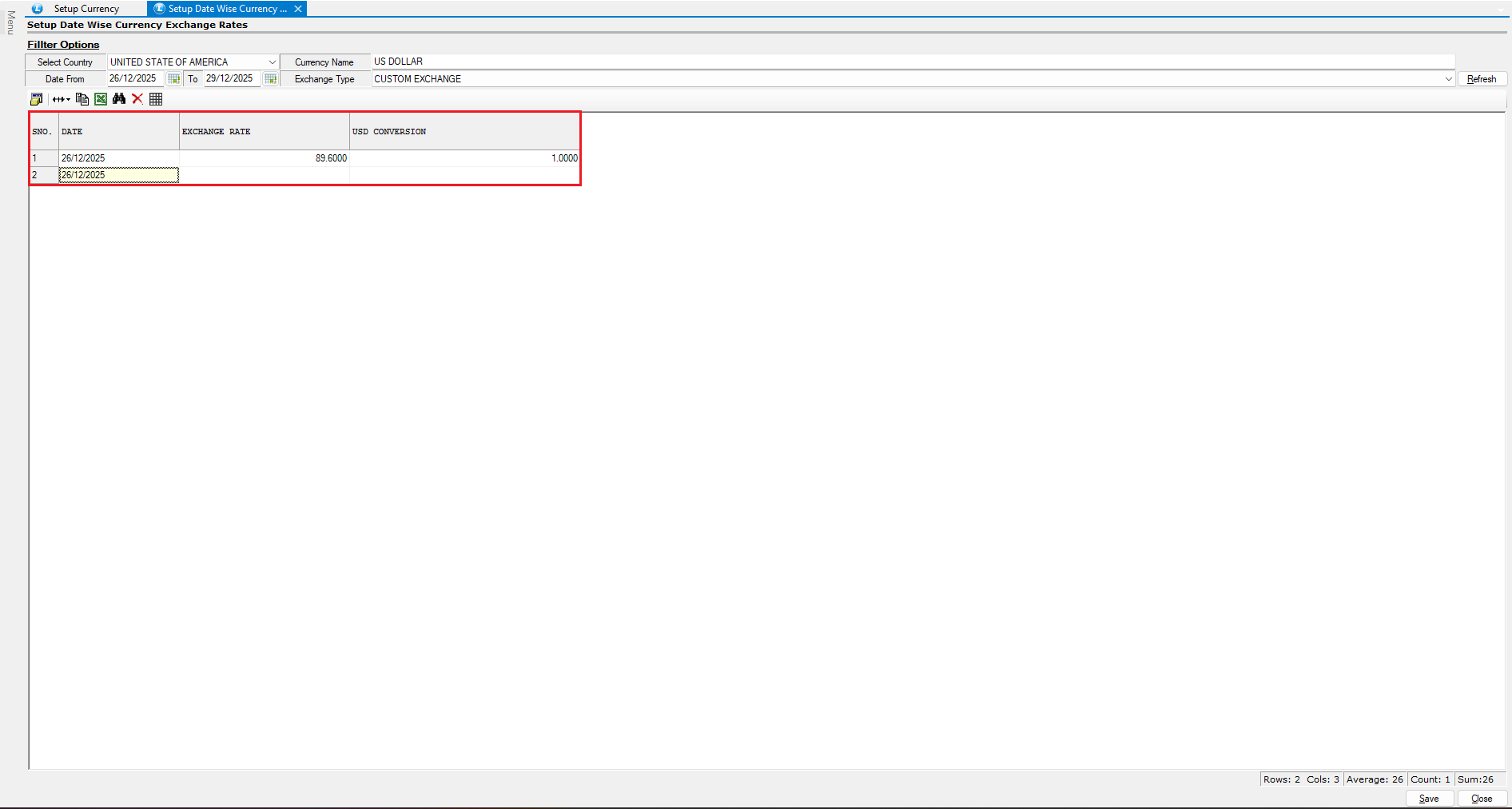
* Enter:
* Exchange Rate
* Conversion Value
* Click **Save** to finalize the exchange rate setup
***
### Enabling Exchange Rate in Sales Voucher
To apply currency conversion during billing, the exchange rate column must be enabled in the sales voucher.
* Open the **Sales Bill** window
* Go to **Sales Voucher Configuration**
* Select the required **Series**
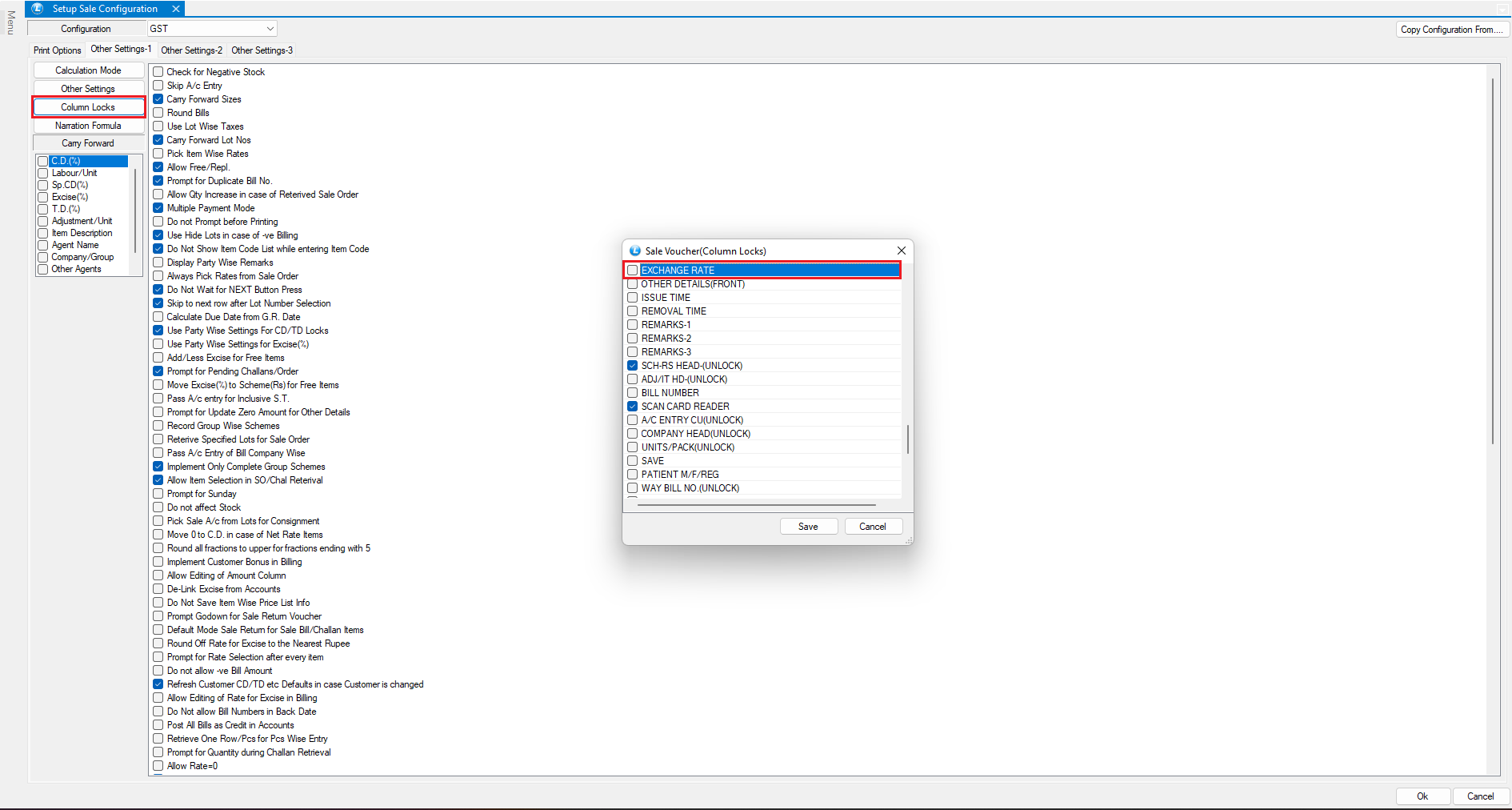
* Navigate to **Other Settings – 1**
* Open **Column Locks**
* Enable the **Exchange Rate** column
* Save the configuration
***
### Using Currency Conversion in Sales Billing
Now, let’s see how currency works during an actual transaction.
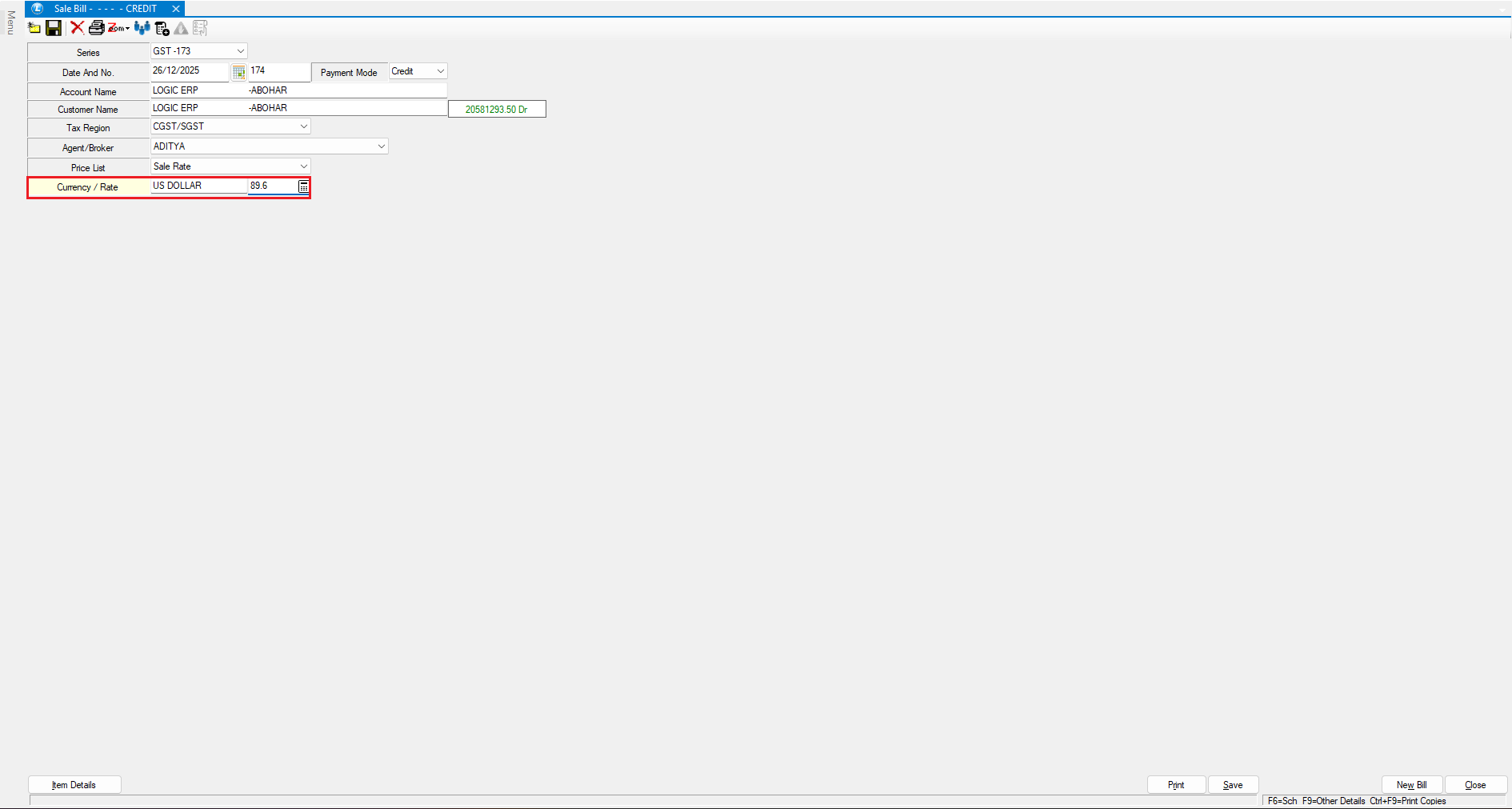
* Create a **New Sales Bill**
* You will notice the **Exchange Rate** field is now available in the voucher
* Select the required **Currency**
* Enter the item details in the bill
***Note:*** As items are entered, the system automatically applies the conversion rate based on the exchange rate configuration defined earlier.
***
### Verifying Currency Conversion
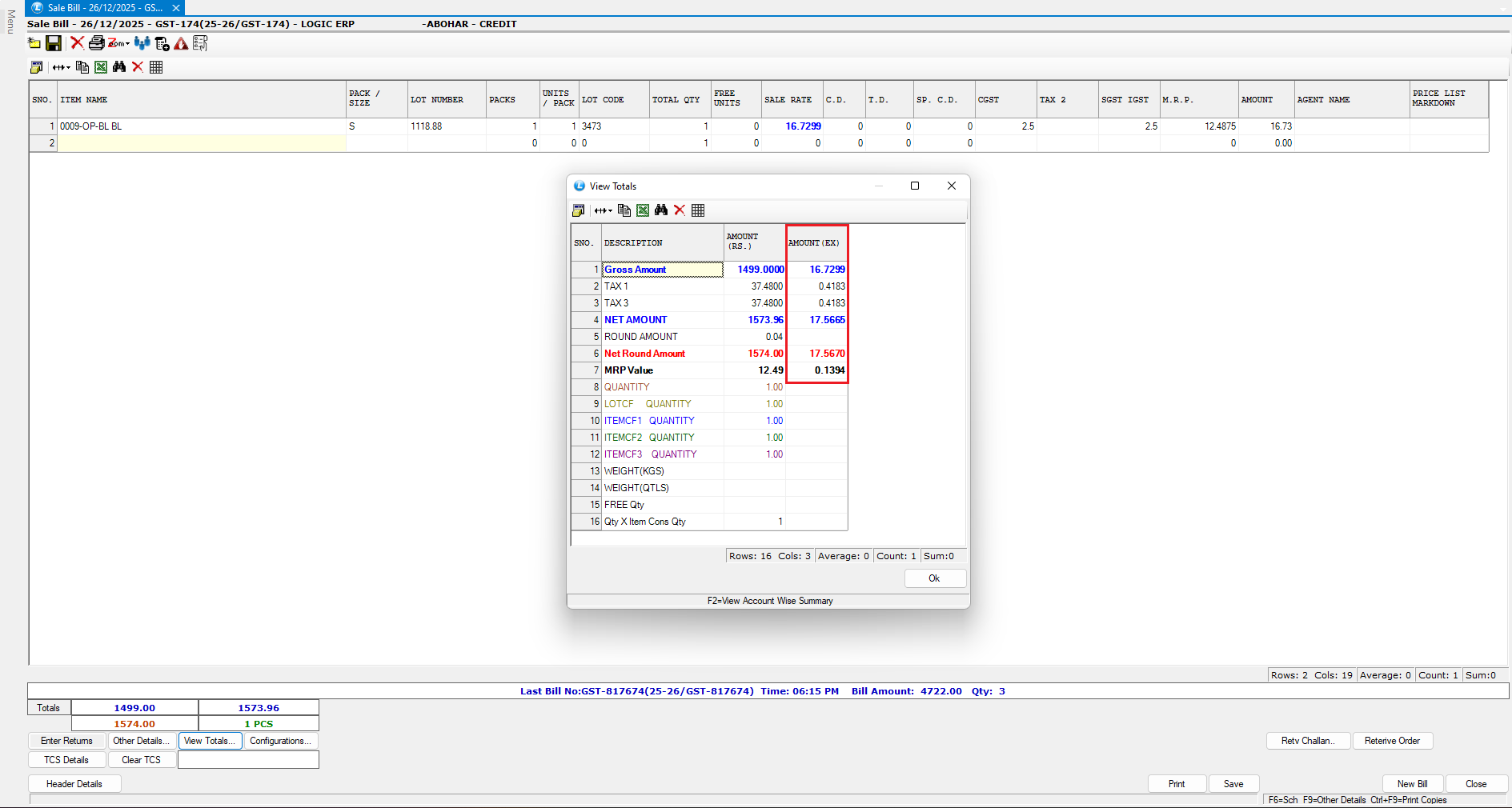
* Open **View Totals** in the sales bill
* Review the currency conversion details
* All converted values will be displayed clearly for verification
***
### Conclusion
This completes the **Currency Setup and Exchange Rate Configuration in Logic ERP**, enabling accurate multi-currency transactions and automatic value conversion during billing.
---
# Agent Instructions
This documentation is published with GitBook. GitBook is the documentation platform designed so that both humans and AI agents can read, navigate, and reason over technical content effectively. Learn more at gitbook.com.
## Querying This Documentation
If you need additional information that is not directly available in this page, you can query the documentation dynamically by asking a question.
Perform an HTTP GET request on the current page URL with the `ask` query parameter, and the optional `goal` query parameter:
```
GET https://kb.logicerp.com/logic-erp-learning-hub-tutorials-and-best-practices/setups/set-other-account-details/setup-currency.md?ask=&goal=
```
`ask` is the immediate question: it should be specific, self-contained, and written in natural language.
`goal` is optional and describes the broader end goal you are ultimately trying to accomplish on behalf of the user. GitBook uses it to tailor the answer towards what is most useful for that goal.
The response will contain a direct answer to the question and relevant excerpts and sources from the documentation.
Use this mechanism when the answer is not explicitly present in the current page, you need clarification or additional context, or you want to retrieve related documentation sections.