> For the complete documentation index, see [llms.txt](https://kb.logicerp.com/llms.txt). Markdown versions of documentation pages are available by appending `.md` to page URLs; this page is available as [Markdown](https://kb.logicerp.com/logic-erp-learning-hub-tutorials-and-best-practices/setups/party-wise-settings/branch-+-supplier-+-items.md).
# Branch + Supplier + Items
**YouTube:** [How to Set Up Item Linking by Branch and Supplier?](https://www.youtube.com/watch?v=OtOaFX-eLaQ)
## How to Set Up Item Linking by Branch and Supplier?
In this tutorial, we will learn how to **link Branch, Supplier, and Items for Purchase Orders in Logic ERP** and understand how this configuration controls item visibility during purchase order entry.
***
### Open Branch + Supplier + Item Linking Setup
* From the **Main Menu**, navigate to **Setup**
* Open **Party Wise Settings**
* Click on **Branch + Supplier + Items**
***
### Define Branch–Supplier–Item Linking
You can define the linking in two ways:
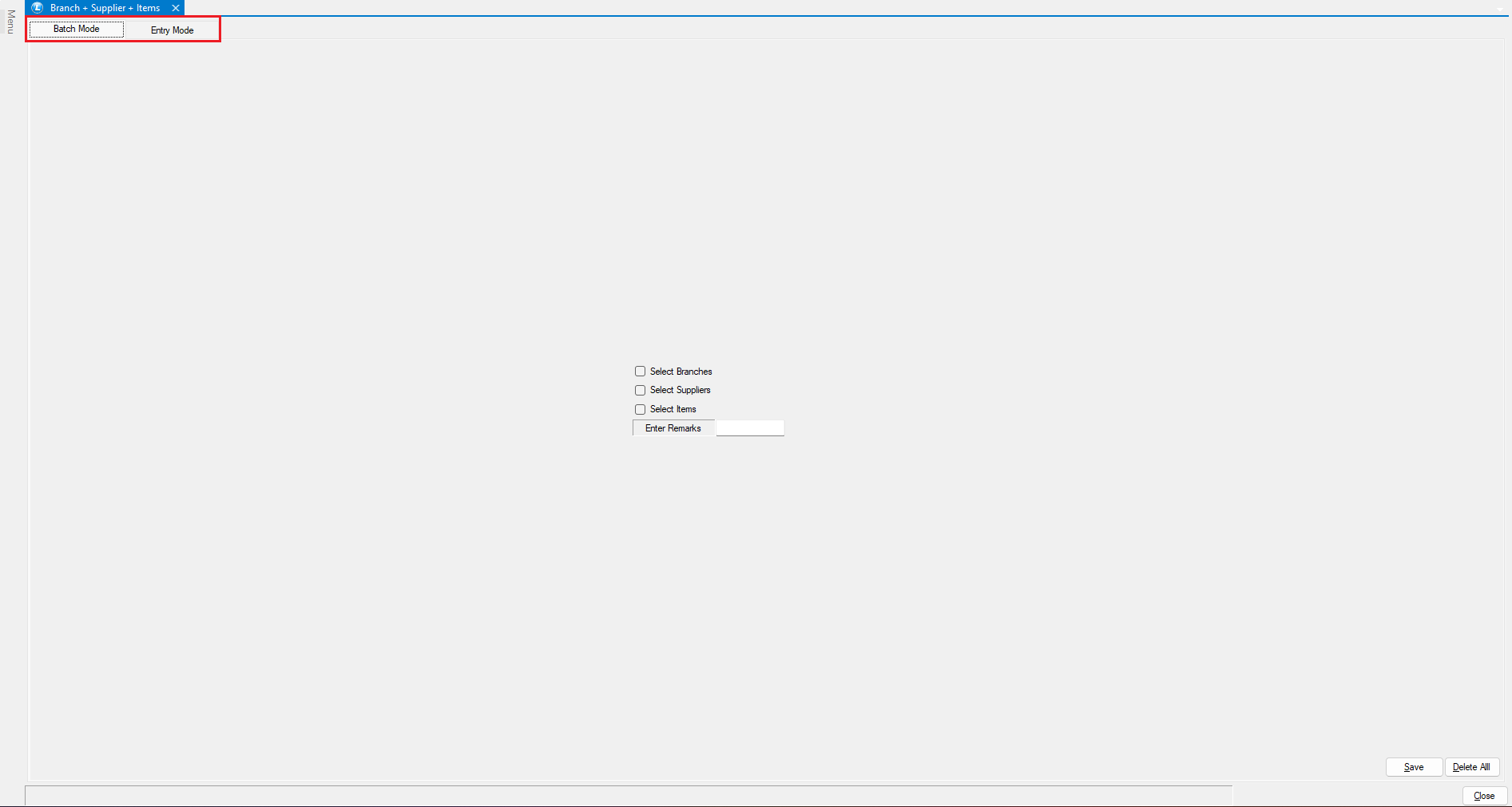
* Entry Mode (Individual Linking)
* Batch Mode (Multiple Linking)
#### **Let us understand Batch Mode (Multiple Linking)**
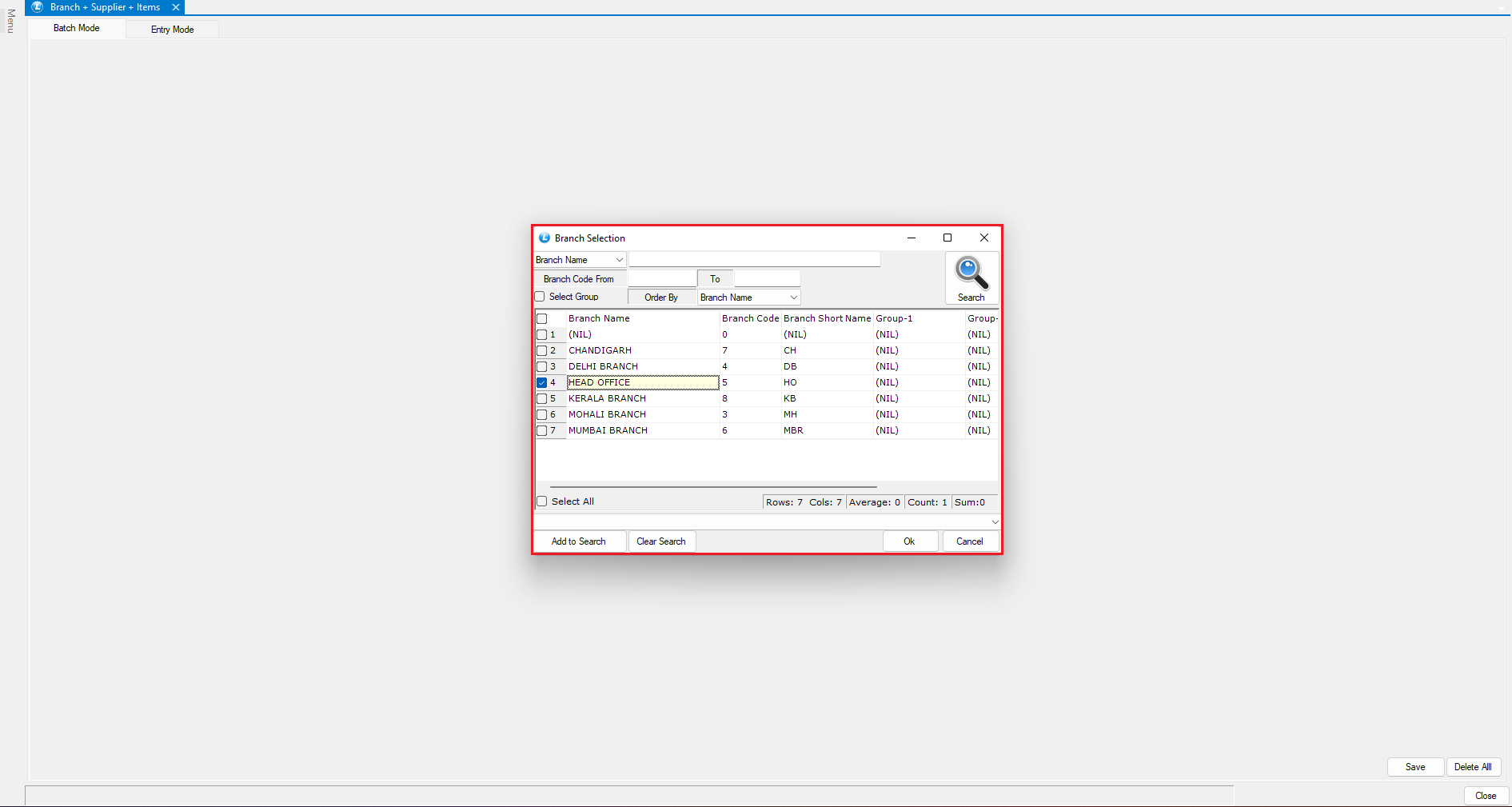
* Select the **Branch**
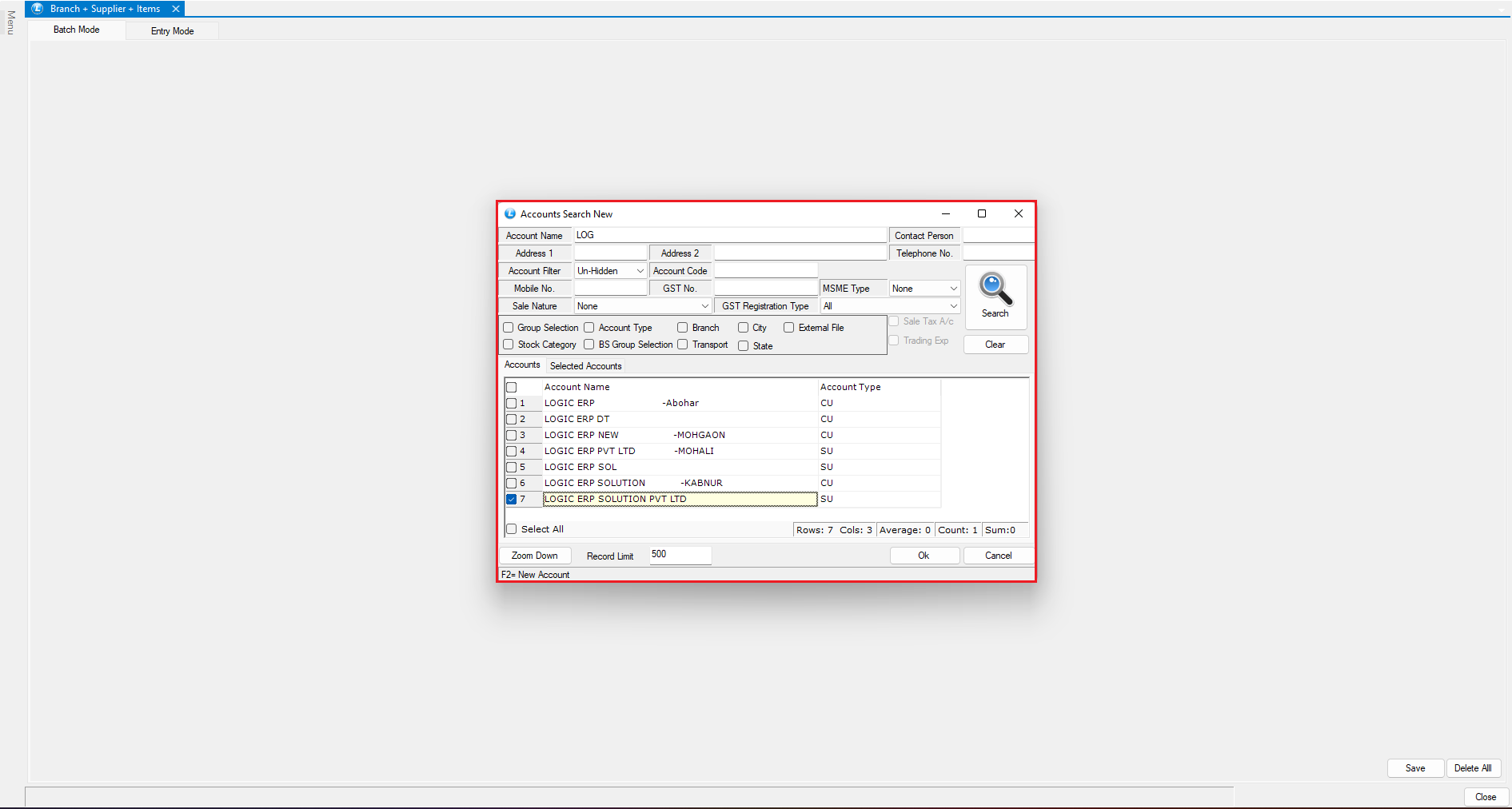
* Select the **Supplier**
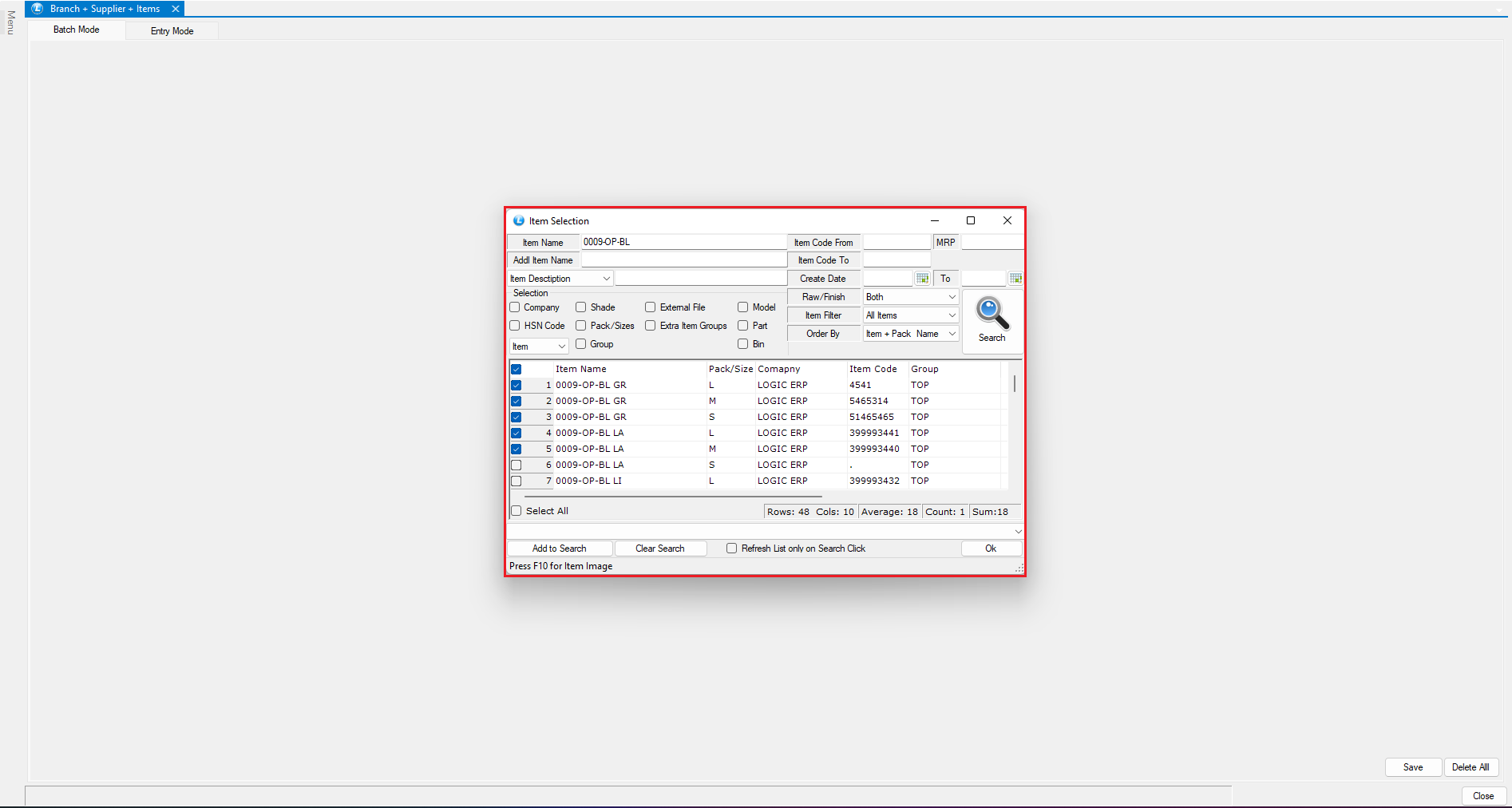
* Choose the **Item** to be linked
* Click **Save**
***
### Review Defined Linking
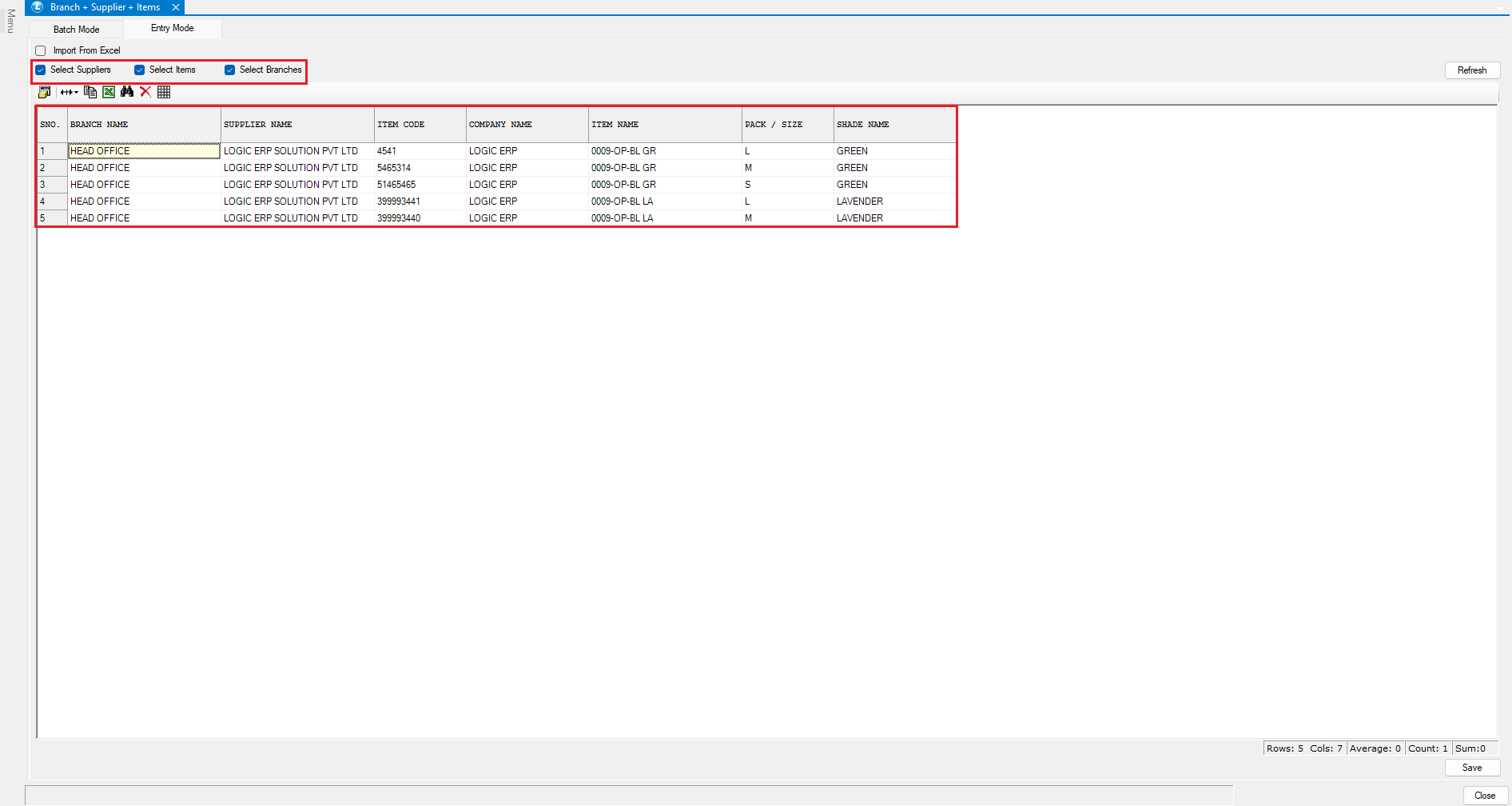
* Switch to **Entry Mode**
* Review and verify the linked **Branch, Supplier, and Items**
* Make changes if required and save
***
### Import Branch–Supplier–Item Linking via Excel
You can also define the linking using Excel import:
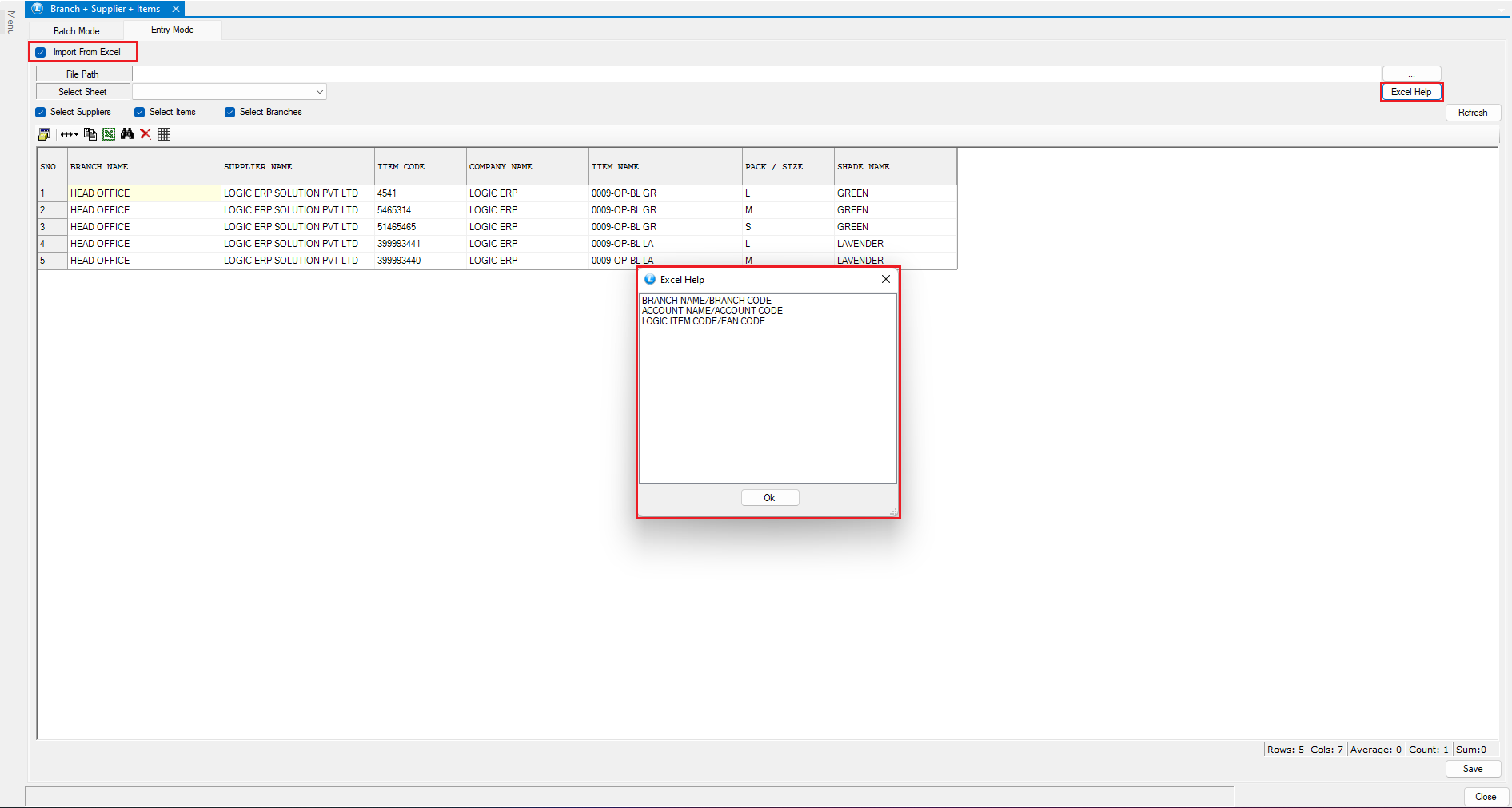
* Click on **Import from Excel**
* Use the **Excel Help** button to:
* Check the required columns
* Verify column names and format
* Ensure that:
* Excel column headers **exactly match** the names shown in Excel Help
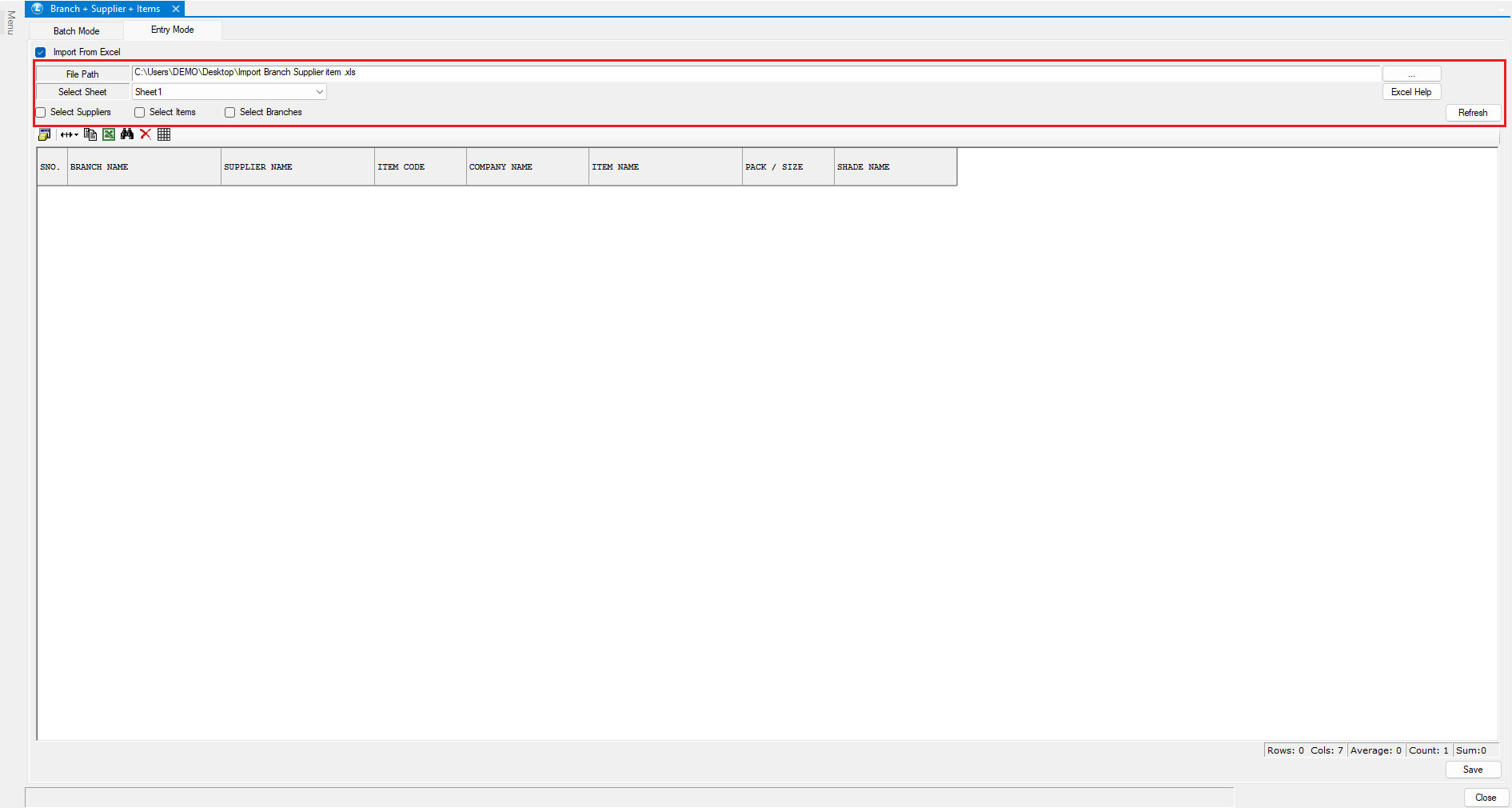
* Browse and select the Excel file
* Choose the correct **Sheet Name**
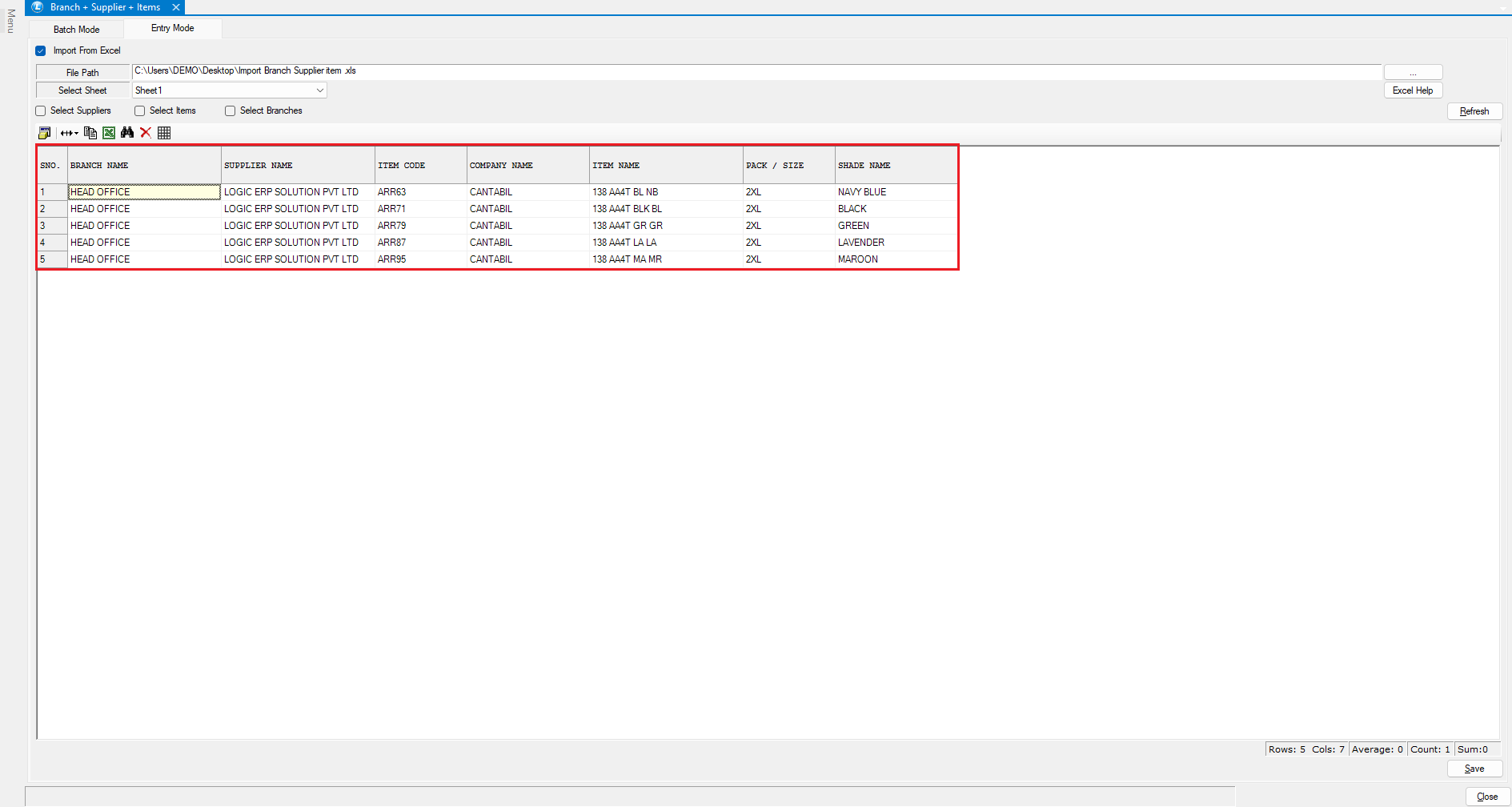
* Click **Refresh** to load the data
* Once verified, click **Save**
The linking will be successfully imported.
***
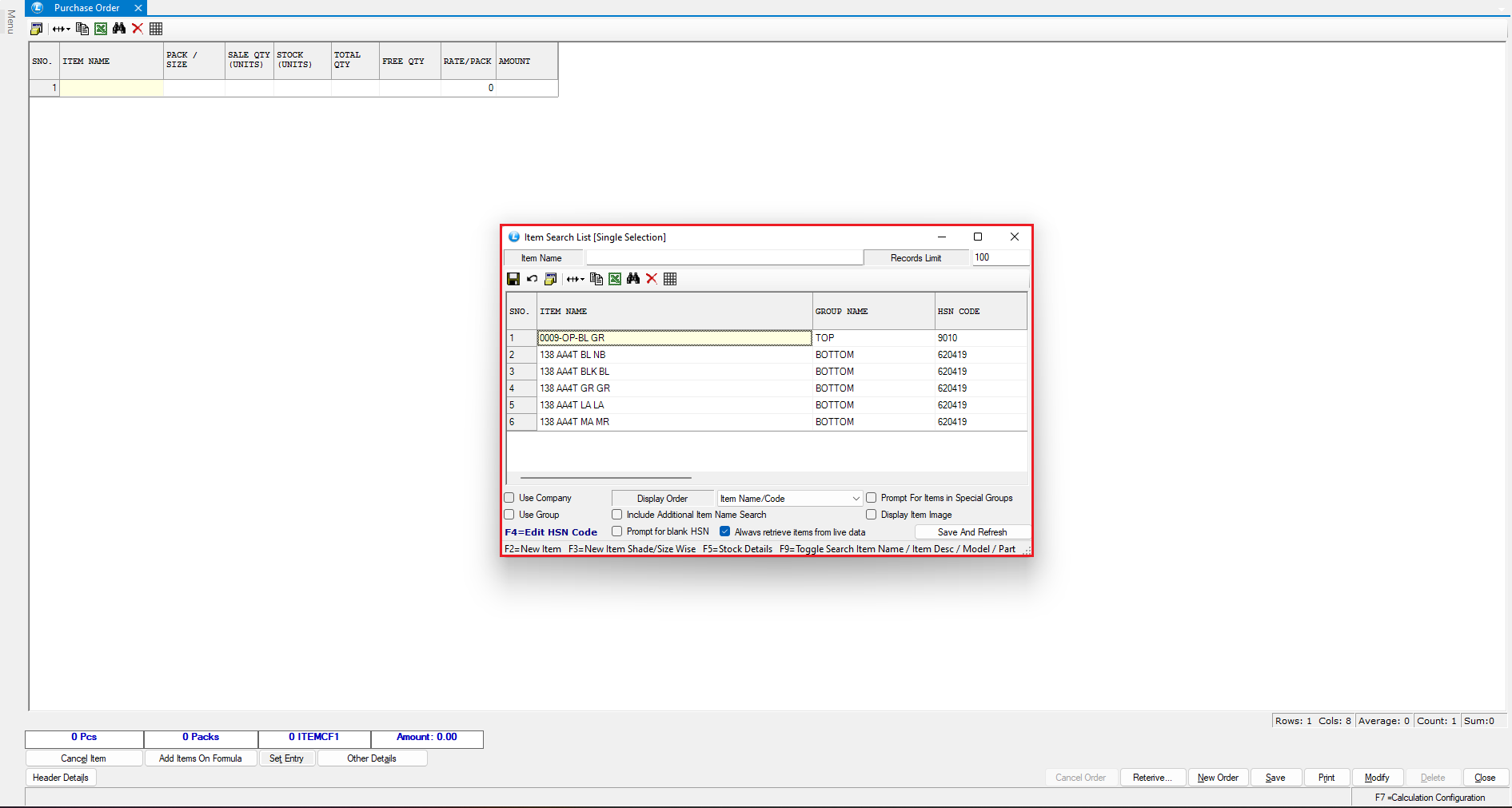
### Understand How the Linking Works in Purchase Orders
* Open **Purchase Order** from **Order Processing**
* Ensure you are logged into the **same branch** for which linking is defined
* Select the **Supplier**
**While entering items:**
* The system automatically **filters the item list**
* Only those items are displayed which are:
* Linked to the selected **Supplier**
* Mapped to the current **Branch**
***
### Conclusion
By configuring **Branch + Supplier + Item linking** in Logic ERP, you can:
* Restrict item selection supplier-wise and branch-wise
* Avoid incorrect item selection in purchase orders
* Maintain better vendor control and purchase accuracy
* Simplify and standardize purchase order entry
This setup is especially useful for organizations dealing with **supplier-specific item procurement** across multiple branches.
---
# Agent Instructions
This documentation is published with GitBook. GitBook is the documentation platform designed so that both humans and AI agents can read, navigate, and reason over technical content effectively. Learn more at gitbook.com.
## Querying This Documentation
If you need additional information that is not directly available in this page, you can query the documentation dynamically by asking a question.
Perform an HTTP GET request on the current page URL with the `ask` query parameter, and the optional `goal` query parameter:
```
GET https://kb.logicerp.com/logic-erp-learning-hub-tutorials-and-best-practices/setups/party-wise-settings/branch-+-supplier-+-items.md?ask=&goal=
```
`ask` is the immediate question: it should be specific, self-contained, and written in natural language.
`goal` is optional and describes the broader end goal you are ultimately trying to accomplish on behalf of the user. GitBook uses it to tailor the answer towards what is most useful for that goal.
The response will contain a direct answer to the question and relevant excerpts and sources from the documentation.
Use this mechanism when the answer is not explicitly present in the current page, you need clarification or additional context, or you want to retrieve related documentation sections.