> For the complete documentation index, see [llms.txt](https://kb.logicerp.com/llms.txt). Markdown versions of documentation pages are available by appending `.md` to page URLs; this page is available as [Markdown](https://kb.logicerp.com/logic-erp-learning-hub-tutorials-and-best-practices/setups/configurations/setup-schemes-for-sale-order.md).
# Setup Schemes for Sale Order
**YouTube:** [How to Configure and Apply Schemes for Sales Orders?](https://www.youtube.com/watch?v=SYGEy6Jh6M4)
## How to Configure and Apply Schemes for Sales Orders?
In this tutorial, you will learn how to **create and apply schemes for sales orders in Logic ERP**, including **Buy One Get One Free (BOGO) offers** and other promotional schemes.
***
### Navigate to Scheme Setup
To begin configuring schemes:
* Go to the **Setup Module**.
* Expand the **Configuration Section**.
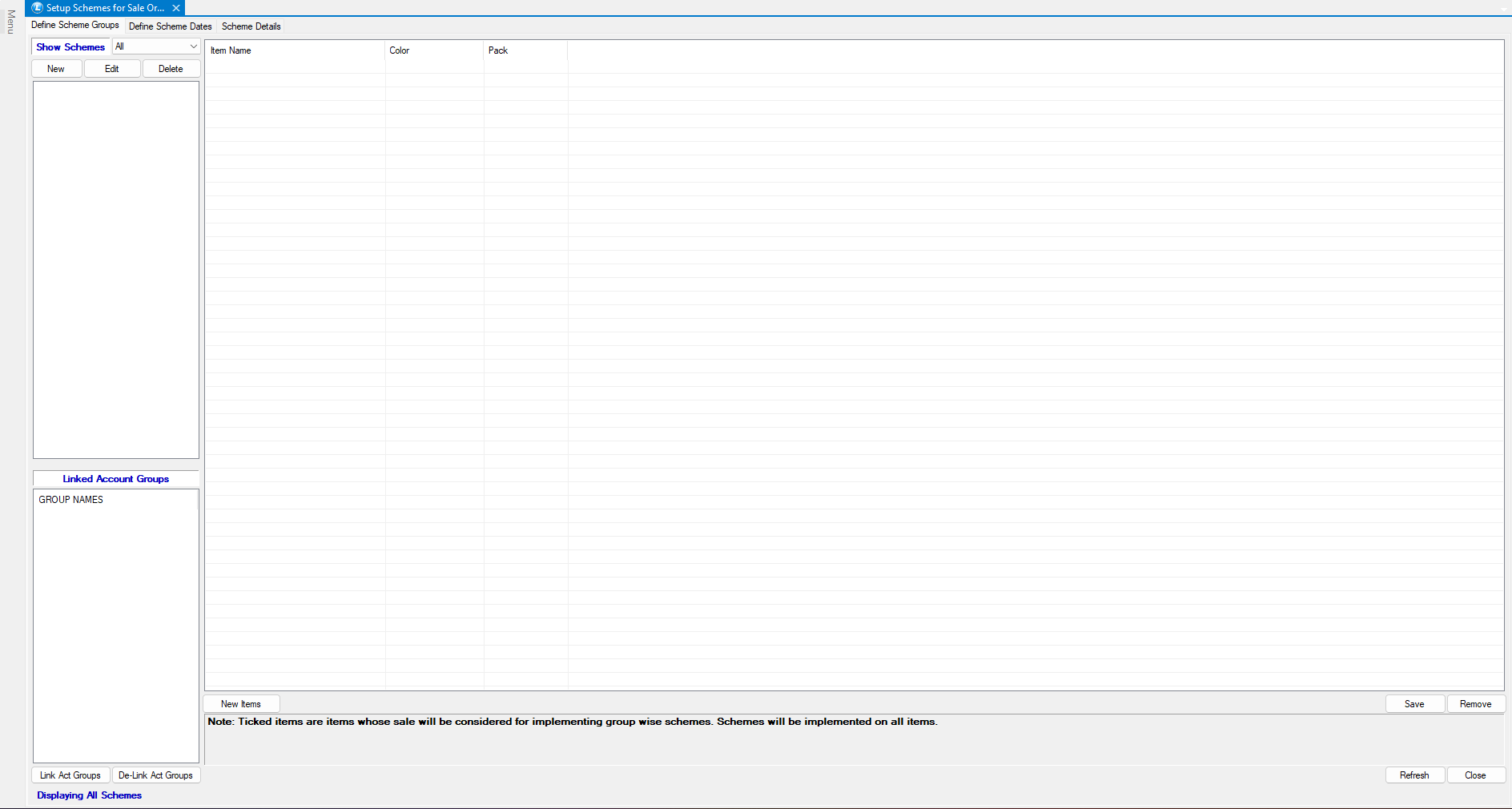
* Click on **Setup Schemes for Sale Order**.
This module allows you to **create and manage schemes specifically for sales orders**.
***
### Create a New Scheme
Now, create a scheme under the **Defined Scheme Group Tab**.
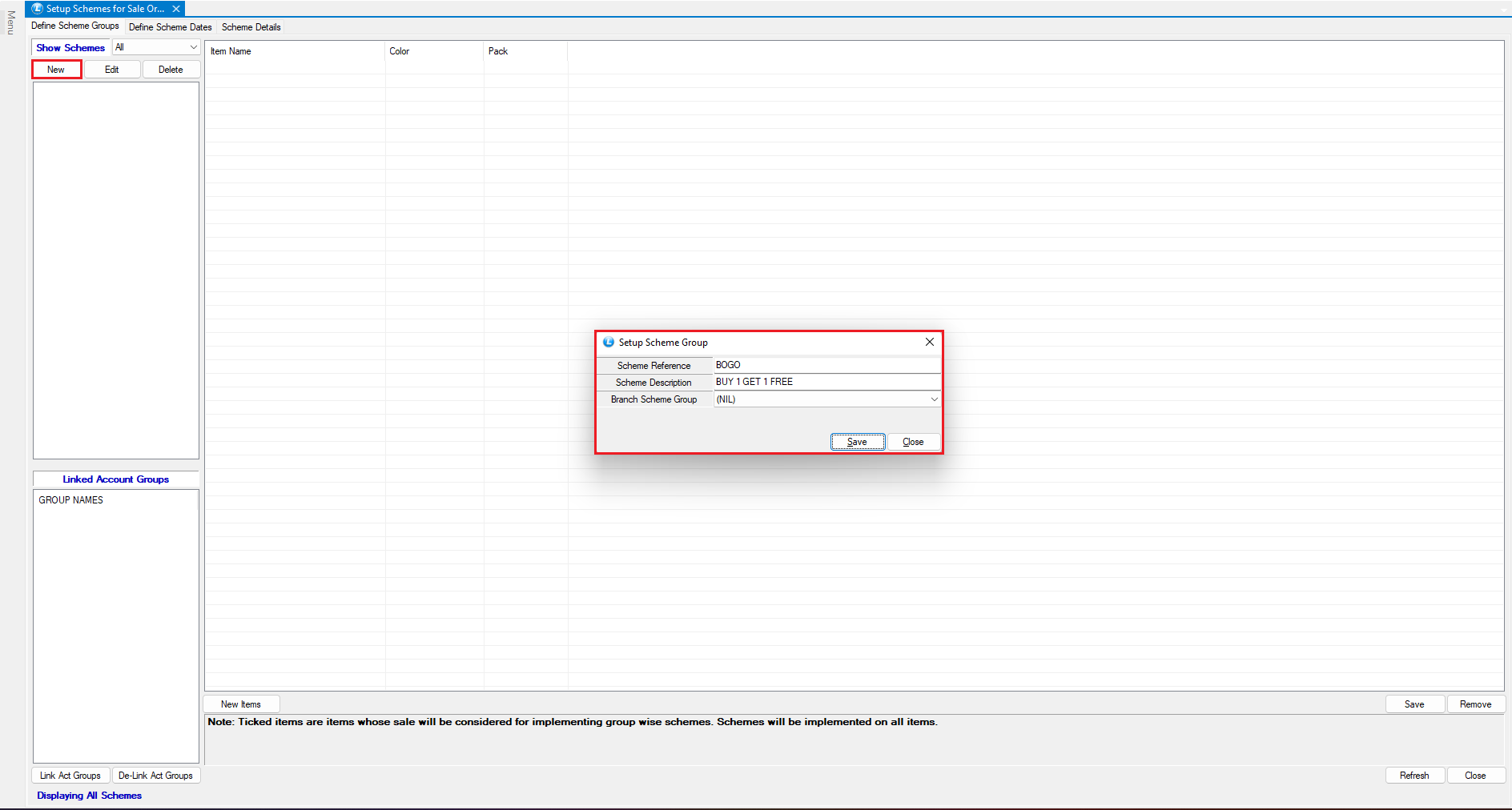
* Click on **New**.
* Enter the following details:
* **Scheme Name**
* **Reference**
* **Scheme Description**
**Add Items to the Scheme**
Define the products involved in the scheme.
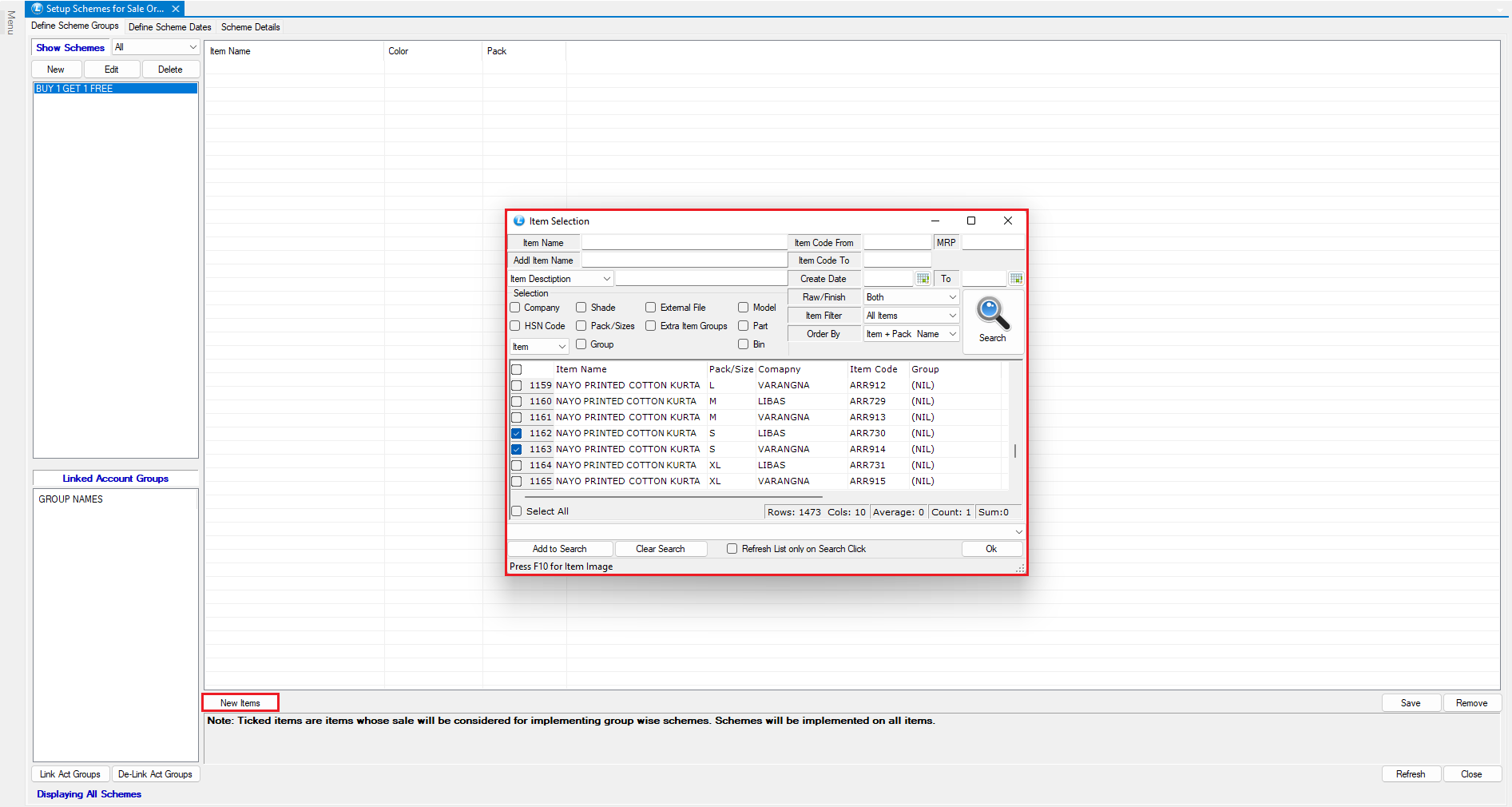
* Click on **New Item**.
* Select:
* **Main Item** → Product the customer will purchase
* **Scheme Item** → Product the customer will receive (free or discounted)
* Click **Save** to add items to the scheme.
**Example:**
* Buy: Product A
* Get: Product B (Free)
***
### Define Scheme Validity and Conditions
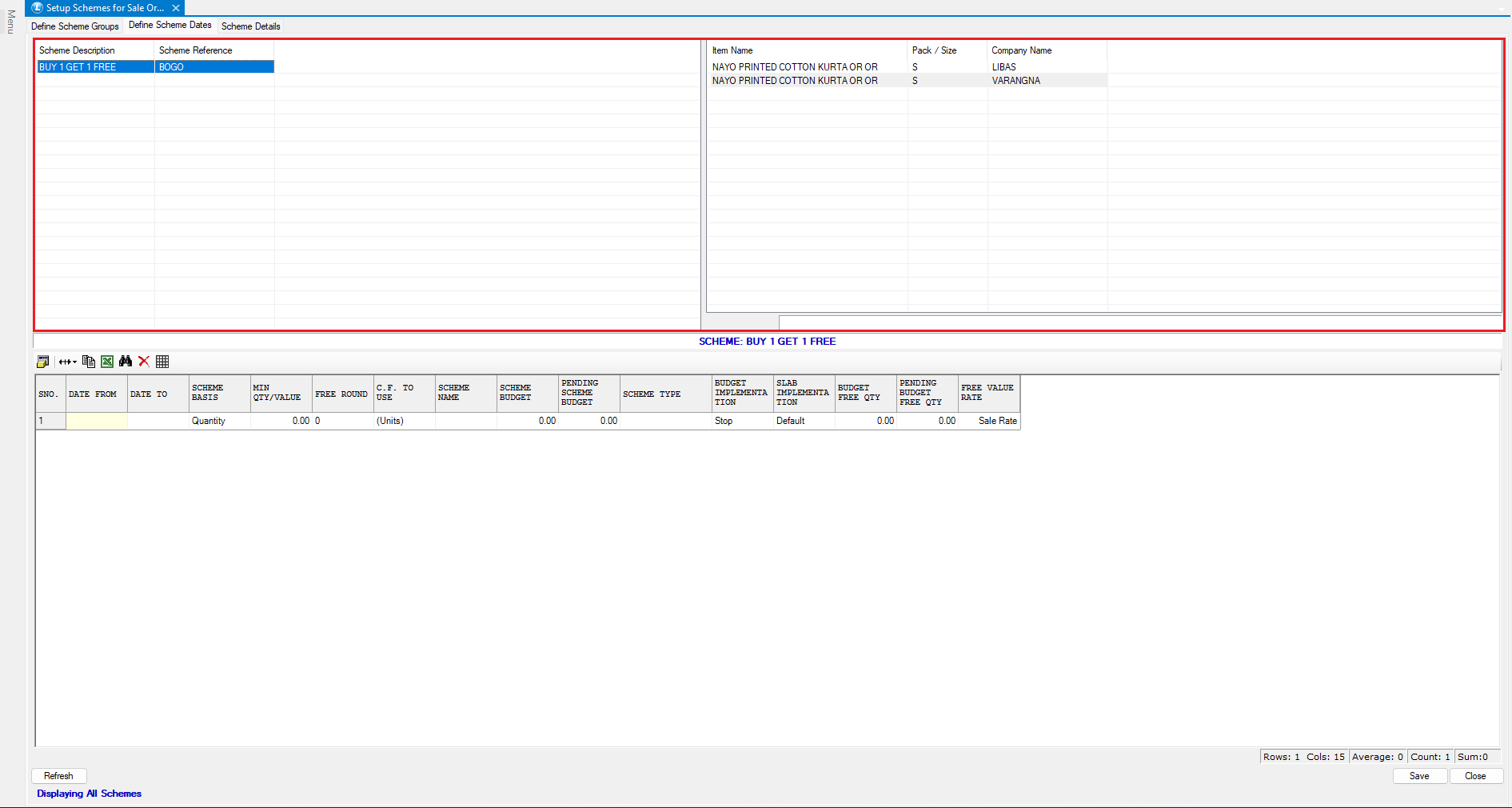
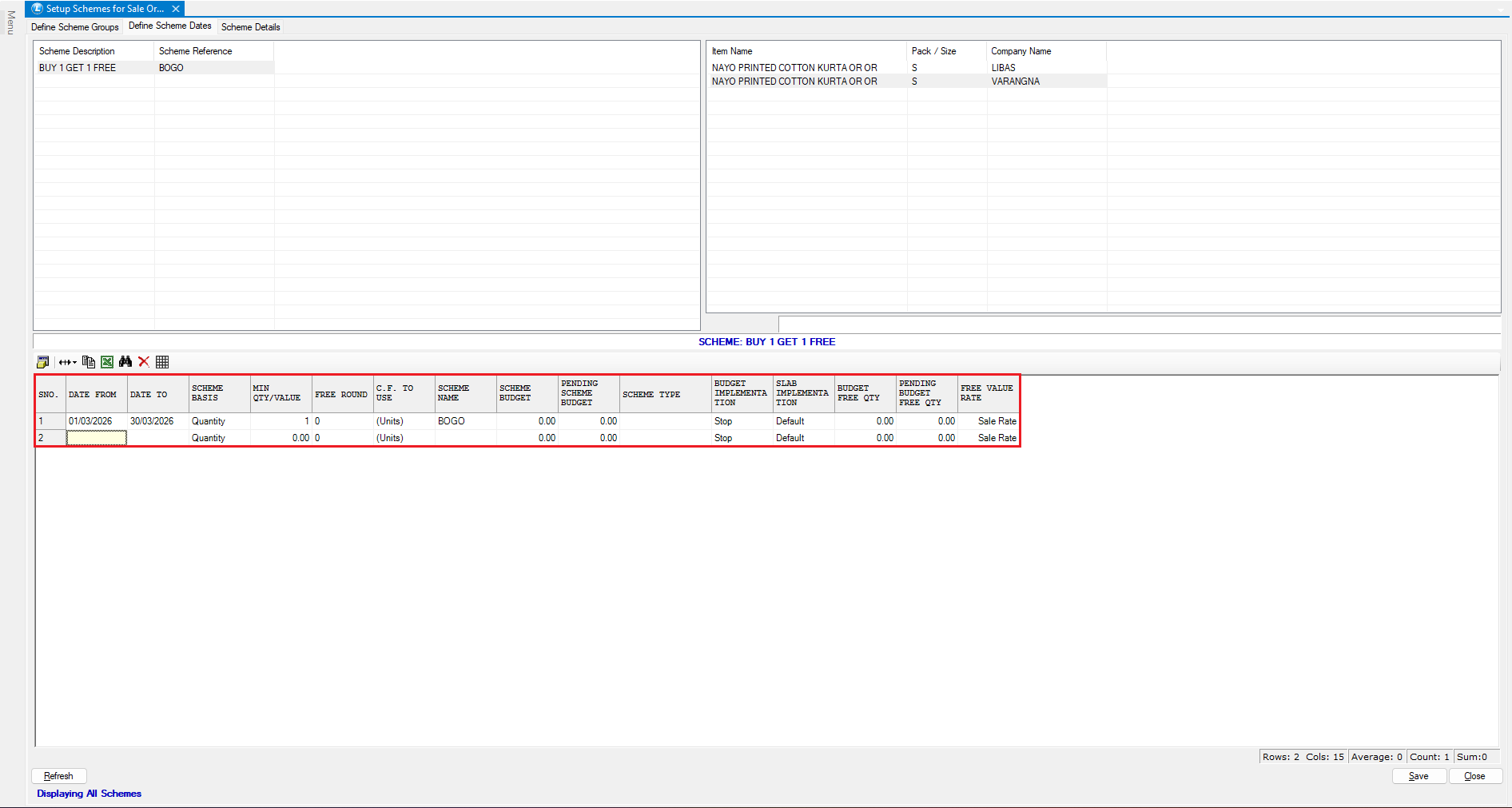
Move to the **Defined Schemes Date Tab**.
**On this screen:**
* **Left Panel** → Displays selected scheme
* **Right Panel** → Shows items linked to the scheme
**Configure the following:**
* **Effective Date** → Start date of the scheme
* **Scheme Basis**:
* Select **Quantity** (for BOGO schemes)
* **Minimum Quantity** → Quantity required to apply the scheme
* Enter the **Scheme Name** again
* Click **Save**
***
### Configure Scheme Details
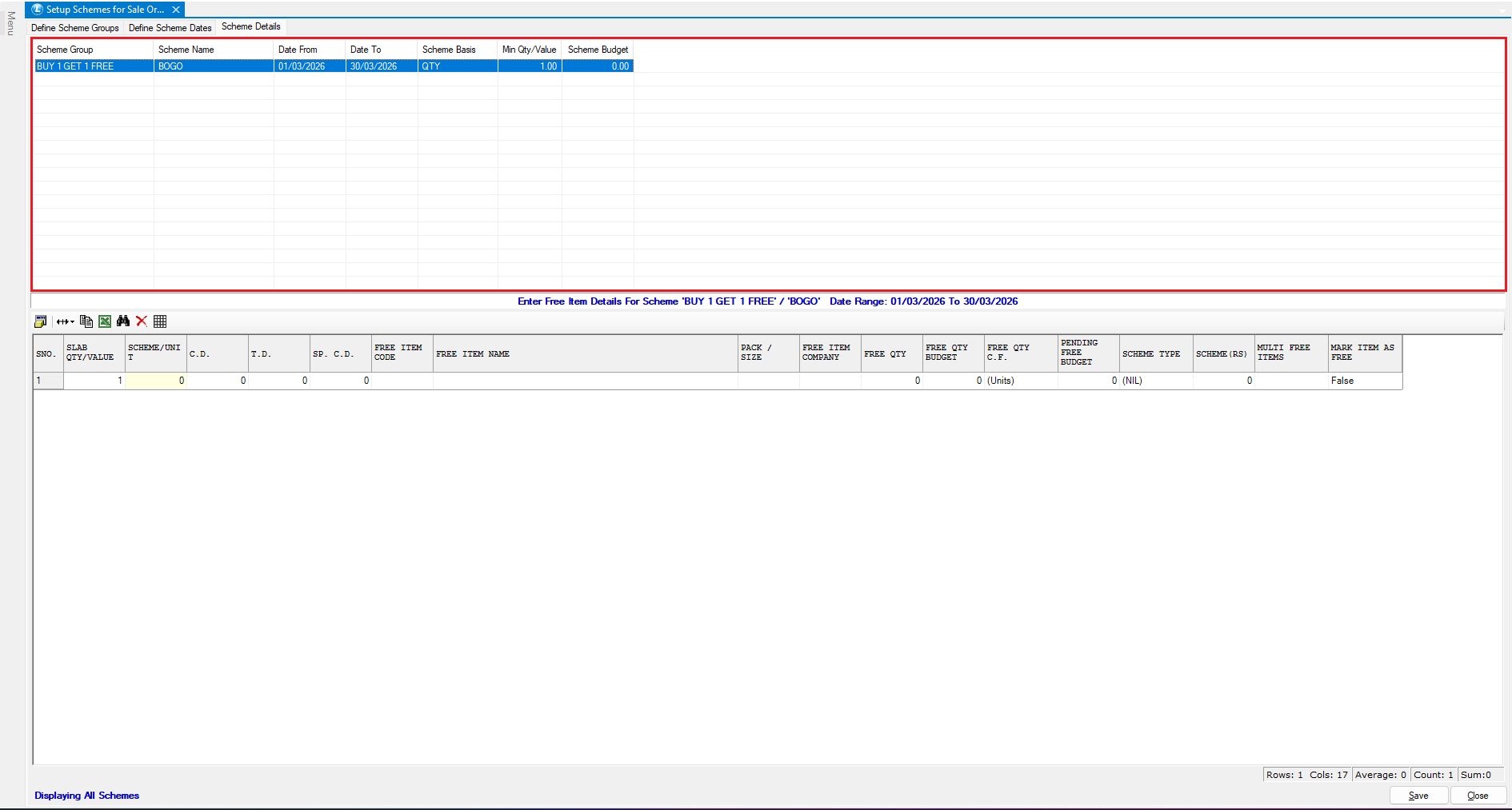
Now move to the **Scheme Details Tab**.
**View Basic Details**
The upper section displays:
* Scheme Name
* Validity Period
* Scheme Basis
* Minimum Quantity / Value
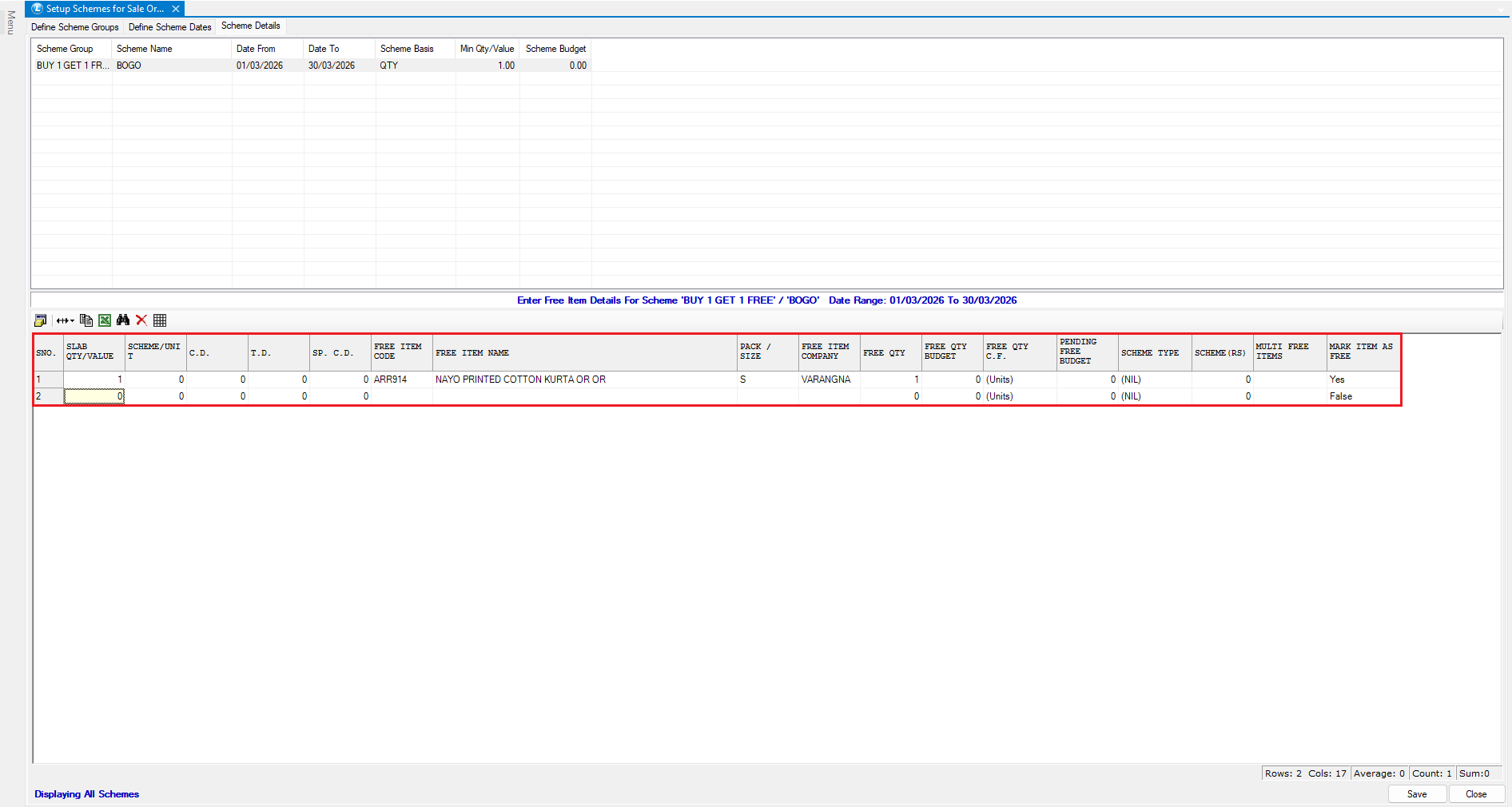
**Define Slab & Free Item Details**
* Enter **Slab Quantity**\
*(Minimum quantity required to trigger the scheme)*
* Select:
* **Free Item Code / Name**
* Enter **Free Quantity**
* Enable: **Mark Item as Free**
* Click **Save**
* **Example:**
* Buy 1 item → Get 1 item free
***
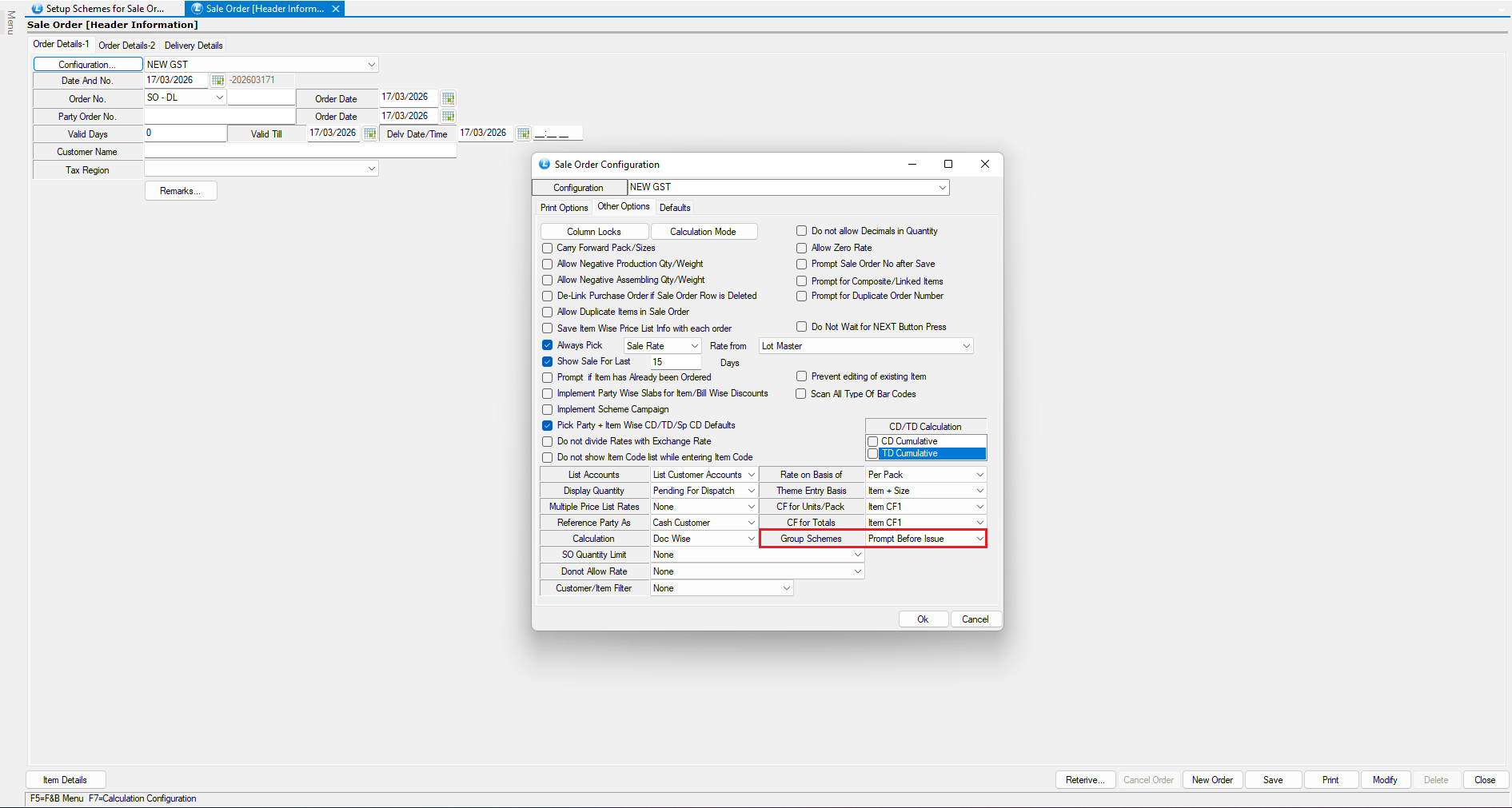
### Enable Group Scheme Prompt
* Before creating a Sale Order, go to the Sale Order configuration settings.
* Enable (tick) the option **“Group Scheme - Prompt Before Use.”**
* This ensures that the scheme selection prompt appears before using it in the Sale Order.
***
### Apply the Scheme in a Sales Order
Now let’s see how the scheme works in real-time.
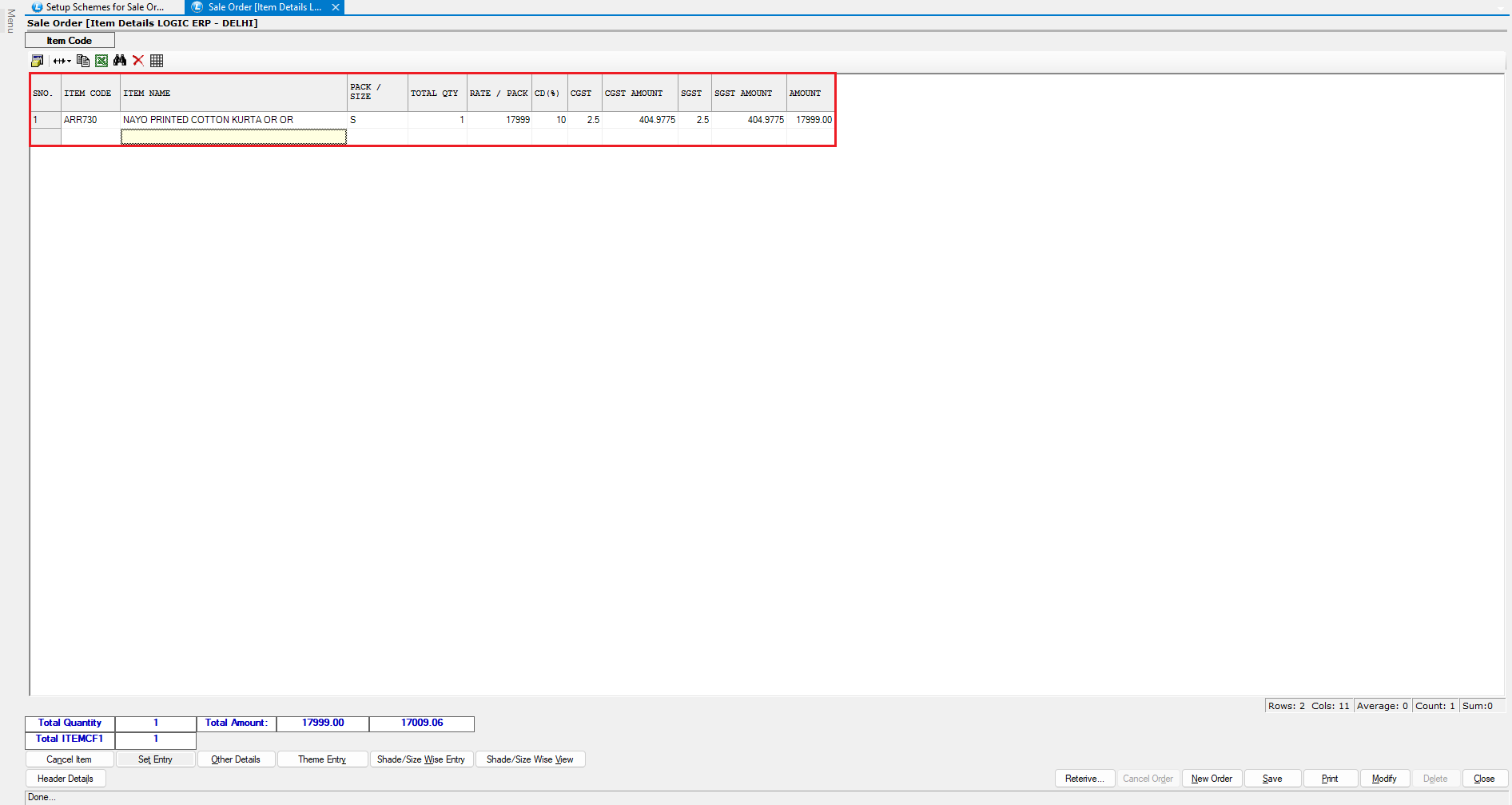
* Go to the **Sales Order Module**.
* Add the **Main Item** (on which scheme is applied).
* Enter required details.
* Click **Save**.
**Implement the Scheme**
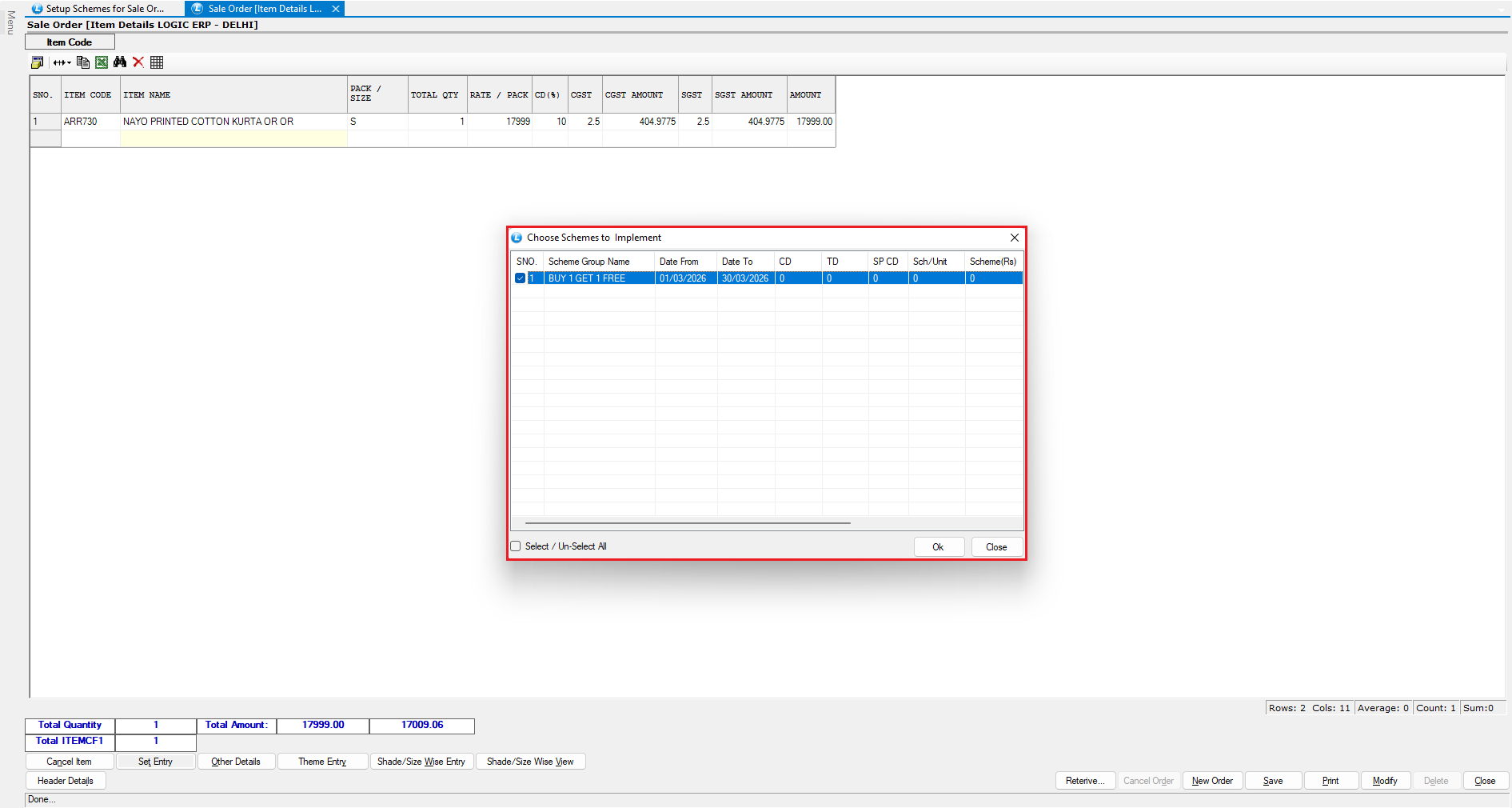
After saving the order:
* The **“Schemes to Implement” window** will appear.
* It will display all **applicable schemes**.
**To apply the scheme:**
* Select the desired scheme.
* Click **OK**.
***
### Verify Free Item Application
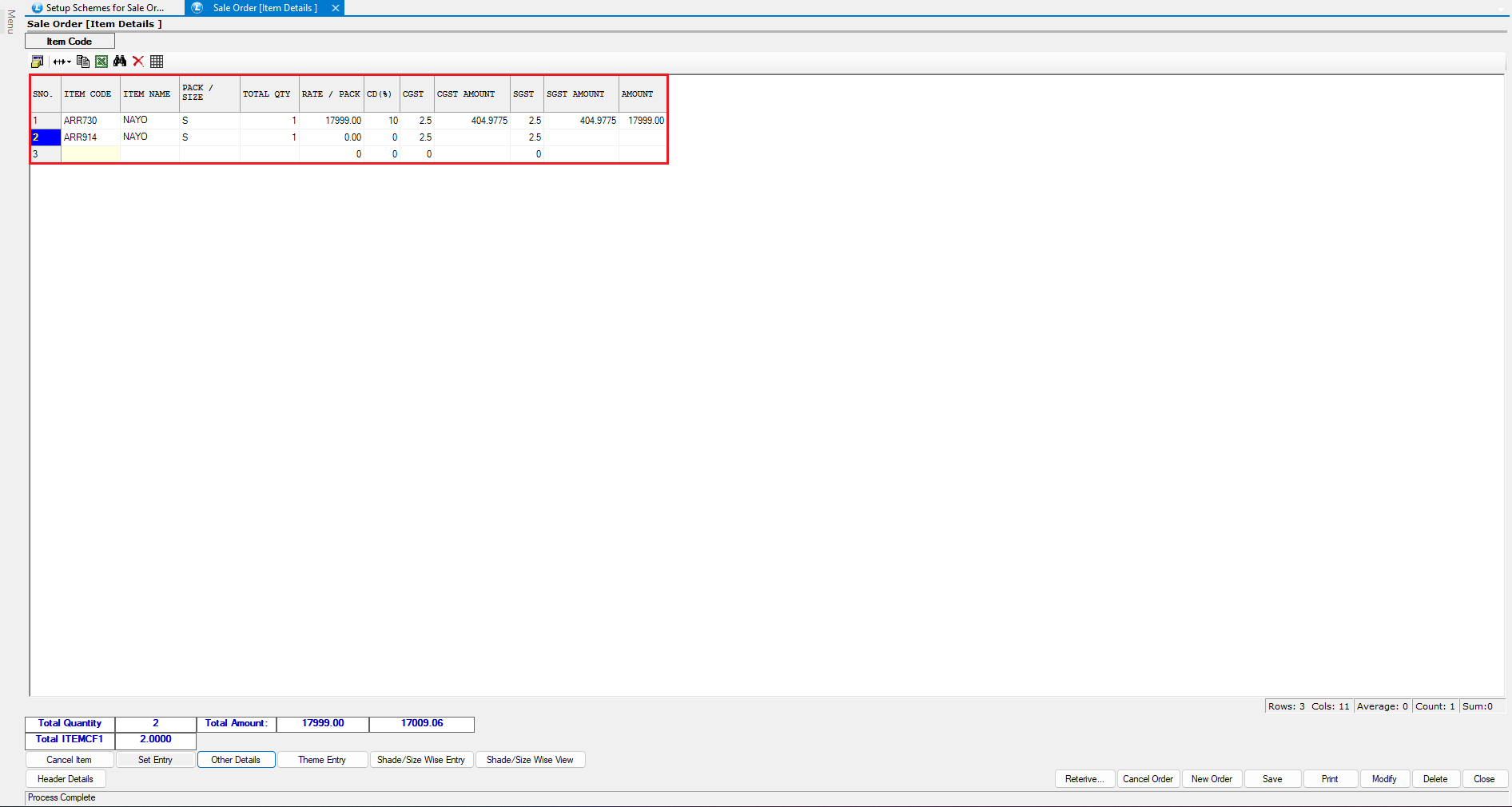
After applying the scheme:
* The **free item is automatically added** to the sales order.
* The free item is:
* **Highlighted in blue**
* Marked as **free in the bill**
***
### Check Scheme Impact on Bill Value
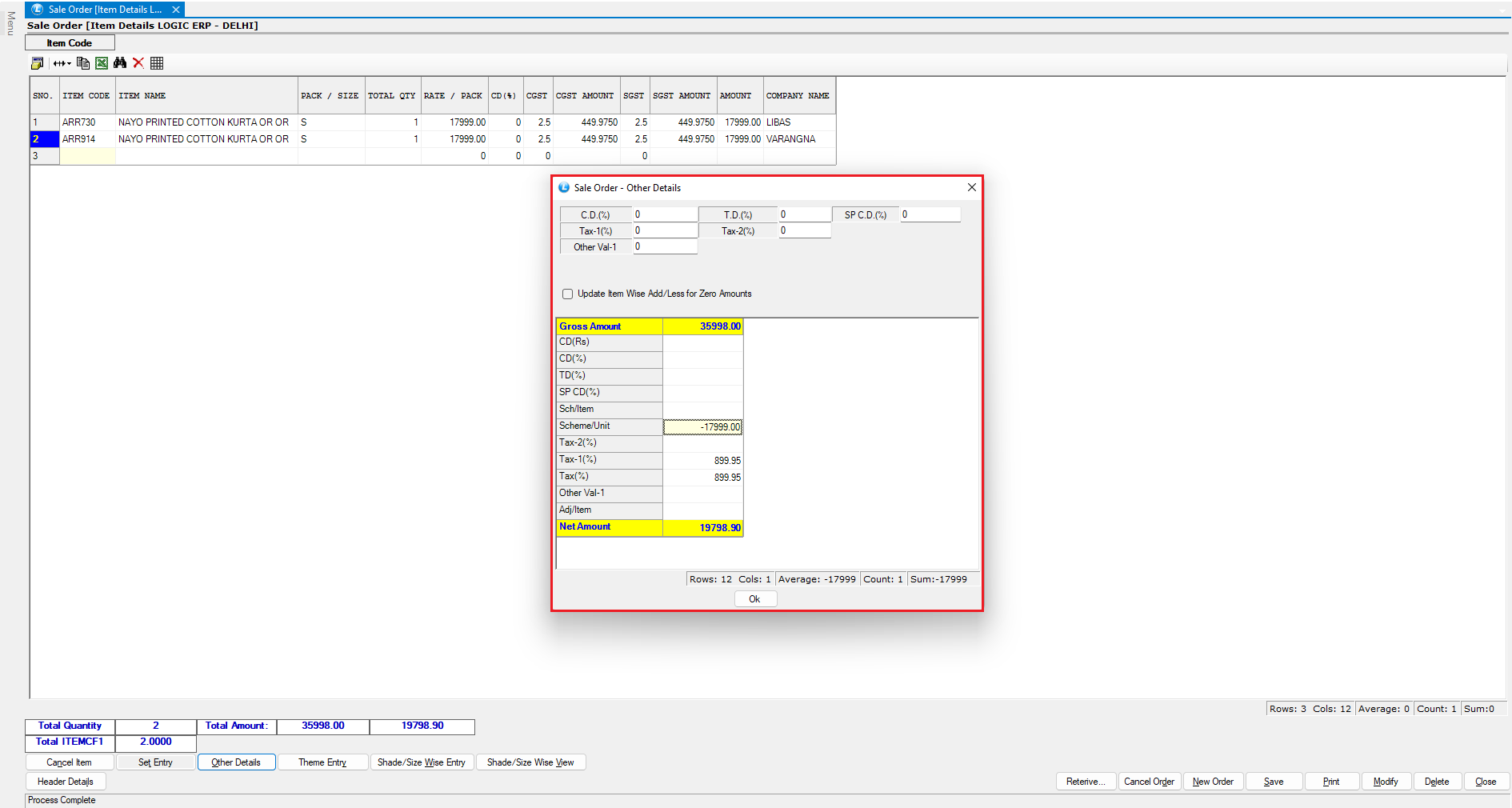
To view how the scheme affects billing:
* Click on **Other Details**.
**You will see:**
* **Scheme Amount reflected in the bill**
* Adjusted **final payable amount**
***
### Key Benefits of Sales Order Schemes
* Automates promotional offers (BOGO, discounts)
* Enhances customer satisfaction
* Reduces manual effort in billing
* Ensures accurate scheme application
* Improves sales tracking and reporting
***
### Final Outcome
Your **Sales Order Scheme is now successfully configured and working**, with:
* Automatic scheme detection
* Free item addition
* Accurate billing adjustments
---
# Agent Instructions
This documentation is published with GitBook. GitBook is the documentation platform designed so that both humans and AI agents can read, navigate, and reason over technical content effectively. Learn more at gitbook.com.
## Querying This Documentation
If you need additional information that is not directly available in this page, you can query the documentation dynamically by asking a question.
Perform an HTTP GET request on the current page URL with the `ask` query parameter, and the optional `goal` query parameter:
```
GET https://kb.logicerp.com/logic-erp-learning-hub-tutorials-and-best-practices/setups/configurations/setup-schemes-for-sale-order.md?ask=&goal=
```
`ask` is the immediate question: it should be specific, self-contained, and written in natural language.
`goal` is optional and describes the broader end goal you are ultimately trying to accomplish on behalf of the user. GitBook uses it to tailor the answer towards what is most useful for that goal.
The response will contain a direct answer to the question and relevant excerpts and sources from the documentation.
Use this mechanism when the answer is not explicitly present in the current page, you need clarification or additional context, or you want to retrieve related documentation sections.