> For the complete documentation index, see [llms.txt](https://kb.logicerp.com/llms.txt). Markdown versions of documentation pages are available by appending `.md` to page URLs; this page is available as [Markdown](https://kb.logicerp.com/logic-erp-learning-hub-tutorials-and-best-practices/setups/configurations/setup-schemes.md).
# Setup Schemes
**YouTube:** [How to setup schemes in an FMCG business?](https://www.youtube.com/watch?v=xalNetiSrTU)
## How to setup schemes in an FMCG business?
This tutorial will guide you through the process of creating and implementing **automatic schemes** in an FMCG billing system. These schemes can include **cash discounts, trade discounts, special discounts, and free item offers** based on defined conditions.
***
### Access the Scheme Setup Menu
Follow these steps to start creating a scheme:
* Open the **Main Menu**.
* Navigate to **Setup Configurations**.
* Select **Setup Schemes**.
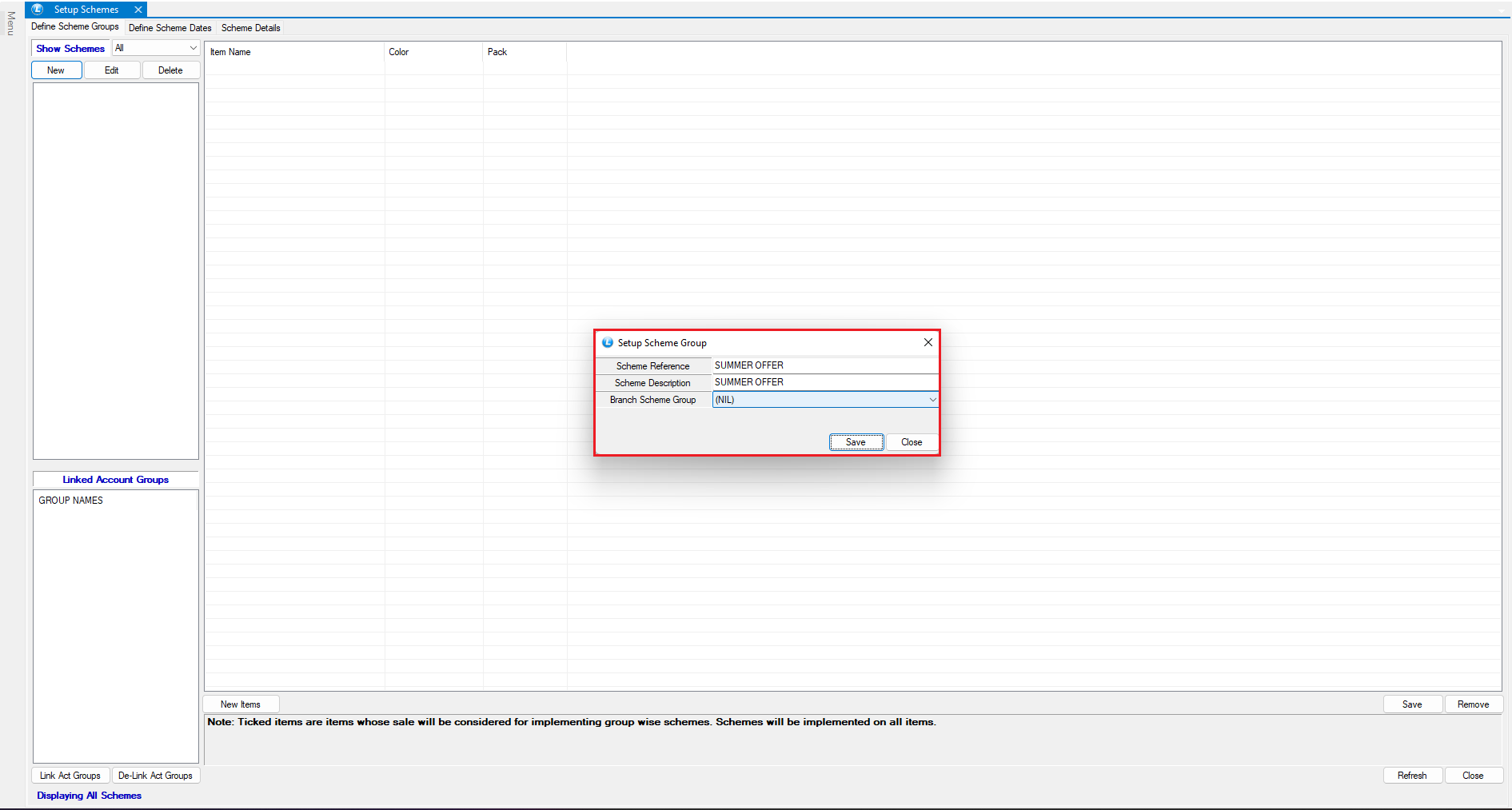
* Click **New** to create a new scheme.
* Enter a **name for the scheme**.
***
### Select Items for the Scheme
Now define the items on which the scheme will apply.
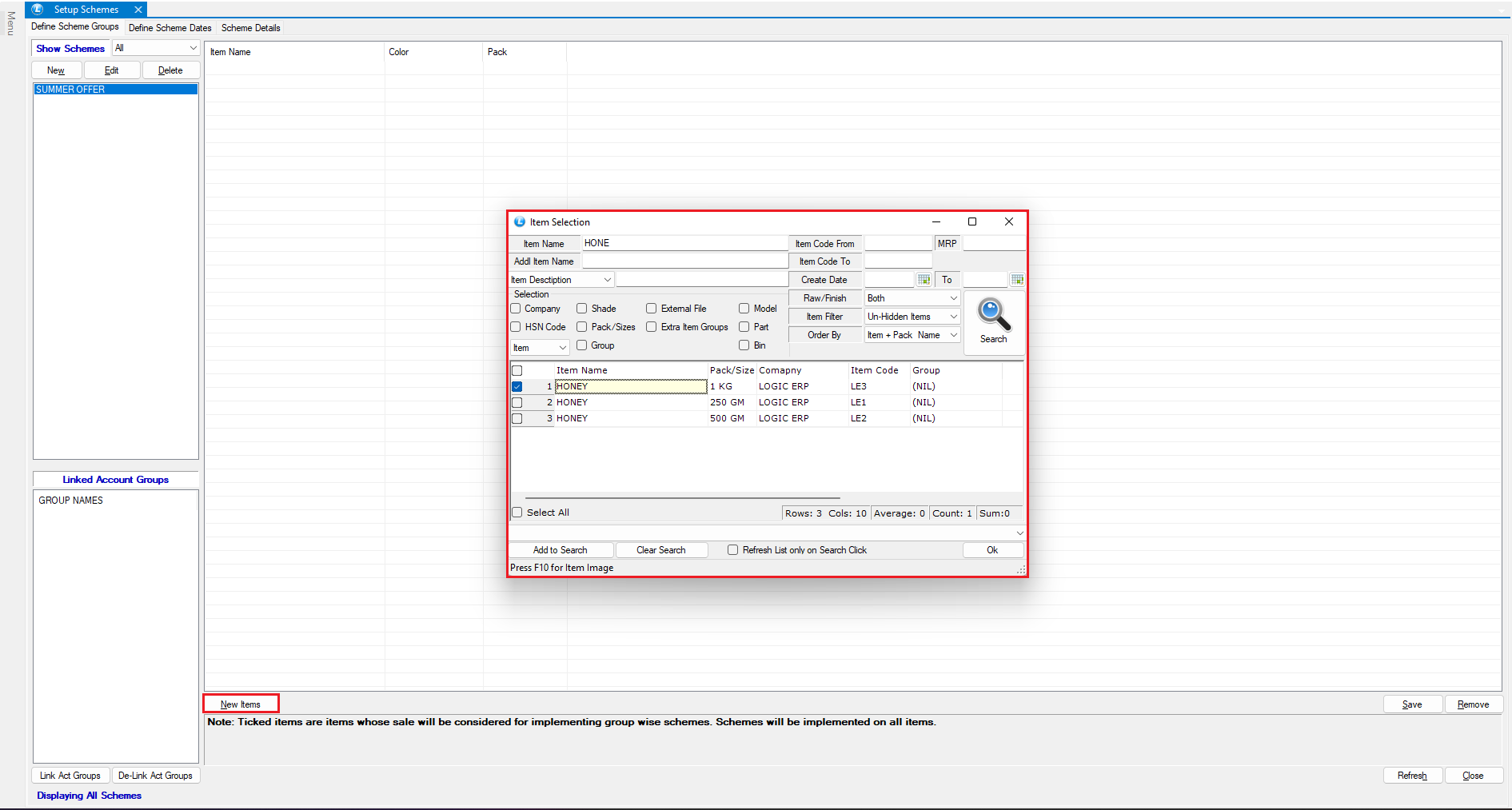
* Click **New Items**.
* Select the product(s) eligible for the scheme.
* Example:
* Select **Honey – 1 Kilogram**.
* Click **Save**.
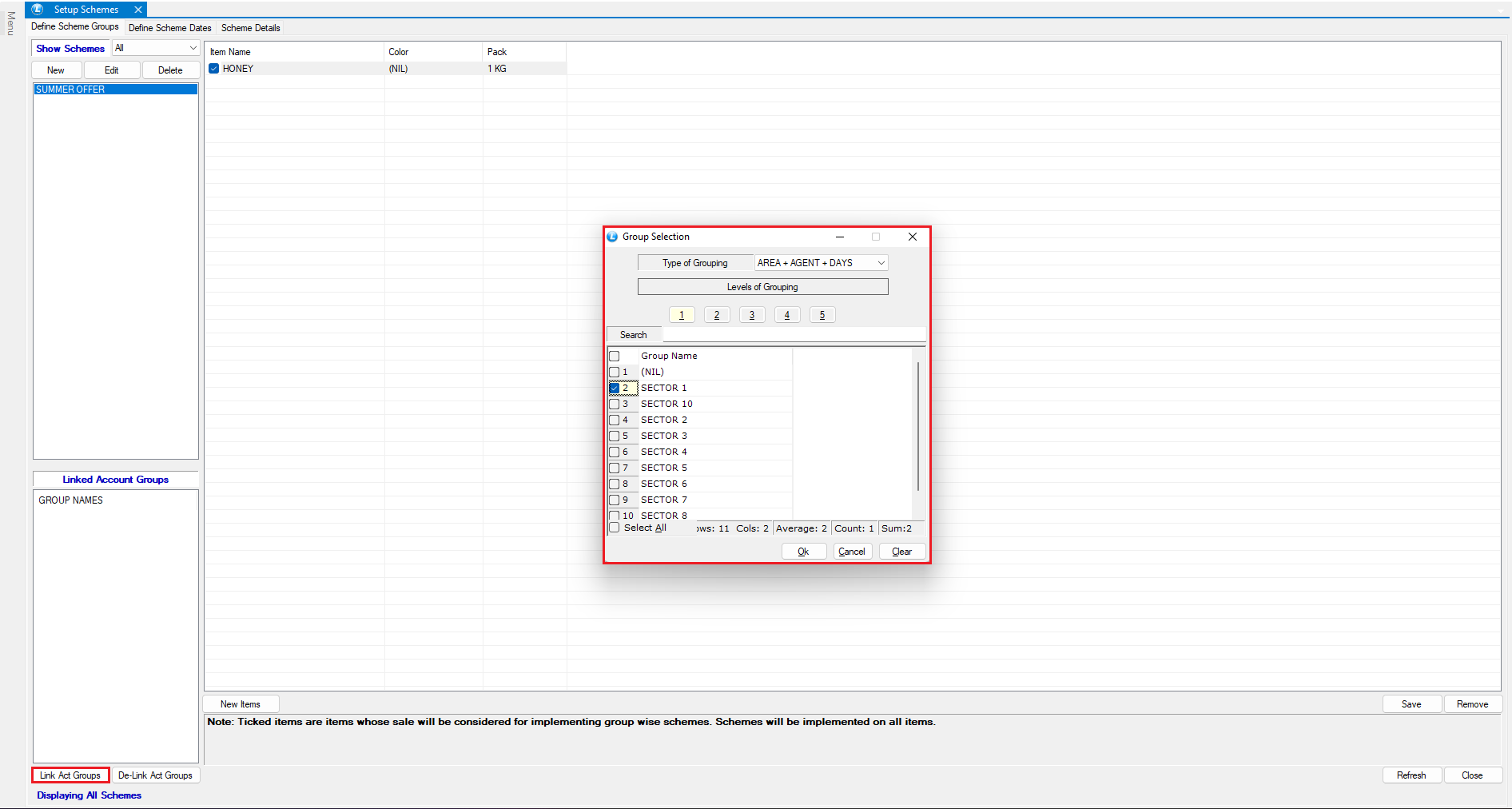
**Optional: Link Account Groups**
You can restrict schemes to specific customer groups.
* Select the **Account Group**.
* Example: **Sector 1**.
**Result:** Only customers belonging to **Sector One** will receive this scheme.
***
### Configure Scheme Conditions
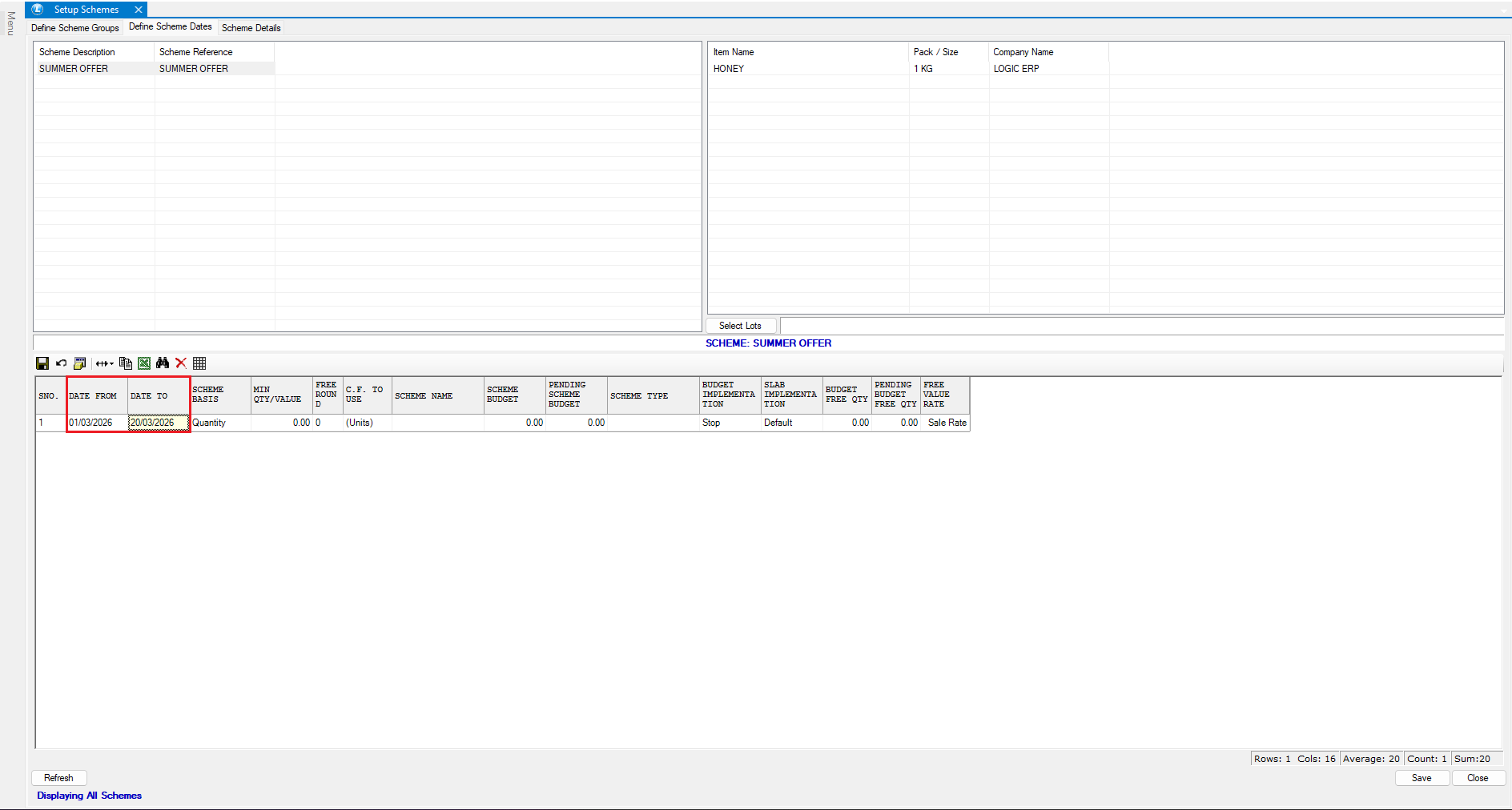
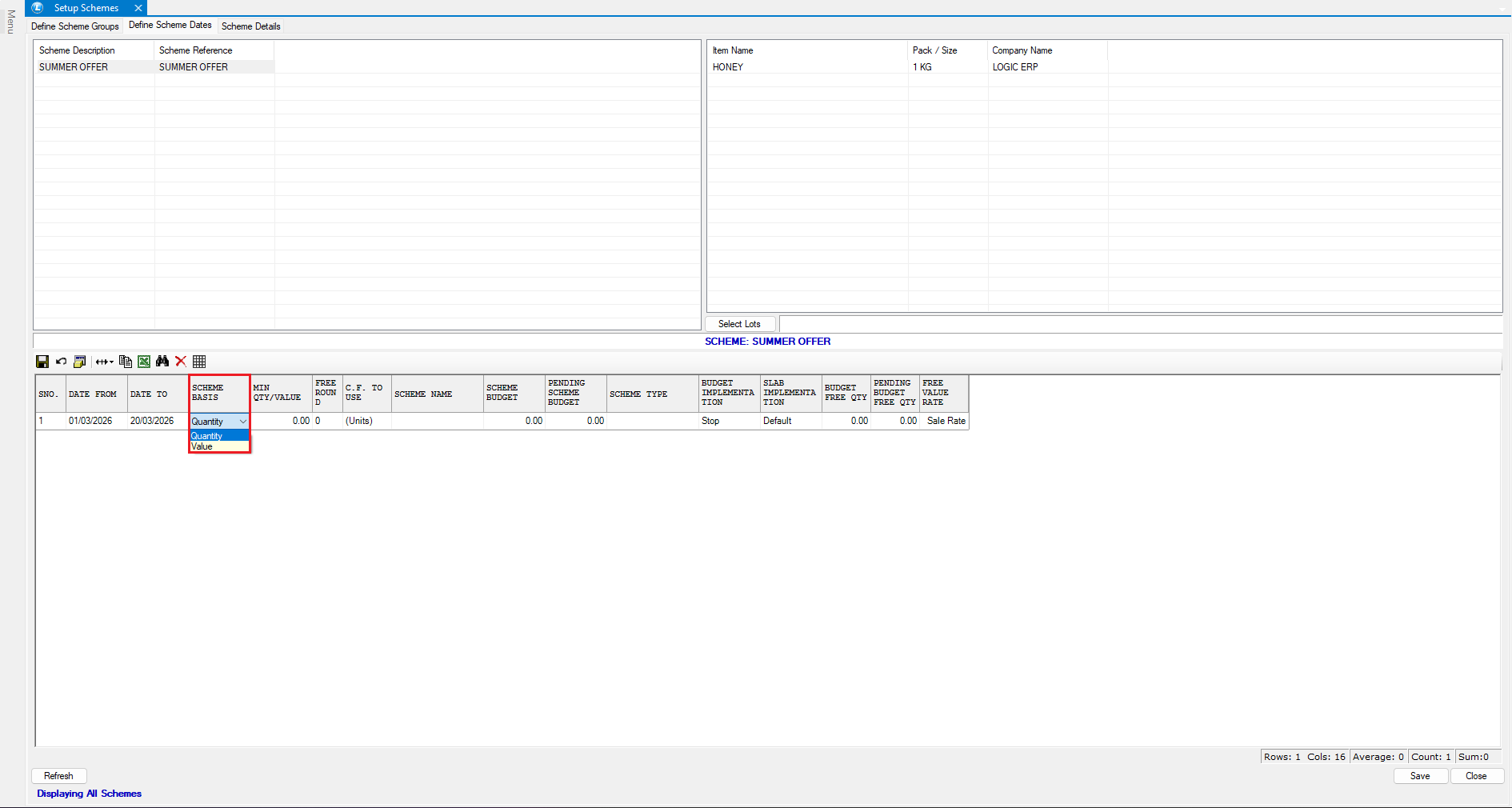
Move to the **Second Tab** to define scheme rules.
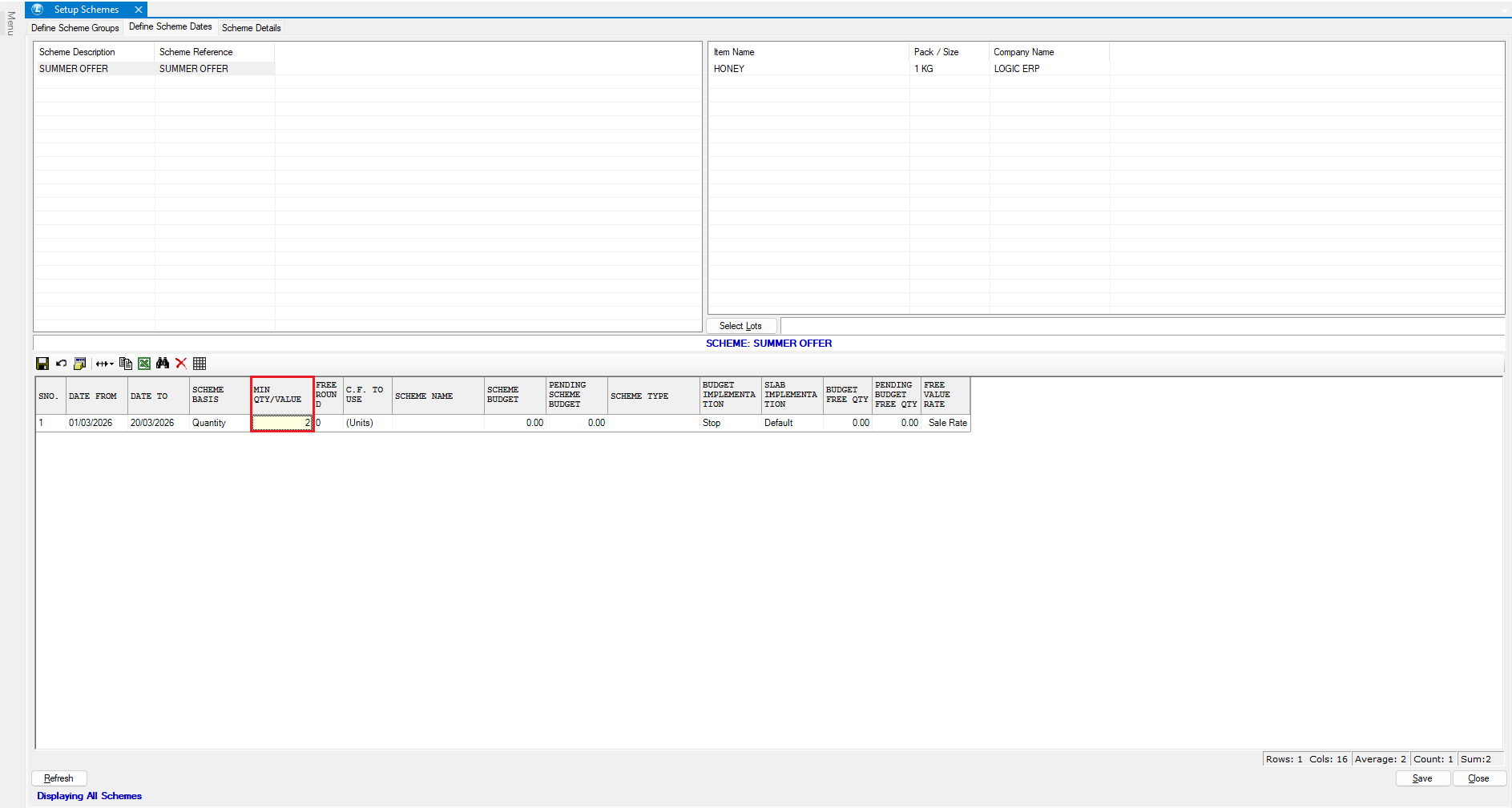
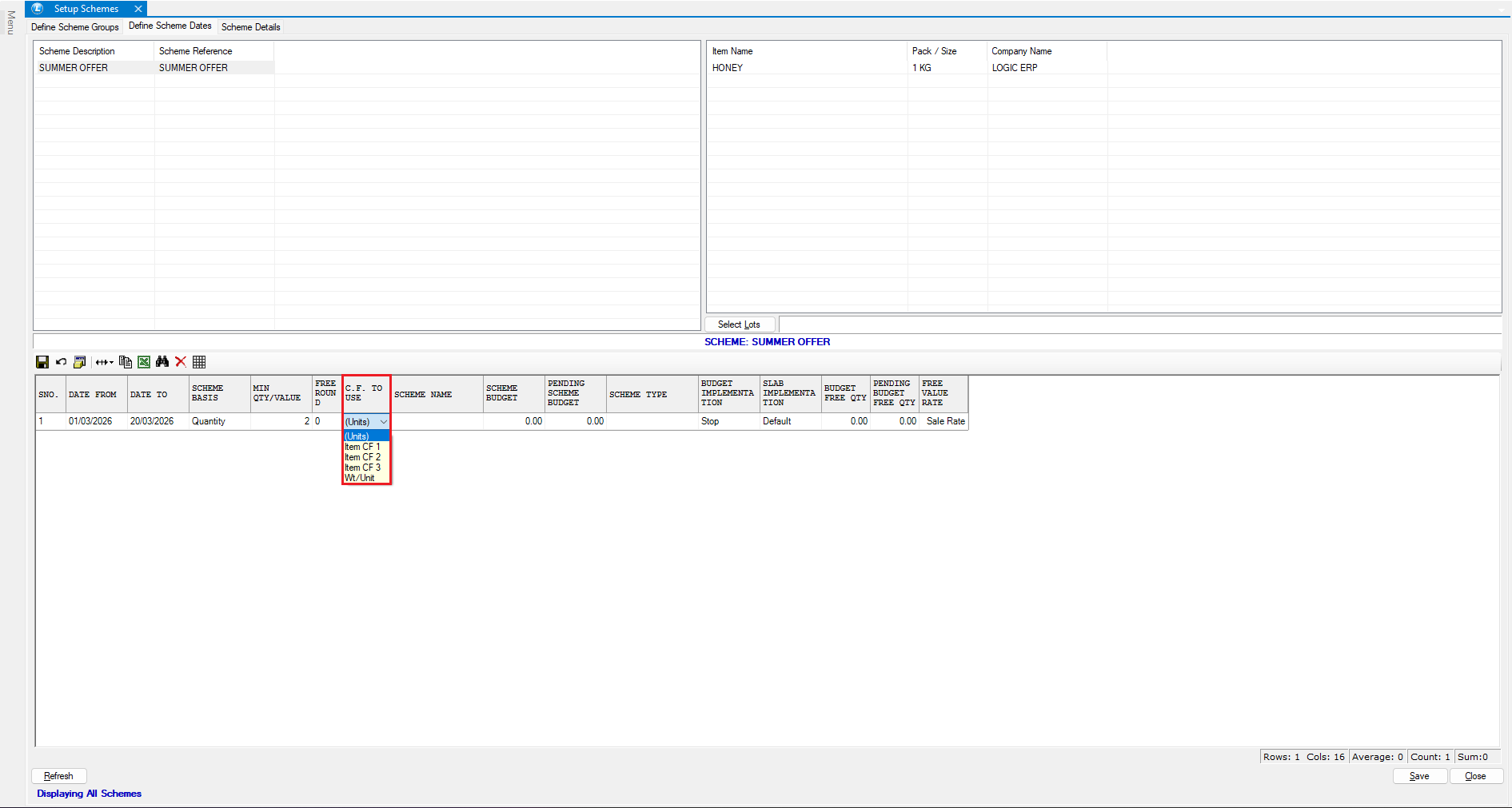
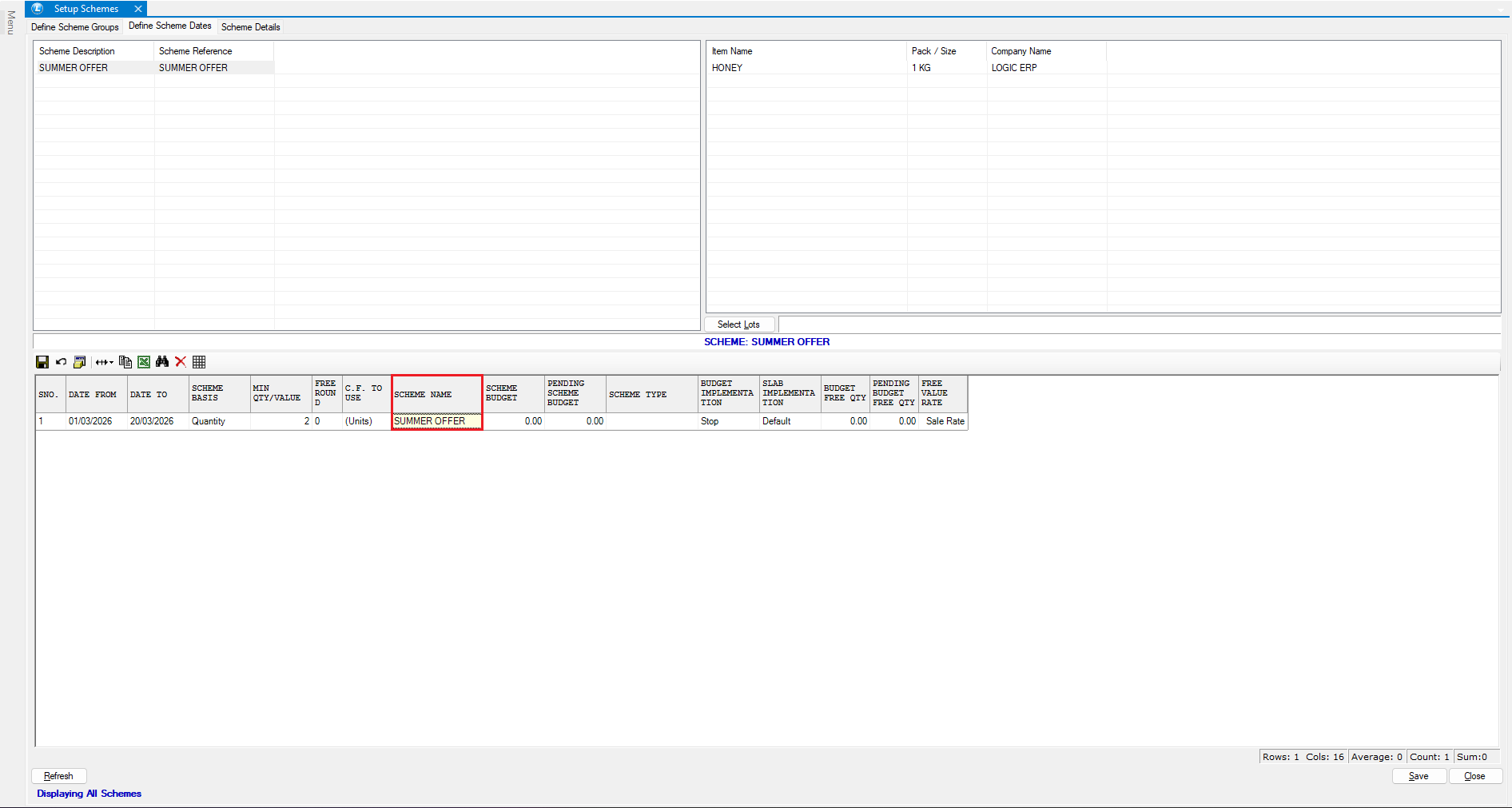
Enter the following details:
* **Scheme Time Period** – Duration for which the scheme will remain active.
* **Minimum Quantity or Value** – Minimum purchase required.
* **Conversion Factors** – If required for calculations.
* Enter the **Scheme Name** again.
* Click **Save**.
***
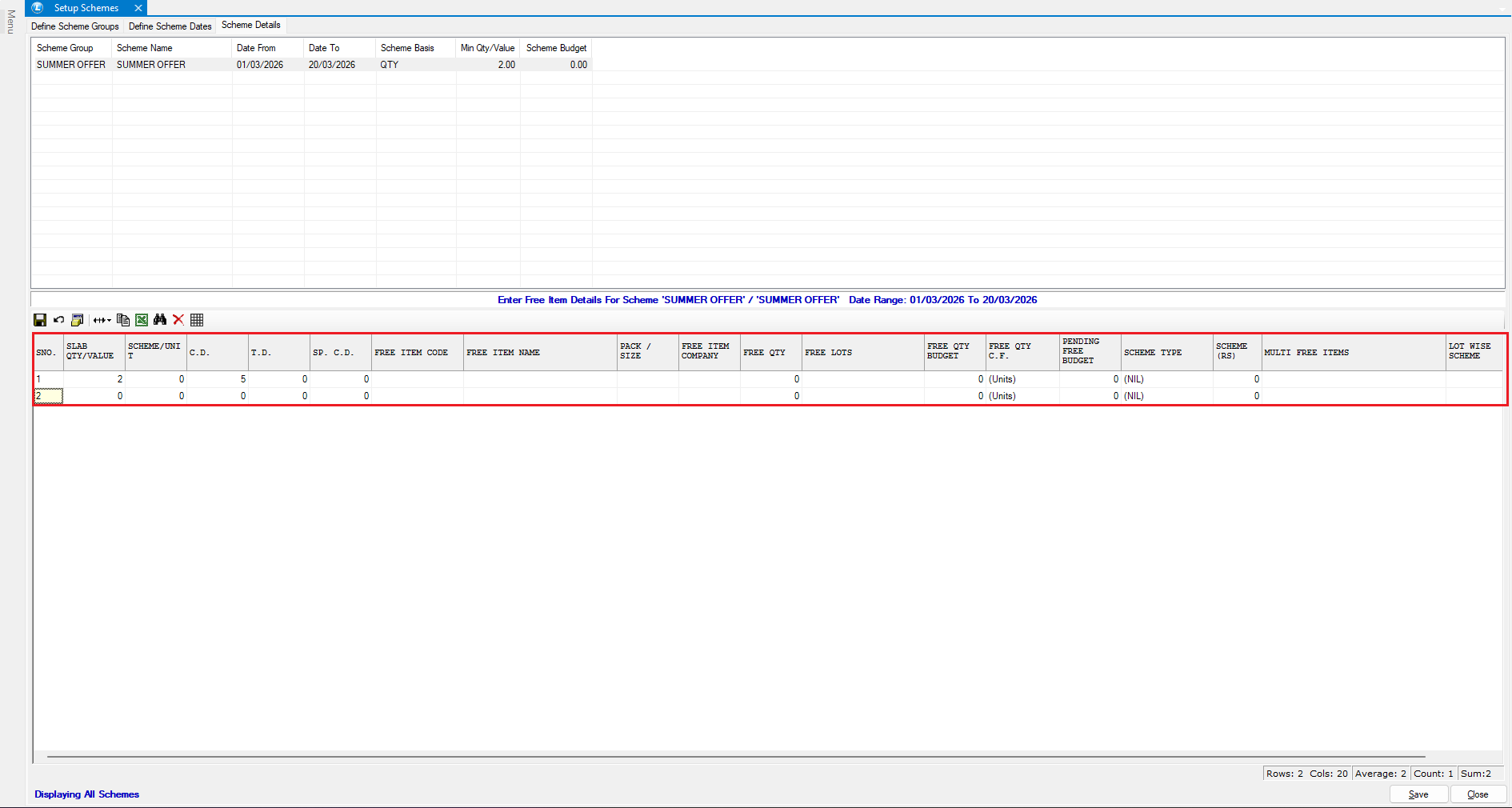
### Define Discount Details
* Move to the **Third Tab** to configure the discount.
**Specify the following:**
* **Minimum Quantity or Value** required for the discount.
* Select the **type of discount**:
* Cash Discount (CD)
* Trade Discount
* Special Discount
**Example**
* Minimum Quantity: **2 units**
* Discount: **5% Cash Discount**
**Result:** If a customer purchases **2 units of 1 kg Honey**, they will receive **5% cash discount**.
***
### Implement the Scheme in a Sale Bill
Let’s see how the scheme works in practice.
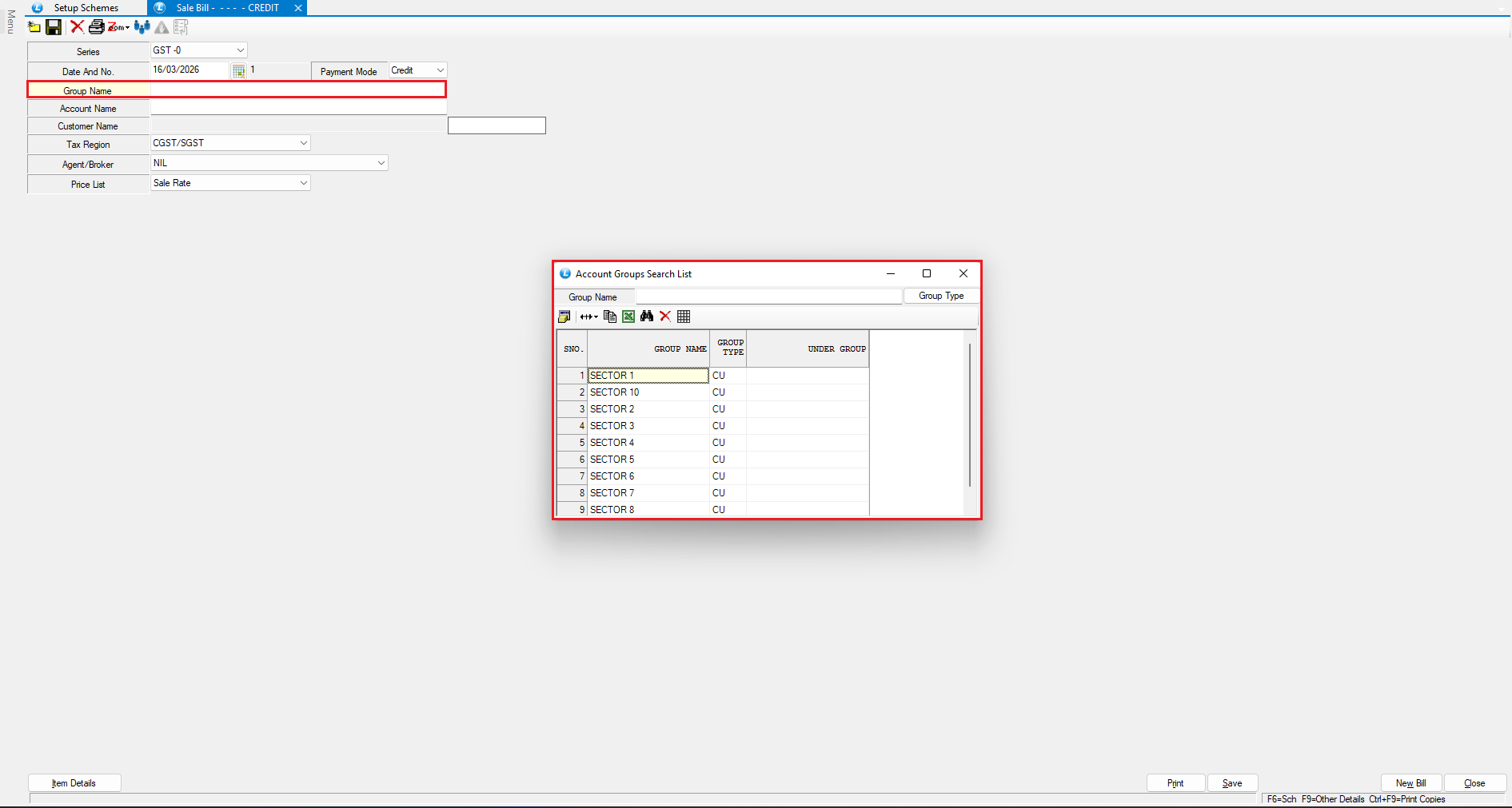
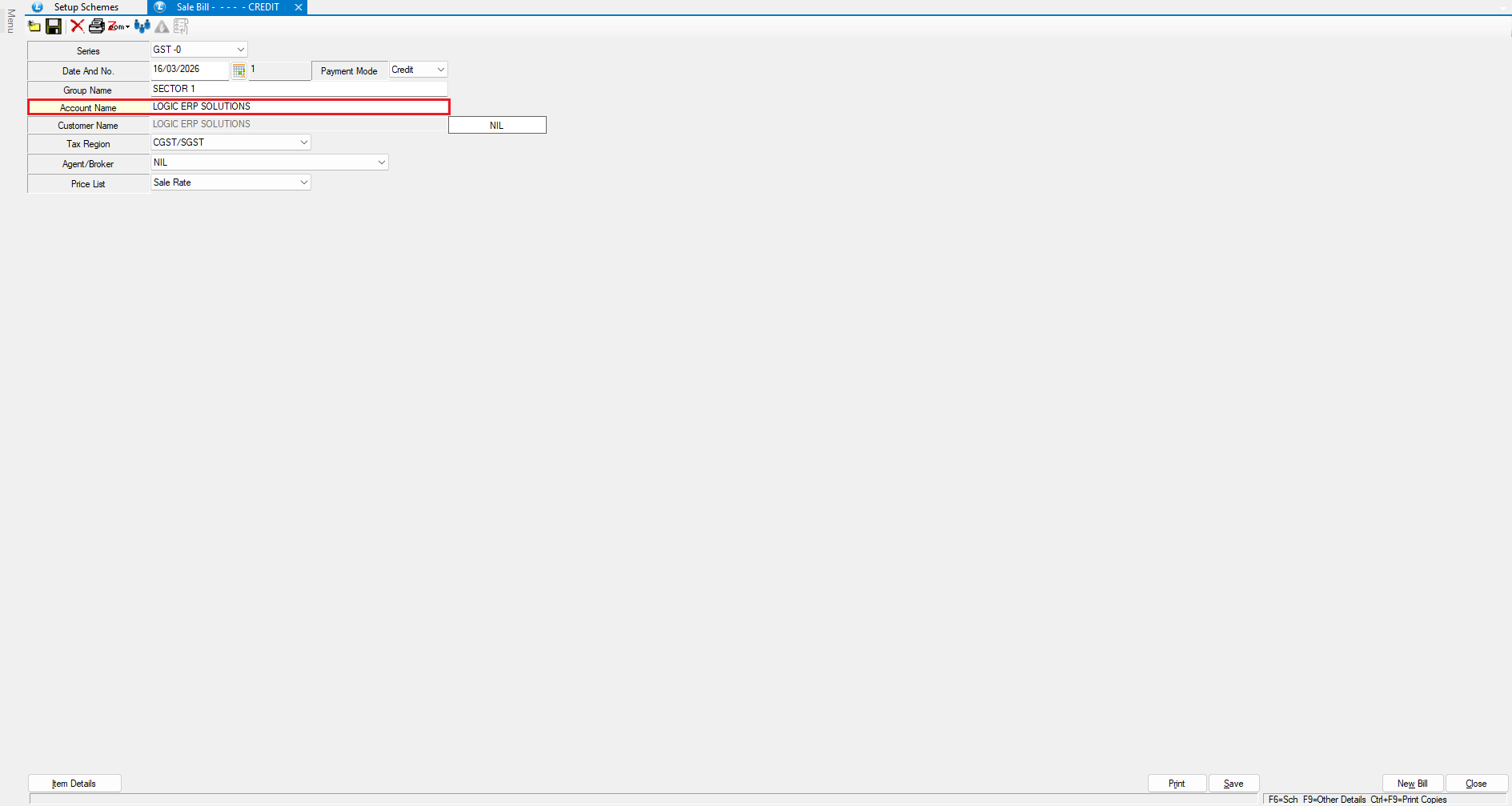
* Select the **Account Group linked with the scheme**.
* Choose a **Customer from that group**.
* Add the item **Honey – 1 Kg**.
* Enter other required details:
* Lot Number
* Quantity
* Sale Rate
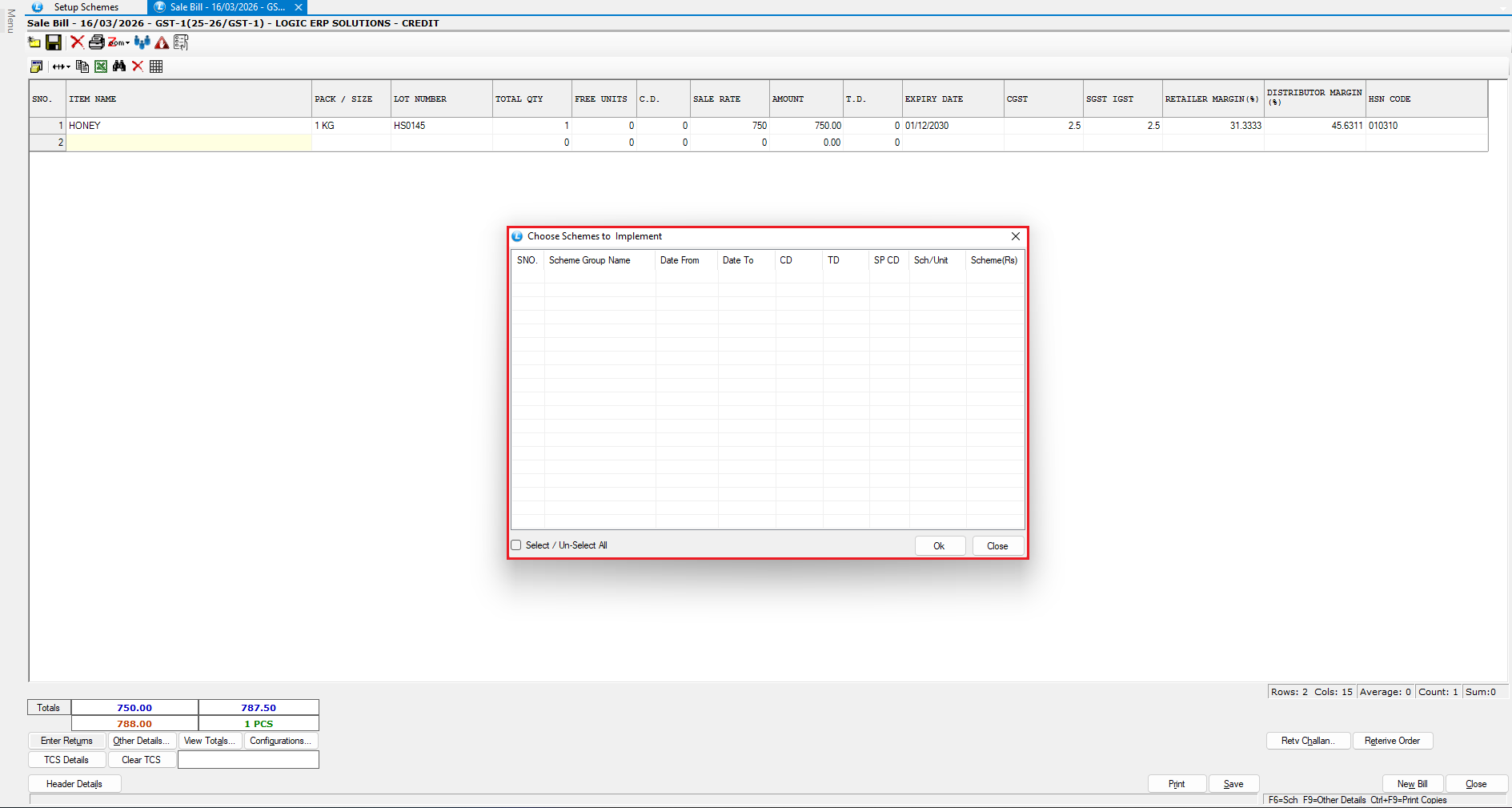
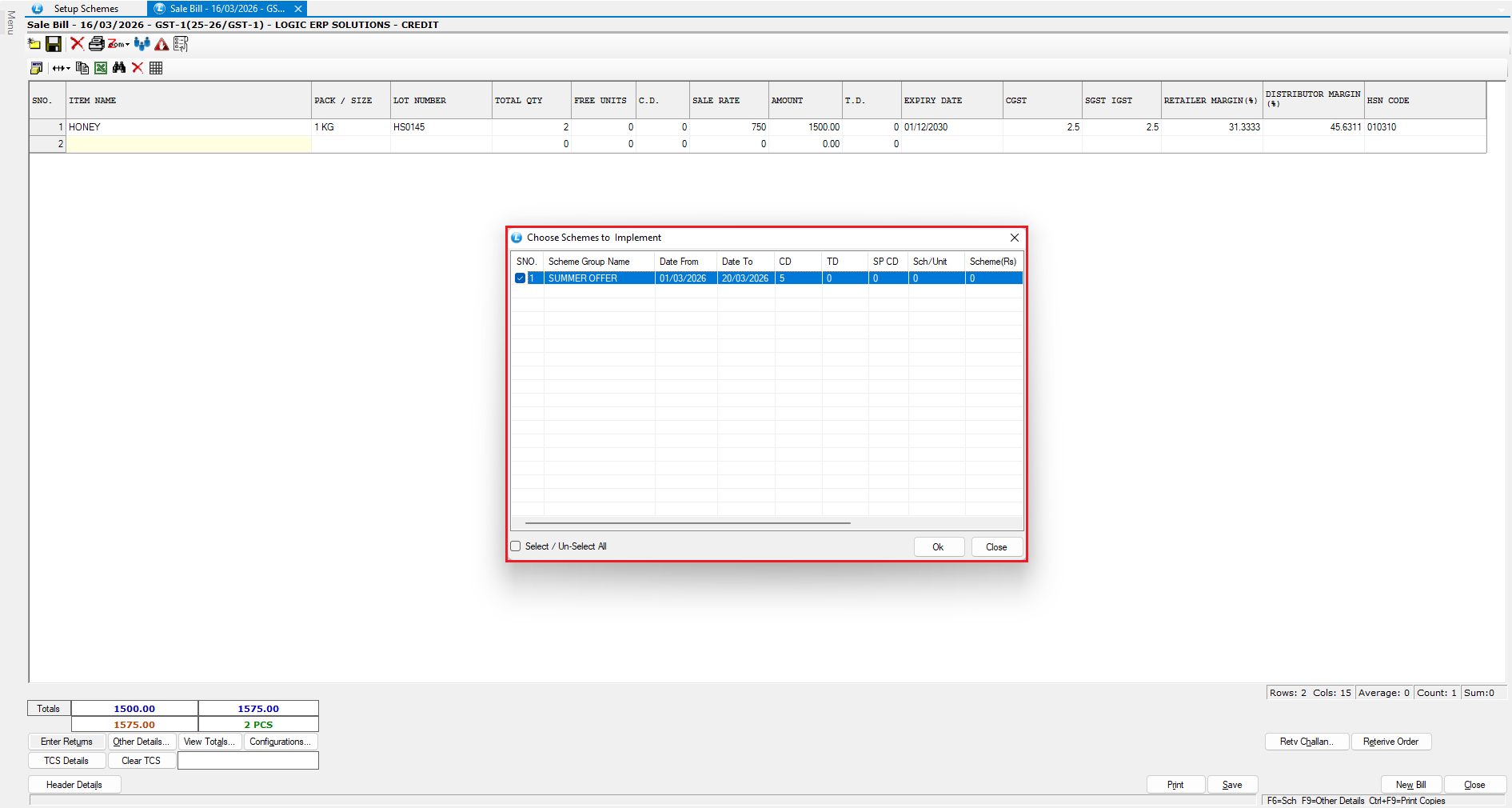
Press **F6** to implement schemes.
#### Scenario 1: Quantity = 1
* No scheme will appear because the **minimum quantity condition is not met**.
#### Scenario 2: Quantity = 2
* Press **F6** again.
* The scheme will appear for selection.
* Apply the scheme.
**Result:** A **5% Cash Discount** is applied successfully.
***
### Understanding the Item Selection Rule
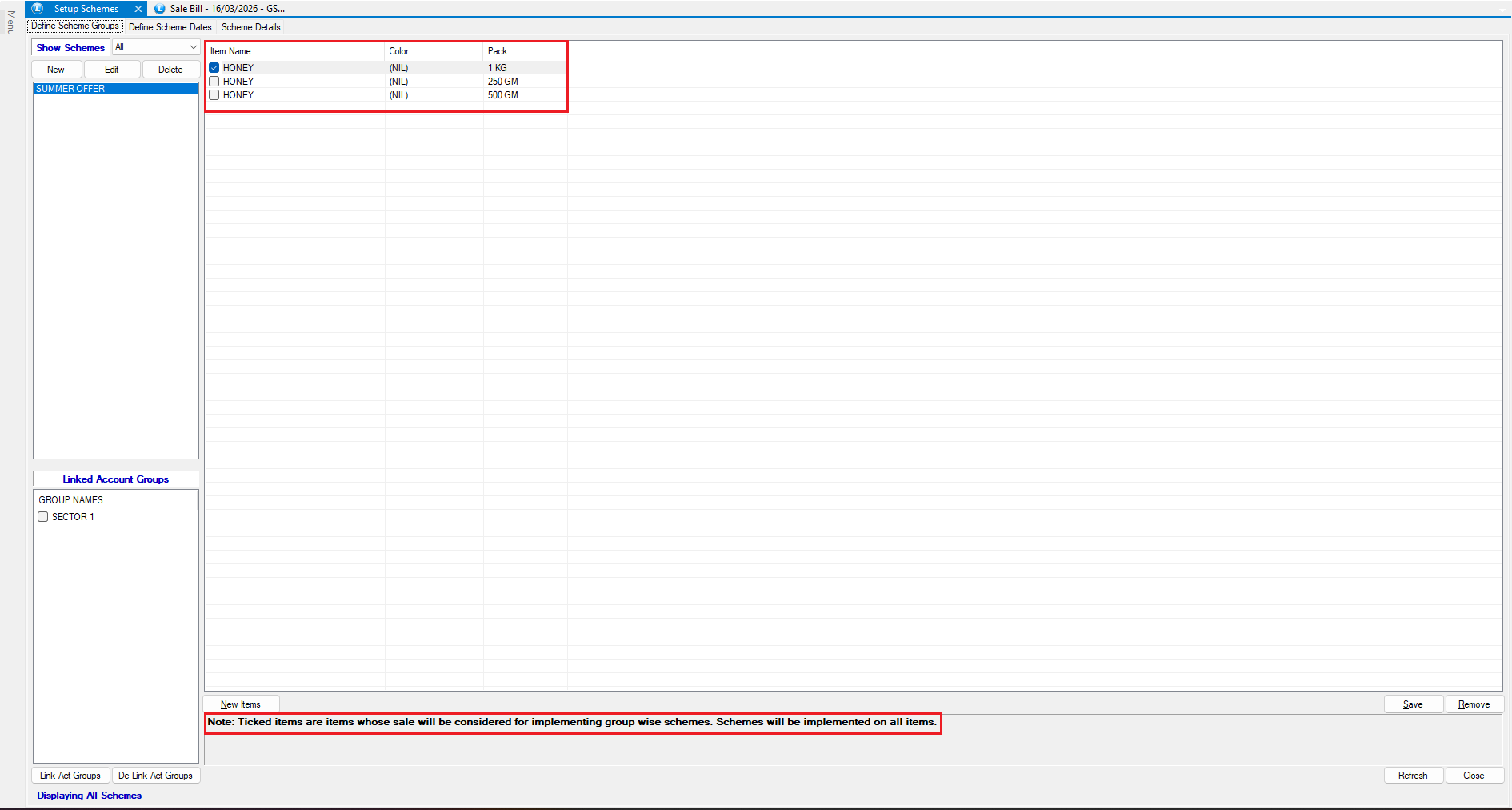
* During scheme setup, you may notice this note:
> **Note:** Ticked items are items whose sale will be considered for implementing group wise schemes. Schemes will be implemented on all items.
#### What This Means
* Only **ticked items** count toward **meeting the scheme condition**.
* Once the condition is met, the **discount can apply to all items in the bill**.
#### Example
* Scheme requires **2 units of Honey (ticked item)**.
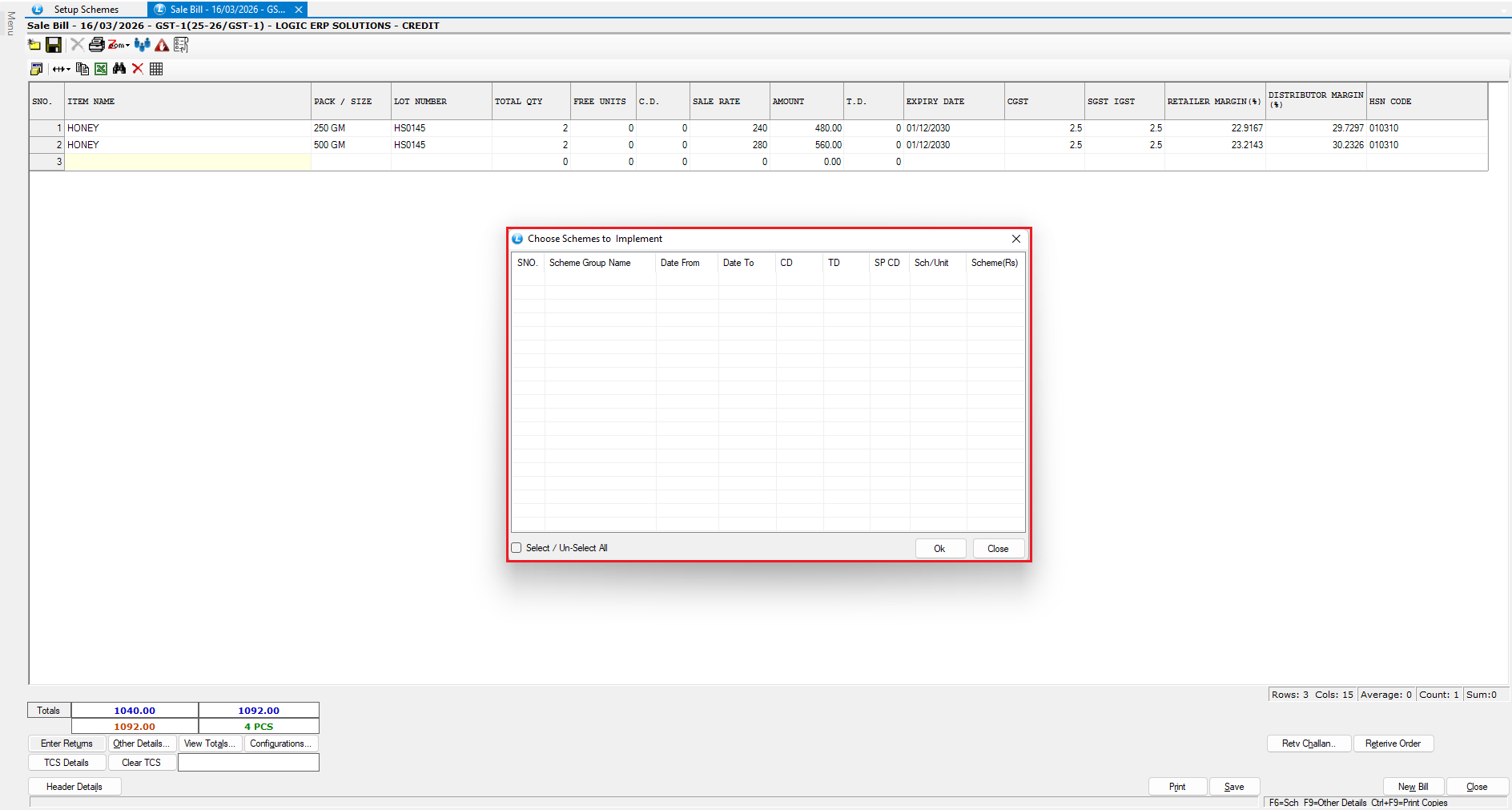
**Case 1: Only Unticked Item Added**
* Scheme **will not appear**.
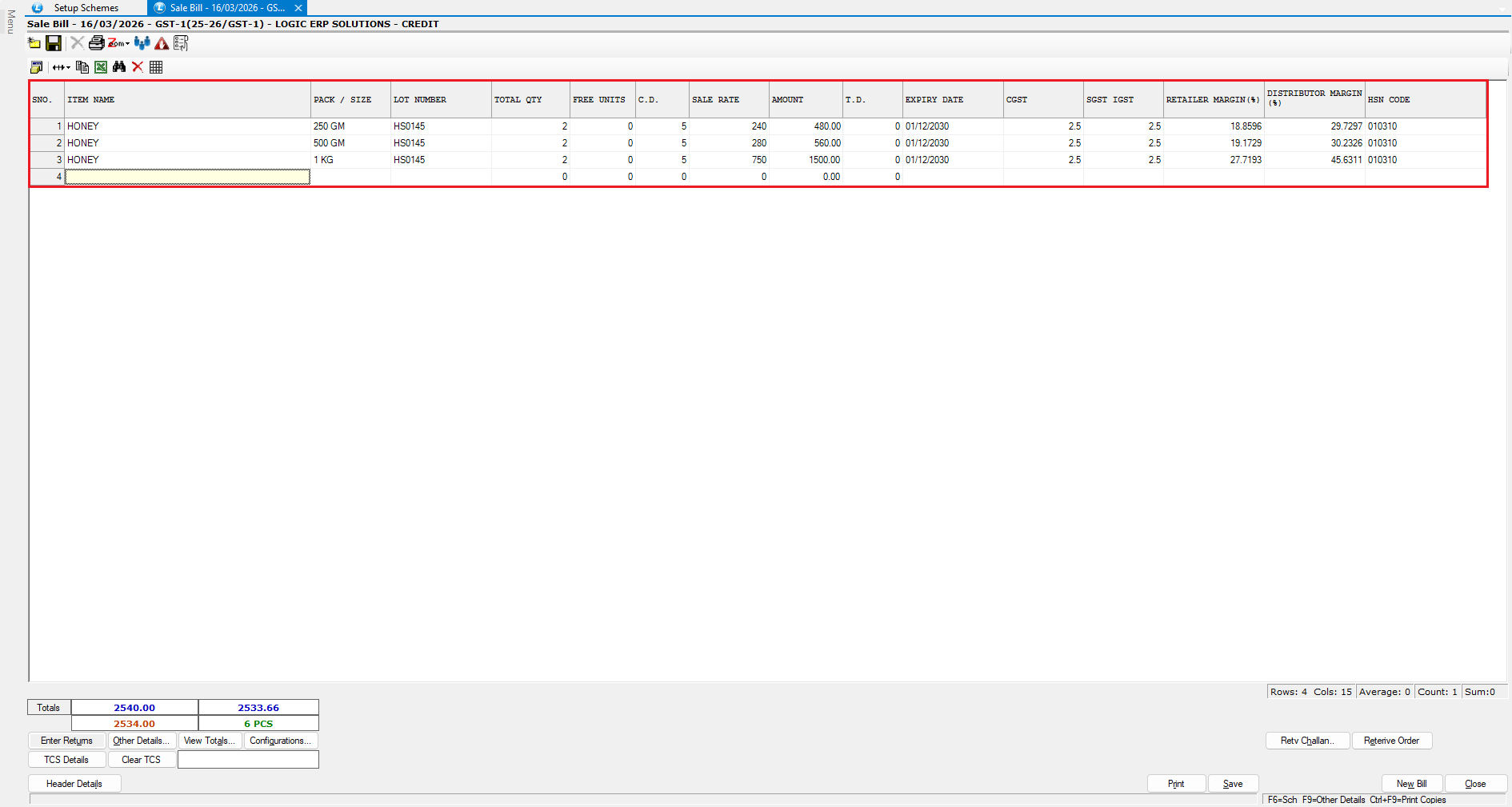
**Case 2: Ticked Item Added**
* Minimum quantity condition is met.
* Scheme applies to **all items in the bill**.
***
### Setting a Scheme Budget
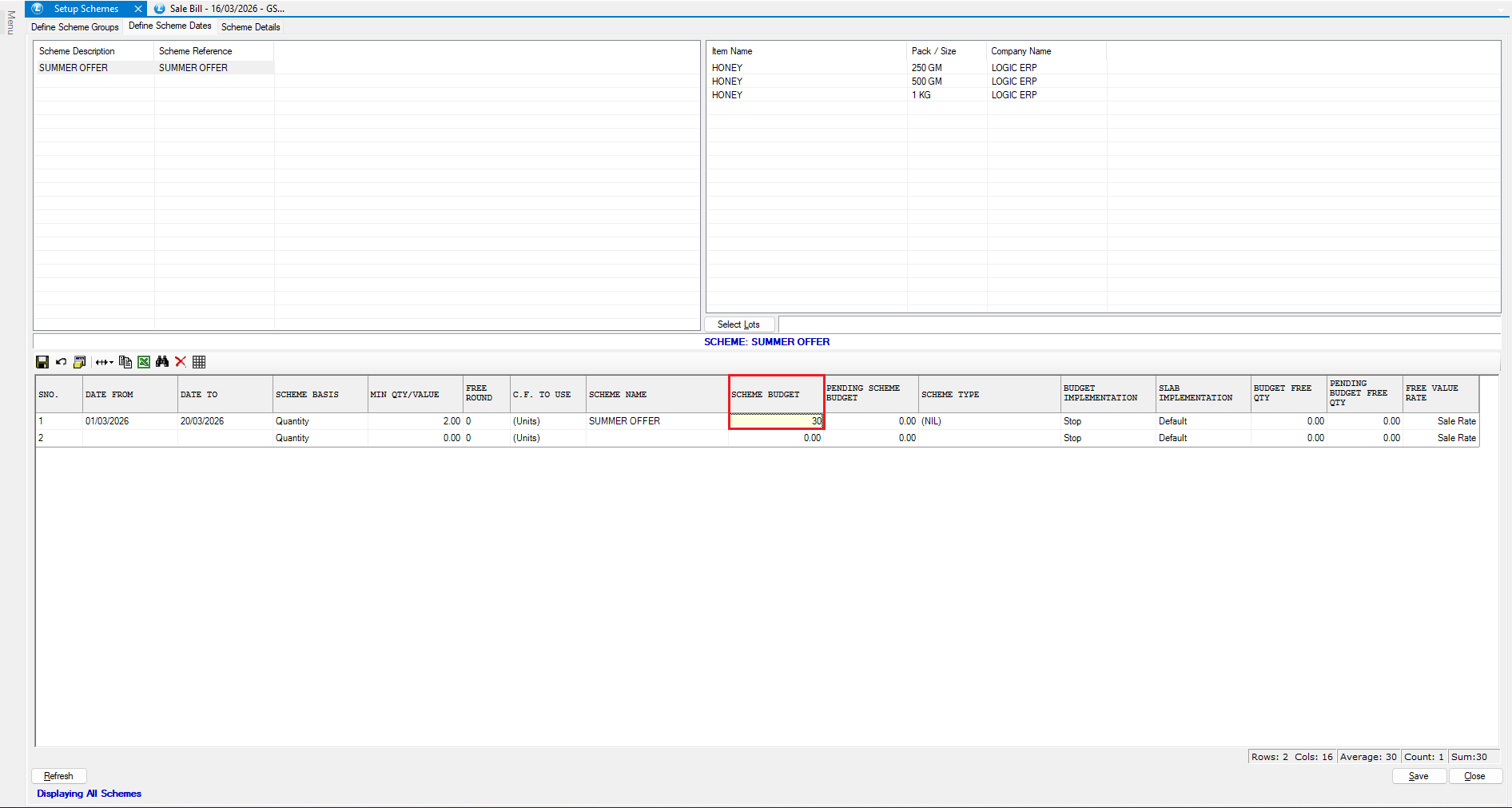
* You can also limit the **Total Discount Amount** allowed for a scheme.
**Steps**
* Go to **Tab 2 (Define Scheme Date)**.
* Enter the **Scheme Budget Amount**.
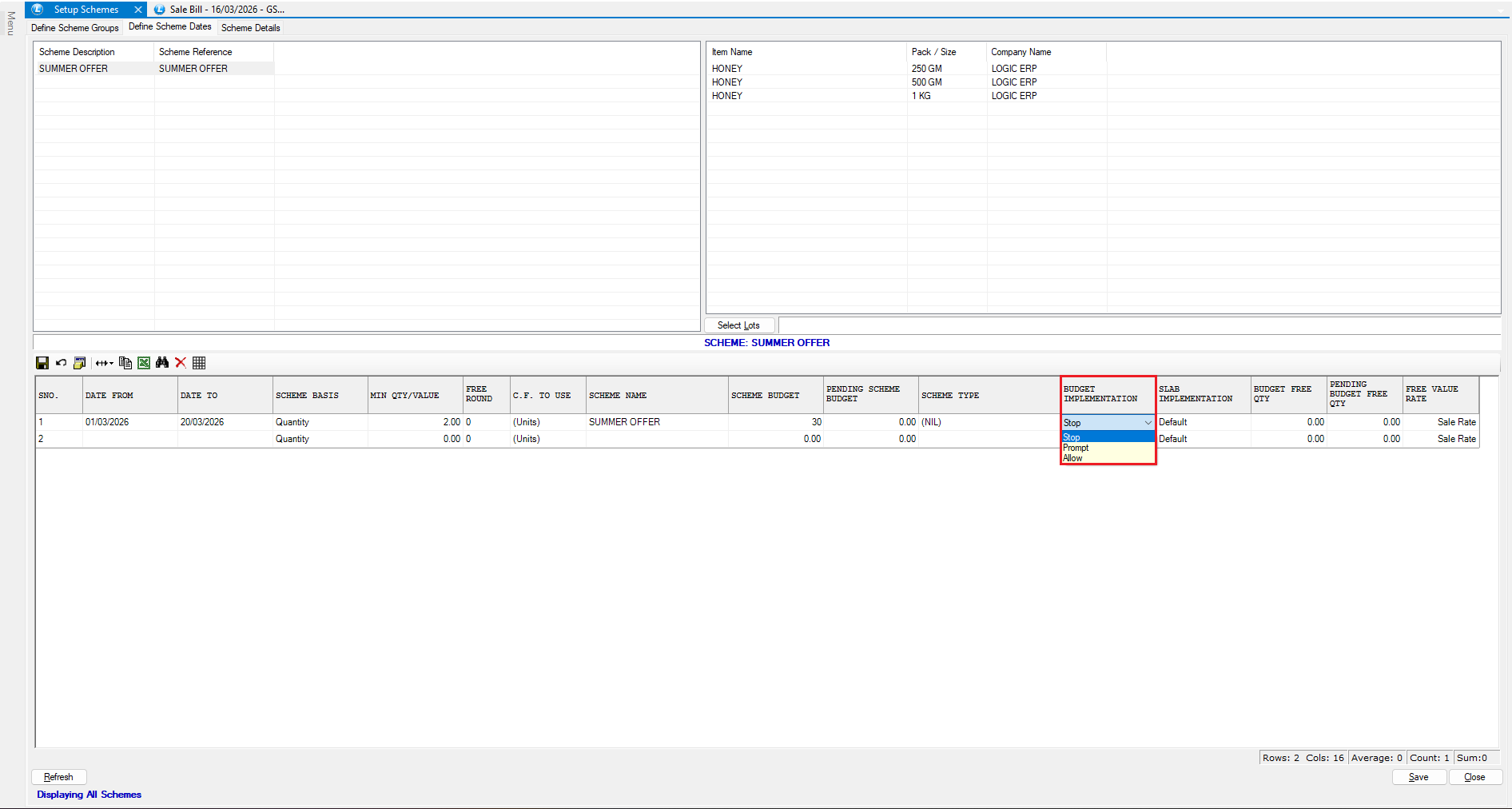
* Choose the budget behavior.
#### Example
* Budget: **₹30**
* Budget Type: **Stop**
**Meaning:** The scheme will stop automatically once the **₹30 budget is exhausted**.
***
### Budget Example in Action
* Create a new **Sale Bill.**
* **Add the items** on which the scheme was created earlier.
* **Save the Sale Bill.**
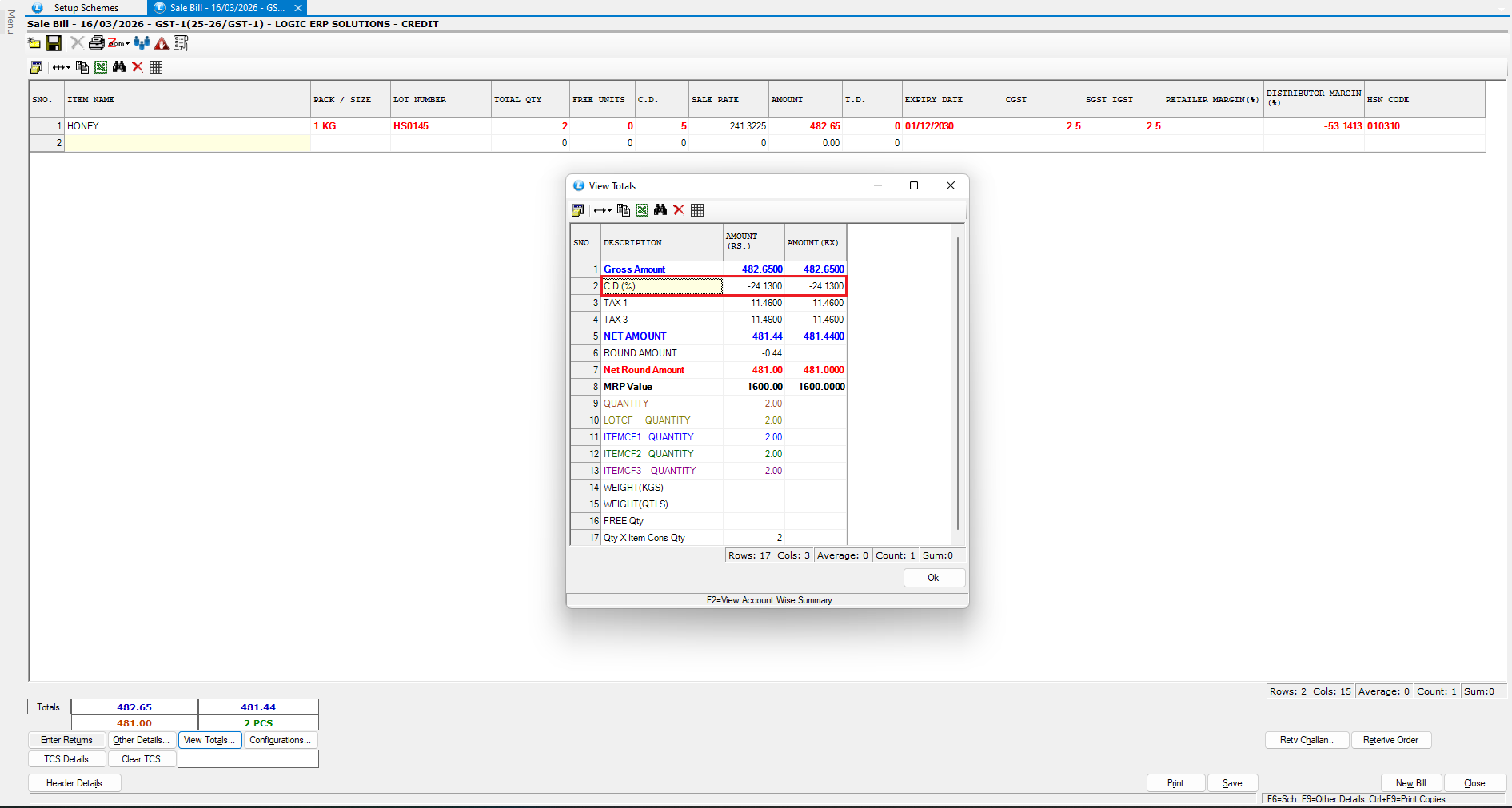
**First Sale Bill**
* Cash Discount Applied: **₹24.13**
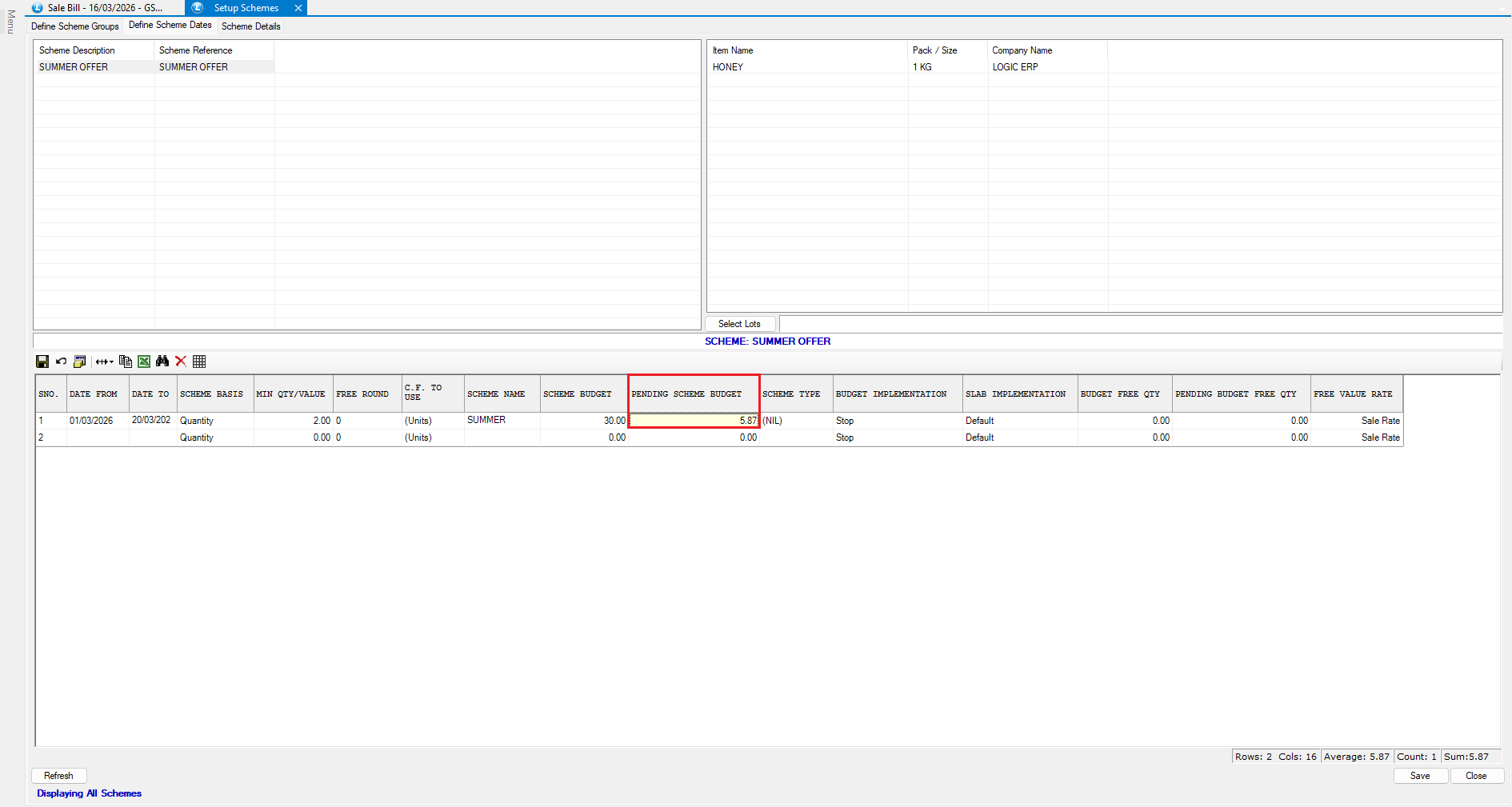
* Remaining Budget: **₹5.87**
**Second Sale Bill**
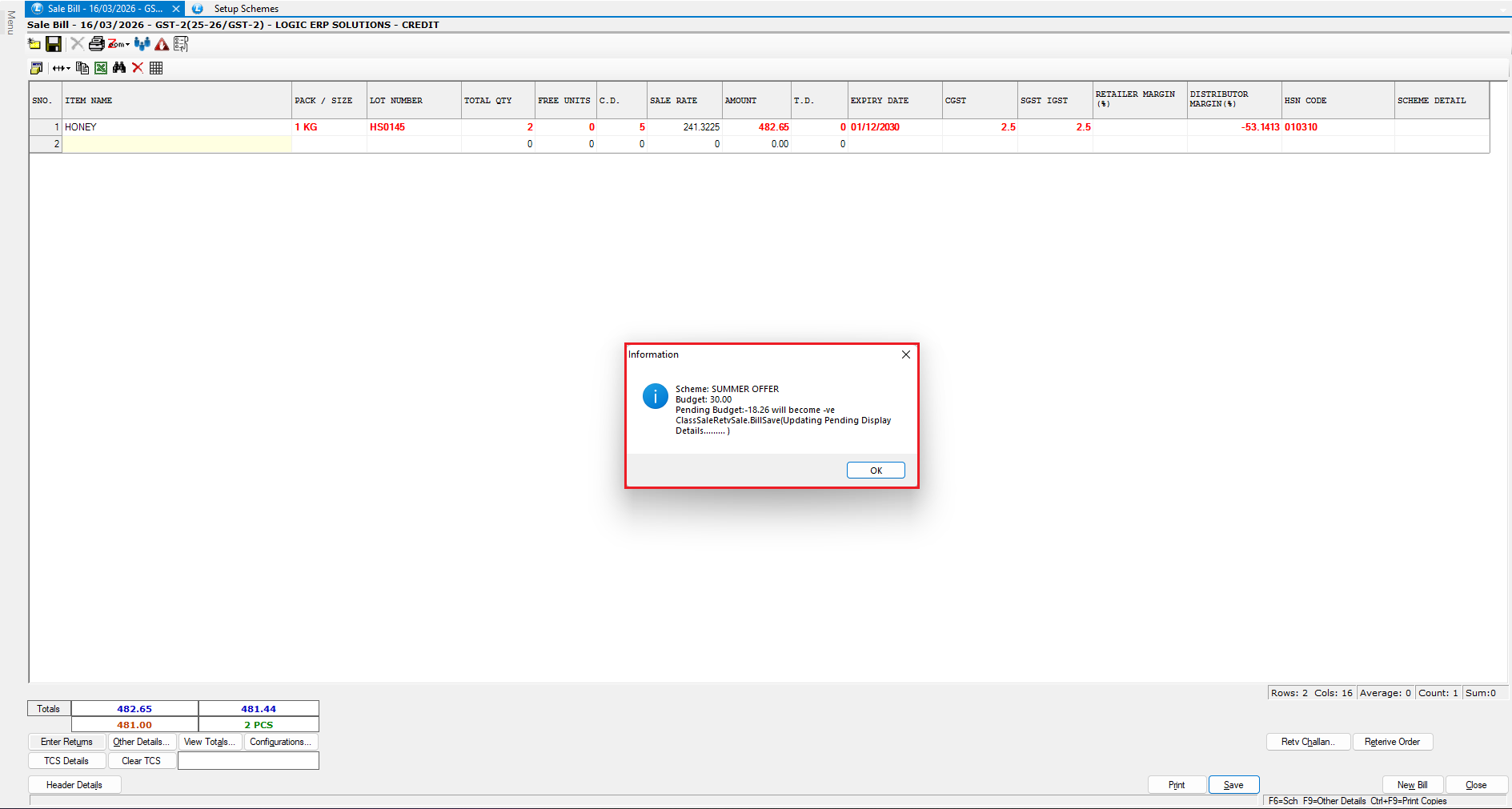
* System displays a warning:
> *Pending budget will become negative.*
Scheme **cannot be implemented** because it would exceed the budget.
***
### Creating a Free Item Scheme
You can also design **Buy-and-Get-Free schemes**.
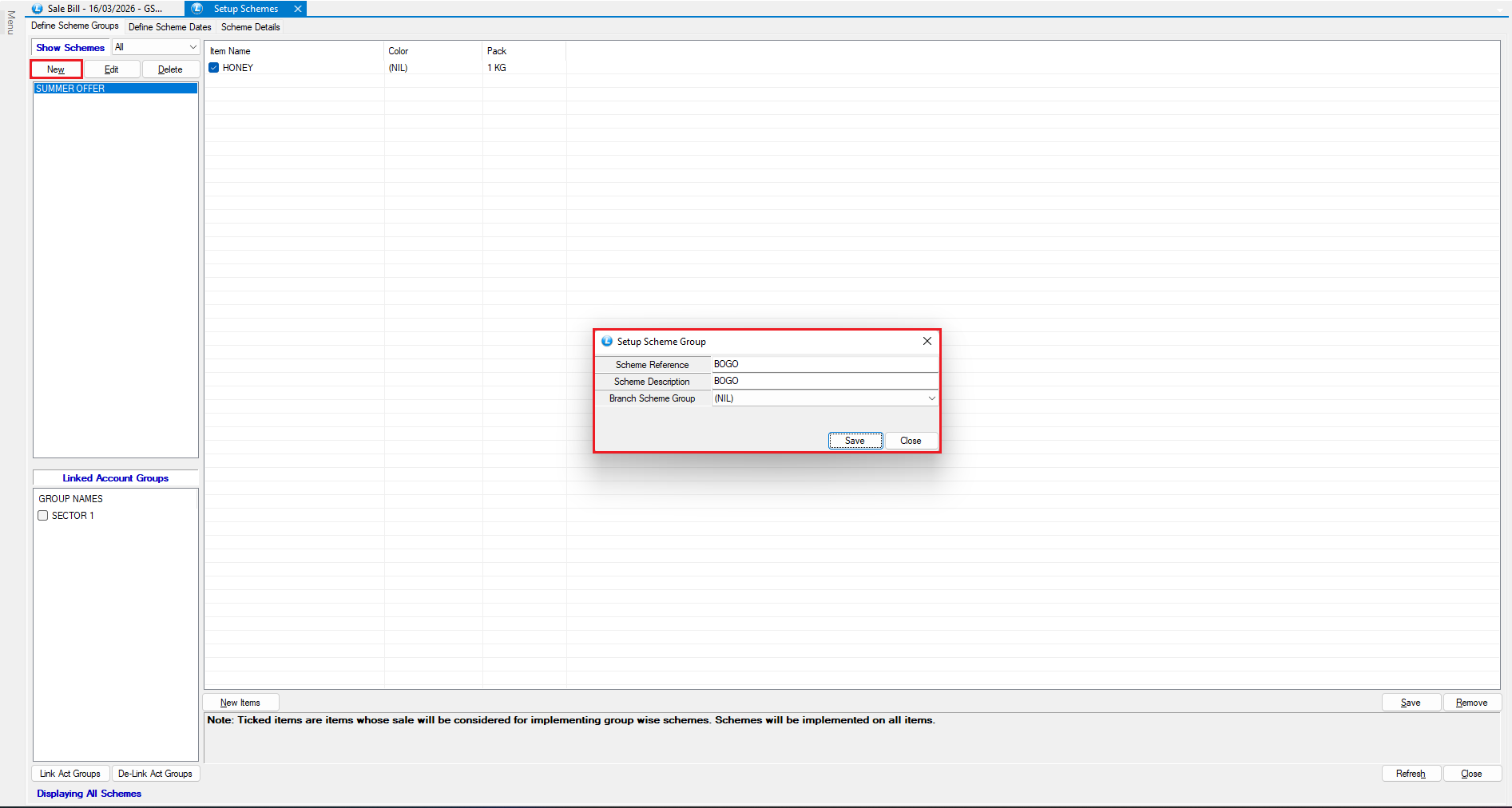
**Step 1: Create a New Scheme**
* Click **New**.
* Enter the **Scheme Name**.
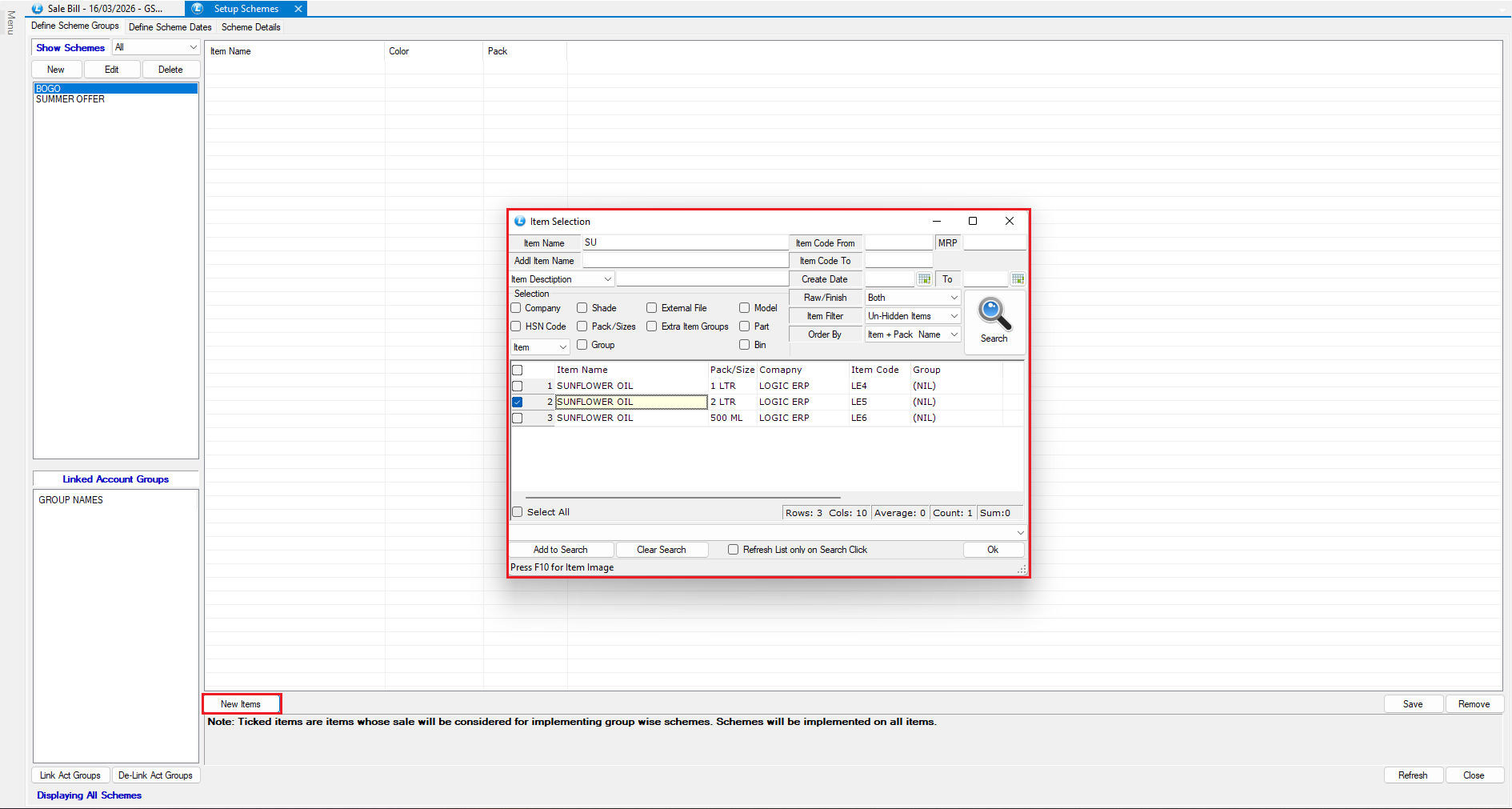
**Step 2: Select Items**
* Click **New Items**.
* Select the product.
Example:
* **Sunflower Oil – 2 Liters**
Click **Save**.
***
### Configure Scheme Conditions
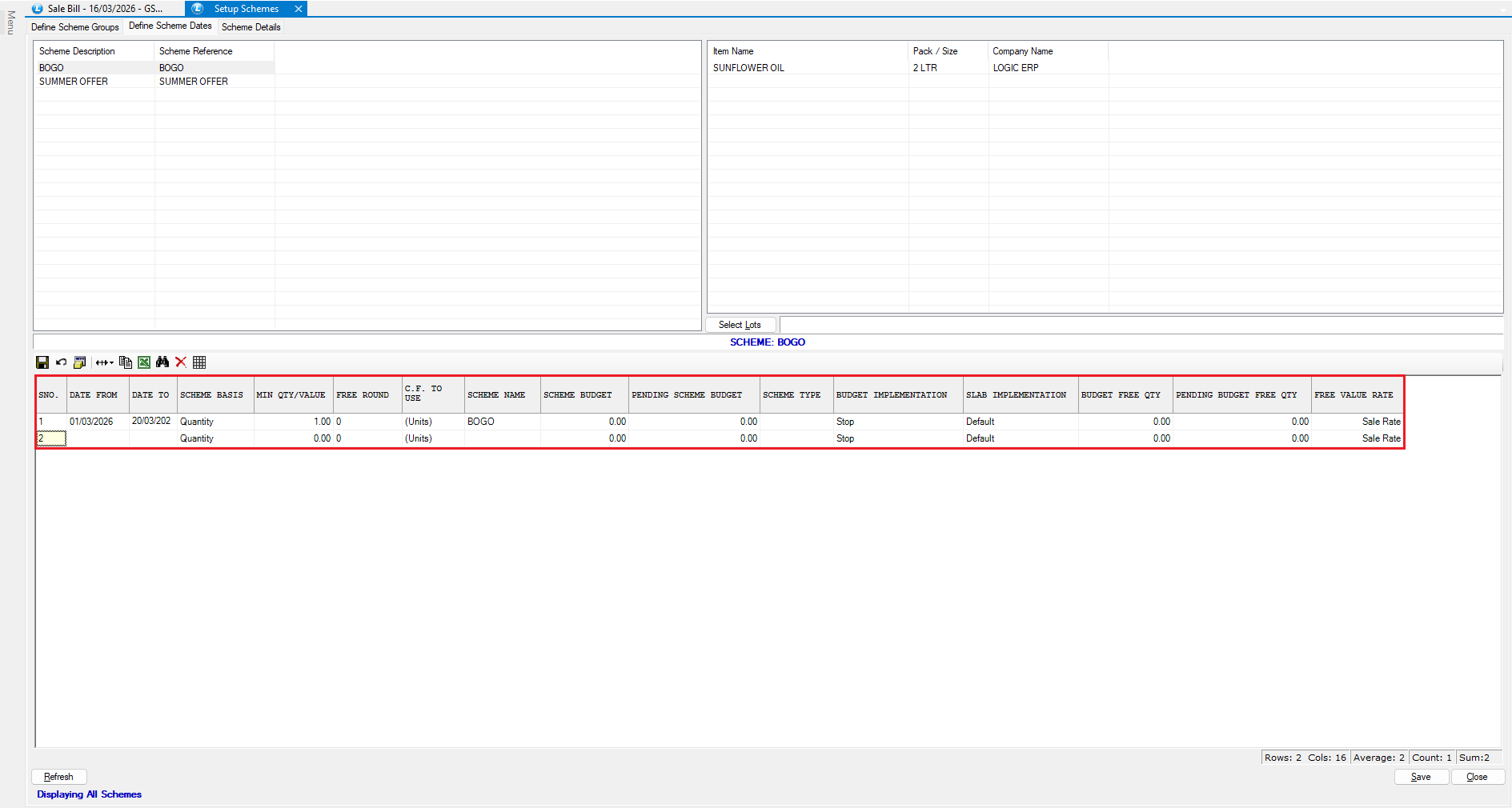
* Move to **Tab 2 (Define Scheme Dates)**
**Enter:**
* Scheme **Active Time Period**
* **Minimum Quantity or Value**
* **Conversion Factors**
* Scheme **name**
* Click **Save**.
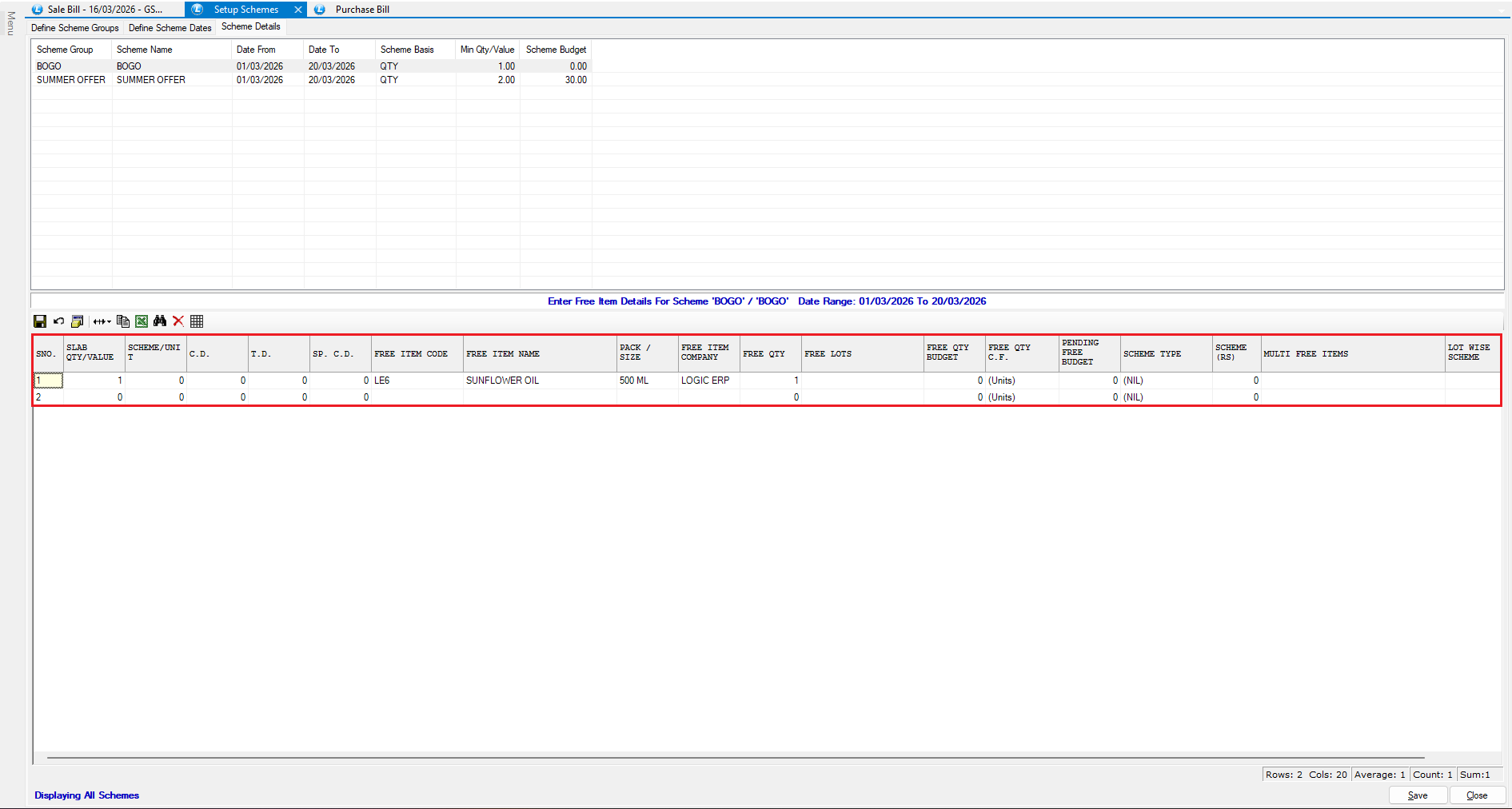
**Define the Free Item**
* Go to **Tab 3 (Scheme Details)**
* Instead of entering a discount, configure the **free item**.
**Example:**
* Buy: **1 unit of Sunflower Oil – 2 Liters**
* Get: **1 unit of Sunflower Oil – 500 ml (Free)**
Save the details.
***
### Implement the Free Item Scheme
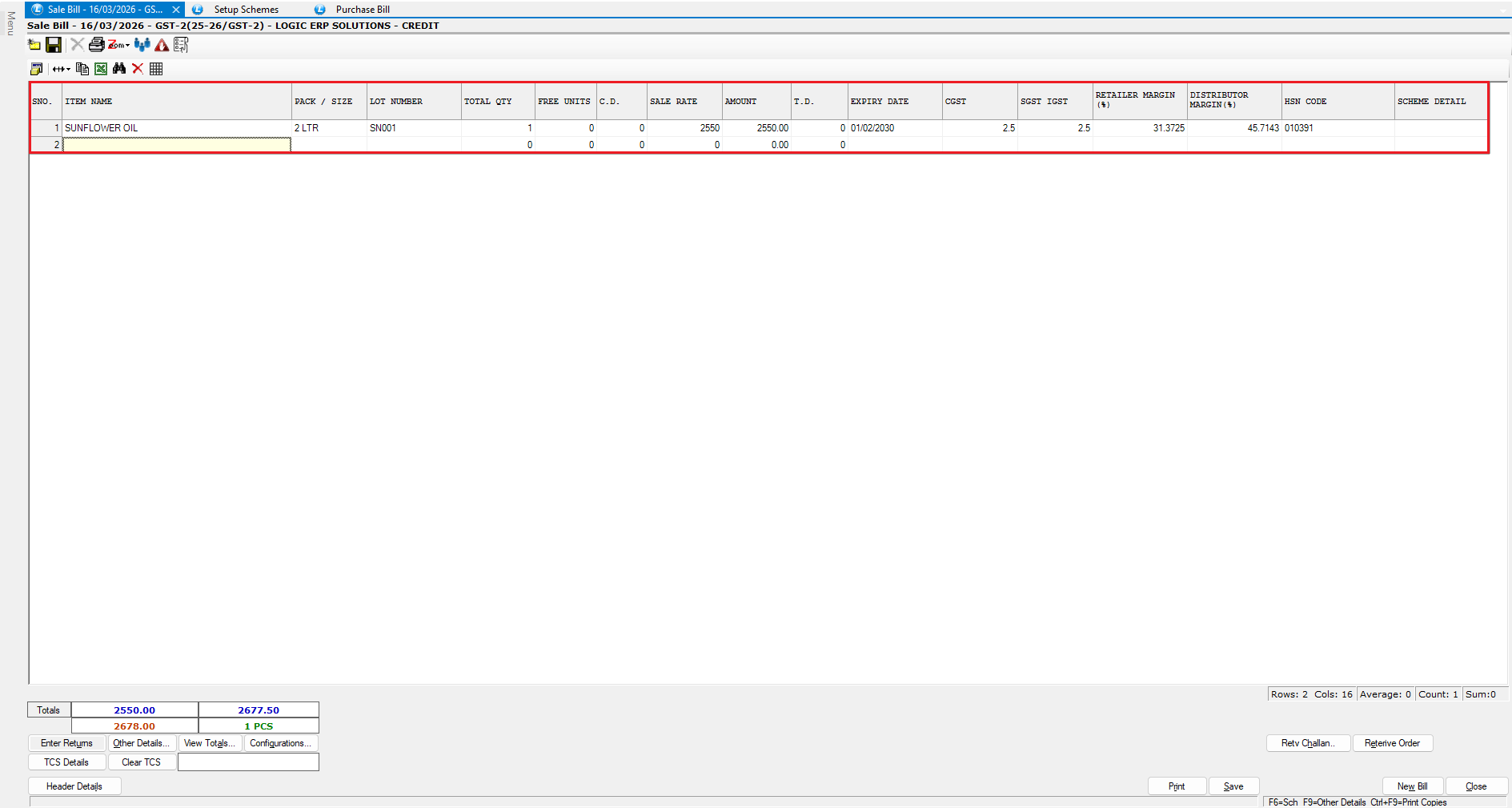
* Create a **Sale Bill**.
* Add **Sunflower Oil – 2 Liters**.
* **Enter:**
* Lot Number
* Quantity
* Sale Rate
* Save the bill.
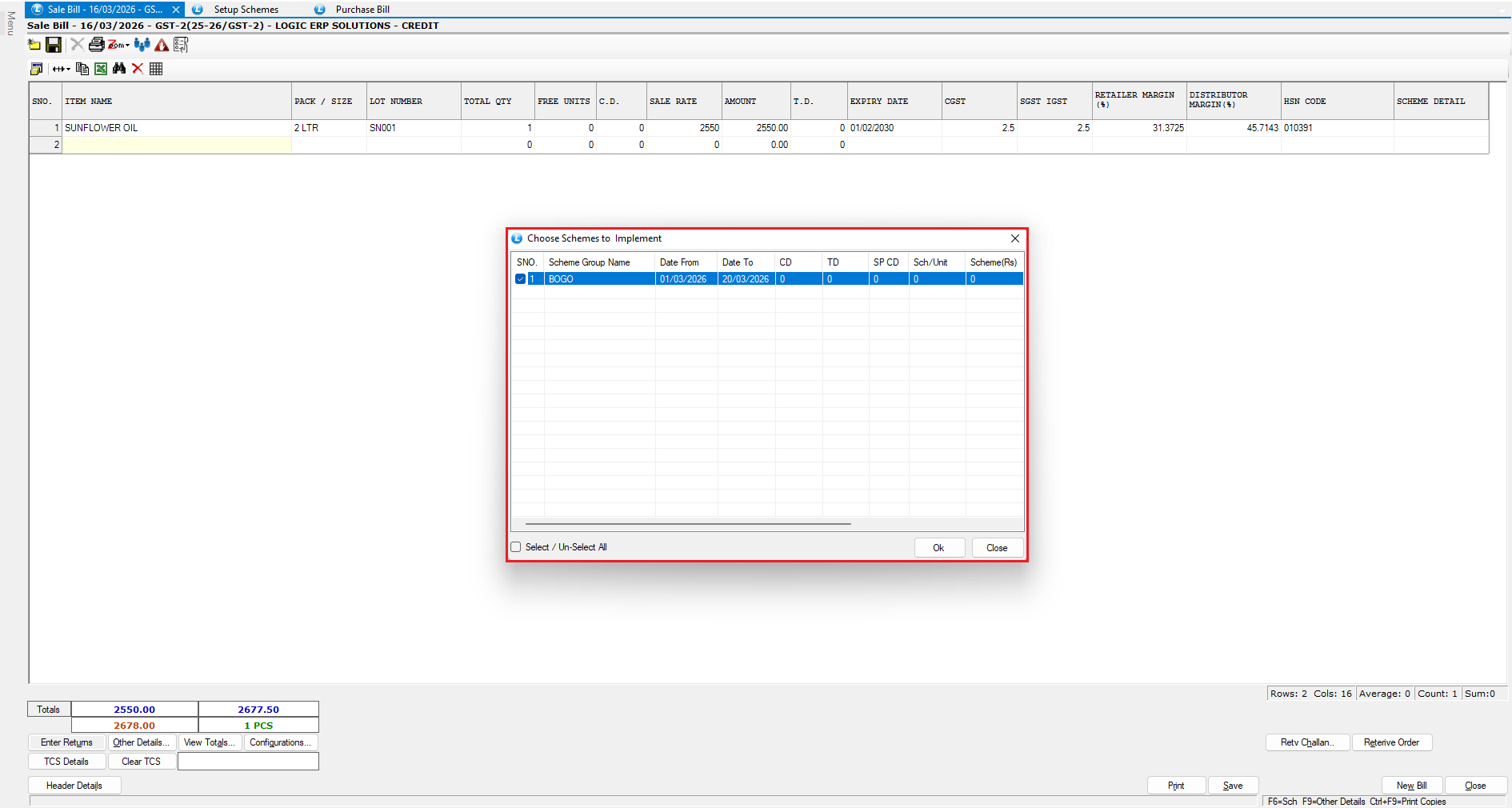
* A **Scheme Prompt** will appear.
* Select the scheme and click **OK**.
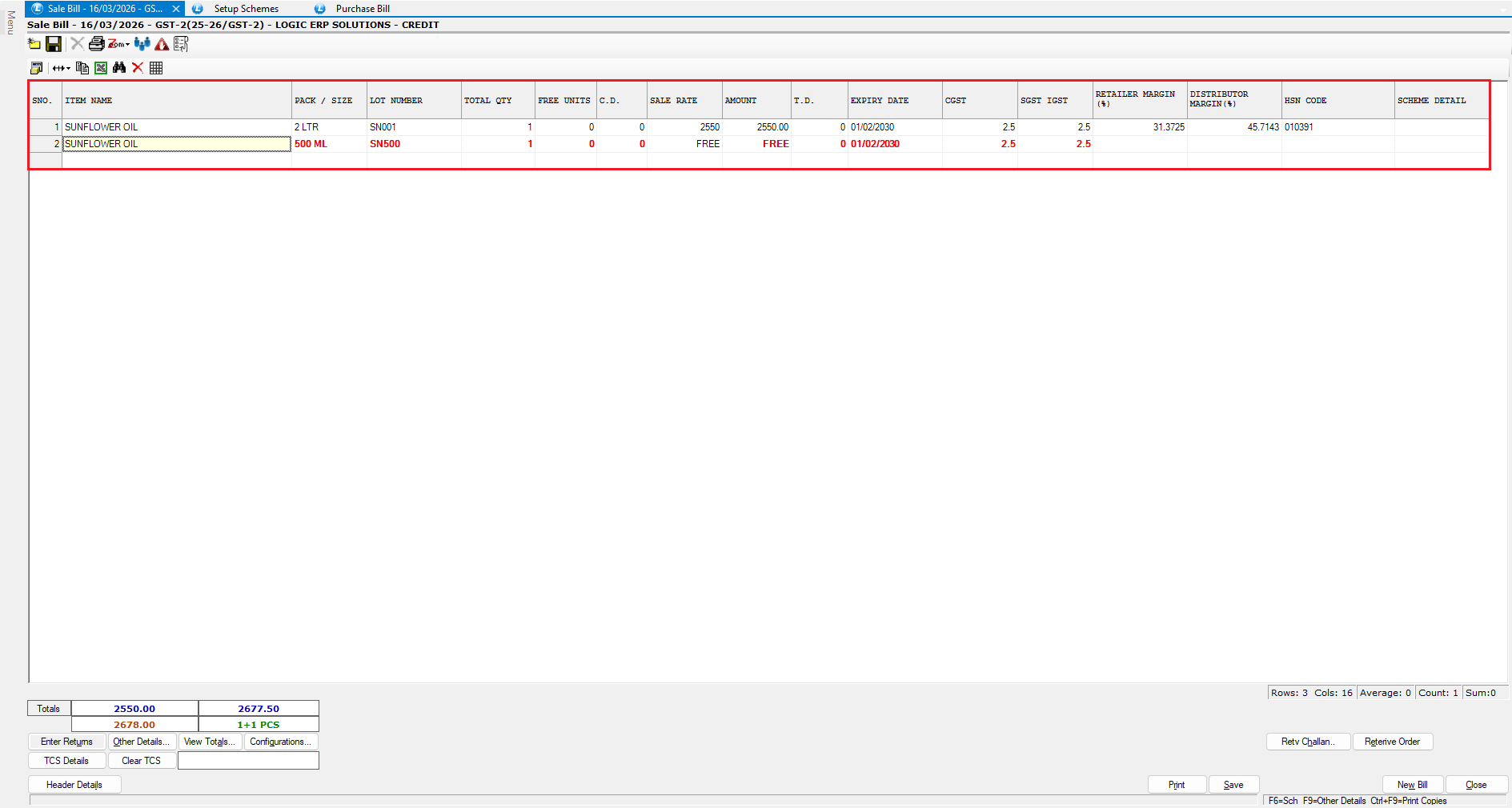
**Result: Sunflower Oil – 500 ml** is automatically added as a **free item**.
***
### Key Benefits of Automatic Schemes
* Automates promotional offers
* Reduces manual discount errors
* Improves sales promotion management
* Helps control marketing budgets
* Supports both **discount and free item promotions**
**Your scheme setup is now complete and ready to boost sales!**
***
---
# Agent Instructions
This documentation is published with GitBook. GitBook is the documentation platform designed so that both humans and AI agents can read, navigate, and reason over technical content effectively. Learn more at gitbook.com.
## Querying This Documentation
If you need additional information that is not directly available in this page, you can query the documentation dynamically by asking a question.
Perform an HTTP GET request on the current page URL with the `ask` query parameter, and the optional `goal` query parameter:
```
GET https://kb.logicerp.com/logic-erp-learning-hub-tutorials-and-best-practices/setups/configurations/setup-schemes.md?ask=&goal=
```
`ask` is the immediate question: it should be specific, self-contained, and written in natural language.
`goal` is optional and describes the broader end goal you are ultimately trying to accomplish on behalf of the user. GitBook uses it to tailor the answer towards what is most useful for that goal.
The response will contain a direct answer to the question and relevant excerpts and sources from the documentation.
Use this mechanism when the answer is not explicitly present in the current page, you need clarification or additional context, or you want to retrieve related documentation sections.