> For the complete documentation index, see [llms.txt](https://kb.logicerp.com/llms.txt). Markdown versions of documentation pages are available by appending `.md` to page URLs; this page is available as [Markdown](https://kb.logicerp.com/logic-erp-learning-hub-tutorials-and-best-practices/setups/configurations/sale-voucher-configuration/other-settings-1/other-settings/defaults-1/bill-print-mode.md).
# Bill Print Mode
**YouTube:** [How to Enable Sending Sale Bill Print as E- Bill through SMS or WhatsApp in Logic ERP?](https://www.youtube.com/watch?v=Kla9IItt7oA)
## How to Enable Sending Sale Bill Print as E- Bill through SMS or WhatsApp in Logic ERP?
In this tutorial, we’ll explore the **Bill Print Mode** settings in Logic ERP and understand how each parameter affects the printing or sending of GST E-Bills after a transaction is saved.
***
### **Accessing Bill Print Mode Settings**
* Go to **Sale Voucher Configuration**.
* Select the relevant **Billing Series**.
* Under **Other Settings 1** click on **Other Settings**.
* Locate the option labeled as:
> **Bill Print Mode**
Note: This setting defines how the system will handle GST E-Bill printing or sending after saving a transaction.
***
### **Activating and Configuring Aap Tak App**
Before selecting a default print mode, ensure the **Aap Tak App** is activated and configured:
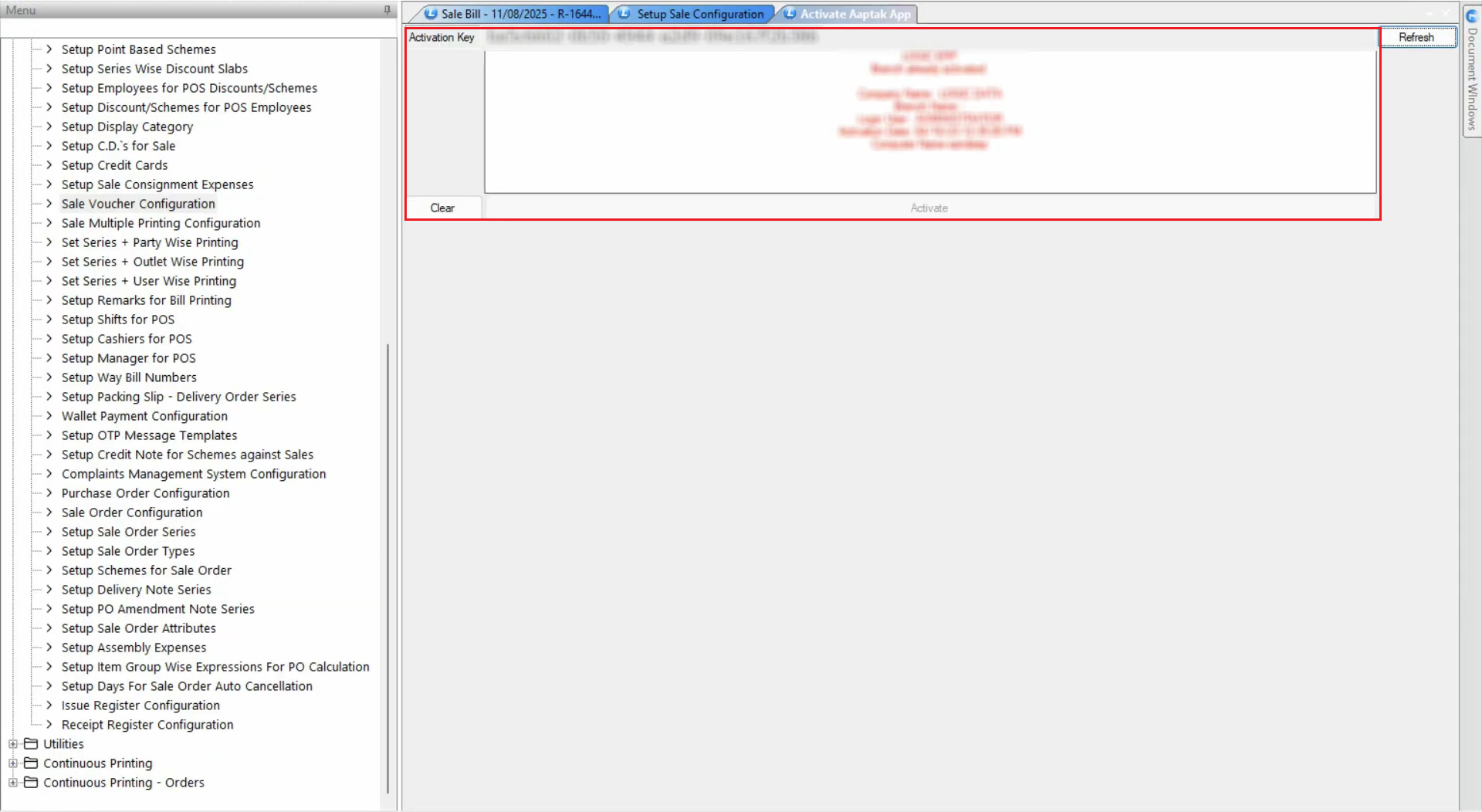
* In the **Billing Module**, open **Aap Tak App** → **Activate Aap Tak App**.
* Enter your **Activation Key**.
* Go to **Aap Tak App Configuration** and set preferences as per your requirements.
* Click **Aap Tak Key Bill** to open the **E-Bill Configuration** screen.
* Here, define the billing and E-Bill preferences for each bill series.
***
### **Linking E-Bill Settings with Bill Print Mode**
For example, in the **Retail Series**:
* Select the **Sale Bill Printing Type** and **Sale Bill Print Configuration**.
* In **Bill Print Mode**, choose the second parameter:
> **Prompt Customer for E-Bill**
* Save the data.
When you return to **Sale Voucher Configuration**, you’ll see that the selected mode is now applied by default.
***
### **Understanding Each Bill Print Mode Parameter**
#### **1.) Default**
* Uses the system’s standard printing process.
* Directly prints a paper bill according to the existing settings.
* No E-Bill prompt is displayed.
#### **2.) Prompt Customer for E-Bill**
* After saving a bill, the system asks:
> *Do you want to send the invoice to the customer?*
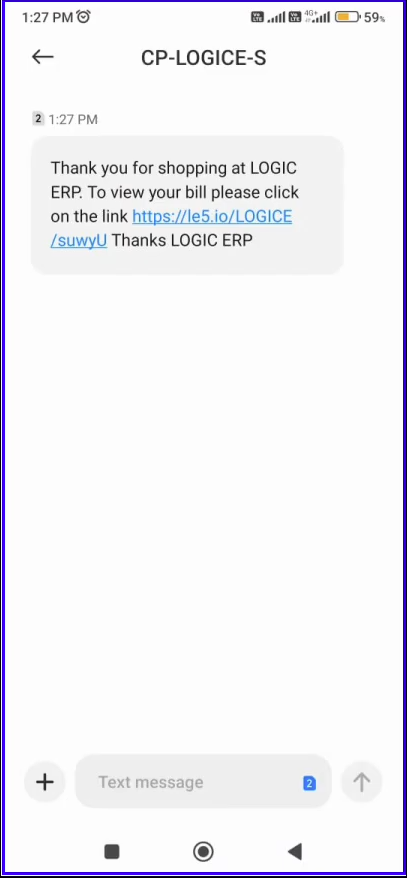
* If **Yes** → E-Bill is sent via SMS/WhatsApp to the registered mobile number.
* If **No** → A paper bill is printed.
* **Example – Prompt Customer for E-Bill**
* Enter customer details in the **Retail Billing Window**.
* Complete the transaction and save the bill.
* A confirmation message appears:
> *Do you want to send the invoice to the customer?*
* Select **Yes** → E-Bill is sent to the customer’s registered mobile number.
* The customer can click the provided link to view the invoice anytime.
* Select **No** → Paper bill is printed.
#### **E-Bill Only**
* Automatically sends the E-Bill via SMS/WhatsApp upon saving the bill.
* No paper copy is printed.
#### **E-Bill + Print**
* Sends the E-Bill via SMS/WhatsApp and simultaneously prints a paper bill.
#### **Print Only If E-Bill Failed**
* If the E-Bill cannot be sent (e.g., due to an invalid phone number), a paper bill is printed automatically.
***
### **Key Benefit:**
The **Bill Print Mode** option provides flexibility to manage E-Bill delivery, reduce paper usage, and ensure quick invoice sharing with customers.
***
---
# Agent Instructions
This documentation is published with GitBook. GitBook is the documentation platform designed so that both humans and AI agents can read, navigate, and reason over technical content effectively. Learn more at gitbook.com.
## Querying This Documentation
If you need additional information that is not directly available in this page, you can query the documentation dynamically by asking a question.
Perform an HTTP GET request on the current page URL with the `ask` query parameter, and the optional `goal` query parameter:
```
GET https://kb.logicerp.com/logic-erp-learning-hub-tutorials-and-best-practices/setups/configurations/sale-voucher-configuration/other-settings-1/other-settings/defaults-1/bill-print-mode.md?ask=&goal=
```
`ask` is the immediate question: it should be specific, self-contained, and written in natural language.
`goal` is optional and describes the broader end goal you are ultimately trying to accomplish on behalf of the user. GitBook uses it to tailor the answer towards what is most useful for that goal.
The response will contain a direct answer to the question and relevant excerpts and sources from the documentation.
Use this mechanism when the answer is not explicitly present in the current page, you need clarification or additional context, or you want to retrieve related documentation sections.