> For the complete documentation index, see [llms.txt](https://kb.logicerp.com/llms.txt). Markdown versions of documentation pages are available by appending `.md` to page URLs; this page is available as [Markdown](https://kb.logicerp.com/logic-erp-learning-hub-tutorials-and-best-practices/setups/configurations/complete-tailor-measurement-and-alteration-process-in-logic-erp.md).
# Complete Tailor Measurement & Alteration Process in Logic ERP
**YouTube:** [Integrated Alteration Module](https://youtu.be/c0OV-N7STgg?si=gpebPyEpwz6qnaLw)
## Integrated Alteration Module
In this tutorial, you will learn how to **set up and manage the Alteration Module** in Logic ERP.\
This feature is especially useful for apparel businesses to handle **tailoring, measurements, and alteration tracking efficiently**.
***
### **Topics Covered in This Tutorial**
**1. Setup Tailor Measurement Attributes**
* Style
* Attribute Groups
* Attributes
* Attribute Values
* Style Attribute Link
**2. Select Item for Alteration Against Sale Bill**
* Define Measurement Values in Sale Bill
**3. Manage Alteration Items**
* Allocate Items to Tailor
* Receive Items from Tailor
**4. Mark Alteration Item as Delivered**
***
### Setup Tailor Measurement Attributes
**Navigate to Setup:**
* Go to **Setup Module**
* Expand **Configuration**
* Open **Setup Tailor Measurement Attributes**
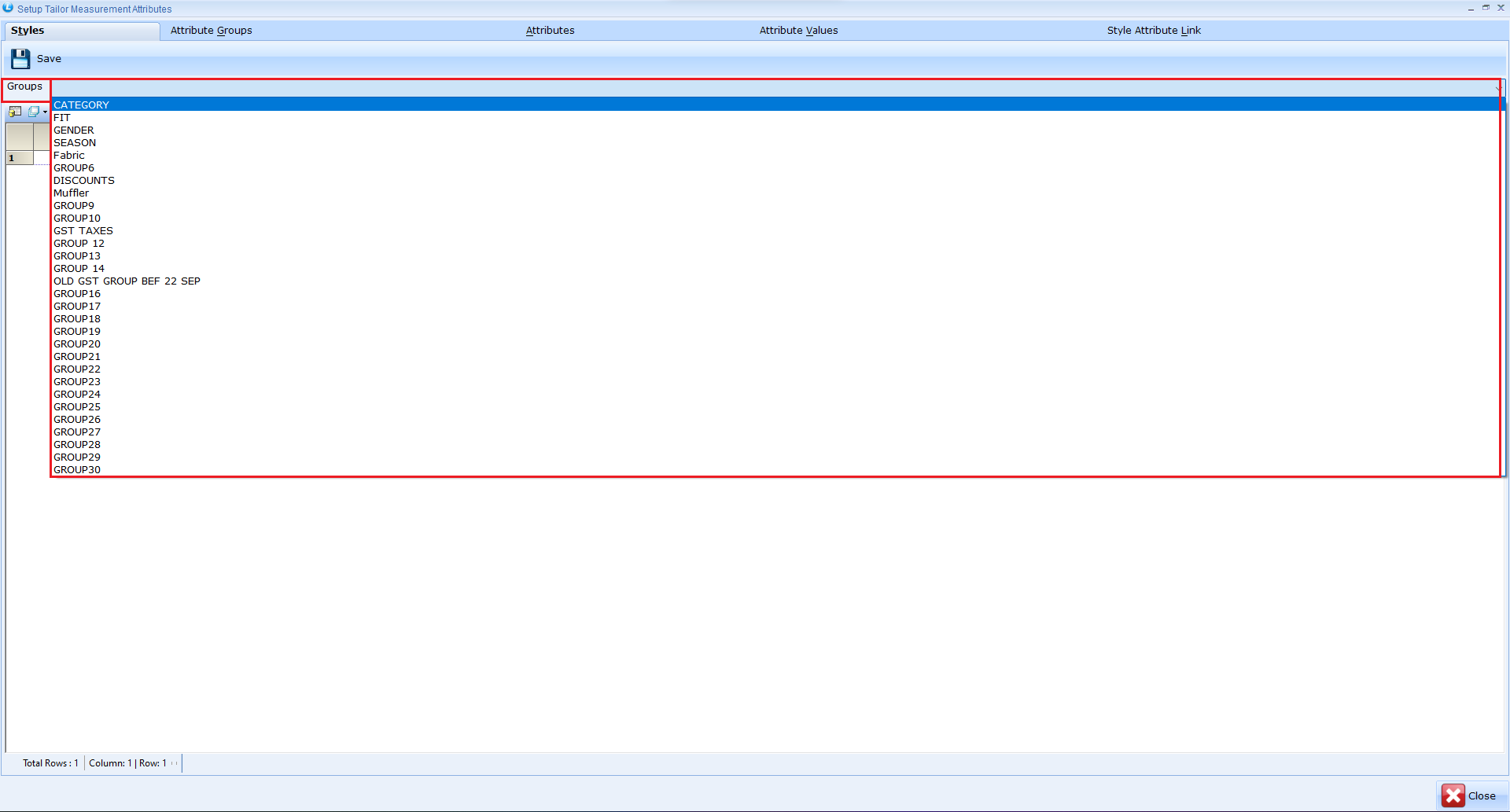
**Define Styles**
* Go to the **Style Tab**
* Select Group
* Enter:
* **Style Name**
* Map it with the **Item Group**
* Click **Save**
Example: Shirt, Pant, Kurta, Jeans Styles.
**Create Attribute Groups**
* Go to **Attribute Group Tab**
* Enter **Attribute Group Name**
* Click **Save**
**Example:** Body Measurements
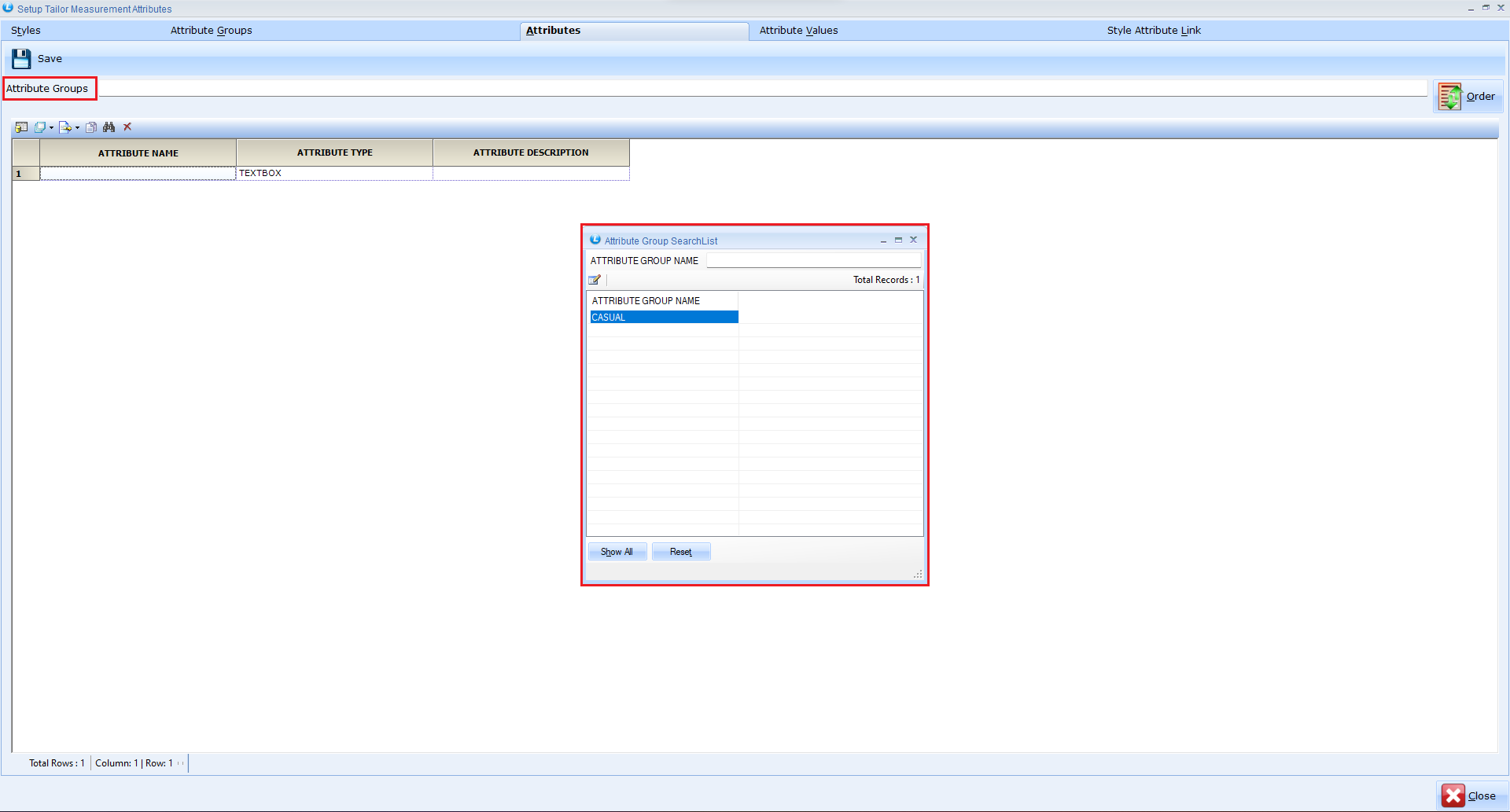
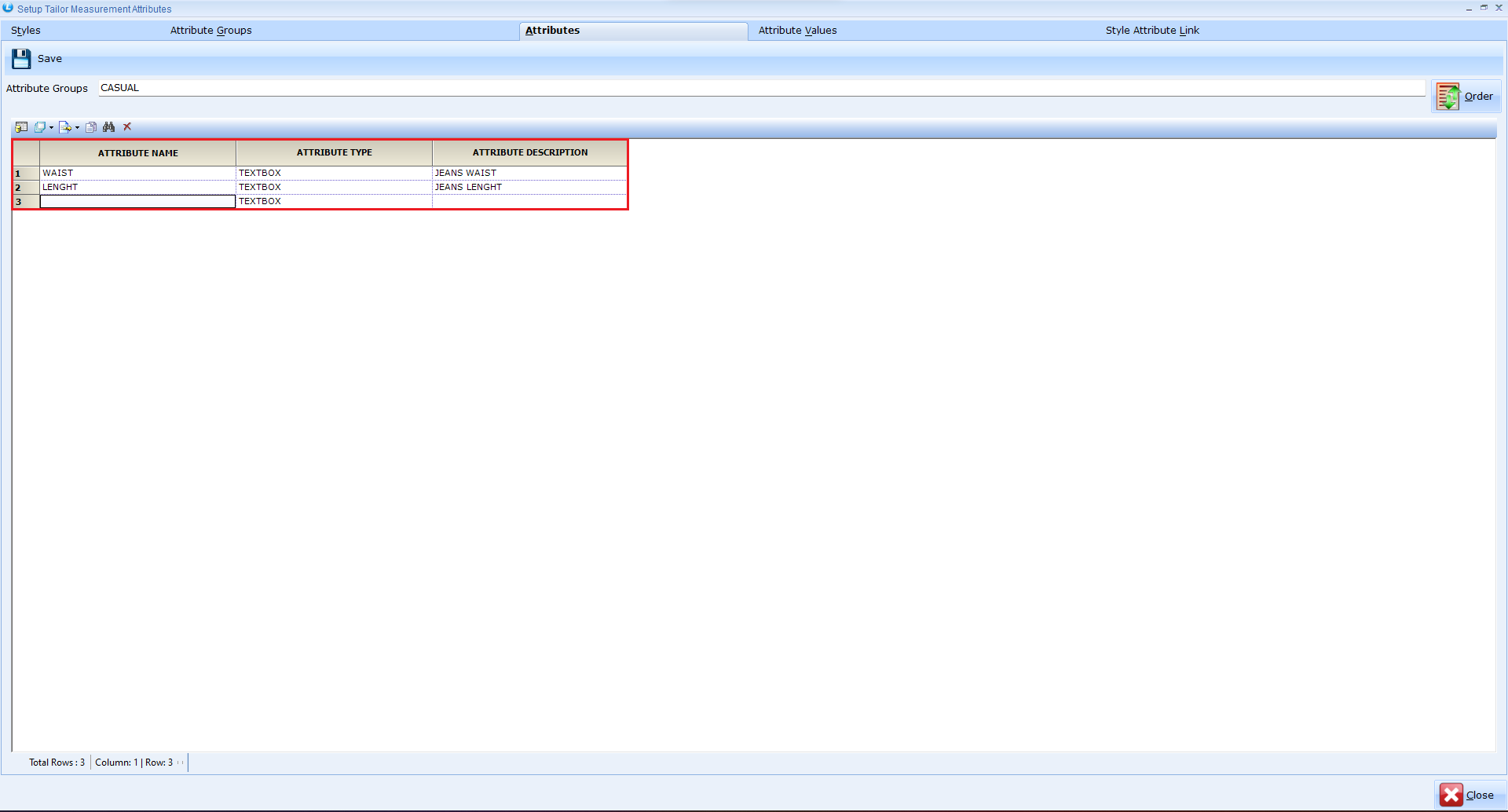
**Define Attributes**
* Move to **Attribute Tab**
* Select **Attribute Group**
* Enter:
* Attribute Name (e.g., Chest, Waist, Length)
* Type
* Description
* Click **Save**
**Link Attributes with Style**
* Go to **Style Attribute Link Tab**
* Select **Style Name**
* Link all required **Attributes**
* Click **Save**
Ensures each style has relevant measurement fields
***
### Enter Alteration Details in Sale Bill
* Navigate to Billing
* Open **"Select Items for Alteration Againsts Sale Bill".**
* Select **Sale Voucher.**
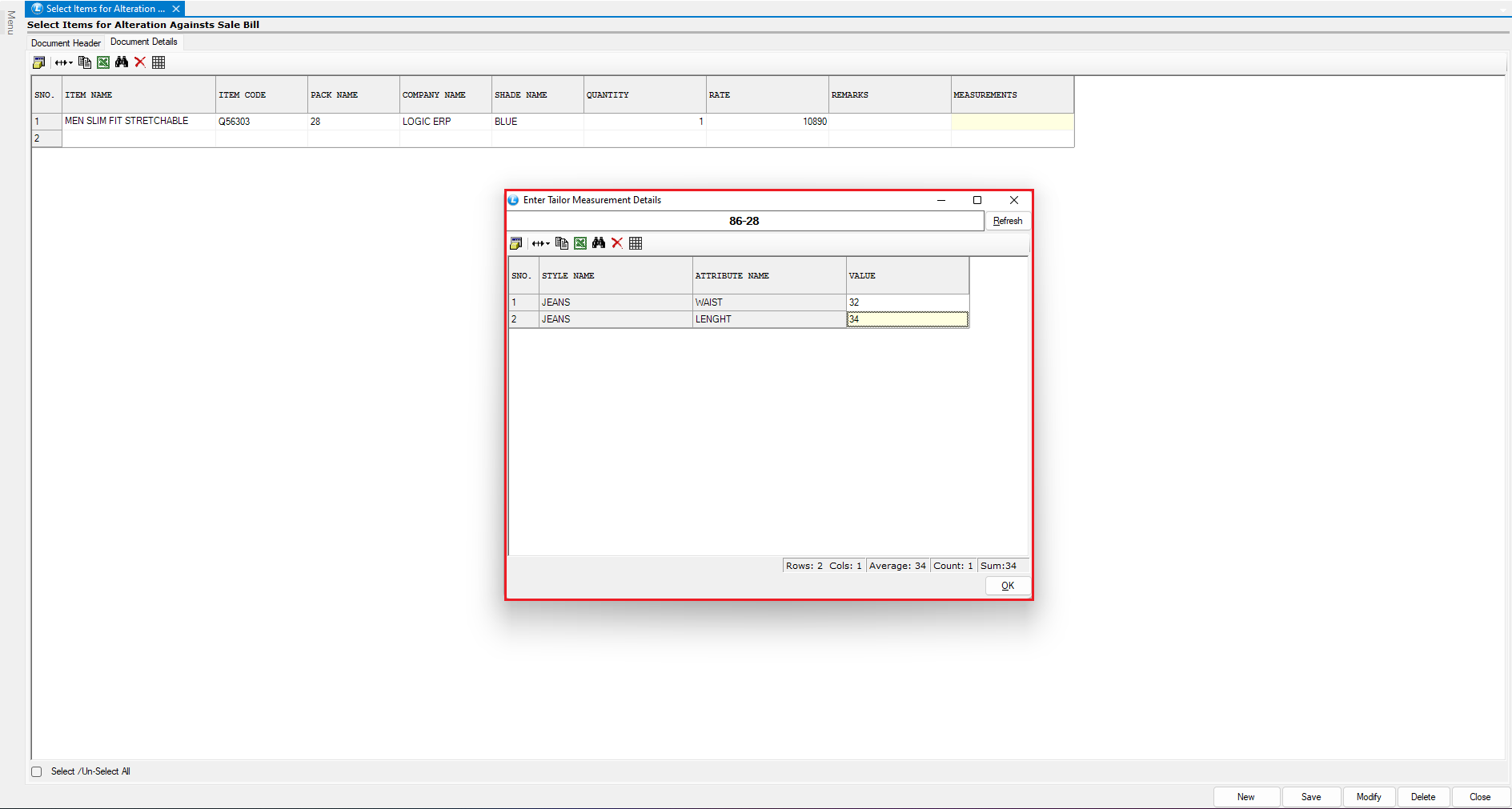
**Add Measurements:**
* Press **Spacebar** in the **Measurement Column**
* Enter values for each attribute
* Click **OK**
**Mark Items for Alteration:**
* Double-click the item row
* A **Green Flag** will appear
* Indicates item is selected for alteration
* Save the document
**Allocate Items to Tailor**
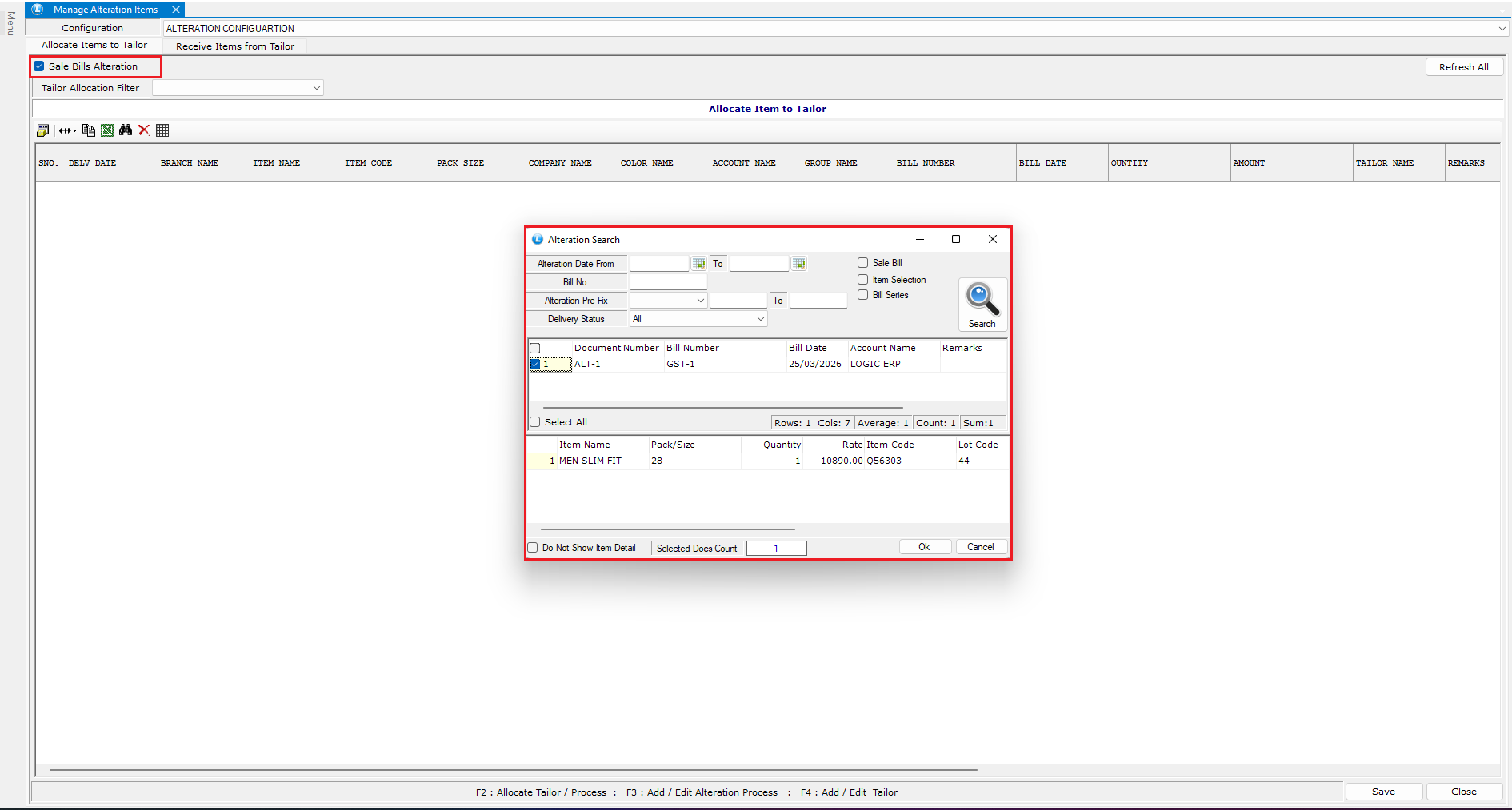
* Navigate to **Manage Alteration Items** (under Billing)
* Select **Sale Bill** for Alteration.
* Once the bill details are retrieved, all the details will be displayed as shown earlier.
**Add Tailor:**
* Press **F4**
* Enter **Tailor Details**
* Save
**Assign Tailor:**
* Press **F2 Key (Allocate Tailor)**
* Select **Tailor Name**
* Click **OK**
* Save the document
***
### Receive Altered Items from Tailor
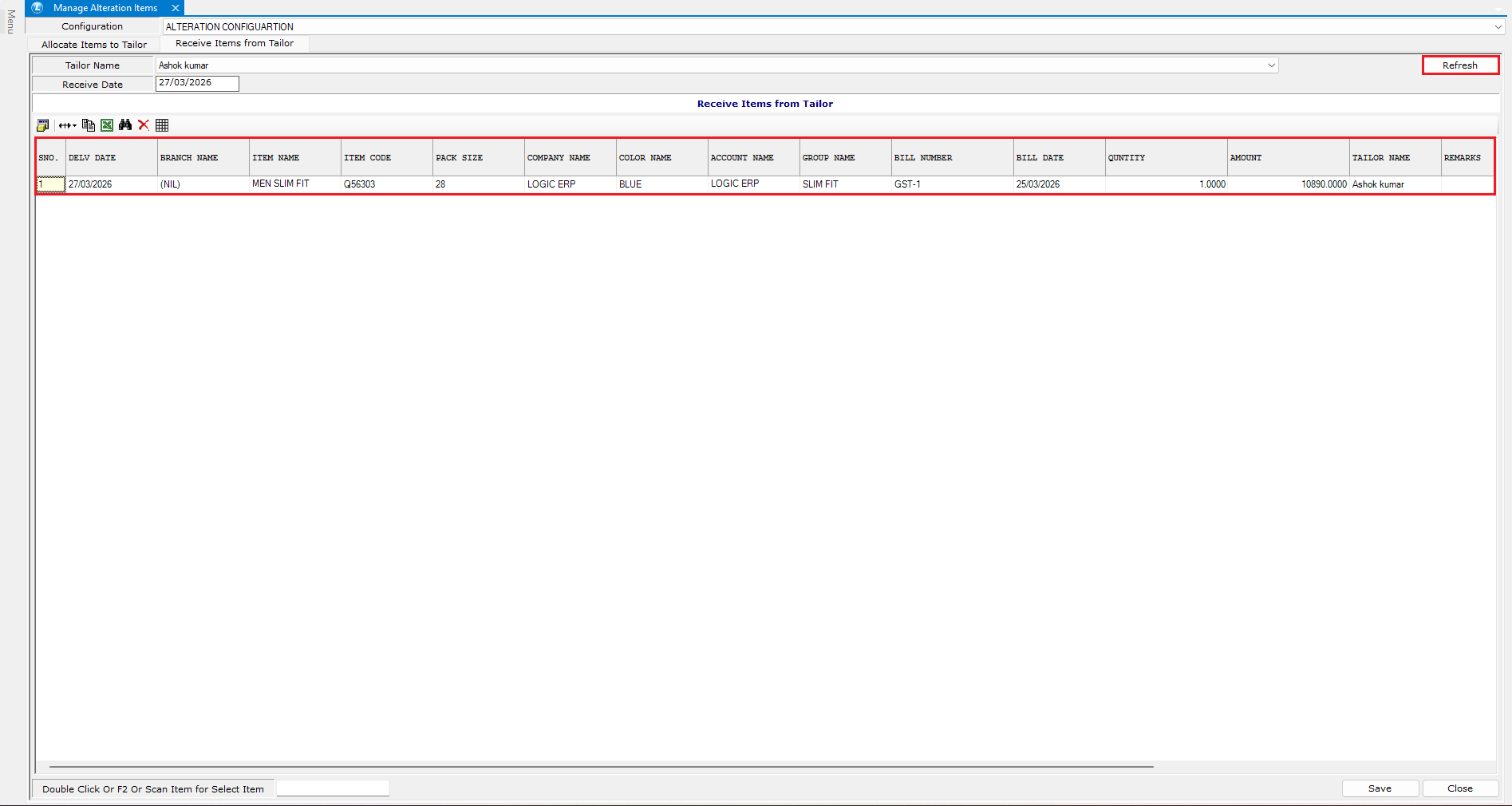
* Go to **Receive Items from Tailor Window**
* On the same screen, click on the next tab.
* Select **Tailor Name**
* Click **Refresh**
**Mark Items as Received:**
* Double-click item row
* **Green Flag** appears
This Confirms items received after alteration.
***
### Mark Items as Delivered
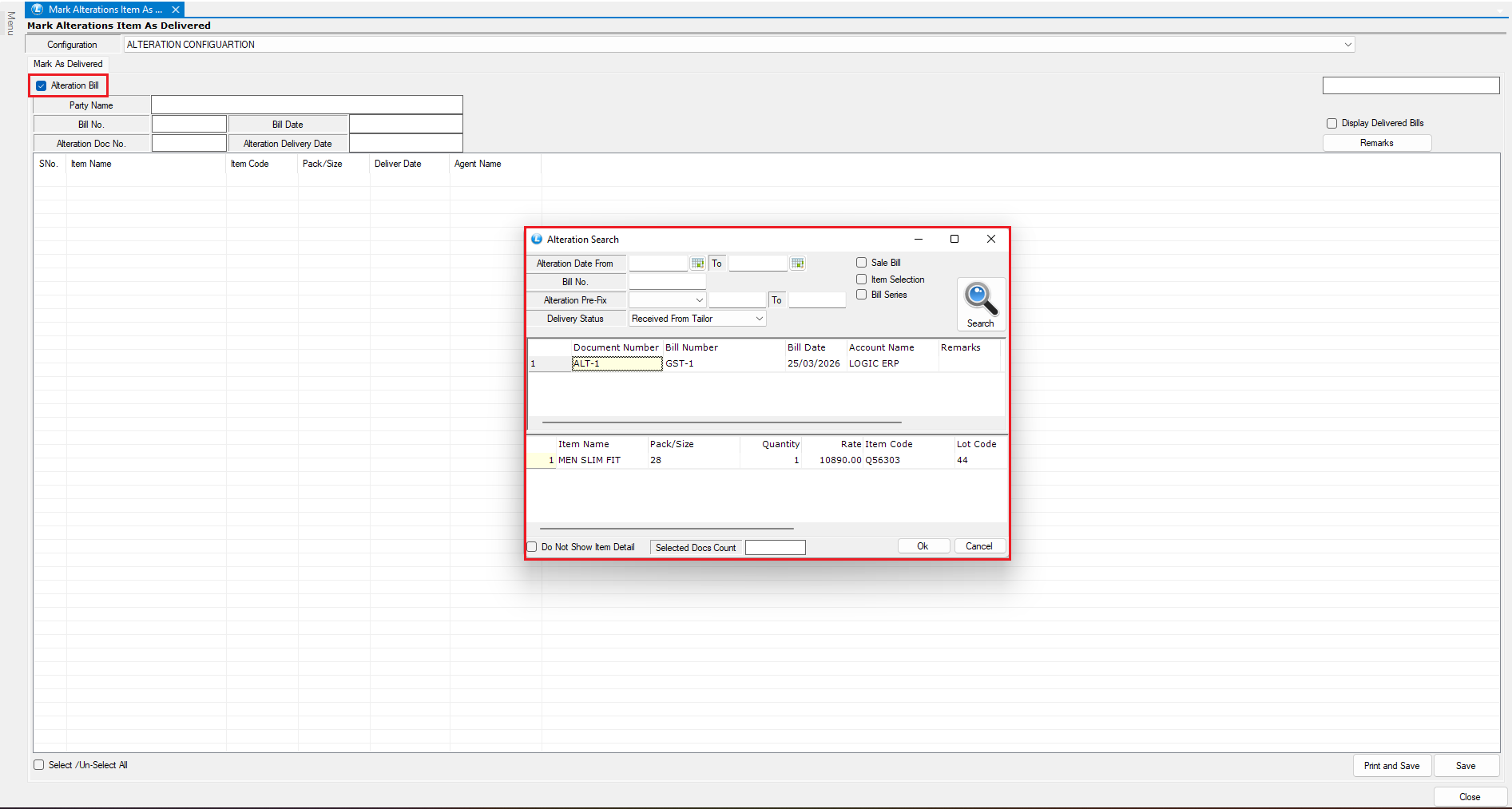
* Navigate to Billing Module
* Open **"Mark Alterations Item As Delivered".**
* Select **"Alteration Bill".**
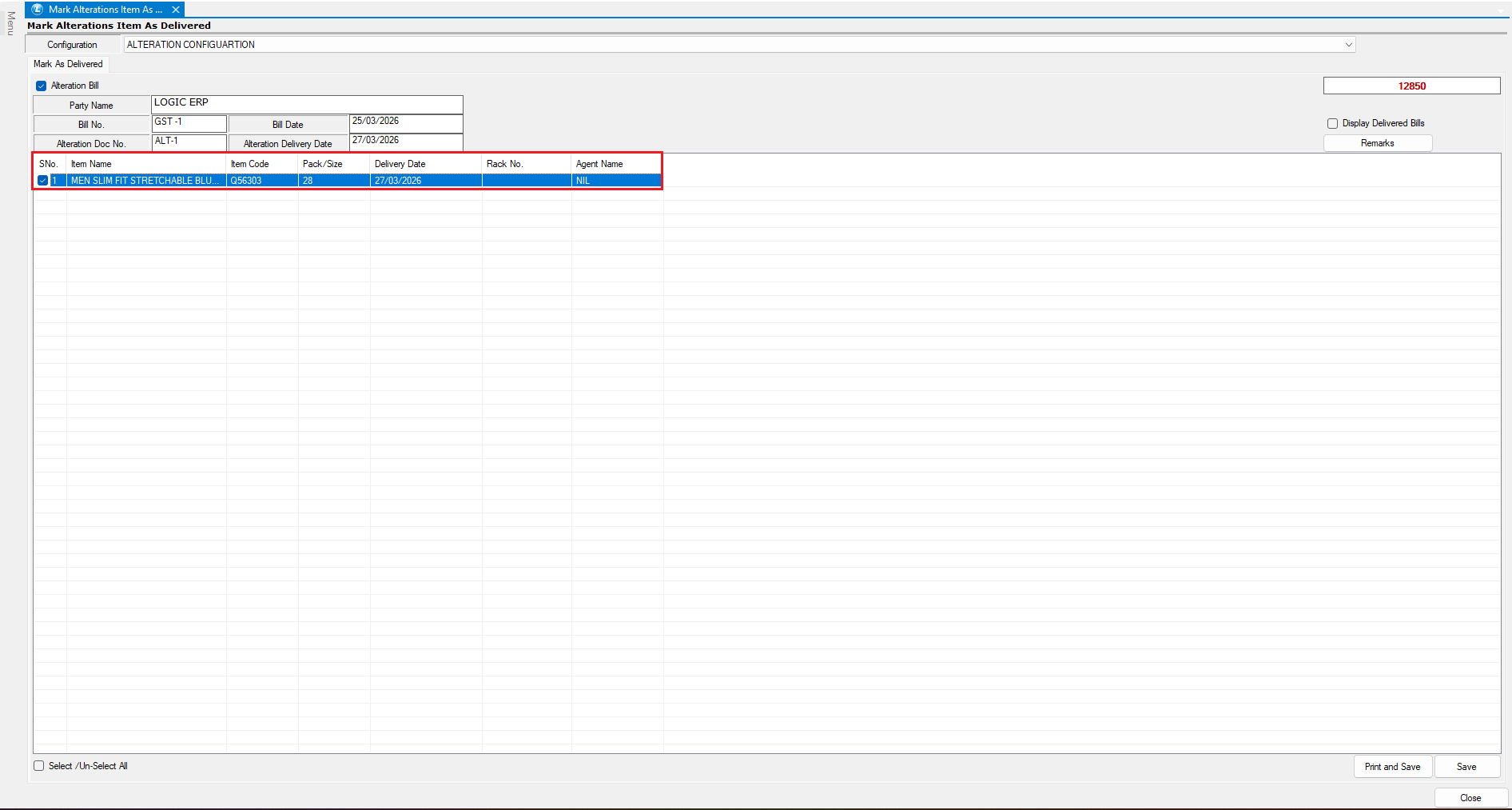
**Deliver Items:**
* Tick the items to be delivered
* Click **Save**
Final step completes the alteration process
***
### Complete Alteration Workflow
1. Setup Styles & Attributes
2. Capture Measurements in Sale
3. Mark Items for Alteration
4. Assign to Tailor
5. Receive Altered Items
6. Deliver to Customer
***
### Key Benefits of Alteration Module
* Track tailoring and alterations easily
* Store customer measurement details
* Assign and manage multiple tailors
* Monitor alteration status in real-time
* Improve customer satisfaction
***
### Final Outcome
You have successfully learned how to:
* Setup **Measurement Attributes**
* Capture **Alteration Details in Billing**
* Manage **Tailor Allocation**
* Track **Alteration Workflow**
* Complete **Delivery Process**
Your system is now fully equipped to handle **end-to-end alteration management in apparel business**.
---
# Agent Instructions
This documentation is published with GitBook. GitBook is the documentation platform designed so that both humans and AI agents can read, navigate, and reason over technical content effectively. Learn more at gitbook.com.
## Querying This Documentation
If you need additional information that is not directly available in this page, you can query the documentation dynamically by asking a question.
Perform an HTTP GET request on the current page URL with the `ask` query parameter, and the optional `goal` query parameter:
```
GET https://kb.logicerp.com/logic-erp-learning-hub-tutorials-and-best-practices/setups/configurations/complete-tailor-measurement-and-alteration-process-in-logic-erp.md?ask=&goal=
```
`ask` is the immediate question: it should be specific, self-contained, and written in natural language.
`goal` is optional and describes the broader end goal you are ultimately trying to accomplish on behalf of the user. GitBook uses it to tailor the answer towards what is most useful for that goal.
The response will contain a direct answer to the question and relevant excerpts and sources from the documentation.
Use this mechanism when the answer is not explicitly present in the current page, you need clarification or additional context, or you want to retrieve related documentation sections.